Introduction
The Risk Assessment Management (RAMs) module enables users to create, manage and complete risk assessments directly within Joblogic, linking them to jobs, sites and customers.
Users can create reusable assessment templates, complete assessments in the office or out in the field, and record responses digitally to support health and safety processes and regulatory compliance.
This user guide explains how to set up and use the RAMs module, including its general functions, configuration through the Marketplace and how to access and manage assessments within the Joblogic web system.
Using RAMs in the Back-office
The RAMs module allows users to manage risk assessments through a structured process. Administrators can create or select existing templates, configure deployment rules and require engineers to acknowledge RAMs documents before starting work.
Note: The RAMs app is a standalone module and does not integrate directly with standard Joblogic mobile forms. However, assessments can be incorporated into job workflows using deployment rules.
Accessing the App and Initial Setup
To get started, navigate to the Marketplace in your Joblogic back-office account and select Explore More to find the RAMs app.
Note: The app's settings are managed through the Marketplace webpage rather than the Settings area within Joblogic Web.
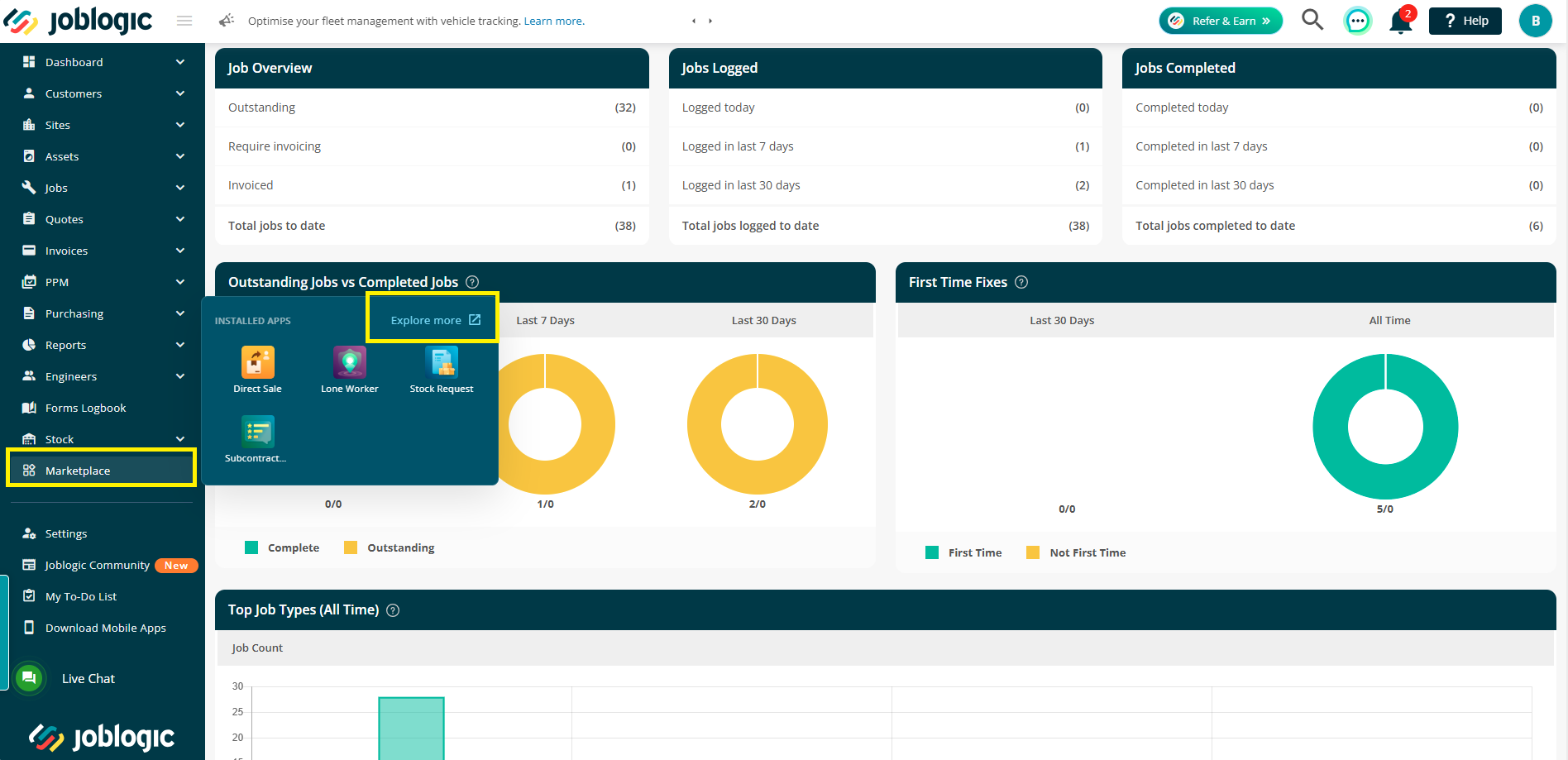
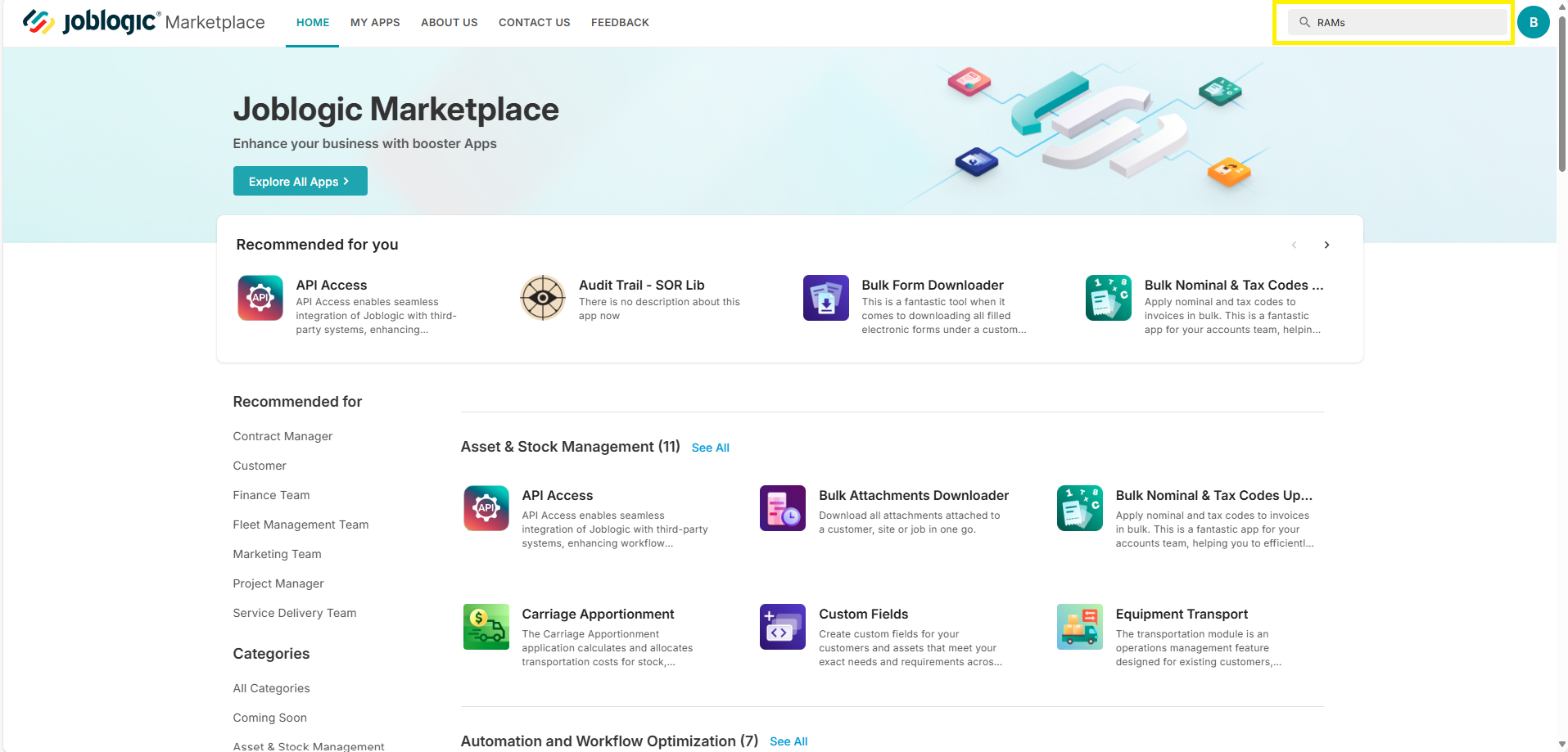
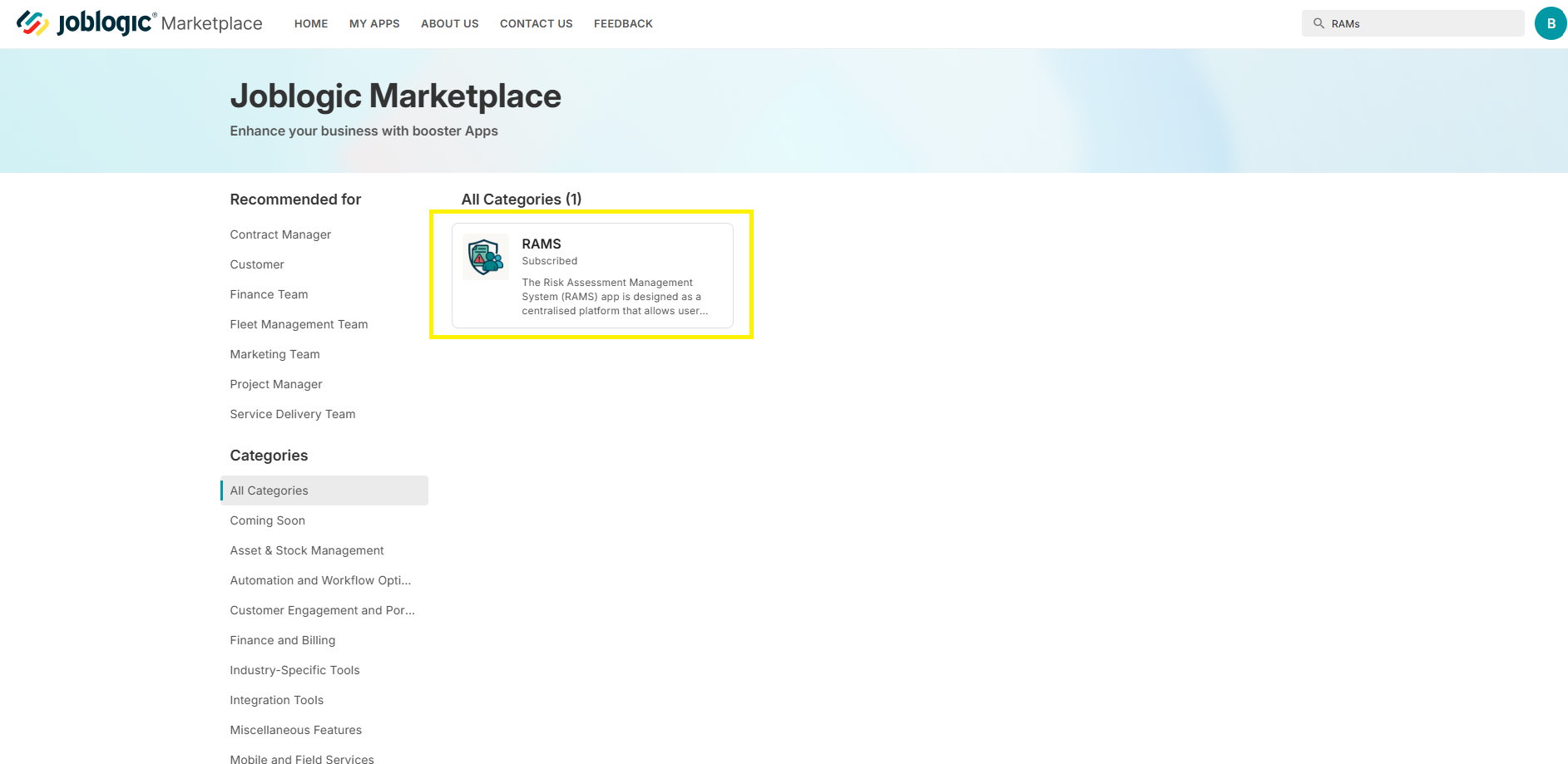
This will direct you to the Joblogic Marketplace area via a new tab. Search for the RAMs app via the search tool and select the app.
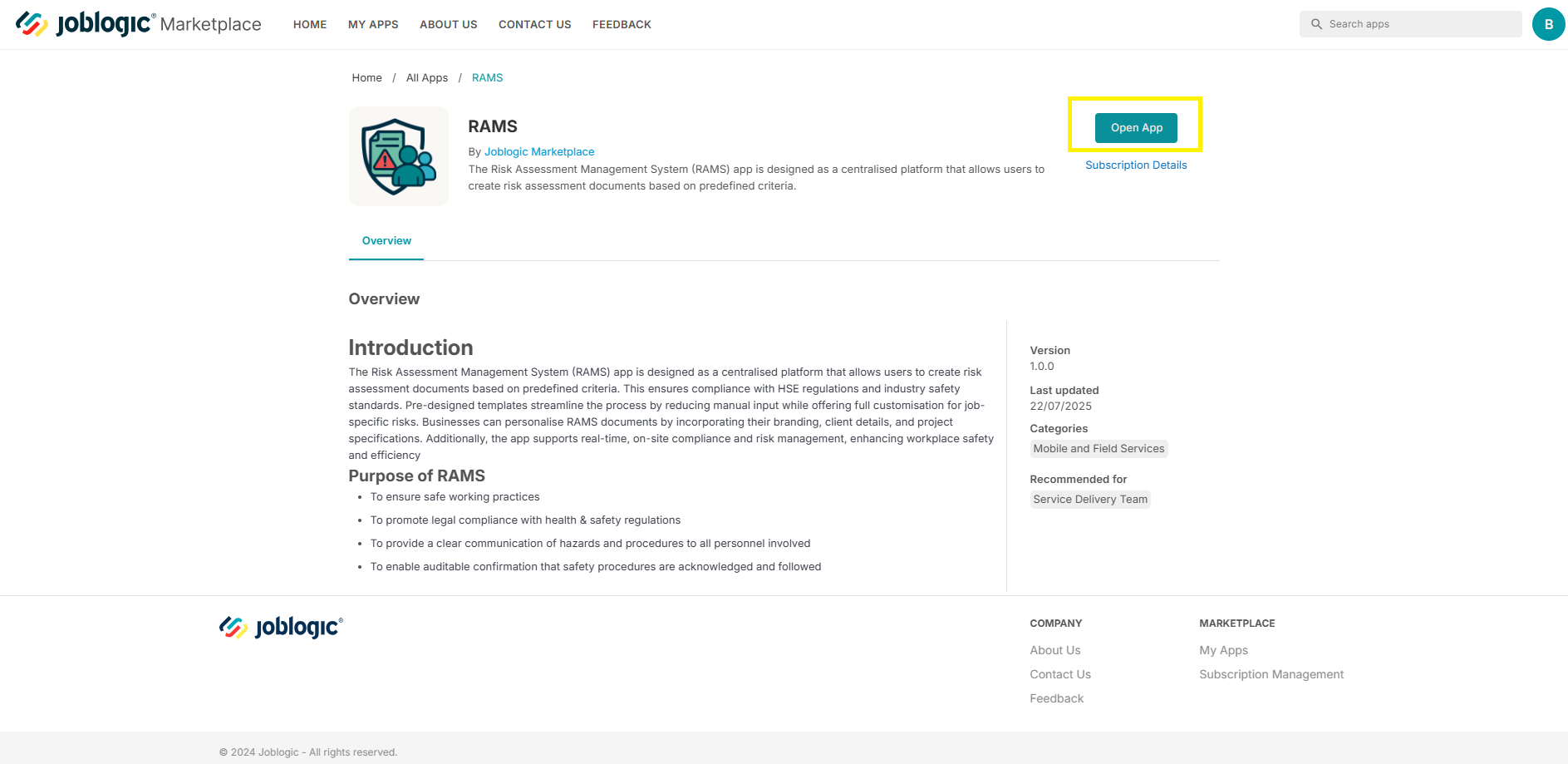
Click the ‘Open App’ button.
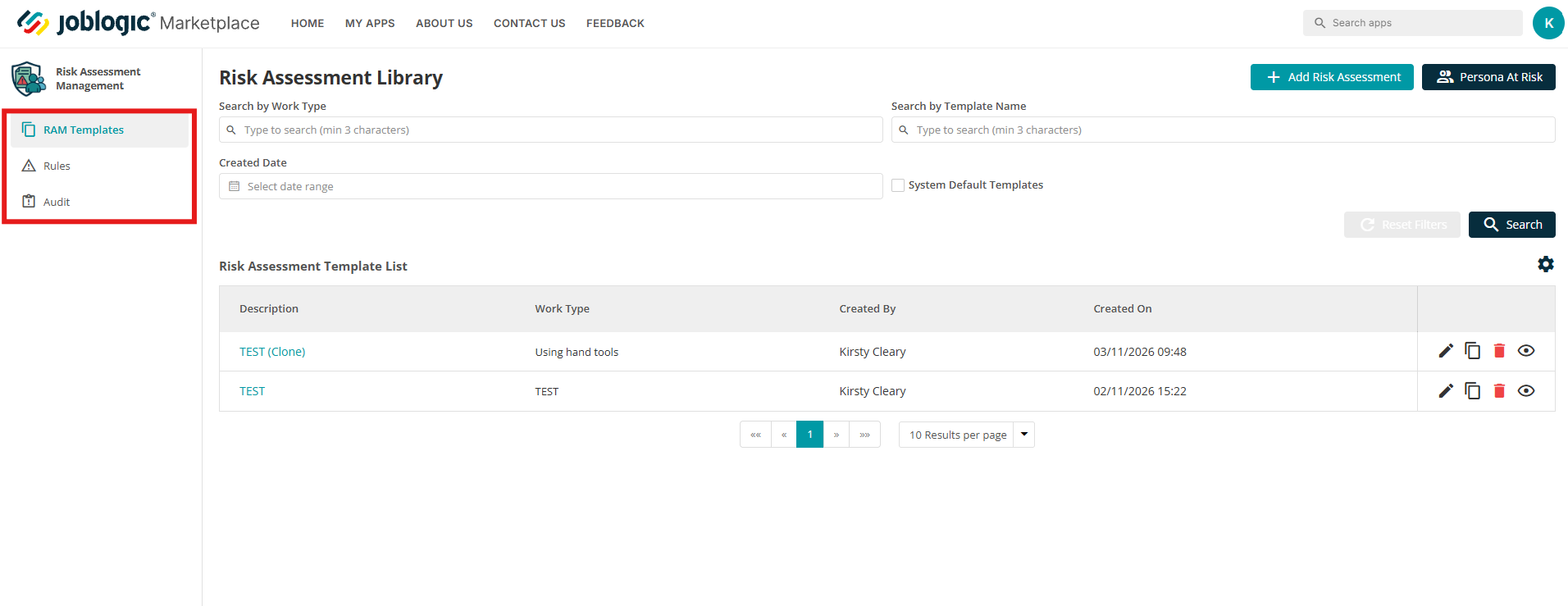
You'll be taken to the Joblogic RAMs area, which is divided into three main sections:
-
RAM Templates – View existing templates and create new ones.
-
Rules – Configure automated deployment of RAMs templates based on specific job conditions, such as job type, customer or asset.
-
Audit – Track who created each RAMs document, which engineers have acknowledged it, when the acknowledgement took place and which job it relates to. This provides a clear audit trail for compliance purposes.
Persona at Risk setup
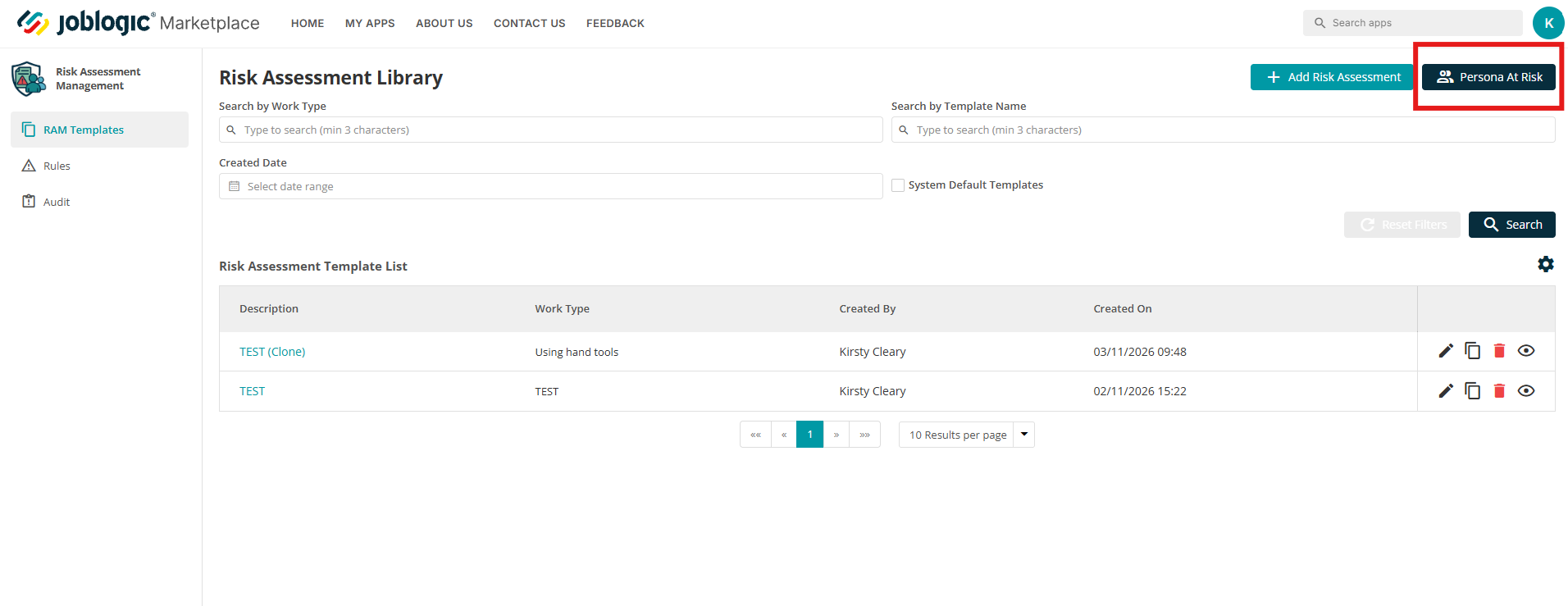
The RAMs app includes a list of default Personas at Risk, which cannot be edited. You can also create your own personas if required.
Navigate to Persona at Risk in the top-right corner of the page.
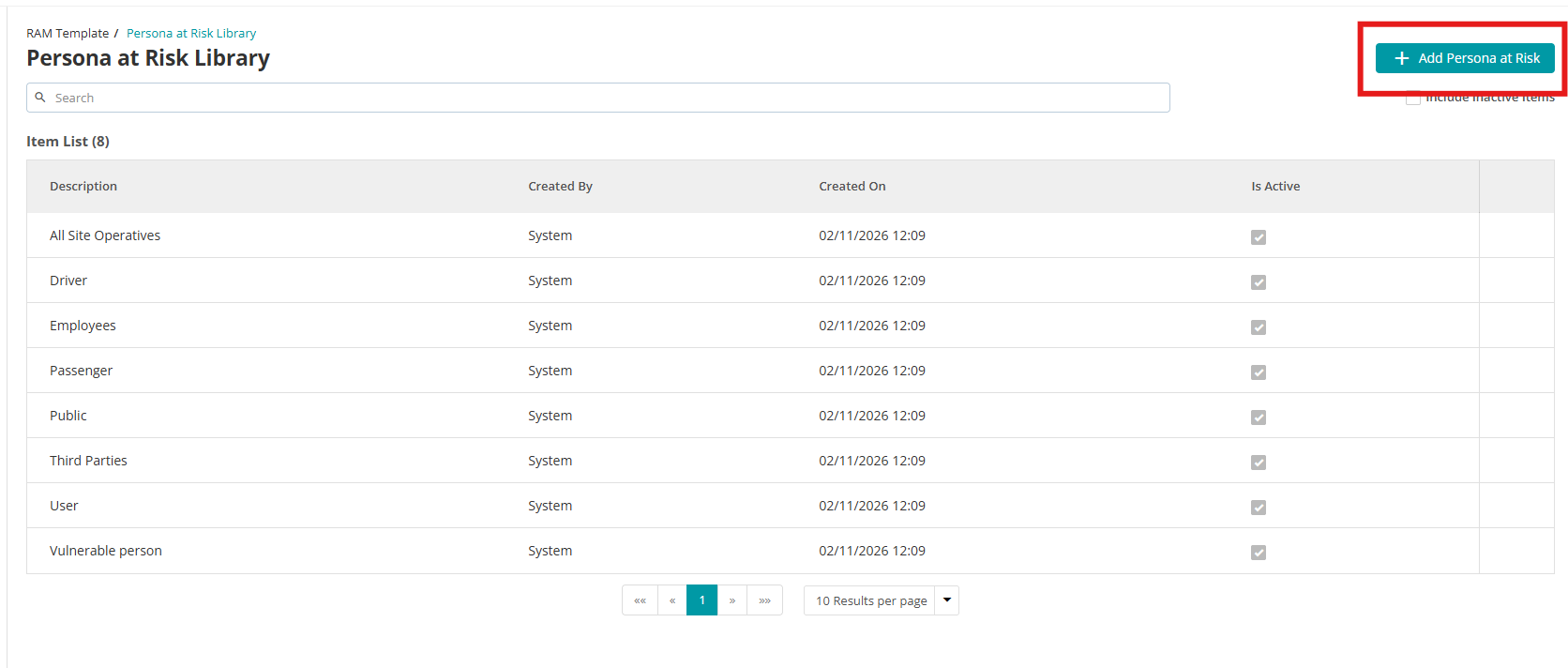
Here you'll see the existing default personas.
Click Add Persona at Risk to create a new entry.
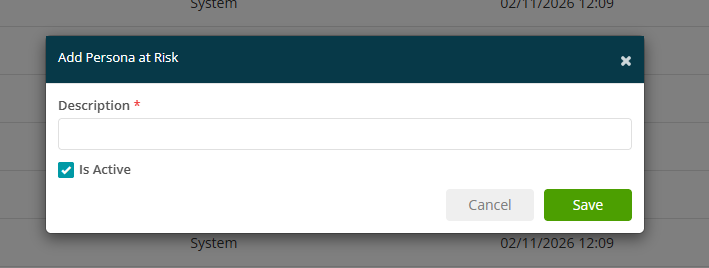
Enter a description for the new persona and click Save.
Your new persona will now be available to select when configuring hazards within your RAMs templates.
RAM Templates
Default Templates
The RAMs app comes preloaded with over 60 read-only industry templates covering a range of job types and risks, such as Working at Height, Hot Works and Confined Spaces.
These are system default templates and cannot be edited or deleted. You can identify them by the star icon.
There are two options for viewing a default template:
- Eye icon – Preview the completed document output.
- Template Structure View – View how the template is set up.
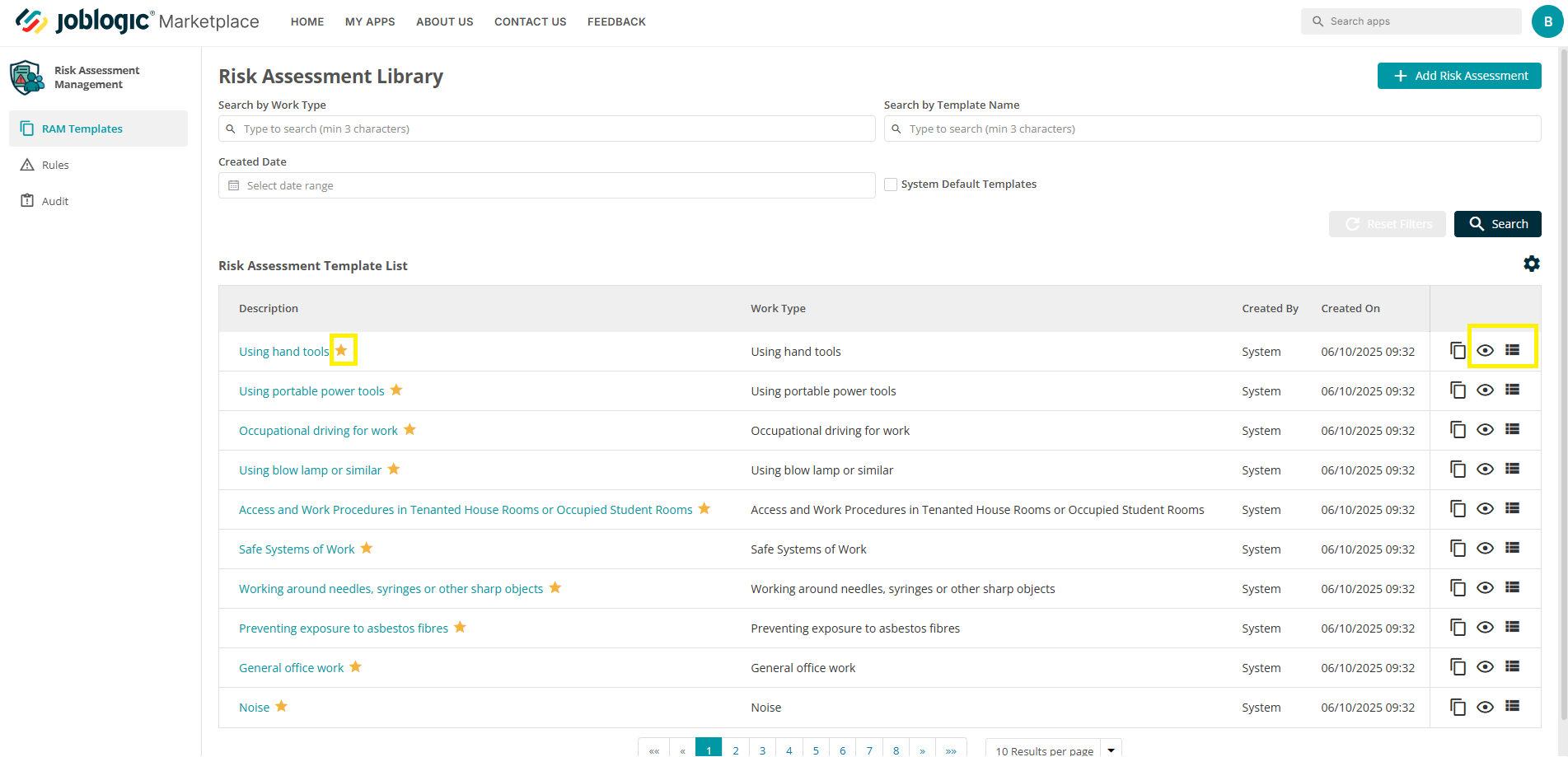
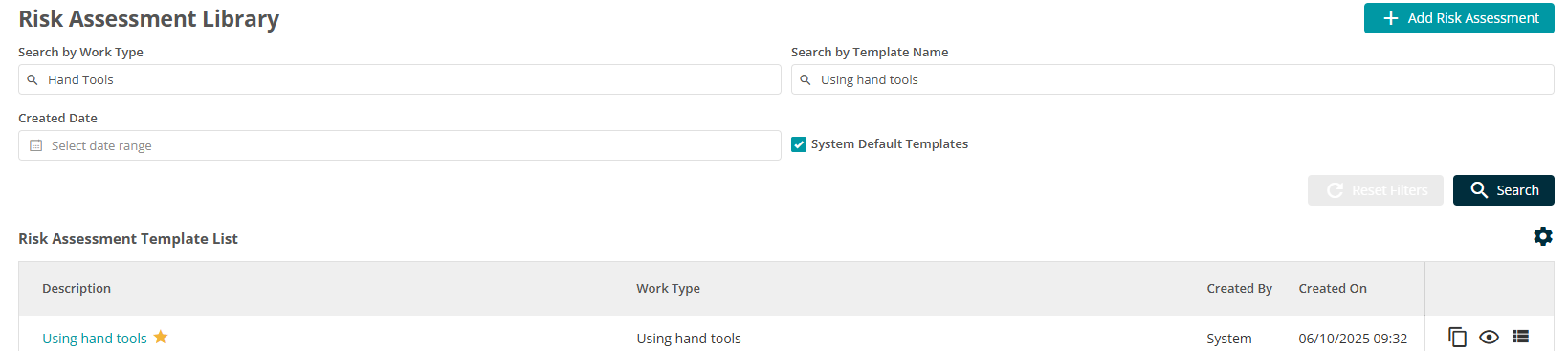
The RAMs templates area includes a filter tool which can be used to locate a certain type(s) of template and/or to only view system default templates (allowing you to review what is available).
Creating your own templates
Users can also create their own templates and duplicate existing ones to use as to starting point then making edits.
To create your own template, select the ‘Add Risk Assessment’ icon. To duplicate an existing template and then make edits, select the template’s applicable ‘clone’ icon.
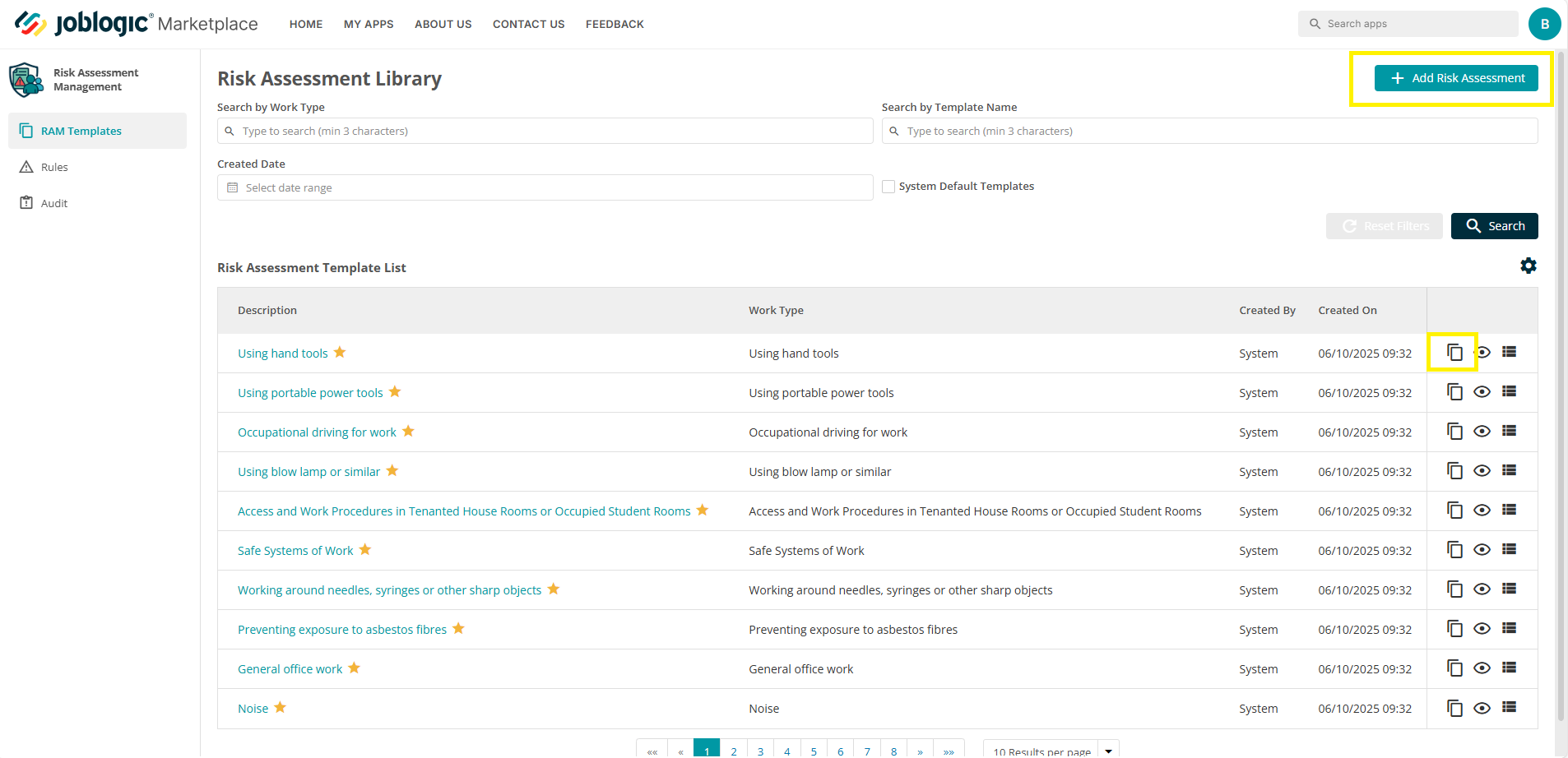
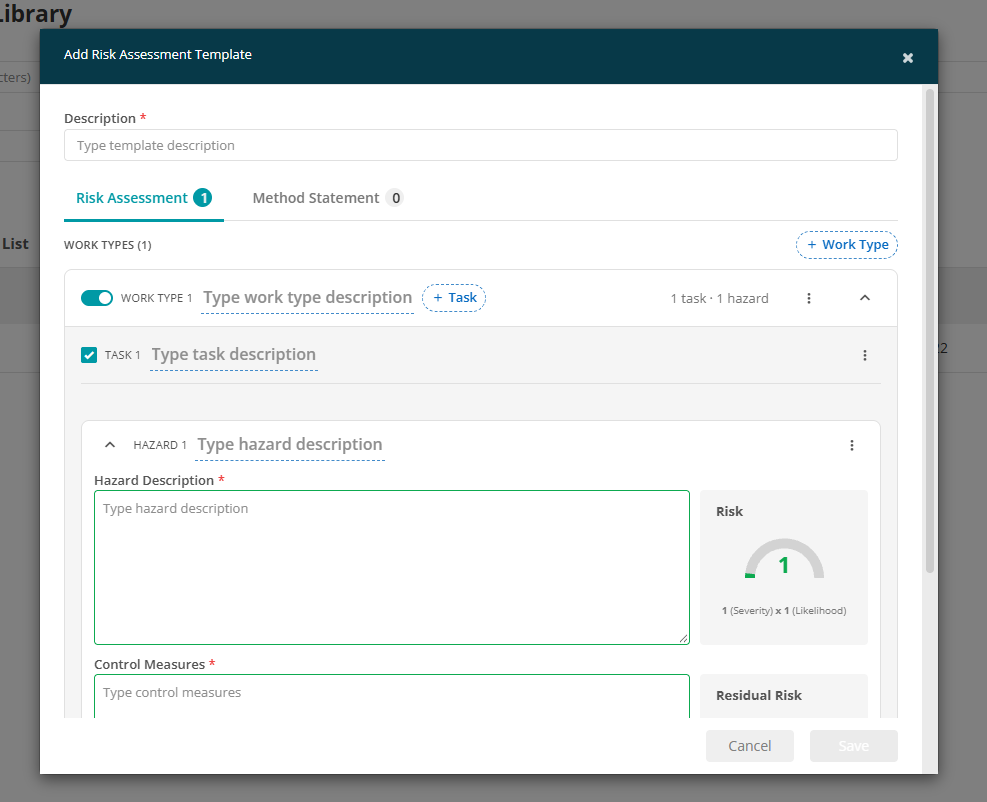
Selecting either will open the RAMs template builder, which will either be blank (if adding a new template) or be prepopulated with the corresponding template’s information (if cloning a template).
New template:
Cloned template:
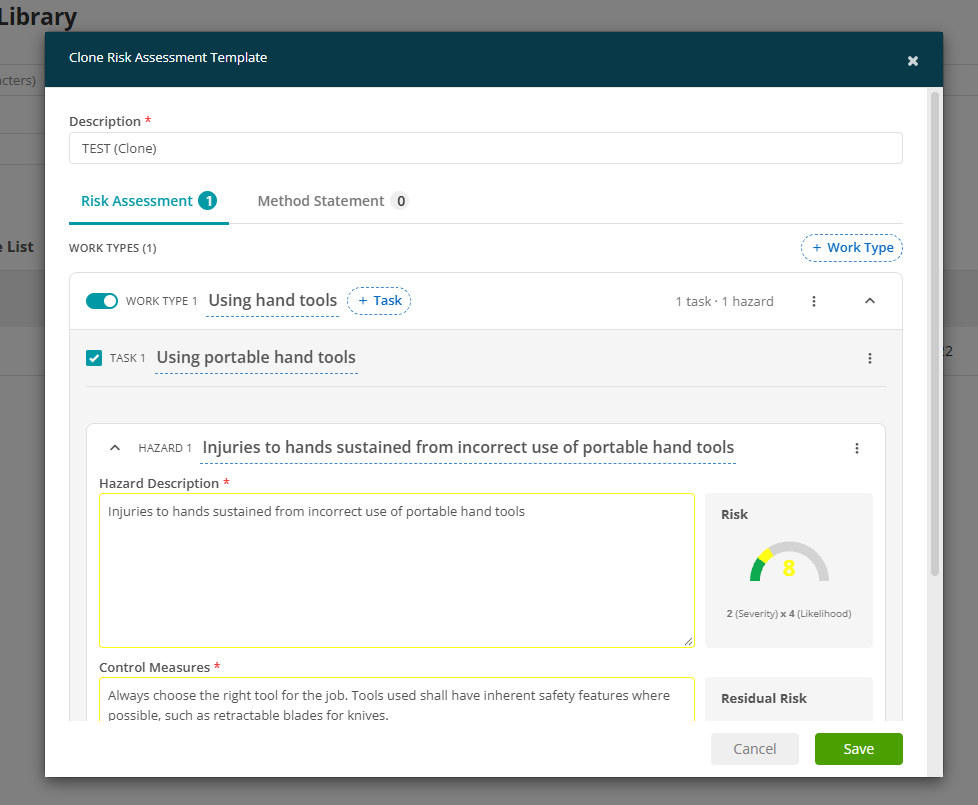
Fill out the details of the template builder (or edit as applicable if creating from a cloned RAMs template). Many fields are free type fields allowing you to fully detail the RAM template. These include:
-
A description of the RAM
-
Work Type(s)
-
Task(s)
-
Hazards
-
Control Measures
You can add multiple work types, tasks and hazards to a single template by using the applicable “Add” button.
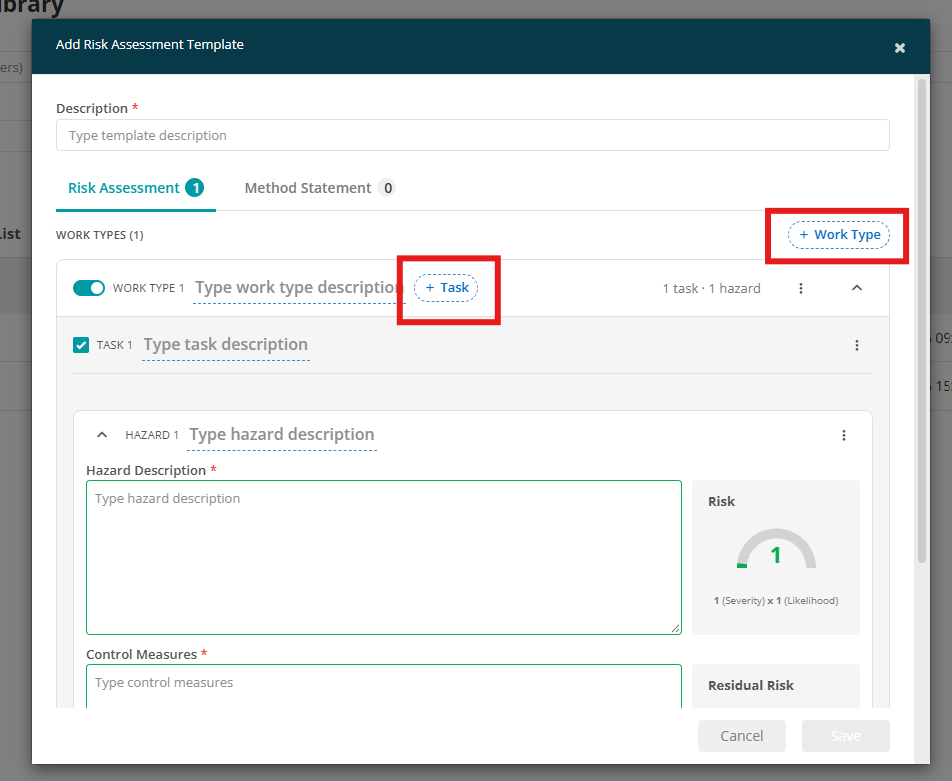
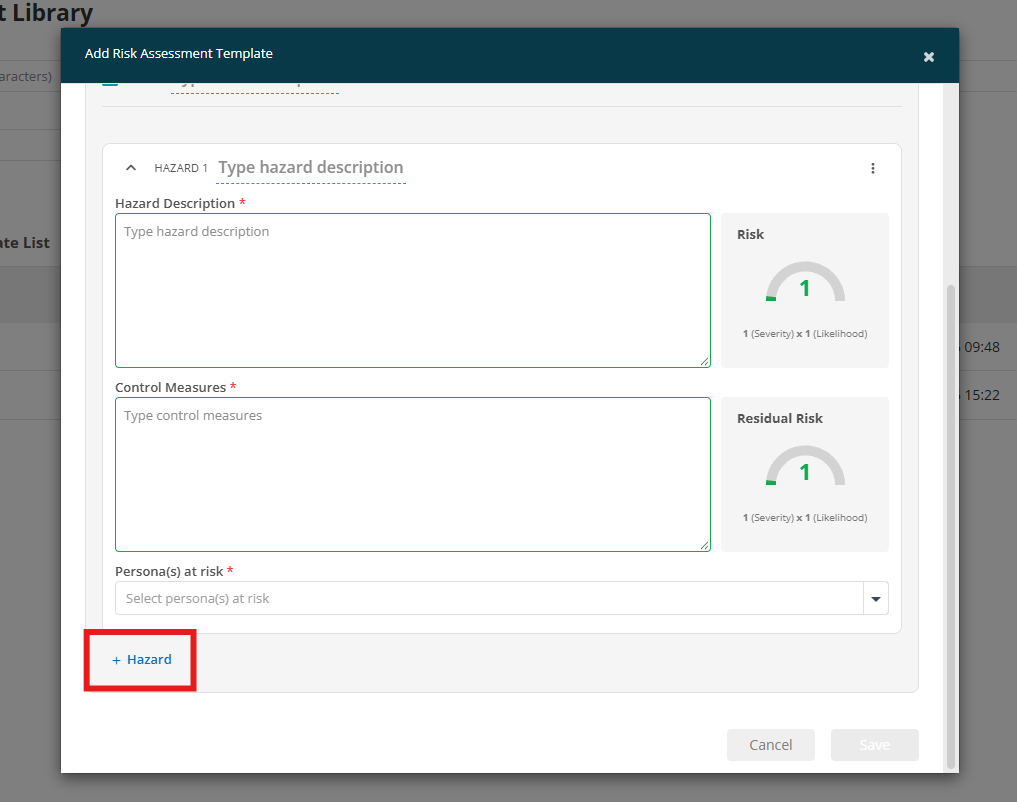
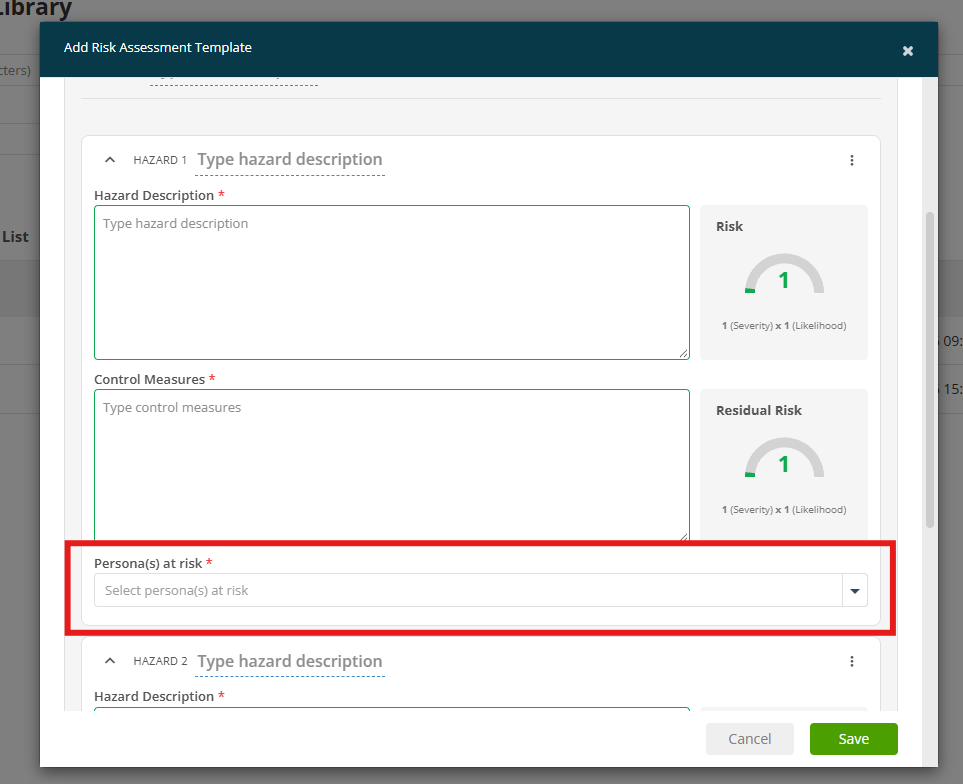
Select the person(s) at risk for each hazard via the dropdown menu.
Risk ratings
A key feature with RAMs is it’s risk and residual risk ratings function. Each hazard added to a RAMS template requires you to assign both a ‘Risk’ and ‘Residual Risk’ rating. These ratings are based on a combination of:
-
Severity – How serious the potential harm could be
-
Likelihood – How probable it is that the harm could occur
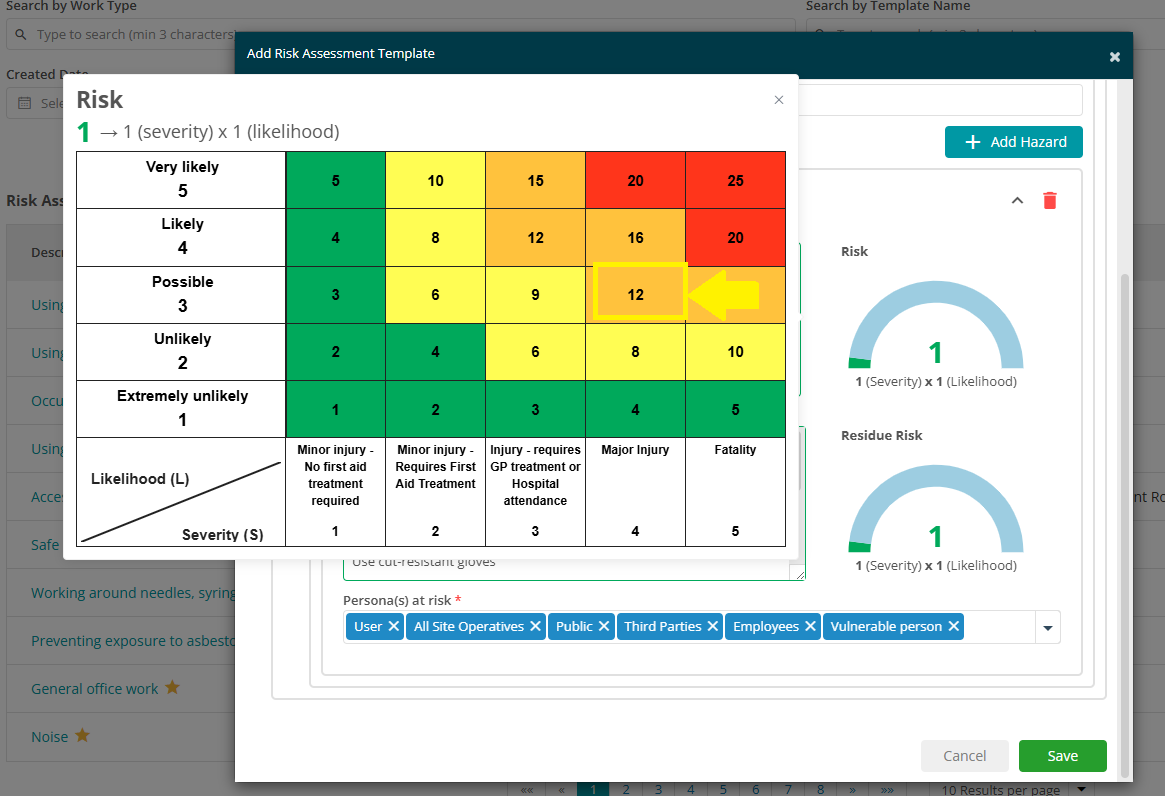
Both ratings are calculated using a colour-coded risk matrix, which appears when you click into the respective risk or residual risk section.
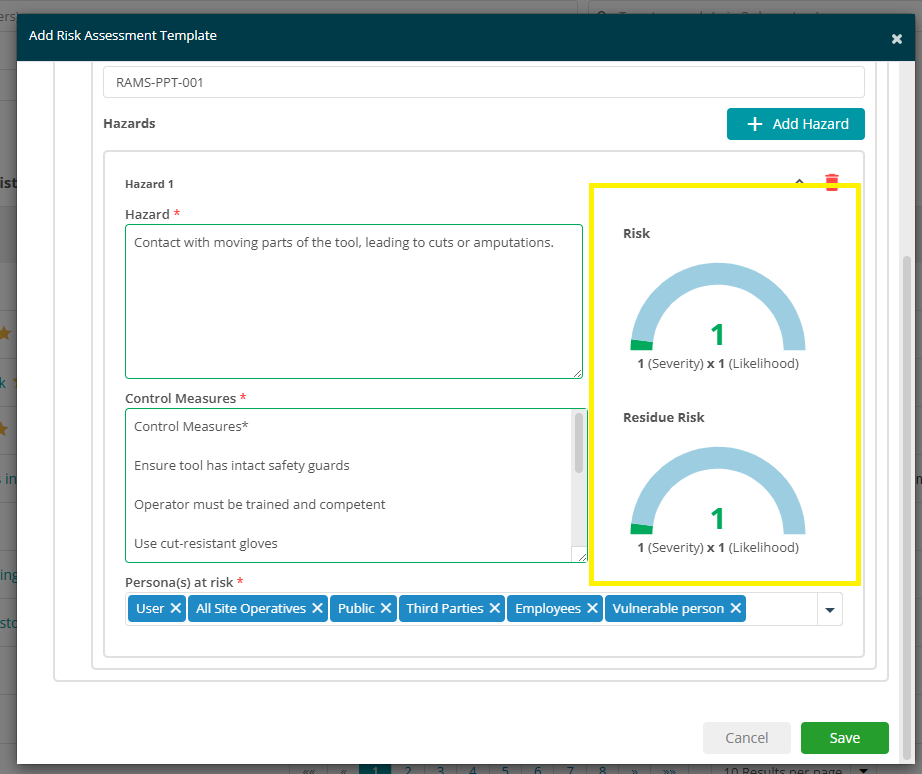
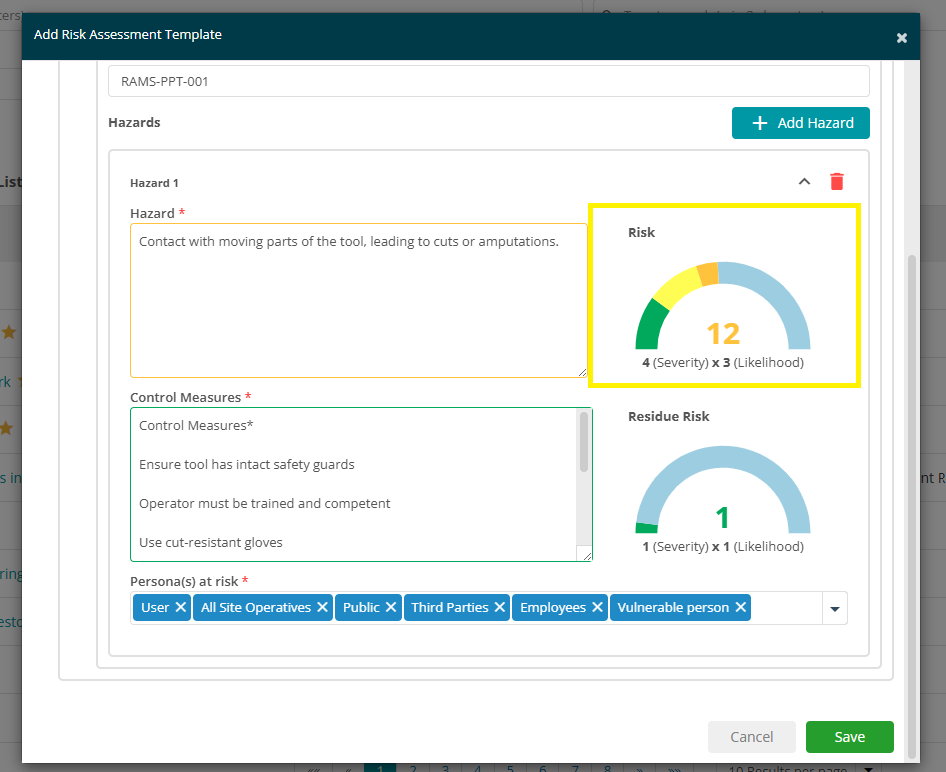
Example for RAM when using power tools; hazard: "Contact with moving parts of the tool, leading to cuts or amputations".
The Risk rating might be set as:
Severity: 4 (Major injury)
Likelihood: 3 (Possible)
This results in a total Risk Score of 12, which falls into the amber (medium risk) category.
Once control measures have been added, for example:
-
Ensure tool has intact safety guards
-
Operator must be trained and competent
-
Use cut-resistant gloves
-
Conduct pre-use inspection
-
Disconnect from power when changing attachments
You can then reassess the risk by applying the Residual Risk rating. For example:
Severity: 1 (Minor injury – no first aid required)
Likelihood: 1 (Extremely unlikely)
This results in a Residual Risk Score of 1, which falls into the green (low risk) category.
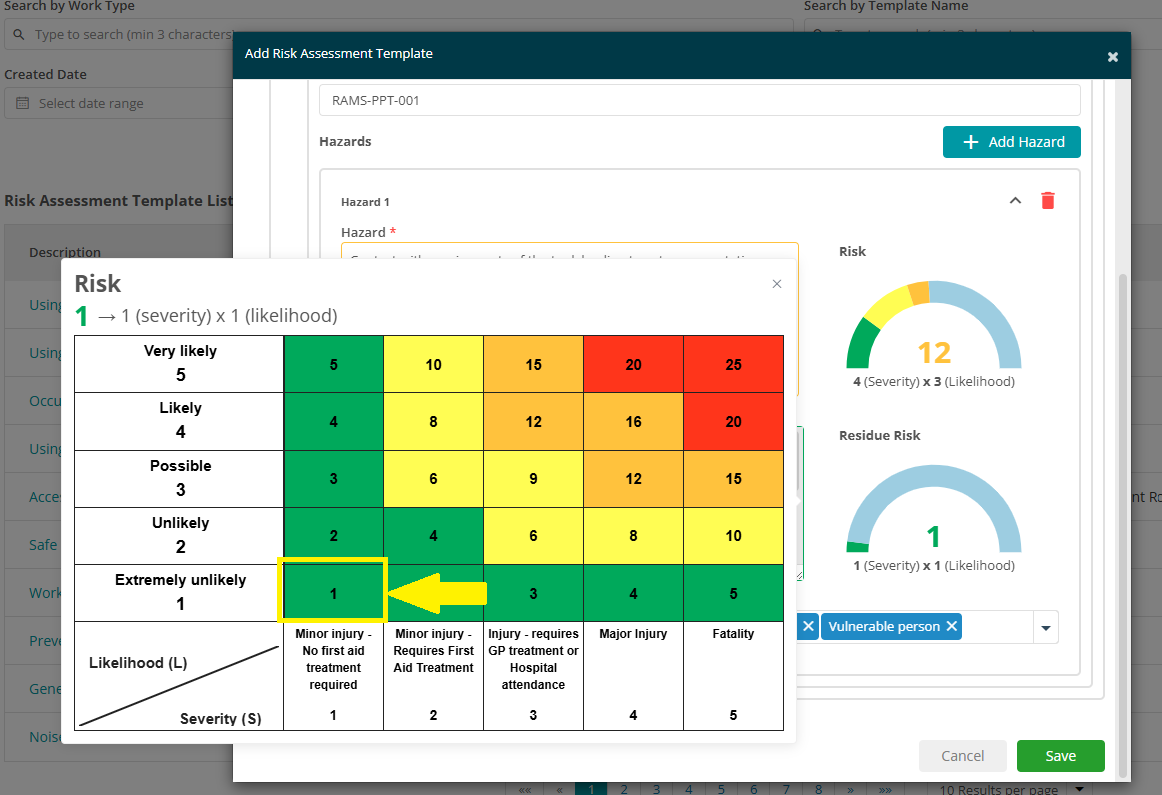
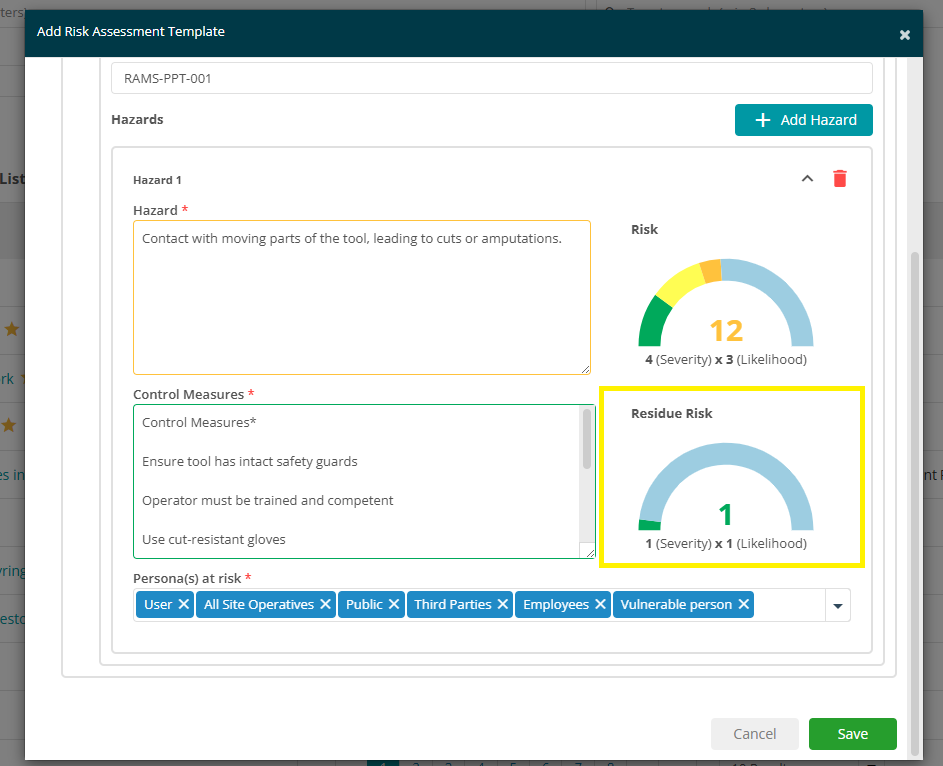
These scores are shown visually within the RAMS template as numerical values and coloured indicators. The system will also show the scoring formula:
Severity × Likelihood = Risk Score
Tip: Refer to the matrix descriptions when choosing your values. A severity of ‘5’ means ‘Fatality’, while a likelihood of ‘1’ means ‘Extremely Unlikely’.
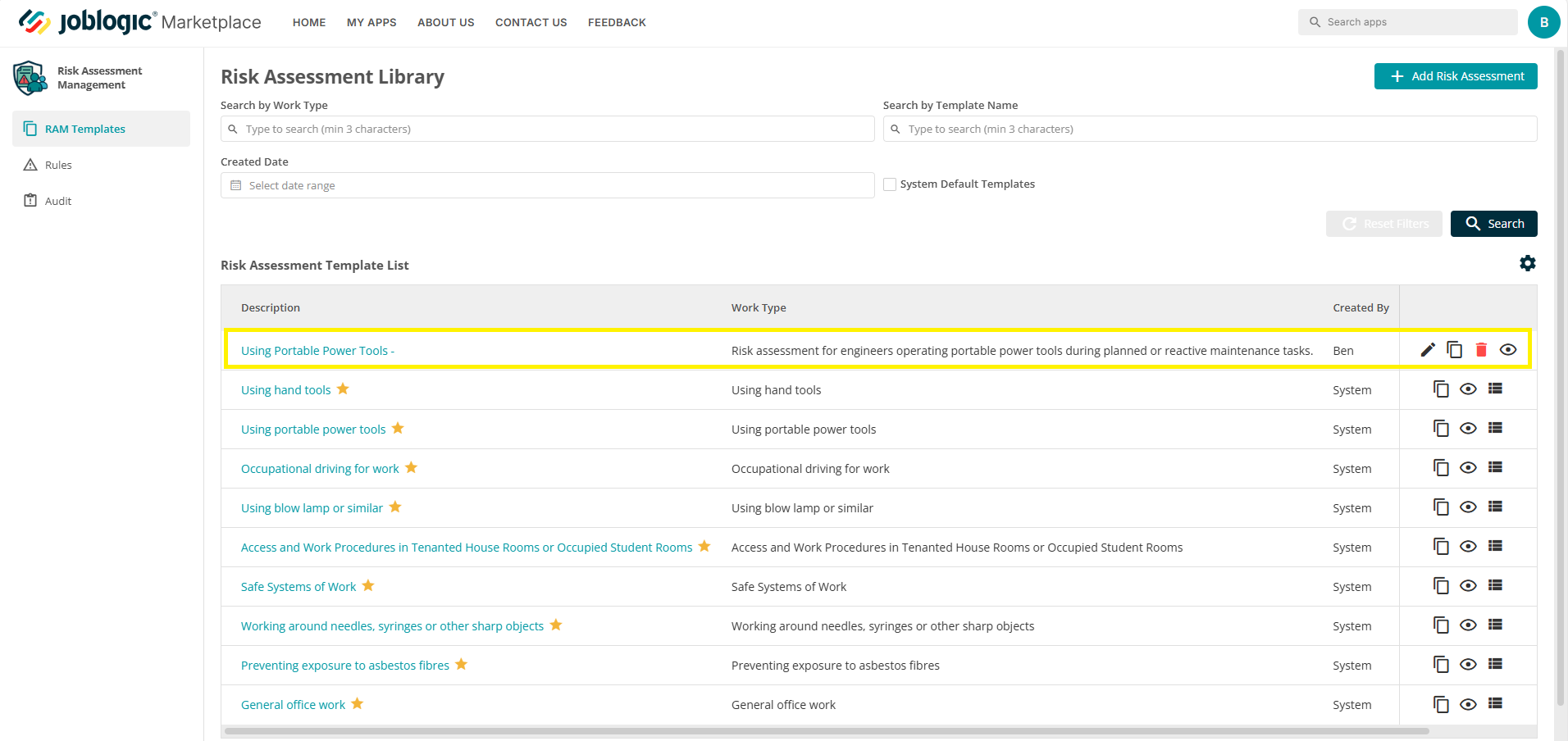
Once your template is complete, click ‘Save’. Your new template will now appear in the ‘Risk assessment Templates List’ and can be deployed via rules.
Method Statement
You can add a method statement to your risk assessment template to provide engineers with clear instructions on how the work should be completed.
To do this, navigate to the Method Statement tab within your template.
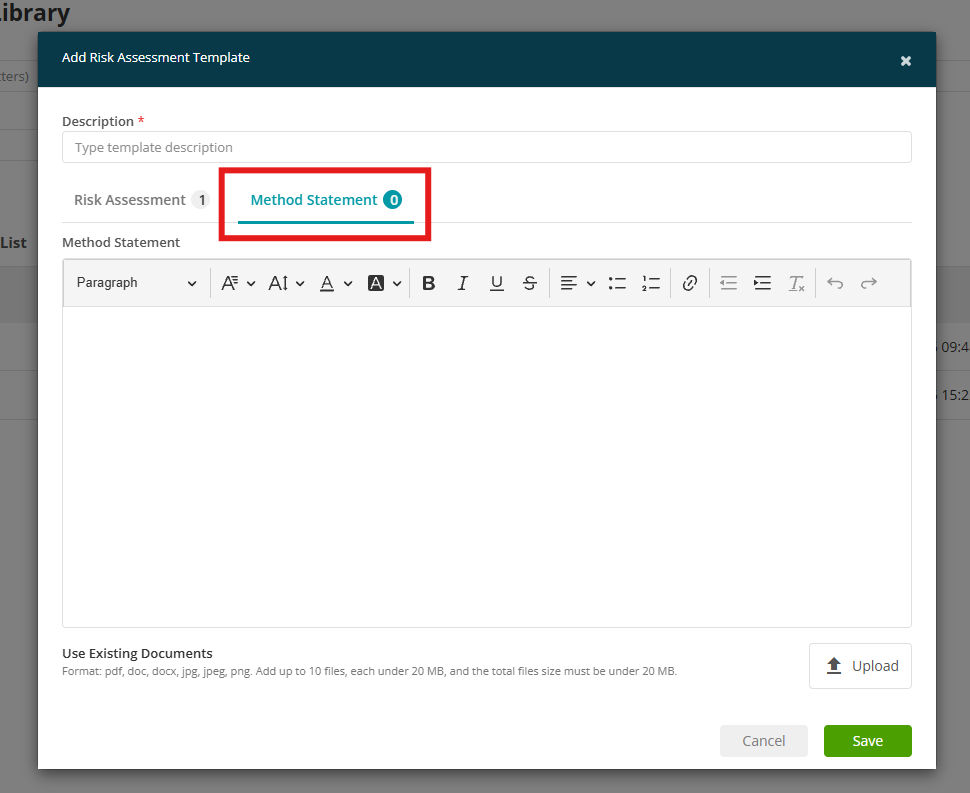
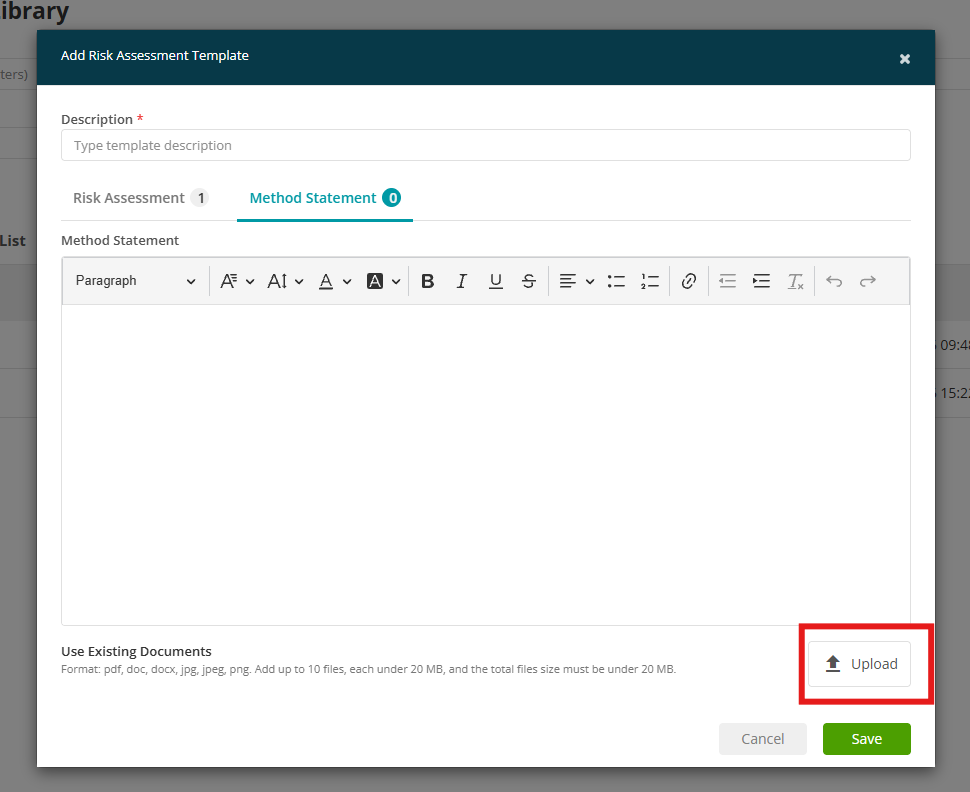
Here you can either:
- Enter text – Add your method statement directly into the text area.
- Upload – Click Upload to attach an existing method statement document.
Once added, the method statement will form part of your RAMs document.
RAM Template Rules
Once your RAMs templates are created, you can configure rules to automate how and when these documents are deployed to jobs.
To get started, click on the ‘Rules’ tab in the left-hand menu.
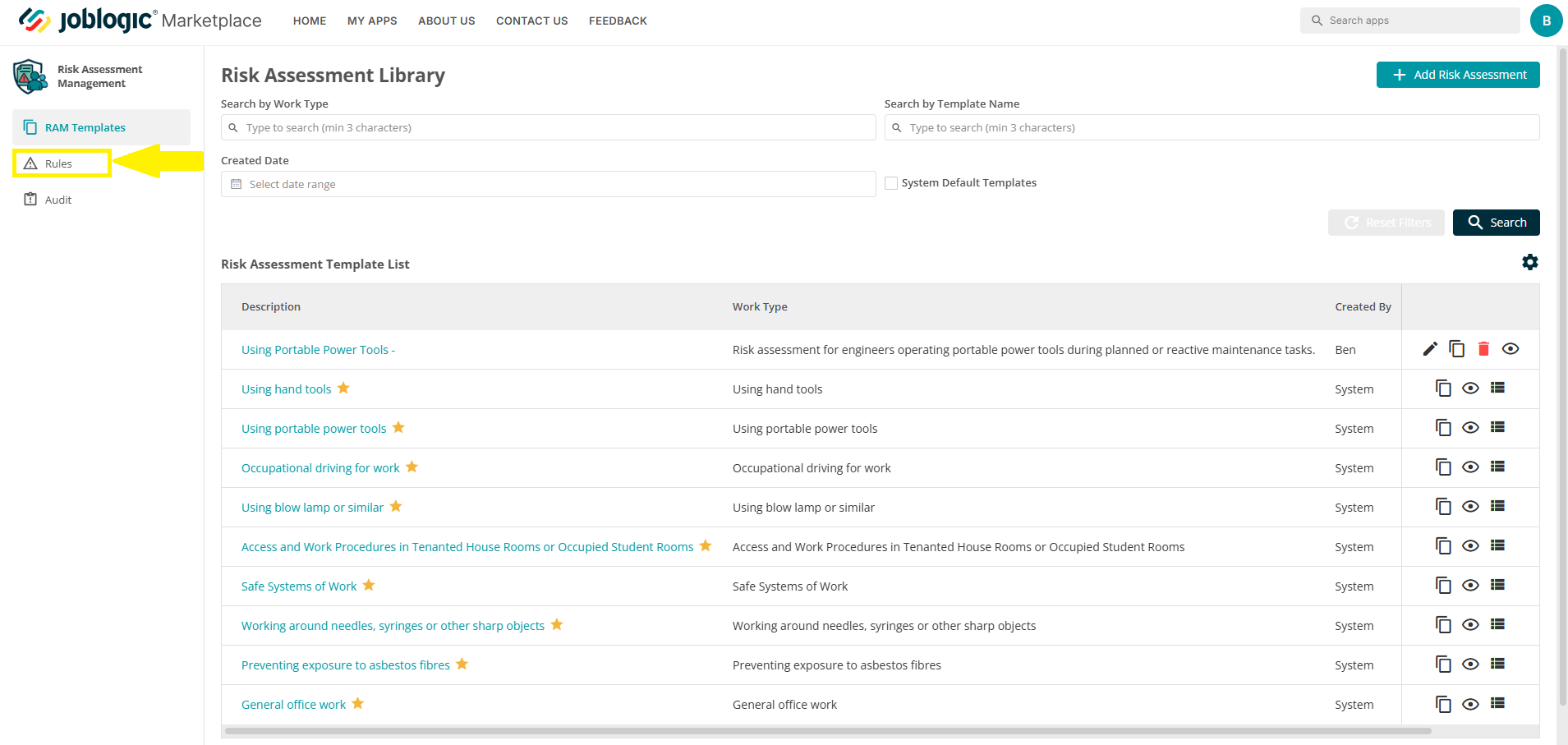
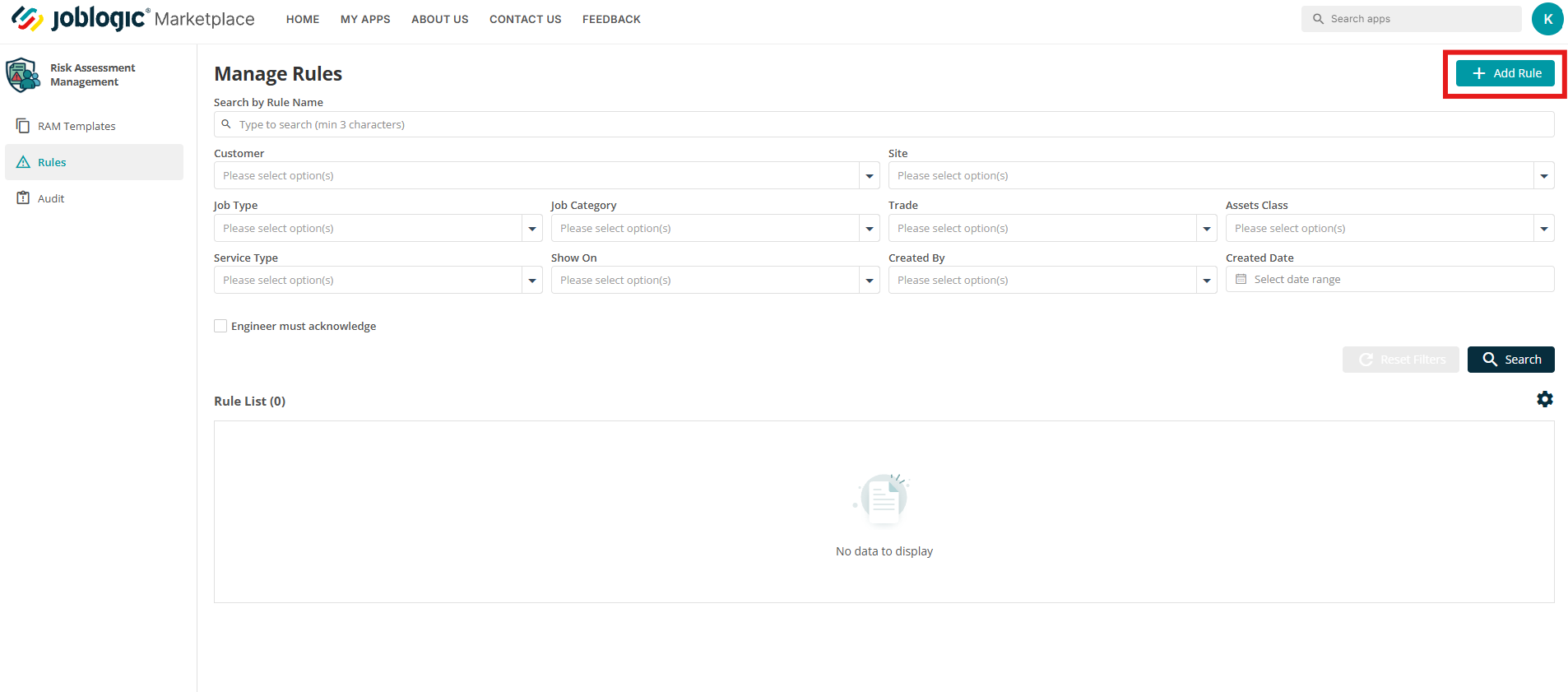
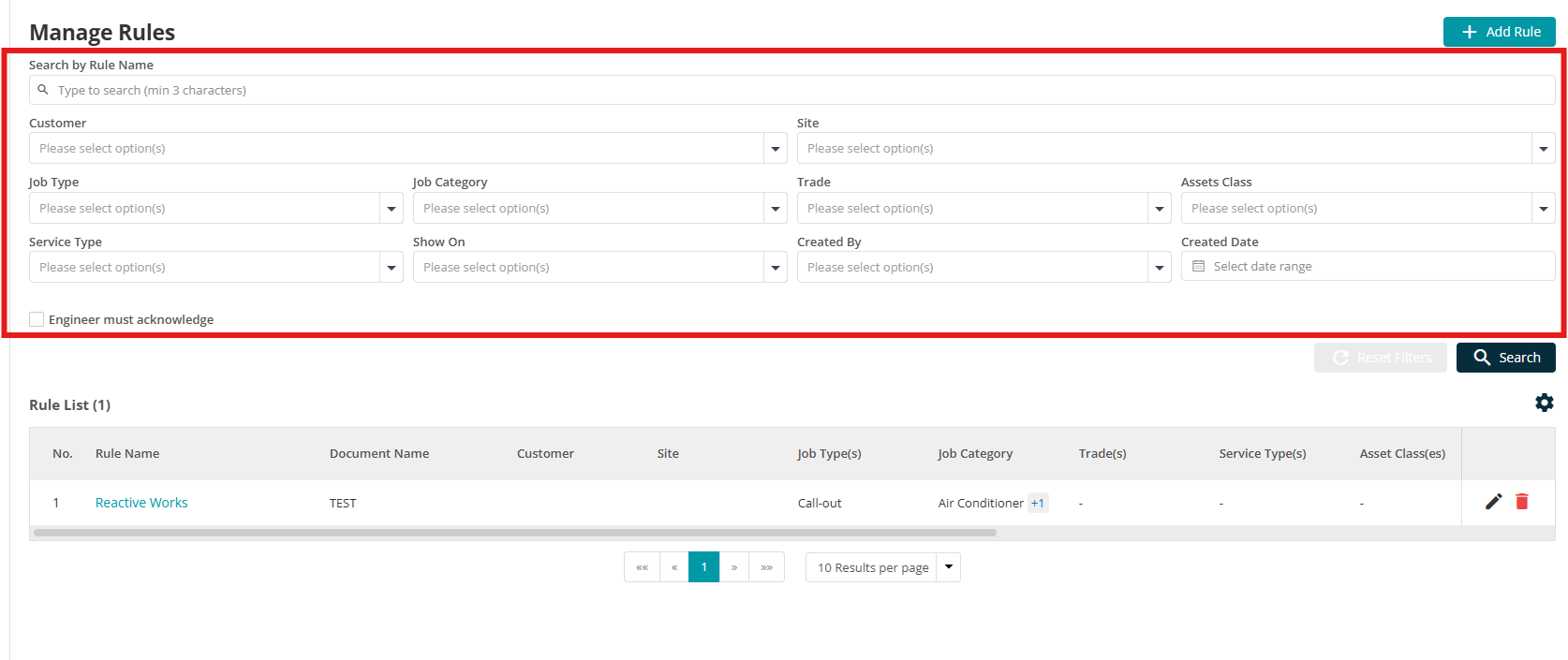
This opens the ‘Manage Rules’ area, where any existing rules will be listed. Click the ‘Add Rule’ button in the top right-hand corner to create a new rule.
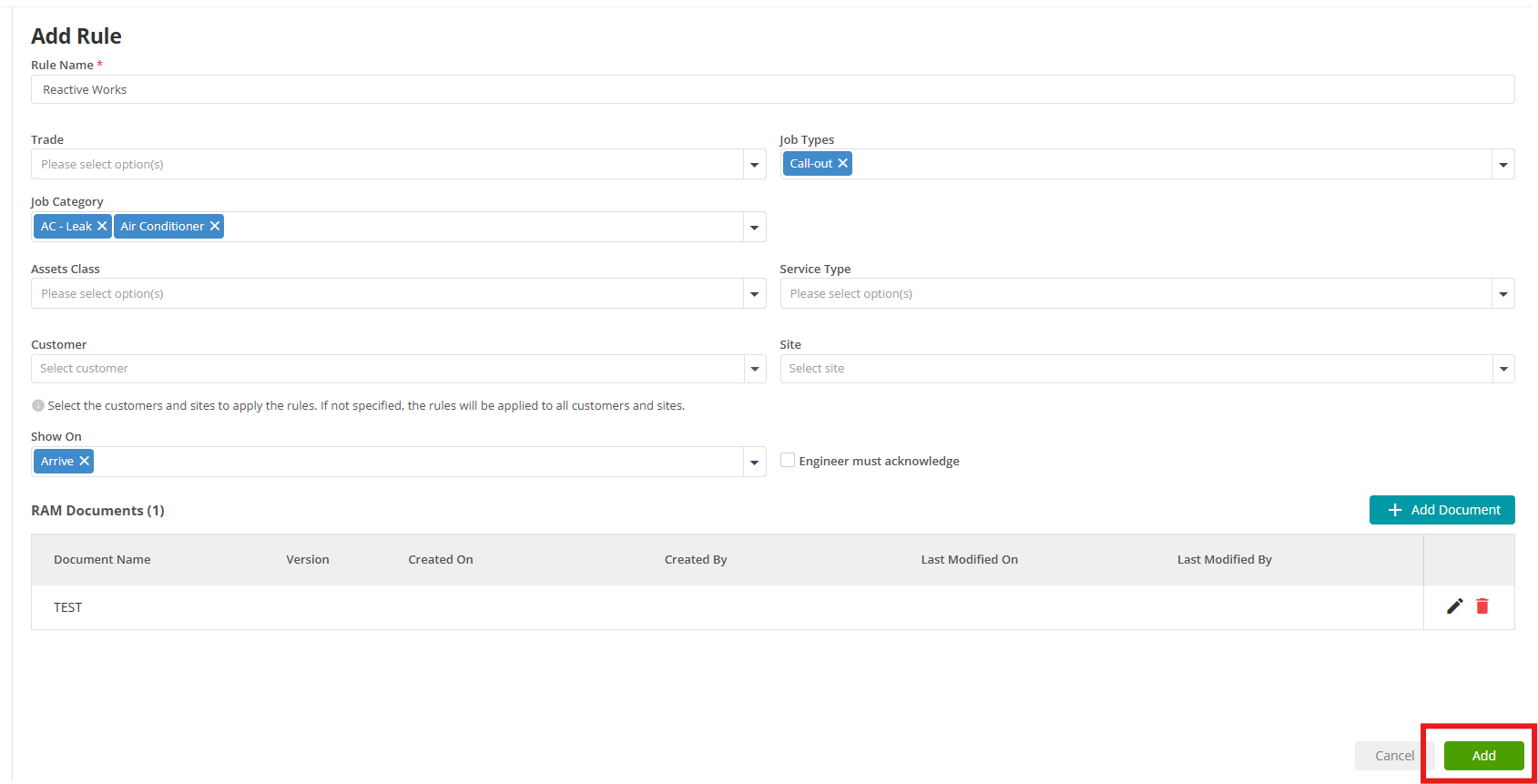
You will be directed to the ‘Add Rule’ screen, where you can define the conditions that determine when the RAMs documents are shown.
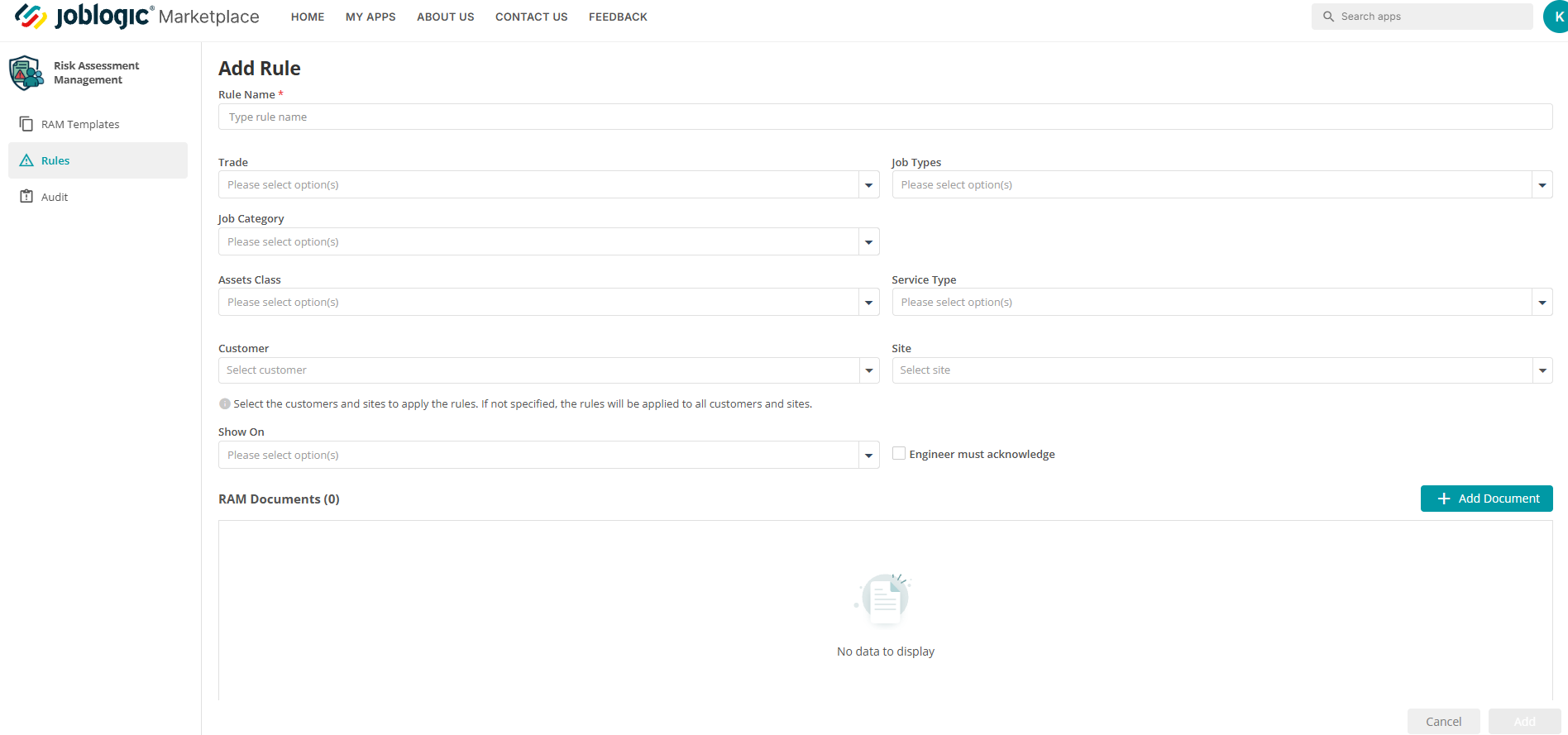
Fill out the fields as required:
-
Rule Name – Give the rule a clear and descriptive name
-
Trade – Select the applicable trade(s)
-
Job Types – Select the job types the RAMs should apply to
-
Job Category - Select the job categories the RAMs should apply to
-
Asset Class – Apply any rule to specific asset classes, if needed
-
Service Type – Apply to a service type, if needed
-
Customer/Site – Target rules to a specific customer or site (leave blank to apply to all)
-
Show On – Choose when the RAMs document should be shown (e.g. arrival)
-
Engineer Must Acknowledge – Tick this box to require engineers to acknowledge the document before continuing with the job visit
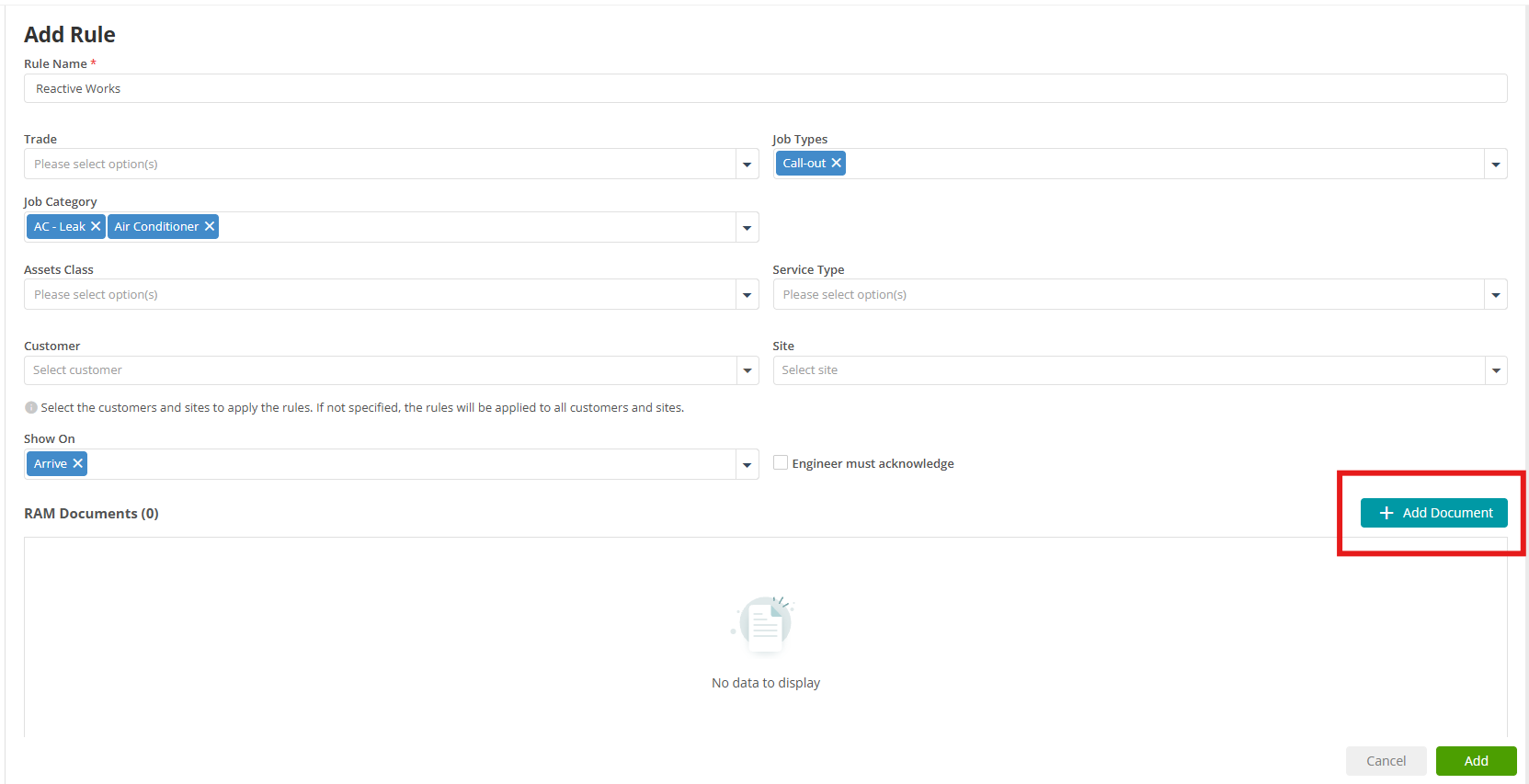
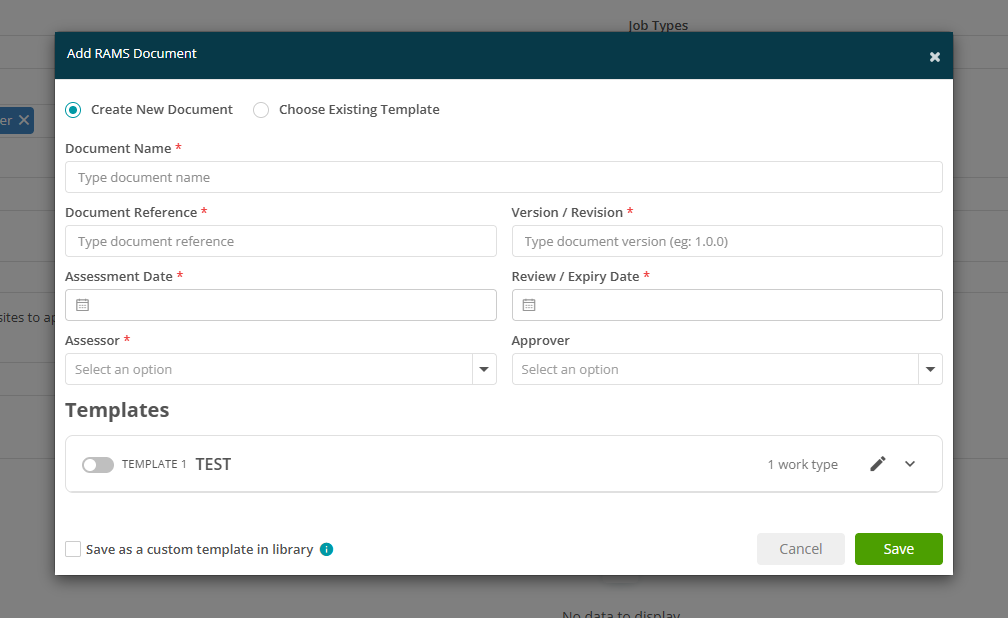
At the bottom of the page, click the ‘Add Document’ button to link one or more RAM templates to the rule.
This page allows you to either create a new RAMs document (template) or select an existing one.
The Create a New Document option follows the same process and layout described earlier in this guide. For step-by-step instructions, see the Creating Your Own Templates section.
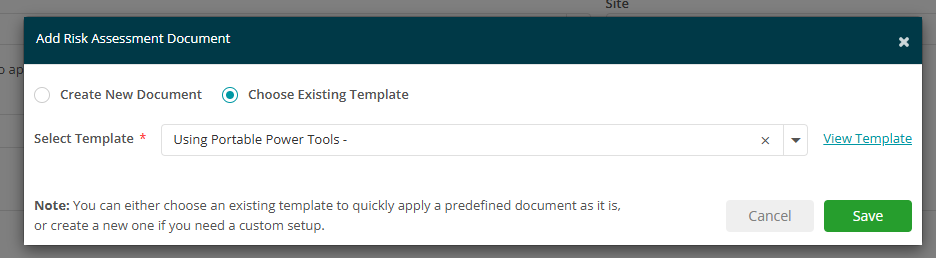
To assign a template, select the Choose Existing Template toggle and choose your template from the dropdown list.
You can use the View Template option to preview the document and check you've selected the correct one.
Click Save to apply the template to the rule you're creating.
Once complete, click ‘Add’ to save your rule. Your rule will now be active and visible in the ‘Rules List’.
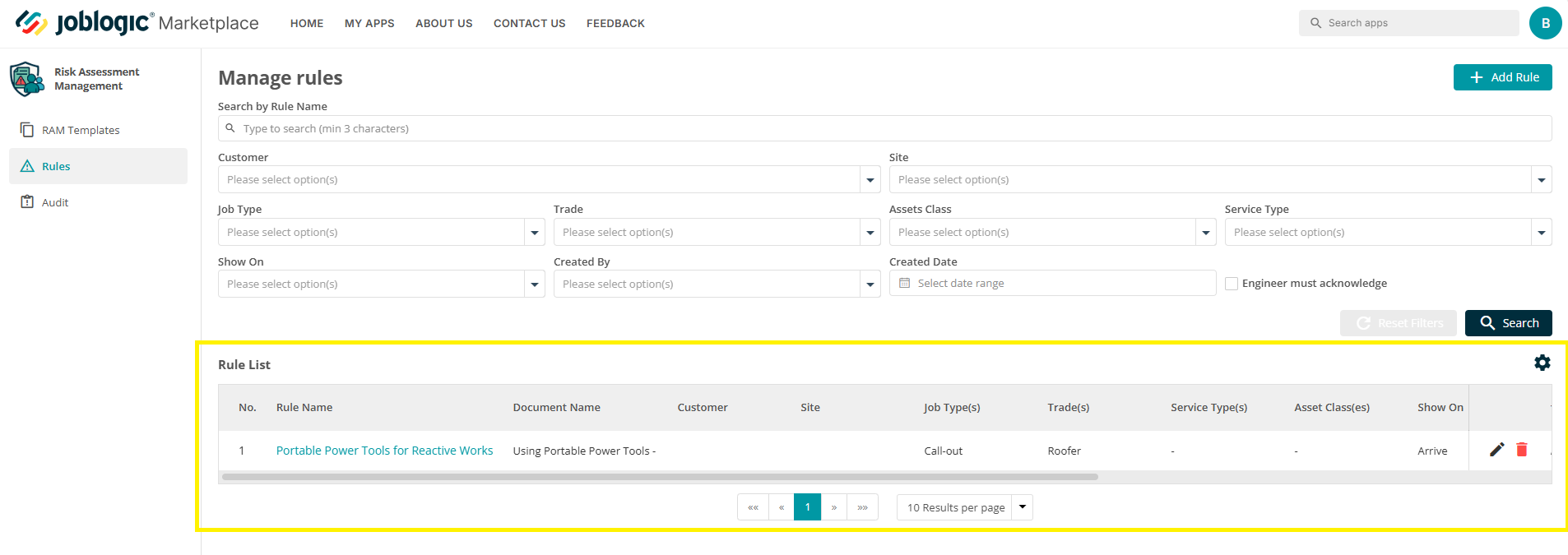
Note: as you add more rules to your system, they can be searched and filtered via the filtering tool towards the top of the page.
The RAMs Audit Page
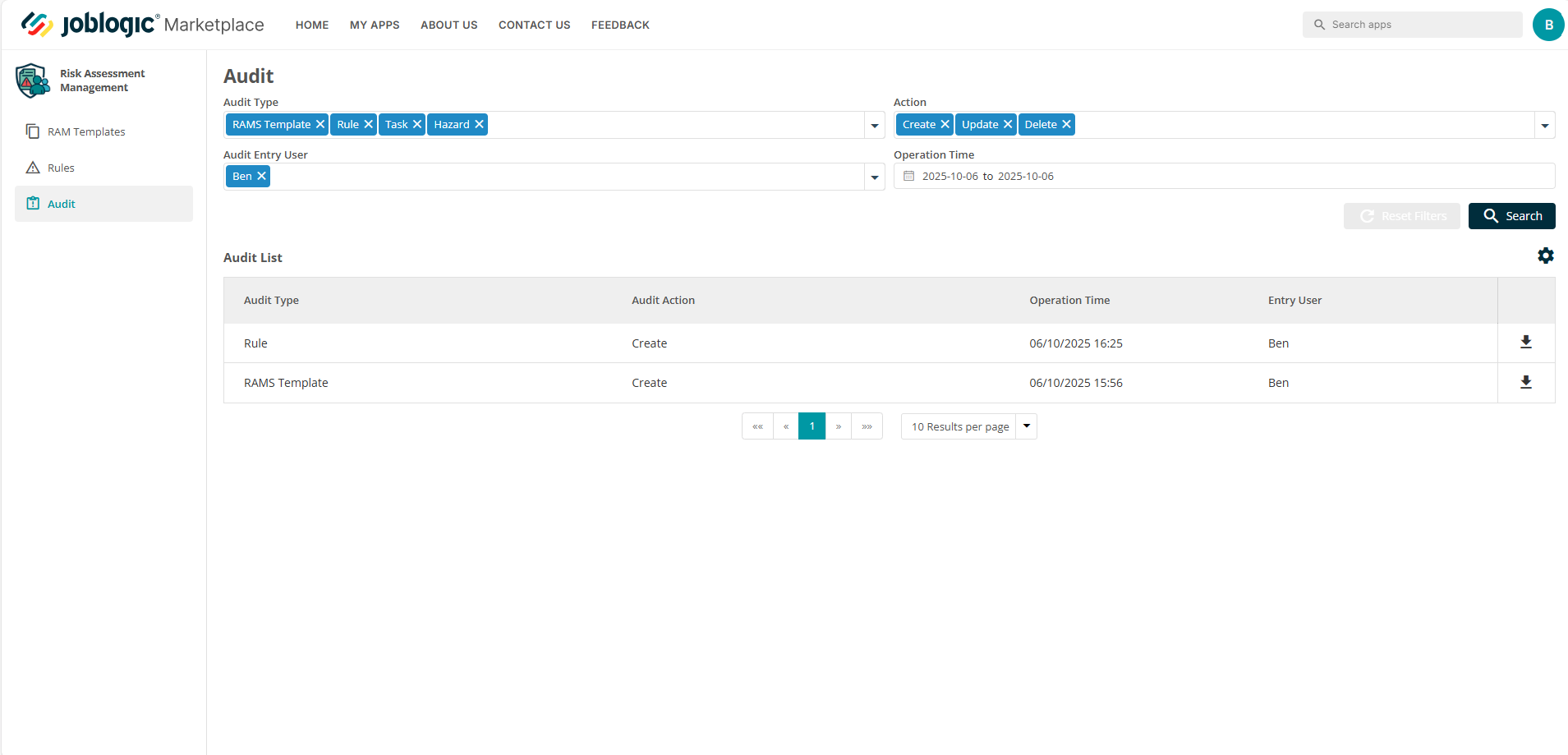
The Audit section provides a full log of user activity within the RAMs app, helping system administrators track who has viewed, acknowledged, created, edited or deleted any RAMS templates and rules amongst many more actions.
To access this area, click on the Audit tab in the left-hand menu.
Here, you’ll find an ‘Audit List’ table showing:
Audit Type – The category of the action (e.g. Rule, RAMS Template, Task or Hazard)
Audit Action – What was done (e.g. Create, Update, Delete, Ackowledge)
Operation Time – The date and time the action was carried out
Entry User – The name of the user within the system who performed the action
You can also apply filters at the top of the page to search results as more and more users start using the tool.
Each audit record can be downloaded individually by clicking it’s download icon.
These functions provide clear visibility and traceability of who made changes in the system and when, helping to support compliance and internal governance.
Tracking Engineer Acknowledgements: Please note that all engineer RAMs document acknowledgements are:
-
Timestamped
-
Logged against the user
-
Also visible within the job record (JL Web back-office)
This creates a full audit trail showing:
-
Which RAMS were issued
-
Which engineer acknowledged them
-
When acknowledgement occurred
RAMs and Back-office Jobs
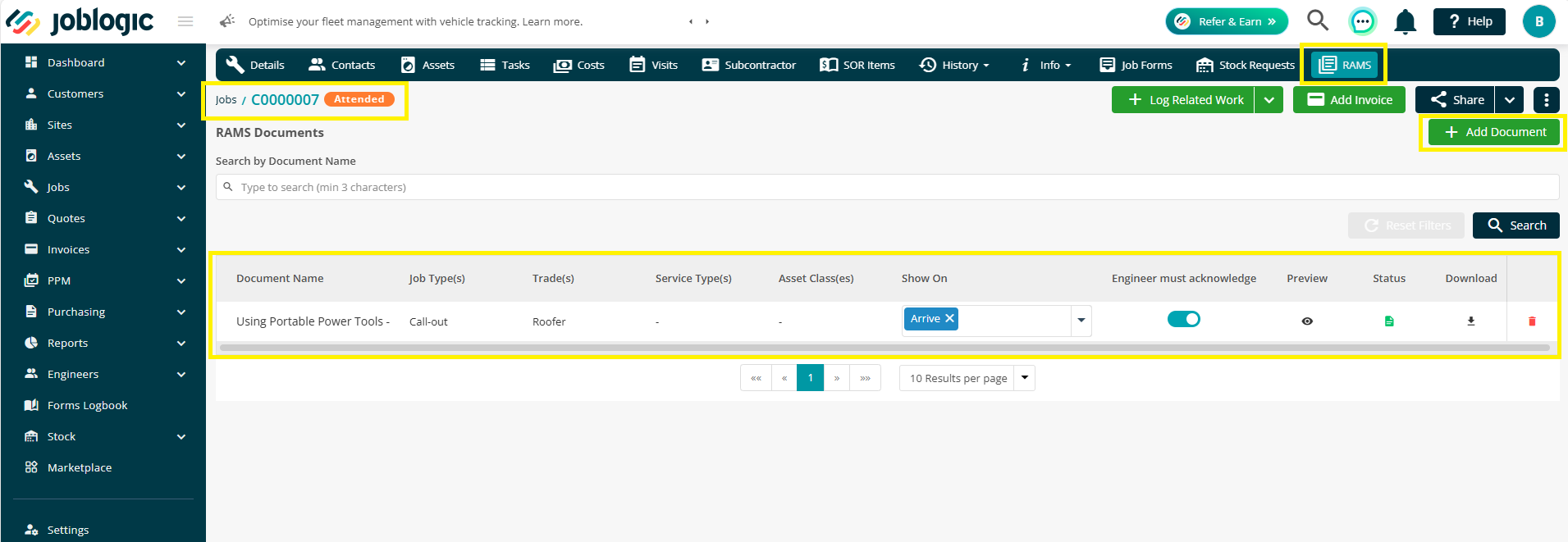
The RAMs module is accessed within Joblogic Web through the RAMs tab available on each job.
When a job meets the conditions of a RAMs deployment rule, the relevant RAMs document will automatically appear in this tab.
The tab allows users to view and manage RAMs documents linked to the job. You can:
- Remove a document – Click the dustbin icon to remove a RAMs document from the job.
- Add a document – Click Add Document to manually attach an additional RAMs document.
The Add Document option follows the same process as creating or selecting a document through the RAMs app in the Marketplace. For more details, see the Creating Your Own Templates section of this guide.
Further Support
For further information or assistance with the above, contact our Support Team on 0800 326 5561 or email support@joblogic.com. Alternatively, our Customer Success Management team can be reached by emailing customersuccess@joblogic.com
Publishing Details
This document was written and produced by Joblogic’s Technical Writing team and was last updated on the date stated above. Be aware that the information provided may be subject to change following further updates on the matter becoming available or new releases within the system. Additionally, details within the guide may vary depending on your Joblogic account’s user permissions and settings or the electronic device being used.