Introduction
Approval Rules & Limits controls which approval rules apply to financial documents raised by users in each department. The app supports purchase orders, purchase invoices and four quote types. Administrators can organise users into departments, choose the document types that use approval rules and route each approval level to selected users or roles.
In this guide, we'll show you how to manage departments and approvers, enable document types, configure value and margin rules and set customer quote thresholds. It also explains how Joblogic chooses the applicable rule and what happens when approval is required.
Availability
Approval Rules & Limits is available as a Joblogic app and must be enabled for each Joblogic company. Access to its settings is controlled by the Configuration permission.
Before you start
Confirm the following before configuring the app:
- The Approval Rules & Limits app is enabled for the Joblogic company.
- Your user has the Approval Rules & Limits Configuration permission.
- The required users and roles have been created in Joblogic.
- You know which purchase and quote document types require department approval rules.
- Users who upgrade approved quotes also have the existing Upgrade Quote permission.
How the app selects an approval rule
Joblogic uses the following order when applying approval rules:
- The document type must be enabled in the app configuration.
- The department of the user raising the document determines which department's rule applies.
- Documents created through automation or the Public API use the Primary Department rules.
- The document value and, for quotes, the margin determine the required approval level.
- Joblogic routes the request to the users or roles selected for that level.
- Master Approvers can approve documents regardless of department or approval limit.
Supported document types
Document type | Approval basis |
|---|---|
Purchase Orders | Department value approval levels |
Subcontractor Purchase Orders | Department value approval levels |
Purchase Invoices | Department value approval levels when approval is required |
Subcontractor Purchase Invoices | Department value approval levels when approval is required |
Reactive Quotes | Customer value or margin threshold and department approval levels |
PPM Quotes | Customer value or margin threshold and department approval levels |
Asset PPM Quotes | Customer value or margin threshold and department approval levels |
Project Quotes | Customer value or margin threshold and department approval levels |
All eight document types are enabled by default. If a type is disabled, its approval-rule section is hidden and the existing legacy approval behaviour continues for that document type.
Open Approval Rules & Limits
1. Go to Settings.
2. Open Approval Rules & Limits.
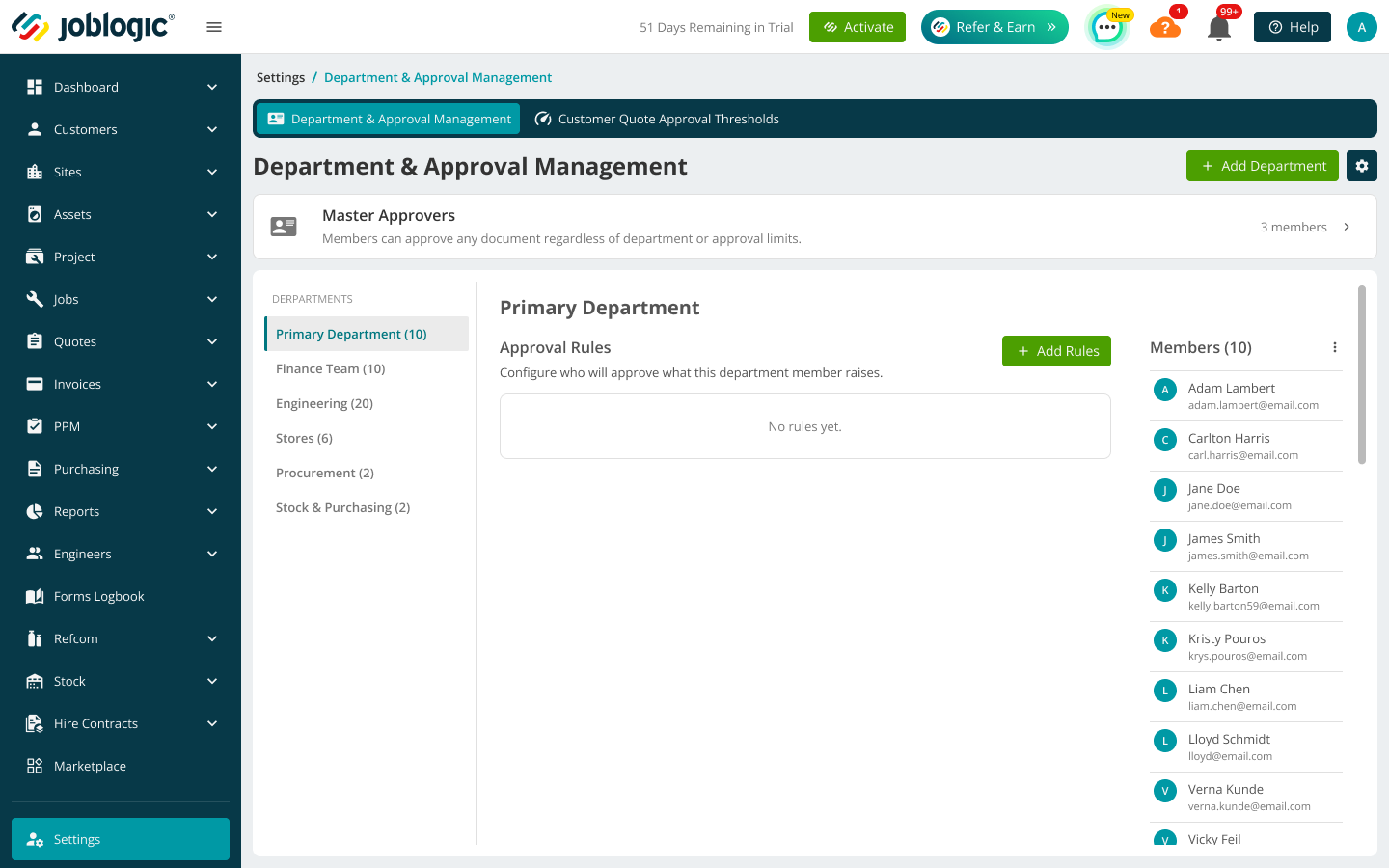
The Approval Rules & Limits page displays Master Approvers, departments, approval rules and department members.
Primary Department
When the app is enabled, Joblogic creates the Primary Department and adds all users to it. Customers who do not require separate departments can continue using this default structure. Documents raised by automation or the Public API use the Primary Department rules.
Configure Master Approvers
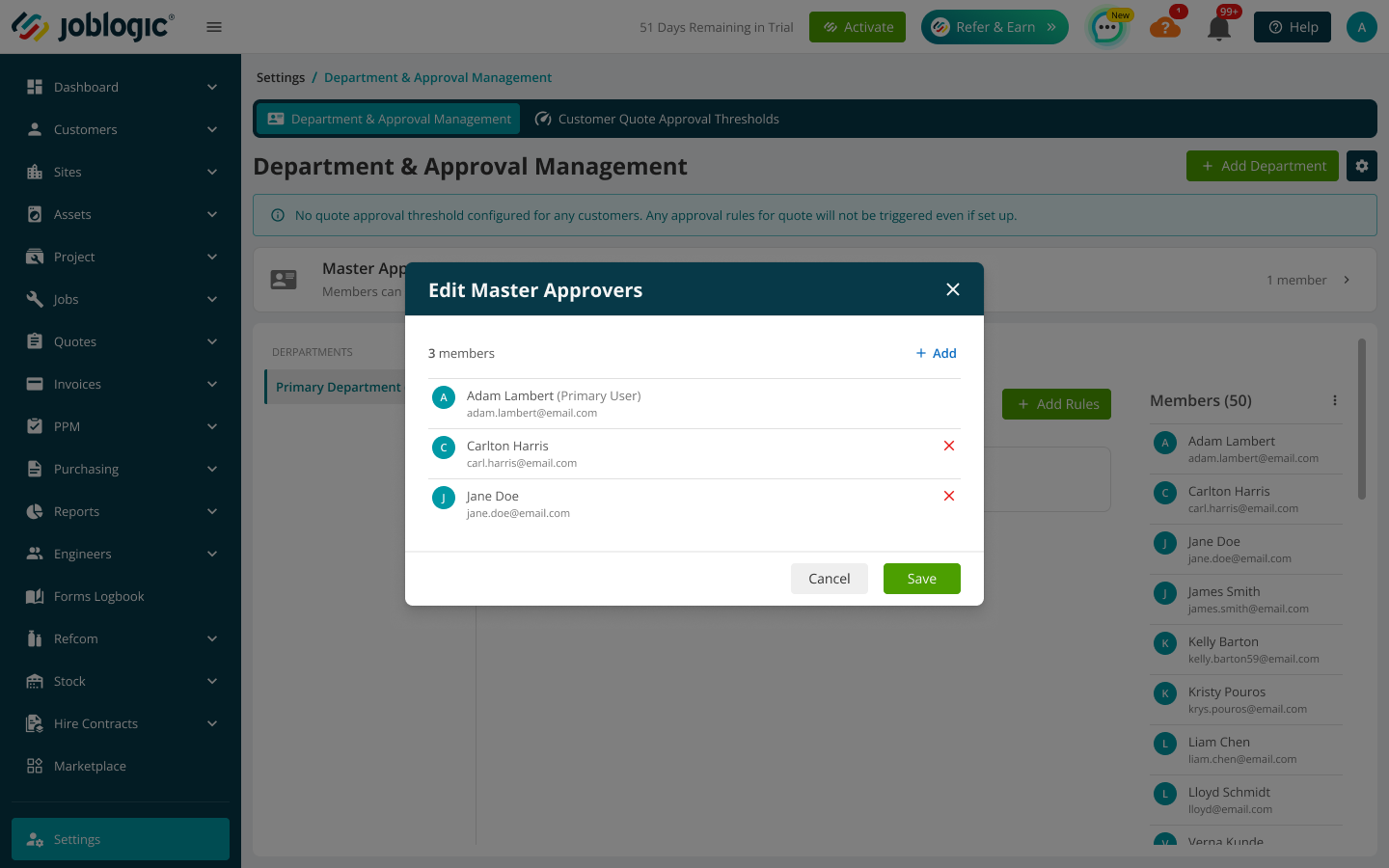
Master Approvers can approve any supported document regardless of department or approval limit. Use this list for users who need authority across the full approval structure. By default, primary user is always added as a Master Approver.
1. Open Master Approvers.
2. Select Add and choose the required users.
3. Select Apply, then select Save.
The Edit Master Approvers window lists users who can approve every documents across departments and limits.
Create a department
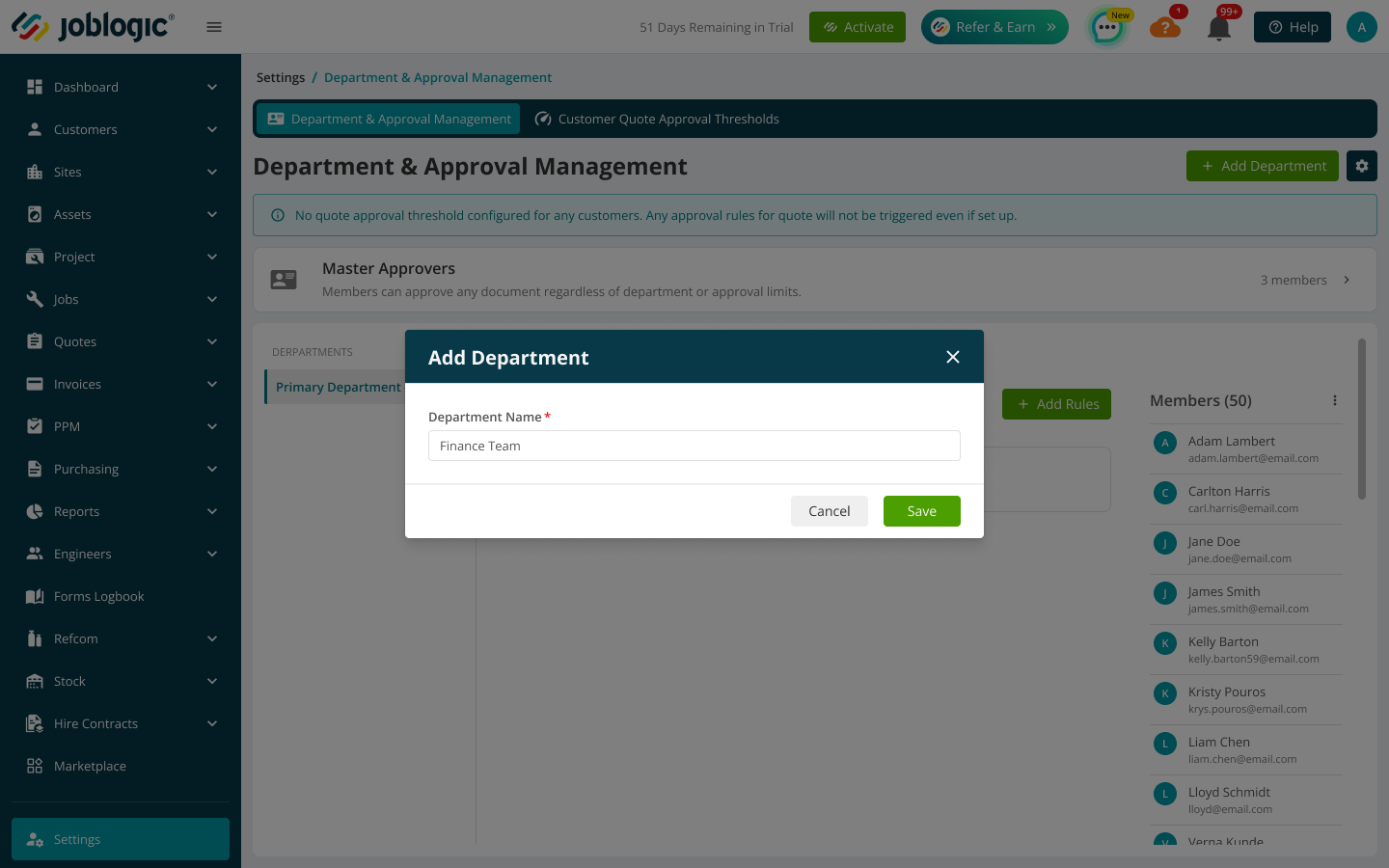
1. Select Add Department.
2. Enter the department name.
3. Select Save.
Create a department for users whose documents require any approval rules.
Rename a department
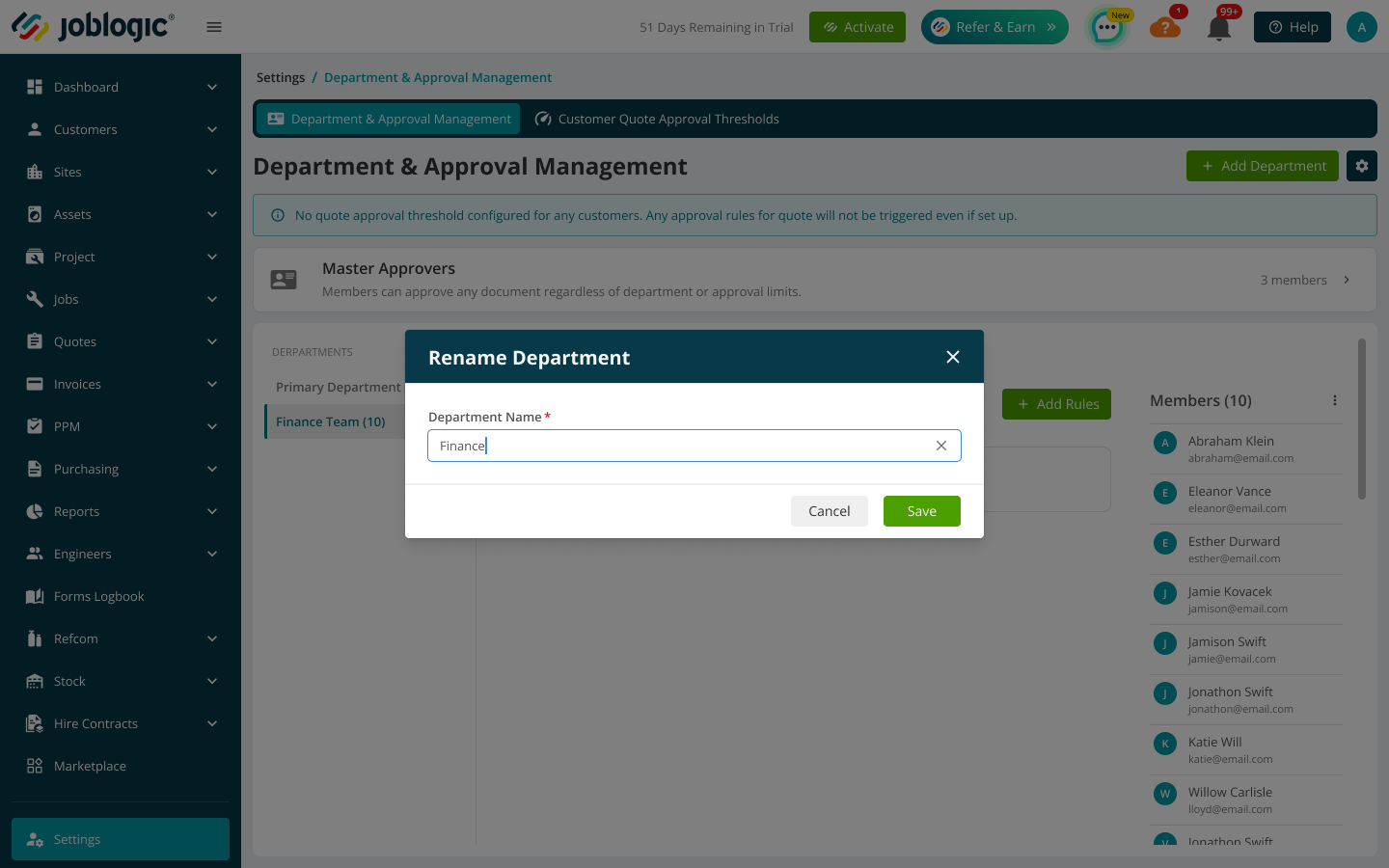
Open the department menu, select Rename, update the name and select Save.
The Rename Department window updates the selected department's name.
Delete a department
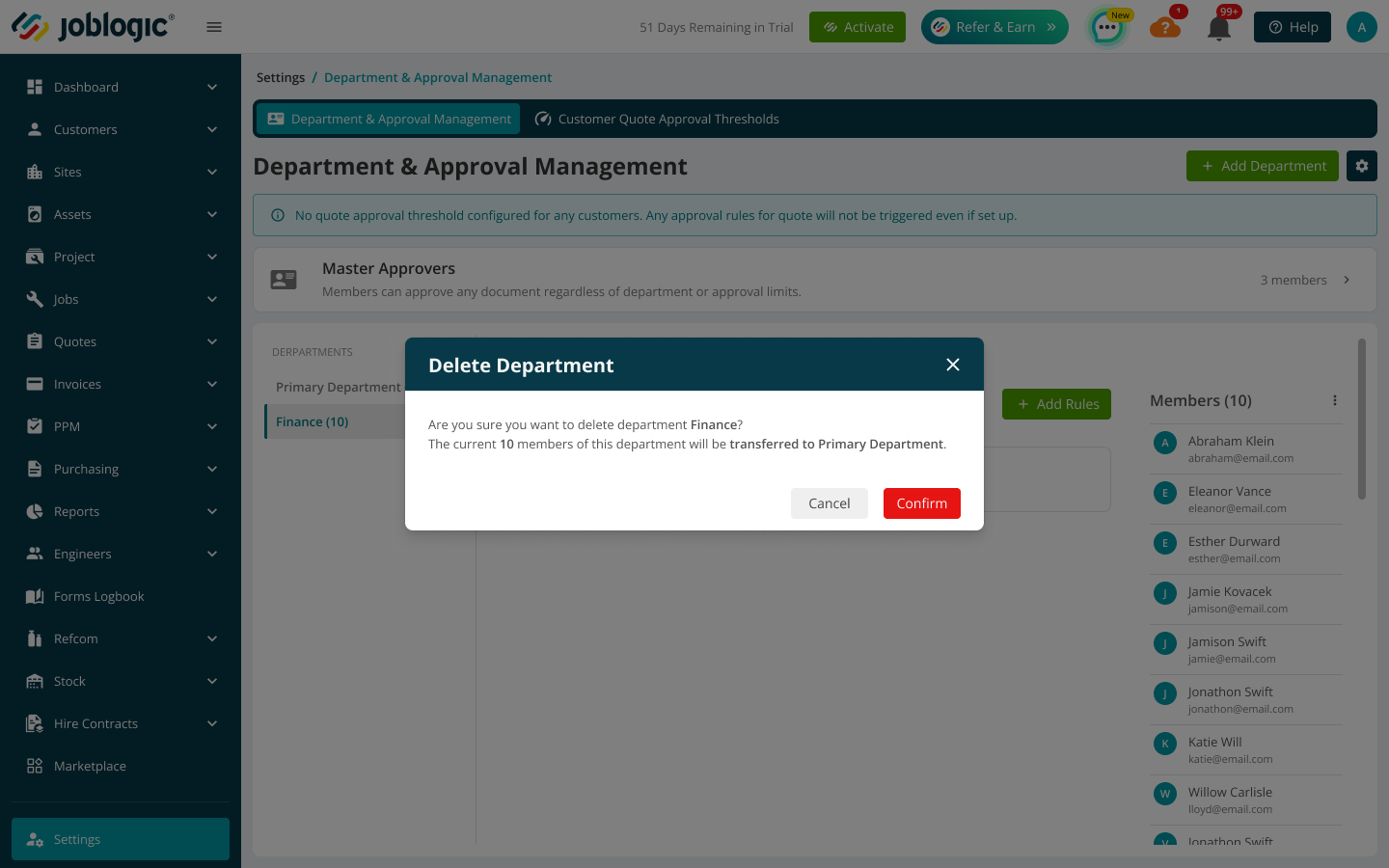
Open the department menu and select Delete. When deletion is available, Joblogic transfers the department's members to the Primary Department before removing the department.
The confirmation identifies how many members will return to the Primary Department.
Manage department members
Department membership determines which approval rules apply to documents raised by a user. Add individual users or search a role to add all users assigned to that role.
1. Select the required department.
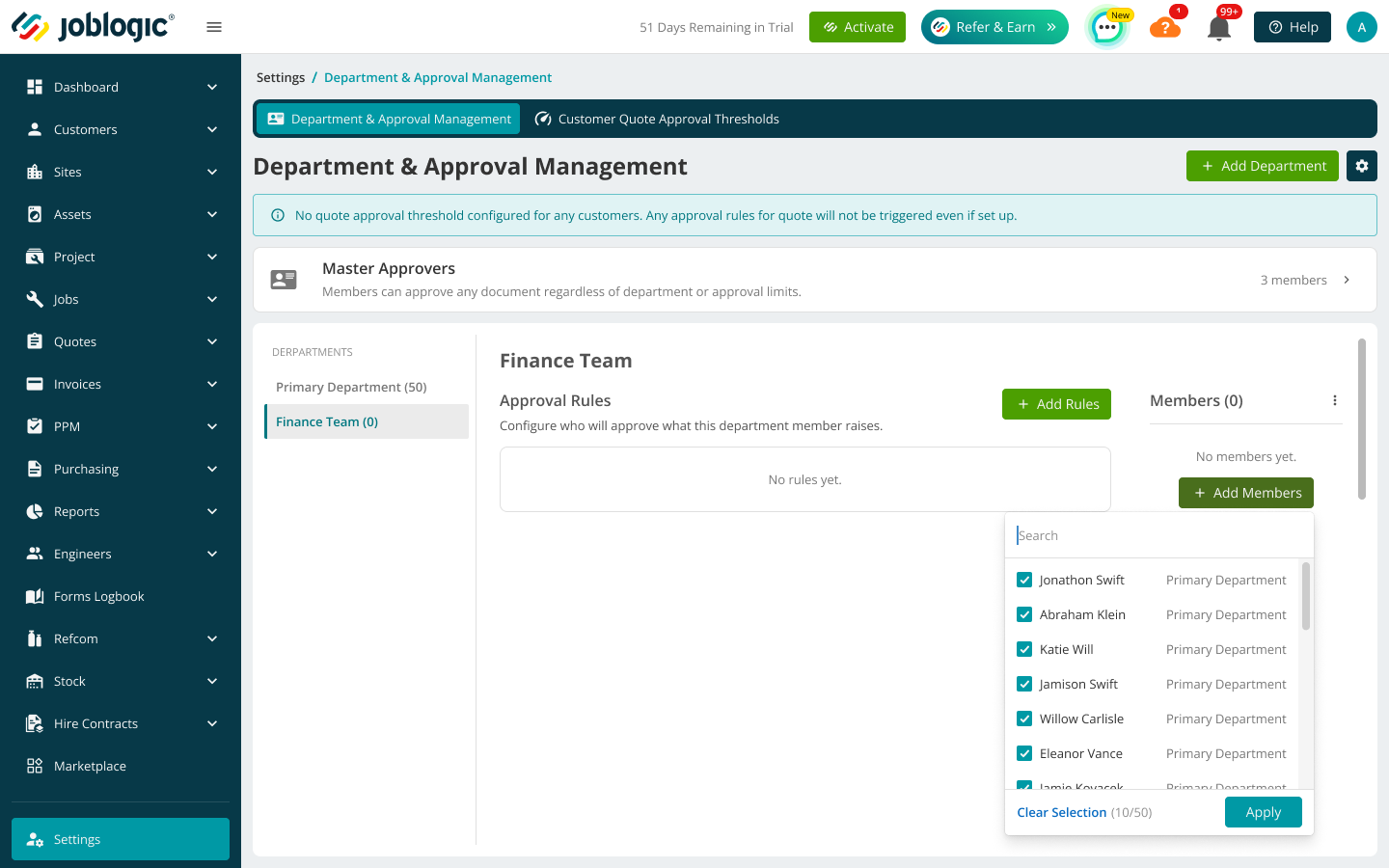
2. Select Add Members.
3. Select the required users, then select Apply.
The member selector shows available users and their current departments.
Transfer members from another department
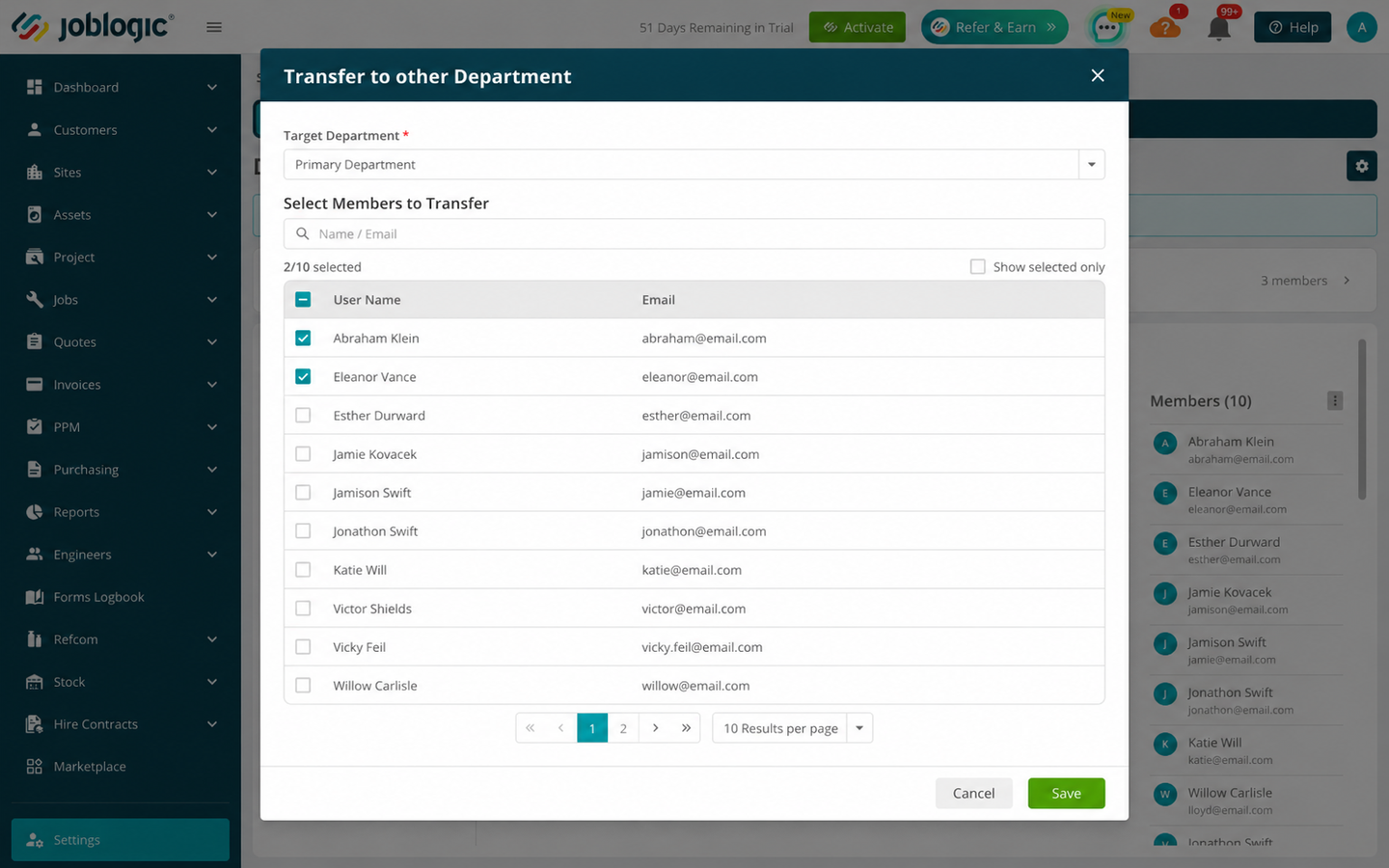
If a selected user already belongs to another department, use the transfer process to move that user to the required department.
The Transfer to other Department window moves selected users to the target department.
Enable approval rules by document type
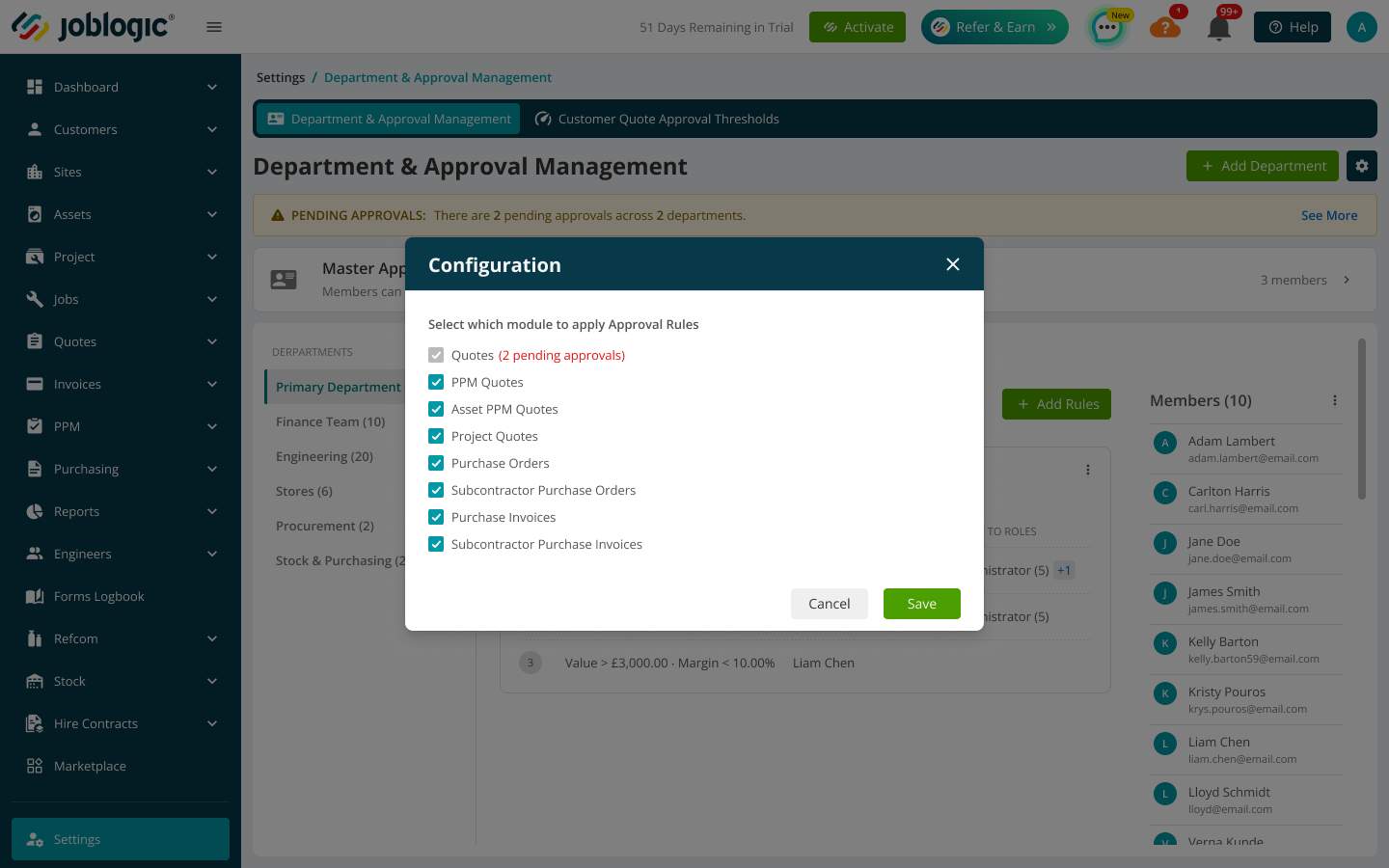
Use Configuration to choose which document types use Department and Approval Management rules. A document type appears under Add Rules only while it is enabled.
1. Select the Configuration icon.
2. Select the required purchase and quote document types.
3. Select Save.
The Configuration window contains the four purchase types and four quote types supported by the app.
Important: Disabling a document type removes its department approval-limit restriction. Eligible users can then approve it using the existing process.
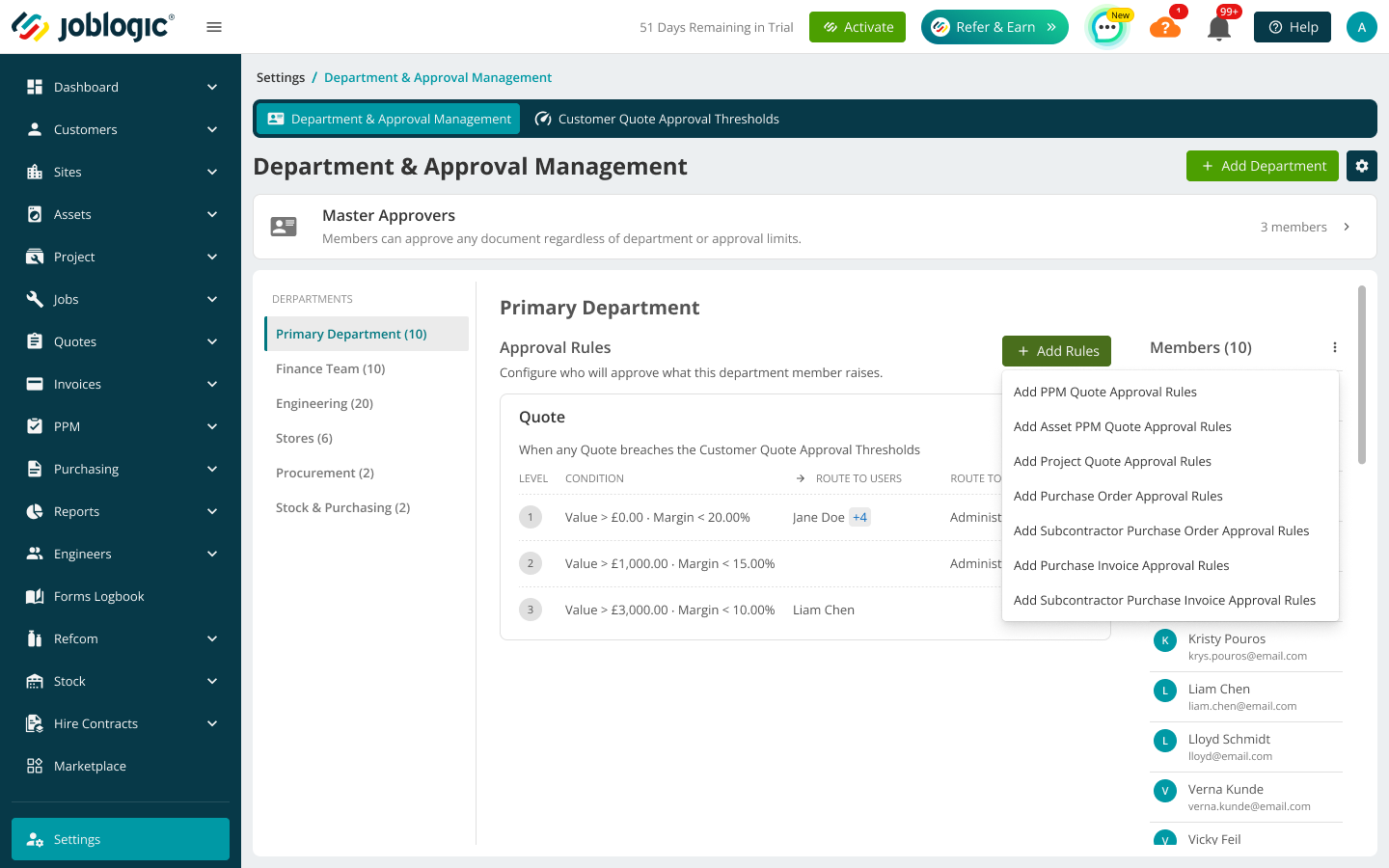
Add approval rules to a department
1. Select the department whose rules you want to configure.
2. Select Add Rules.
3. Select the required document type.
Add Rules lists the enabled document types that do not yet have a rule in the selected department.
Configure purchase approval levels
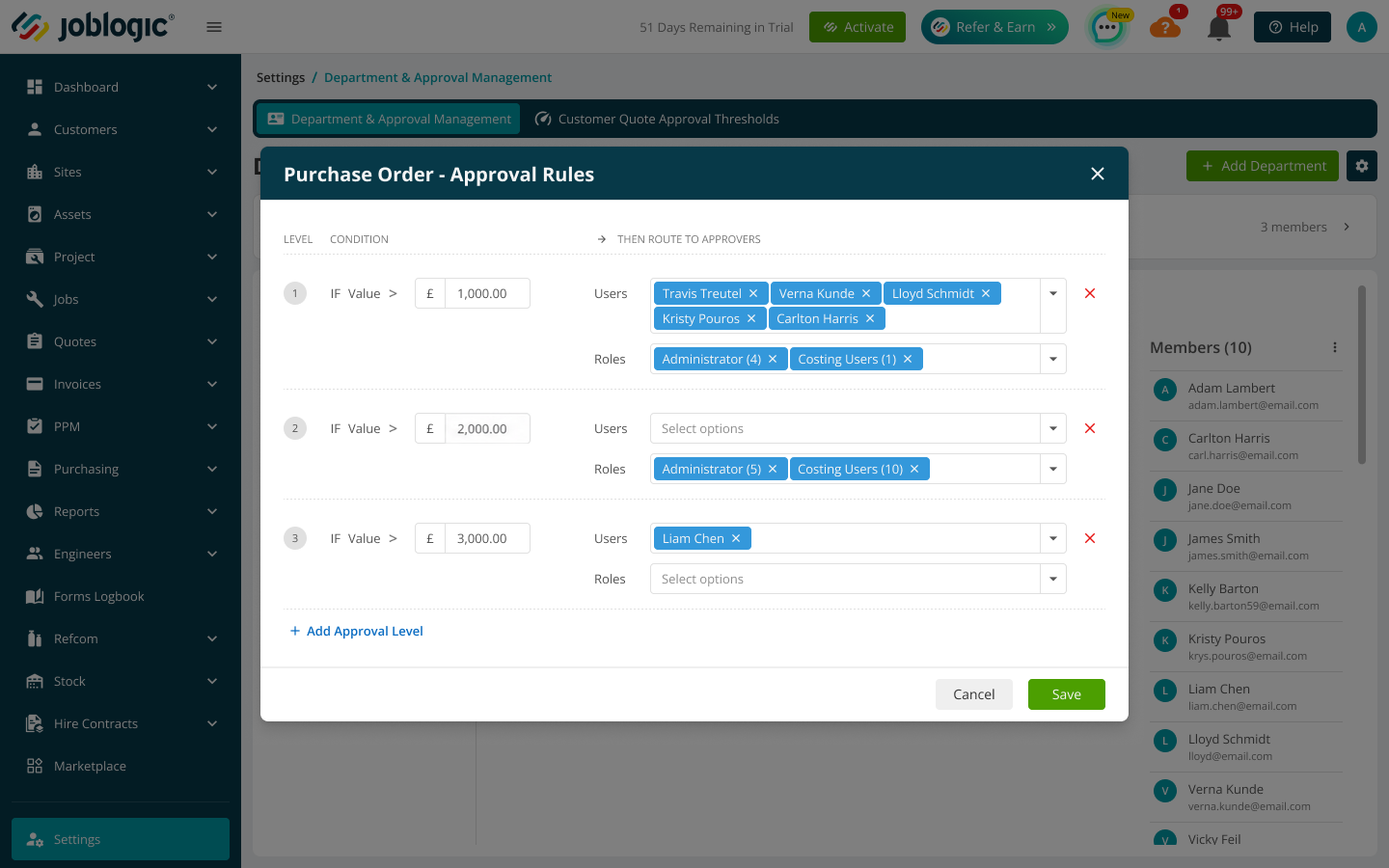
Purchase Orders, Subcontractor Purchase Orders, Purchase Invoices and Subcontractor Purchase Invoices use value-based approval levels. Each level routes documents above its value to the selected users or roles.
1. Select the required purchase document type from Add Rules.
2. Enter the Value is Greater Than amount for the first level.
3. Select the approver users, roles or both.
4. Add further approval levels in increasing value order, then select Save.
Purchase approval rules use value levels and can route to multiple users and roles.
How purchase documents are routed
Joblogic compares the purchase document value with the approval limits configured for the user and department.
- A document within the user's approval limit is auto-approved.
- A document above the user's limit is routed to the next configured approval level.
- If the value also exceeds that level, Joblogic continues routing it through the higher configured levels.
Purchase invoice approval
When a purchase invoice is matched to a purchase order, no additional approval is required if the invoice value is equal to or lower than the purchase order value. If the invoice value is higher, Joblogic starts the department approval workflow. The invoice cannot be marked Approved for Payment or posted to Accounting Integrations until the approval is complete. The same process applies to subcontractor purchase invoices.
Configure quote approval rules
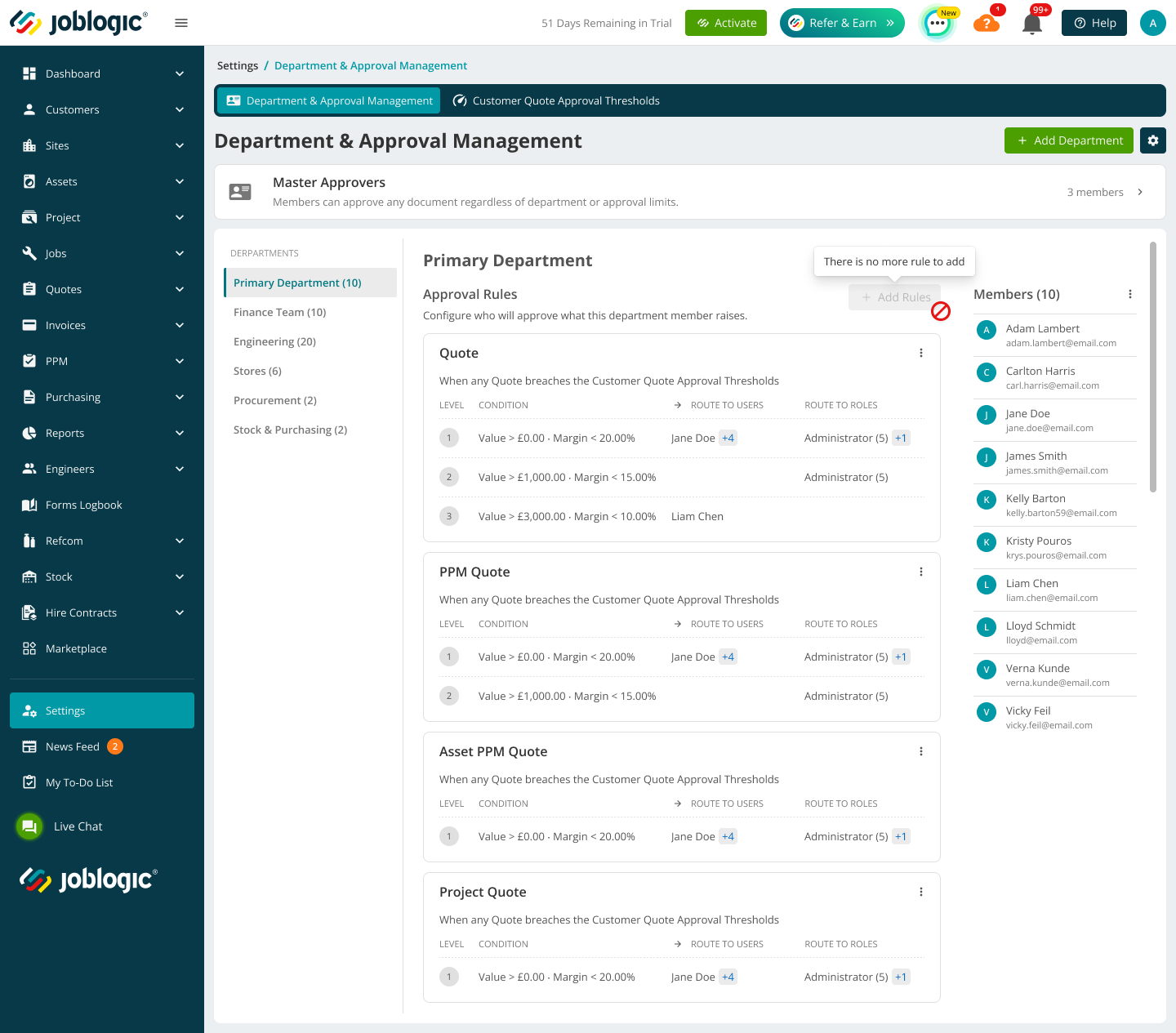
Reactive Quotes, PPM Quotes, Asset PPM Quotes and Project Quotes each have a separate approval-rule section in every department.
The department overview displays separate approval rules for the four supported quote types.
Set quote approval levels
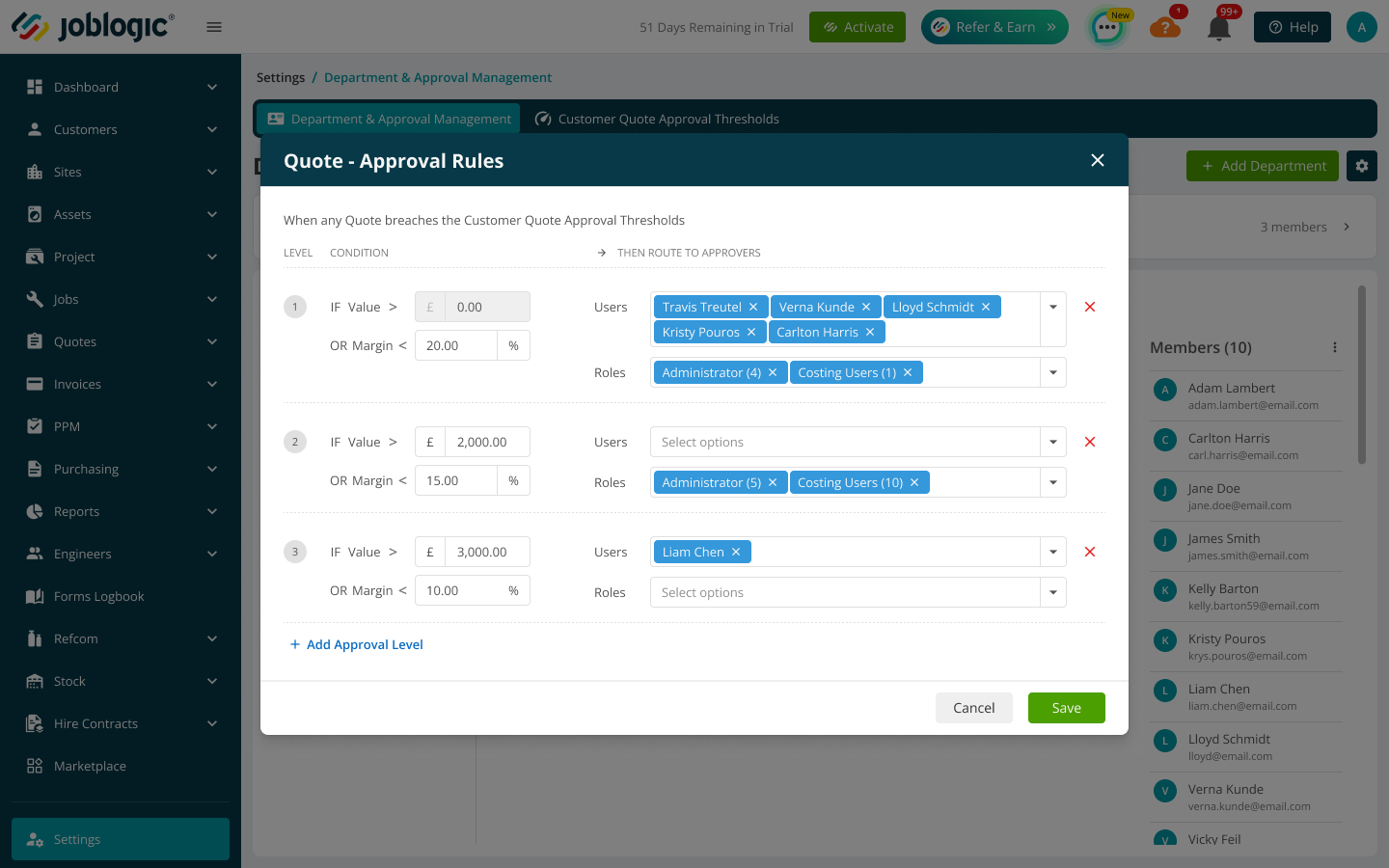
Each quote approval level requires a value limit and a margin limit. The level can route the request to selected users, roles or both.
1. Select the required quote type from Add Rules.
2. Enter Value is Greater Than and Margin is Less Than.
3. Select the approver users or roles.
4. Add further levels as required, then select Save.
The Quote Approval Rules window defines value and margin conditions for each level.
Use the following rules when adding quote approval levels:
- Enter positive numeric values with no more than two decimal places.
- Do not enter text, negative numbers or 0.00.
- Set each next value equal to or higher than the previous level.
- Set each next margin equal to or lower than the previous level.
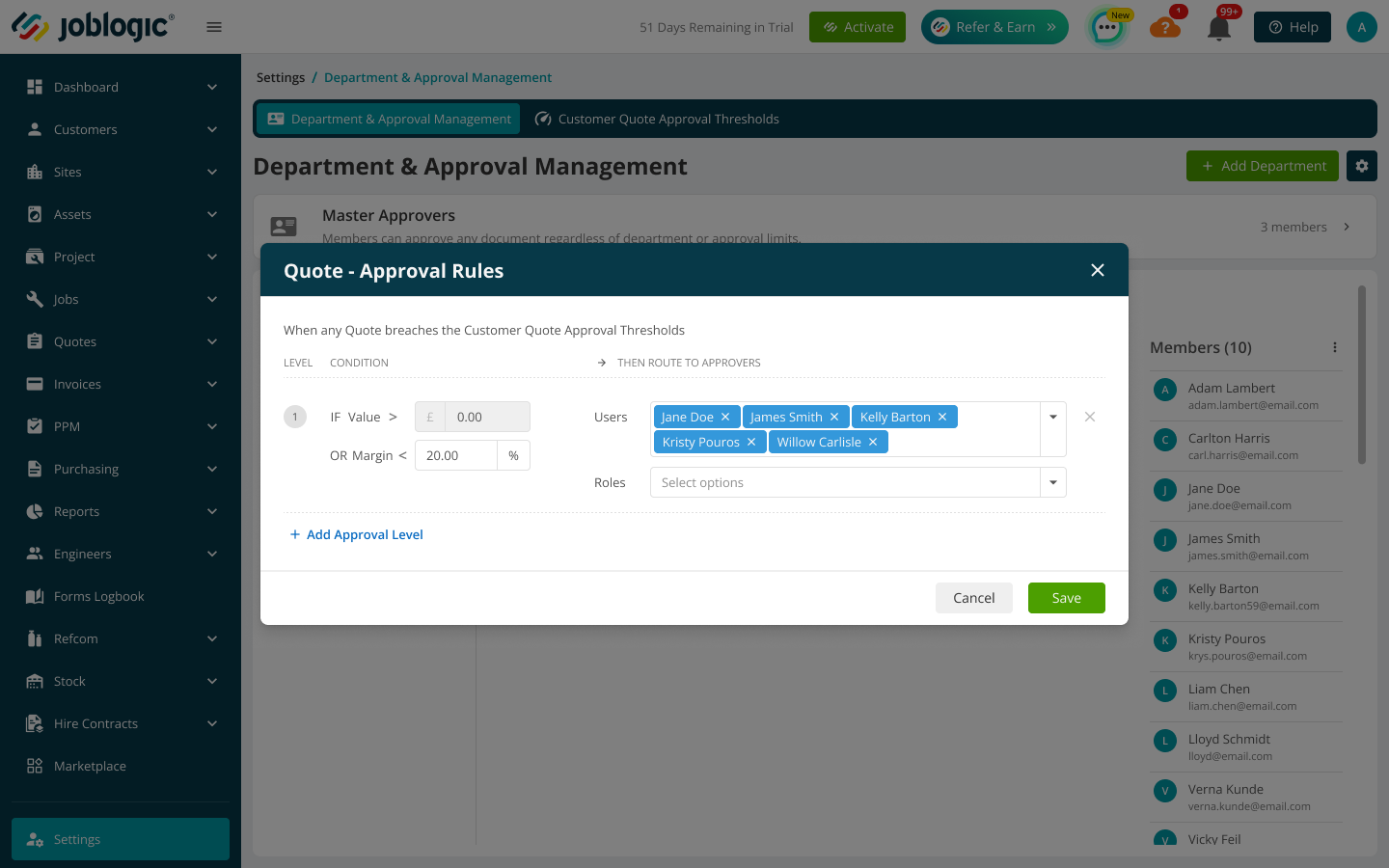
Select multiple approvers
A level can include more than one named approver. Joblogic routes the request to the users selected for that level.
Select multiple named users when several people can approve the same level.
Select approvers by role
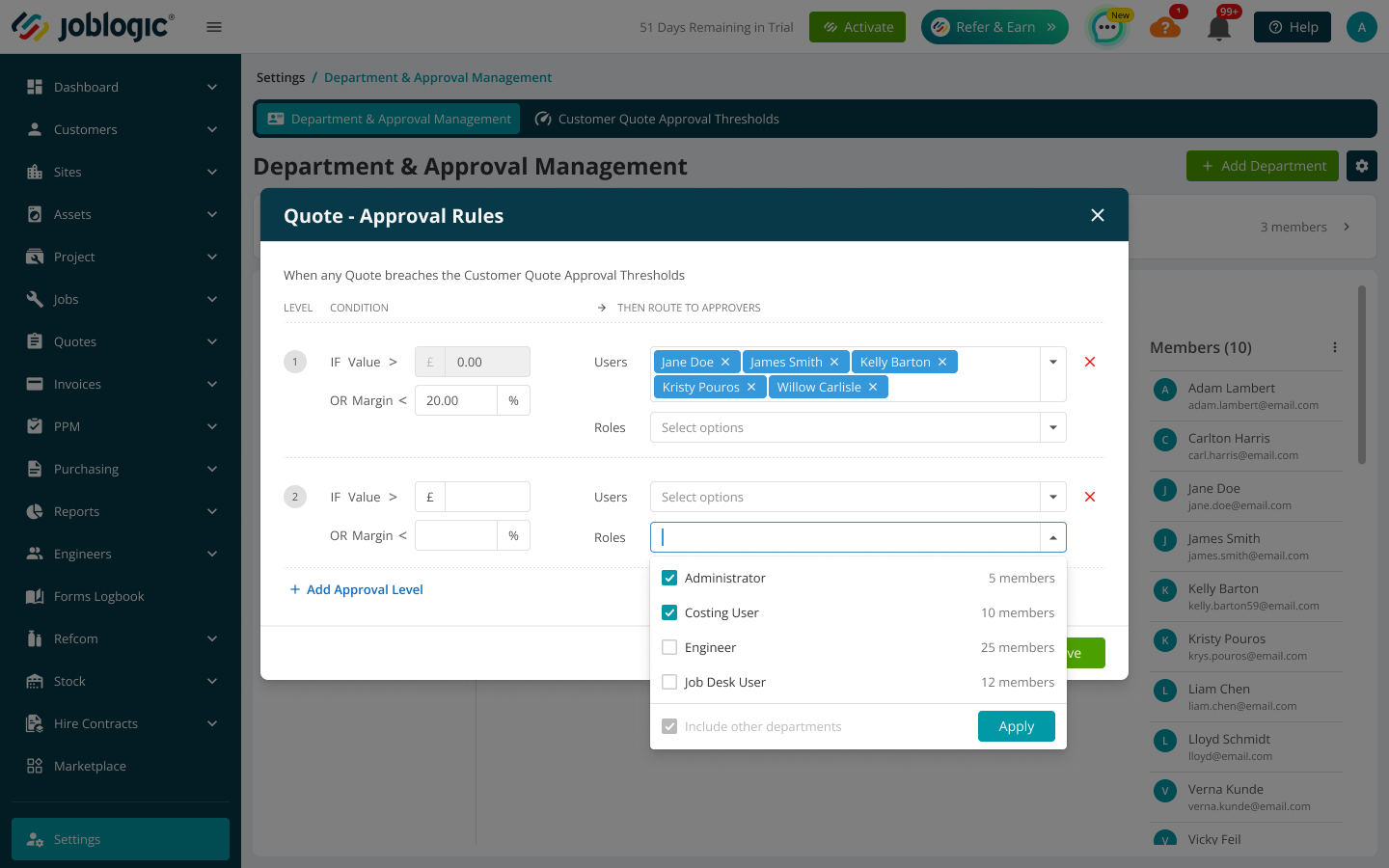
Select a role to include all users assigned to that role. A rule can include named users and one or more roles.
The role selector shows each available role and the number of users assigned to it.
Select approvers from other departments
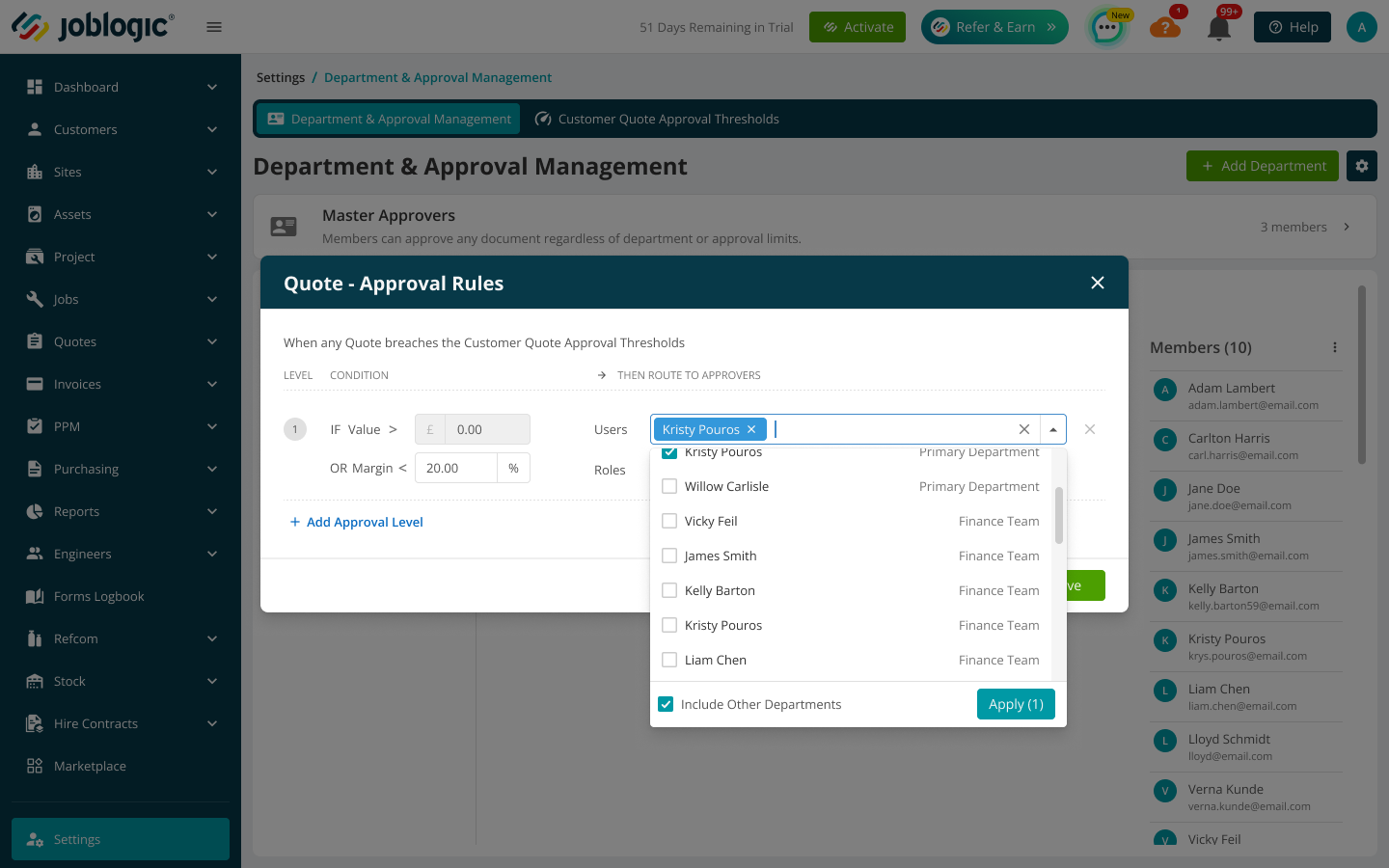
The approver list initially shows users from the selected department. Select Include Other Departments to choose approvers from elsewhere in the company. The document raiser's department still determines which approval rule applies.
Include Other Departments expands the approver list without changing the rule's department.
Set customer quote thresholds
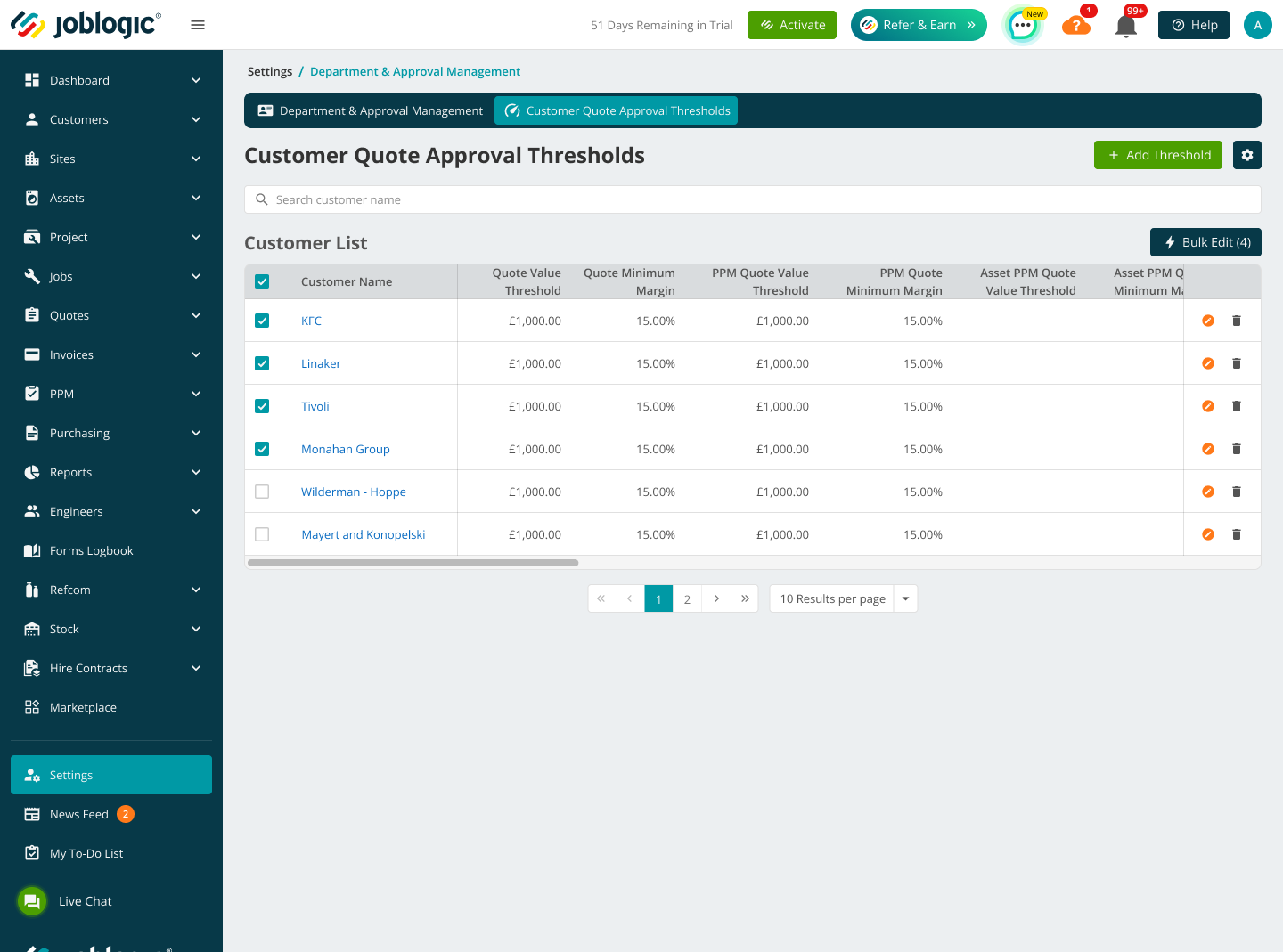
Customer thresholds determine whether a quote enters the approval workflow. Configure a value threshold, a margin threshold or both for each quote type.
The Customer Quote Approval Thresholds tab lists each customer's configured value and minimum-margin thresholds.
Add customer thresholds
1. Open the Customer Quote Approval Thresholds tab.
2. Select Add Threshold.
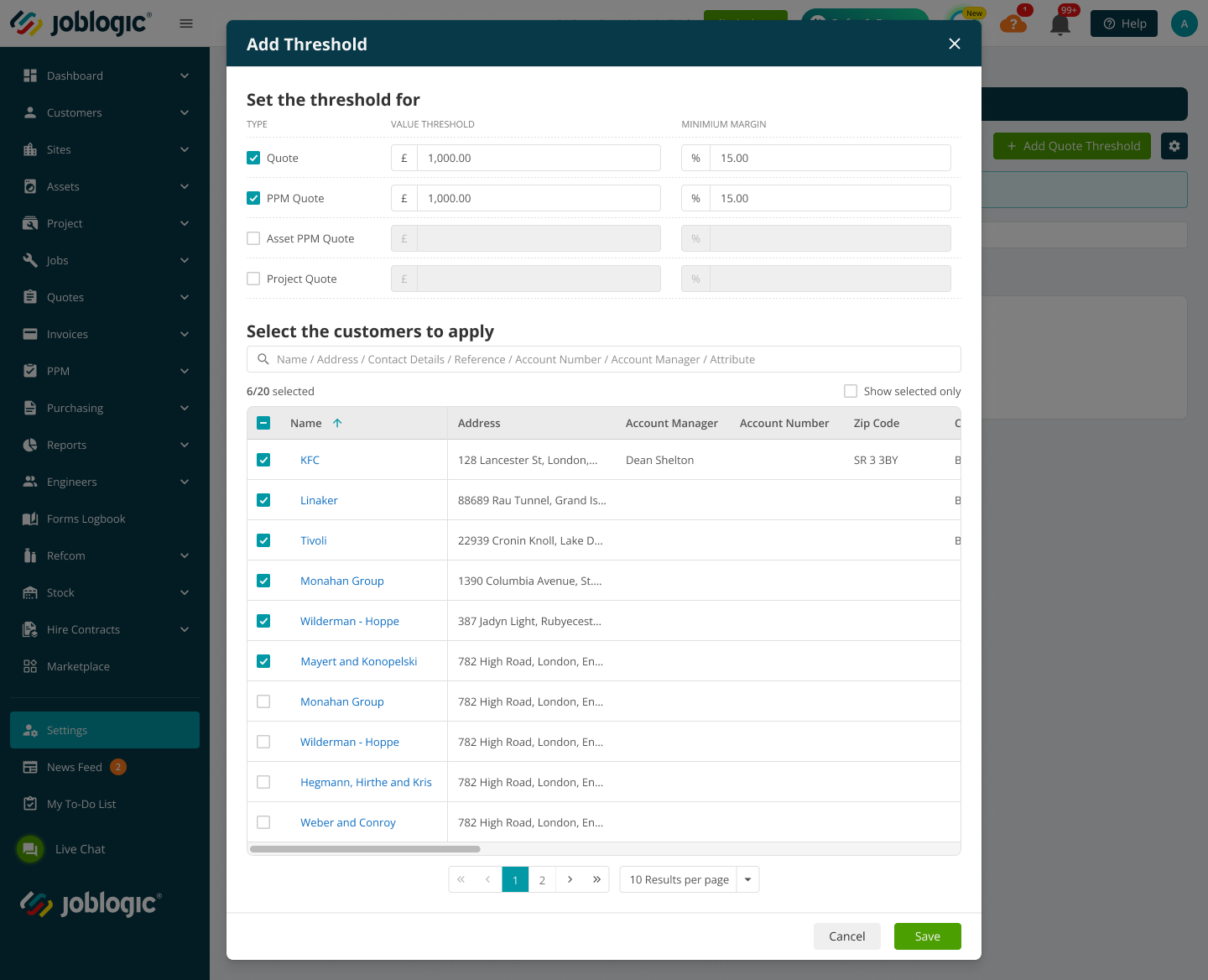
3. Select the quote types and enter the threshold values.
4. Select the customers to which the thresholds will apply, then select Save.
The Add Threshold window applies selected quote thresholds to one or more customers.
Threshold | Approval is required when |
|---|---|
Value | The quote's total sell value is equal to or greater than the customer value threshold. |
Margin | The quote's calculated margin is equal to or less than the customer margin threshold. |
The value threshold uses the currency configured in System Setup.
Both fields are optional and empty by default. When entering a threshold:
- Enter a positive numeric value with no more than two decimal places.
- Do not enter text, a negative number or 0.00.
- Do not enter a margin above 100 percent.
Edit customer thresholds
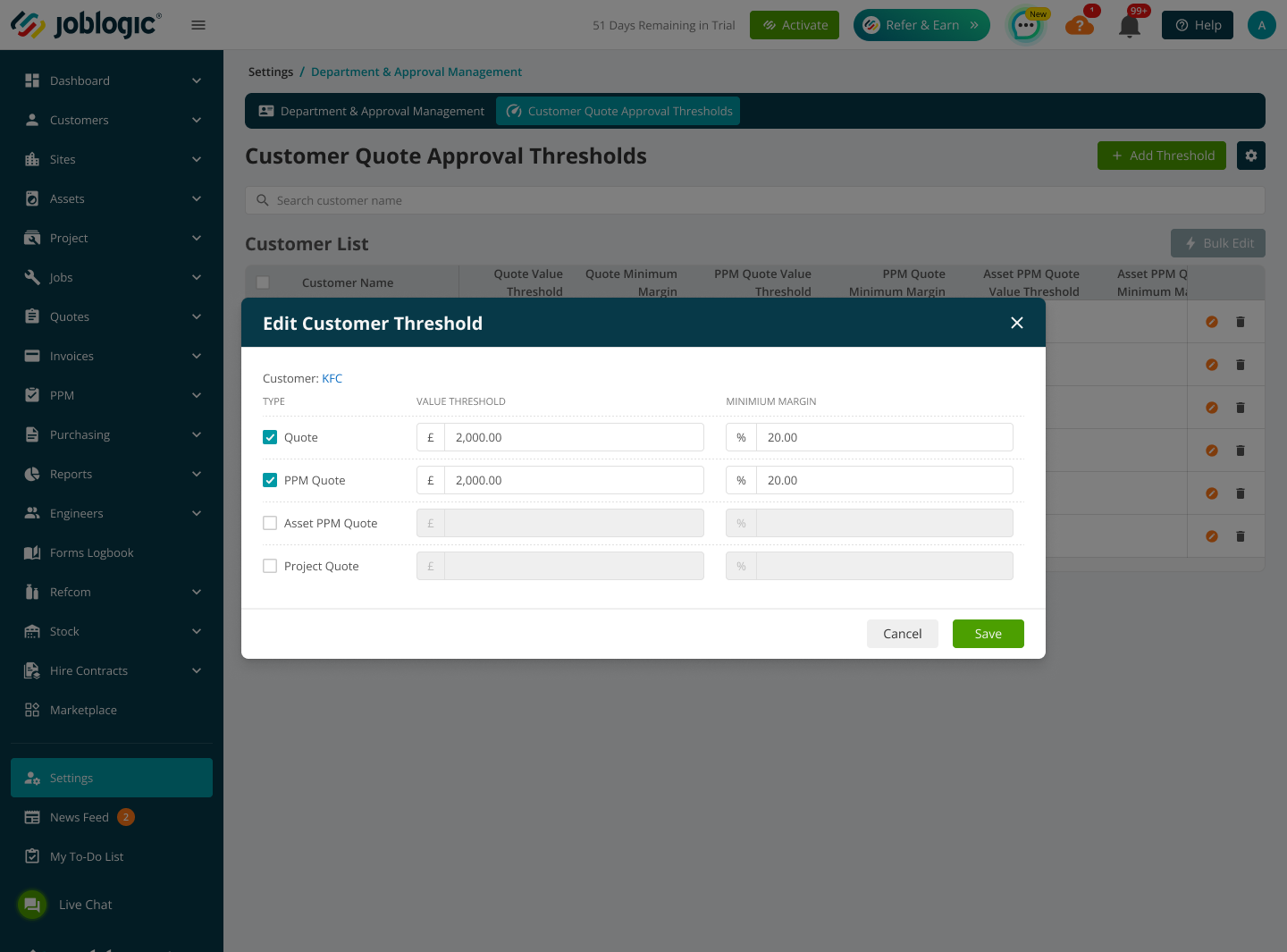
Use the edit option beside a customer to update its value and minimum-margin thresholds.
The Edit Customer Threshold window shows the value and margin settings for each quote type.
Bulk edit customer thresholds
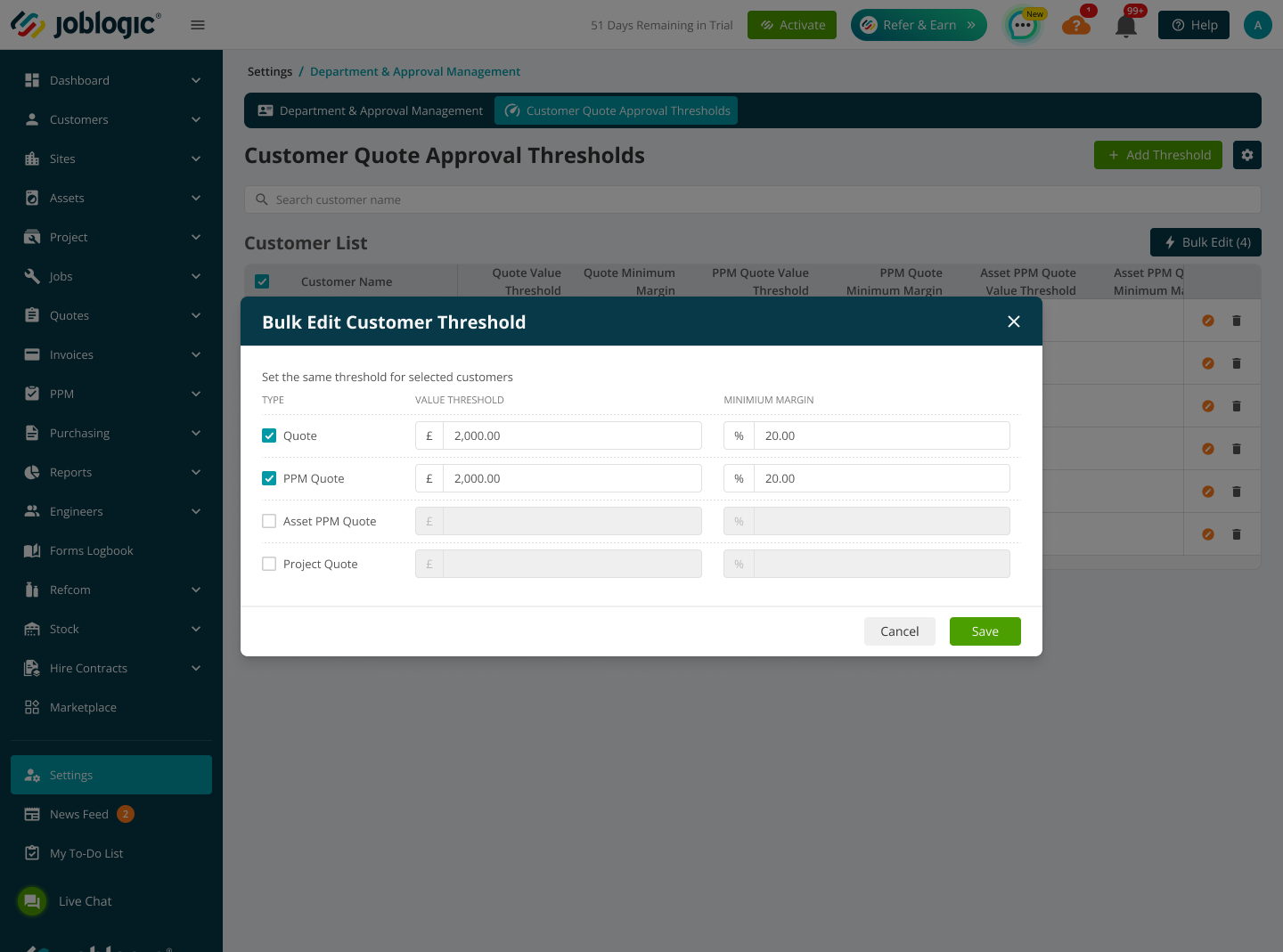
Select multiple customers and use Bulk Edit to apply the same threshold settings to the selected records.
The Bulk Edit Customer Threshold window applies threshold values to multiple customers.
How Joblogic checks a quote
Joblogic checks the quote against the customer's thresholds when the quote is upgraded. Approval is required when either threshold is reached.
Value threshold: Approval is required when the quote sell value is equal to or greater than the configured value.
Margin threshold: Approval is required when the quote margin is equal to or lower than the configured margin.
Margin calculation: Margin percentage equals (Sell minus Cost), multiplied by 100, then divided by Sell.
Example: A quote with a sell value of 200 and a cost of 50 has a margin of 75 percent: (200 - 50) x 100 / 200.
When a threshold is breached, Joblogic:
- Marks the quote as Internal Approval Required for Upgrade.
- Displays a message explaining that an approval threshold has been breached.
- Prevents users from upgrading the quote when it falls outside their approval limits.
- Routes the quote to the users or roles selected for the applicable level.
A user can approve a quote within a level only when both conditions apply:
- The quote value is equal to or less than the level's value limit.
- The quote margin is equal to or greater than the level's margin limit.
Important: Approval authority does not replace the Upgrade Quote permission. A user needs both the required approval authority and the Upgrade Quote permission to upgrade the quote.
When no approval rule is configured
If a customer quote threshold is reached but the quote type has no department rule, the quote still requires approval and is routed to Master Approvers. This fallback applies only to the four quote document types. Existing purchase document types continue using their legacy behaviour when no rule is configured.
Find quotes that require upgrade approval
Use Require Upgrade Approval in Advanced Filters from:
- All Quotes
- All PPM Quotes
- All Project Quotes
Existing Department and Approval Management notifications continue to apply to quote approvals.
Permissions
Department and Approval Management Configuration is available under Staff > Advanced. The permission controls access to the Department and Approval settings.
- The permission is assigned to the Admin role and its users by default.
- Other roles do not receive the permission by default.
- Users without the permission cannot view the Department and Approval settings card.
- Upgrade Quote remains a separate permission for upgrading approved quotes.
Audit and reporting
Joblogic records the configuration and approval activity used by the app:
- Purchase and invoice approvals record the approving user, timestamp, approval level and approved value.
- Customer threshold changes are available in Customer Audit.
- Quote approval and upgrade activity is recorded in the existing quote audit logs.
- Customer quote approval threshold margin and value tags are available in DOCX report templates.
Further Support
For further information or assistance with the above, contact our Support Team on 0800 326 5561 or email support@joblogic.com. Alternatively, our Customer Success Management team can be reached by emailing customersuccess@joblogic.com.
Publishing Details
This document was written and produced by Joblogic's Technical Writing team and was last updated in October 2026. Be aware that the information provided may be subject to change following further updates on the matter becoming available or new releases within the system. Additionally, details within the guide may vary depending on your Joblogic account's user permissions and settings or the electronic device being used.