Introduction
Engineer Order Refrigerant allows engineers to raise refrigerant cylinder orders from the Joblogic Mobile App. Each order creates a Stock Purchase Order that can be emailed to the supplier and received in Mobile when the cylinders arrive.
In this guide, we'll show you how to subscribe to Engineer Order Refrigerant, create and manage gas purchase orders, email suppliers and record full or partial deliveries. It also covers the supporting Back Office workflows for site deliveries and cylinder distribution.
Subscribing to Engineer Order Refrigerant
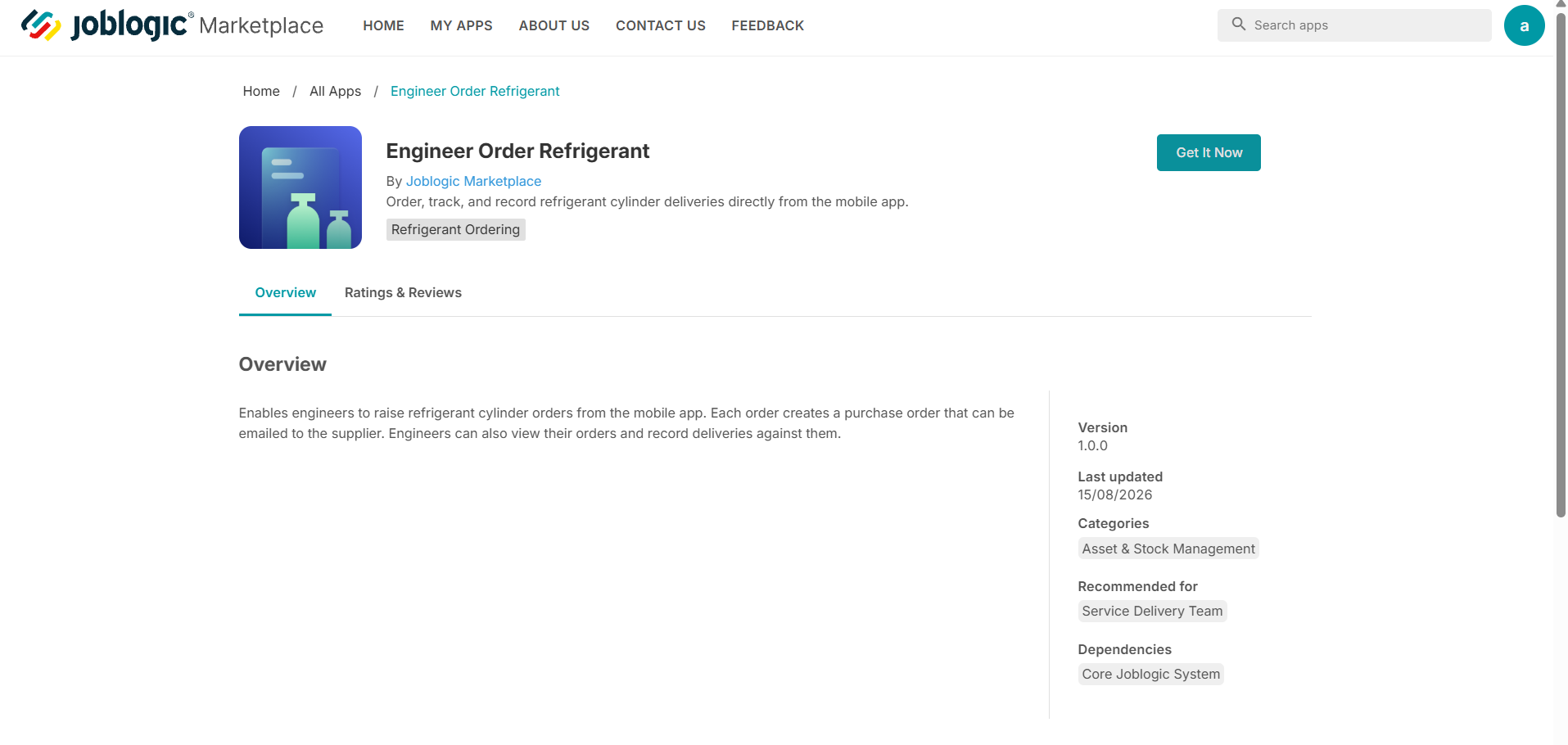
Navigate to Marketplace > Explore More and search for Engineer Order Refrigerant.
Open the app and select Get It Now to make the functionality available for your account.
Before you start
Confirm the following before creating an order:
- The Engineer Order Refrigerant Marketplace app is subscribed for your Joblogic account.
- Your role has permission to create and view refrigerant Stock POs in Mobile.
- The required suppliers, gas types and stock locations already exist in Joblogic.
- Your engineer record is linked to a stock location if your van or another location should appear by default.
- Site Stock Locations and Cylinder Distribution are enabled when those workflows are required.
Availability: If Gas Purchase Orders is not visible in Mobile, ask an administrator to check the Marketplace subscription, the related system settings and your permissions. |
Open Gas Purchase Orders
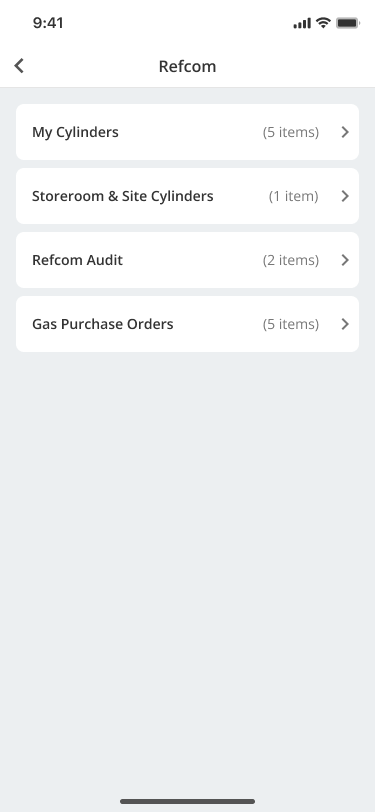
1. Sign in to Joblogic Mobile and open Refcom.
2. Select Gas Purchase Orders.
Select Gas Purchase Orders from the Refcom menu.
3. Review the existing orders or select Create to start a new order.
Select Create to start a new order, or use the search and filters to review an existing order.
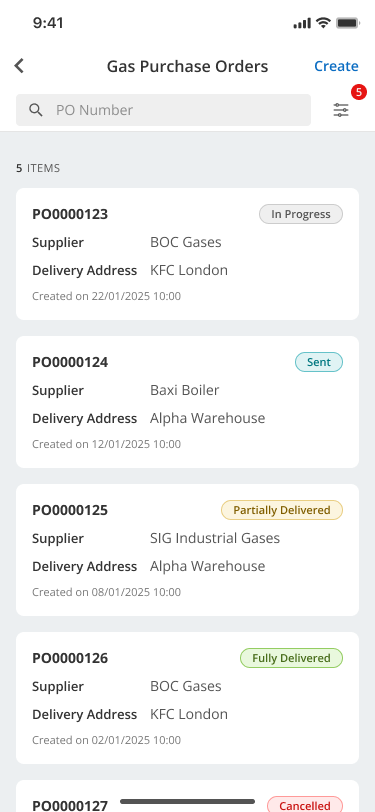
Subject to permissions, the list includes Stock POs containing refrigerant gas items created by you, other engineers or Back Office users. Search by PO number, or filter the list by status, date range or supplier.
Create a gas purchase order
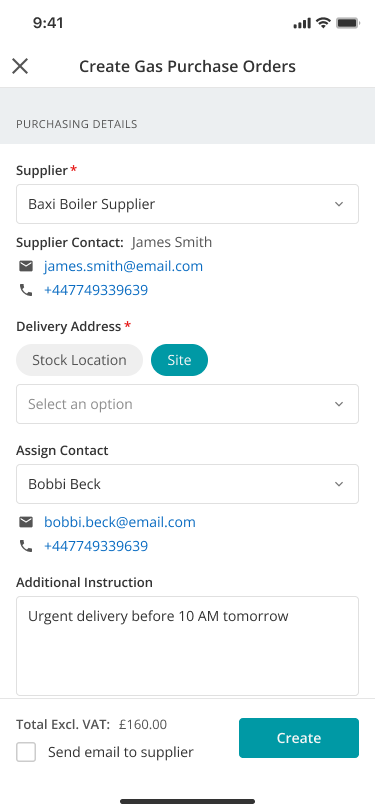
Select the supplier
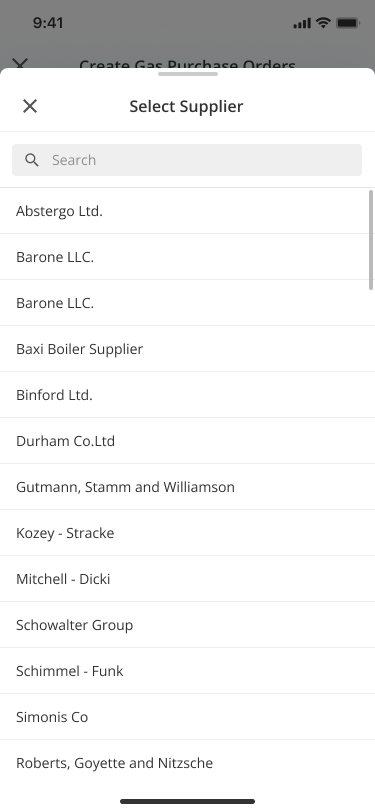
1. Select Supplier and choose the company supplying the refrigerant.
Search for and select the required supplier.
Choose the delivery address
Under Delivery Address, choose one of the following methods:
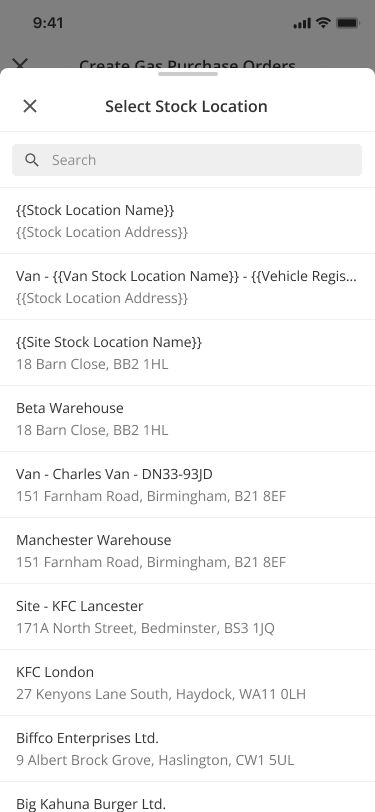
- Stock Location: select a van, warehouse or another active stock location.
- Site: select a customer site when Site Stock Locations are enabled.
Select the required stock location when the order is being delivered to a van or warehouse.
Select the required customer site when the refrigerant is being delivered to a site.
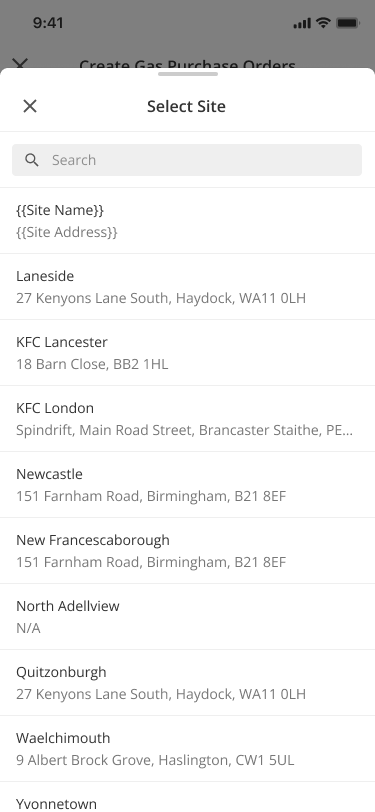
Site delivery: If the selected site does not already have a linked Site Stock Location, Joblogic creates one using the site's name and address. If one already exists, Joblogic reuses it. Inactive sites and their linked stock locations cannot be selected. |
Add delivery instructions
1. Enter any delivery information in Additional Instruction.
Enter any additional delivery instructions before adding the gas items.
Add gas items
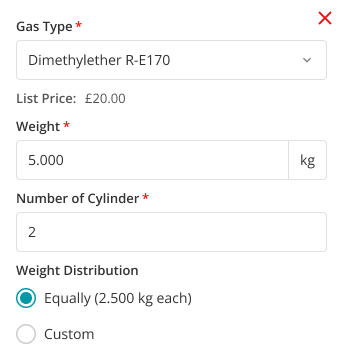
1. Select the Gas Type.
2. Enter the total Weight in kilograms.
3. Enter the Number of Cylinder required.
4. Choose Equally to divide the weight evenly, or Custom to enter the weight for each cylinder.
5. Select Add Item to include another gas line.
Enter the gas type, total weight, number of cylinders and weight distribution for the gas line.
Read-only values: Cost, tax rate and nominal code come from the Gas Type Library and cannot be edited in Mobile. |
Create and optionally email the order
1. Review the order total and gas items.
2. Leave Send email to supplier selected to email the PO when the order is created, or clear it to send the email later from Order Details. The option is selected by default.
3. Select Create.
Joblogic creates the Stock Purchase Order immediately. If supplier emailing is selected and the order is within your approval limit, the supplier receives the configured email and the generated Purchase Order document.
Orders above your approval limit
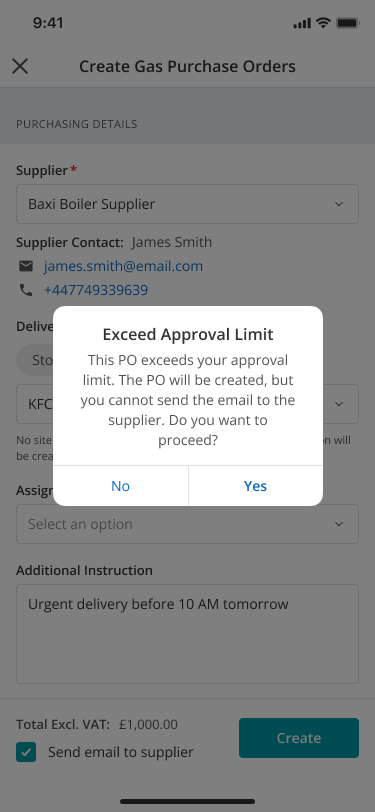
If the PO exceeds your approval limit, Joblogic warns that the order can be created but cannot be emailed or delivered until Back Office approves it. Select Yes only when you want to create the order for approval.
Select Yes to create the PO for Back Office approval, or No to return to the order.
Review and manage an order
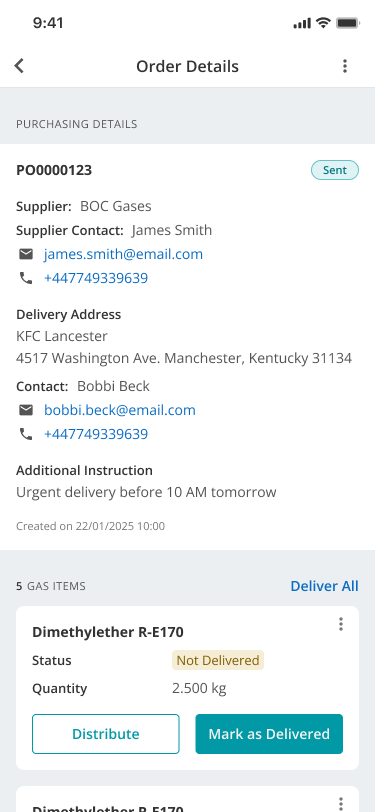
Open an order from the Gas Purchase Orders list to review its supplier, delivery address, contact, instructions and gas items.
Status | Meaning |
|---|---|
In Progress | The order exists but has not been successfully emailed to the supplier. |
Sent | The PO email was sent to the supplier. |
Partially Delivered | Some ordered refrigerant has been received and a quantity remains outstanding. |
Fully Delivered | All required quantities have been received. |
Cancelled | The order has been cancelled. |
Open Order Details to review the supplier, delivery address, contact, instructions and gas items.
Edit or remove gas items
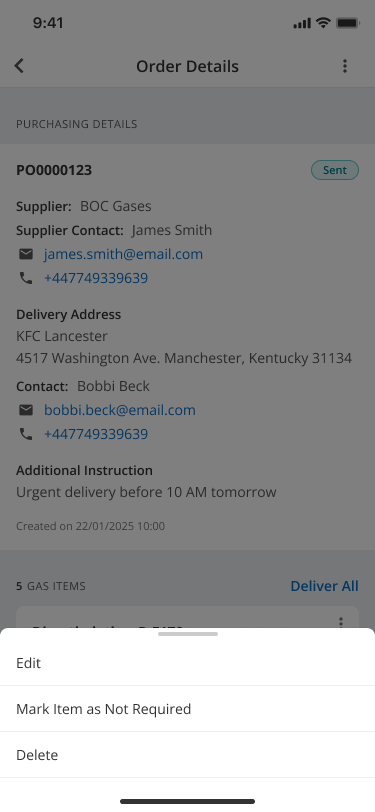
For an undelivered gas item, open its three-dot menu and select the required action:
- Edit to change the gas item.
- Mark Item as Not Required when the line is no longer required.
- Delete to remove the line from the PO.
Open the gas item's three-dot menu and select the required action.
Add another gas item or cancel the PO
Open the order's three-dot menu to add a gas item, email the supplier or cancel the purchase order.
Open the order's three-dot menu and select the required action.
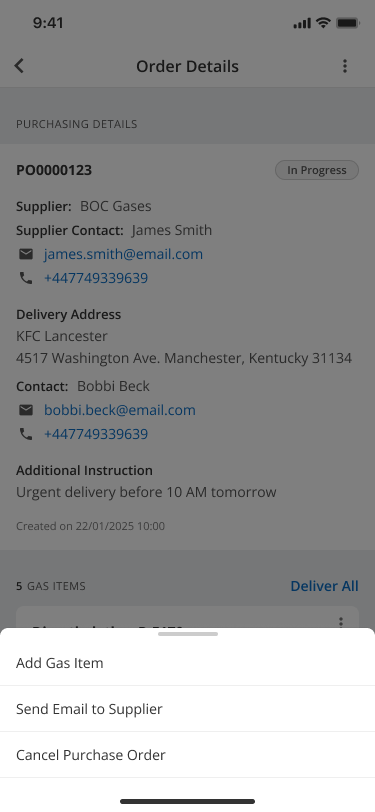
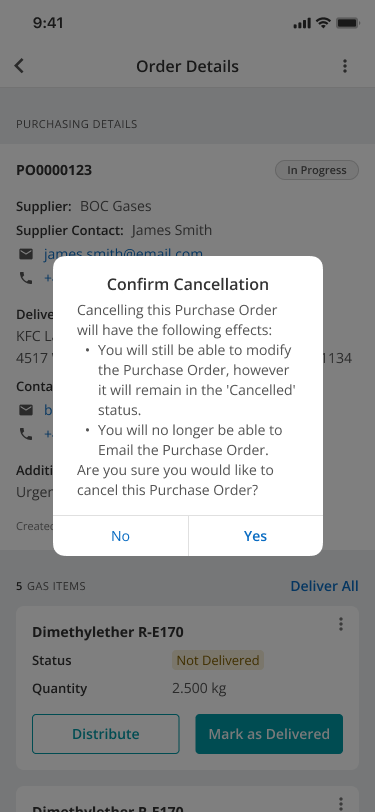
Select Cancel Purchase Order and confirm the action. The PO changes to Cancelled.
Review the cancellation message and select Yes to cancel the PO.
Email the supplier
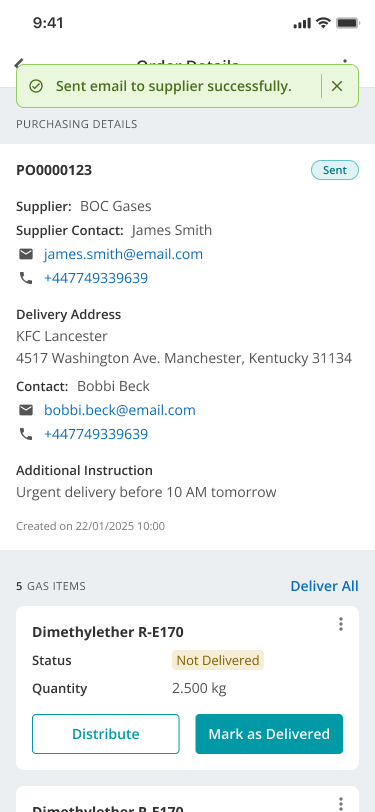
If Send email to supplier was not selected when the order was created, open the order menu and select Send Email to Supplier. Joblogic uses the configured refrigerant email wording, includes the configured CC address where present and attaches the generated Purchase Order document.
When the email is sent successfully, the PO status changes to Sent.
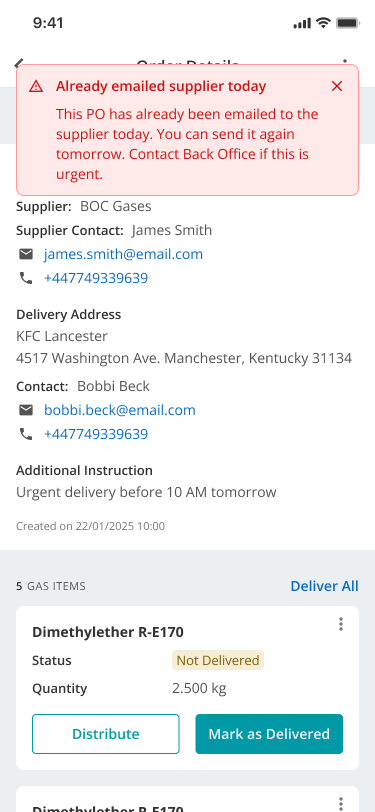
If the supplier has already been emailed for the PO, Joblogic displays a warning before another email attempt.
Review the warning when the supplier has already been emailed.
Record a refrigerant delivery
An approved PO can be received while it has an outstanding quantity. Open the order and select Mark as Delivered or Distribute on the relevant gas line.
Use Mark as Delivered
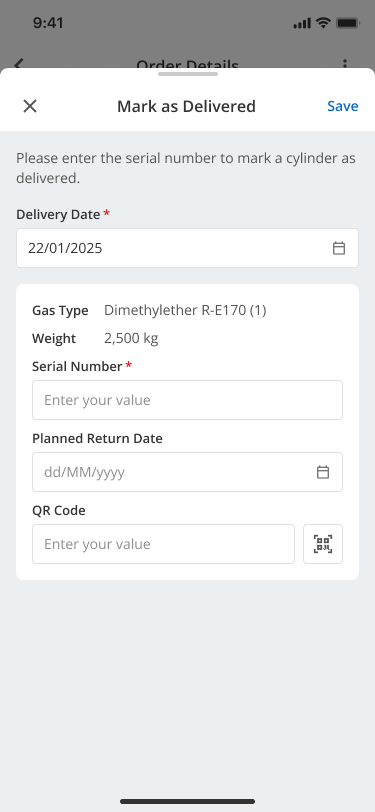
Select Mark as Delivered when the supplier delivered the cylinders using the original weight distribution. Enter one serial number for each cylinder on the line.
1. Confirm the Delivery Date.
2. Enter the mandatory Serial Number for each delivered cylinder.
3. Select Save.
Enter the delivery date and a unique serial number for each delivered cylinder, then select Save.
Use Distribute
Select Distribute when the physical cylinders delivered differ from the original line distribution. You can split the ordered quantity into the cylinder weights actually received.
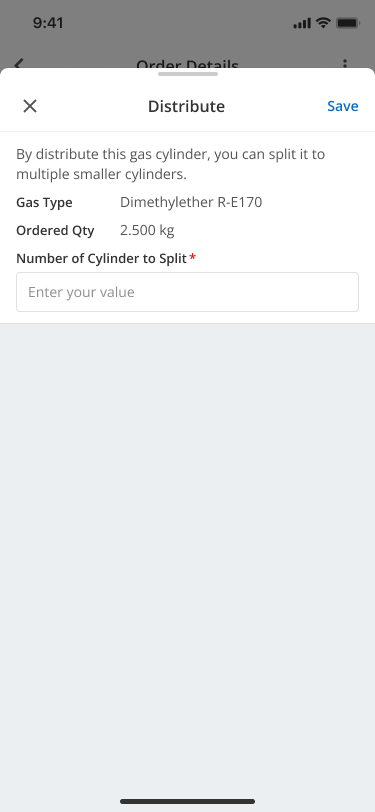
1. Enter the Number of Cylinder to Split.
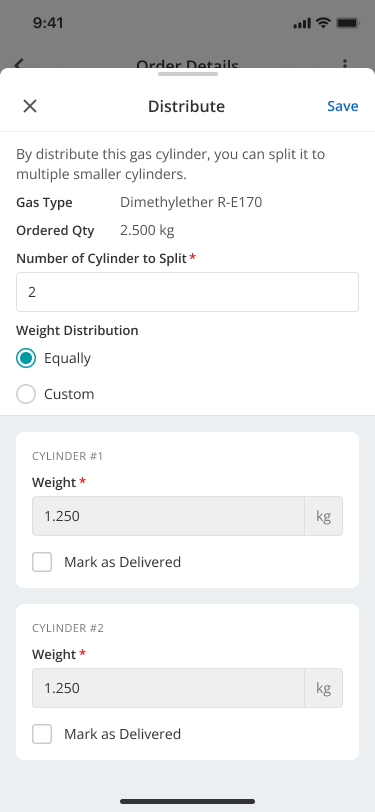
2. Choose Equally for an equal split, or Custom to enter individual weights. With Custom, Joblogic calculates the final remaining weight.
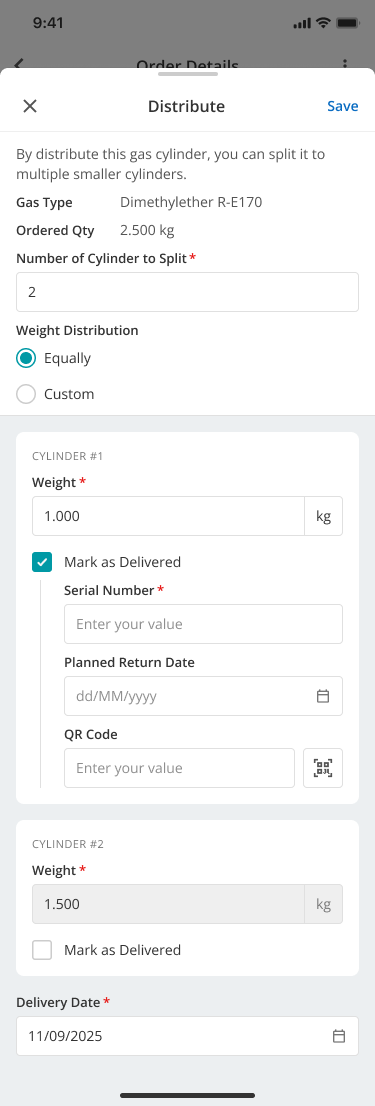
3. Select Mark as Delivered for each cylinder that has arrived.
4. Enter a unique Serial Number for every cylinder marked as delivered.
5. For a site delivery, record the physical on-site cylinder location where required, such as Plant Room, Roof Area, Back Yard or Store Room.
6. Select Save.
Start by entering the number of physical cylinders in the distribution.
Select Equally to divide the ordered weight evenly across the cylinders.
Select Mark as Delivered for each received cylinder and enter its serial number before saving.
Complete the related tasks in Back Office
Authorised Back Office users can select a customer site when creating a Stock PO and can distribute a delivered gas line into the physical cylinders received.
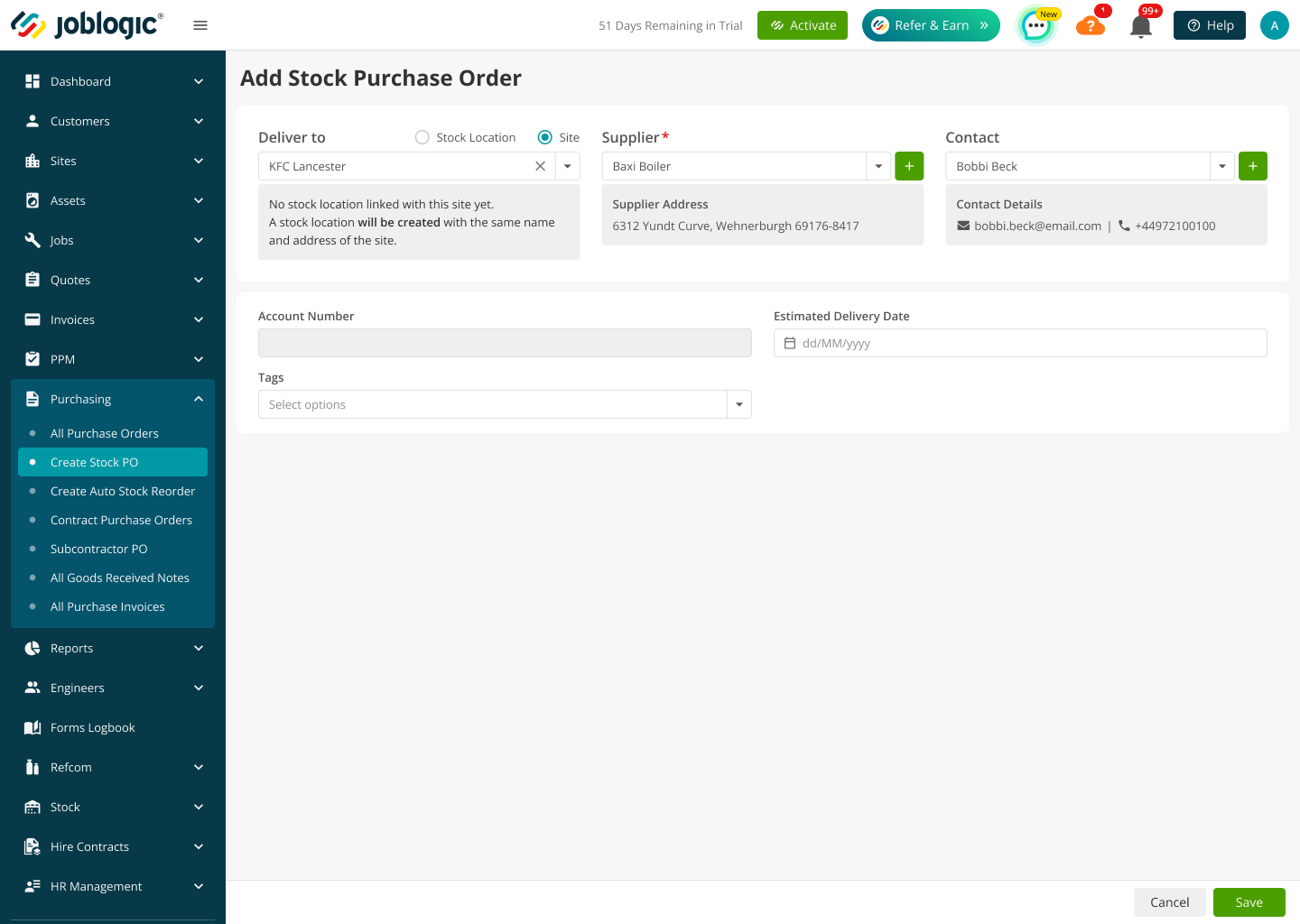
Select a site on a Stock PO
1. Navigate to Purchasing > Create Stock PO.
2. Under Deliver to, select Site.
3. Select the required customer site, supplier and contact.
4. Complete the remaining Stock PO details and select Save.
If the site already has a linked Site Stock Location, Joblogic reuses it. If the site does not have one, Joblogic creates a Stock Location using the site's name and address when the Stock PO is saved.
Select Site and choose a customer site with an existing linked Stock Location.
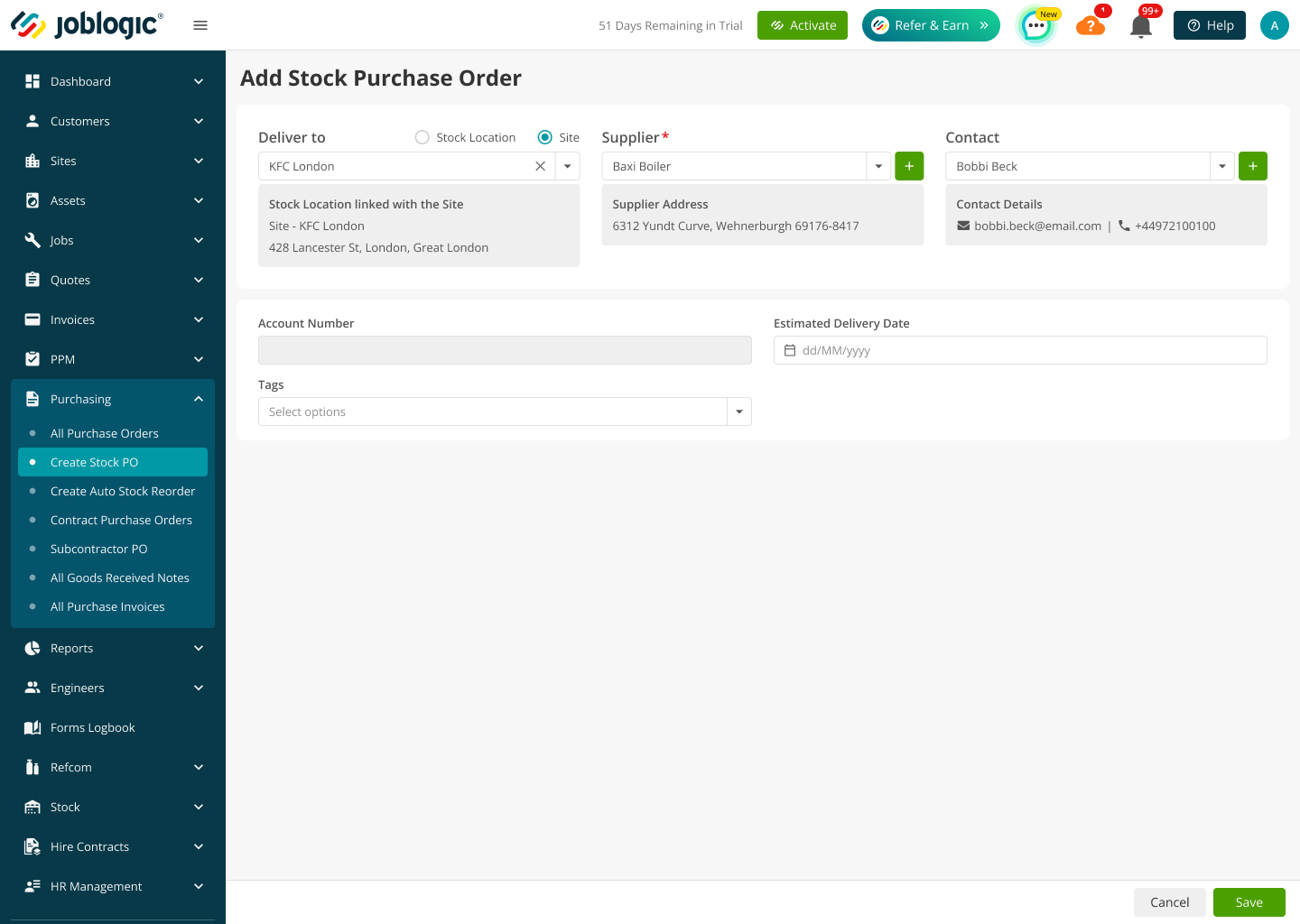
When the selected site is not yet linked, Joblogic confirms that a Stock Location will be created from the site details.
Distribute a gas line in Back Office
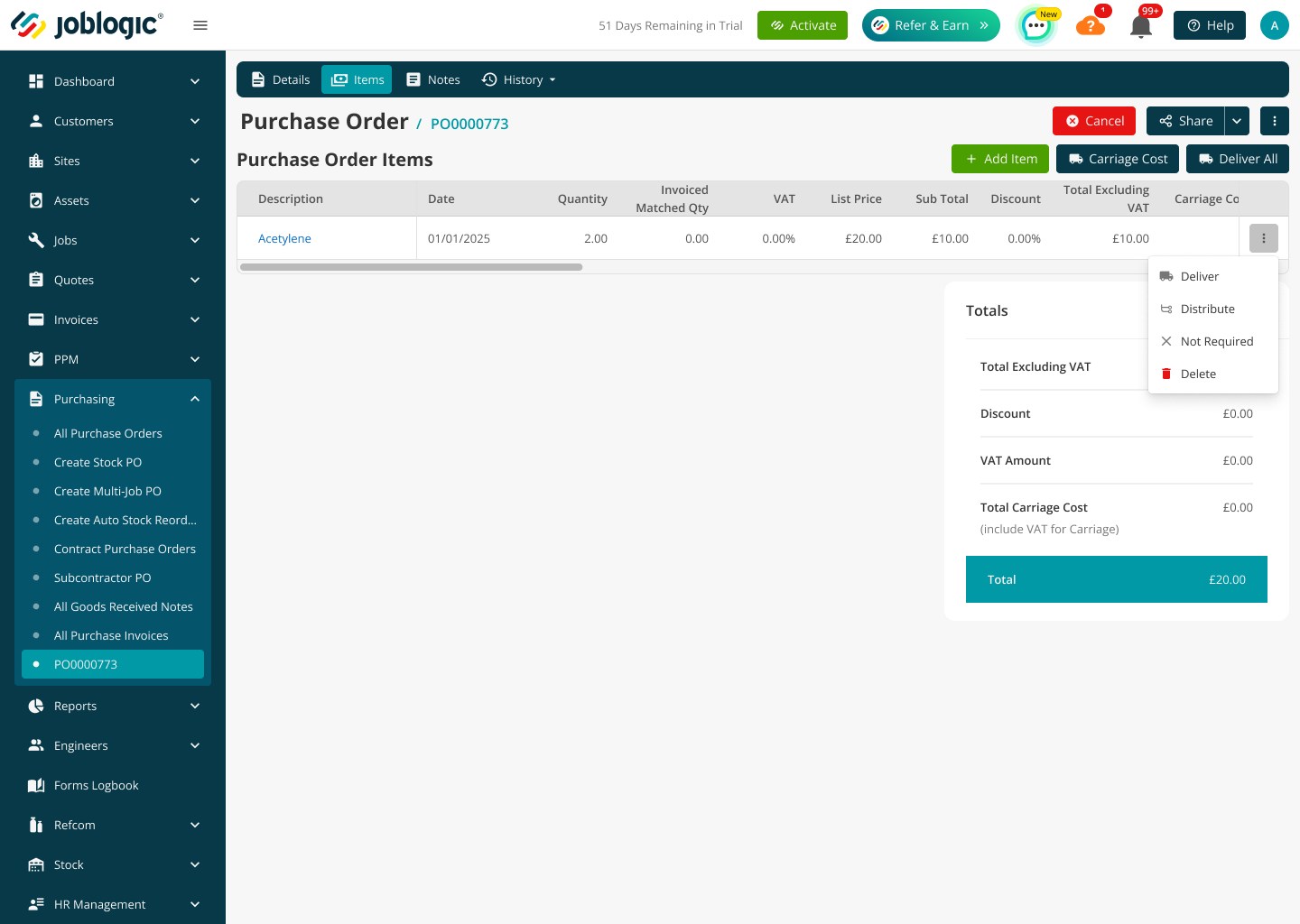
1. Open the Stock PO and select the Items tab.
2. Open the gas line's three-dot menu and select Distribute.
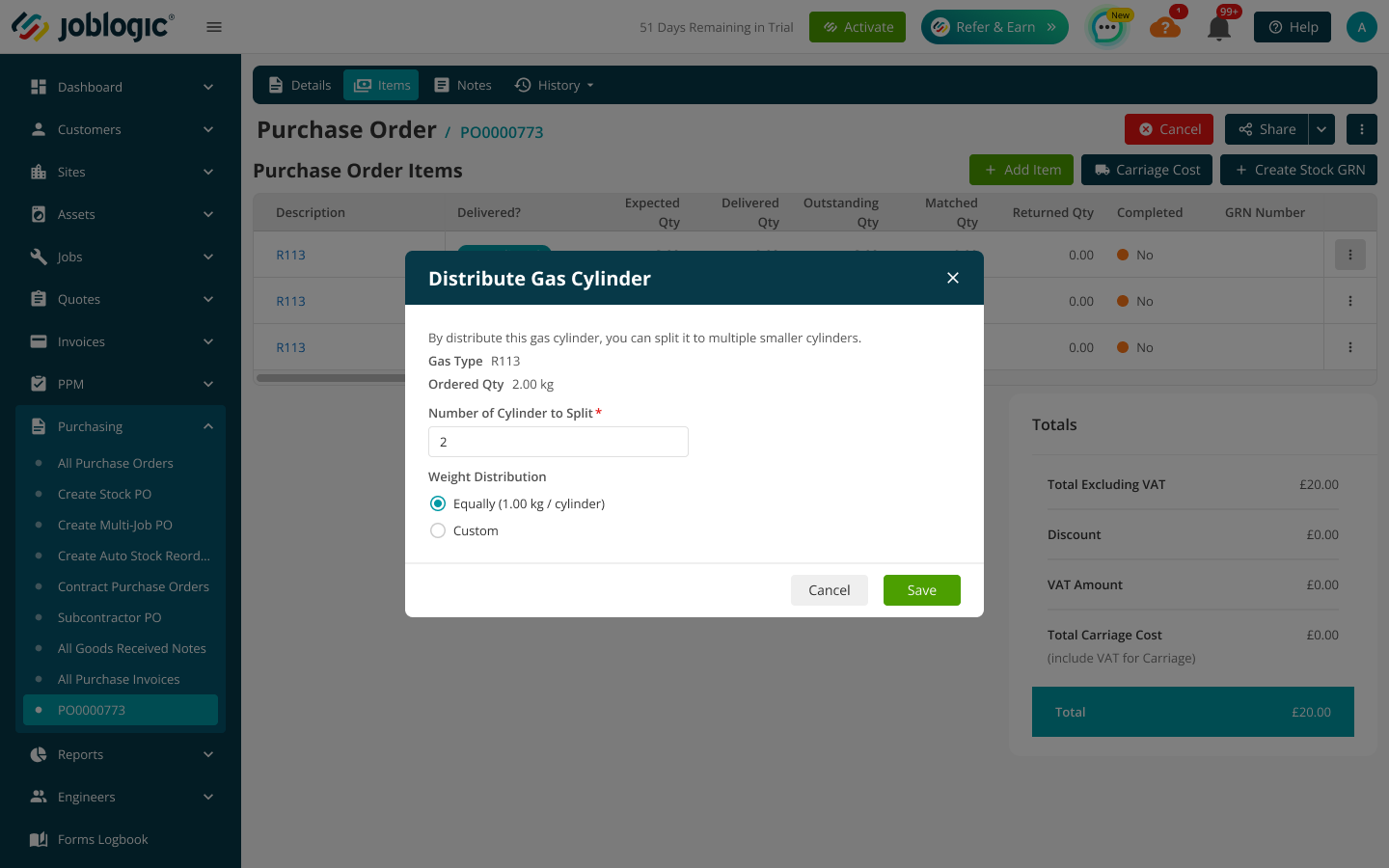
3. Enter the Number of Cylinder to Split.
4. Choose Equally or Custom and enter the required cylinder weights.
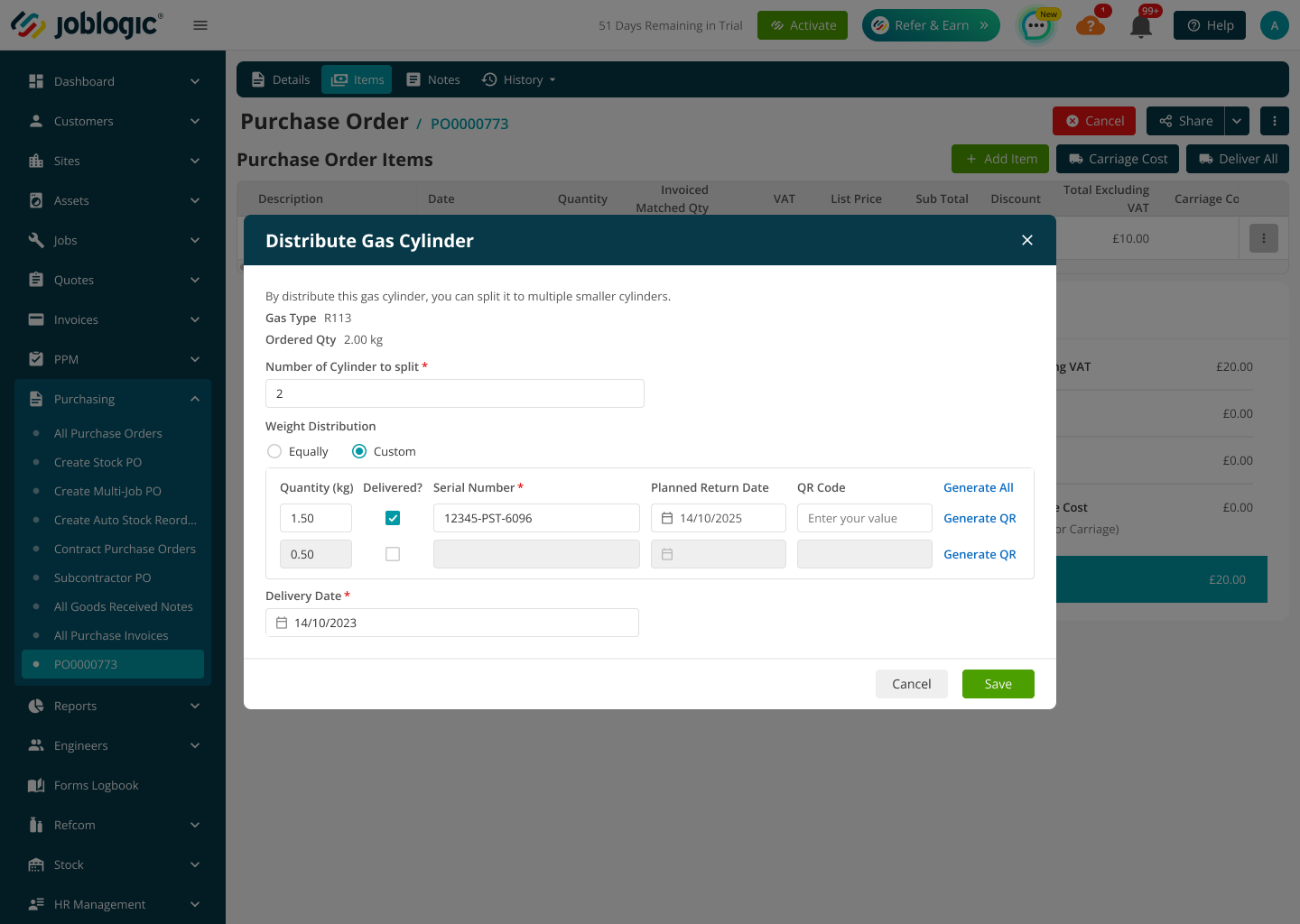
5. Select Delivered for each cylinder received and enter its serial number and delivery details.
6. Select Save.
Open the gas line menu and select Distribute.
Enter the number of cylinders and select the required weight distribution.
Mark each received cylinder as delivered and enter its delivery details before saving.
Serial-number and quantity checks
Joblogic validates the delivery before saving it:
- A serial number is required for each cylinder marked as delivered.
- Serial numbers must be unique within the PO and must not already exist in Joblogic.
- A serial number can be reused only when its previous cylinder has already been returned to the supplier.
- The total distributed quantity cannot exceed the ordered quantity for that gas line.
- A smaller delivered quantity leaves the remainder outstanding and sets the PO to Partially Delivered.
- When all required quantities are delivered, the PO becomes Fully Delivered.
Shared delivery: The engineer who created the order does not have to receive it. Another permitted engineer or Back Office user can update the delivery. |
Cylinder records created after delivery
After a successful full or partial delivery, Joblogic creates one Refcom cylinder record for every serial number entered. Each record stores the refrigerant type, cylinder weight, supplier, date of purchase, delivery date and selected stock location. Site deliveries also retain the Site Stock Location and any on-site cylinder location entered during delivery.
The serial number cannot be edited after delivery. Joblogic also records the delivering user, delivery time, quantities and stock location for audit and traceability.
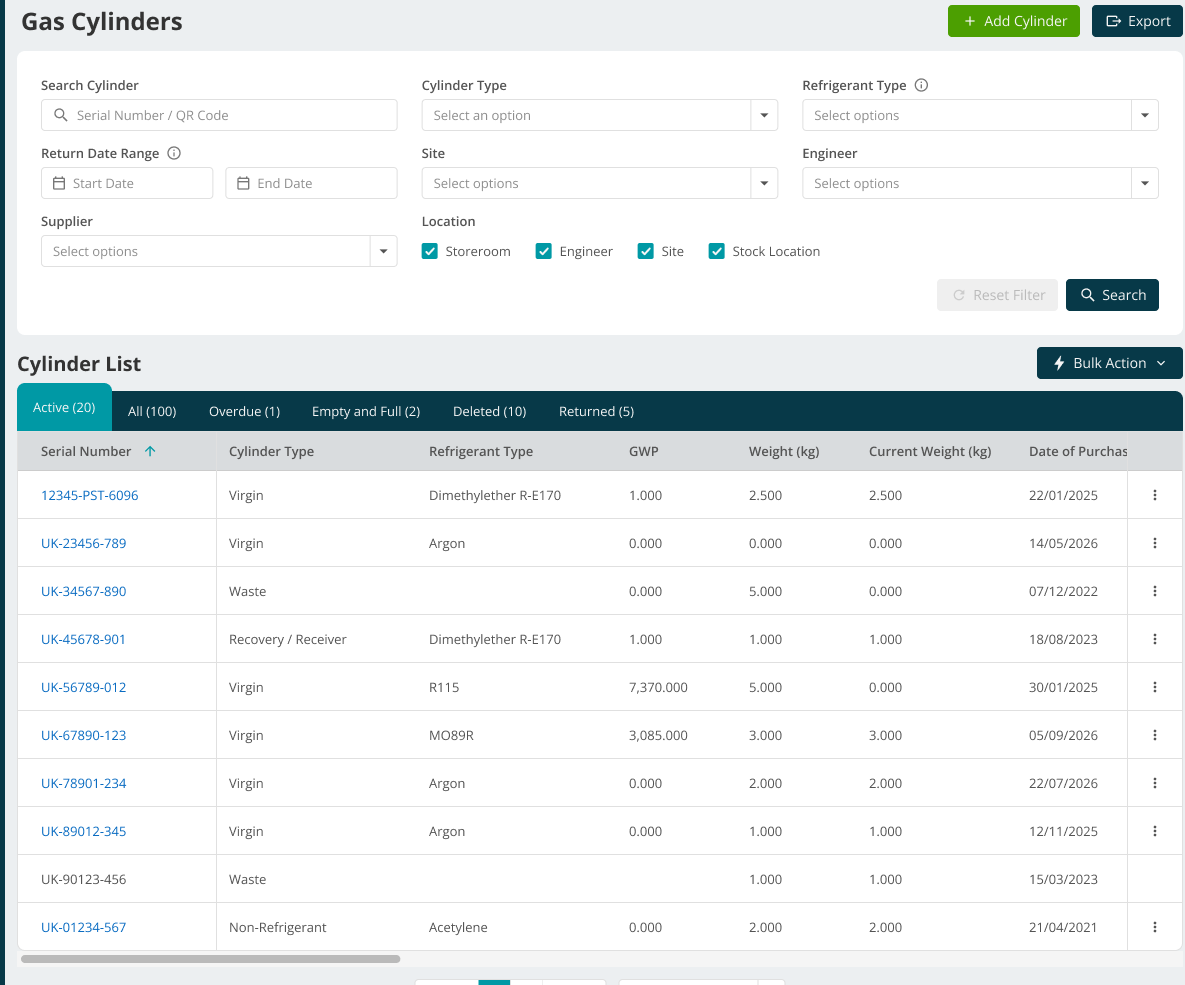
Navigate to Refcom > Gas Cylinders in Back Office to review the created cylinder records.
Use site-held cylinders in Refcom
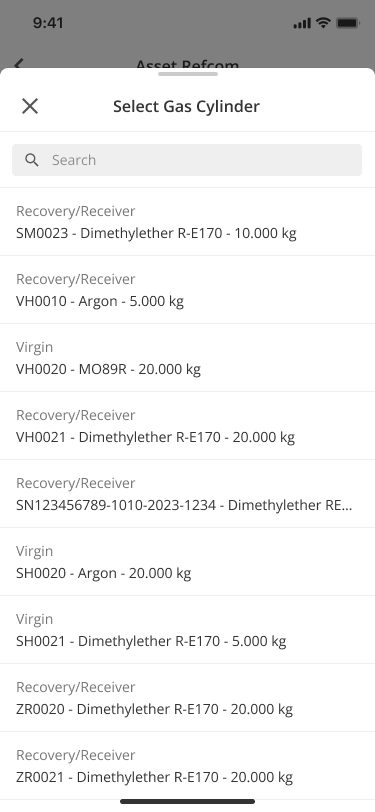
When Site Stock Locations are enabled, a Refcom transaction for a visit can use cylinders held in the engineer's van or at the current visit site. Cylinders held at unrelated sites are not displayed.
Open Select Gas Cylinder to view the cylinders available for the current transaction.
Handle a failed supplier email
If a supplier email generated from a Mobile refrigerant order fails, bounces or is dropped, the PO remains available for manual intervention until the email is sent successfully.
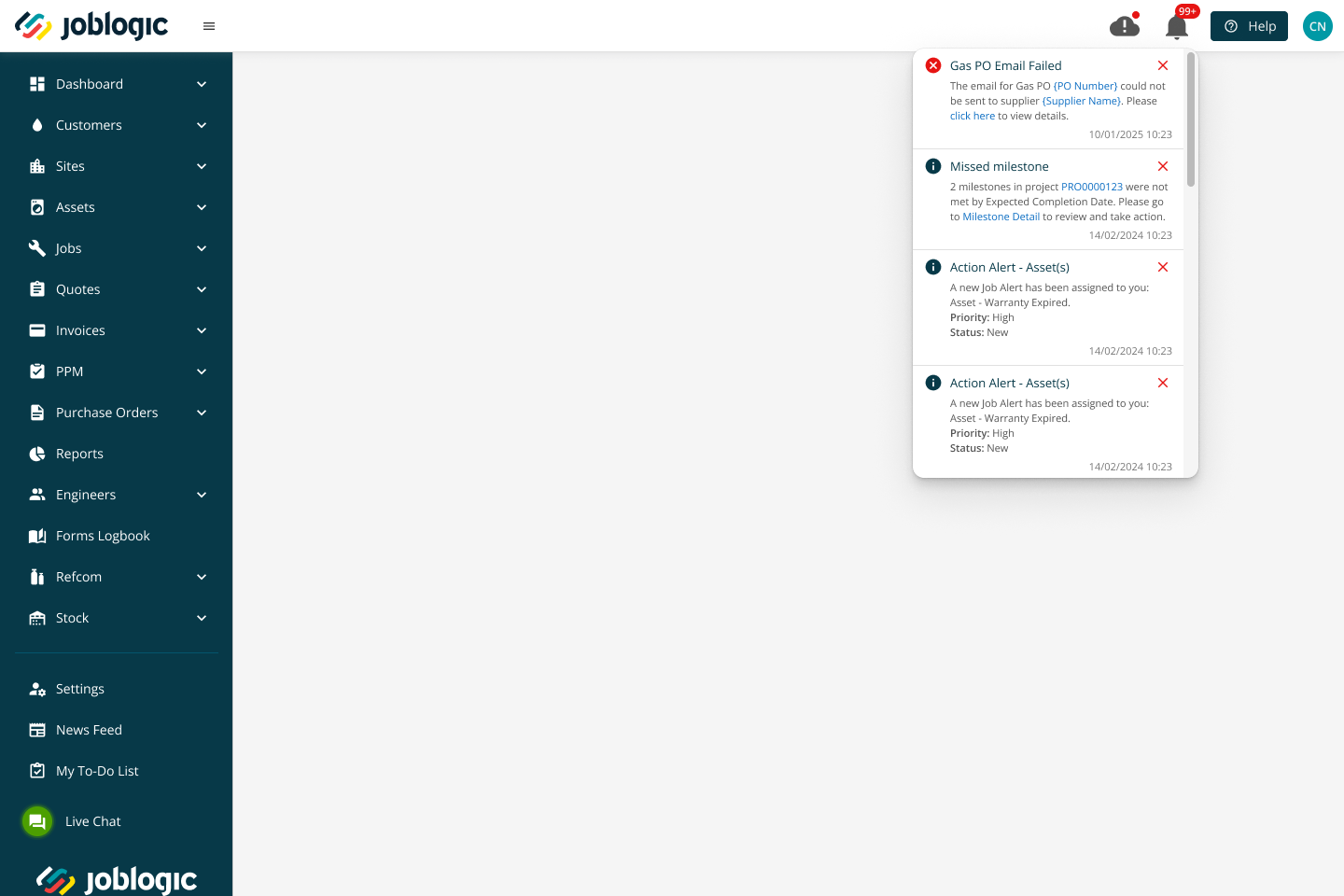
Configured Back Office users receive a notification containing the PO number, supplier, email status, failure date and time, and failure reason when available.
Open the Back Office notification to review the failed Gas PO email.
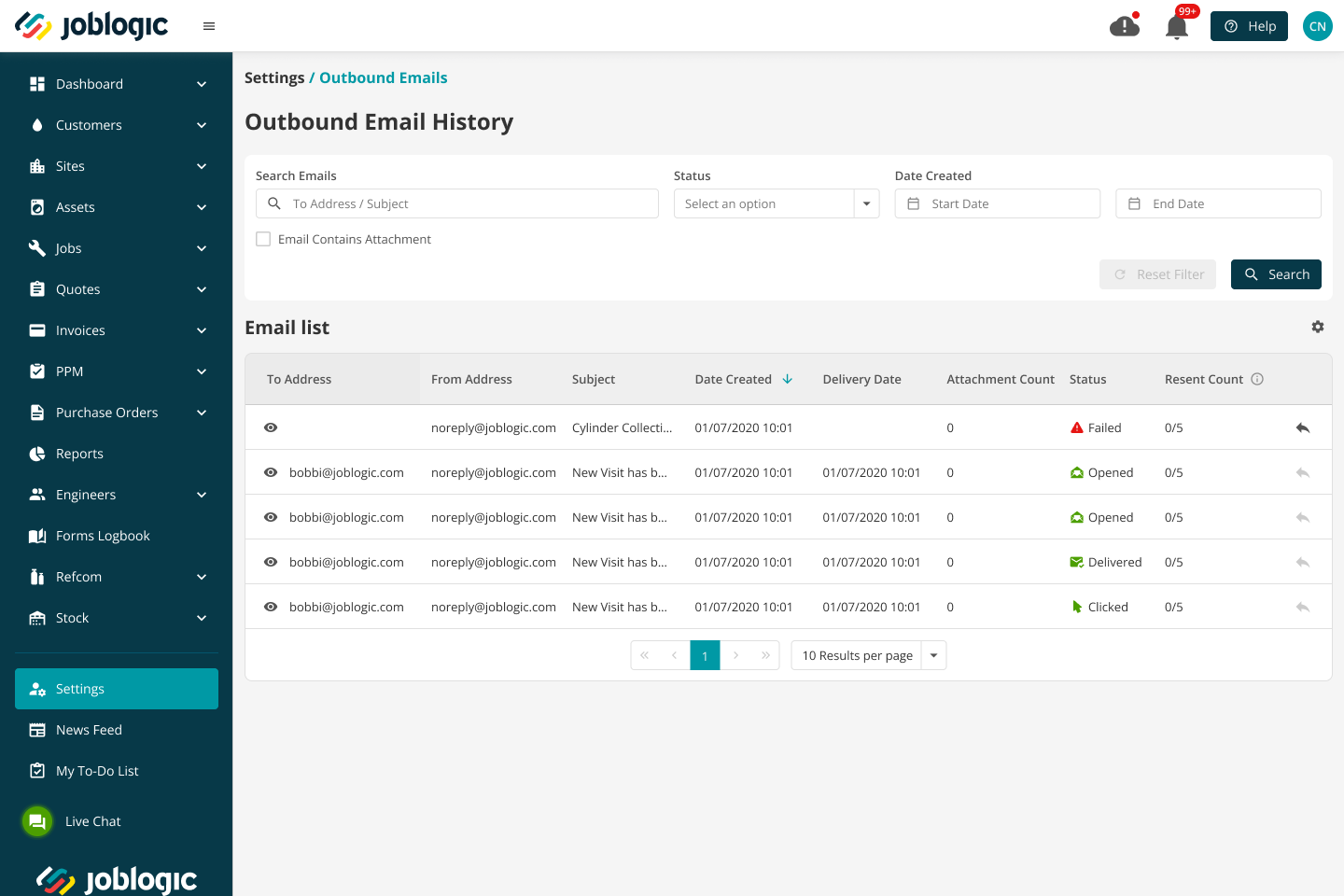
The email and its retry status can also be reviewed in Outbound Email History.
Navigate to Settings > Outbound Emails to review the email and retry status.
Administrator reference
System settings
An authorised administrator can configure cylinder distribution and site-linked stock locations under Settings > System Setup > Stock / Refcom Configuration. Supplier-email options and the refrigerant usage cost category are configured under Settings > System Setup > Refrigerant Ordering Settings.
Navigate to Settings > System Setup to review the refrigerant ordering and Stock / Refcom configuration settings.
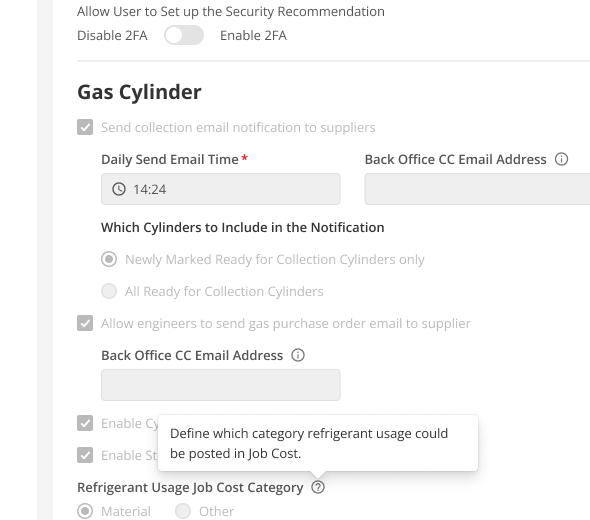
Setting | What it controls |
|---|---|
Enable Refrigerant Ordering | Marketplace-controlled setting that makes the Mobile refrigerant ordering workflows available to subscribed customers. |
Enable Auto Supplier PO Email | Automatically emails the supplier when a refrigerant PO is created from Mobile. |
Supplier PO CC Email Address | Copies the configured address into refrigerant supplier emails. |
Enable Cylinder Distribution | Shows the distribution workflow for splitting a gas line into the cylinders actually delivered. |
Enable Site Stock Location for Stock POs | Allows site selection and creates or reuses the site's linked stock location. |
Refrigerant Usage Cost Category | Posts refrigerant usage to Materials or Other. Materials is the default. |
Supplier email configuration
Under Settings > System Setup > Refrigerant Ordering Settings, an authorised administrator can define whether supplier emails are sent automatically, the supplier-email subject and body, and the Supplier PO CC Email Address. The email can use the following supported tags:
Tag | Inserted value |
|---|---|
@@SupplierName@@ | Supplier linked to the PO |
@@PONumber@@ | Generated purchase order number |
@@EngineerName@@ | Engineer who created the Mobile order |
@@DeliveryLocation@@ | Selected van, warehouse or Site Stock Location |
@@SiteName@@ | Selected customer site, where applicable |
@@GasSummary@@ | Gas type, quantity in kilograms and number of cylinders |
@@CompanyName@@ | Company name configured for the tenant |
The attached PO continues to use the existing Purchase Order document template. Supplier emails still send when no CC address is configured.
Permissions
Assign only the permissions required for each user's role.
Permission | What it allows |
|---|---|
Create Refrigerant Stock PO (Mobile) | Create refrigerant Stock POs in Mobile. |
View Refrigerant Stock POs | View refrigerant POs and their delivery statuses. |
Mark Refrigerant PO as Delivered | Record full or partial delivery. |
Use "Distribute and Deliver" | Split ordered quantities into delivered cylinders. |
Deliver Without Distribution | Use the standard delivery action without changing the ordered distribution. |
Select Site on Stock PO | Select a customer site when the related system setting is enabled. |
Edit On Site Cylinder Location Details | Update the physical storage details for site-held cylinders. |
Cancel PO | Cancel a refrigerant gas purchase order. |
If the Marketplace app is disabled
When the Marketplace subscription is disabled:
- Mobile hides refrigerant ordering, the Gas PO list and the refrigerant delivery workflow.
- Refrigerant purchasing returns to the standard Back Office supplier PO workflow.
- The Marketplace-controlled Enable Refrigerant Ordering setting turns off automatically.
- Independent Cylinder Distribution and Site Stock Location settings continue to control those workflows.
Further Support
For further information or assistance with the above, contact our Support Team on 0800 326 5561 or email support@joblogic.com. Alternatively, our Customer Success Management team can be reached by emailing customersuccess@joblogic.com
Publishing Details
This document was written and produced by Joblogic's Technical Writing team and was last updated on the date stated above. Be aware that the information provided may be subject to change following further updates on the matter becoming available or new releases within the system. Additionally, details within the guide may vary depending on your Joblogic account's user permissions and settings or the electronic device being used.