Introduction
SOR Cost Mapping allows you to configure cost lines against items in your Schedule of Rates (SOR) library, giving you full control over how labour, materials, and other costs are built into each SOR item.
With tools to set Standard Cost Lines, define SOR Behaviour for Quotes and Jobs, and map cost line items such as Labour, Parts, and Equipment, this feature ensures your SOR pricing stays accurate and consistent across your jobs.
In this guide, we'll walk you through configuring your SOR cost lines, setting SOR Behaviour, and mapping cost line items to your Schedule of Rates.
Configuring your SOR cost lines
To configure cost lines against your SOR Item library, head to Settings > Library > Schedule of Rates (SOR)
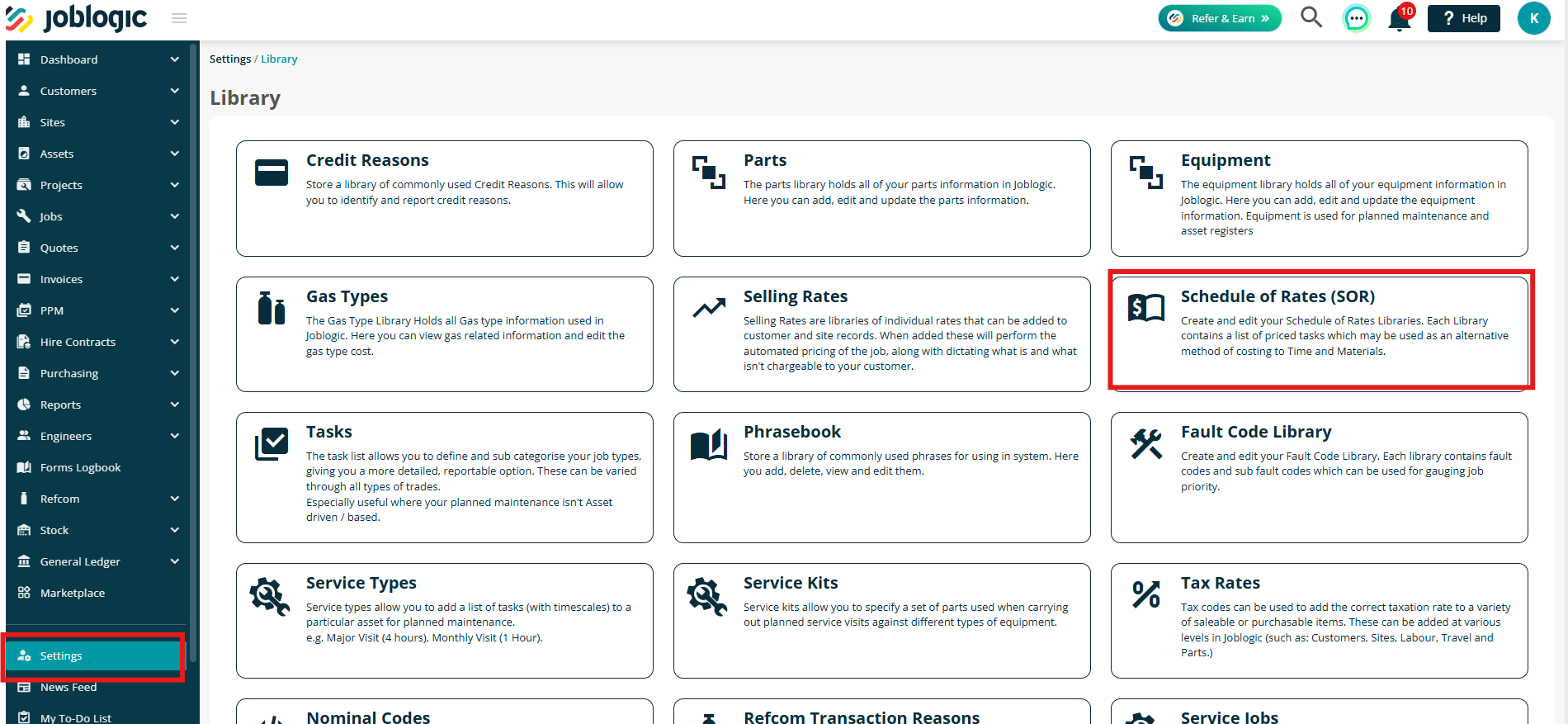
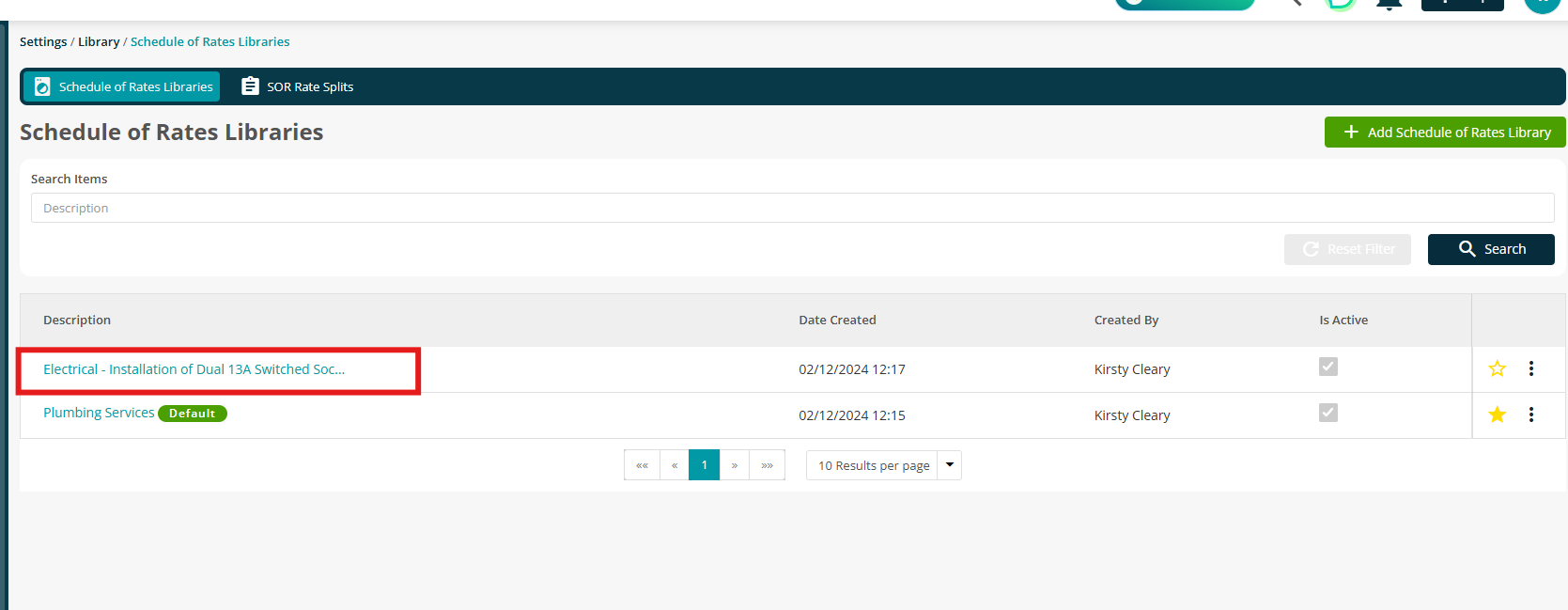
Choose a Schedule of Rates library.
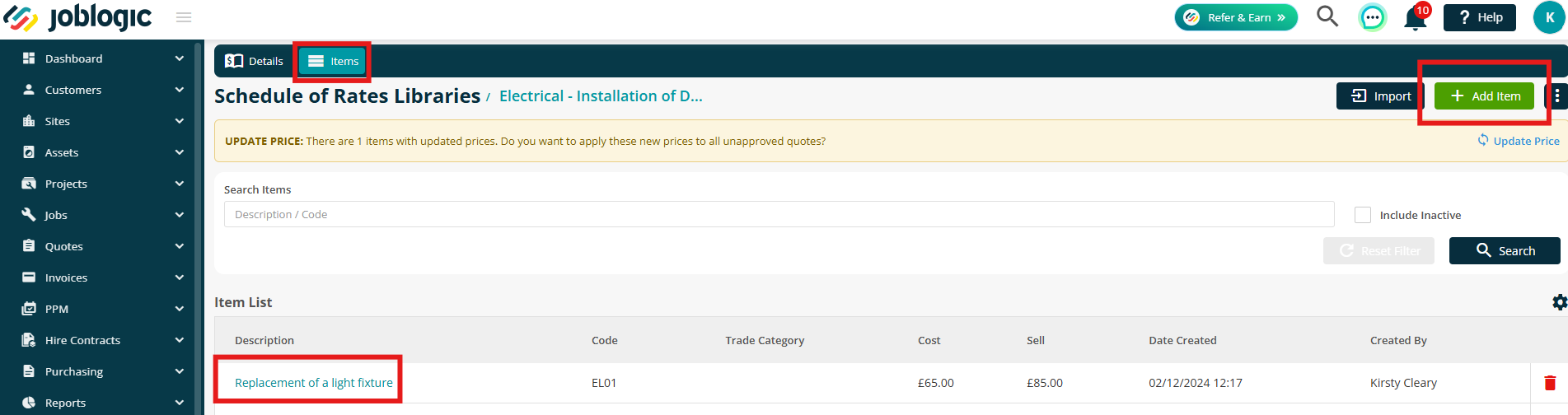
Click the Items tab.
You can edit an existing item by clicking the description, or click Add Item to add a new item.
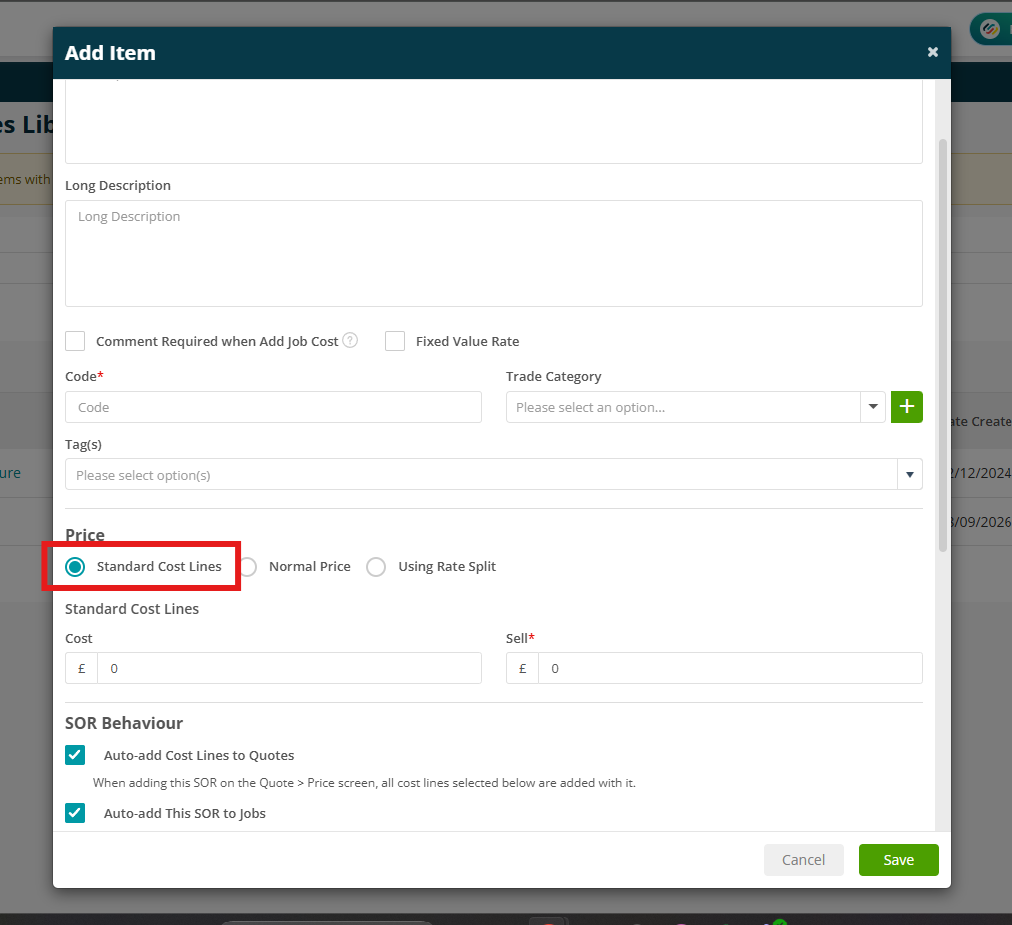
Selecting the Standard Cost Lines option under Price will allow you to configure SOR Behaviour and Cost Line Items.
First, enter your Standard Cost Lines Sell. This is a mandatory field.
Cost can be entered too, but may be left blank if preferred.
Note: this can be changed at Customer/Site/Contract level if required.
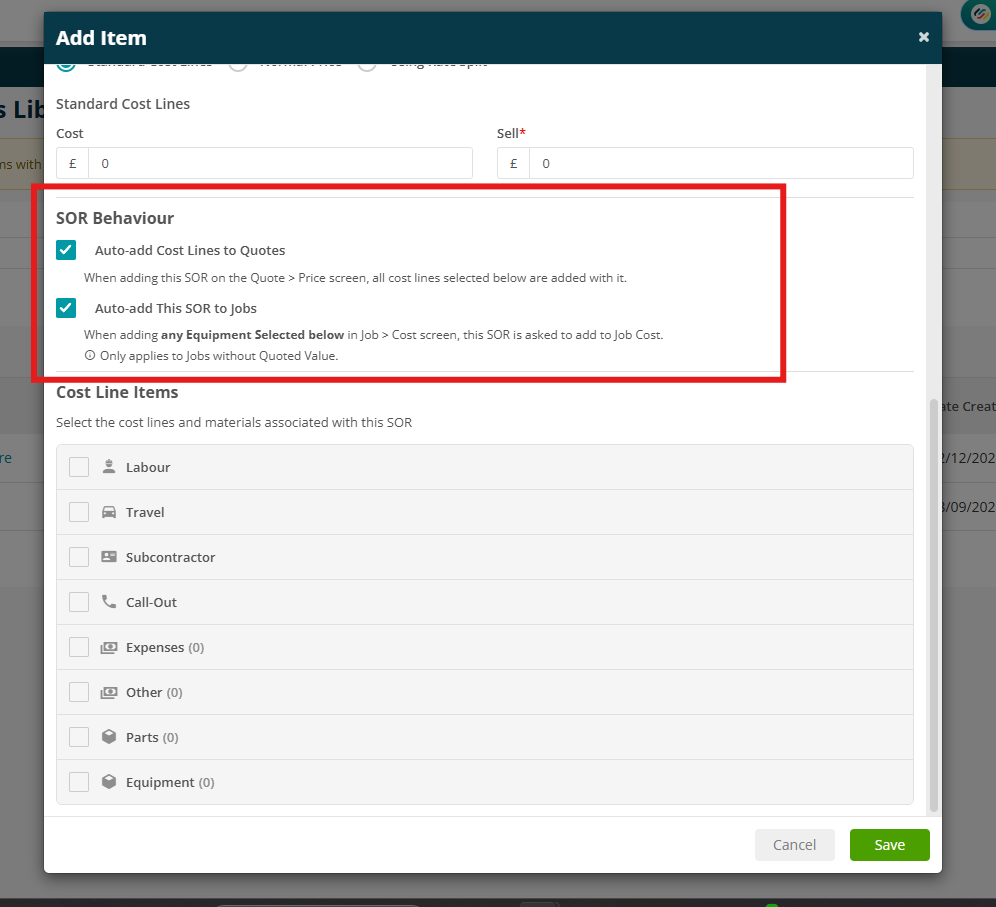
SOR Behaviour
Auto-add Cost Lines to Quotes
- When adding this SOR on the Quote > Price screen, all cost lines selected below are added with it.
Auto-add This SOR to Jobs
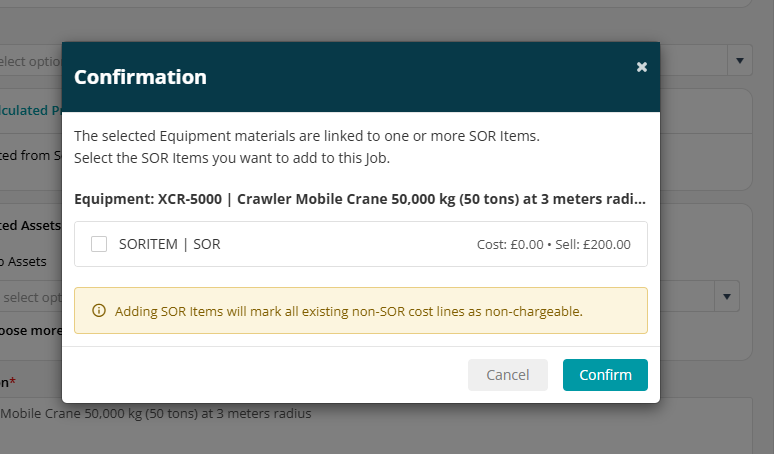
- When adding any Equipment Selected below in Job > Cost screen, this SOR is asked to add to Job Cost.
- Only applies to Jobs without Quoted Value.
Cost Line Items
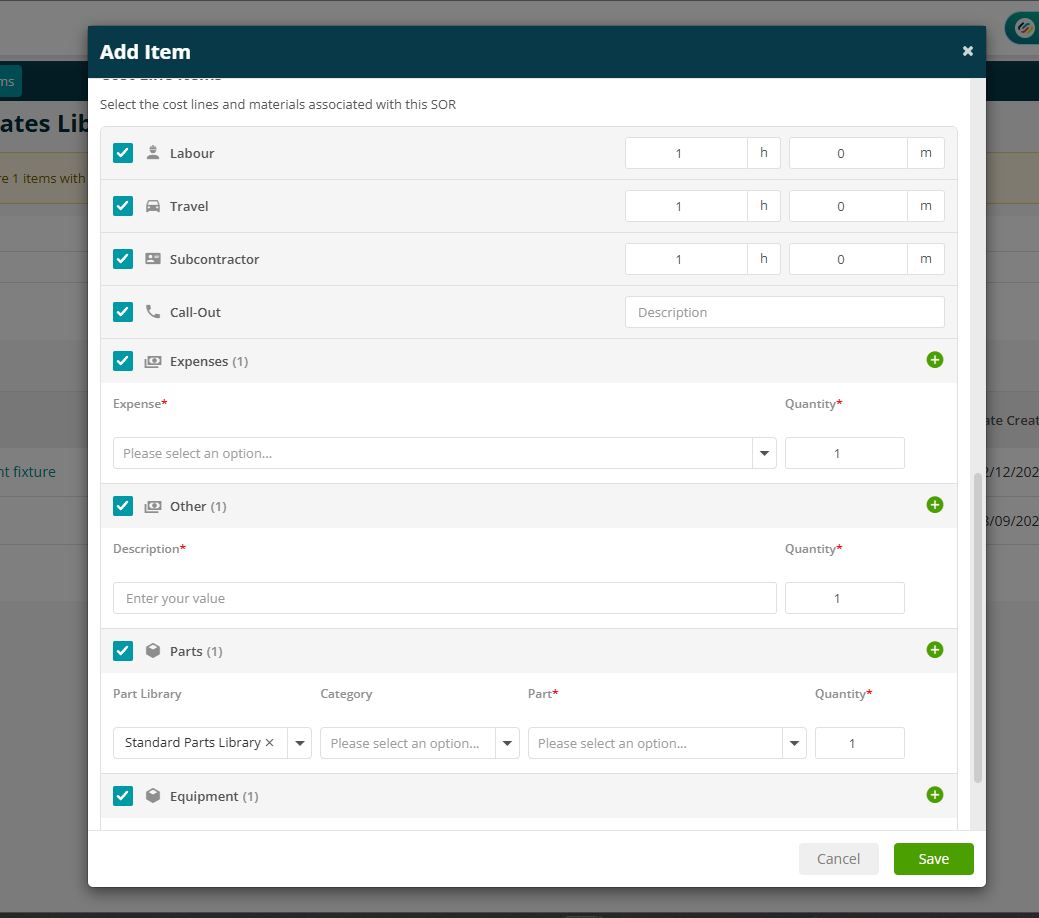
Next, select the cost lines and materials associated with this SOR.
- Labour – select the hours/minutes
- Travel – select the hours/minutes
- Subcontractor – select the hours/minutes
- Call-Out – add a description
- Expenses – select an Expense from the library dropdown, and enter a quantity
- Other – add a description and a quantity
- Parts - select your Part from the library dropdown and enter a quantity
- Equipment – select your Equipment from the library dropdown and enter a quantity
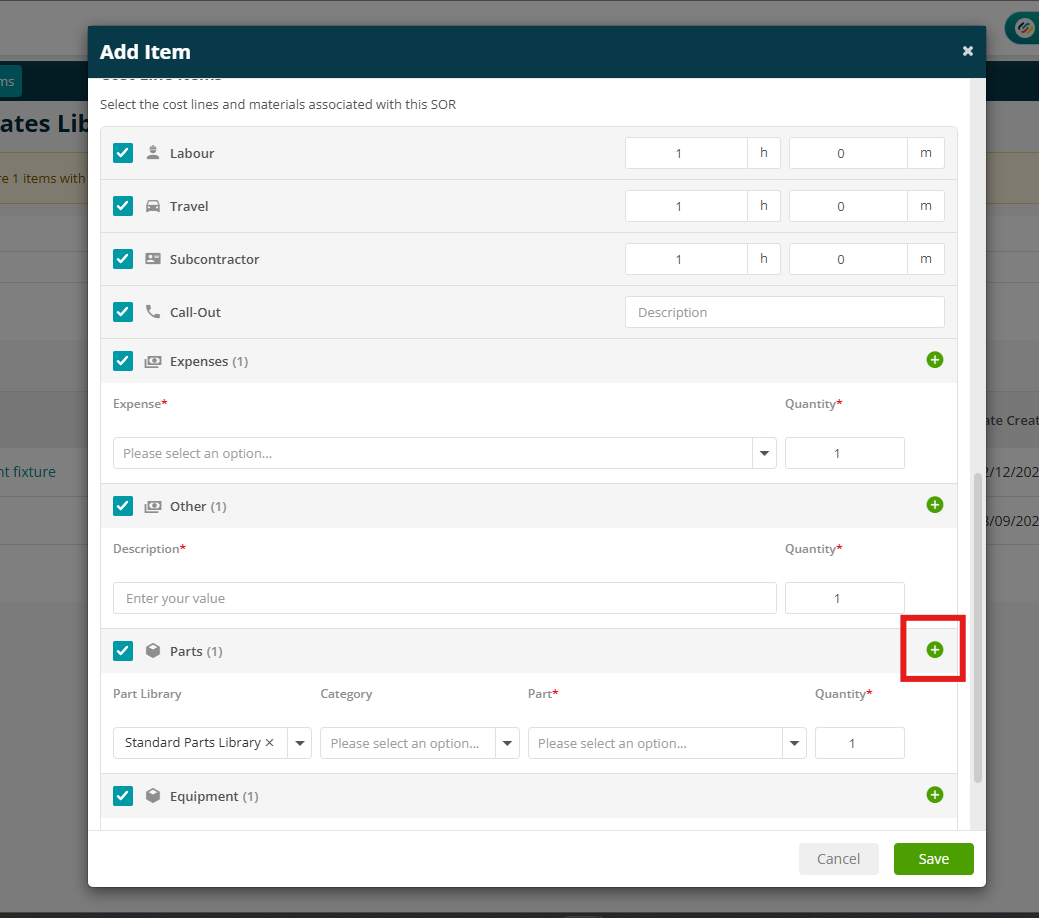
You can add more Expenses, Other, Parts or Equipment by clicking the green plus button next to the relevant header.
SOR Items on Quotes and Jobs
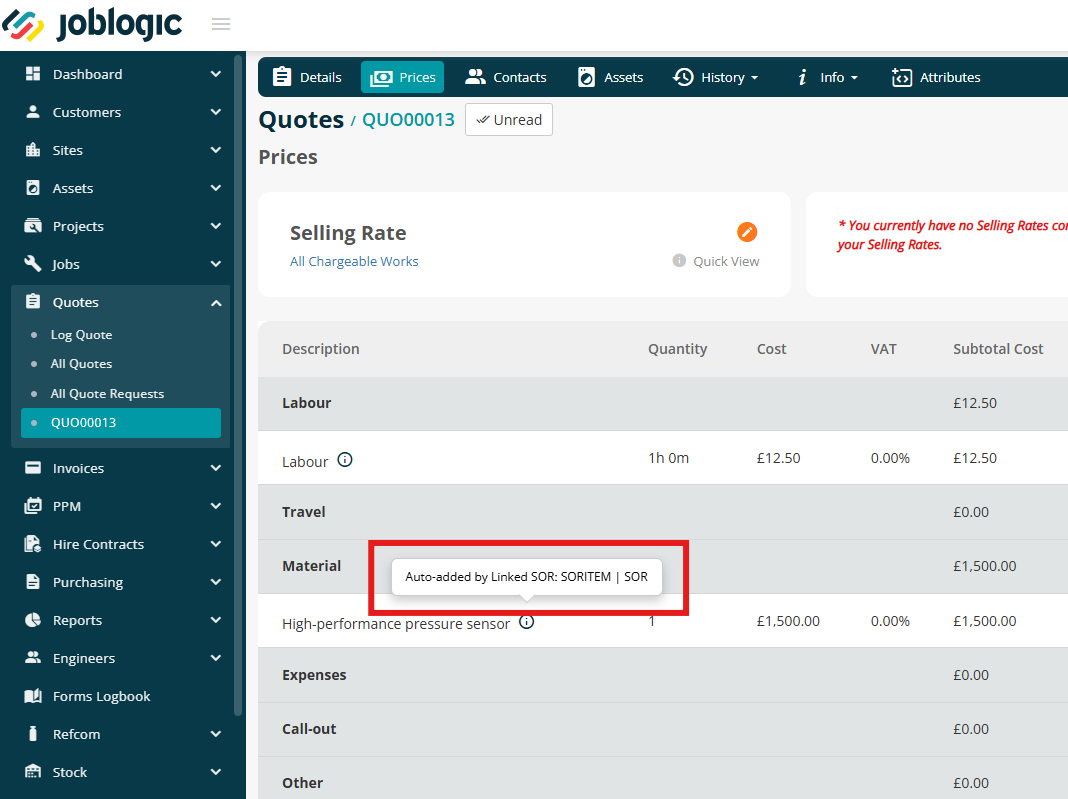
When adding a Schedule of Rates item to a quote, cost lines will auto populate based on the linked item.
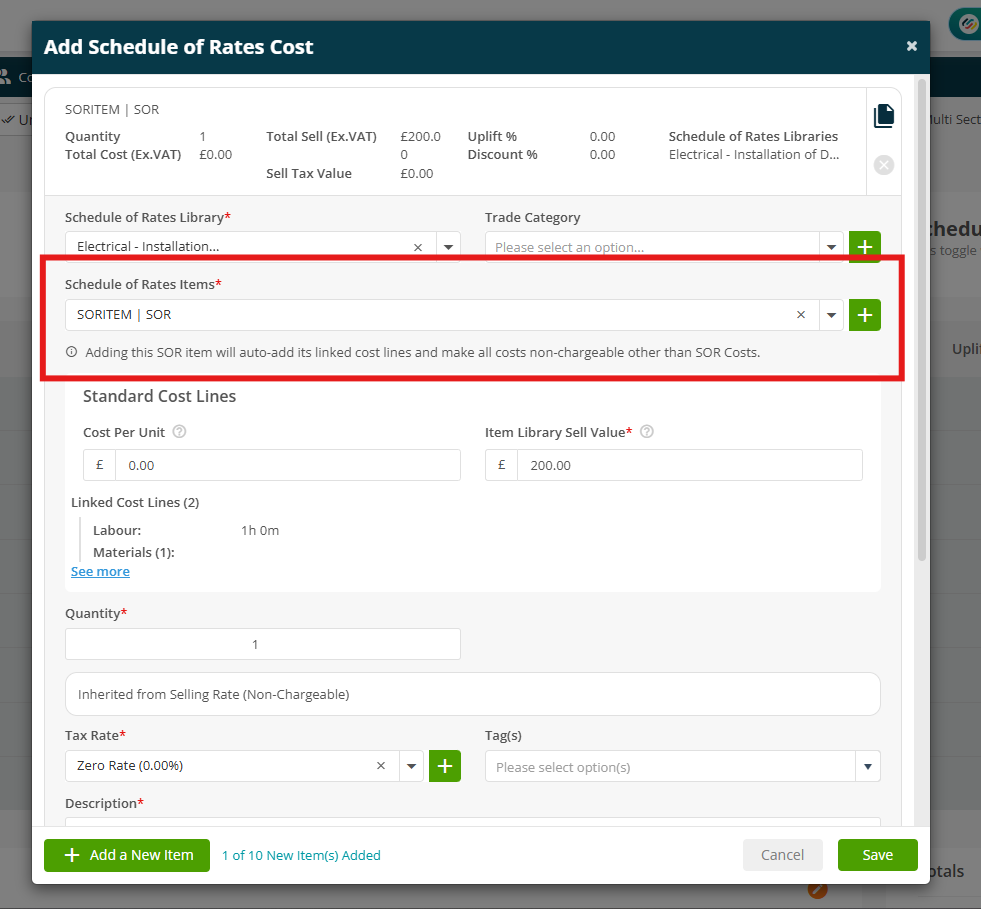
When adding equipment linked to an SOR item to a job, you'll be prompted to add the linked SOR item to the job.
Note: this will not show if the job has a Quoted Value.
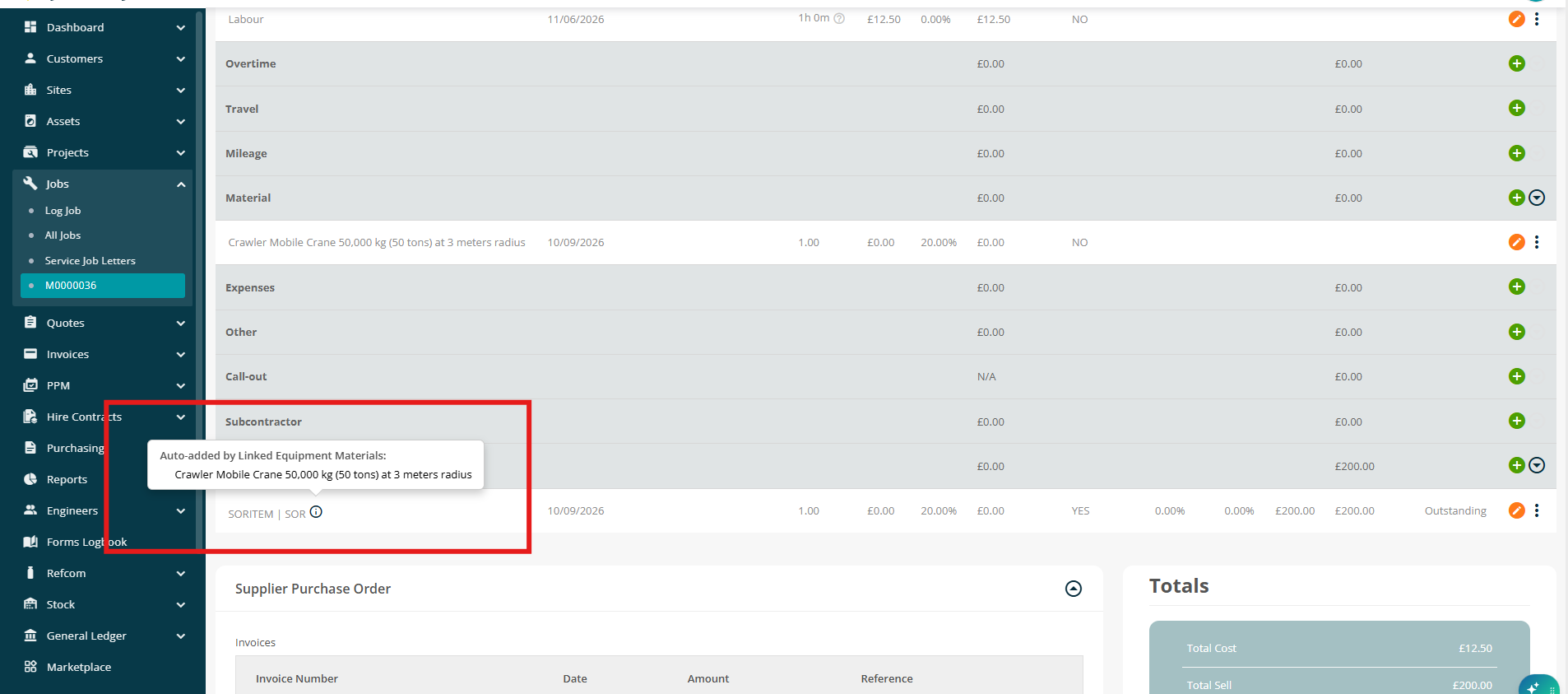
If the equipment is used by an engineer via mobile app, the linked SOR is automatically added when the cost is synced on Back Office.
Further Support
For further information or assistance with the above, contact our Support Team on 0800 326 5561 or email support@joblogic.com. Alternatively, our Customer Success Management team can be reached by emailing customersuccess@joblogic.com
Publishing Details
This document was written and produced by Joblogic’s Technical Writing team and was last updated on the date specified above. Be aware that the information provided may be subject to change following further updates on the matter becoming available. Additionally, details within the guide may vary depending on your Joblogic account’s user permissions.