Introduction
SSO Enforcement allows a company to require selected Joblogic users to sign in through Microsoft Entra. Administrators can apply enforcement to individual users or entire user roles, while the login process routes each user according to the enforcement status configured for that company.
In this guide, we'll show you how to register the Microsoft Entra tenant, review consent settings, link Microsoft accounts, apply SSO enforcement to users or roles, and follow the Web and Mobile sign-in journeys.
Subscribing to SSO Enforcement
The app is currently marked as private. To subscribe, please contact the Support Team and request that it be enabled for your account.
Availability and prerequisites
After subscribing to the app, configure the company's Microsoft Entra tenant in Joblogic before applying enforcement.
Before enabling SSO Enforcement, review the following:
- Configure SSO Enforcement separately for every Joblogic company where Microsoft sign-in is required for its users.
- Only the company’s Primary User can view External Tenant Access and complete the required initial configuration.
- Users and roles can be enforced before Microsoft accounts are linked to their Joblogic user profiles.
- A Joblogic user with permission can start linking, but the Microsoft account owner must complete authentication.
Setting up External Tenant Access
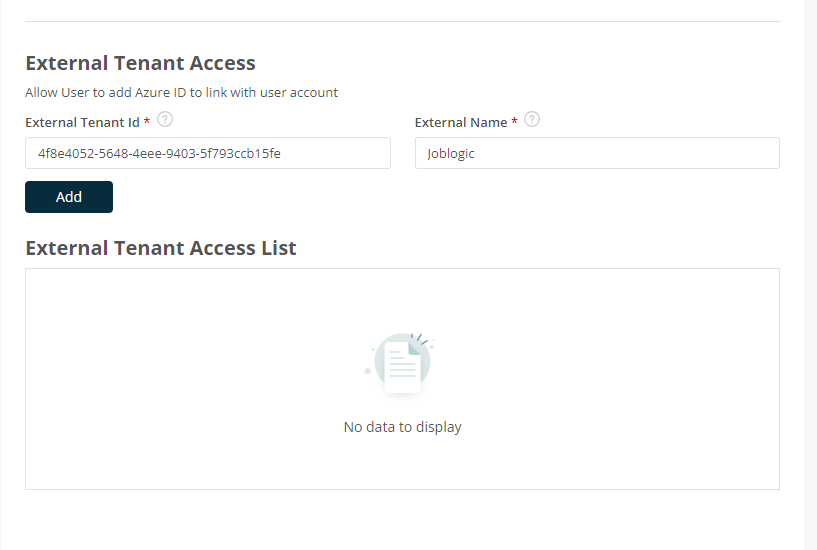
Before Microsoft accounts are linked, the company's Primary User must complete the initial External Tenant Access setup in Joblogic. This setting is not visible to other users.
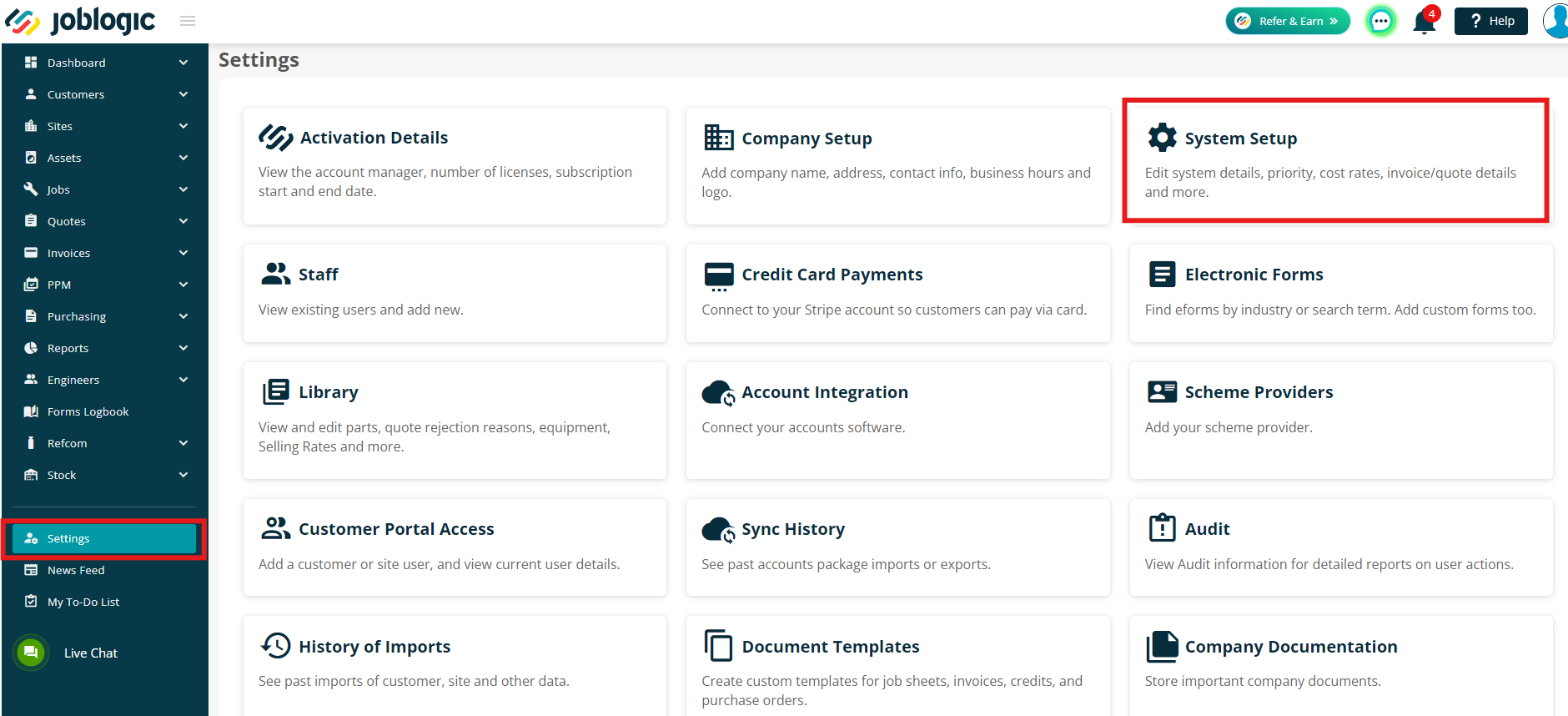
Sign in as the Primary User, open Settings and select System Setup.
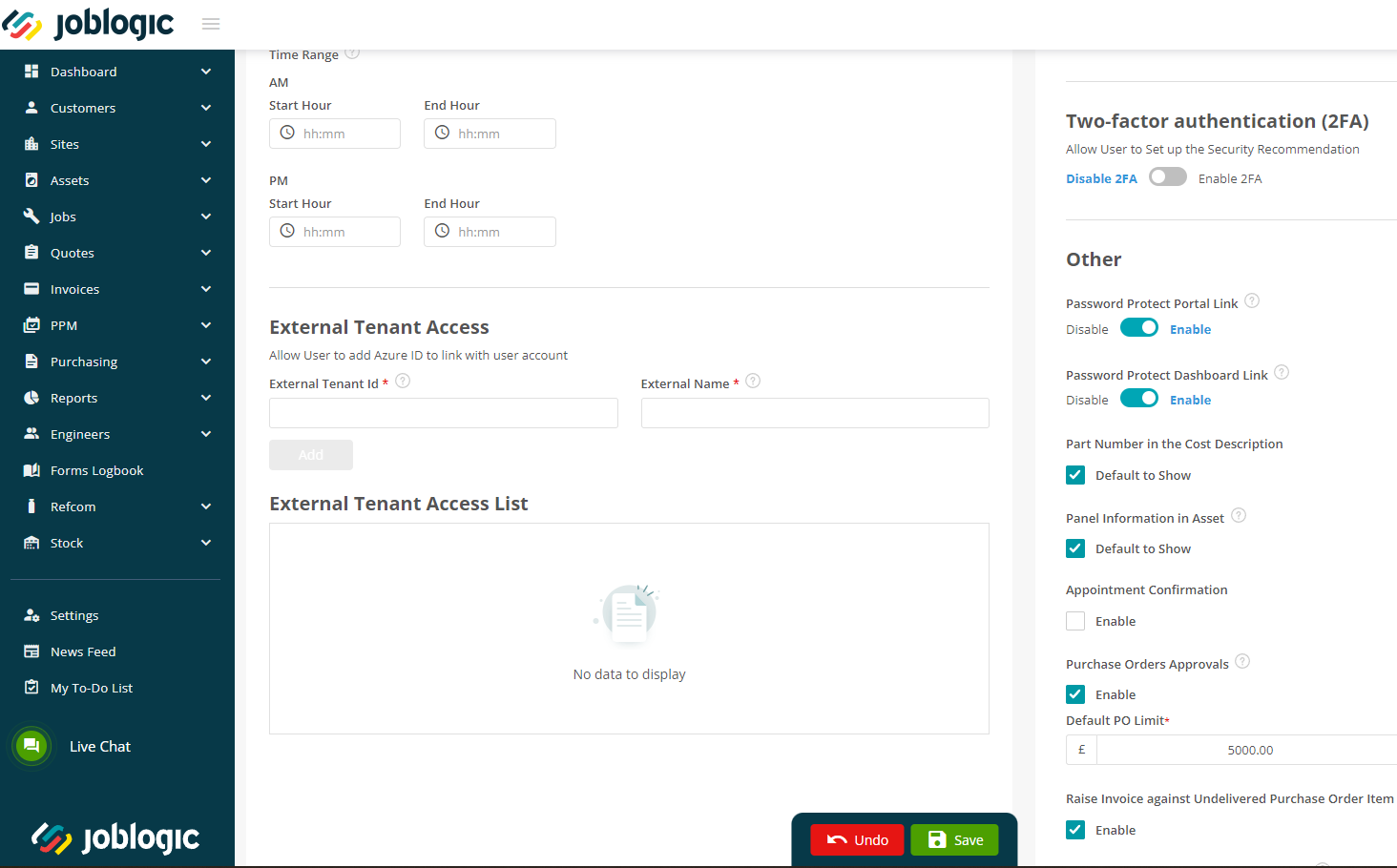
Select Edit, then scroll to External Tenant Access at the bottom of System Setup.
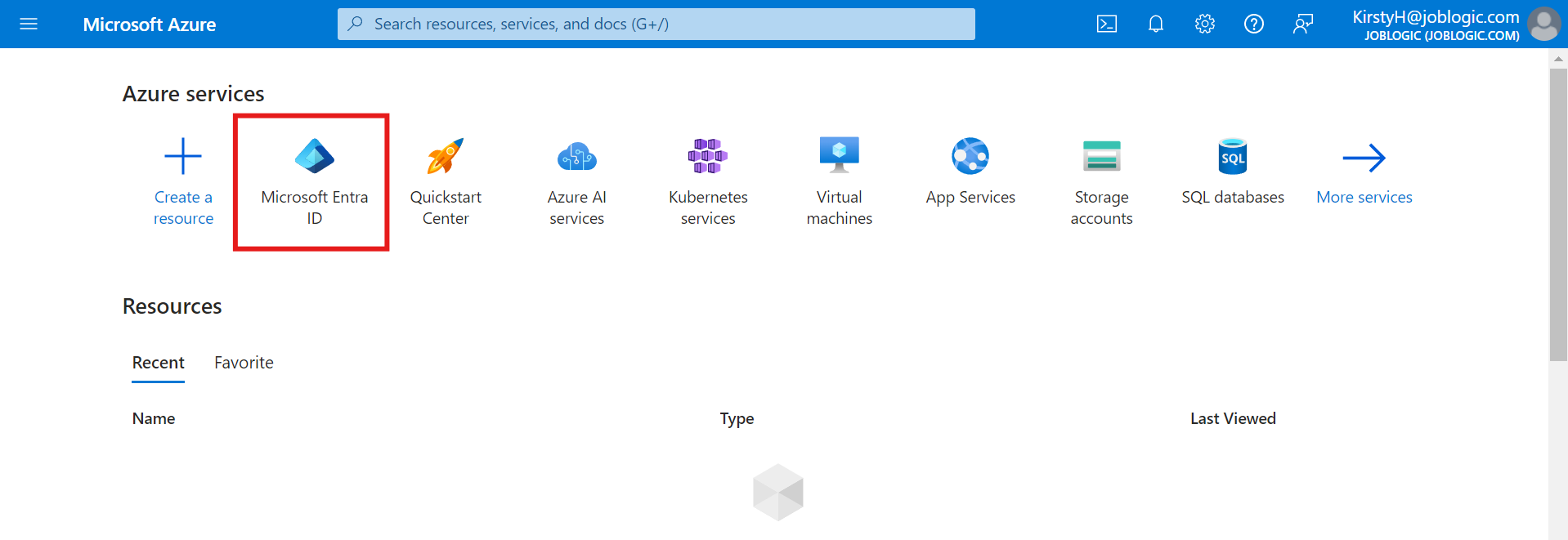
Sign in to Microsoft Azure and open Microsoft Entra ID.
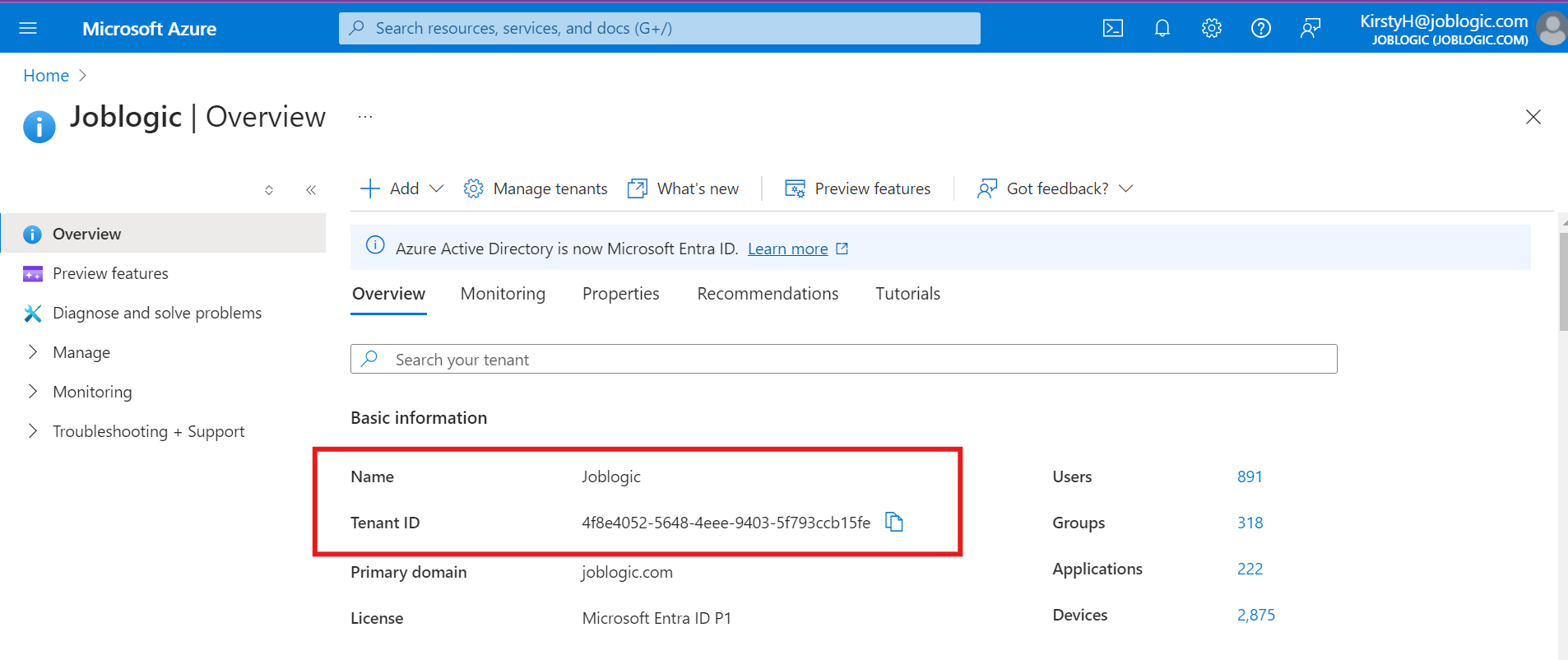
On the Microsoft Entra ID Overview page, copy the tenant Name and Tenant ID.
Return to Joblogic. Enter the Tenant ID in External Tenant ID and the tenant Name in External Name, then select Add.
Reviewing Microsoft Entra user consent settings
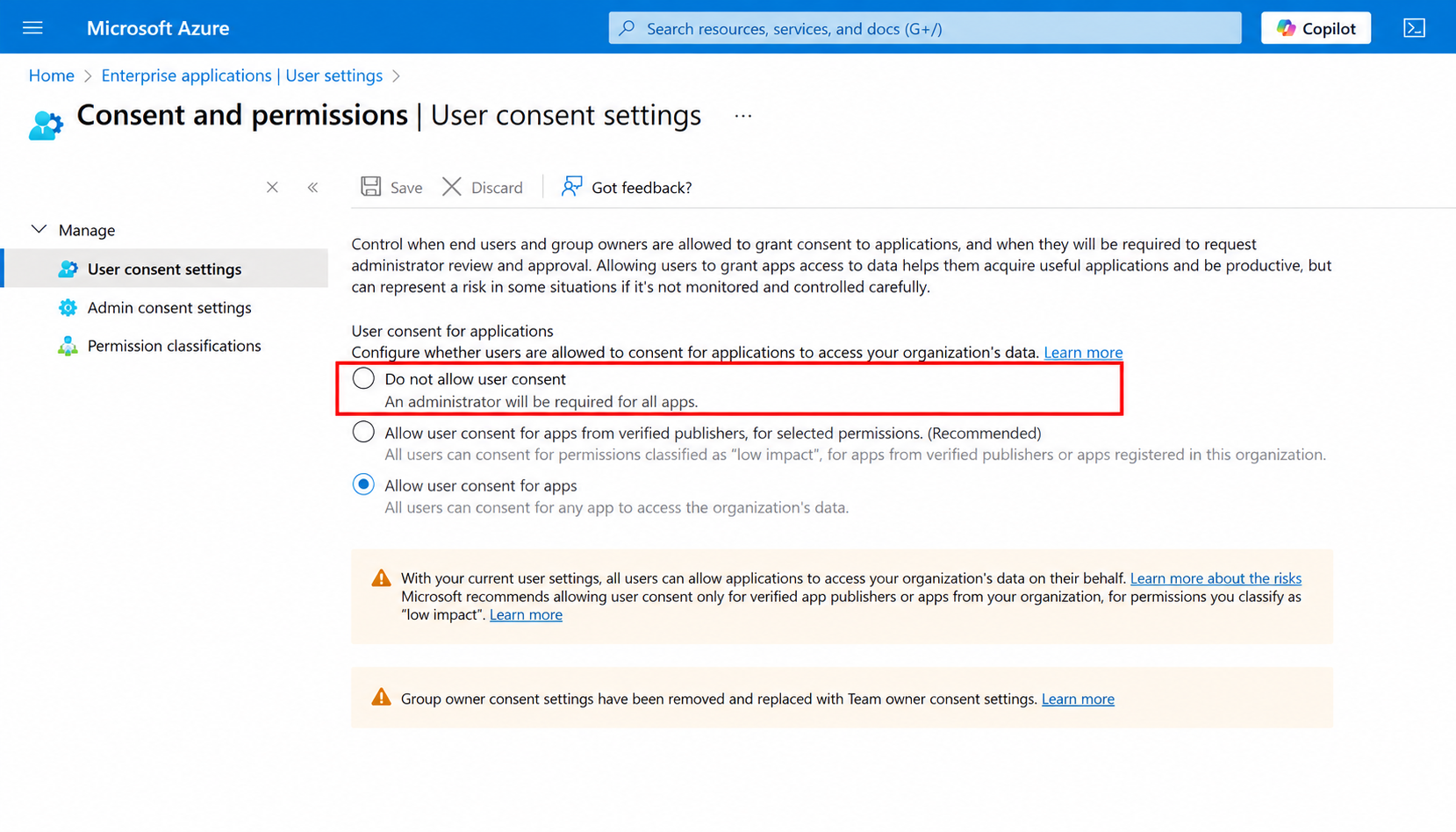
Before staff link their Microsoft accounts, ask a Microsoft Entra administrator to open Enterprise applications > Consent and permissions > User consent settings and review the selected option.
- Allow user consent for apps from verified publishers, for selected permissions: users can consent to permissions classified as low impact and can complete the Joblogic link without administrator involvement.
- Do not allow user consent: a Microsoft Entra administrator must approve the Joblogic application before users can complete account linking.
The selected option determines the next step. If user consent is allowed, continue to link the Microsoft account. If user consent is not allowed, the user requests approval and a Microsoft Entra administrator approves the Joblogic application before the link can be completed.
The User consent settings screen shows whether administrator approval is required for all applications.
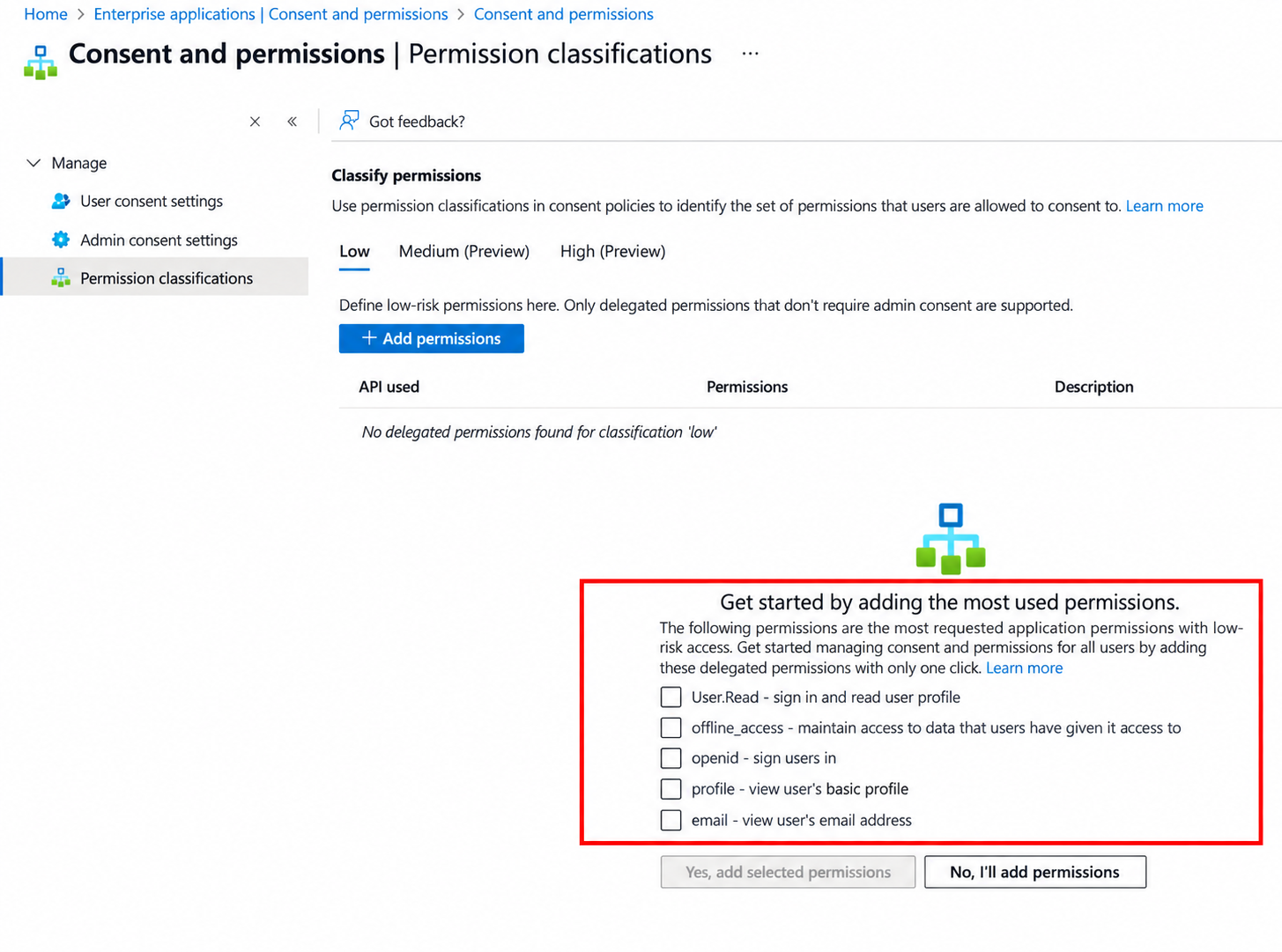
If consent is allowed only for selected permissions, open Permission classifications to review which delegated permissions are classified as low impact.
Linking a Microsoft account from a Back Office user record
After External Tenant Access is configured, open Settings > Users and select the required user record. Open Linked Accounts, then select Link beside Microsoft.
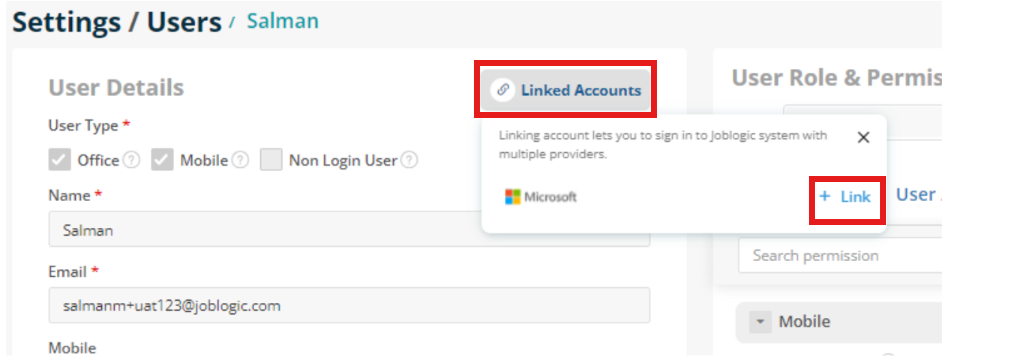
If Joblogic and Microsoft use the same email address, Joblogic verifies the login and asks for permission to link the accounts. If the email addresses differ, the user is asked to sign in with the required Microsoft account.
The Microsoft account owner completes Microsoft sign-in. If SSO is already enforced and the account has not been linked, the user can complete the link during their first enforced sign-in.
Requesting approval when user consent is disabled
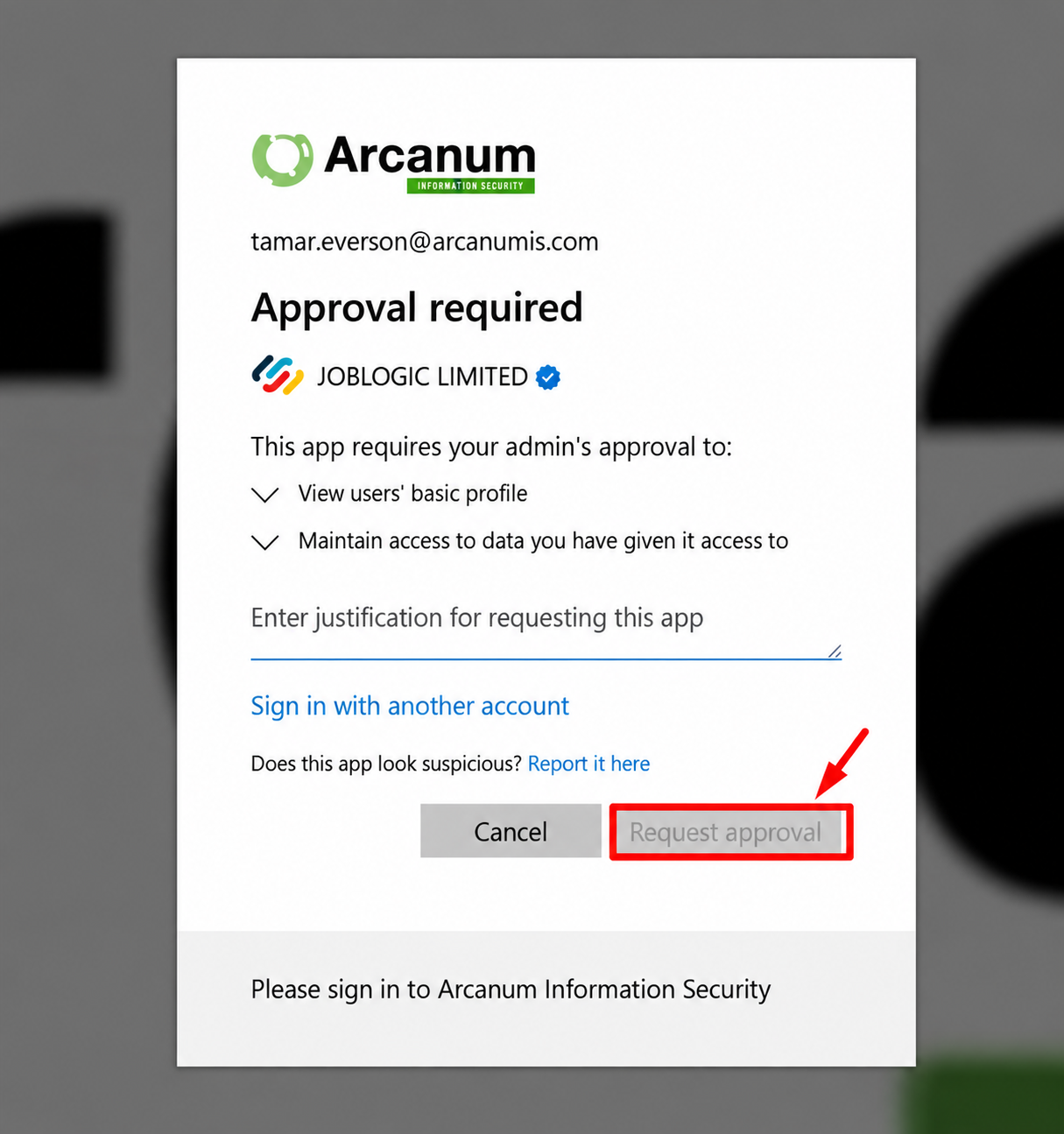
When Do not allow user consent is selected, Microsoft displays Approval required. Enter a justification if required, then select Request approval.
A Microsoft Entra user with the Cloud Application Administrator role reviews the consent request and approves the permissions requested by the Joblogic application.
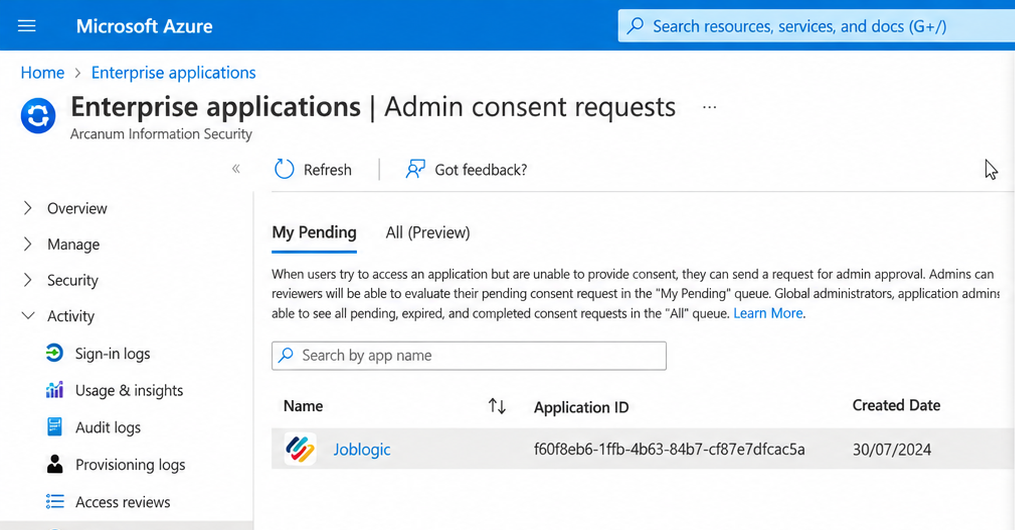
Open Admin consent requests and select the pending Joblogic request.
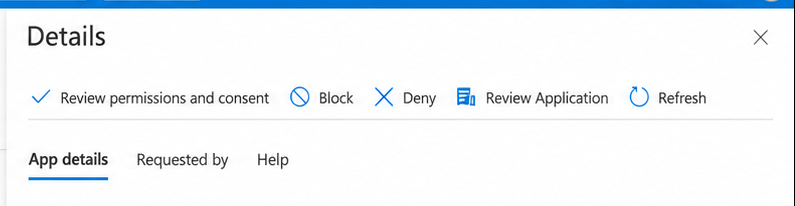
Review the request, then select Review permissions and consent.
Verifying Microsoft permissions and completing the link
To review the granted permissions, sign in to Microsoft Entra as at least a Cloud Application Administrator. Open Identity > Applications > Enterprise applications > All applications, search for Joblogic, and then select Security > Permissions.
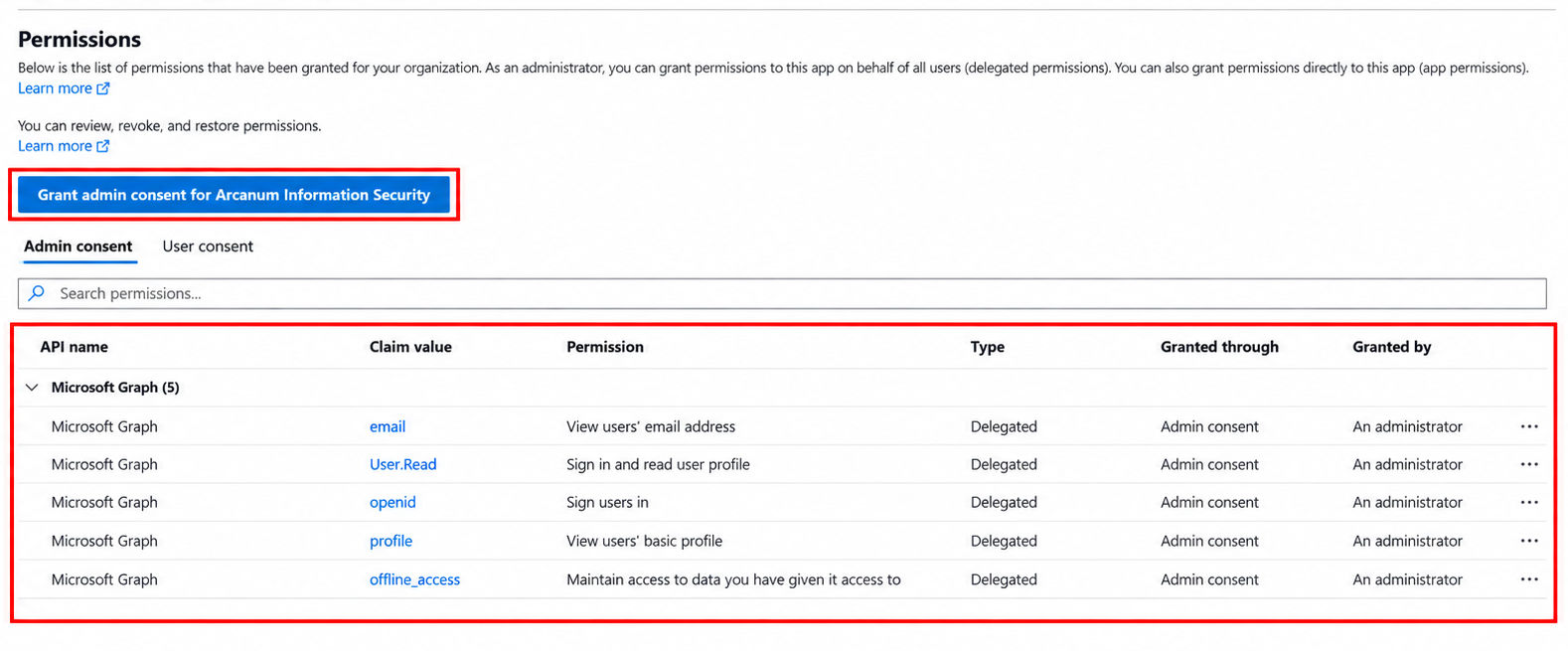
After consent has been granted, the staff member returns to the Joblogic account-linking screen and completes the Microsoft link. The user who requested consent can then link without another administrator-approval prompt.
After the tenant and consent settings are ready, administrators can choose which users or roles must sign in with Microsoft Entra.
Reviewing SSO status
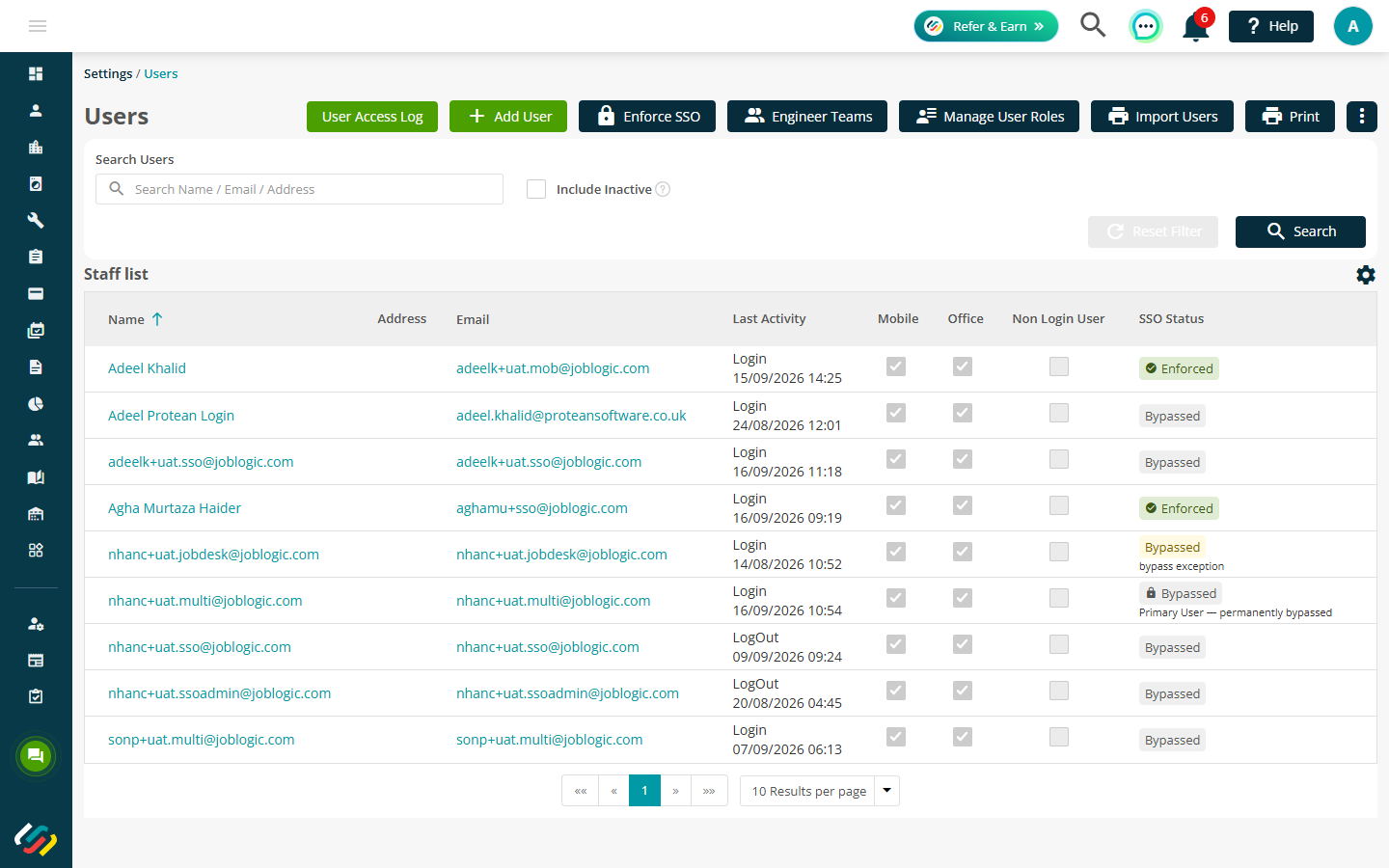
The Users and User Roles lists display the current SSO status:
- Enforced: the user must sign in with Microsoft Entra.
- Enforced via role: enforcement is inherited from the user's role.
- Bypassed: the user may sign in with their Joblogic email and password.
- Bypass exception: the Primary User is permanently bypassed from SSO enforcement. No other user receives this permanent exception.
The Primary User remains permanently bypassed even when their assigned role is enforced. Office and Mobile indicators in the enforcement windows are read-only and show which Joblogic surfaces each user can access.
Enforcing SSO for individual users
Open Settings > Users and select Enforce SSO.
In the Enforce Single Sign-On window, select the checkbox for every eligible active user who must use SSO. Clear the checkbox for any eligible active user who should be bypassed. The switch at the top can be used to enforce SSO for all eligible active users. The Primary User remains permanently bypassed.
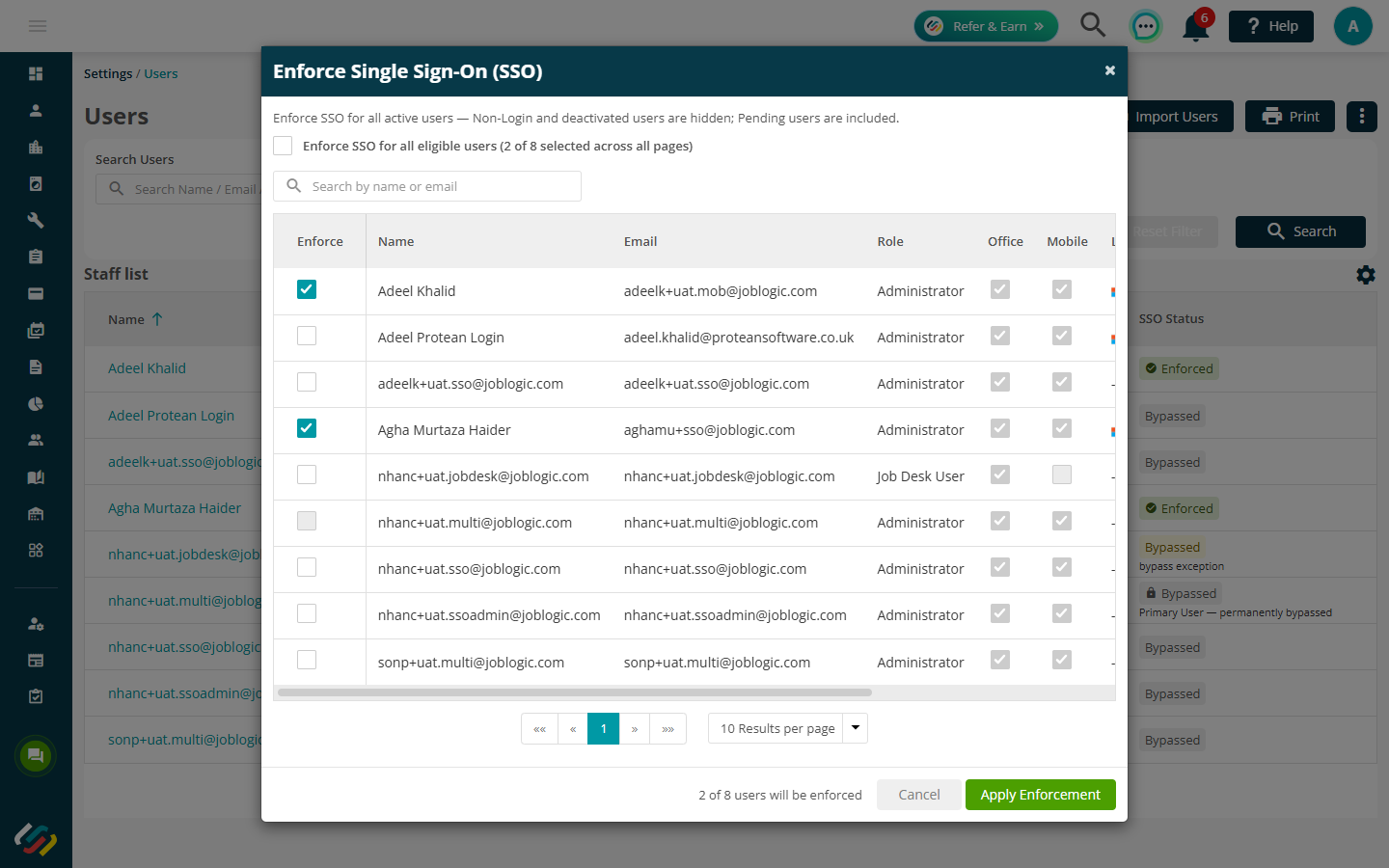
Review the selected count, then select Apply Enforcement.
Enforcing SSO by user role
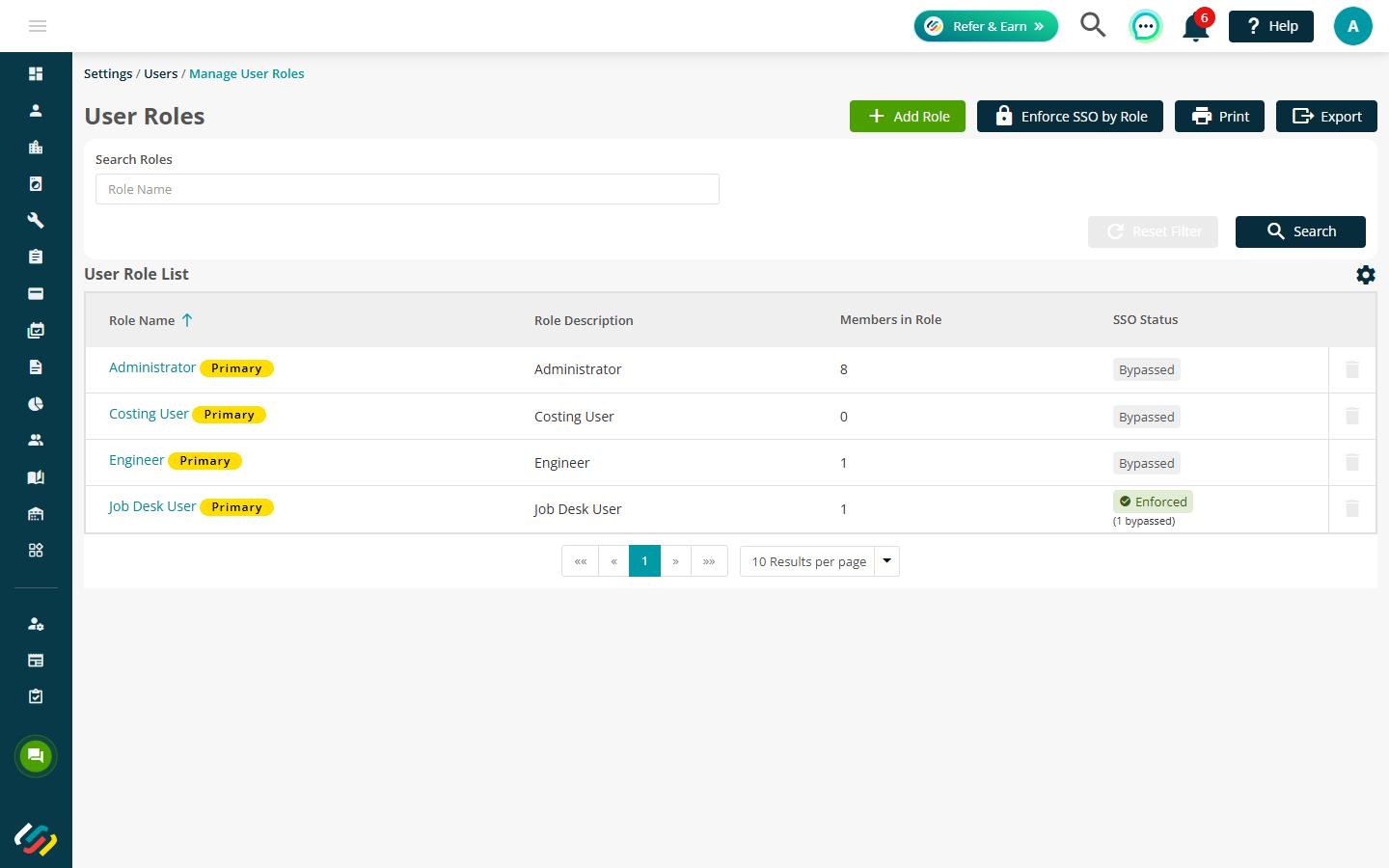
From Settings > Users, open Manage User Roles. The User Roles list shows the current SSO status for each role. Select Enforce SSO.
Select each role whose active users must sign in with SSO, or use the switch at the top to enforce every role. Enforcing a role applies enforcement to every eligible user assigned to it; the Primary User remains permanently bypassed. Clearing a role bypasses its eligible users.
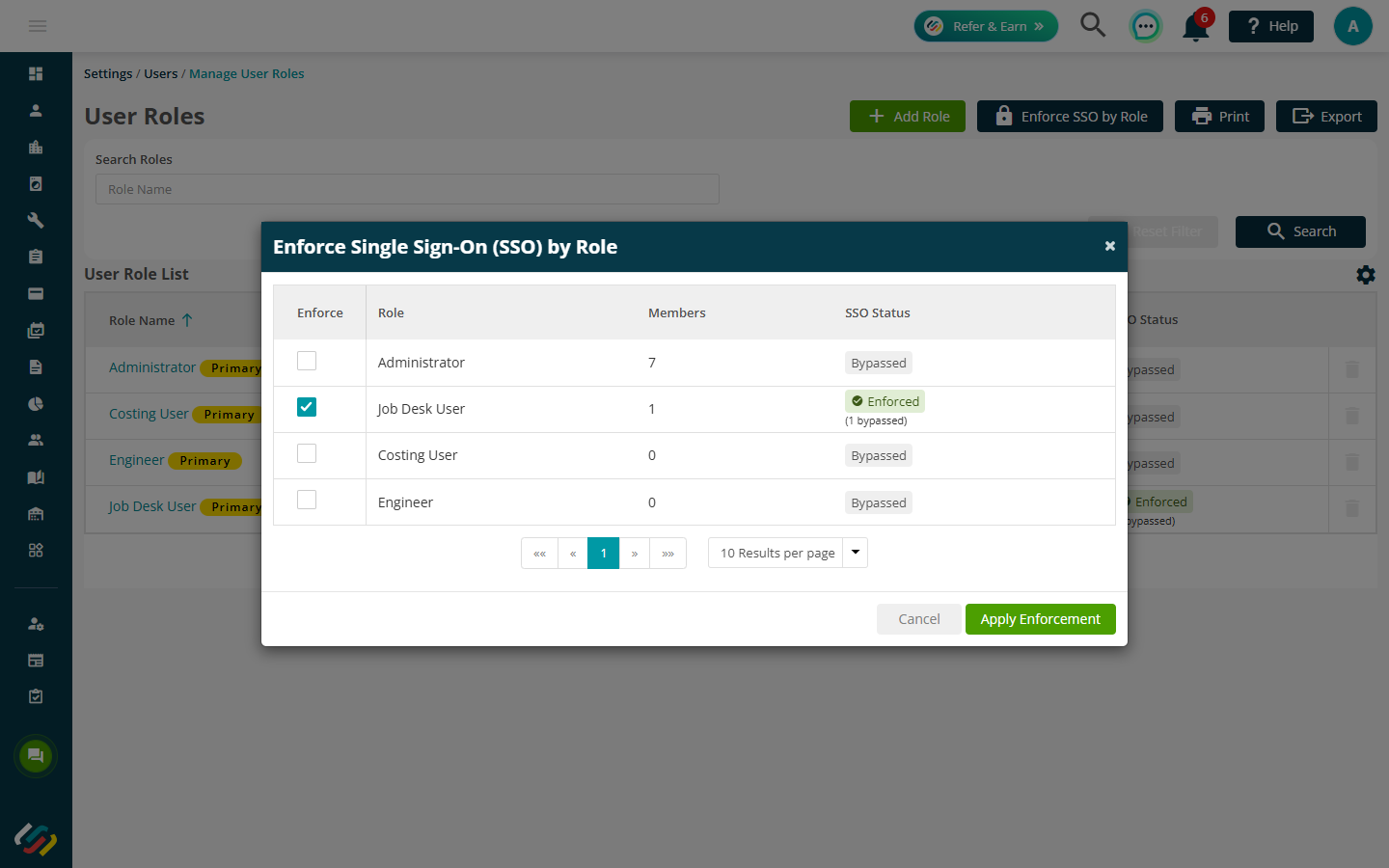
Review the affected-user count, then select Apply Enforcement.
Updating enforcement on one user record
Open the required user and select the Misc tab. Use the Sign-in enforced via SSO setting to review or change that user's enforcement status.
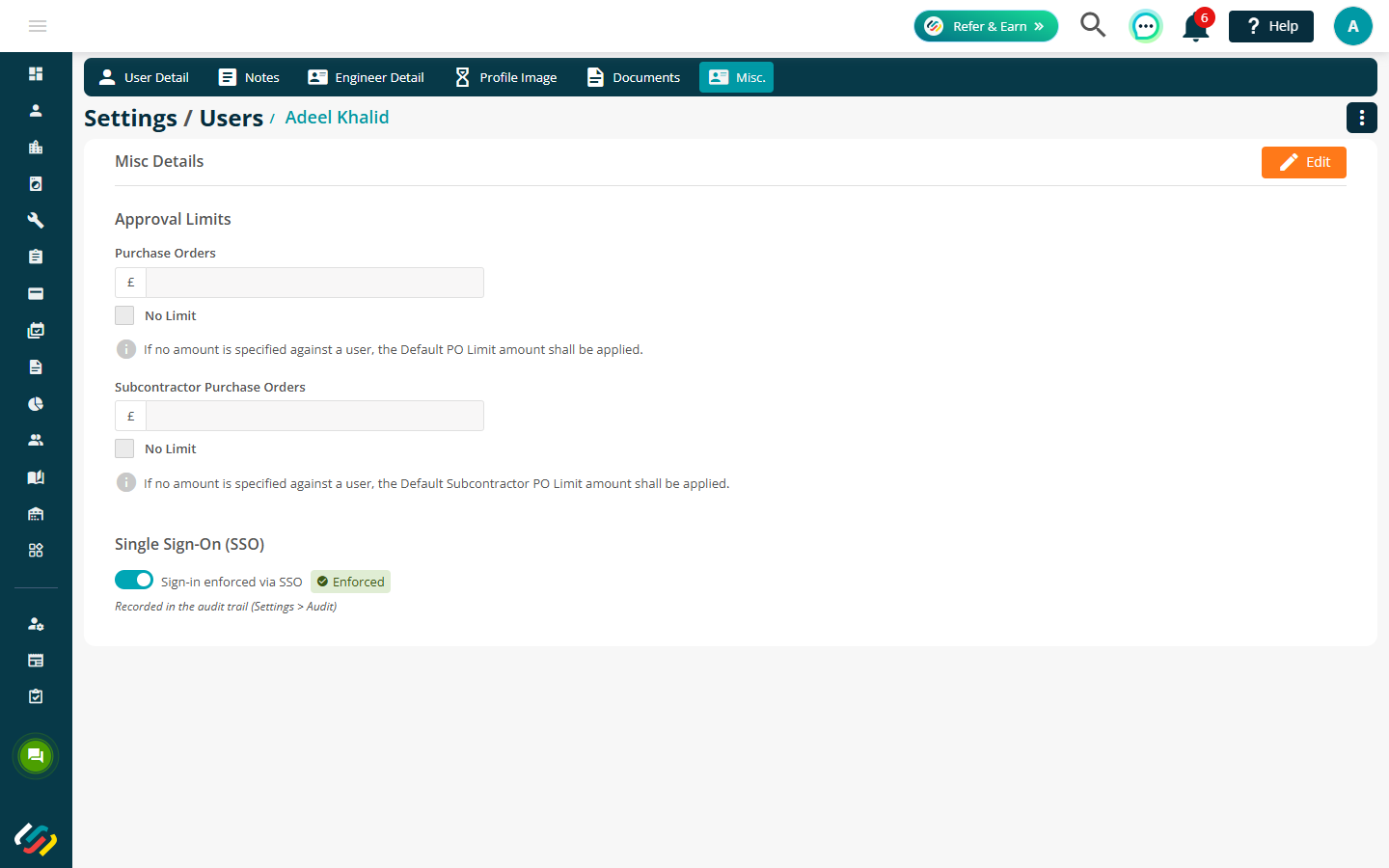
This individual setting mirrors the status shown on the Users list and in the enforcement windows. The Primary User's setting remains permanently bypassed and cannot be enforced. Other eligible users can be enforced or bypassed as required.
Signing in on the Web
After enforcement is applied, the sign-in path depends on whether the user's Microsoft account is already linked.
On the Joblogic Log In page, enter the work email address and continue. Joblogic uses the email to determine whether the account is enforced before accepting a password.
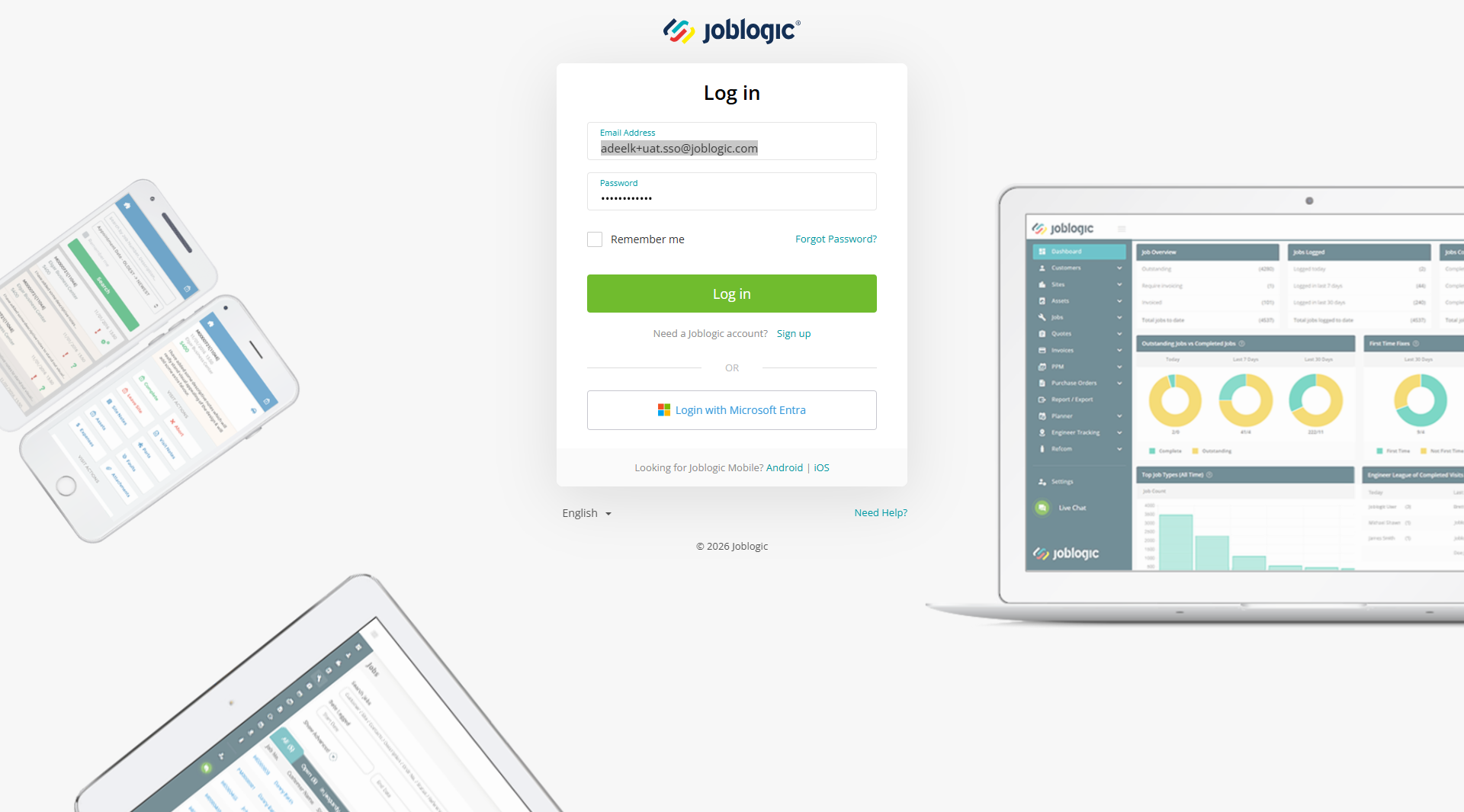
If the account is enforced and already linked, the Joblogic password is not used. Continue with Microsoft Entra, and Joblogic redirects the user to Microsoft's sign-in service.
Complete authentication using the Microsoft account linked to the Joblogic user.
On later Web sign-ins, Microsoft reuses an active browser session when the user is already signed in to Microsoft in that browser, including through another Microsoft service. The user may therefore continue without entering Microsoft credentials again.
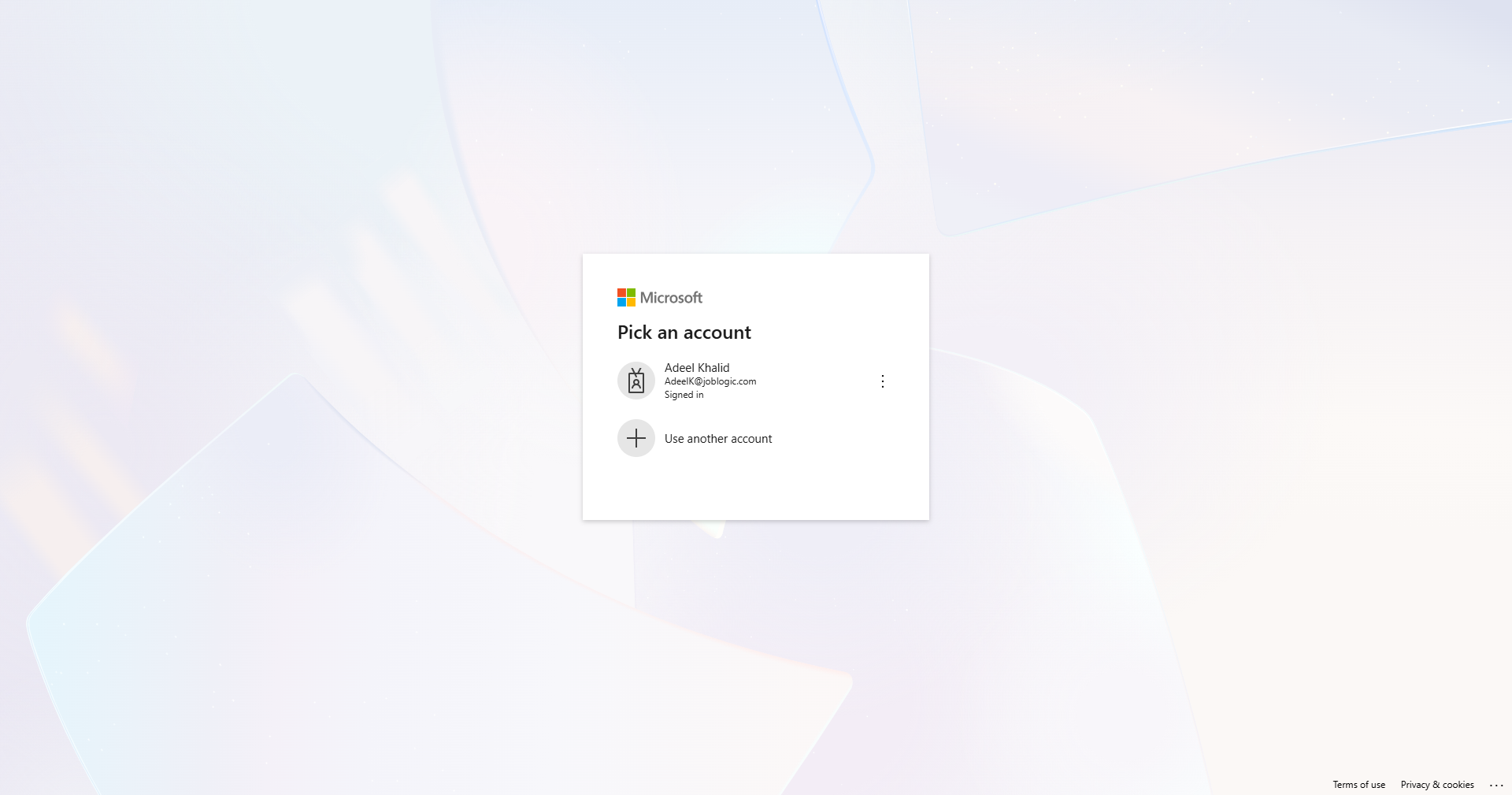
If SSO is not enforced, including where the user is bypassed, the user can sign in with their Joblogic email and password. Microsoft Entra remains available as an alternative sign-in option.
Linking a Microsoft account on the first enforced sign-in
When SSO is enforced but the user's Microsoft account has not yet been linked, Joblogic shows Link your account instead of sending the user directly to Microsoft.
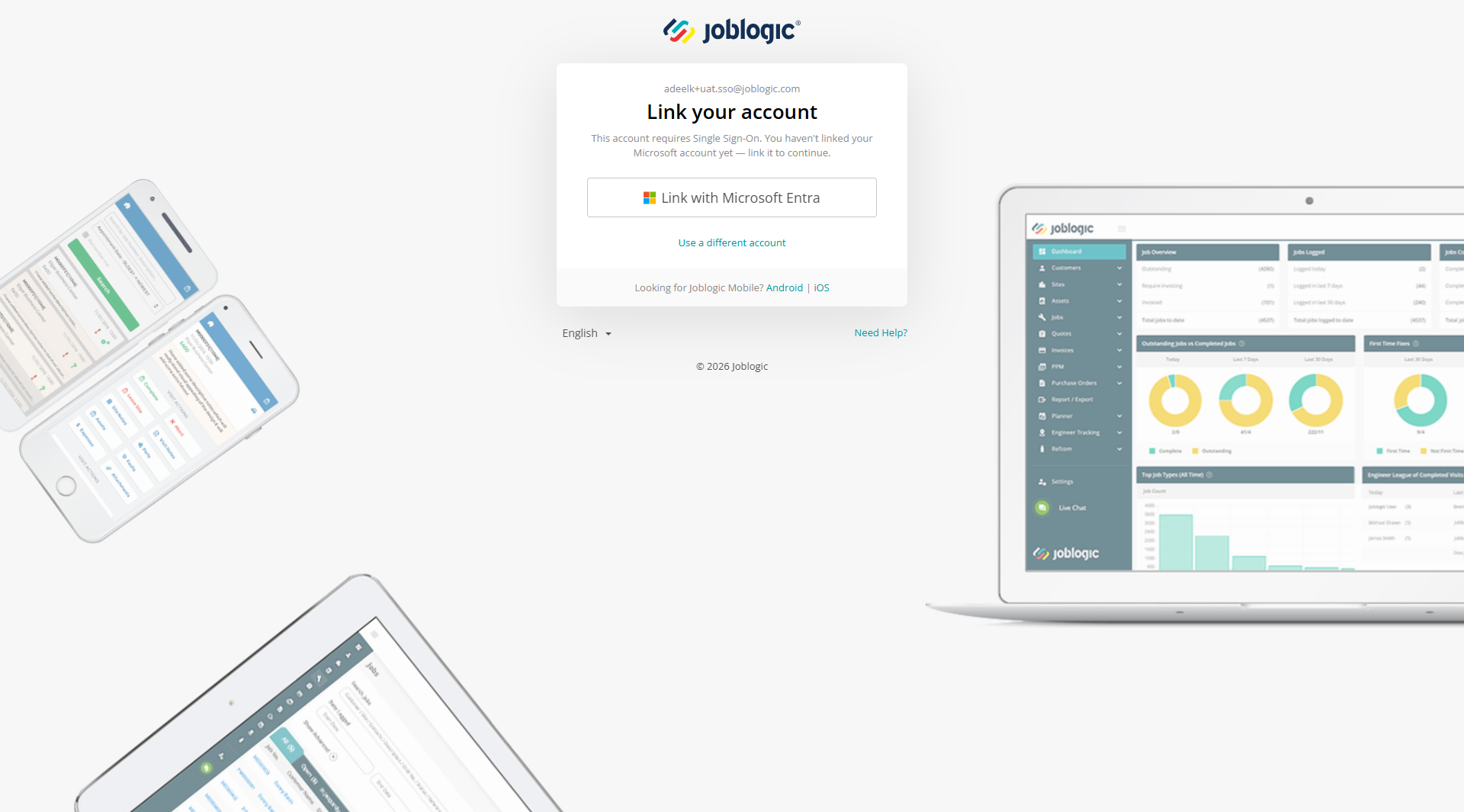
The user confirms ownership of their Joblogic account by entering their Joblogic password once, then completes Microsoft sign-in. Both checks must be valid for the accounts to be linked and the user to be signed in.
After the link is completed, future sign-ins use Microsoft Entra only and the Joblogic password is no longer accepted for that enforced account. Account linking is available on Web and Mobile, but the later sign-in journey differs between them.
Signing in on Mobile
The same enforcement rules apply in Joblogic Mobile. Enforced accounts use Microsoft Entra, while unenforced or bypassed accounts can continue with a Joblogic password.
Unlike Web, Joblogic Mobile does not reuse the stored Microsoft browser session between app logins. An enforced user must complete the full login journey, including Microsoft sign-in, every time they log in to Mobile.
Open Joblogic Mobile and select Log In.
Enter the engineer's work email. When the account is enforced and linked, the password is disabled and the screen provides Continue with Microsoft Entra.
If the enforced account is not linked, select Link with Microsoft Entra and complete the first-sign-in linking process.
Joblogic then opens Microsoft sign-in. The engineer's Joblogic password is not used for the Microsoft authentication.
Complete Microsoft sign-in using the linked Microsoft account. Repeat this Microsoft sign-in each time the user logs in to Joblogic Mobile.
Choosing a company after authentication
Company selection happens only after the user has authenticated. A user linked to one company goes directly to that company's landing screen. On Web, the user is taken to the dashboard.
A user linked to more than one company is shown the available companies after authentication. Companies that enforce SSO display an SSO required badge. Select the company that should be opened.
Enforcement is independent for each company, so the same person can be enforced in one company and bypassed in another. If a user switches from a password-backed session into a company that requires SSO, Joblogic requires Microsoft authentication before opening that company.
Choosing a company on Mobile
After authentication, an engineer linked to more than one company sees Select Company. Select the required company from the list; enforced companies display an SSO required badge.
An engineer linked to one company skips company selection. Joblogic prepares the Mobile session and then opens All Visits.
When setup is complete, the engineer lands on All Visits.
When an account is not associated
If the authenticated Microsoft identity is not linked to a Joblogic account, Joblogic displays an account-not-associated message and does not sign the user in. The message does not reveal company or user details before authentication.
The same outcome is shown in Joblogic Mobile.
Permissions and access
SSO management is controlled by role permissions. The following access applies:
Action | Access |
|---|---|
Configure SSO enforcement for users and roles | Administrator; a custom role when the permission is granted |
Enforce or bypass an individual user | Administrator |
Enforce a role and cascade the setting | Administrator |
View SSO status | Administrator |
View the SSO audit trail | Administrator |
Users remain subject to the SSO status configured for their company even when they do not have permission to manage enforcement.
Reviewing SSO activity
SSO activity is recorded in the Joblogic audit log. Recorded events include:
- Who enforced or bypassed a user or role, and when the change occurred.
- Whether a sign-in used Microsoft SSO or a Joblogic password.
- Bypass or break-glass use.
- Microsoft account-linking events.
- Failed sign-ins and account-not-associated attempts.
Available reporting data includes SSO status by user and role, enforced and bypassed totals, sign-in method trends, and lock-out and failure rates.
Sign-in failures and Microsoft availability
If either the one-time Joblogic password check or Microsoft authentication fails during account linking, the accounts are not linked and the user is not signed in.
If Microsoft Entra cannot be reached, Joblogic displays an error and allows the user to retry. A partial Joblogic session is not created.
Signing in when SSO is not enforced
Customers and users without SSO enforcement continue to sign in with their Joblogic email and password. Existing data does not require migration, and each company's enforcement configuration remains independent.
Further Support
For further information or assistance with the above, contact our Support Team on 0800 326 5561 or email support@joblogic.com. Alternatively, our Customer Success Management team can be reached by emailing customersuccess@joblogic.com.
Publishing Details
This document was written and produced by Joblogic's Technical Writing team. The information provided may be subject to change following future system releases. Details within the guide may also vary depending on the Joblogic account's user permissions and settings or the electronic device being used.