Introduction
The Batch Move feature allows planners to reassign multiple visits from one engineer to another in a single action from the Engineer Planner, helping to reduce manual effort and streamline rescheduling activities.
In this guide, we'll show you how to use the Batch Move feature by enabling the Redeploy setting, which allows inactive engineers to be included in the Source Engineer dropdown. You'll learn how to search for inactive engineers, select their existing visits, and move them to a target engineer while maintaining the same statuses throughout the process.
Enable inactive engineer redeployment
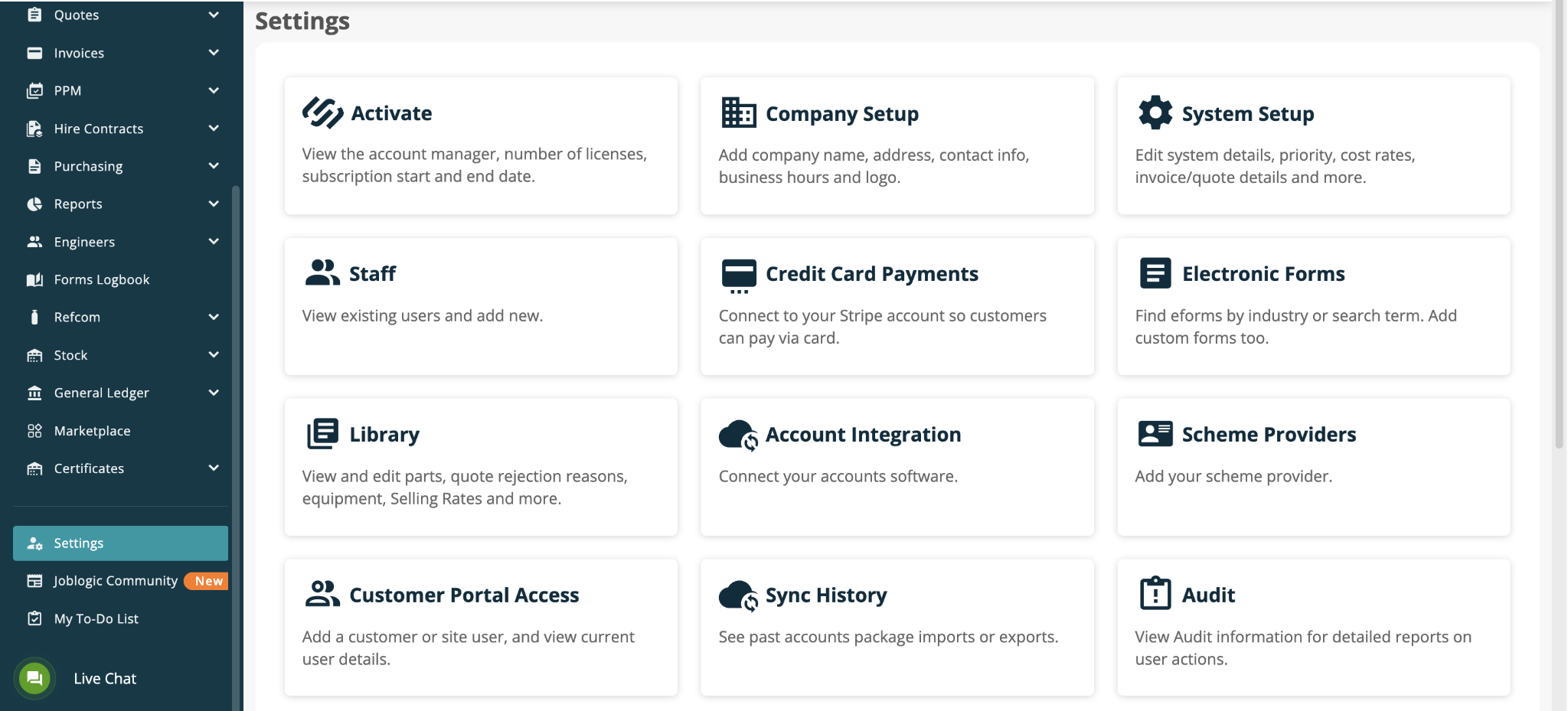
Before moving visits from an inactive engineer, open the Settings area so the redeploy option can be enabled.
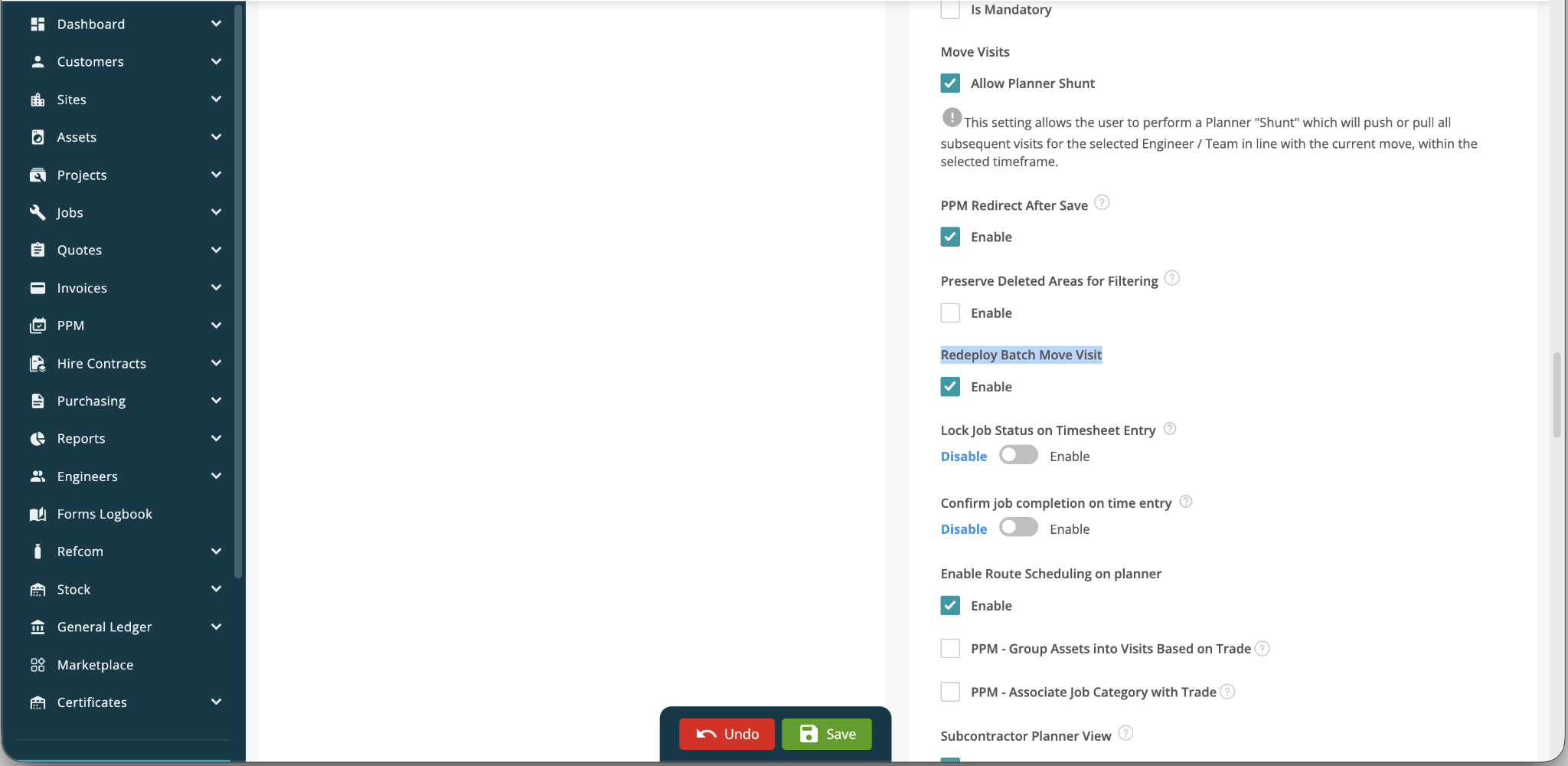
Open System Setup, locate Redeploy Batch Move Visit, select Enable and click Save. This setting allows inactive engineers to appear in the Batch Move source list so their visits can be reassigned.
Accessing Batch Move
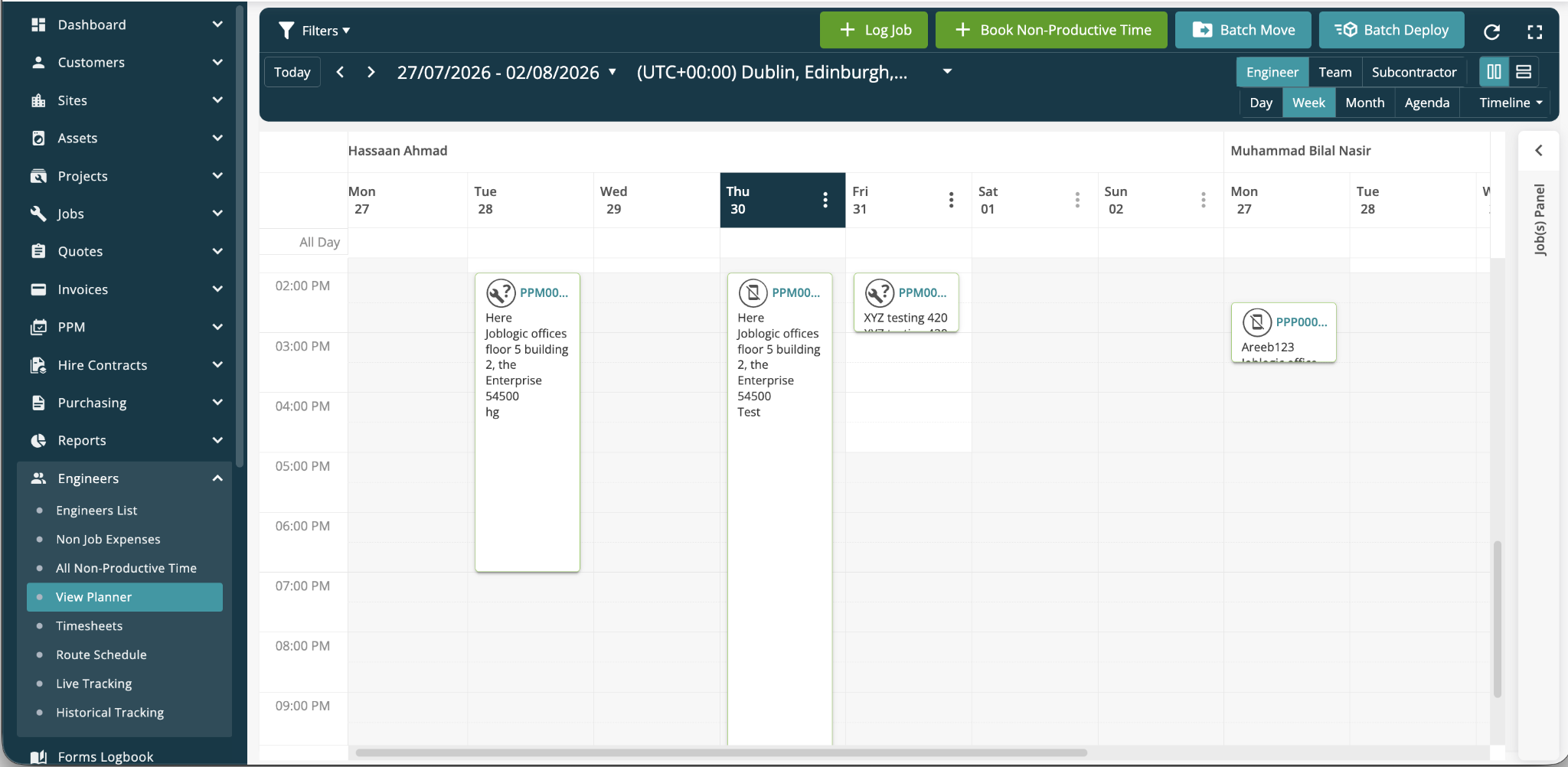
Navigate to Engineers > View Planner.
Review the existing visits in the Planner, then click Batch Move to open the bulk reassignment process.
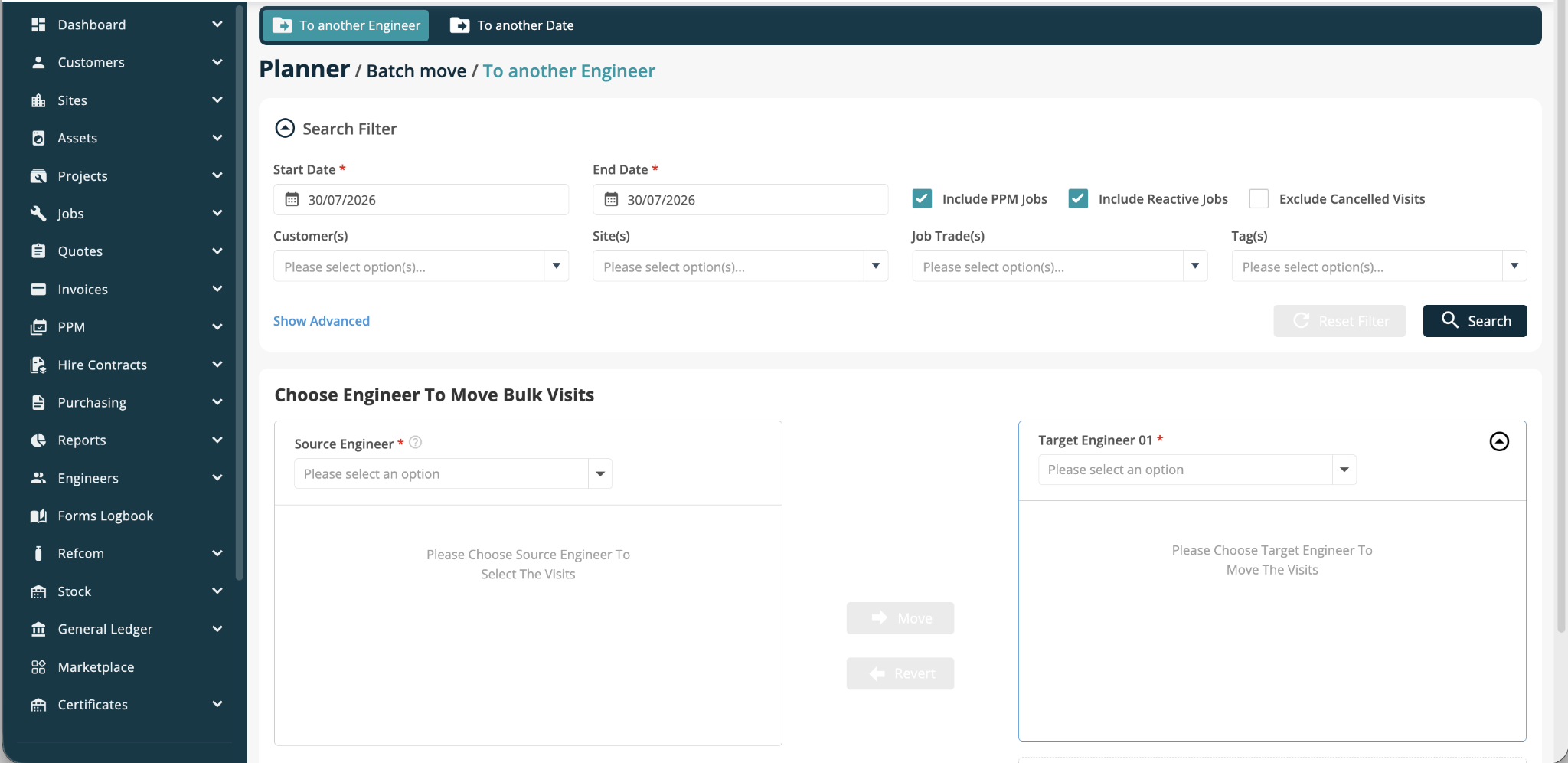
The Batch Move page opens on the To another Engineer tab. From here, you can filter visits by date, customer, site, job trade and tags before selecting the engineers involved in the move.
Working with inactive engineers
If an engineer has been marked inactive, their visits can still be reassigned to another engineer after the redeploy setting has been enabled.
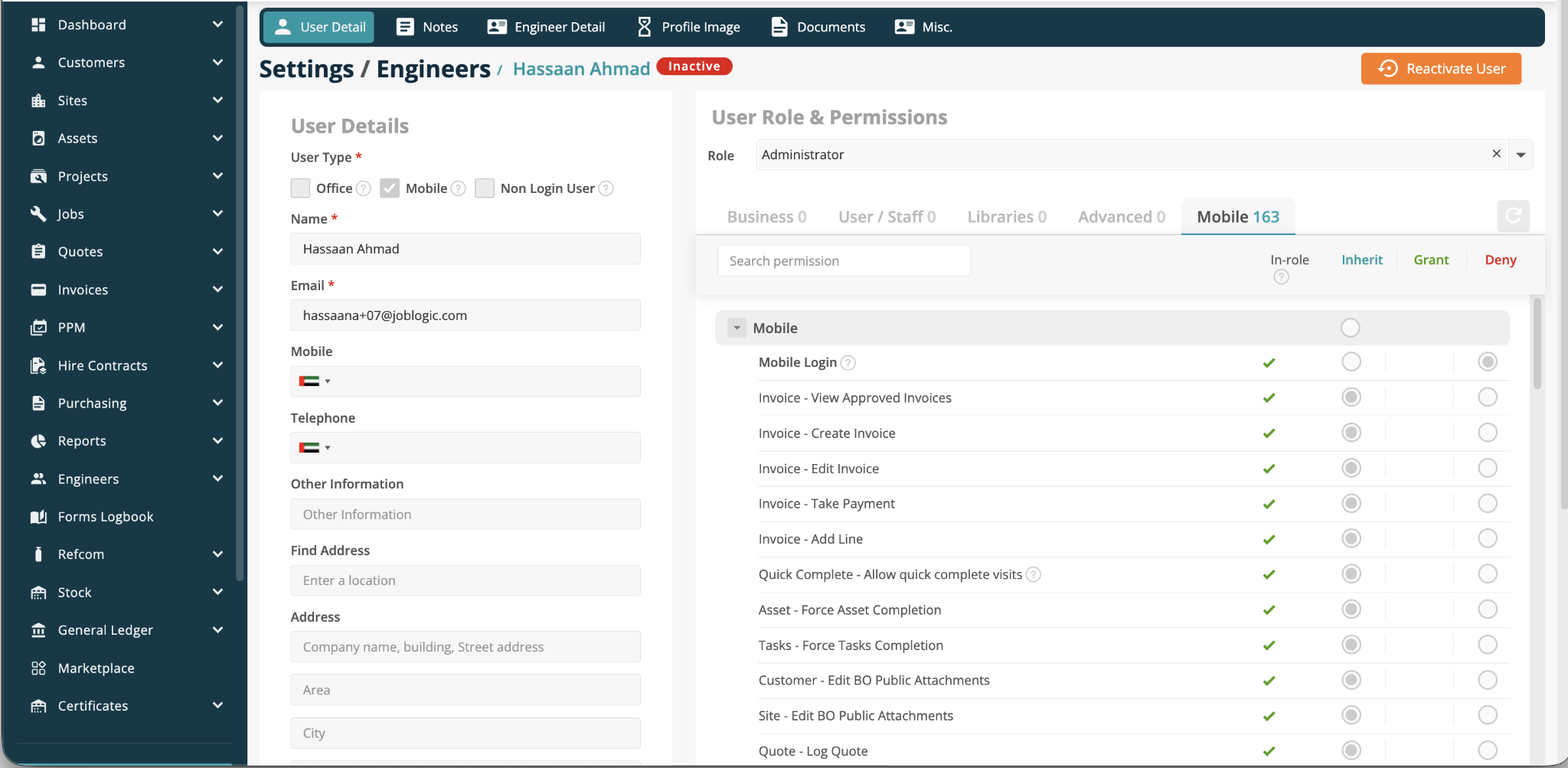
Navigate to Engineers > Engineers List and search for the engineer record you need to review.
The Inactive label is also visible on the engineer detail record.
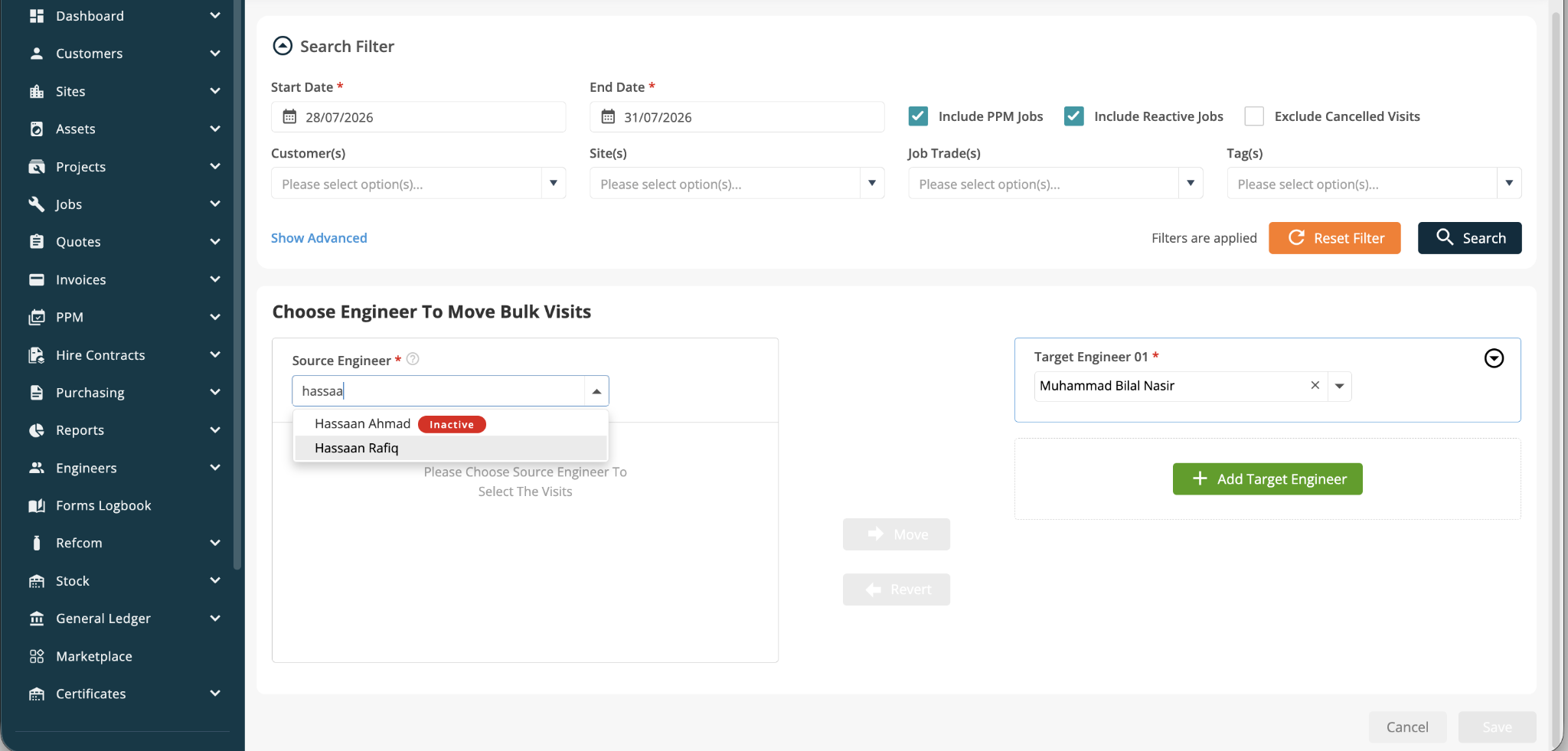
Once Redeploy Batch Move Visit has been enabled, return to Batch Move and search for the inactive engineer in the Source Engineer list. The inactive engineer remains selectable and is clearly labelled.
Moving visits to a target engineer
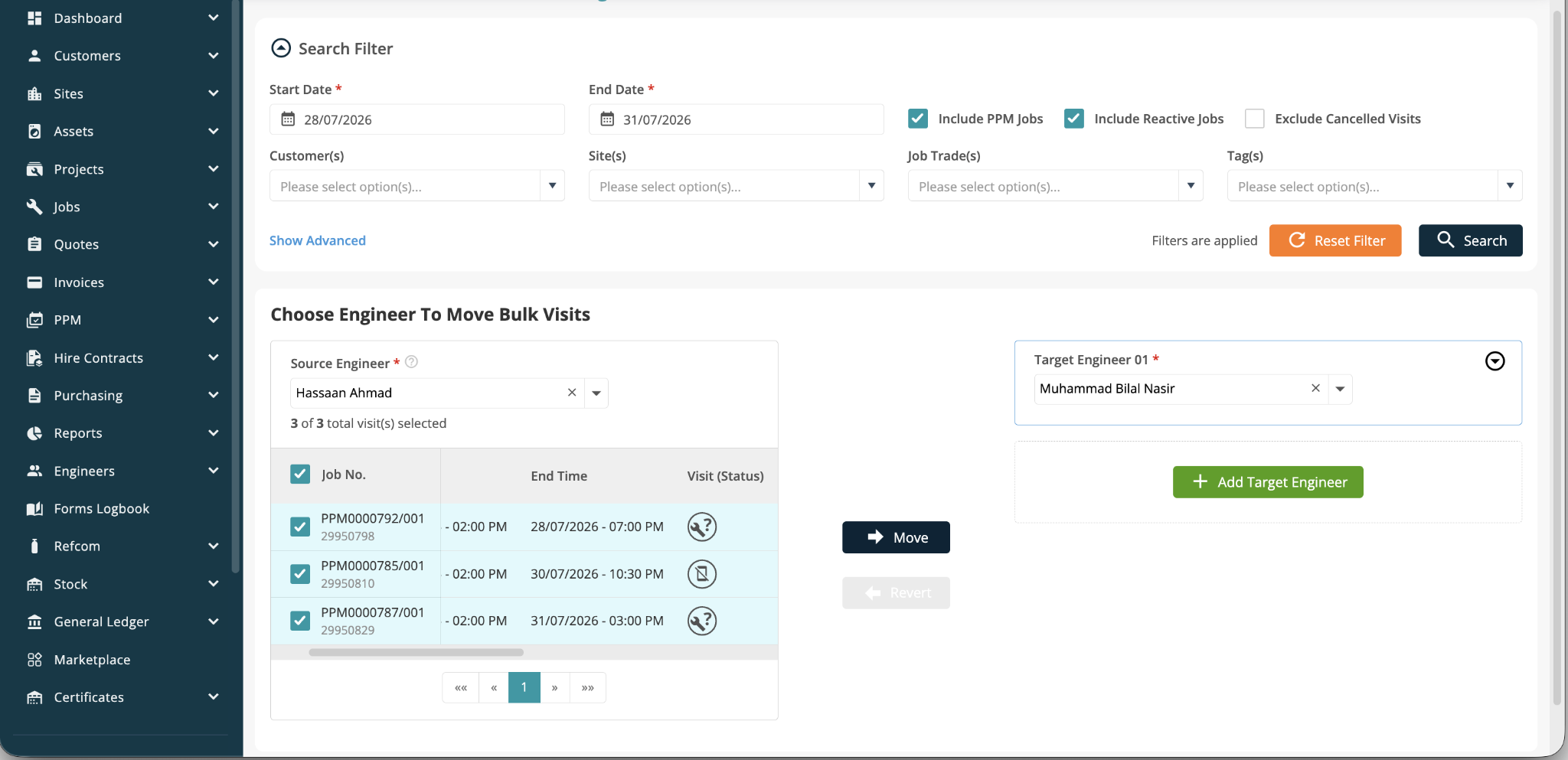
Select the inactive engineer as the Source Engineer, then choose the engineer who should receive the work as the Target Engineer.
Select the required visits from the source list. The same batch can contain visits with different statuses, including allocated-only and deployed visits. When you are happy with the selection, click Move.
Redeploying deployed visits
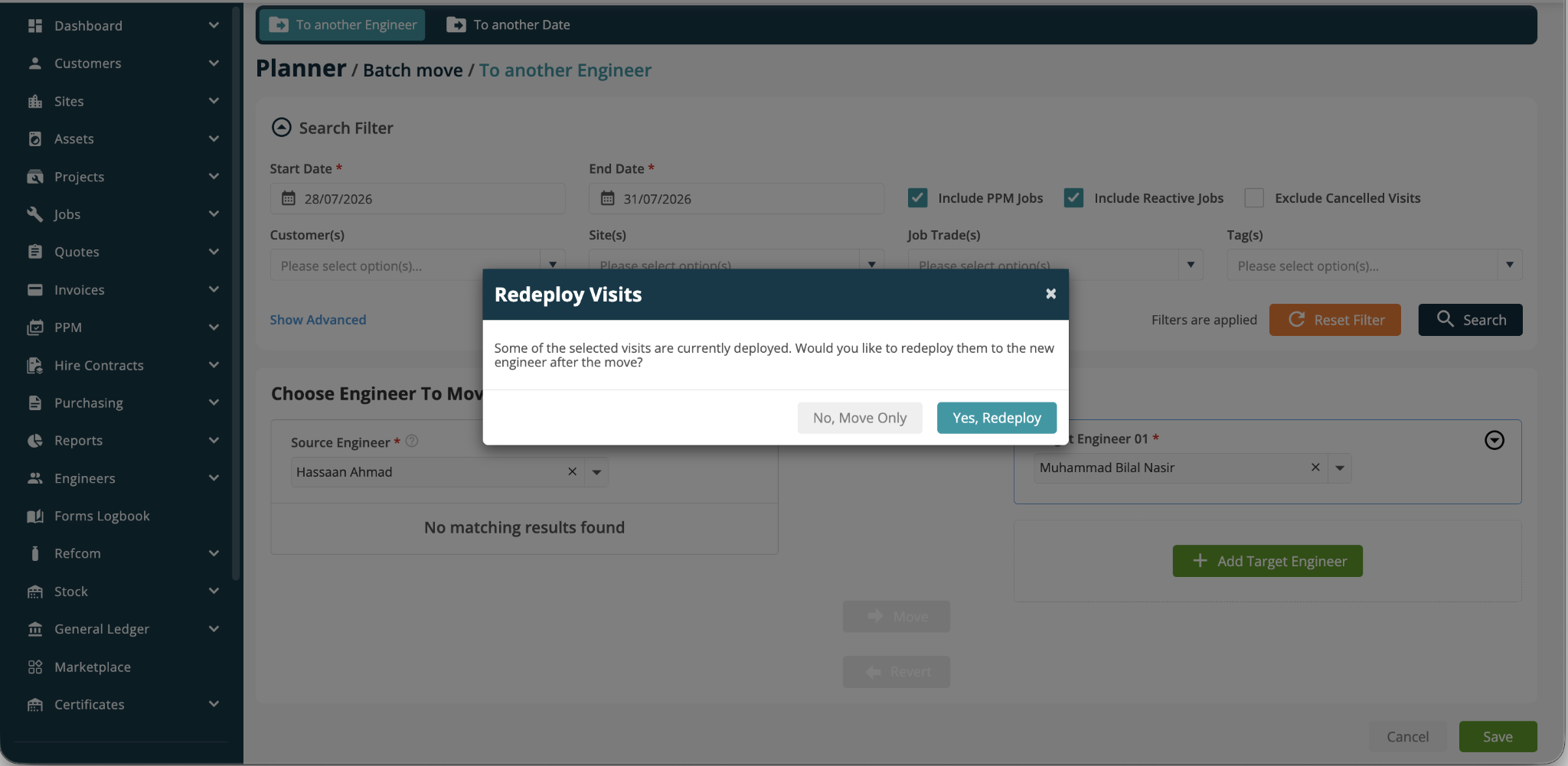
If the selected batch contains visits that are already deployed, Joblogic displays the Redeploy Visits message.
Select Yes, Redeploy to move and redeploy those visits to the target engineer. Select No, Move Only to move them without redeploying them.
Visit status behaviour
Allocated only: The visit is reassigned to the target engineer and remains allocated only.
Deployed: If Yes, Redeploy is selected, the visit is reassigned and redeployed to the target engineer.
When allocated-only and deployed visits are selected together, Joblogic applies the relevant outcome to each visit within the same batch.
Completing the batch move
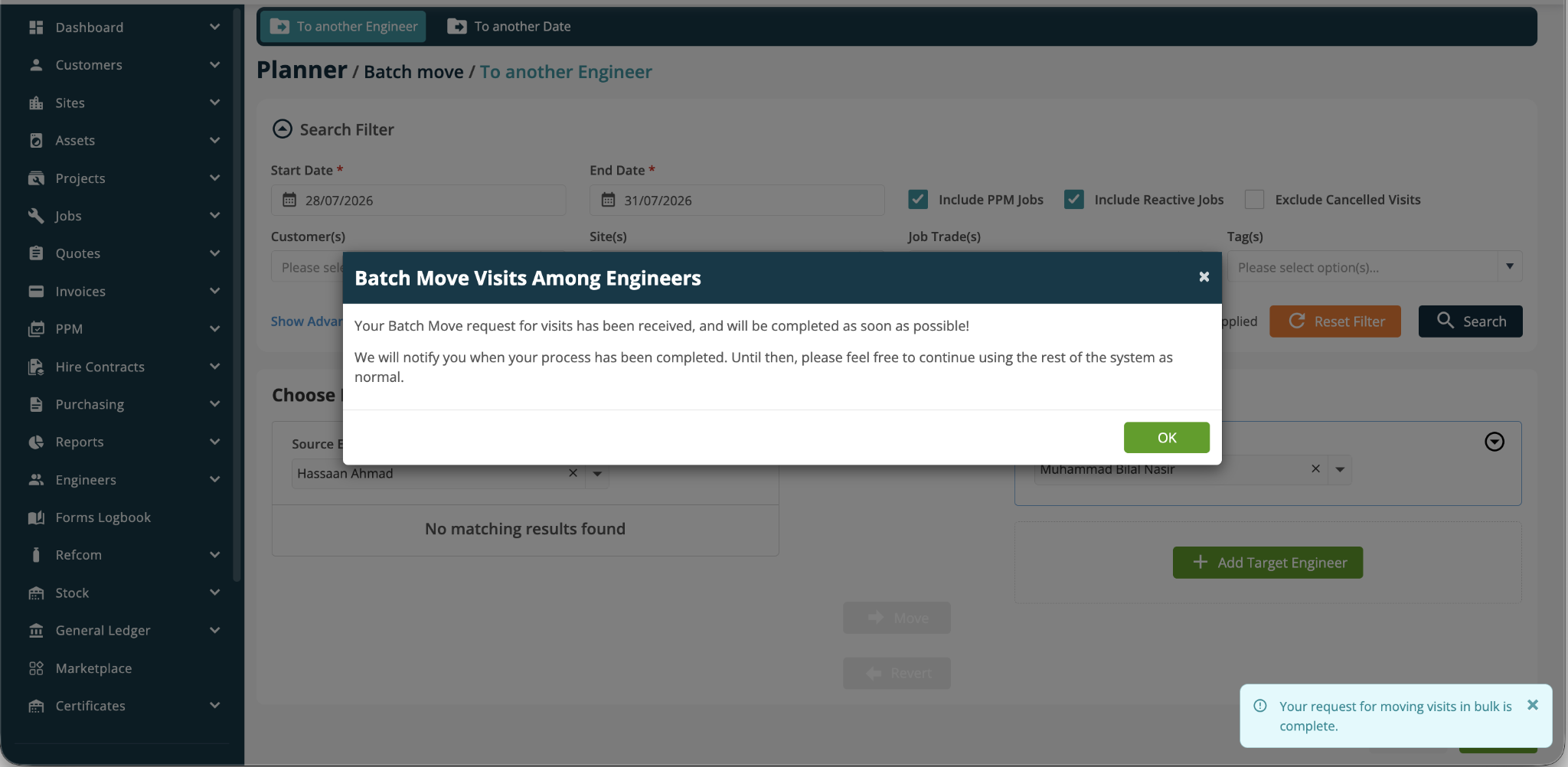
After the move is submitted, Joblogic confirms that the Batch Move request has been received. The request is processed in the background, so you can continue using the rest of the system while the update completes.
A notification appears when the bulk move has completed.
Reviewing the updated visits
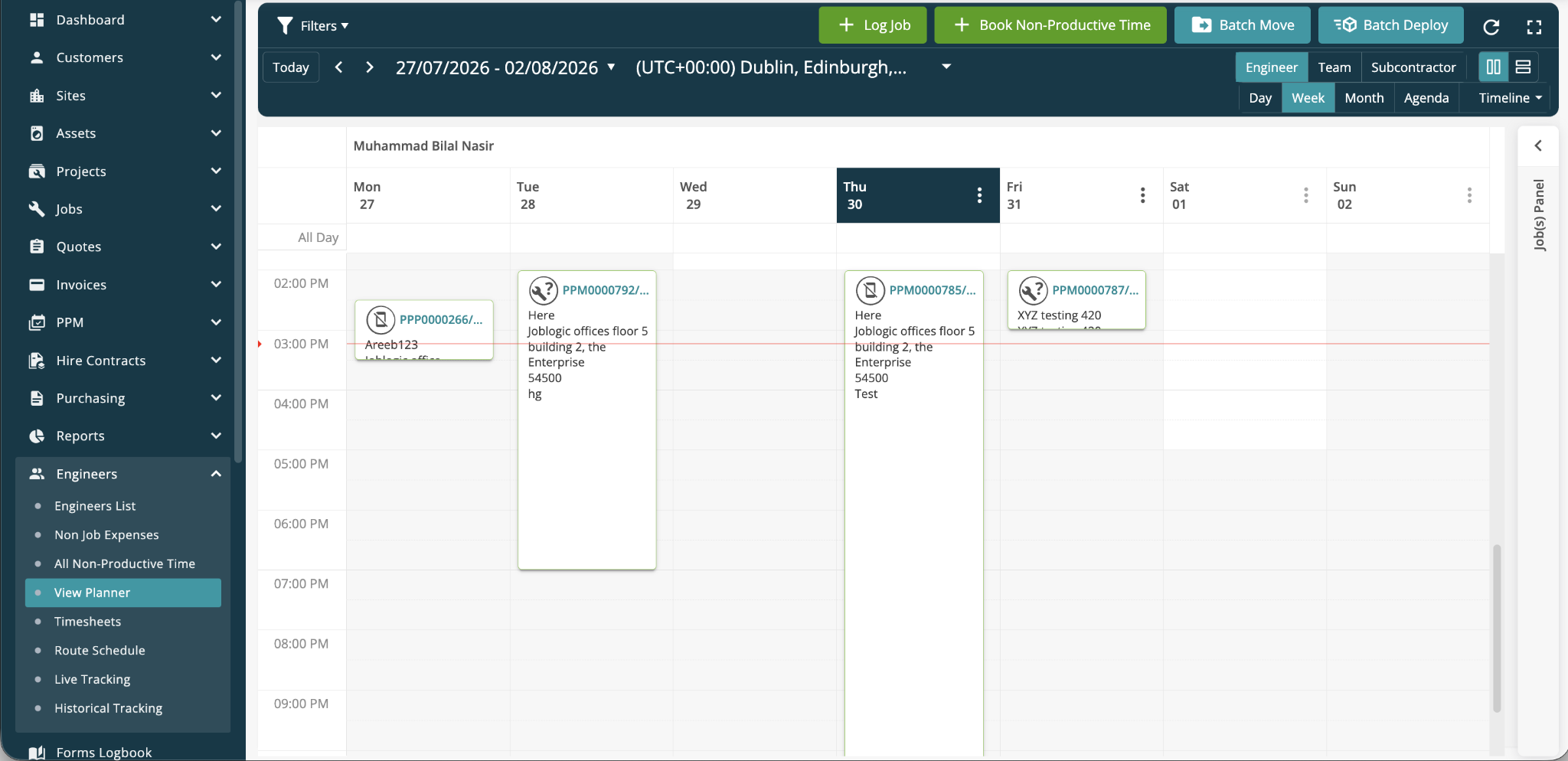
Return to the Engineer Planner and review the target engineer’s schedule to confirm that the selected visits have been moved successfully.
Check that allocated visits remain allocated and that any visits selected for redeployment are now available to the target engineer.
Further Support
For further information or assistance with the above, contact our Support Team on 0800 326 5561 or email support@joblogic.com.
Publishing Details
This document was written and produced by Joblogic’s Technical Writing team and was last updated on the date stated above.