Introduction
The Cylinder Collection workflow provides a controlled way to identify gas cylinders that are ready for supplier collection. Users can mark one cylinder or process several serial numbers in bulk, while Joblogic records the request details and keeps an audit trail.
The workflow is available in Back Office and Mobile. Supplier notifications can be scheduled once per day: cylinders are grouped by supplier, and each supplier receives an email with an XLSX attachment containing the cylinders that are ready for collection.
Availability through Marketplace
The workflow is delivered through the Cylinder Collection Marketplace app and is disabled by default. It becomes available only for subscribed customers. When the subscription is enabled, the related Cylinder Collection settings become available and the Marketplace-controlled workflow is enabled automatically.
Before using the workflow
Check that the following information and access are in place before cylinders are prepared for collection:
- The Cylinder Collection Marketplace subscription is enabled.
- The supplier record contains the email address that should receive collection notifications.
- The user has the relevant permission for Back Office, Mobile, bulk Ready for Collection, bulk return or notification configuration activities.
- The cylinder is stored in an eligible Site Stock Location or Warehouse Stock Location.
Marking a cylinder ready for collection in Back Office
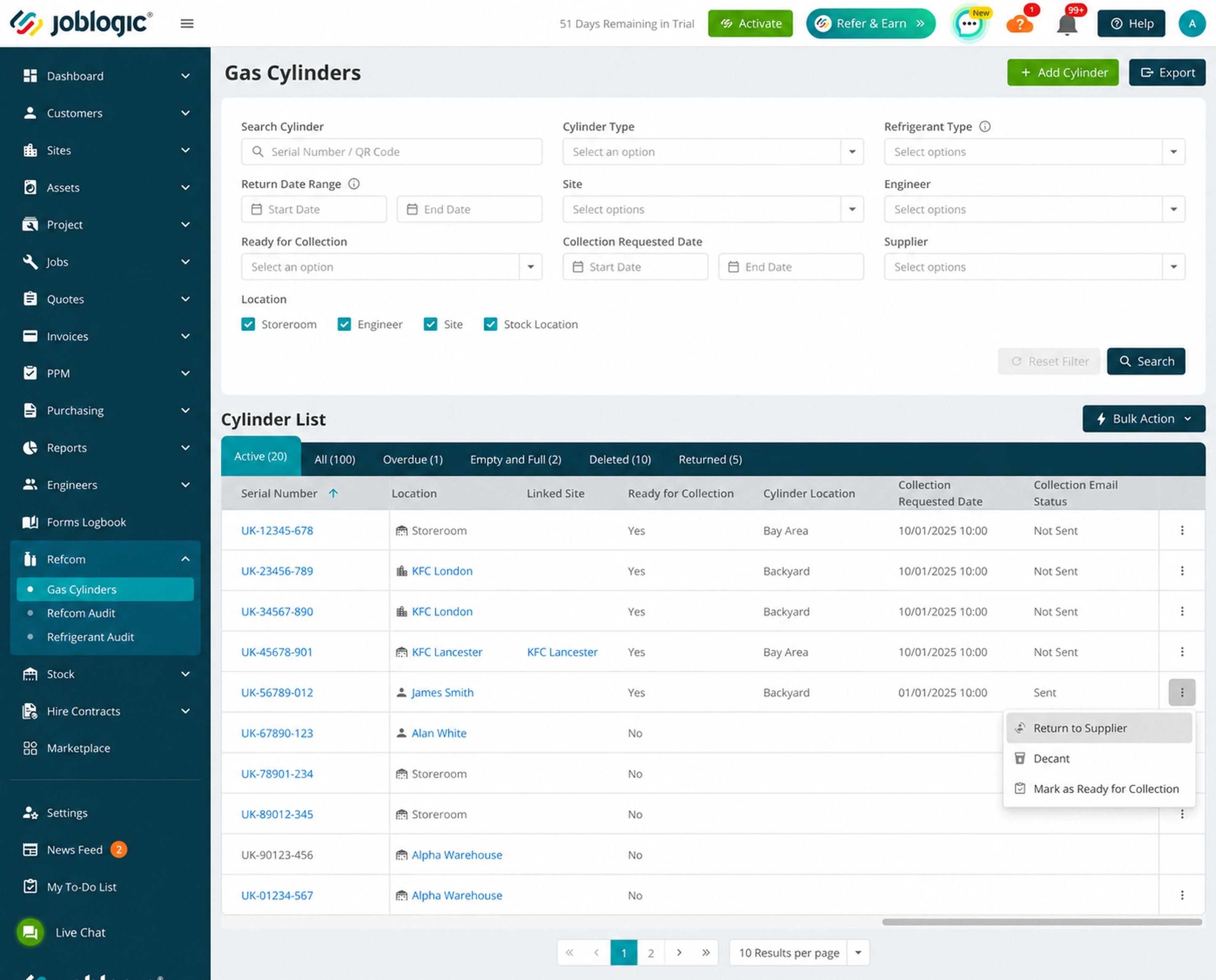
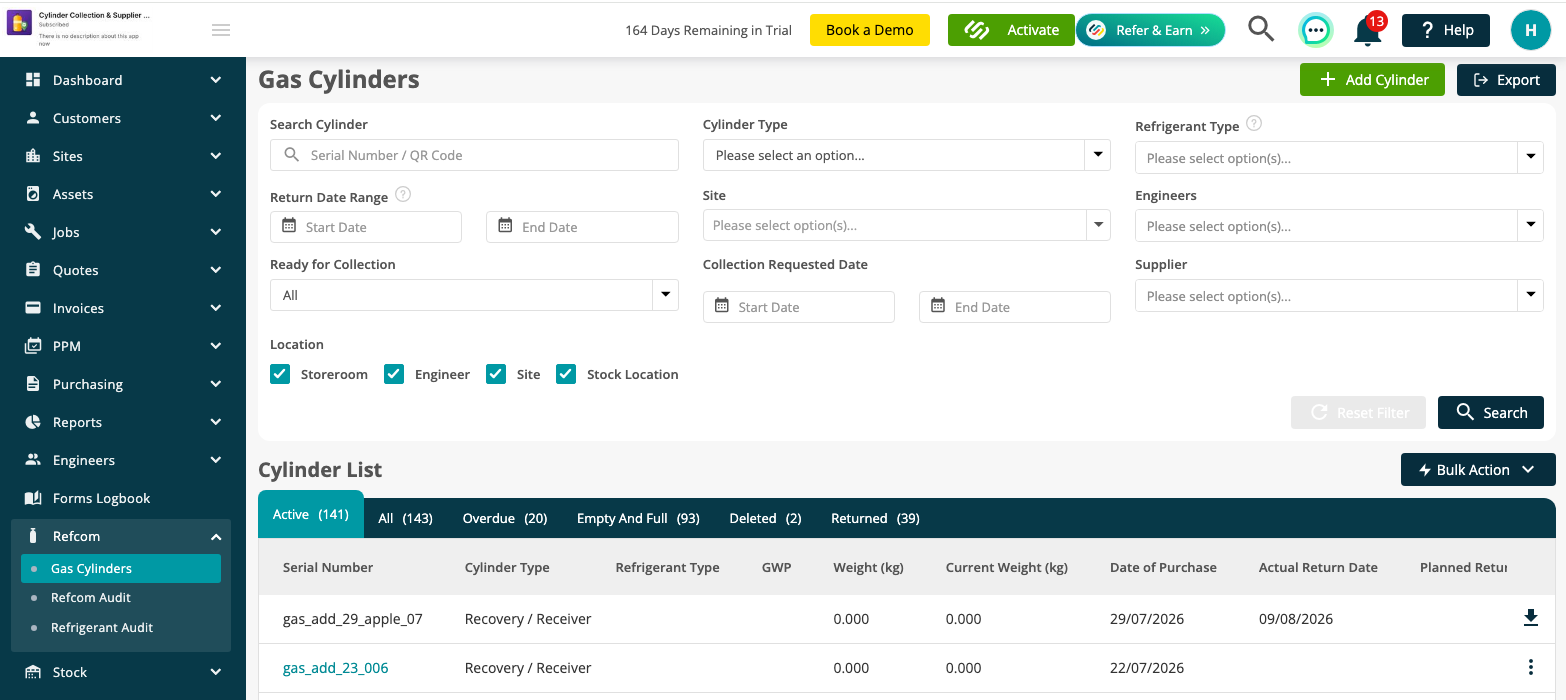
Open Refcom > Gas Cylinders. On the required cylinder row, open the three-dot menu and select Mark as Ready for Collection.
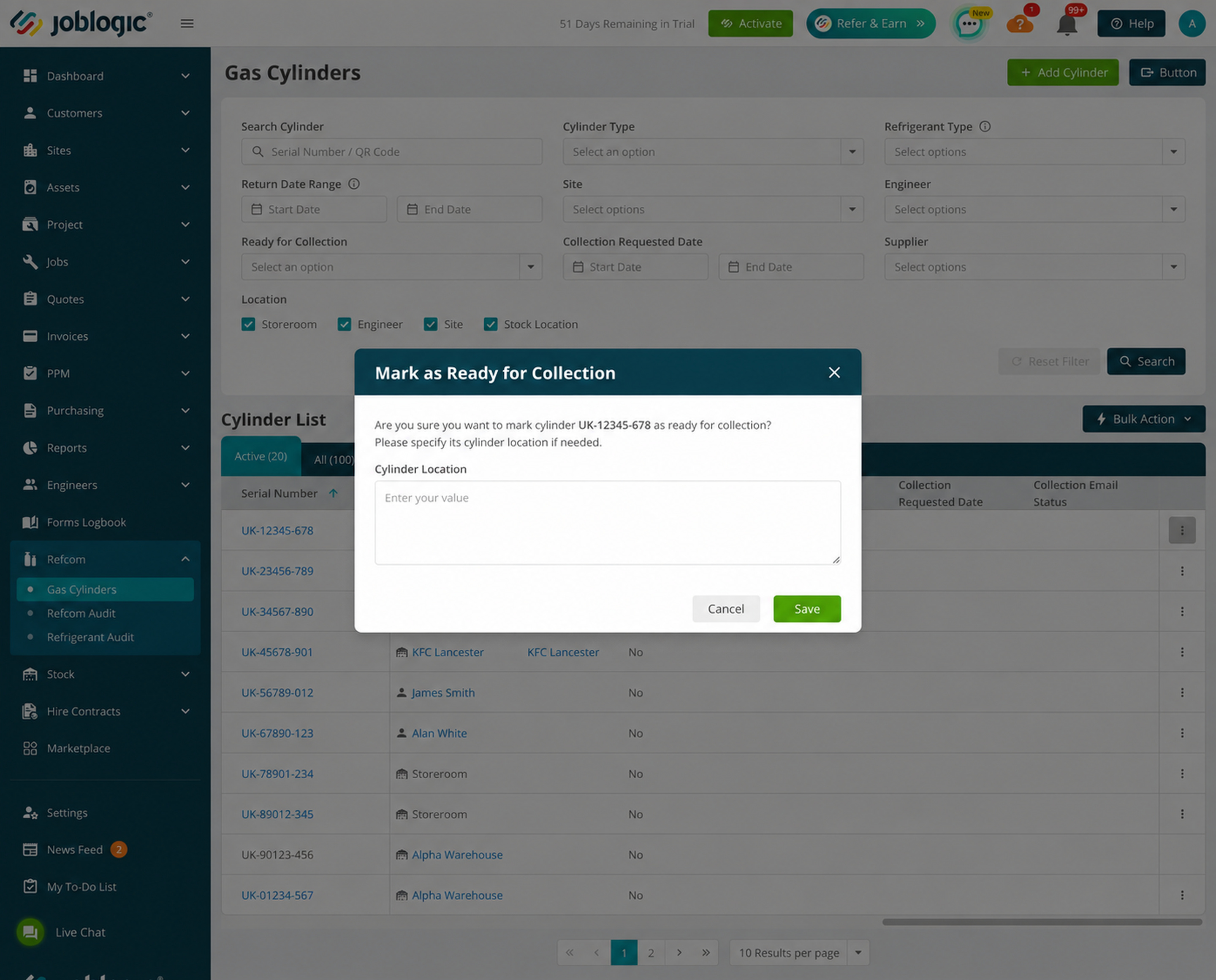
In the confirmation window, enter the Cylinder Location if required, then select Save. This value helps the supplier find the cylinder; examples include Bay Area, Back Yard, Store Plant Area and Loading Bay.
After the cylinder is marked ready, Joblogic records the Collection Requested Date and the user who performed the action using the current system date and time. The action is also audit logged.
A status badge is shown and the Collect action is hidden. The cylinder's stock location cannot be changed after it has been marked ready for collection.
Marking multiple cylinders ready for collection
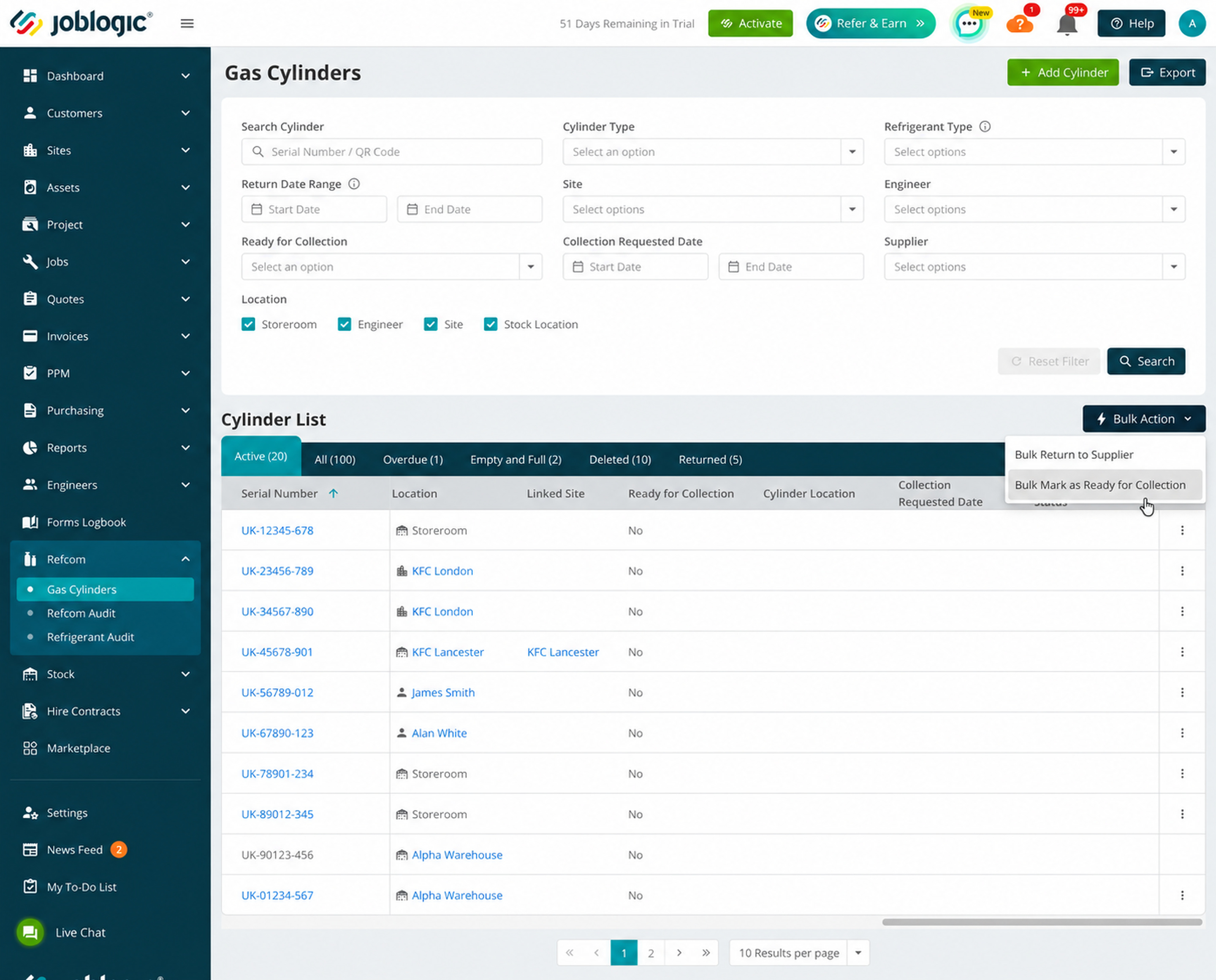
From Refcom > Gas Cylinders, open Bulk Action and select Bulk Mark as Ready for Collection.
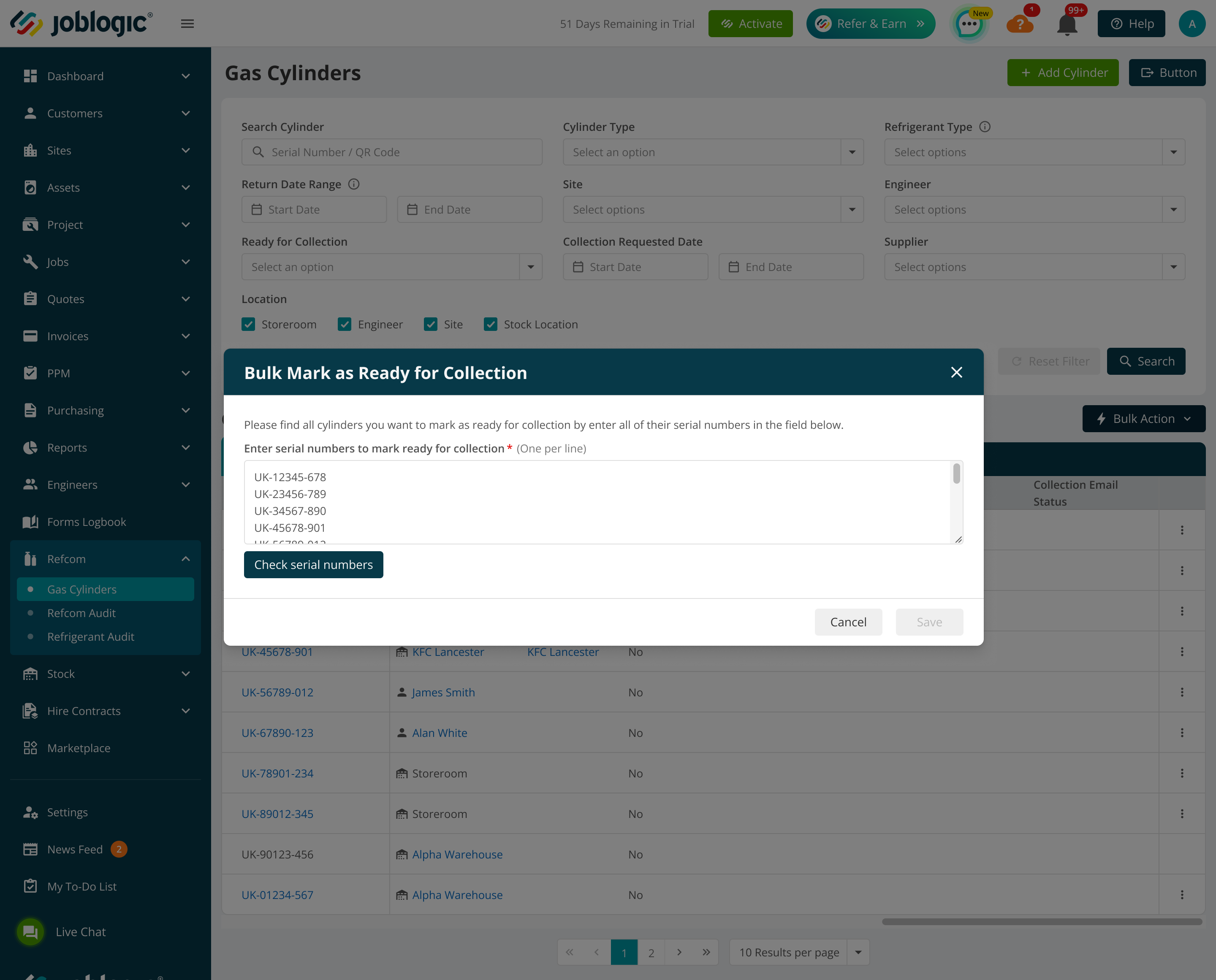
Enter the cylinder serial numbers, one per line, then select Check serial numbers.
Joblogic separates the results into cylinders that are eligible and not eligible for collection. Eligible cylinders are grouped by supplier. Review the results and clear the checkbox for any eligible cylinder that should not be included.
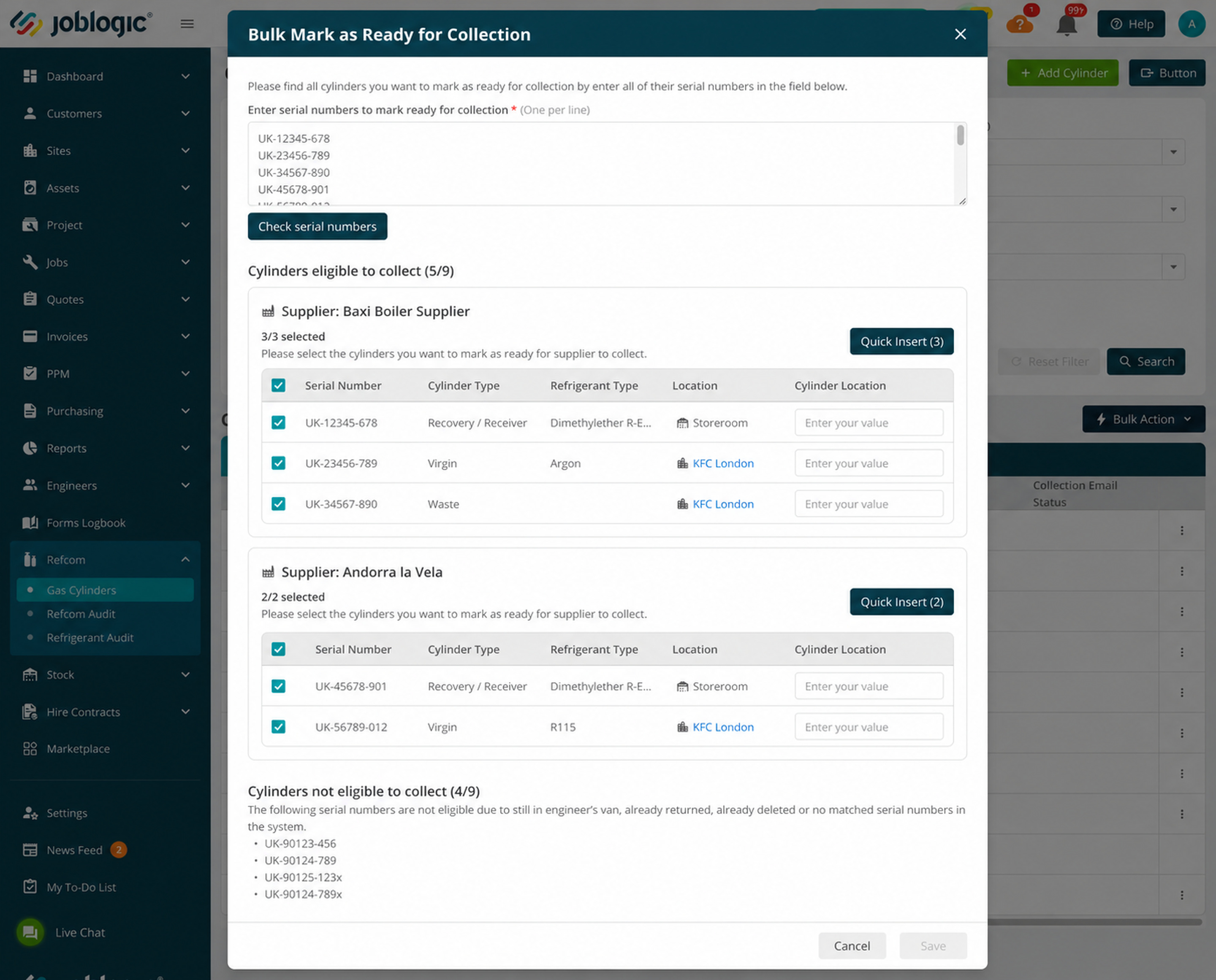
Enter the Cylinder Location for each selected cylinder. To apply the same location to all selected cylinders for one supplier, select Quick Insert, enter the location and select Apply. When the entries are complete, select Save.
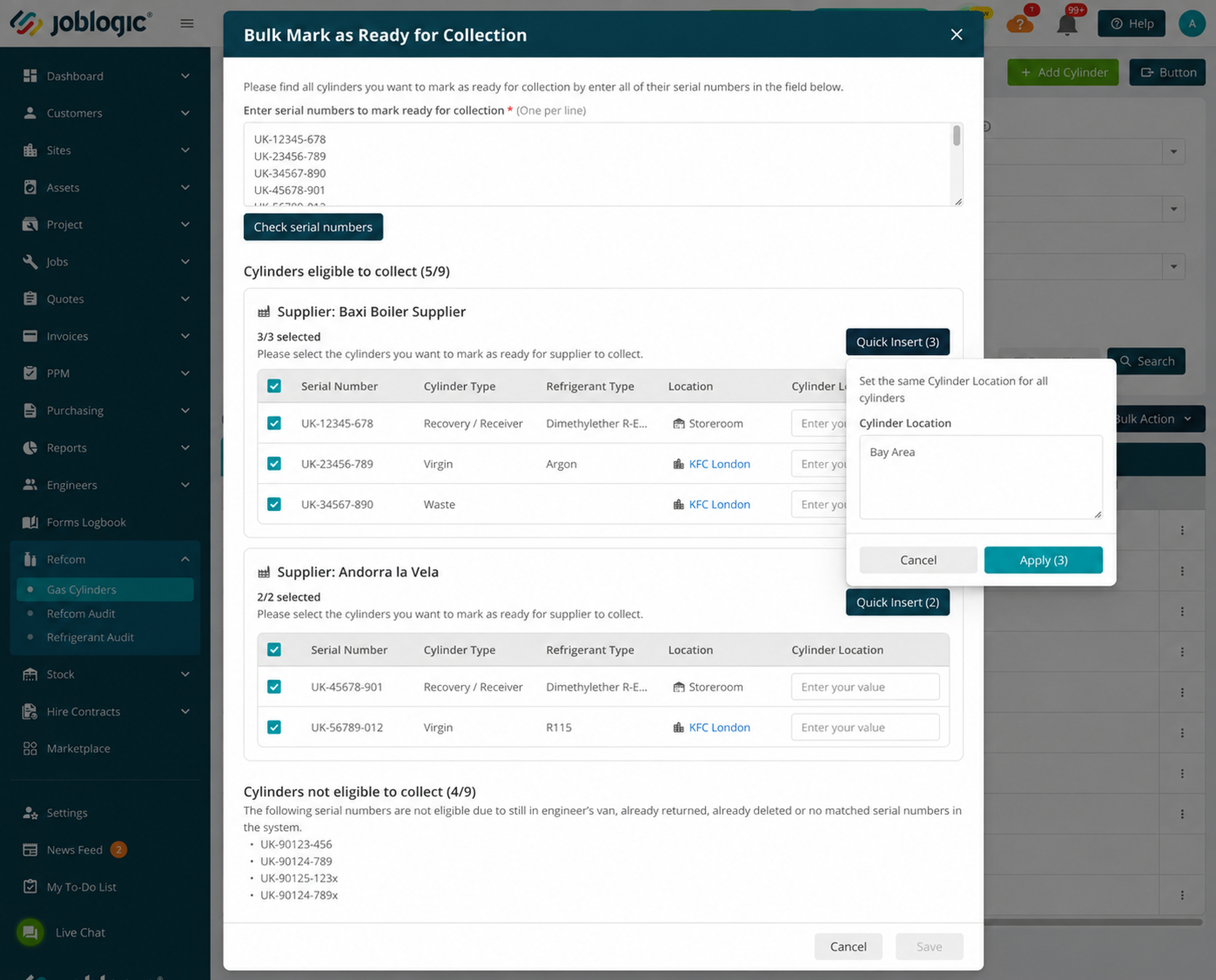
Cylinders that are already returned, deleted, not found or held in a van are not eligible. Their presence does not prevent the eligible selected cylinders from being processed.
Marking a cylinder ready for collection in Mobile
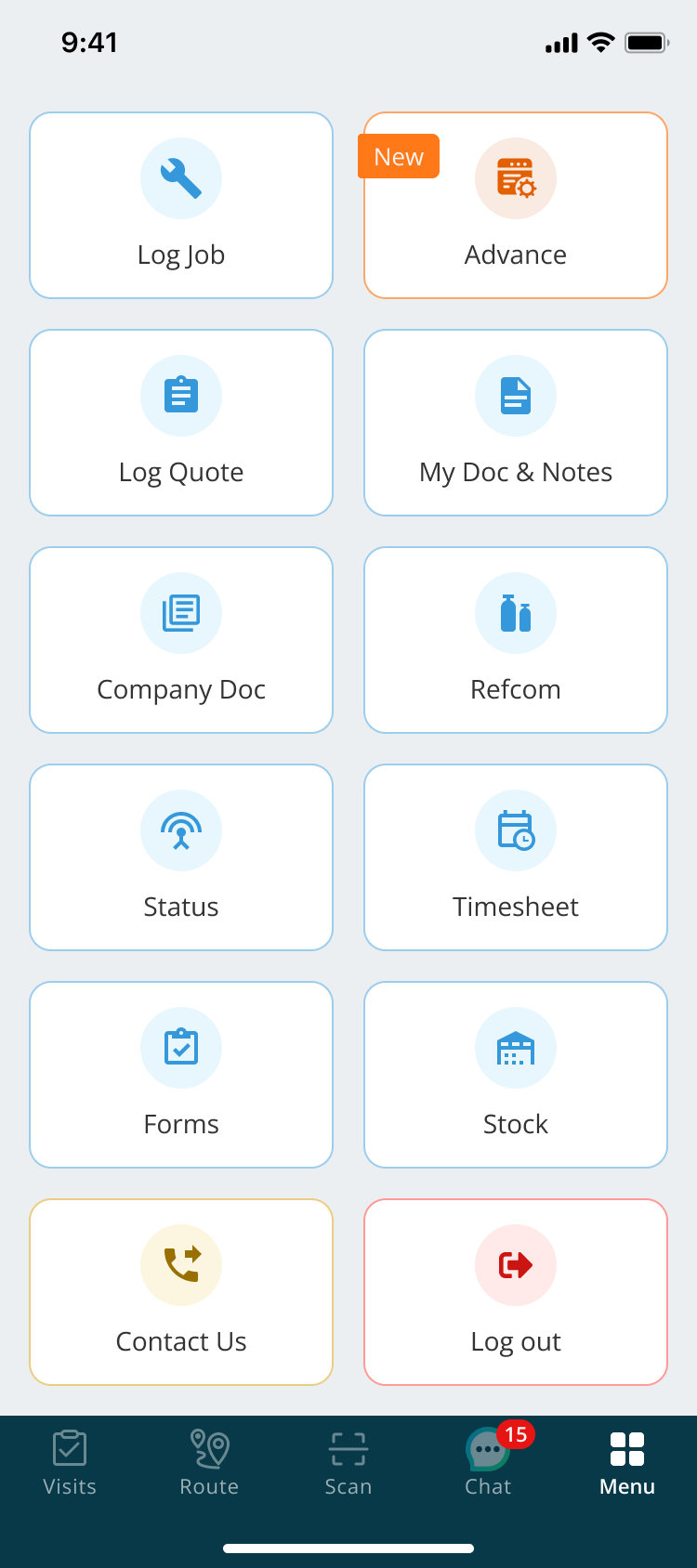
In Joblogic Mobile, open Menu and select Refcom.
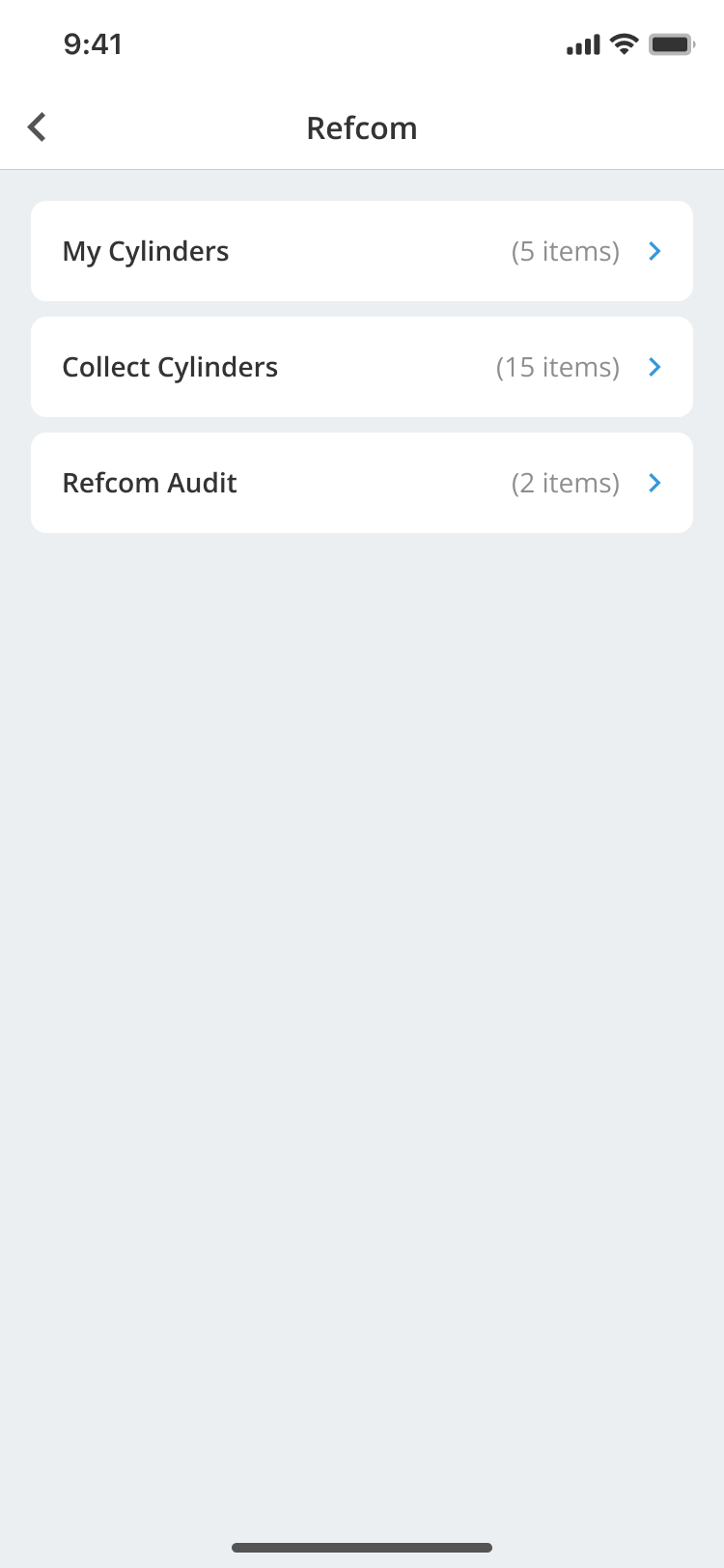
On the Refcom screen, select Collect Cylinders.
Use the Storeroom, Site or Stock Location tab to find the eligible cylinder. Open the cylinder's three-dot action menu and select Mark as Ready for Supplier to Collect.
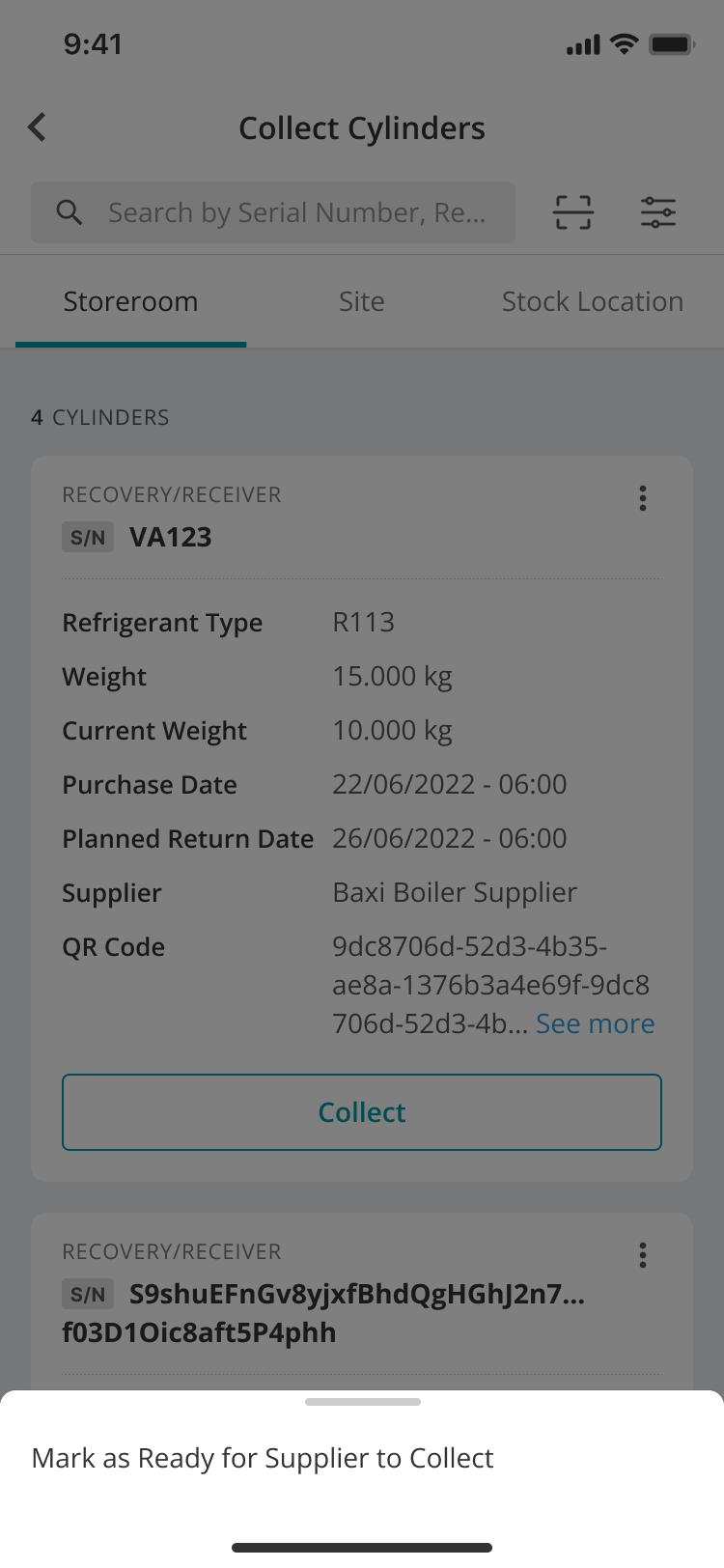
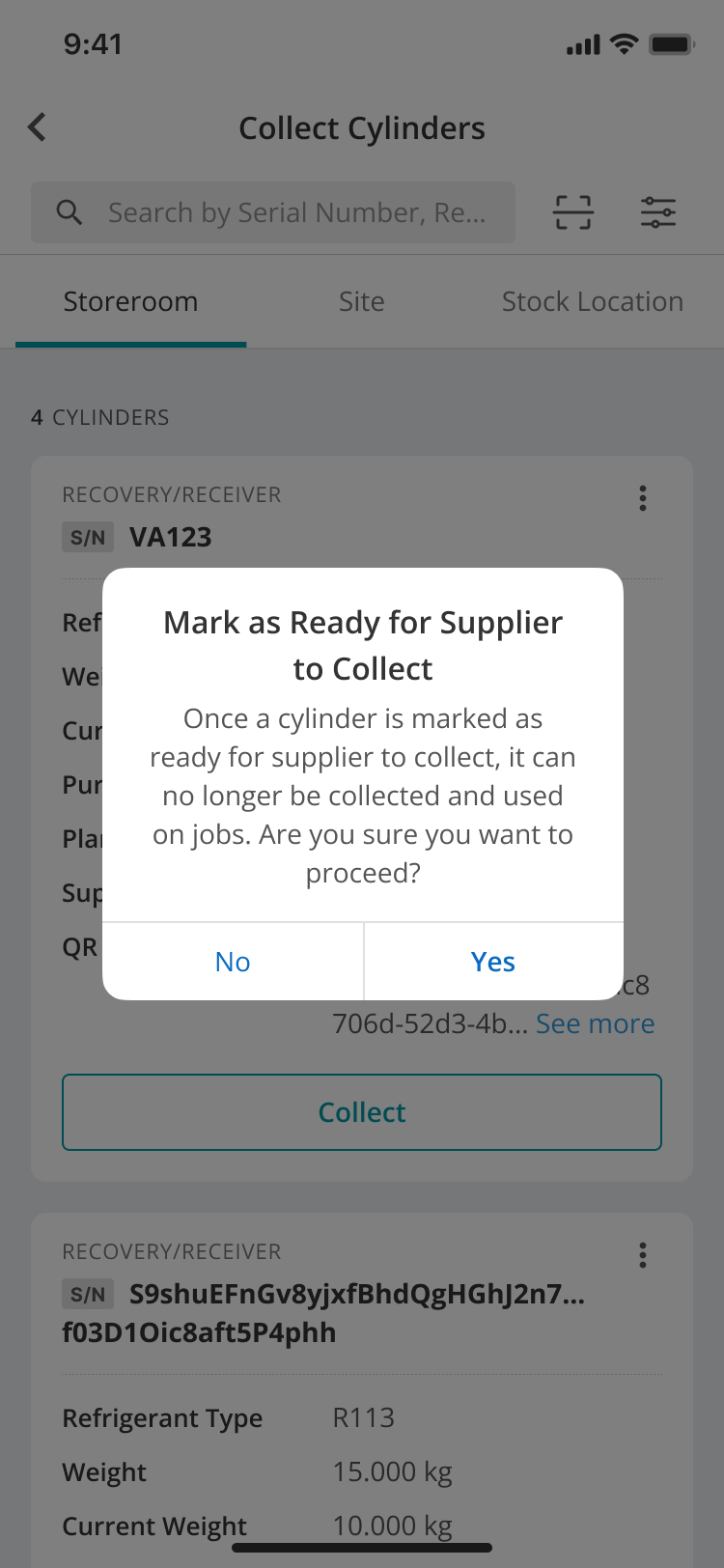
Review the warning that a ready cylinder can no longer be collected and used on jobs, then select Yes to proceed.
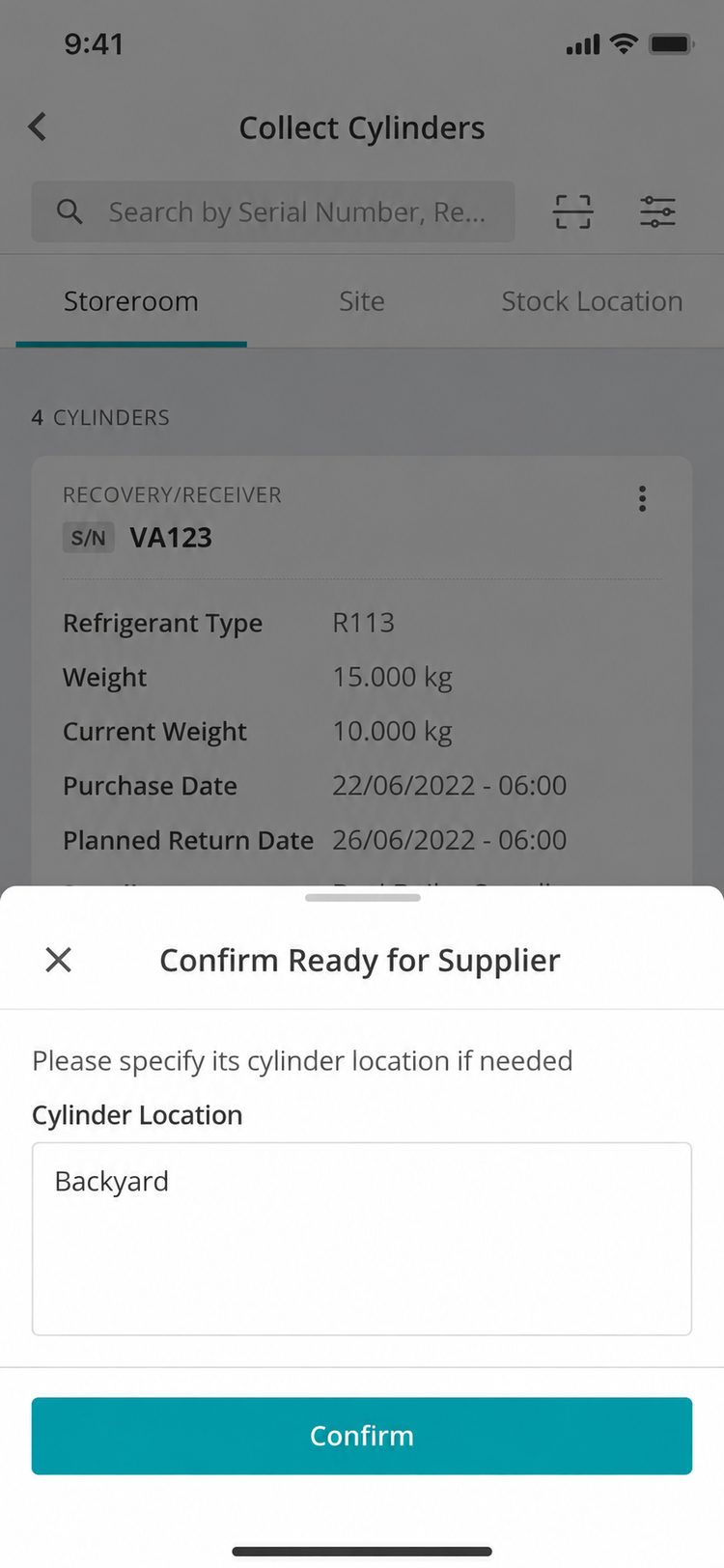
Enter the Cylinder Location if needed and select Confirm.
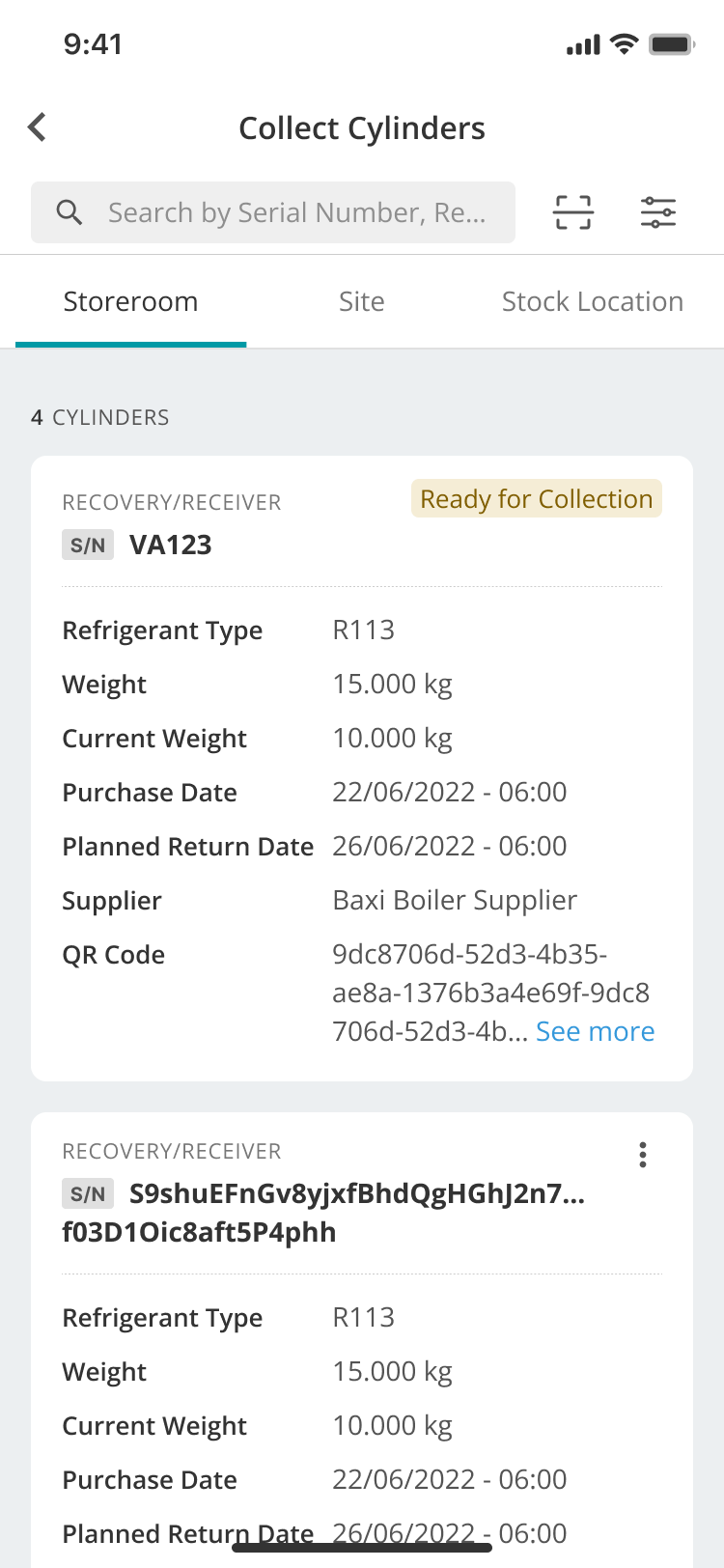
After confirmation, the cylinder card displays a Ready for Collection badge.
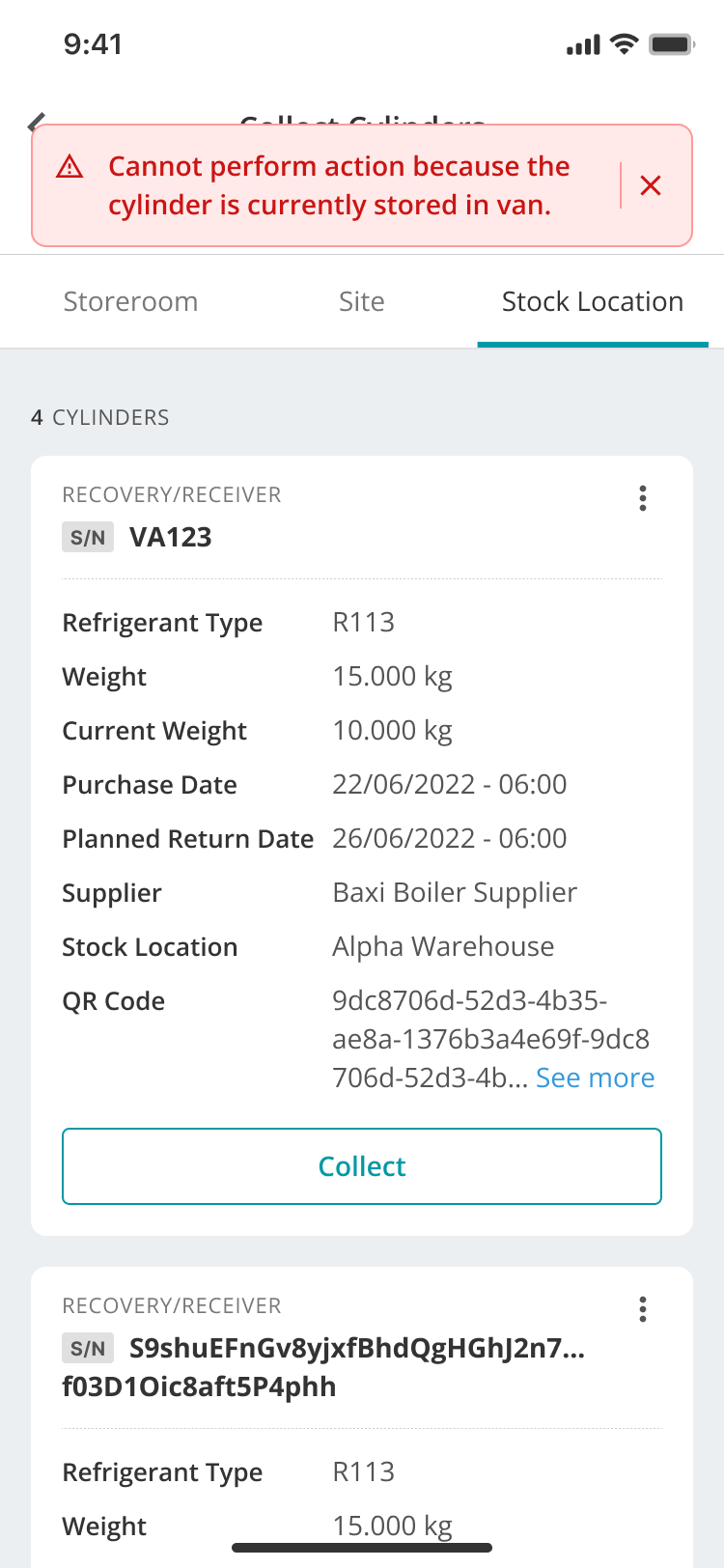
Cylinders stored in Site Stock Locations and Warehouse Stock Locations are eligible. Cylinders stored in a Van Stock Location cannot be requested for collection.
If an engineer attempts the action while the cylinder is stored in a van, Joblogic displays a message explaining that the action cannot be performed until the cylinder is transferred out of the van.
Editing or removing a collection request
When editing a gas cylinder that is already marked ready, the Cylinder Location can still be edited. The record also shows the Collection Requested Date and Collection Email Status.
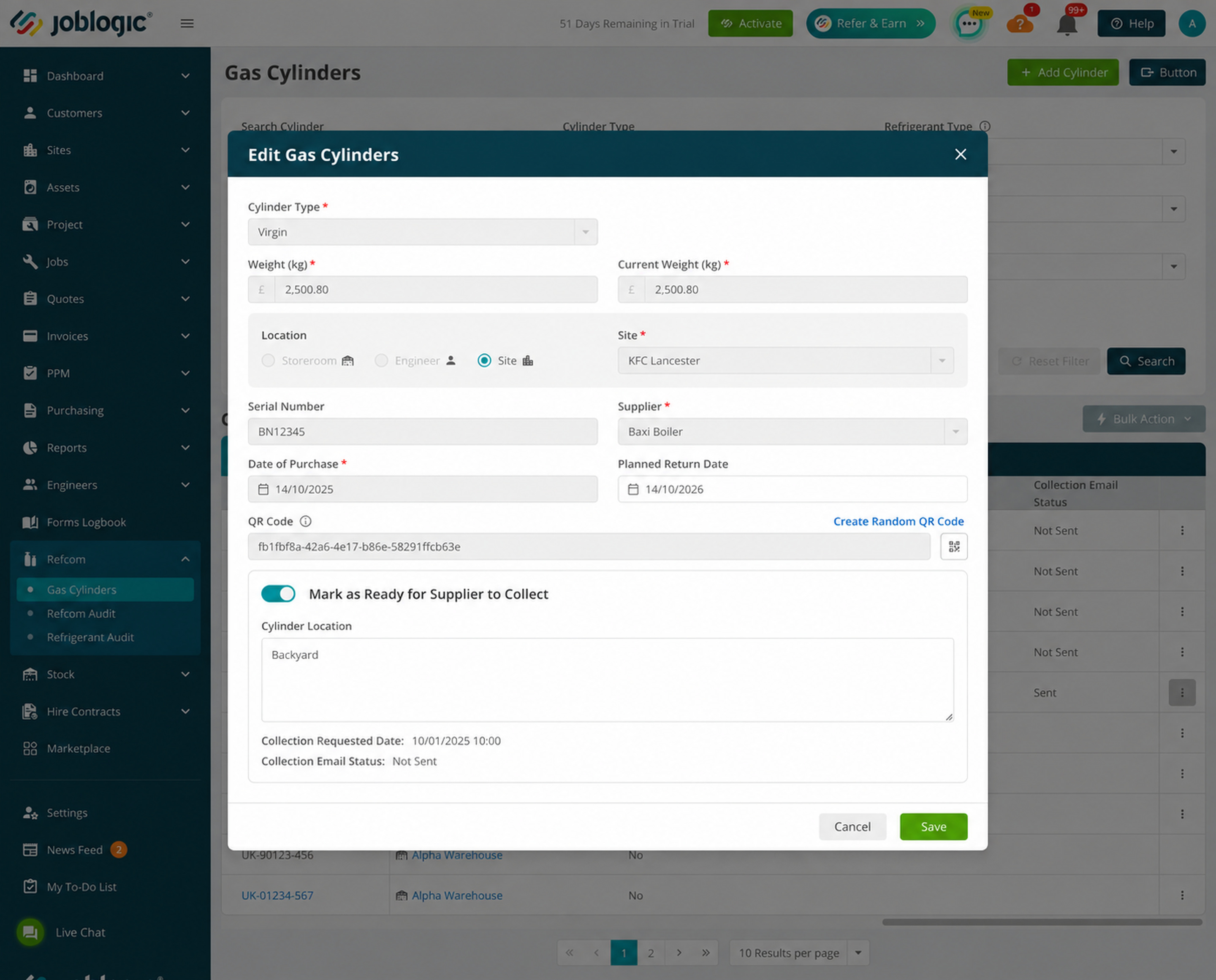
If the email status has not been sent, the Ready for Collection toggle can be turned off. Once the collection email has been sent, the toggle is no longer available for editing.
How Cylinder Location is used
The Cylinder Location value is stored in Refcom Cylinder Details. It is included in supplier collection notifications and in the XLSX attachment as Collection Notes. Enter a practical location such as Bay Area, Back Yard, Store Plant Area or Loading Bay to help the supplier find the cylinder.
When the cylinder status becomes Returned to Supplier, Joblogic automatically clears the Cylinder Location value.
Reviewing collection status in Refcom
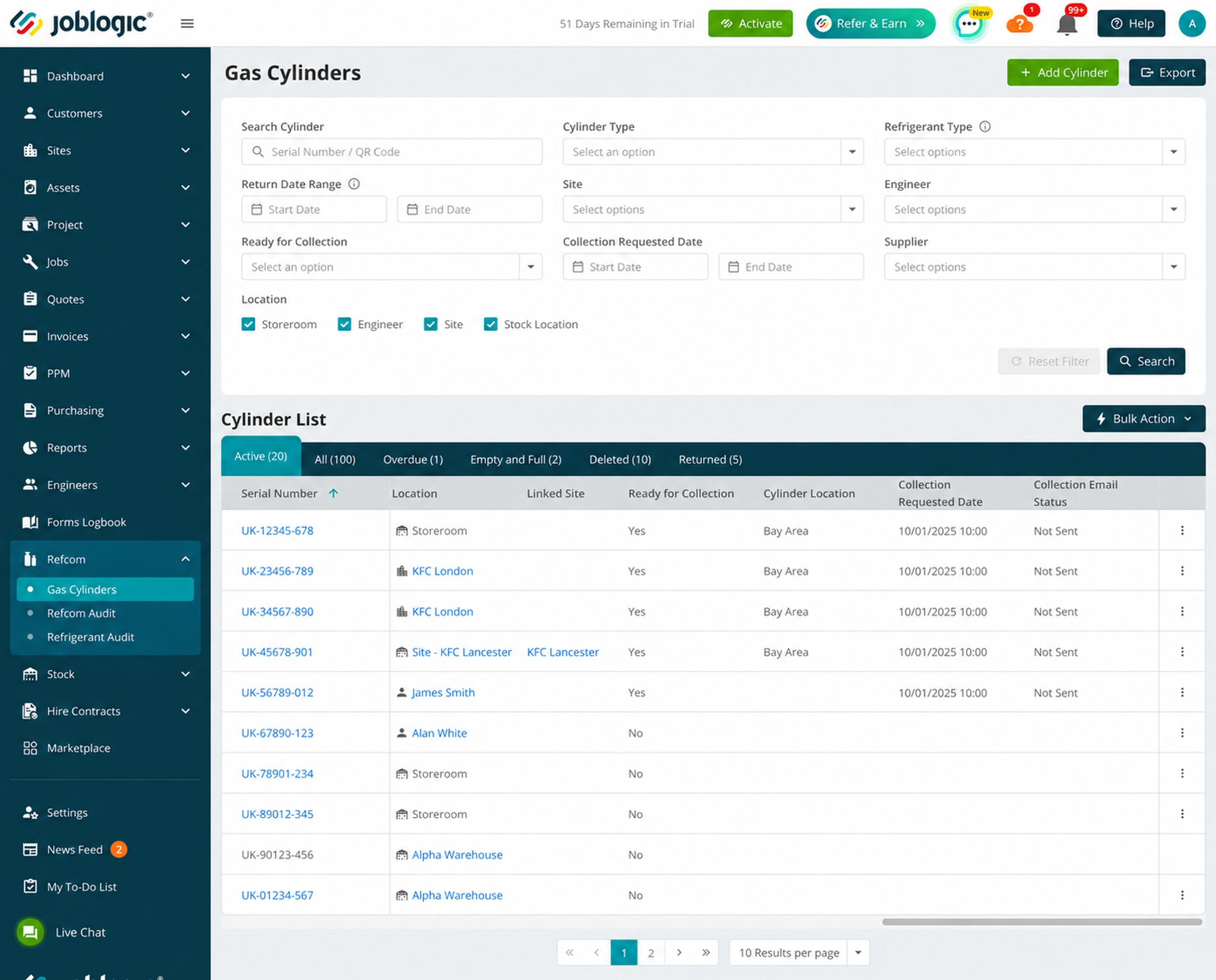
The Back Office Refcom cylinder listing includes the following collection fields:
- Ready for Collection: displays Yes or No. The default value is No.
- Collection Requested Date: displays the date and time when the cylinder was marked ready. It remains blank when the cylinder is not marked ready.
Use the Ready for Collection Yes or No filter and the Collection Requested Date range to find the required cylinders.
Configuring the supplier collection email template
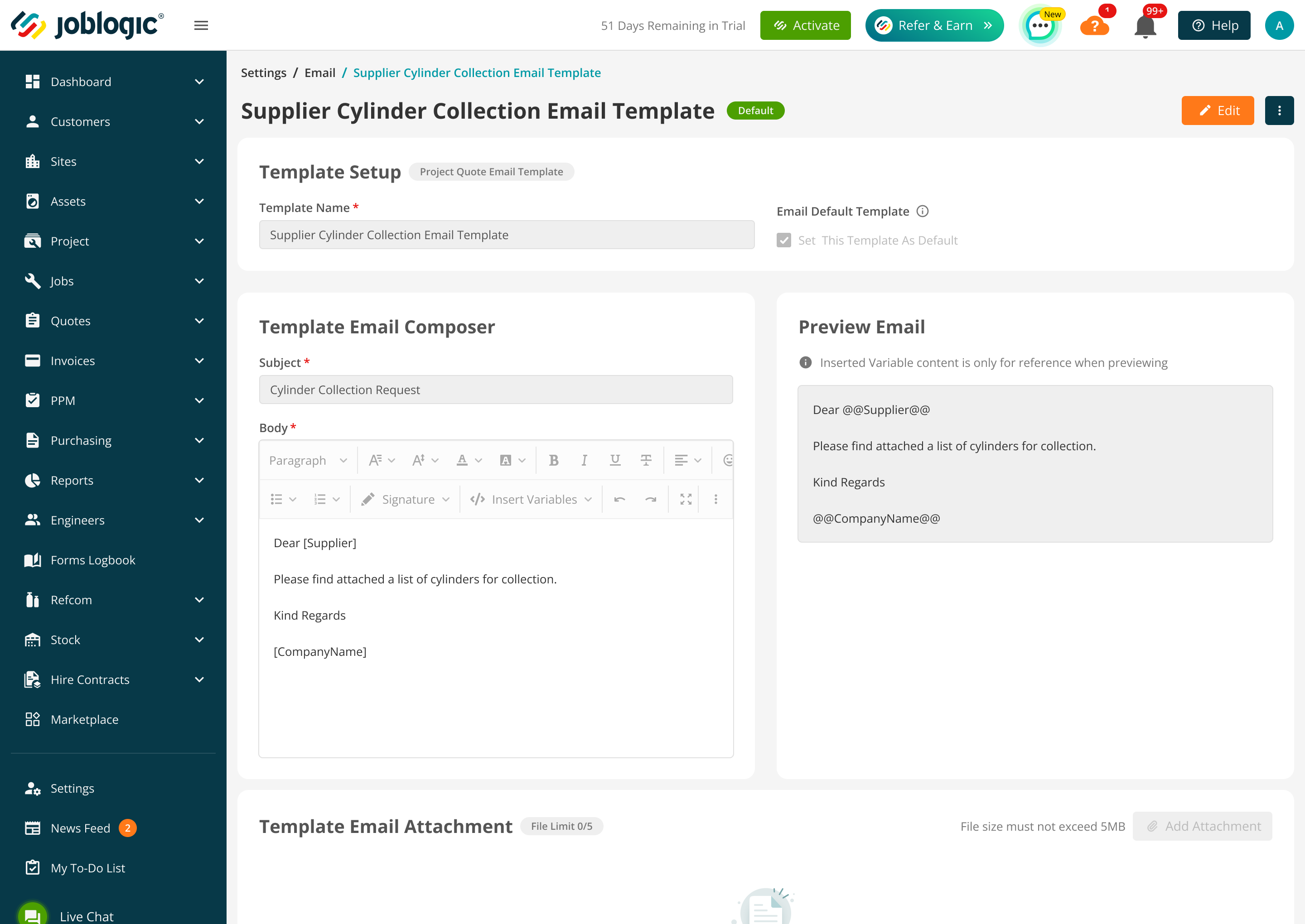
Navigate to Settings > Email, then select Supplier > Supplier Cylinder Collection. Open the default template or add another supplier cylinder collection template.
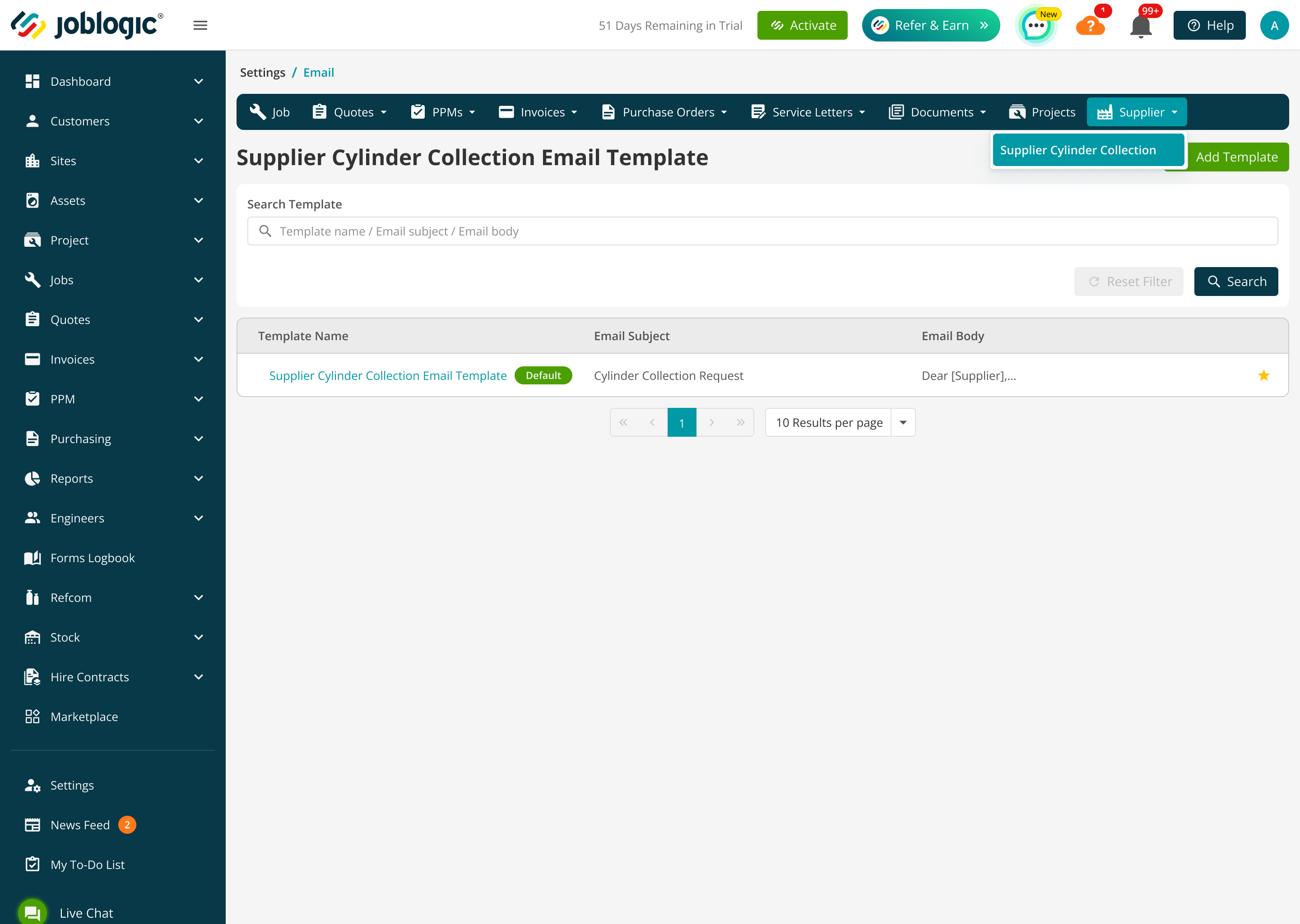
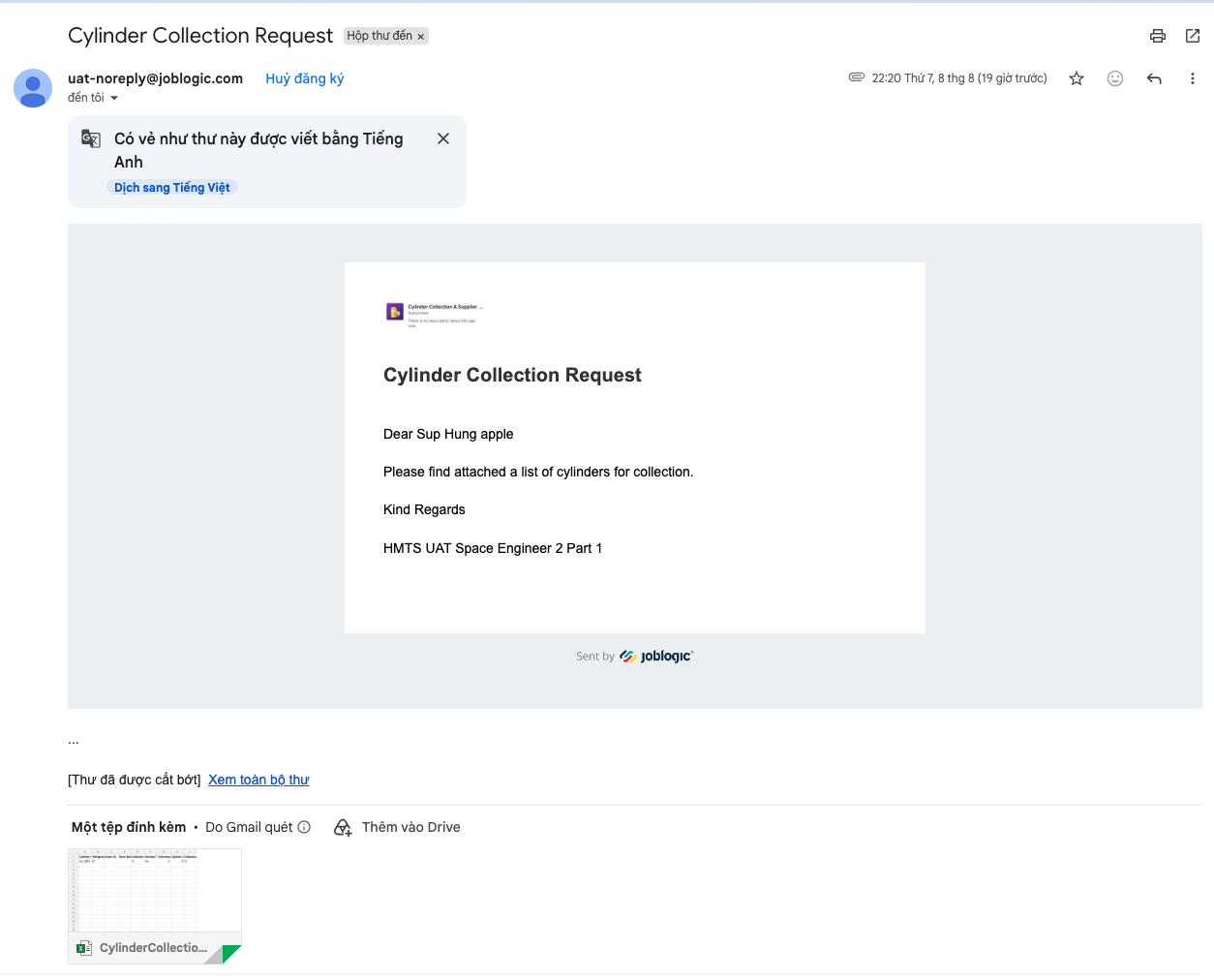
Subject: Cylinder Collection Request
The template can address the supplier using @@Supplier@@ and sign off using @@CompanyName@@. The email informs the supplier that a list of cylinders for collection is attached.
Configuring scheduled supplier notifications
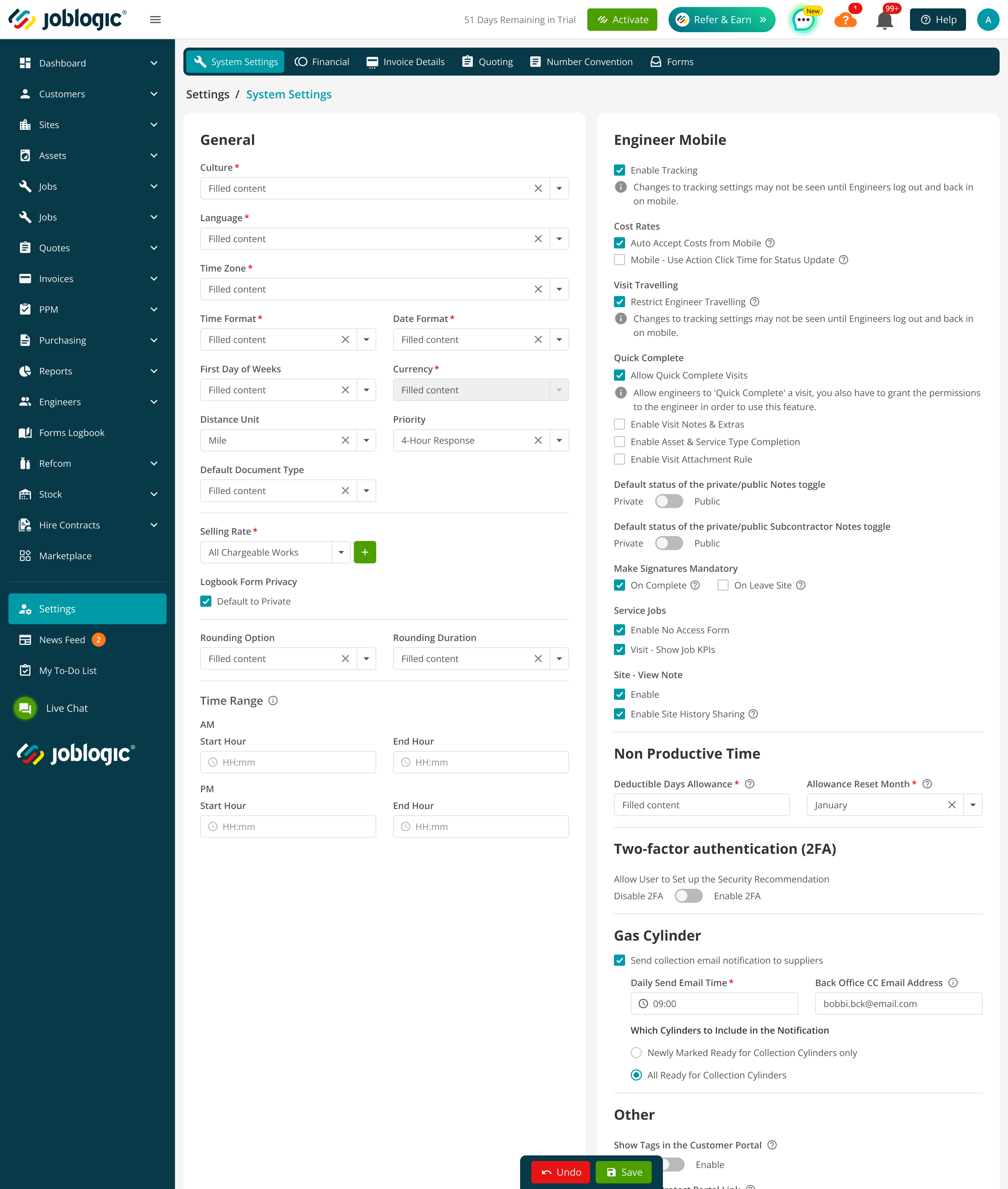
Navigate to Settings > System Settings and locate the Gas Cylinder section. Authorised users can configure the notification schedule.
- Send collection email notification to suppliers: turns automated supplier emails on or off.
- Daily Send Email Time: defines the time at which the daily email process runs.
- Which Cylinders to Include in the Notification: choose Newly Marked Ready for Collection Cylinders only or All Ready for Collection Cylinders.
- Back Office CC Email Address: adds the configured Back Office address to supplier collection emails.
When notifications are enabled, Joblogic generates the supplier emails once per day at the configured time. When the setting is disabled, the scheduler does not run. If no Back Office CC address is configured, the supplier emails can still be generated without a CC recipient.
How supplier notifications are prepared
Joblogic groups collection-ready cylinders by supplier and sends one email to each supplier. The recipient address is taken from Supplier Details. Cylinders from different locations can be included in the same supplier email, with the location information included in the XLSX attachment.
Cylinders belonging to different suppliers are never combined in one notification. If a supplier email address is missing, Joblogic does not send the email and logs the failure or exception.
Information included in the XLSX attachment
Each supplier email includes an XLSX attachment containing the relevant cylinder collection data. The fields are also available on the Back Office F-Gas Details page.
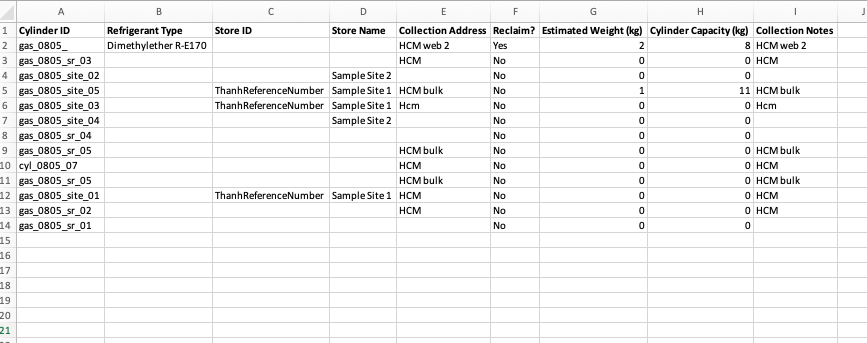
XLSX column | Joblogic source |
|---|---|
Cylinder ID | Cylinder Serial Number |
Refrigerant Type | Gas Type |
Store ID | Site Reference Number when the cylinder is stored on a site |
Store Name | Stock Location, or Site Name when linked to a site |
Collection Address | Stock Location address |
Reclaim? | No when Cylinder Type is Recovery / Receiver or Waste; otherwise Yes |
Estimated Weight (kg) | Current Weight (kg) |
Cylinder Capacity (kg) | Weight (kg) |
Collection Notes | Cylinder Location in F-Gas |
Joblogic generates this XLSX automatically and attaches it to the supplier's collection email. The following example shows the generated file attached to the email.
The spreadsheet contains the collection information for each cylinder included in the supplier notification.
Exporting the cylinder listing
The manual cylinder-list export is separate from the XLSX attached automatically to supplier emails. Go to Refcom > Gas Cylinders, apply the required filters and select Export. The user must have the Refcom - Export Cylinder Listing permission.
Newly marked cylinders and duplicate prevention
When Newly Marked Ready for Collection Cylinders only is selected, a cylinder is included only when it is ready for collection, its Collection Notification Sent value is No, and it has not been returned or deleted.
After the supplier email and XLSX attachment are sent successfully, Joblogic sets Collection Notification Sent to Yes and records the current Notification Sent Date and Time. The cylinder is not included in later notification batches unless it is removed from Ready for Collection and then marked ready again.
When a cylinder is marked ready again, Collection Notification Sent is reset to No and the Notification Sent Date and Time is cleared.
Failed emails and automatic retry
Supplier notifications are processed as separate supplier-specific batches. A batch is successful only when the supplier email and its XLSX attachment are sent successfully.
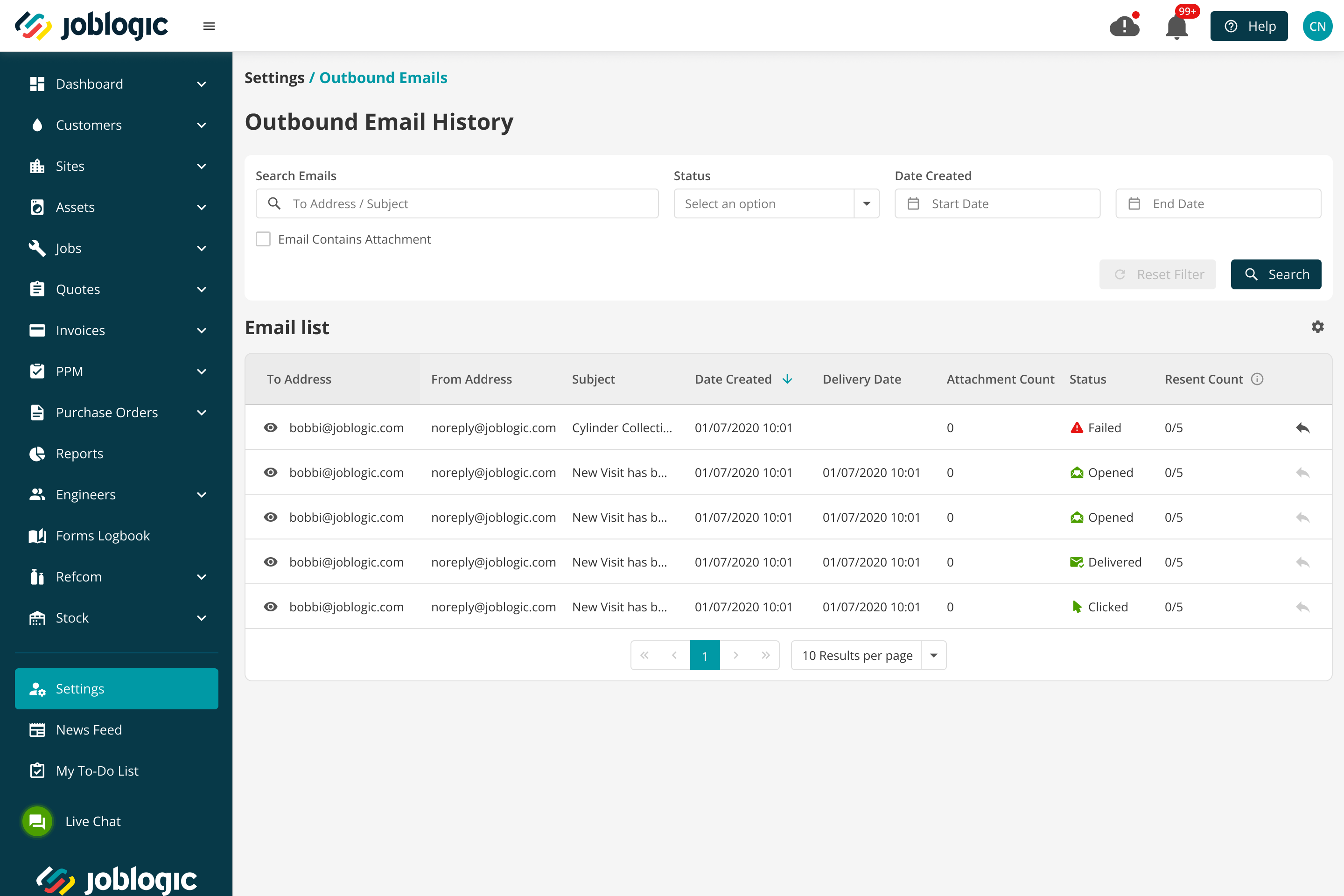
If an email fails, the batch remains eligible for the next scheduled run. Its cylinders remain Ready for Collection with Collection Notification Sent set to No. After a later attempt succeeds, Joblogic updates the sent status and date for every cylinder in the batch and marks the batch successful.
Use Settings > Outbound Emails to review the supplier collection email and its delivery status.
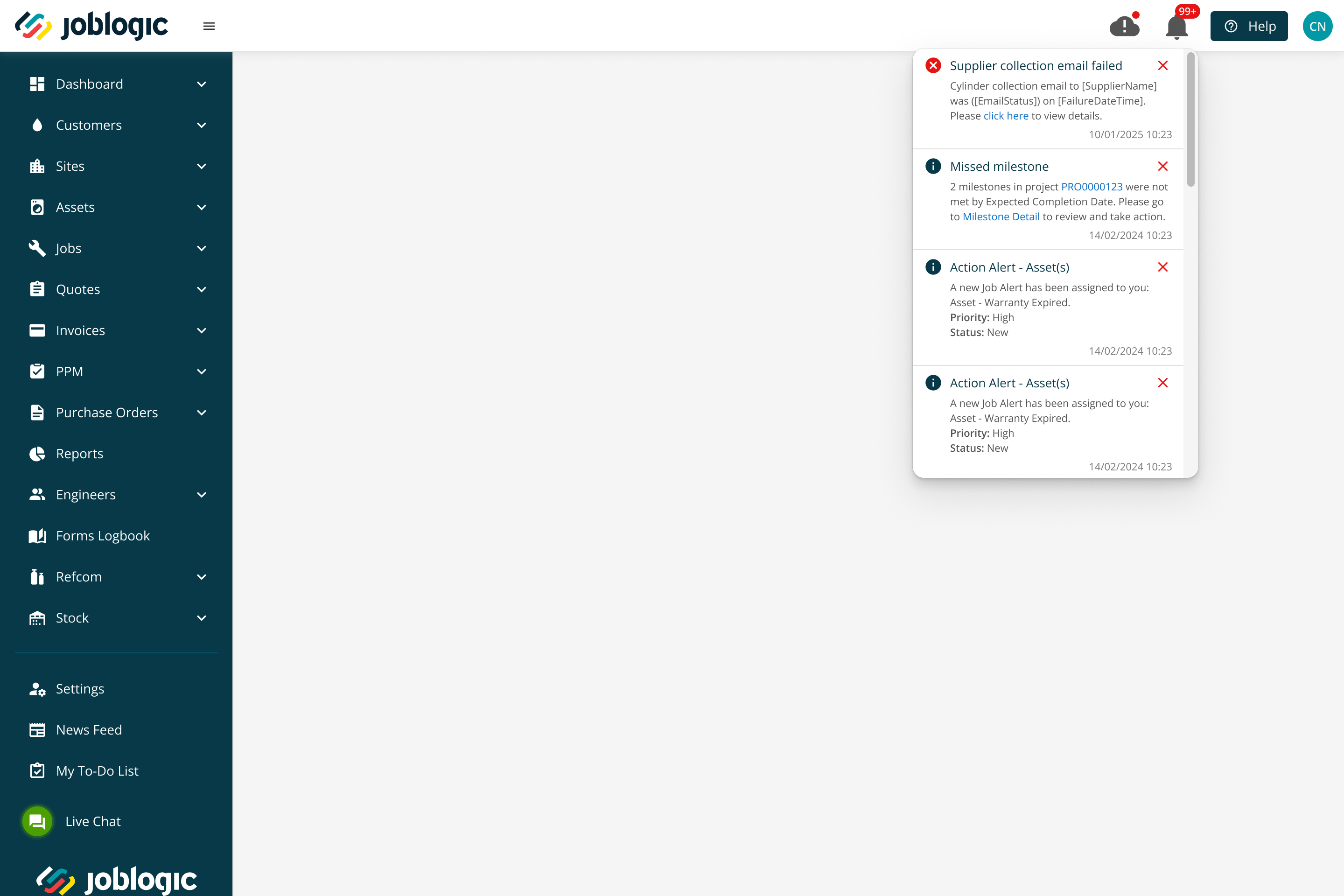
When an outbound email status becomes Failed, Bounce or Dropped, Joblogic notifies the configured Back Office users. The notification includes the supplier name, email status, failure date and time, and the failure reason when available.
Returning cylinders to the supplier in bulk
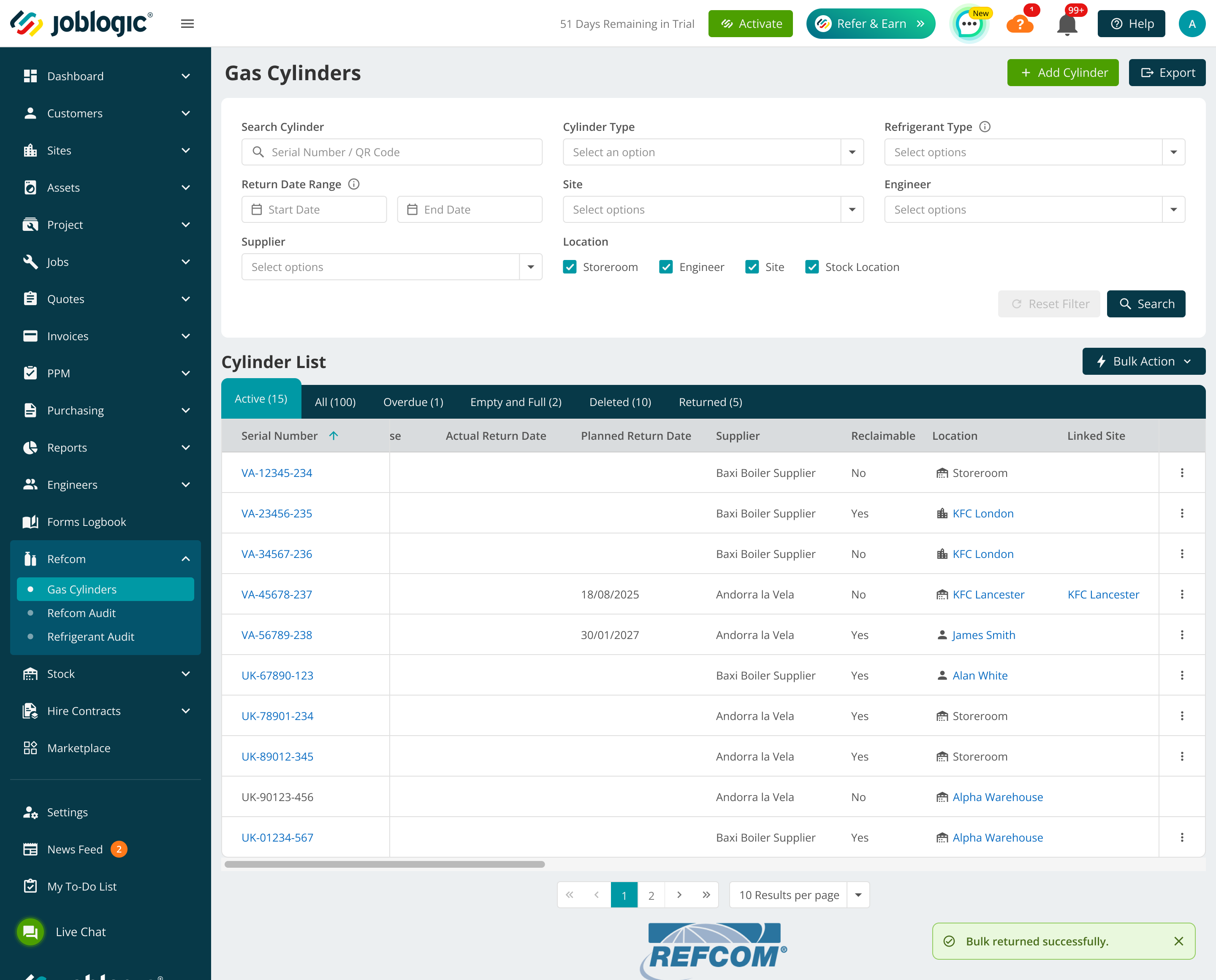
From Refcom > Gas Cylinders, open Bulk Action and select Bulk Return to Supplier.
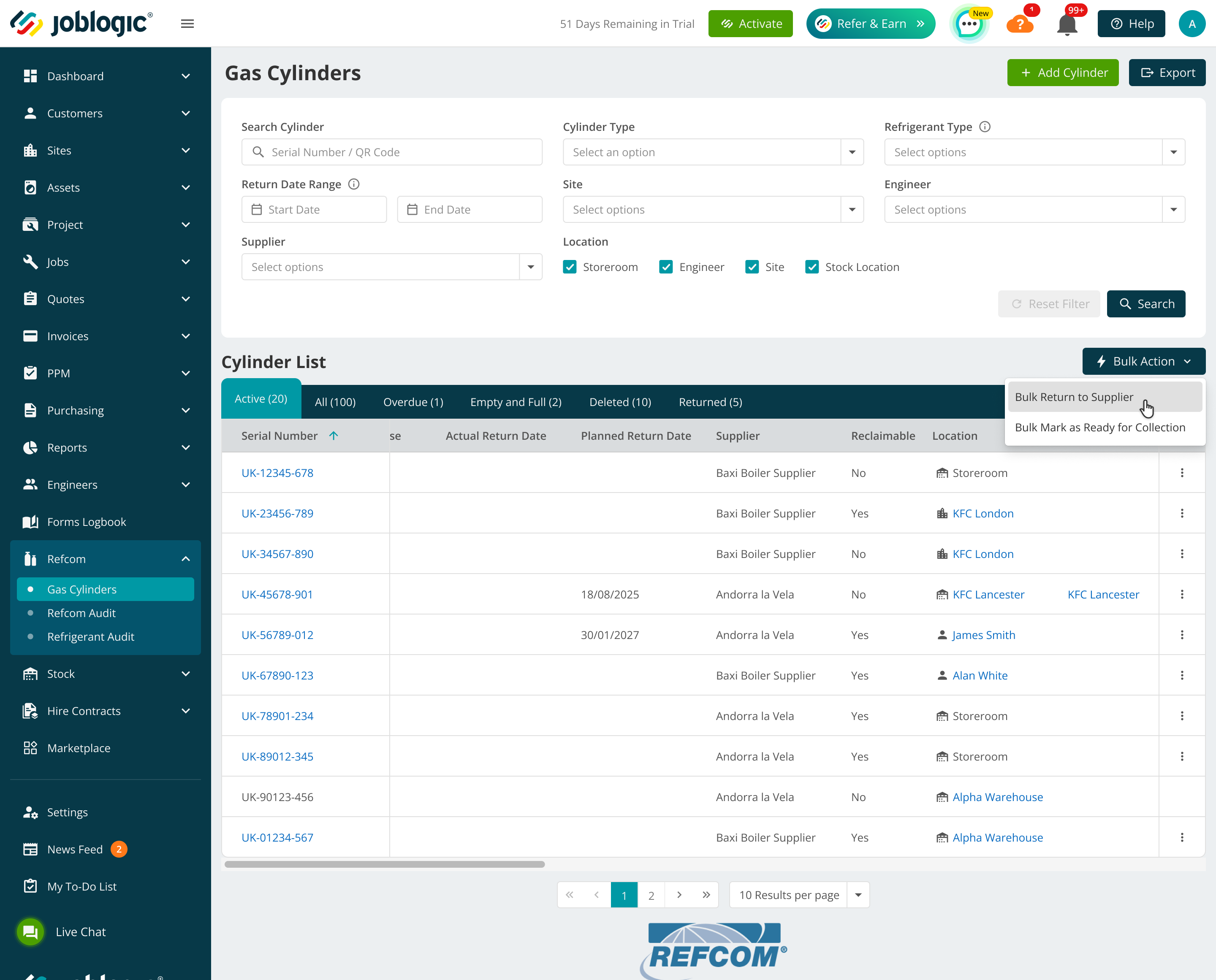
Enter the cylinder serial numbers, one per line, then select Check serial numbers.
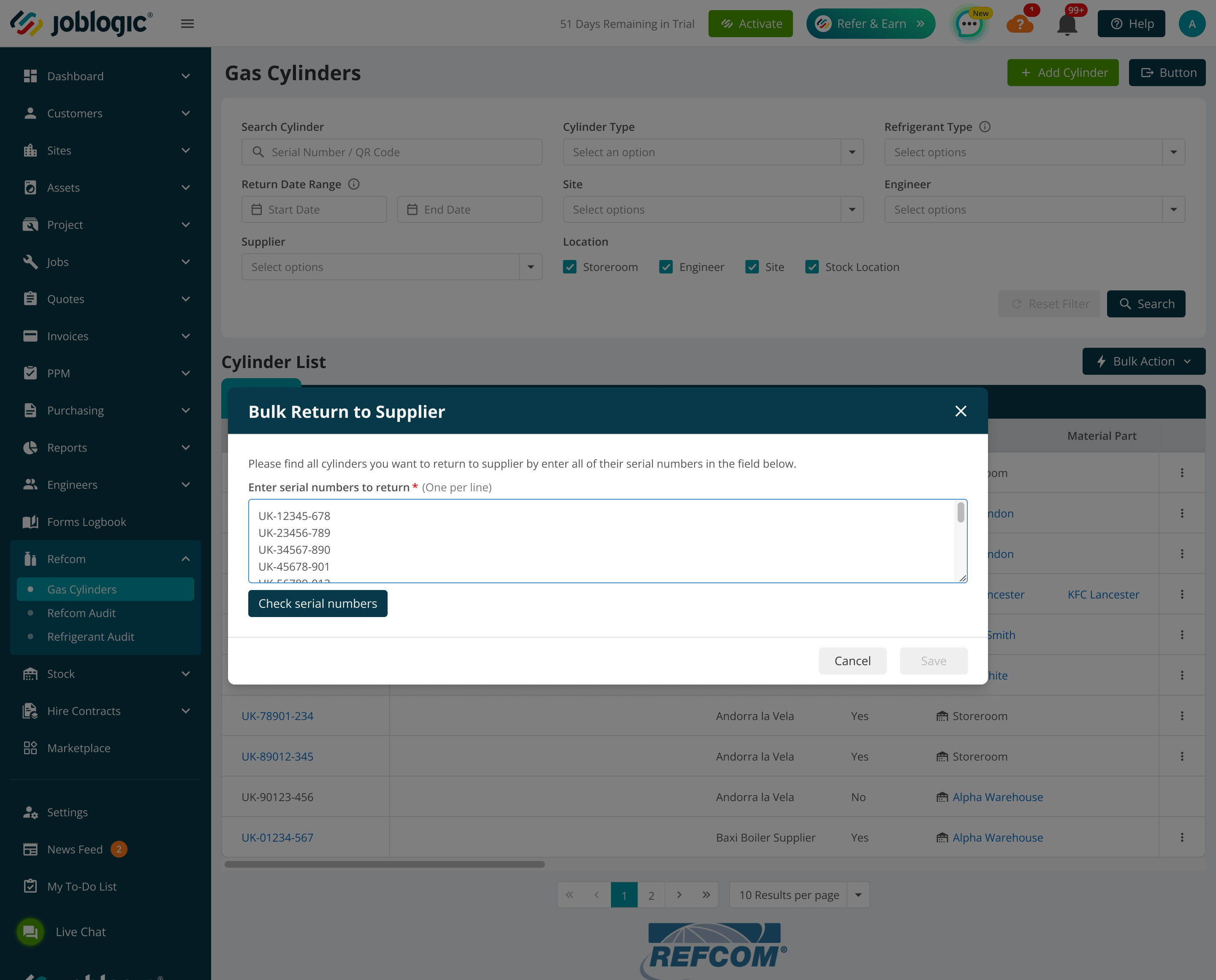
Joblogic separates the results into eligible and not eligible cylinders. Review the results and select the eligible cylinders that should be returned. Not eligible cylinders do not prevent the selected eligible cylinders from being processed.
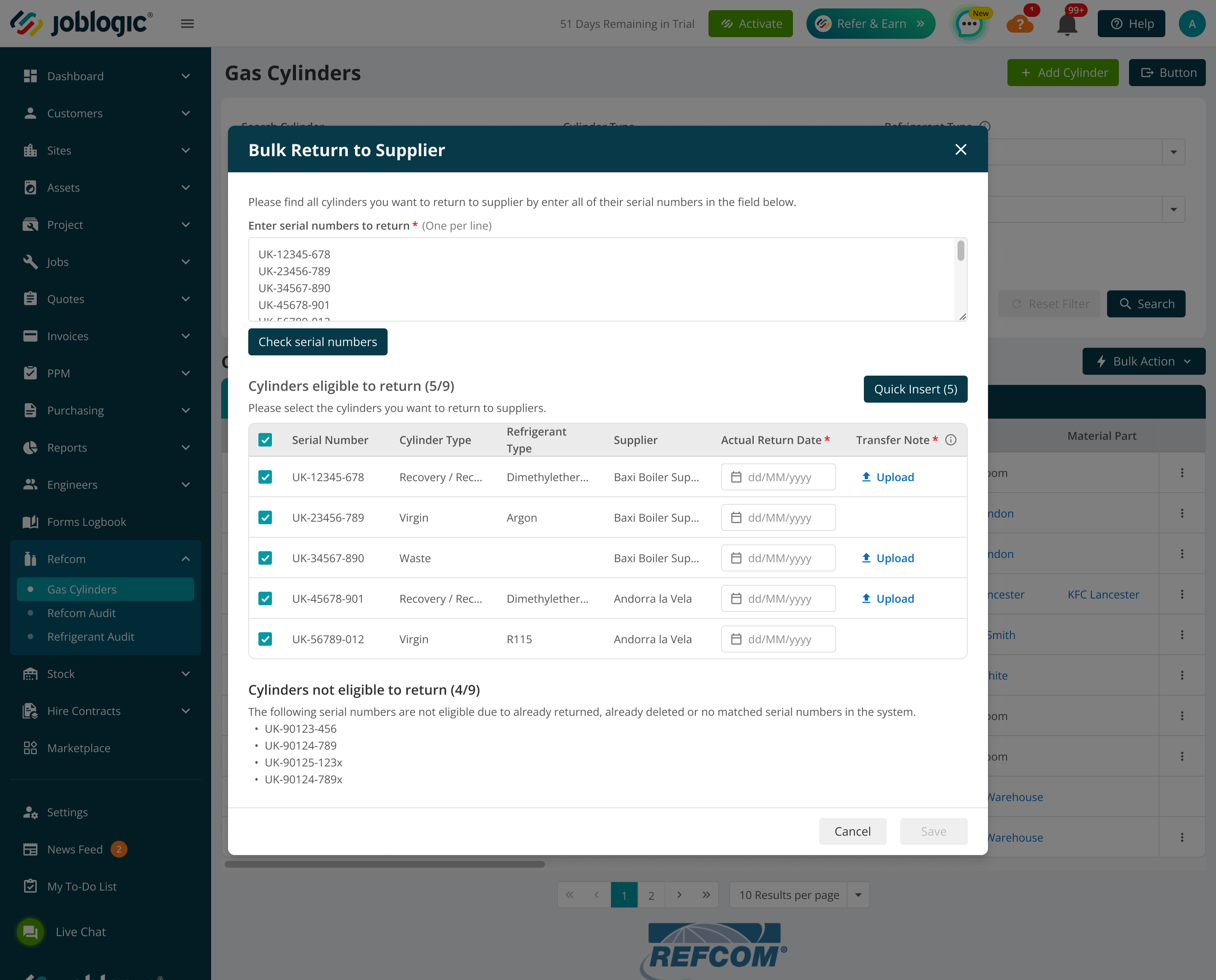
Enter the required Actual Return Date. To apply the same date to all selected cylinders, select Quick Insert, enter the date and select Apply.
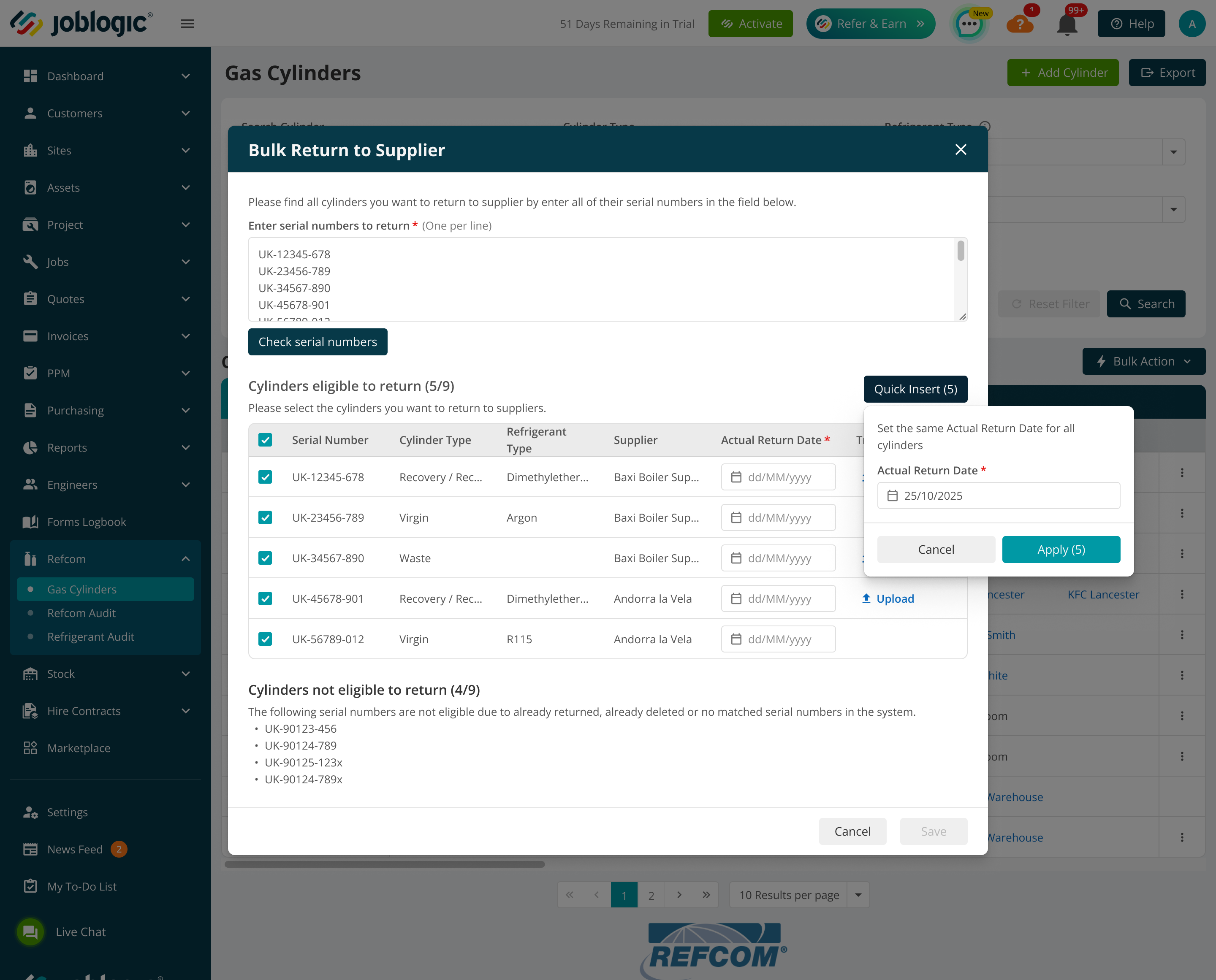
Upload a Transfer Note for each selected Recovery / Receiver or Waste cylinder. When the required dates and documents are complete, select Save.
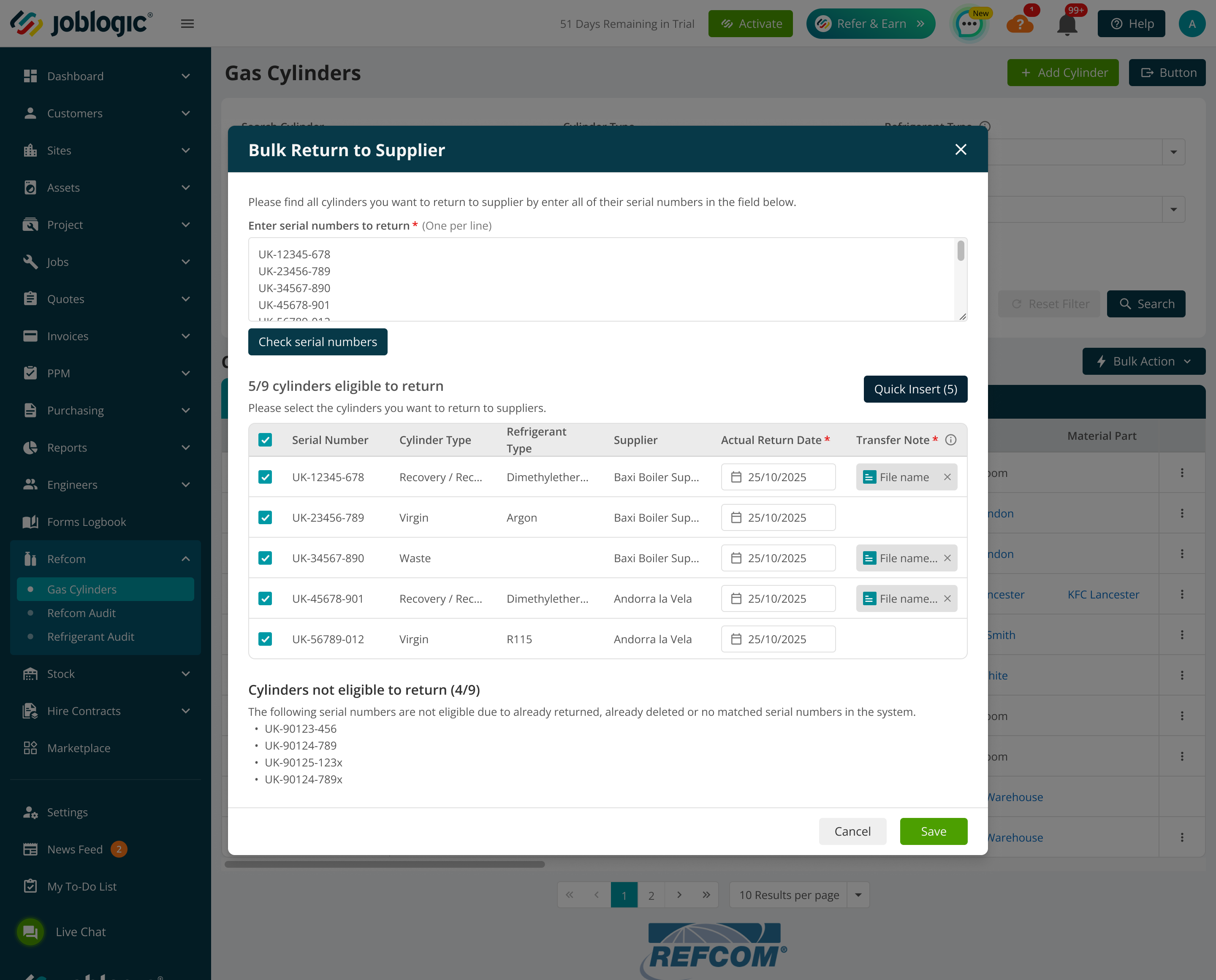
After processing, Joblogic confirms that the cylinders were returned successfully. Returning a cylinder clears its Cylinder Location value automatically. Bulk Return to Supplier is a Back Office Refcom enhancement and remains available to authorised users without the Cylinder Collection Marketplace subscription.
Reviewing audit records
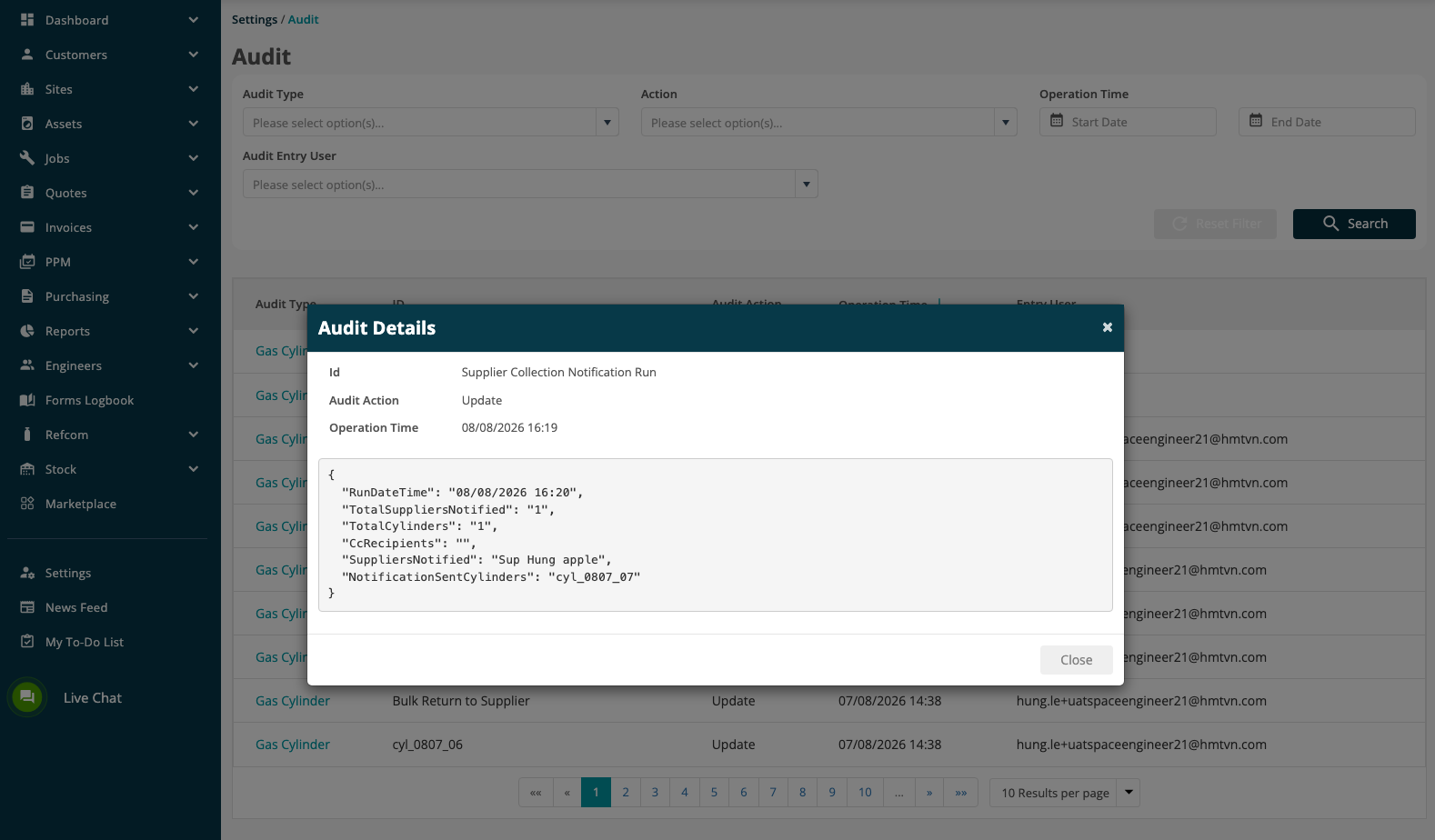
Ready for Collection actions, bulk actions and supplier notifications create audit records. Go to Settings > Audit and open the required entry to view its Audit Details.
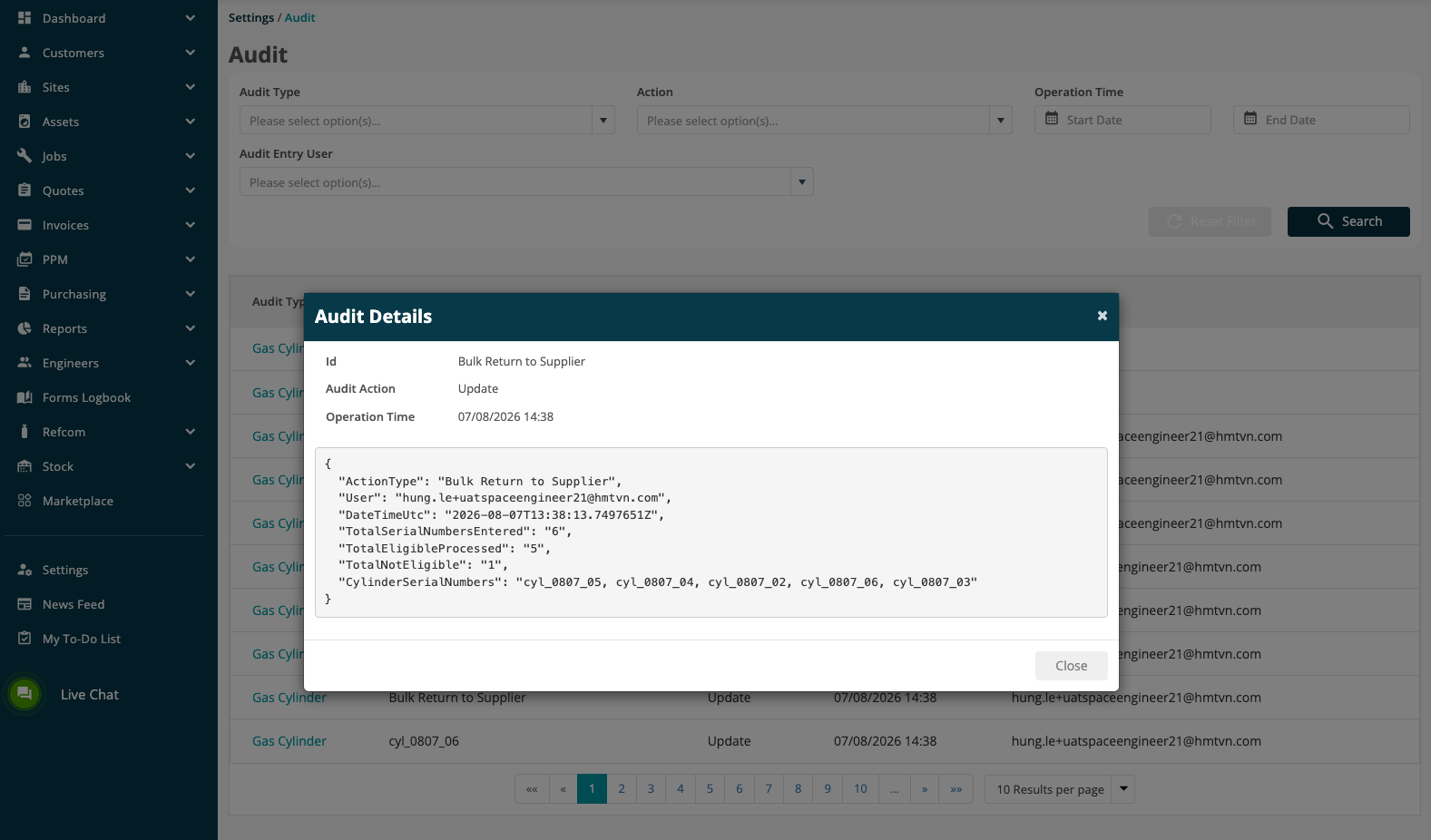
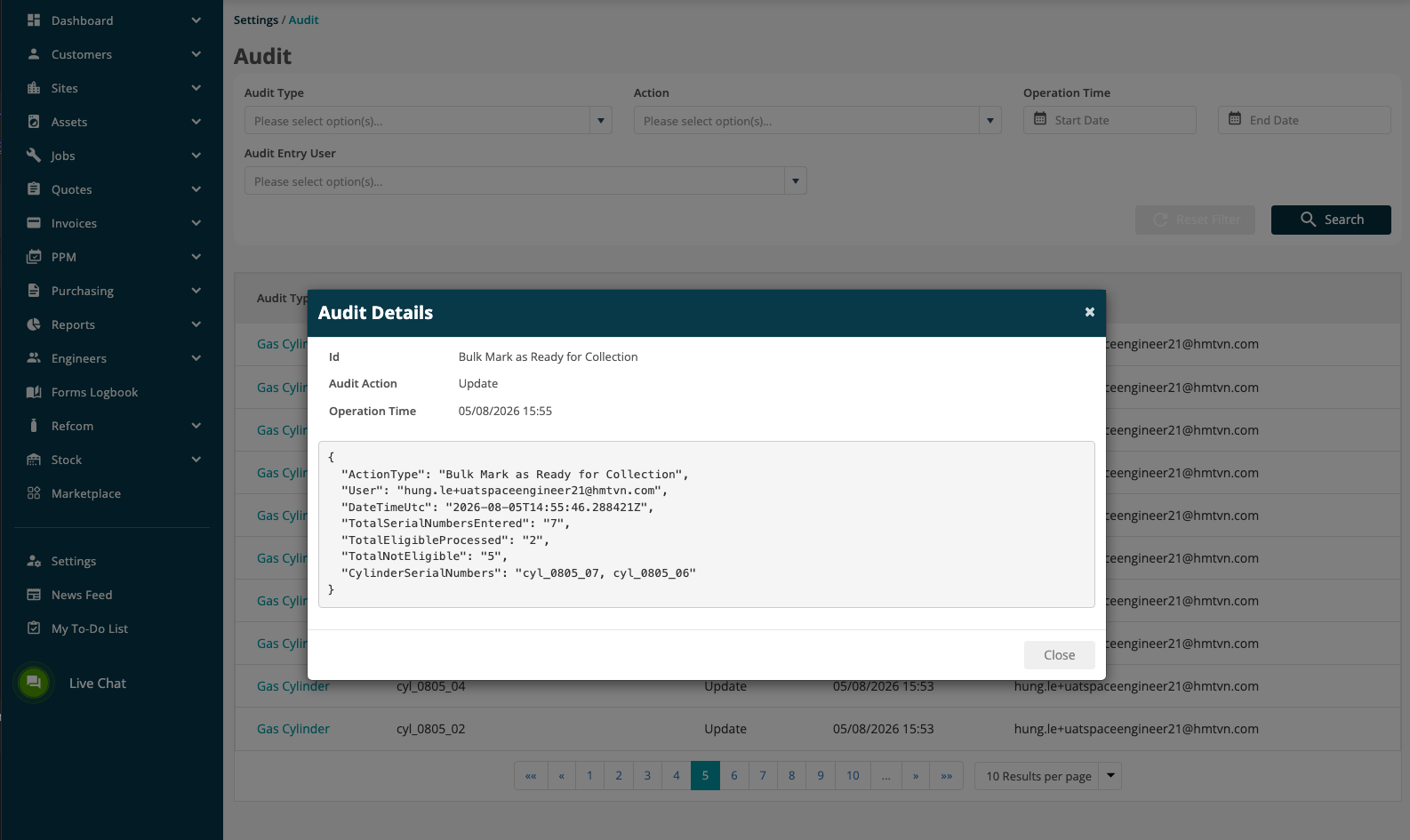
Bulk action audit records identify the Action Type, User, Date and Time, Total Serial Numbers Entered, Total Eligible Processed, Total Not Eligible and the processed Cylinder Serial Numbers.
Supplier notification auditing records the scheduler execution, the supplier notifications sent, CC recipients and the Notification Sent updates made to the cylinders.
Open a Supplier Collection Notification Run entry to review the run time, notified suppliers and cylinders, CC recipients and notification-sent cylinder details.
Open a Bulk Return to Supplier entry to review the user, date and time, totals and the cylinder serial numbers processed.
Open a Bulk Mark as Ready for Collection entry to review the user, date and time, totals and the cylinder serial numbers processed.
Permissions
Permissions are granted per role under Settings > Roles & Permissions. The two Mark Cylinder Ready for Collection permissions have the same name; the Business and Mobile tabs distinguish them.
Permission | Where it appears | What it controls |
|---|---|---|
Mark Cylinder Ready for Collection | Business > Gas Cylinder(s) | Marks a single cylinder ready from the Back Office Refcom listing. |
Mark Cylinder Ready for Collection | Mobile | Marks an eligible cylinder ready from Mobile Site and Stock Location views. |
Refcom - Bulk Mark as Ready for Collection | Business > Gas Cylinder(s) | Shows Bulk Mark as Ready for Collection under Bulk Action. |
Refcom - Bulk Return to Supplier | Business > Gas Cylinder(s) | Shows Bulk Return to Supplier under Bulk Action. |
Refcom - Export Cylinder Listing | Business > Gas Cylinder(s) | Allows the Refcom cylinder listing to be exported. |
Configure Supplier Collection Notifications | Business > Gas Cylinder(s) | Manages the supplier email template and scheduler configuration. |
The collection-ready actions and notification permission appear only after the Cylinder Collection Marketplace app is subscribed. The export and Bulk Return to Supplier permissions are part of Refcom and do not require the subscription. Returning one cylinder remains controlled by the existing Gas Cylinder - Edit permission.
After role permissions are changed, affected users must sign out and sign back in so that their cached login token is refreshed.
If the Marketplace app is disabled
When the Marketplace app is disabled, the Ready for Collection actions, supplier notification settings, Cylinder Location fields, and collection-related listing fields and filters are no longer shown. The scheduler does not run and no supplier collection emails are generated.
Bulk Return to Supplier remains available to authorised Back Office users because it is a Refcom enhancement and does not depend on the Marketplace subscription.
Existing cylinder workflows remain unchanged. Existing cylinders are not marked ready automatically, and the collection workflow is additive to the existing Refcom and Stock processes.
Further Support
For further information or assistance with the above, contact our Support Team on 0800 326 5561 or email support@joblogic.com. Alternatively, our Customer Success Management team can be reached by emailing customersuccess@joblogic.com.
Publishing Details
This document was written and produced by Joblogic's Technical Writing team. The information provided may be subject to change following future system releases. Details within the guide may also vary depending on the Joblogic account's user permissions and settings or the electronic device being used.