Introduction
The Engineer Shifts app allows you to define and manage engineer working patterns in Joblogic. Set up reusable shift times and combine them into shift templates to reflect different working schedules.
Shift templates can then be assigned to engineers for specific periods and published to the main Planner. This helps you manage engineer availability and identify when jobs are being scheduled outside of an engineer's published shift.
This guide will show you how to set up shift times and templates, assign them to engineers, and publish their working times to the Planner.
Permissions
The Engineer Shifts app has Add, View, Edit, and Delete permissions.
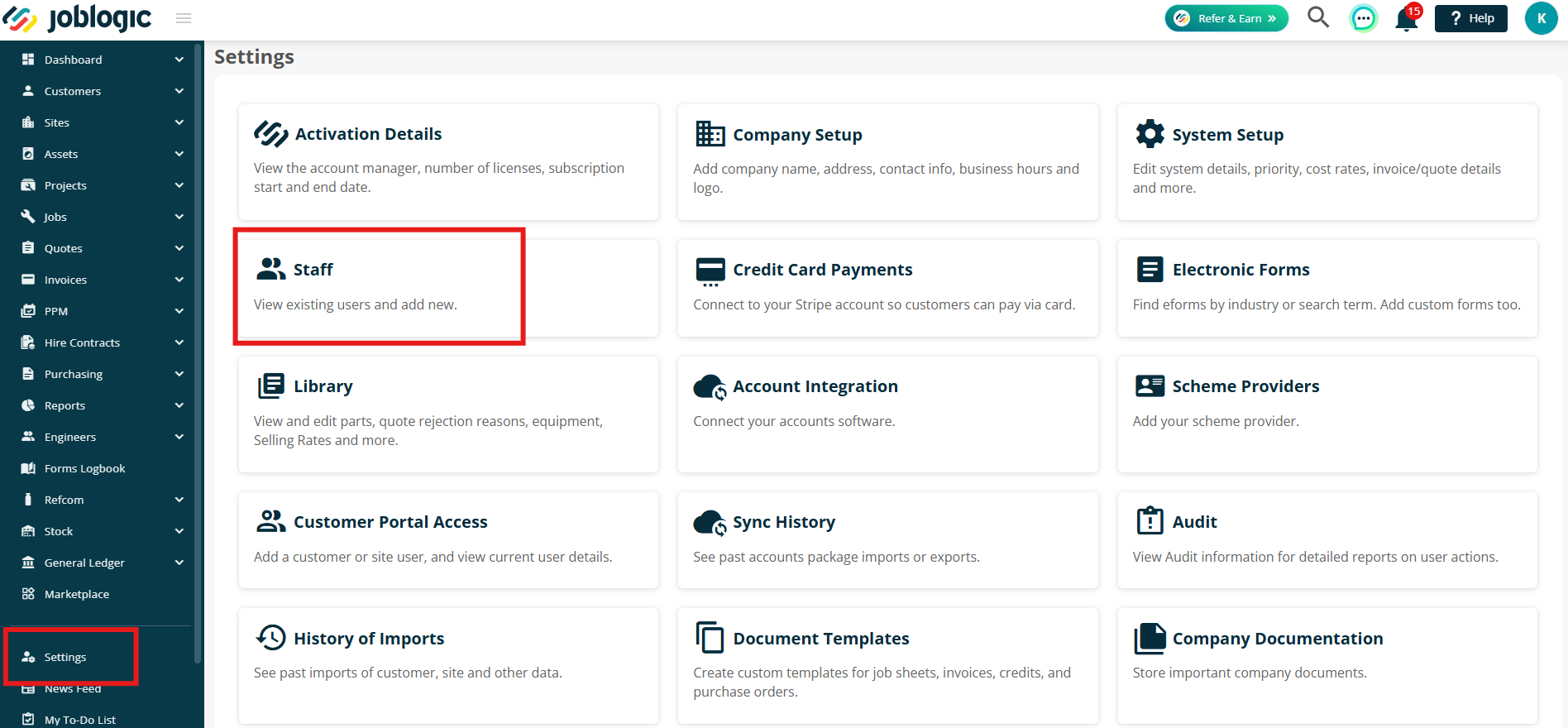
To manage these permissions, go to Settings > Staff.
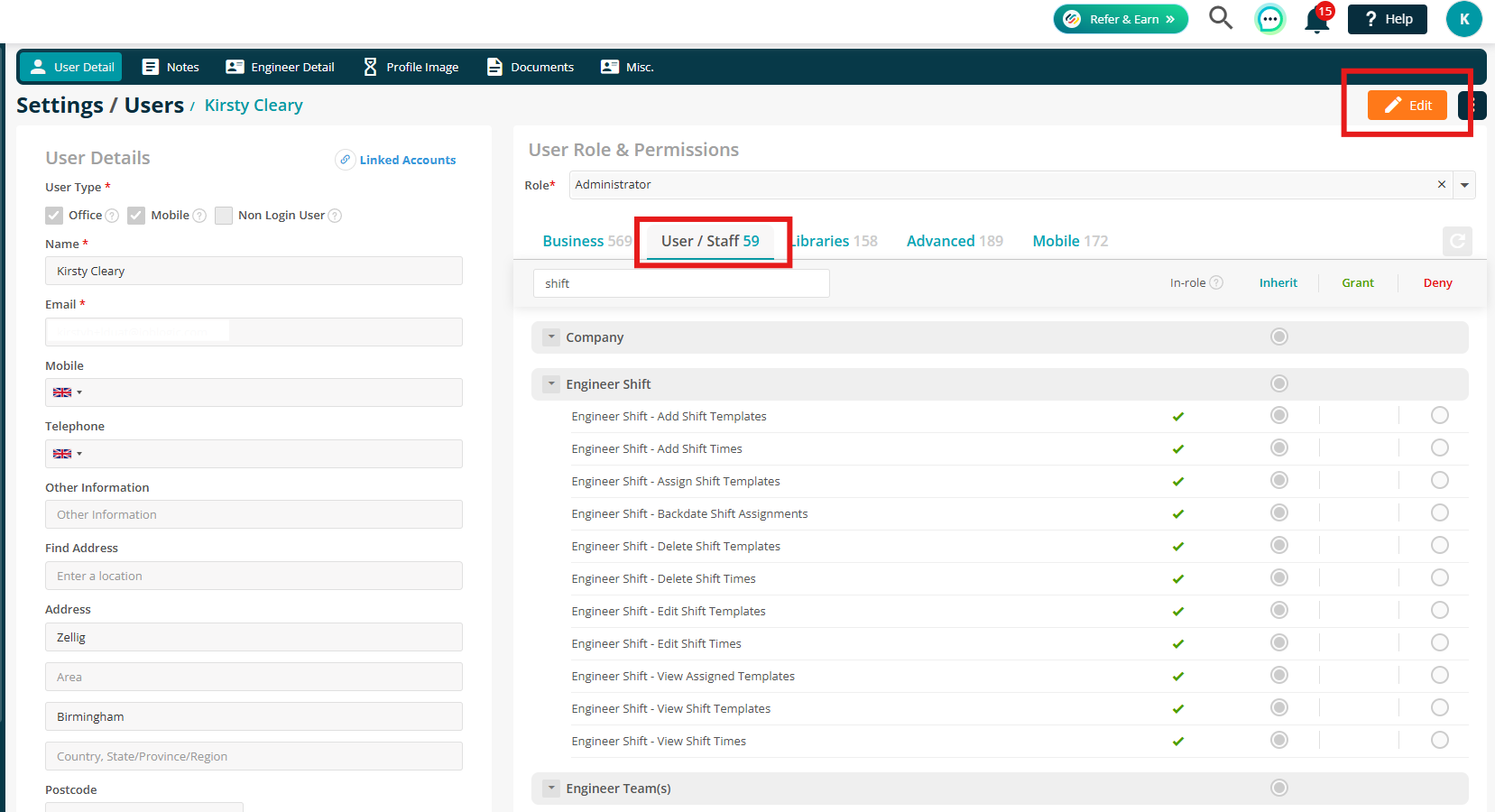
Click Edit, then select the User/Staff tab for the relevant user to find the Engineer Shift permissions.
Amend the permissions as required, then click Save.
Engineer Shift Times
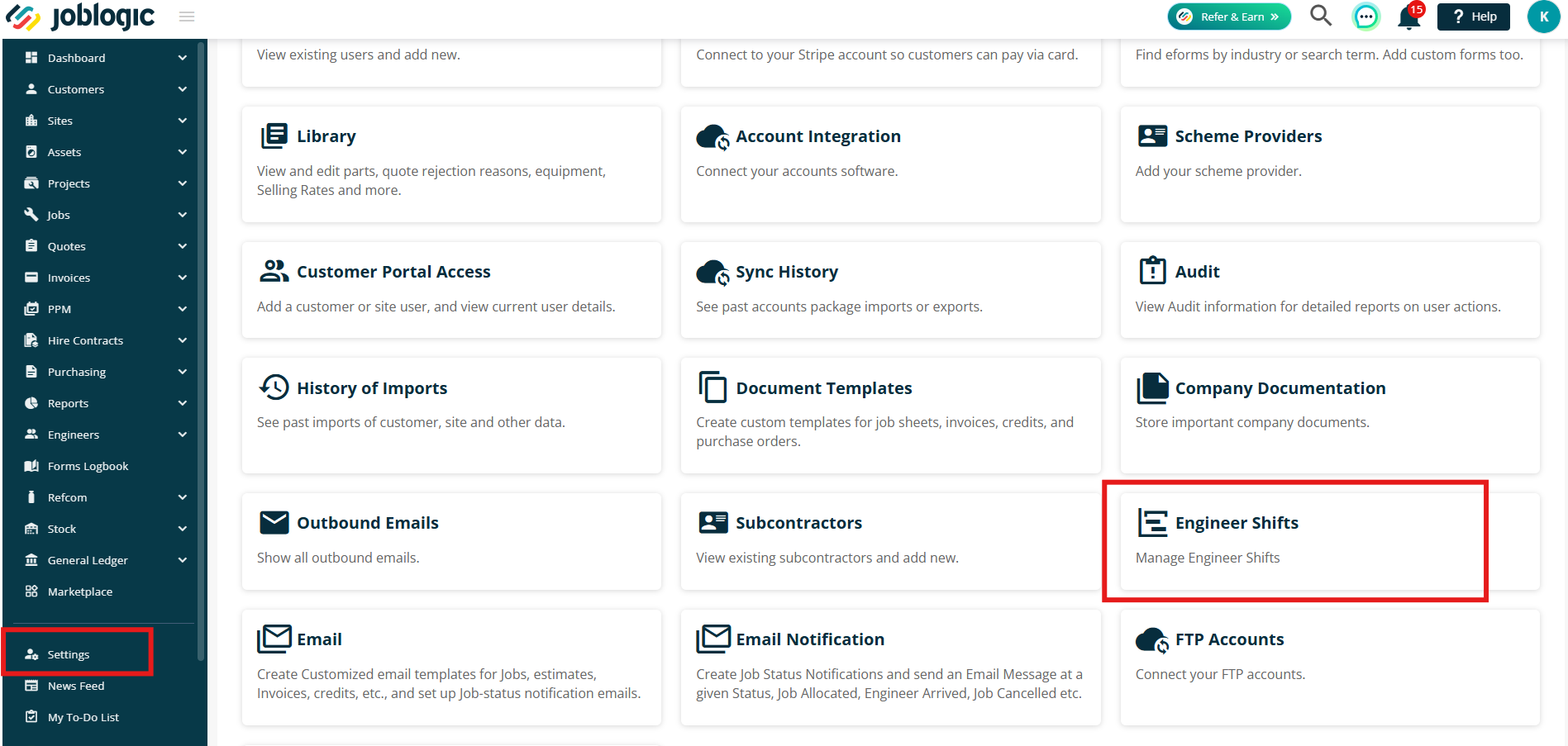
To get started, go to Settings > Engineer Shifts.
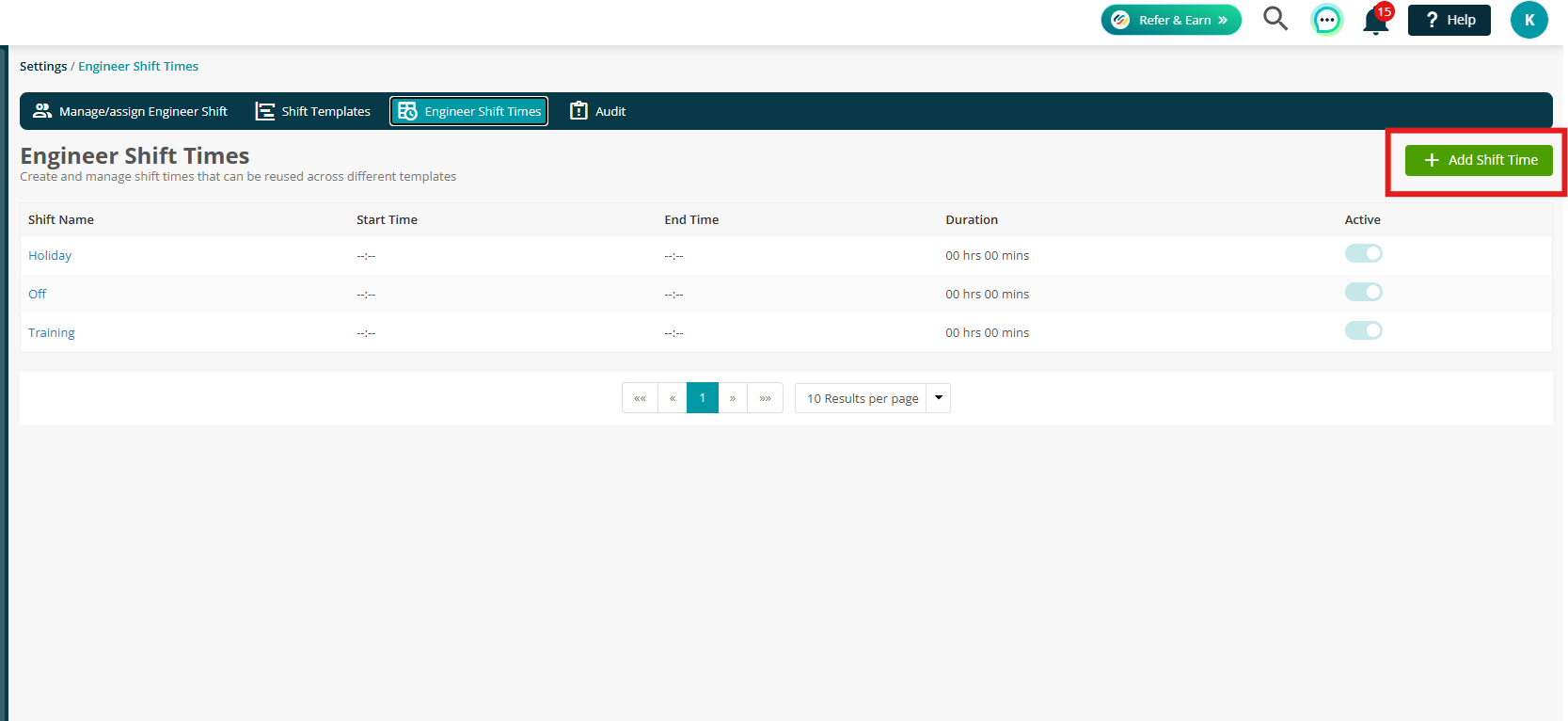
Click Engineer Shift Times to set up shift times that can be reused across different templates.
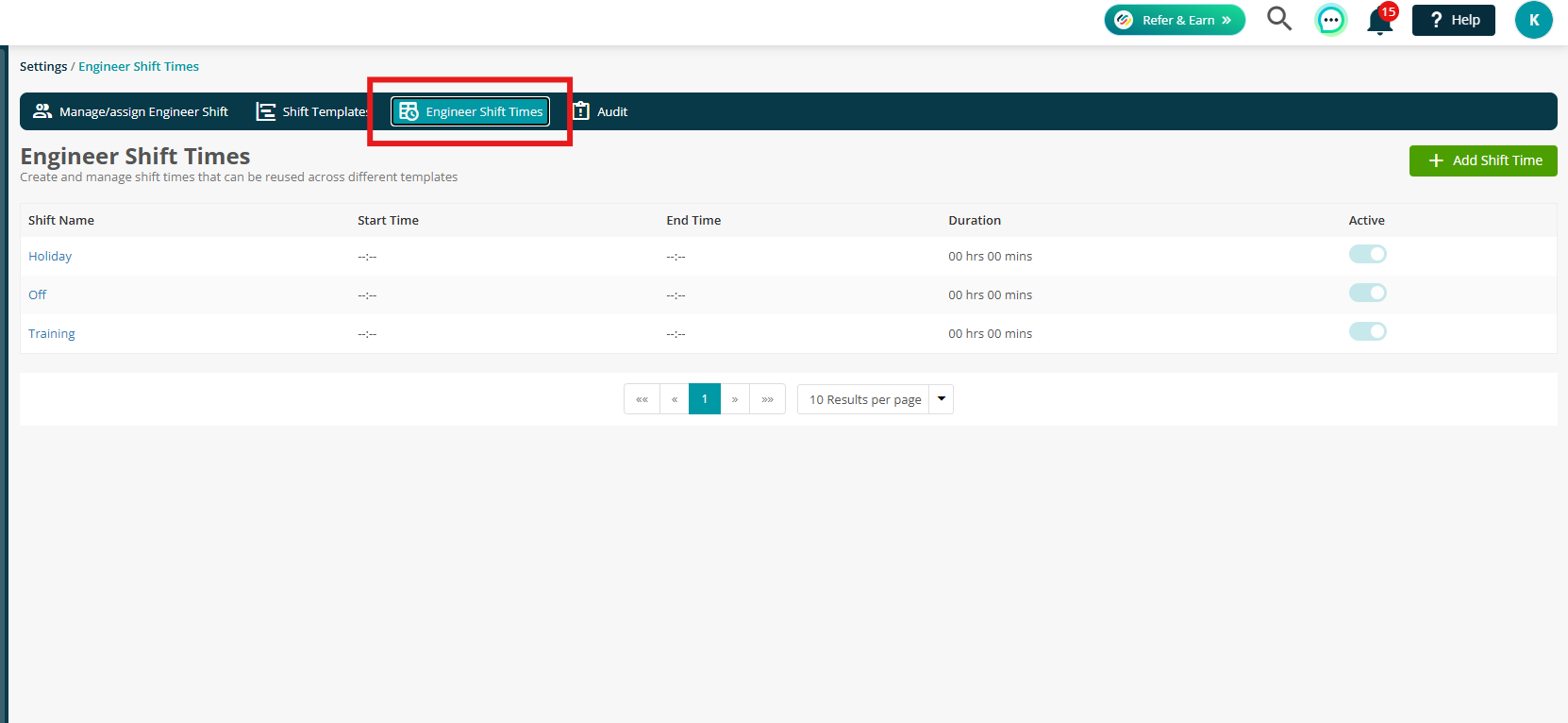
Click Add Shift Time.
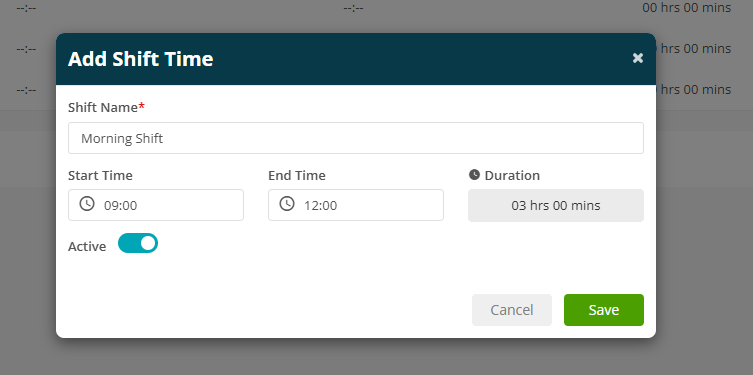
Enter a Shift Name and the start and end times for the shift. Click Save when you're done.
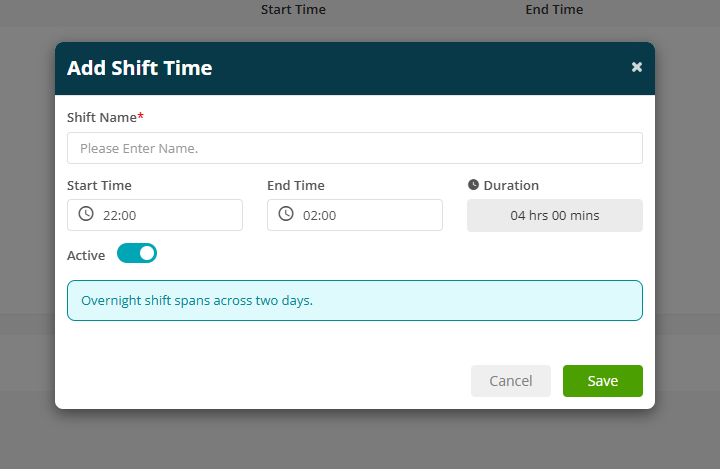
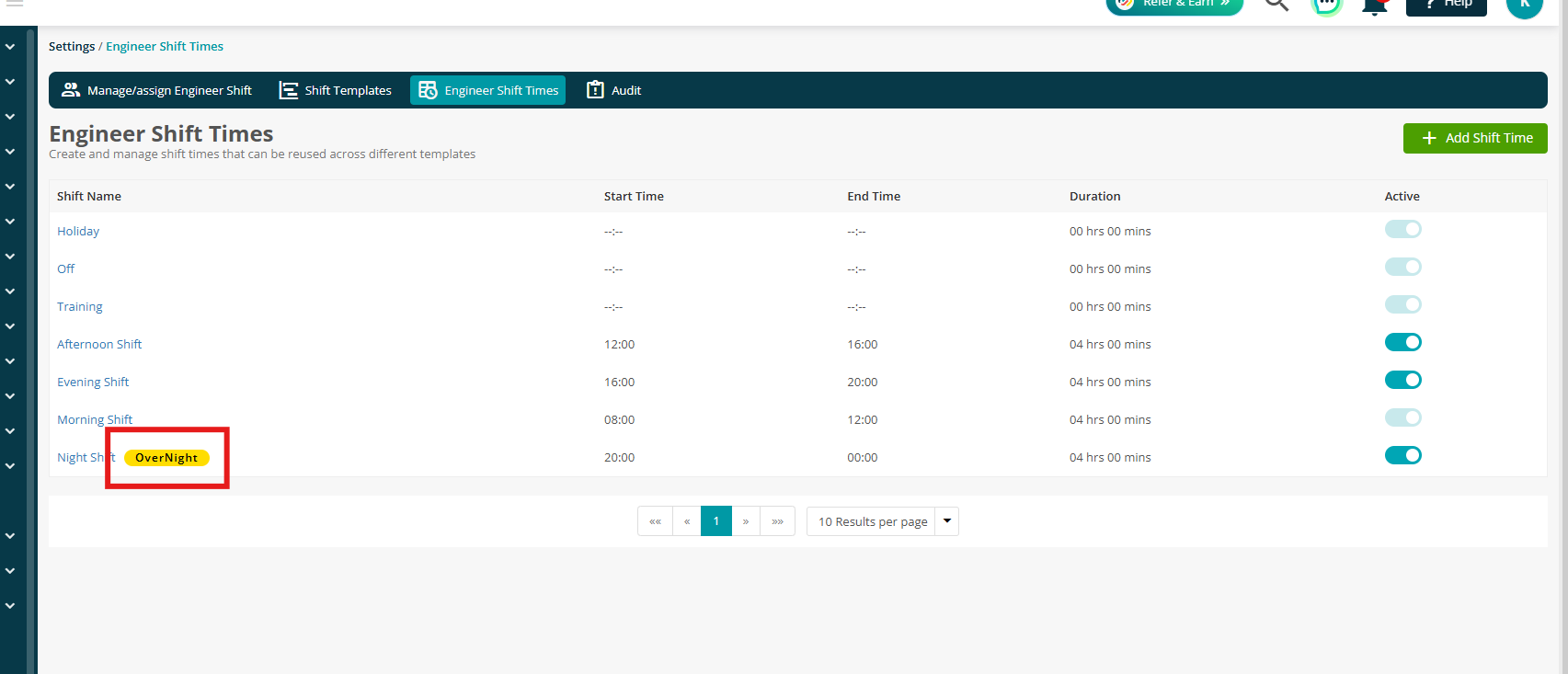
Note: If the End Time falls on the following day, the system will automatically flag the shift as an overnight shift.
Shift Templates
To set up and manage shift templates that can be assigned to engineers, click the Shift Templates tab.
Click Add Shift Template
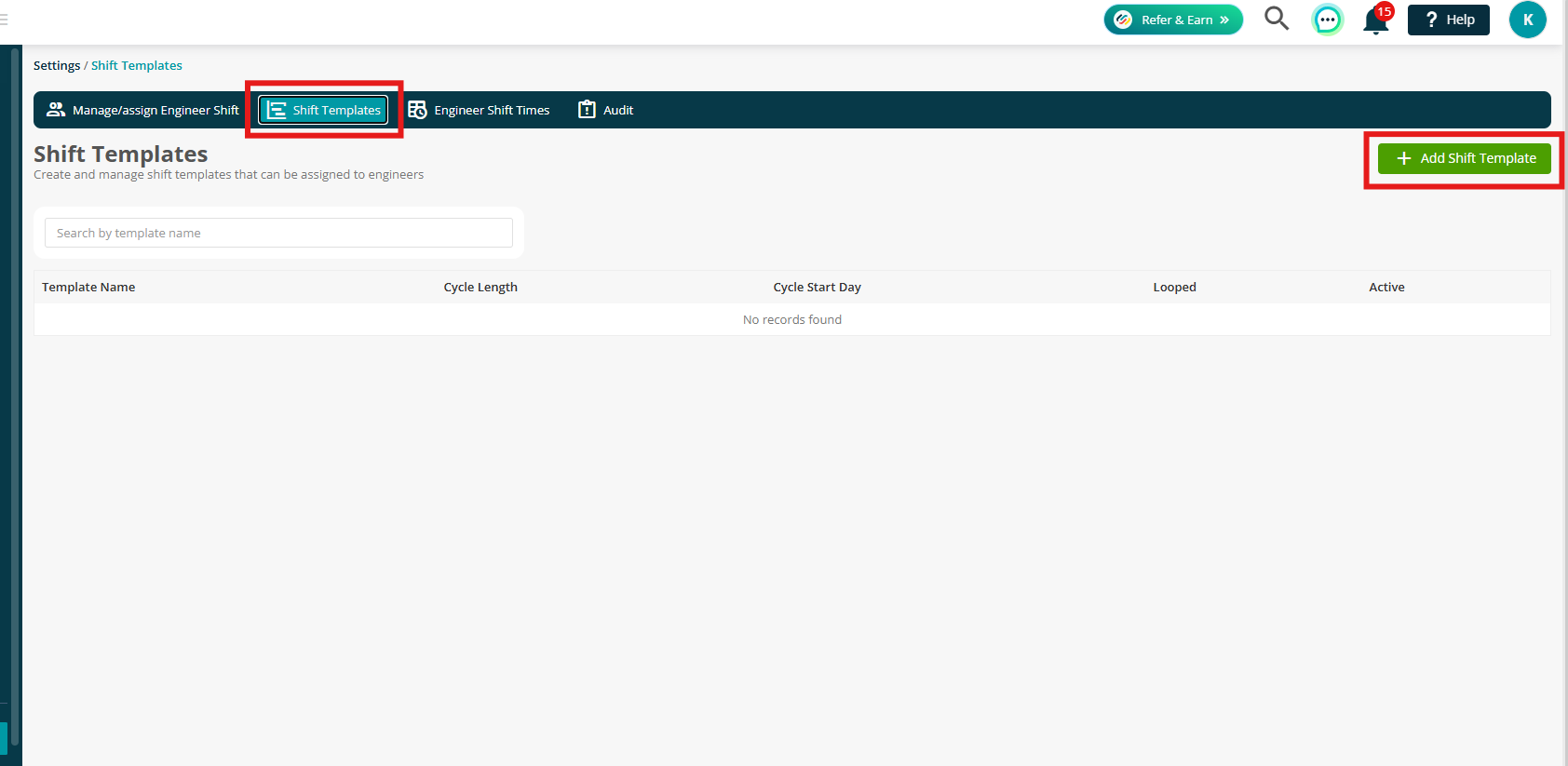
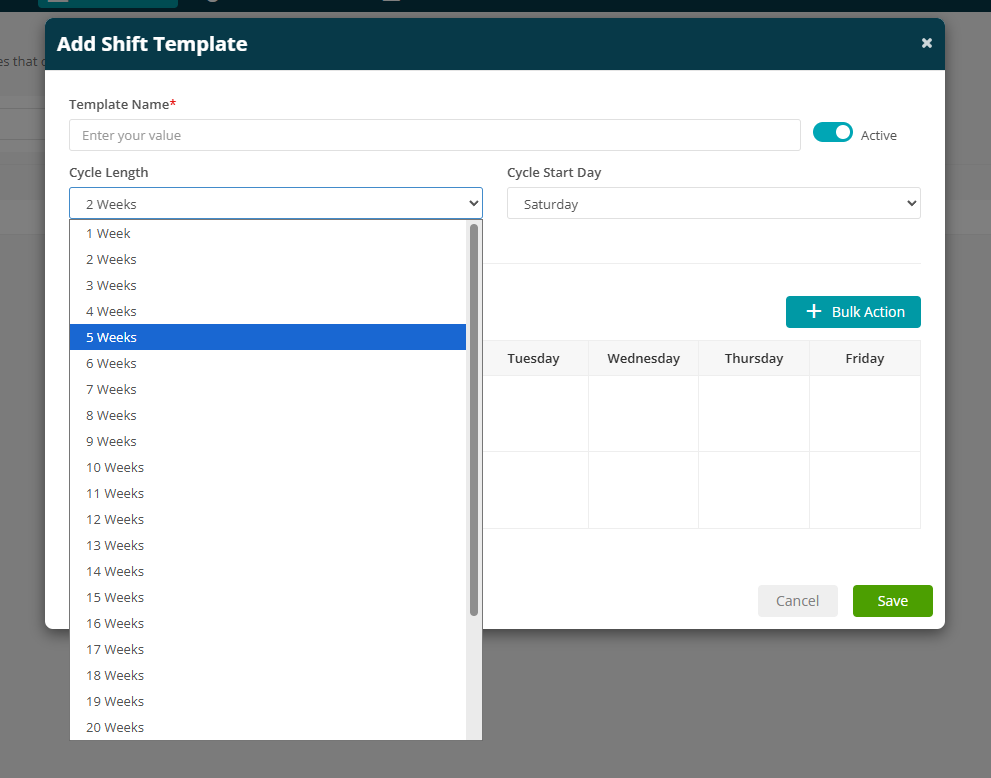
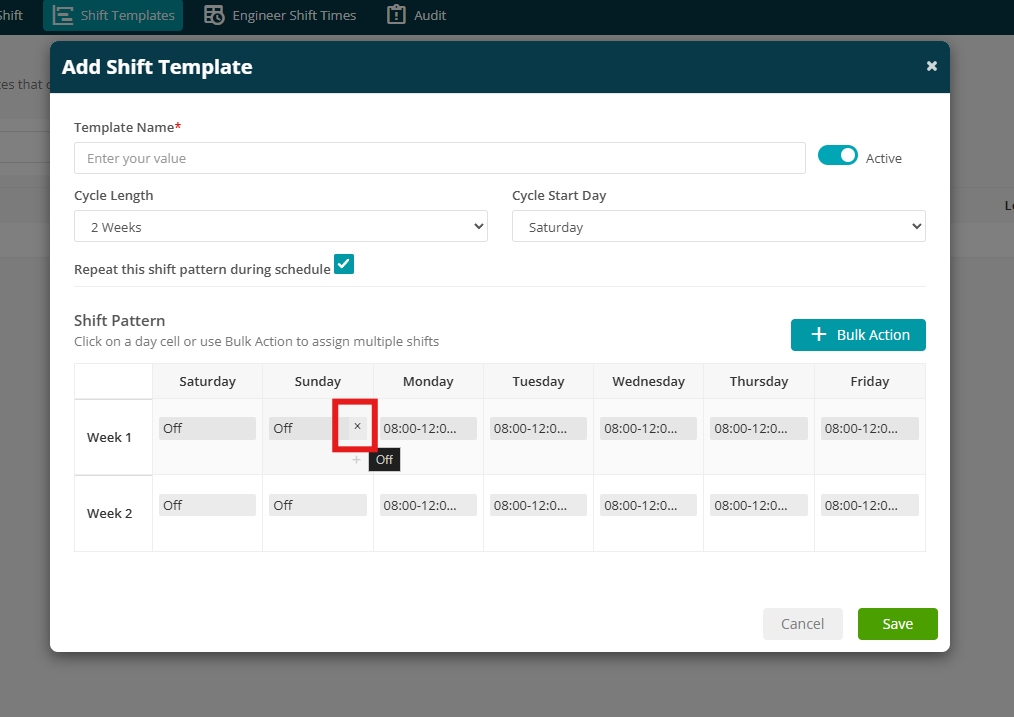
Enter a Template Name, then select the Cycle Length and Cycle Start Day from the available drop-downs.
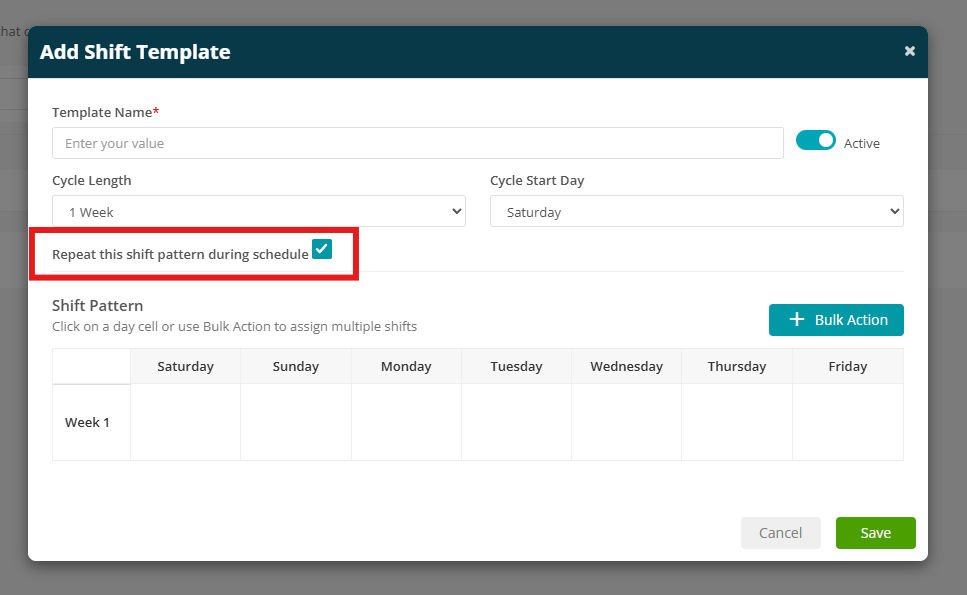
If you want the same shift pattern to repeat each week, tick Repeat this shift pattern during schedule.
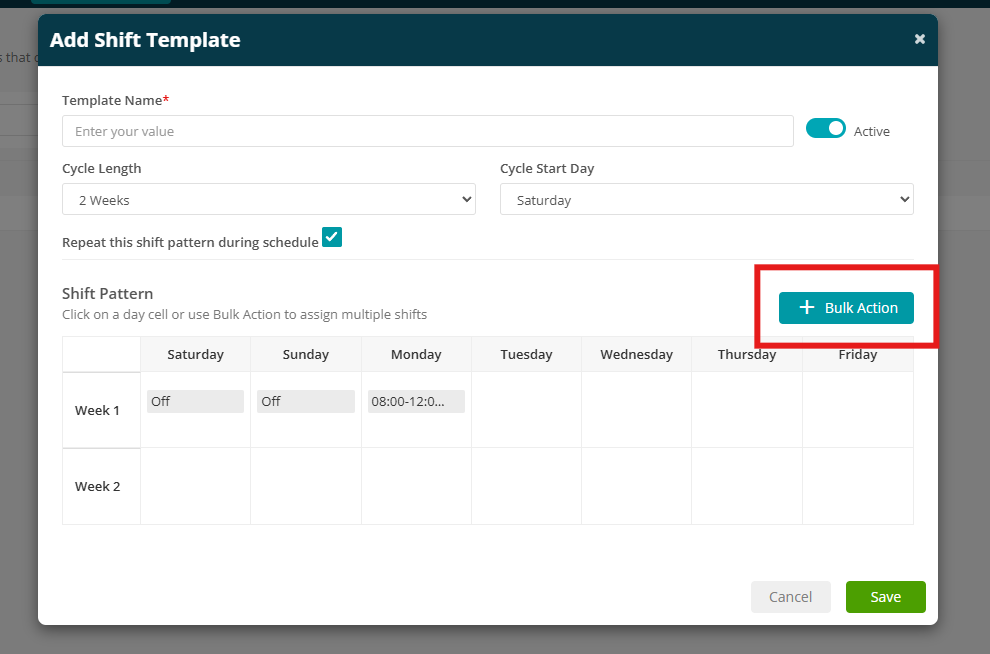
Click any cell to select a Shift Time.
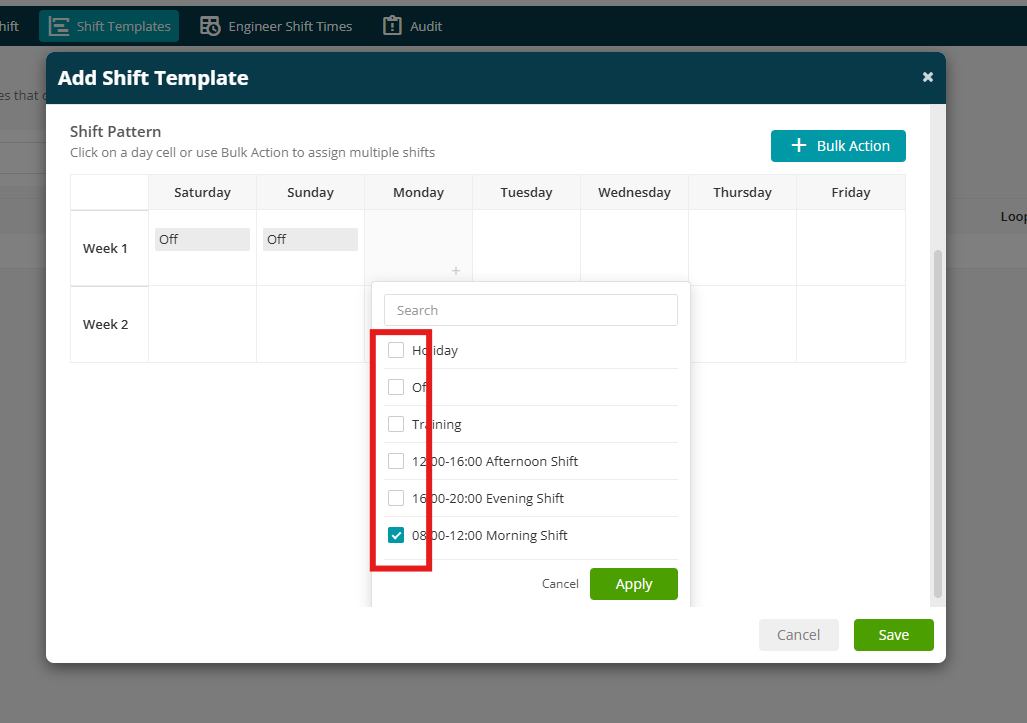
Alternatively, click the Bulk Action icon to apply a shift time to multiple cells at once.
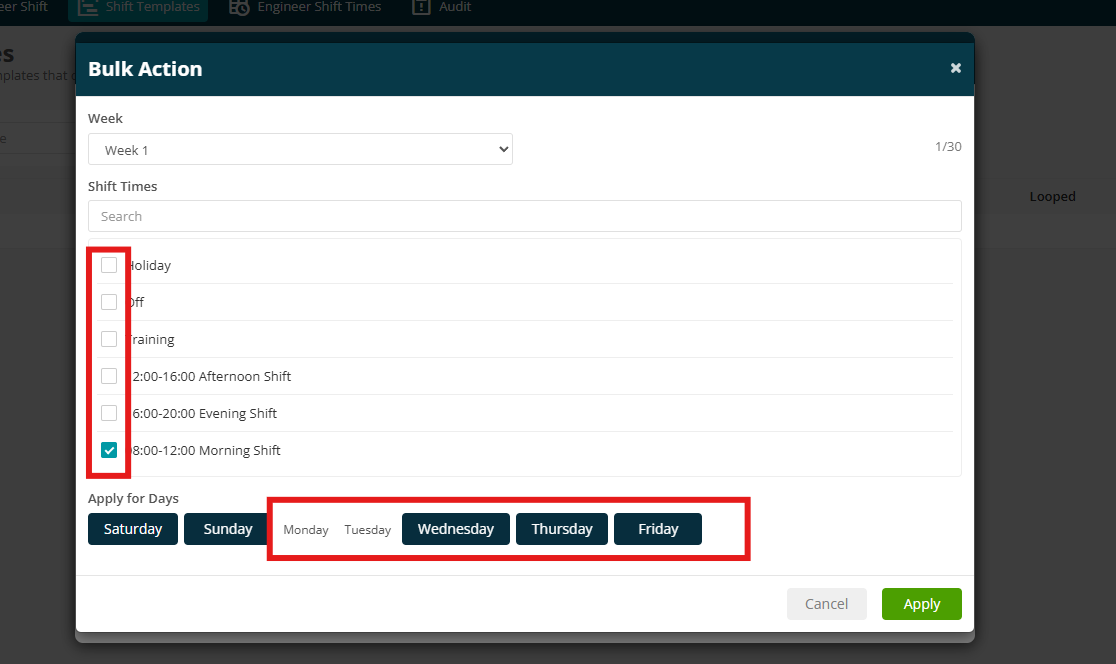
Tick the relevant Shift Time, then select the Days you want to apply it to.
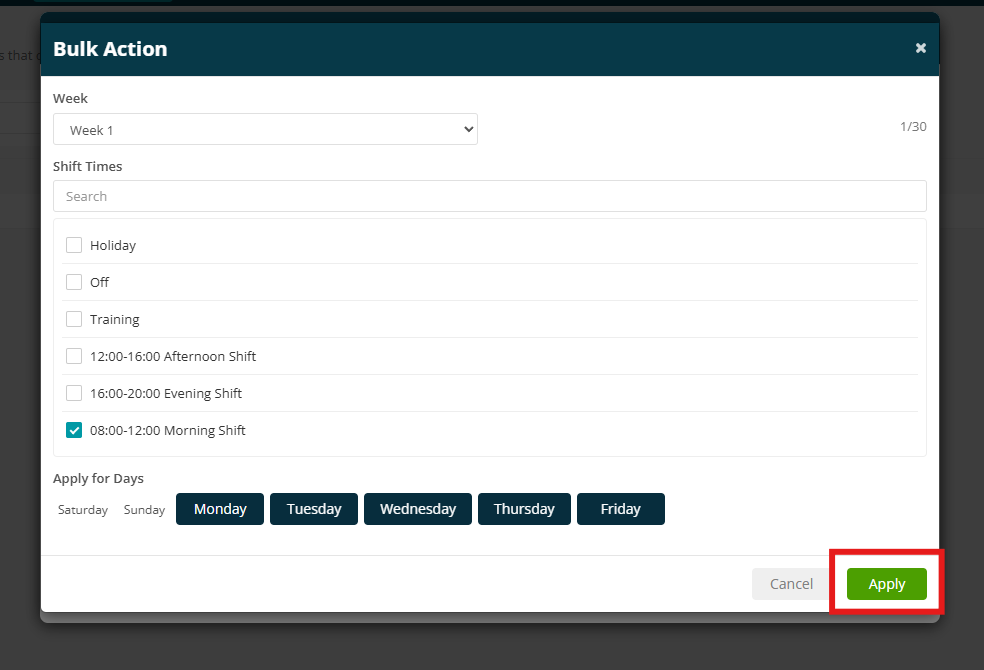
Click Apply to confirm the changes.
Click Save to finalise the template.
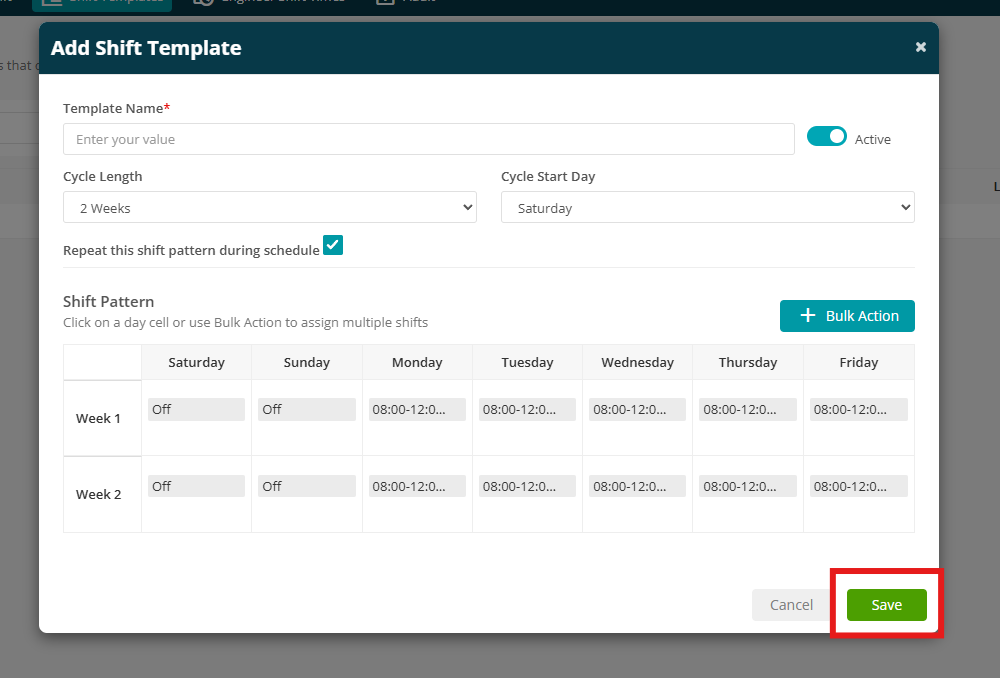
To remove a shift, click the X next to the shift time in the relevant cell.
Manage/assign Engineer Shifts
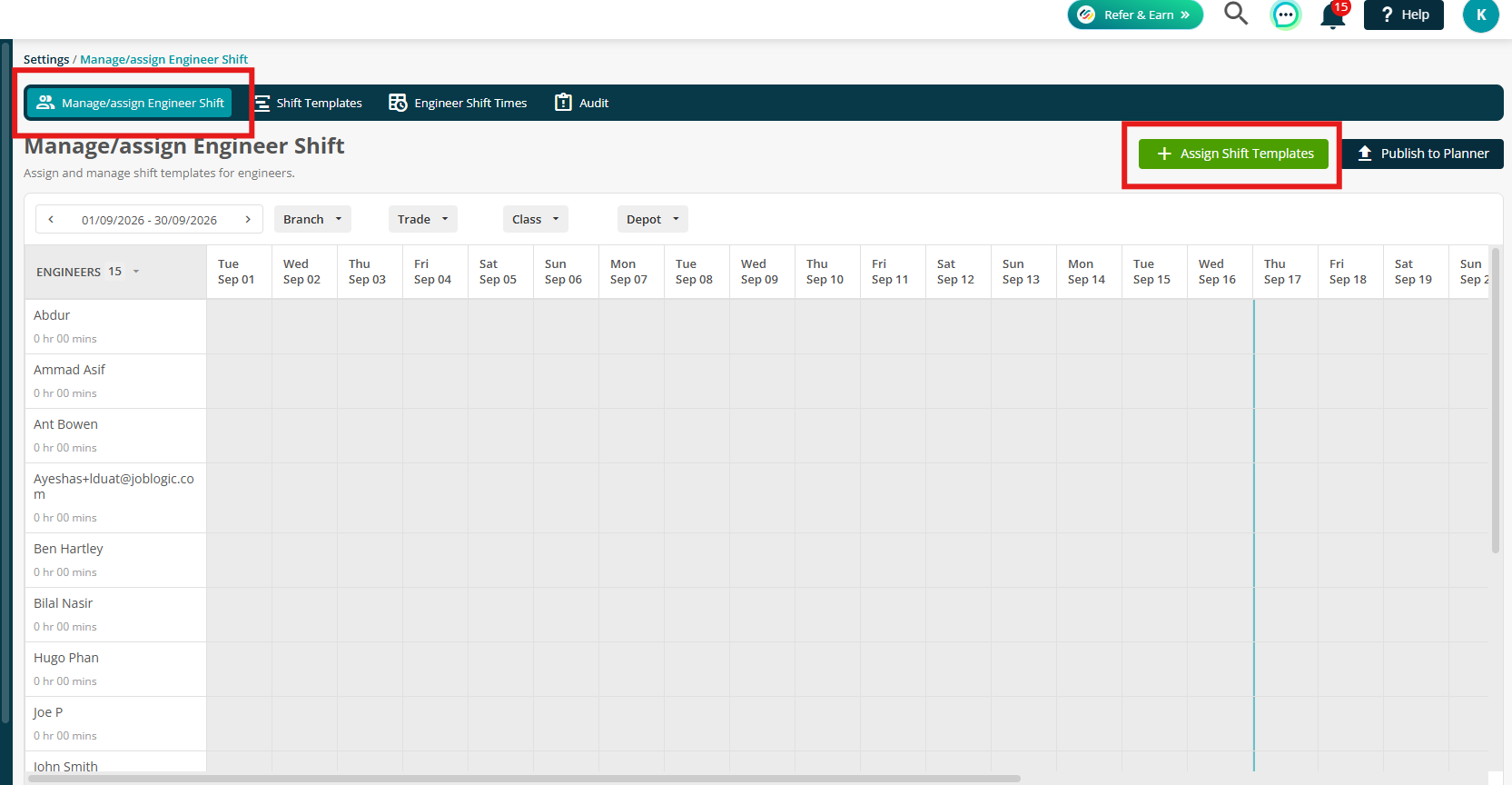
Click the Manage/assign Engineer Shifts tab to assign shift templates to your engineers.
Click Assign Shift Templates.
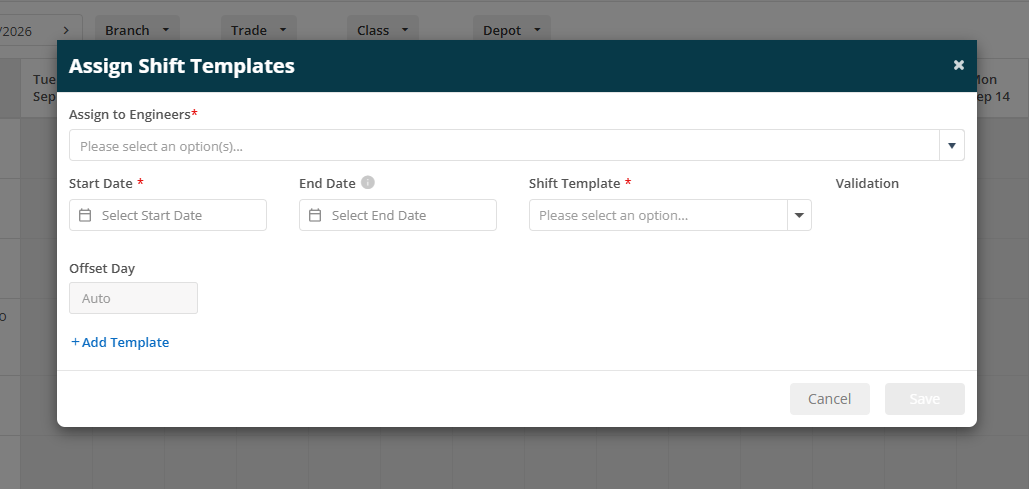
Select the engineer(s) you want to assign the shift template to.
Enter a Start Date for the shift. The End Date can be left blank if the assignment is ongoing.
Select the Shift Template from the drop-down.
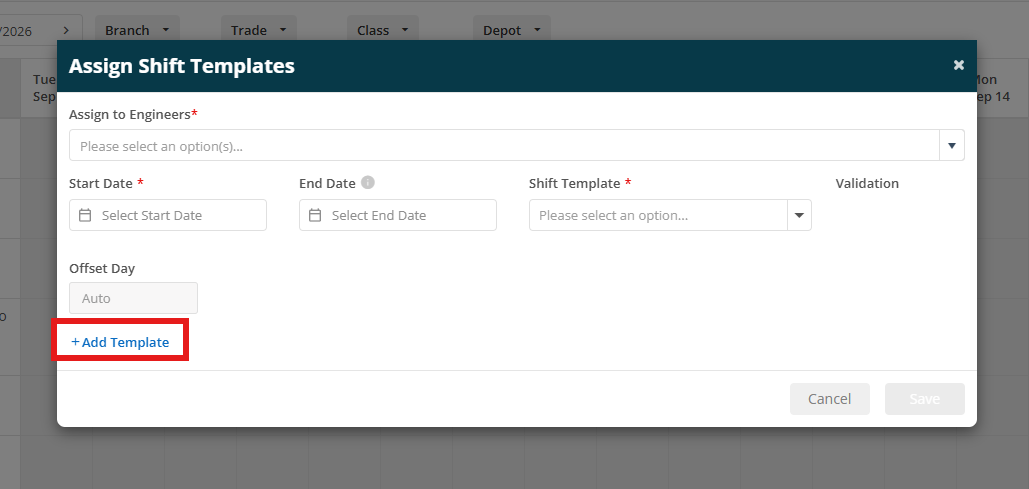
To assign further templates to the same engineer(s), click Add Template and follow the same steps. Click Save when you're done.
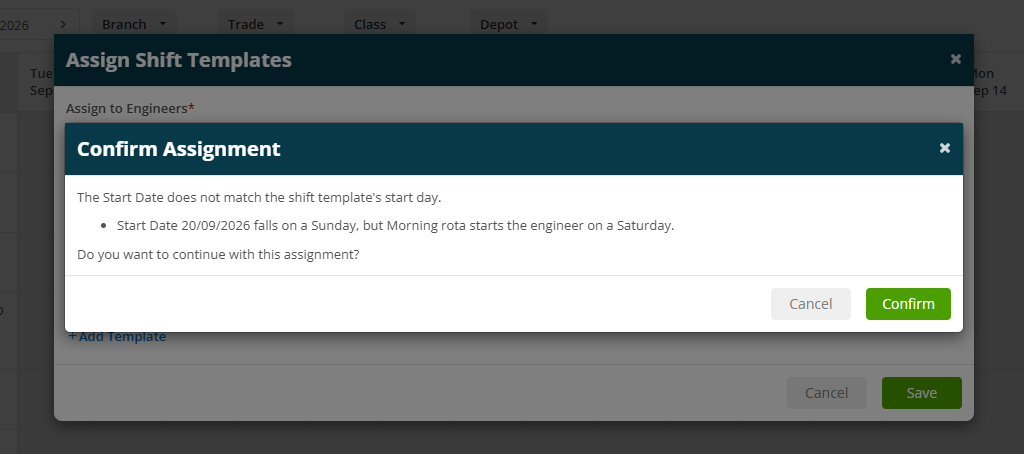
You may receive a validation message highlighting any irregularities.
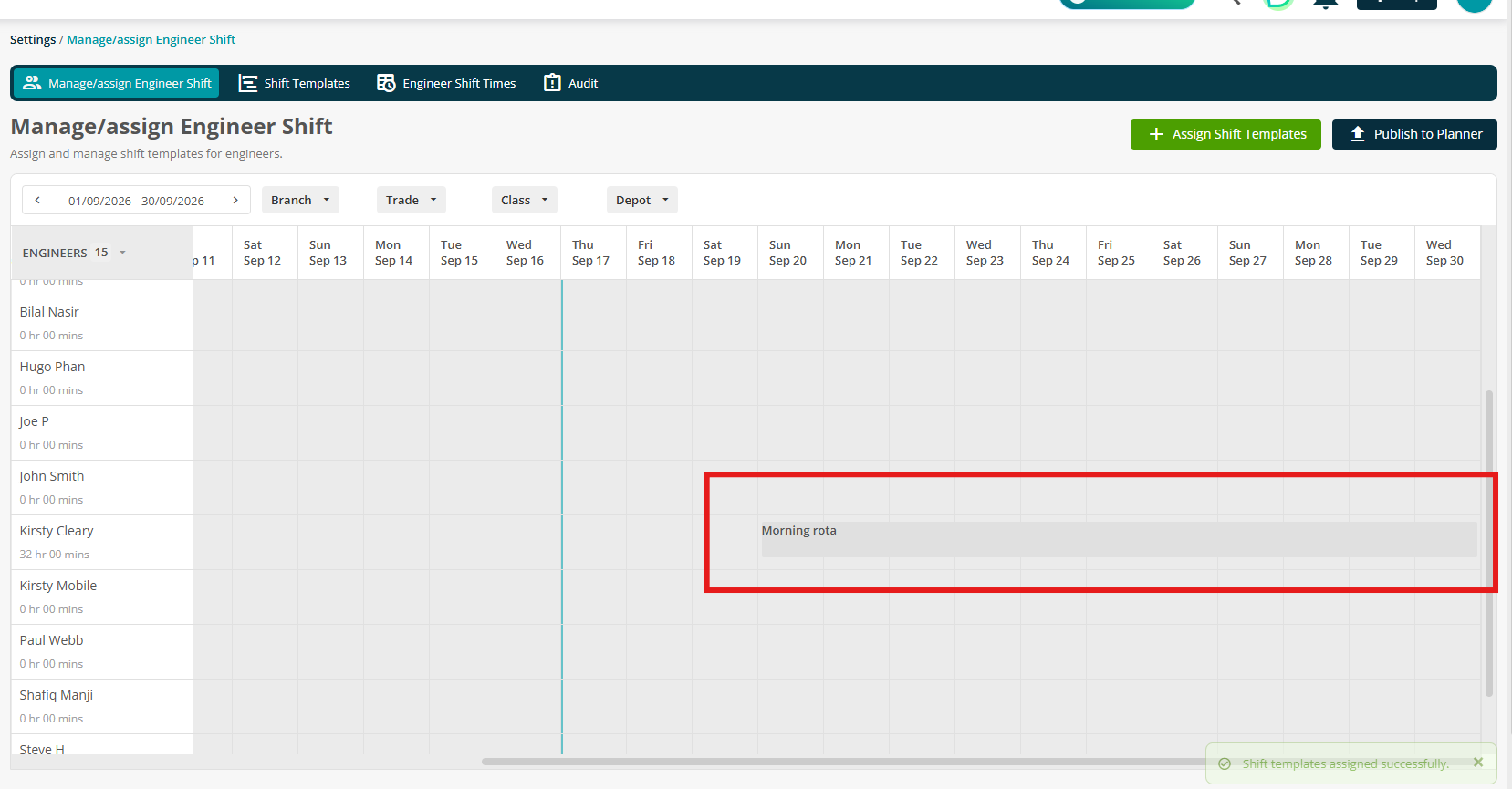
The assigned shifts will now be shown on the planner.
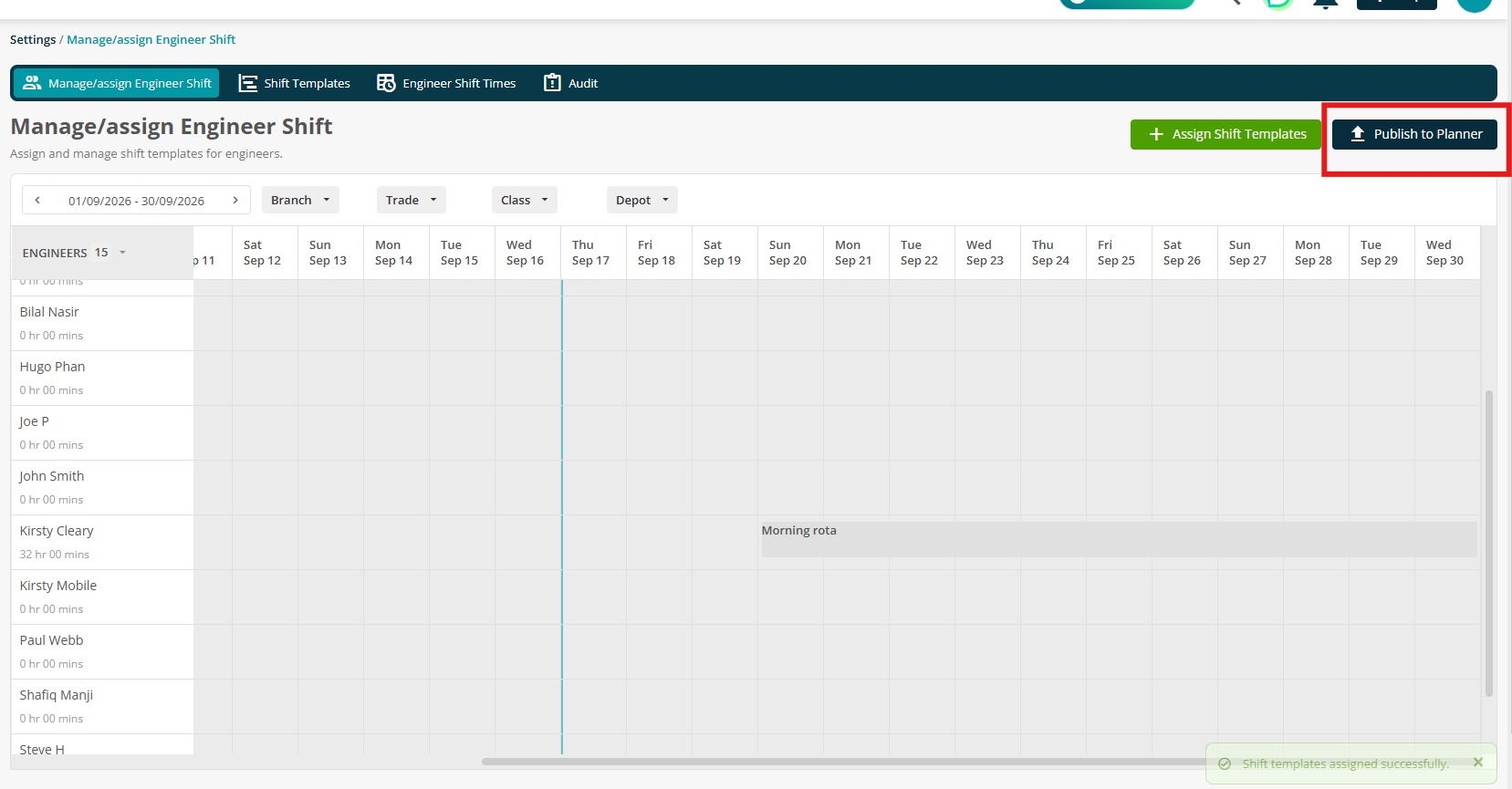
Click Publish to Planner to apply the working times to your main Planner.
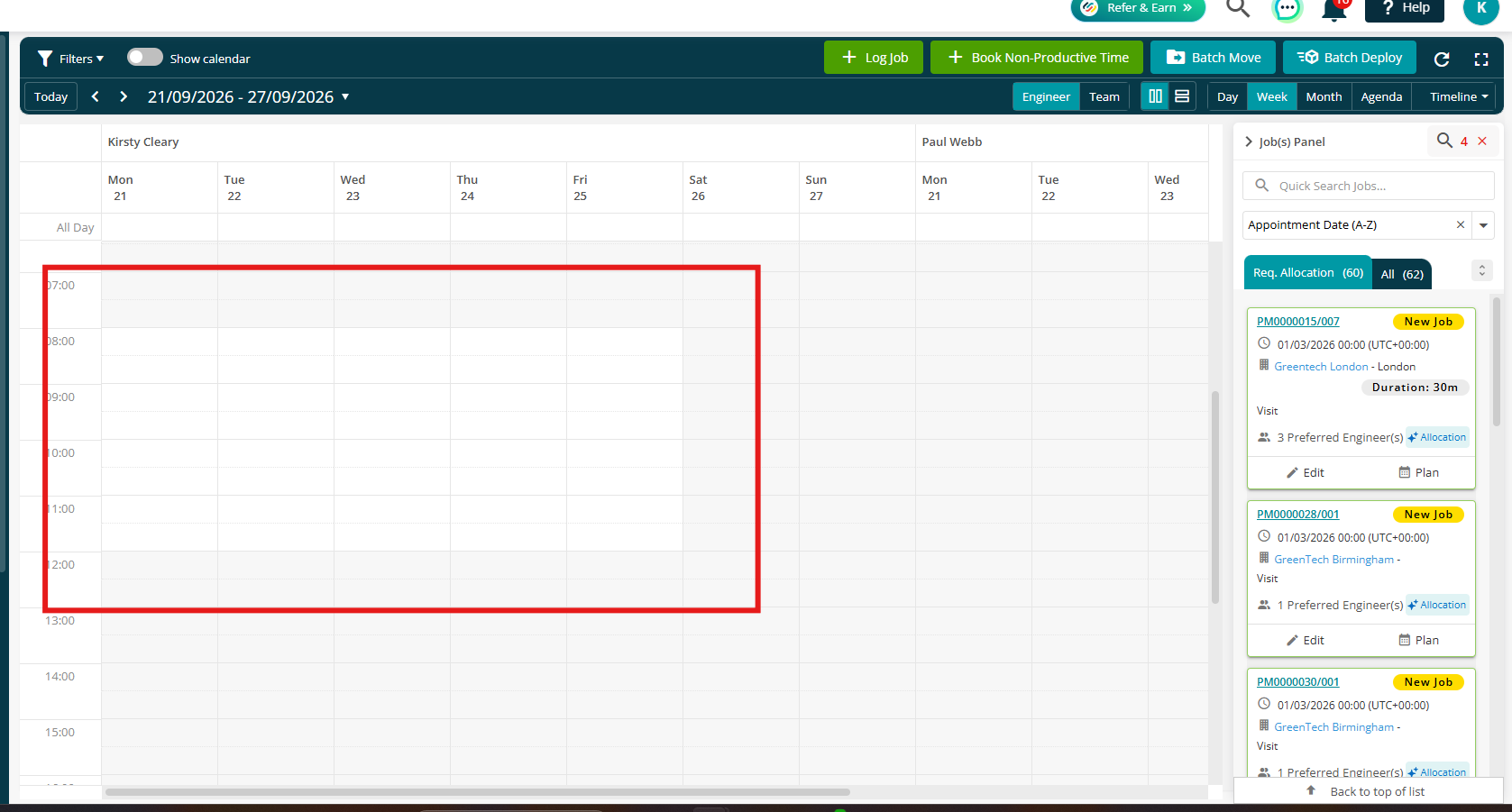
Go to Engineers > View Planner to see the engineers' available times. You can log and schedule jobs as normal.
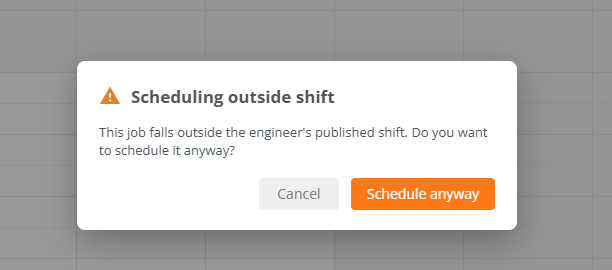
If you try to schedule a job outside of an engineer's shift window, an information box will appear to warn you.
"This job falls outside the engineer's published shift. Do you want to schedule it anyway?"
Click Cancel to ensure the job is scheduled within the engineer's shift times, or click Schedule Anyway to schedule the job outside of the shift.
Further Support
For further information or assistance with the above, contact our Support Team on 0800 326 5561 or email support@joblogic.com. Alternatively, our Customer Success Management team can be reached by emailing customersuccess@joblogic.com
Publishing Details
This document was written and produced by Joblogic’s Technical Writing team and was last updated on the date specified above. Be aware that the information provided may be subject to change following further updates on the matter becoming available. Additionally, details within the guide may vary depending on your Joblogic account’s user permissions.