Job Spend Limits and Spend Estimator
Introduction
Job Spend Limits and the Spend Estimator give your team greater visibility and control over the expected value of a job before work is carried out.
A Job Spend Limit can be set for a customer and automatically applied when new jobs are logged. Engineers can then see the authorised limit in the Joblogic Mobile App and use the estimator to review expected labour, materials, travel and mileage before continuing with the visit.
If an estimate exceeds the available spend limit, the engineer can notify the Back Office so the estimate can be reviewed before further action is taken.
Subscribing to the Job Spend Estimator
Navigate to Marketplace > Explore More and search for the Job Spend Estimator app.
Open the app and select Subscribe to make the functionality available for your account.
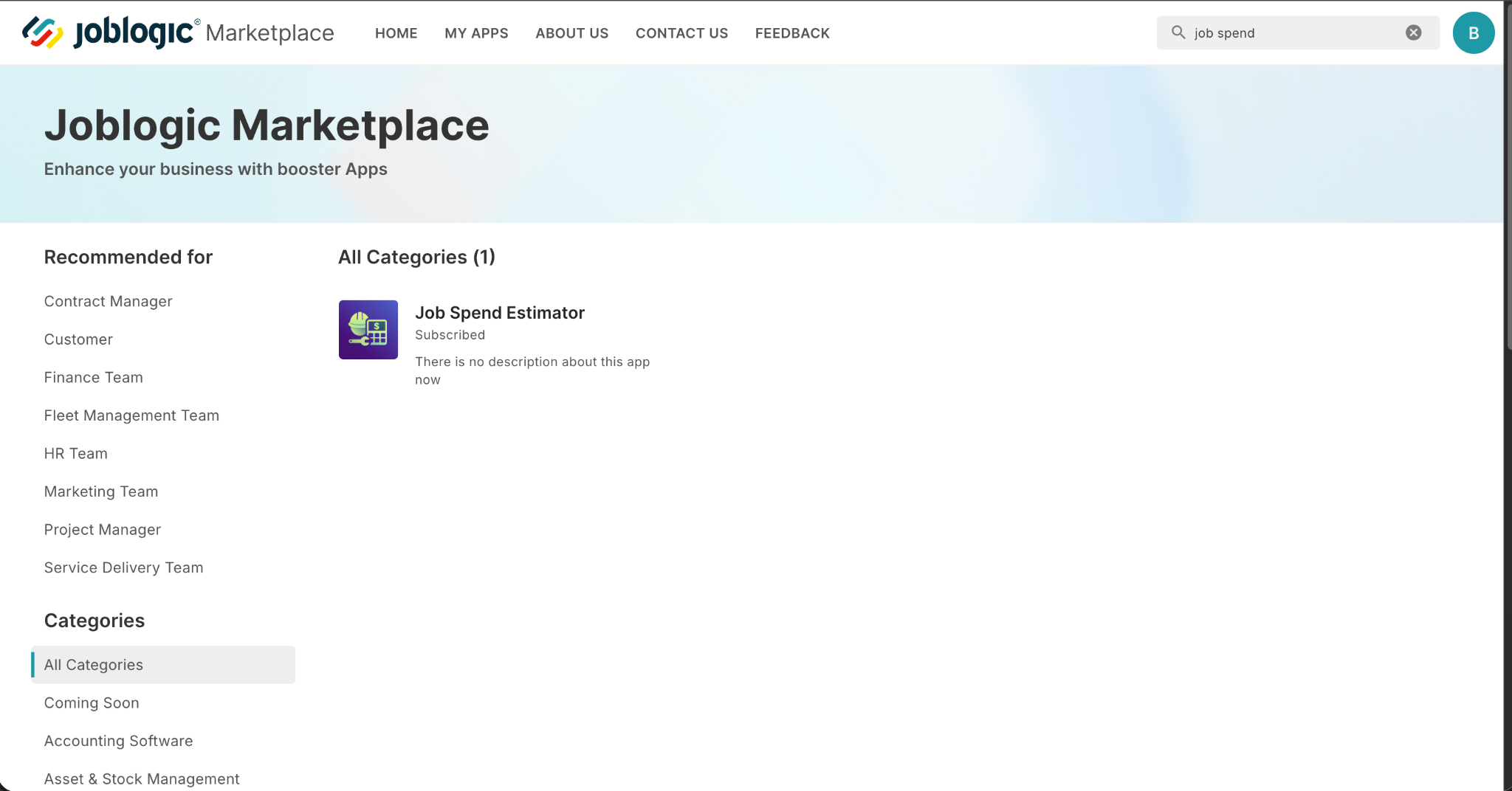
Once subscribed, the Job Spend Limit and estimator options become available to authorised users.
Setting a Job Spend Limit for a customer
Navigate to Customers and open the required customer record.
Open Base Configuration and locate Job Spend Limit.
Enter the maximum authorised value for jobs logged against this customer, then select Save.
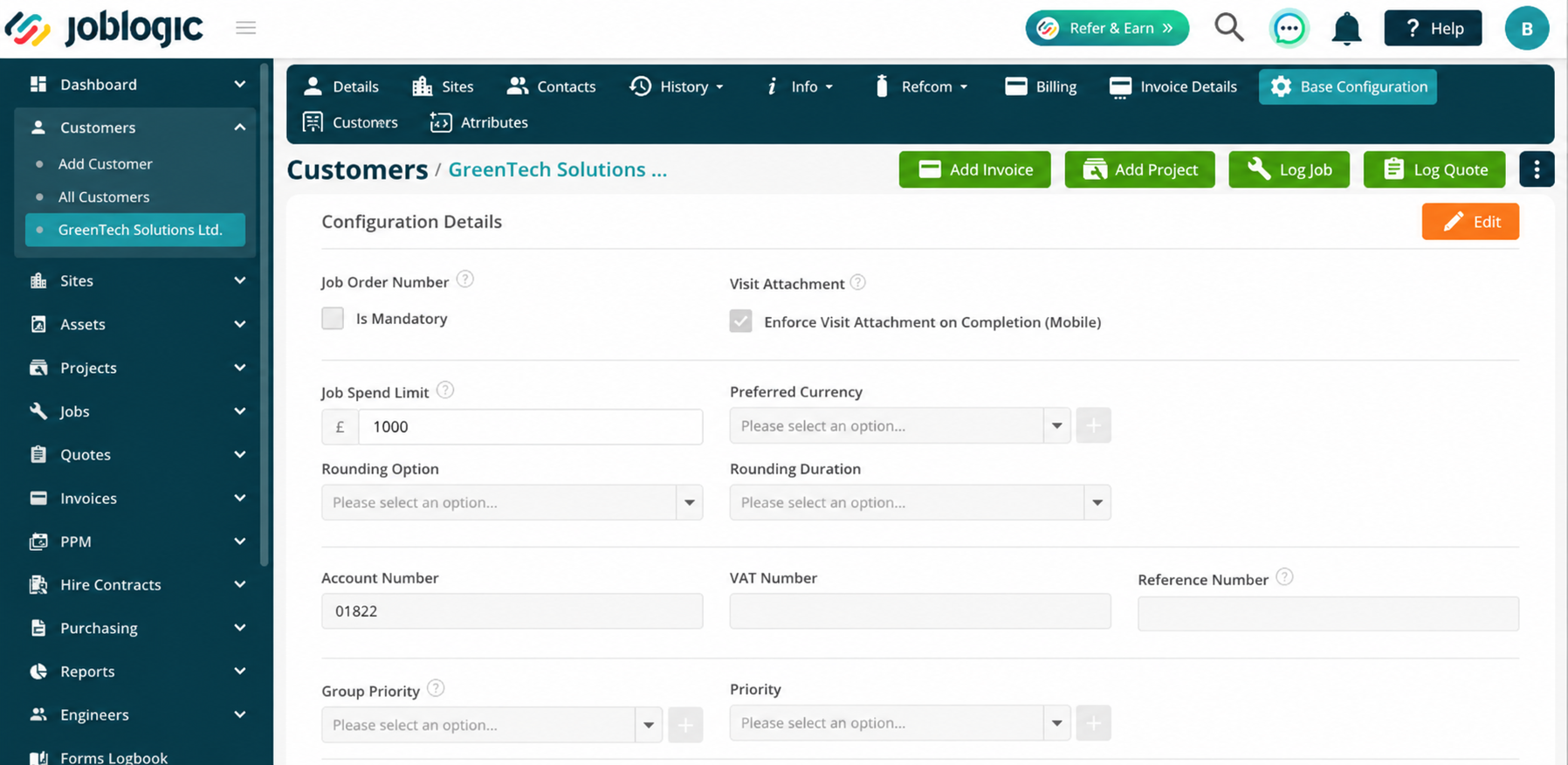
The field accepts positive currency values with up to two decimal places. It is optional, and a value of £0.00 is treated as no spend limit.
Applying the Job Spend Limit to a job
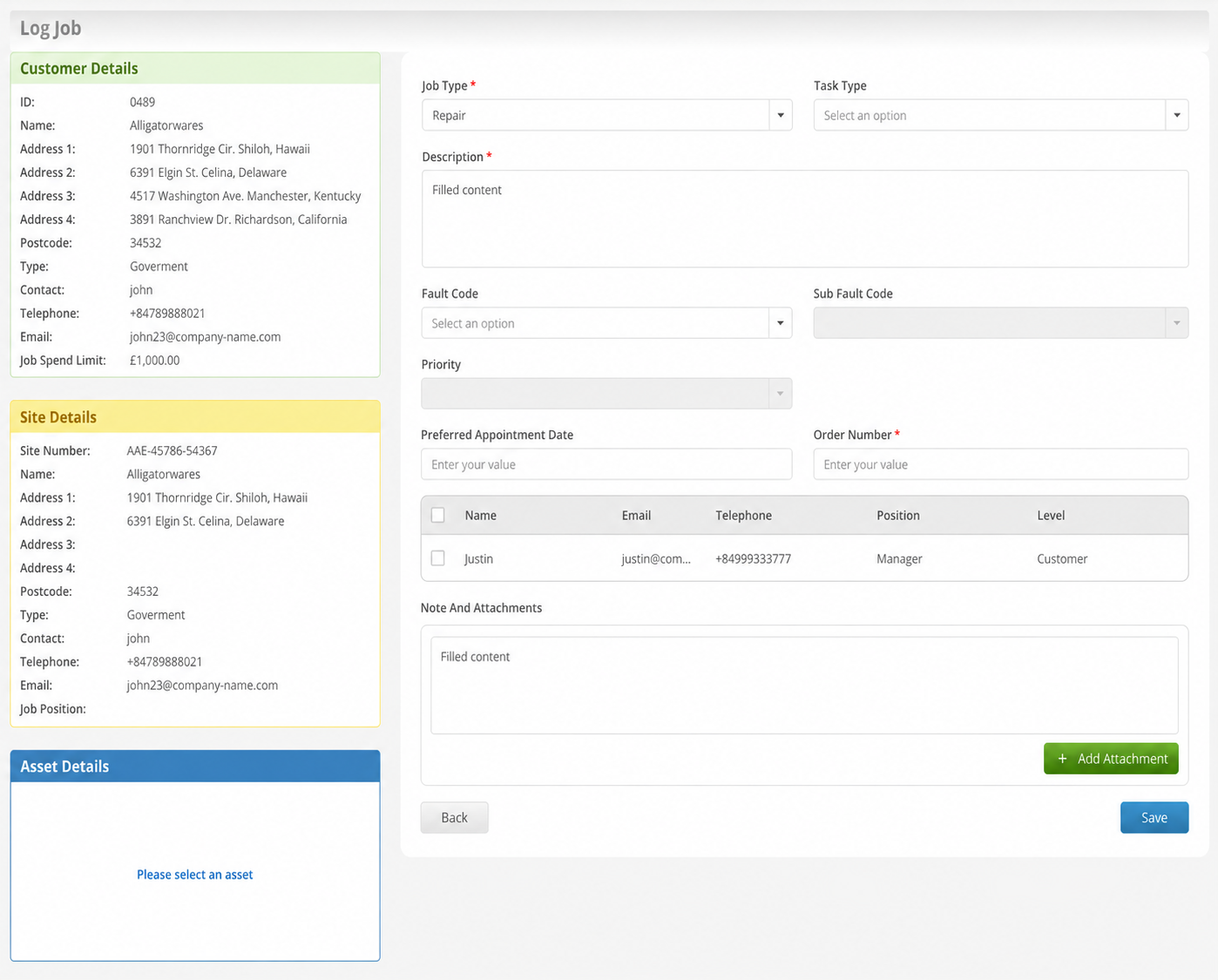
When a new job is logged for a customer with a Job Spend Limit, Joblogic automatically populates the limit on the job.
On the Log Job screen, open Job Details to review the populated value.
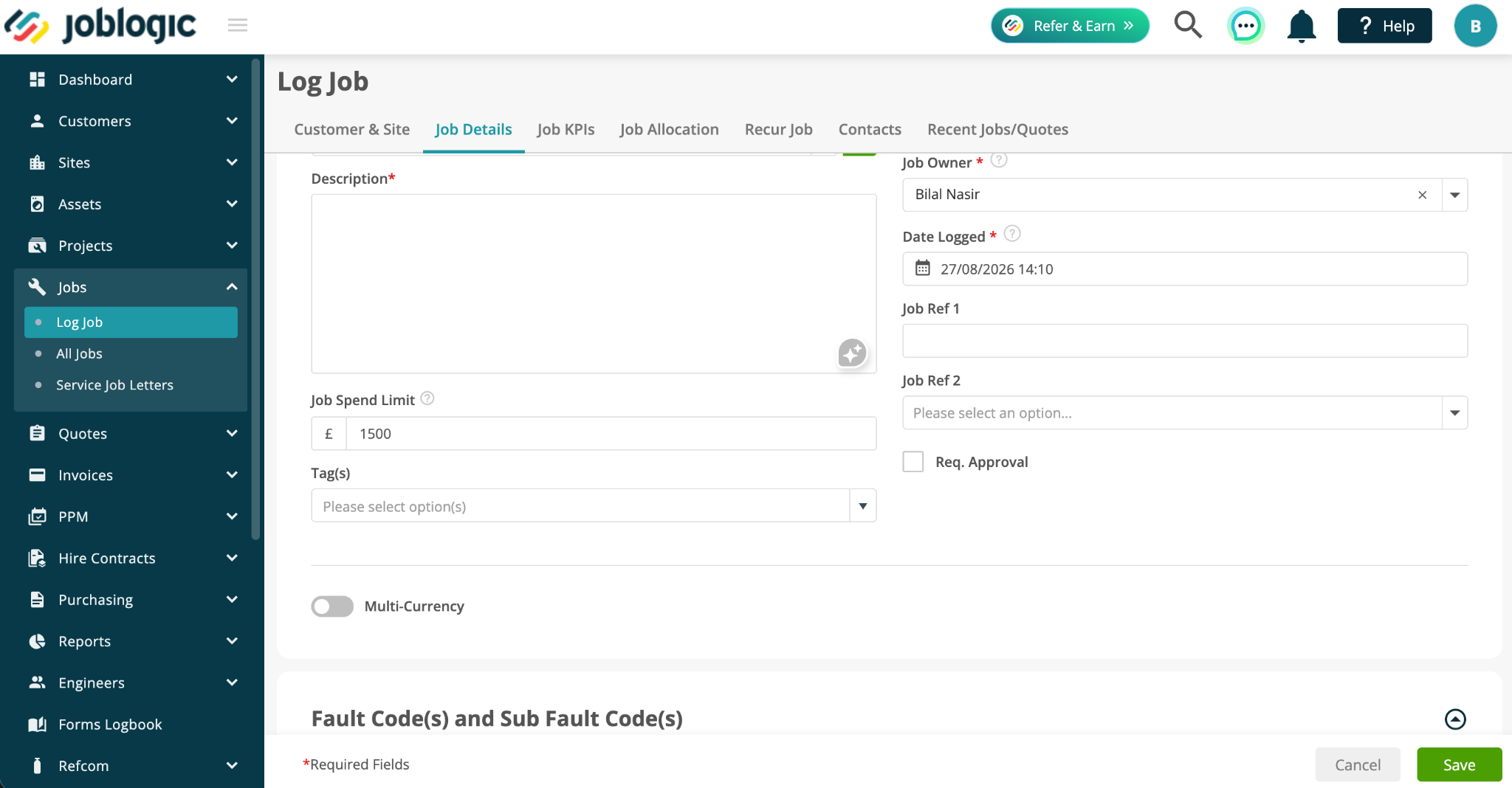
The populated value can be reviewed and changed before the job is saved. This allows a job-specific limit to be used where required.
Viewing Job Spend Limits from All Jobs
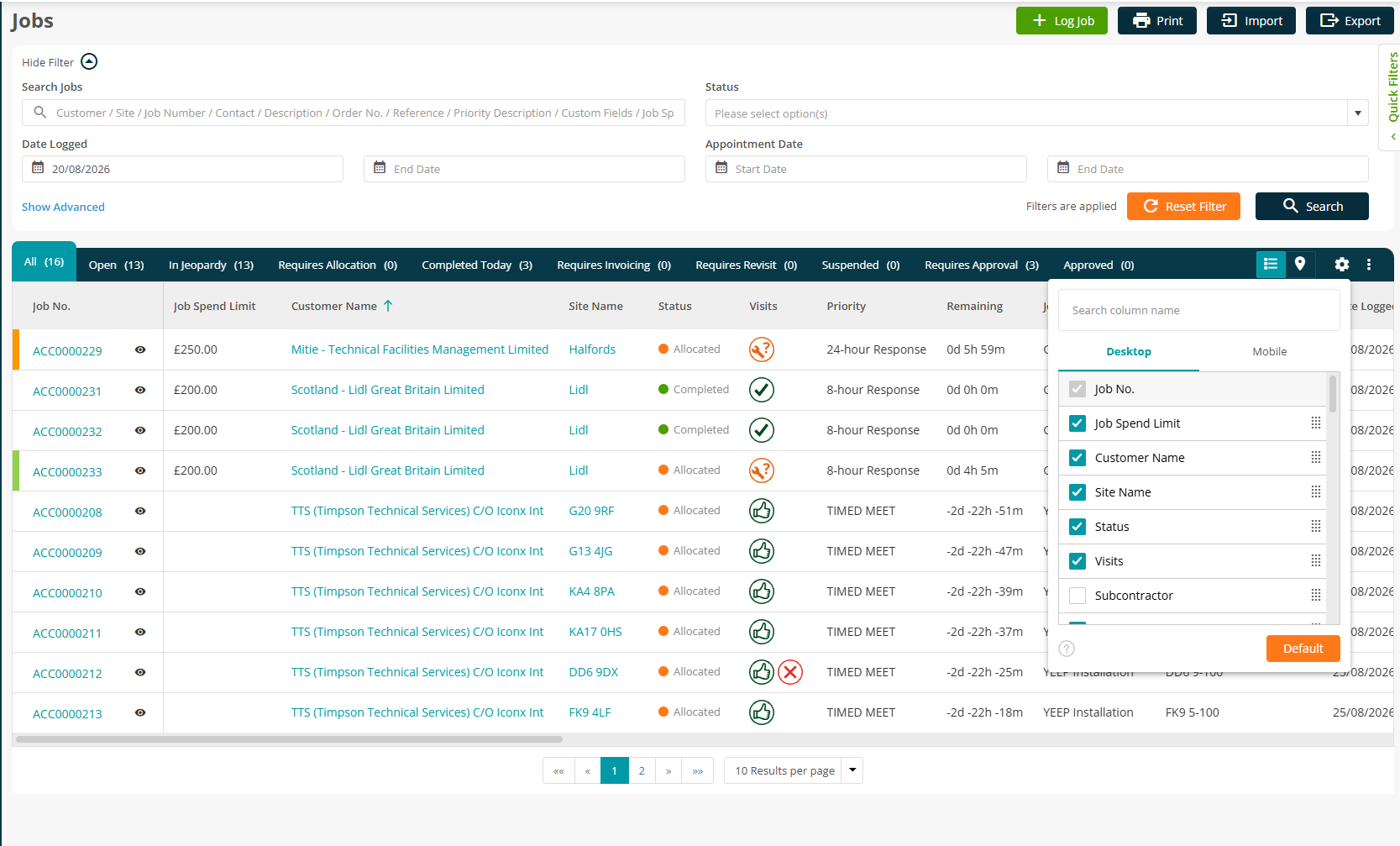
Navigate to Jobs > All Jobs. The Job Spend Limit column displays the authorised value applied to each job, allowing you to review limits without opening individual job records.
The Job Spend Limit column can be searched and sorted, and its visibility can be managed using the existing column settings.
Viewing the Job Spend Limit on Mobile
When a Job Spend Limit has been applied, the engineer can see the authorised value from the Mobile App before carrying out work.
Once the engineer is On Site, the visit also provides access to the Job Spend Estimator from Other Actions.
The Job Spend Limit is read-only on Mobile. If no limit has been applied to the job, the field is not shown.
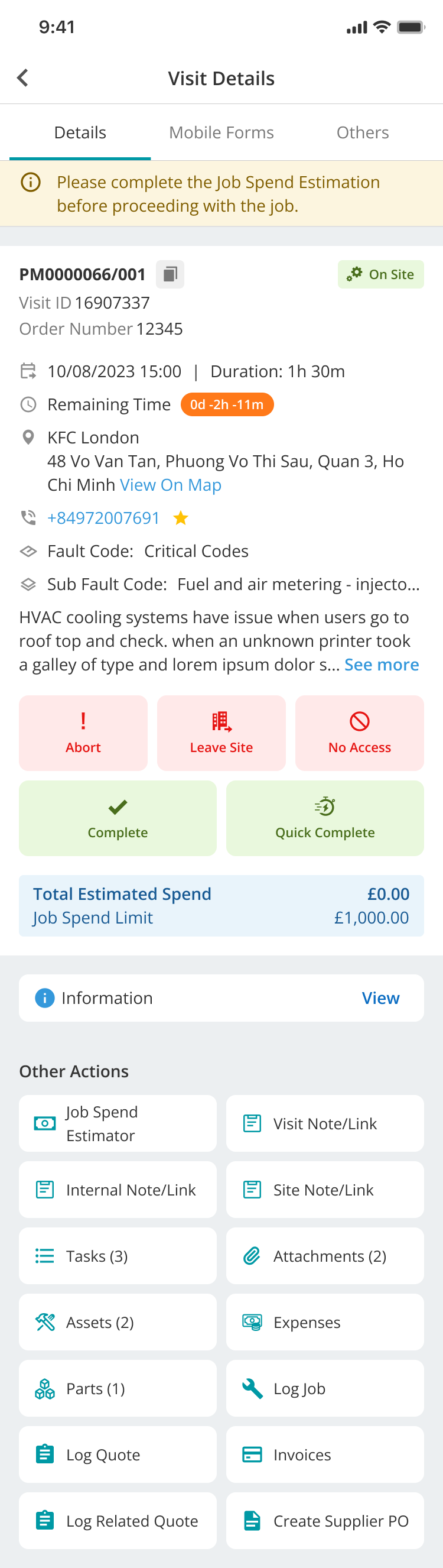
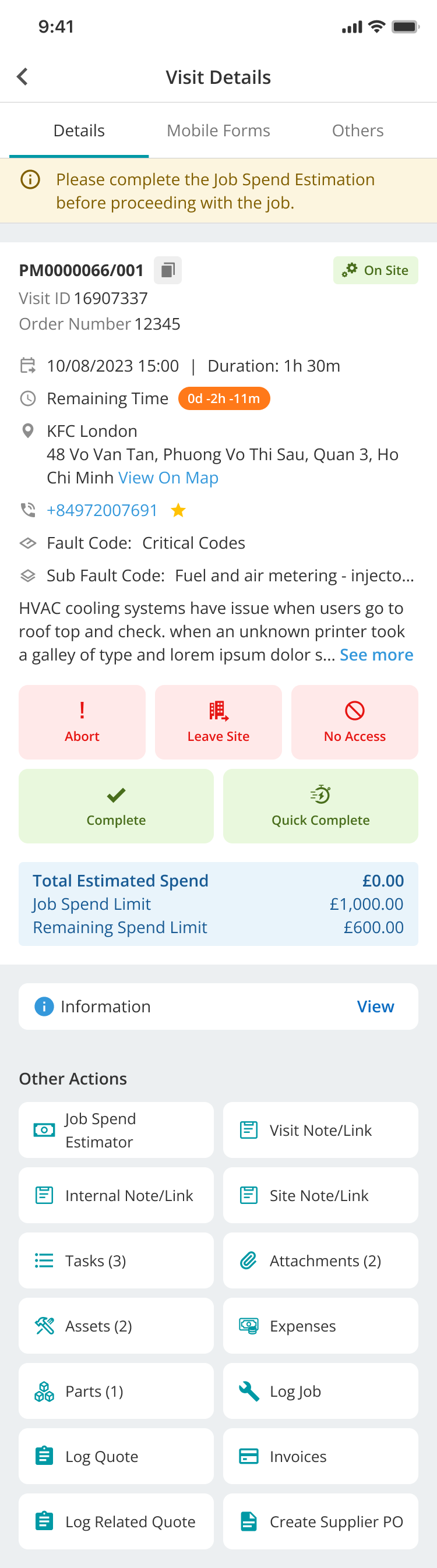
If an estimate has not yet been completed, the visit displays a reminder to complete the Job Spend Estimation before proceeding. This reminder provides visibility without blocking the engineer from continuing with the job.
Opening the Job Spend Estimator
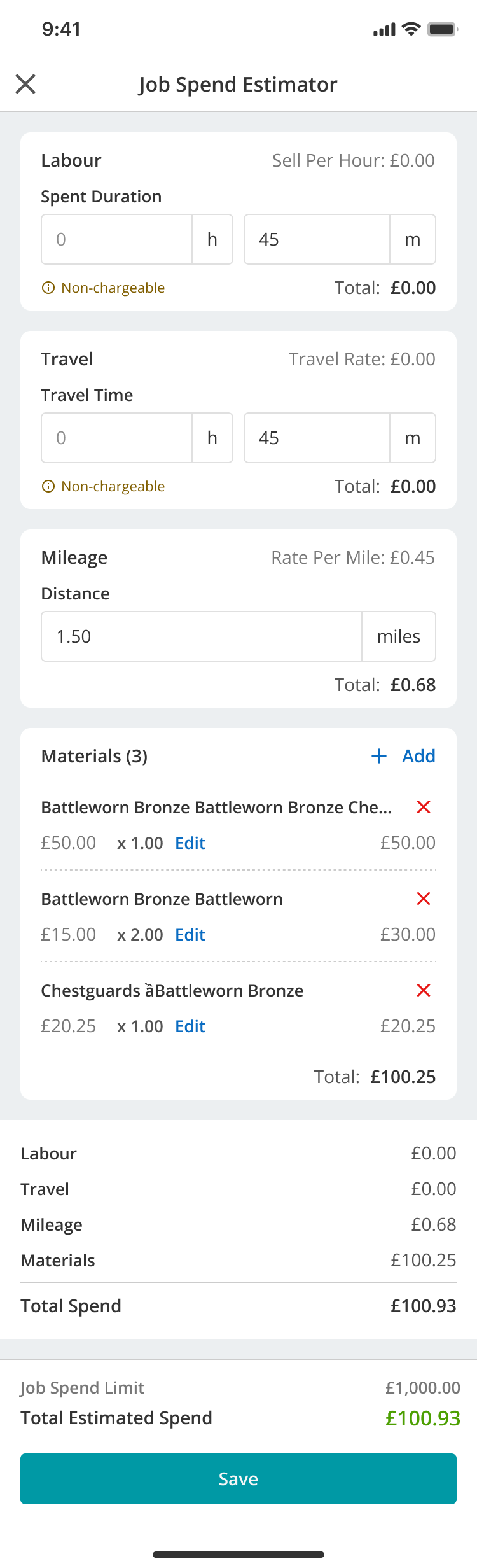
Select Job Spend Estimator from the visit to open the estimator.
The estimator allows the engineer to enter the expected spend for the current visit before work progresses.
- Labour – enter the expected duration.
- Travel – enter the expected travel time.
- Mileage – enter the expected distance.
- Materials – add one or more material items as required.
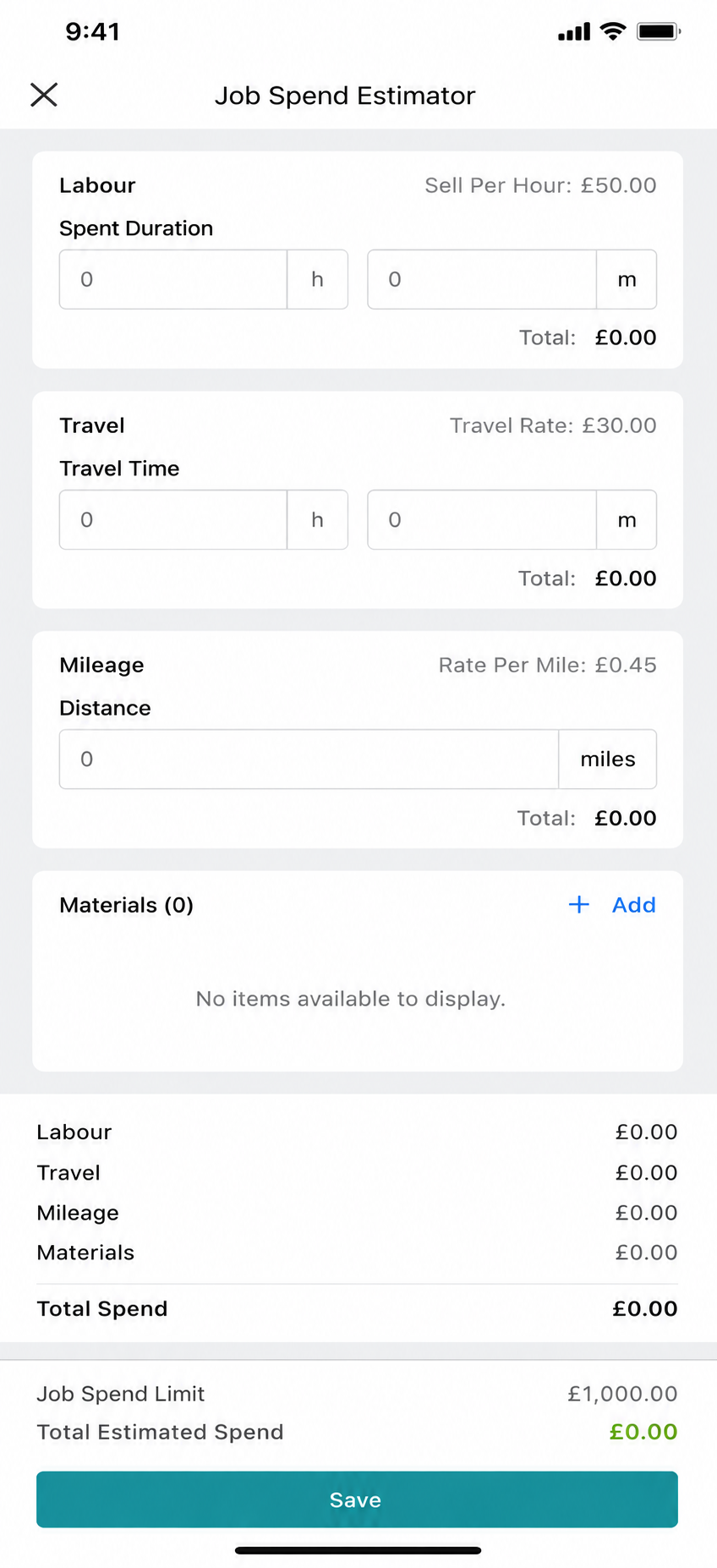
The summary at the bottom of the screen shows the Job Spend Limit and the Total Estimated Spend so the engineer can compare the estimate with the authorised value.
Adding materials and reviewing the estimate
Use Add in the Materials section to add the required items. Multiple material items can be included in the same estimate.
As values are added, the estimator updates the totals so the engineer can see the expected spend for labour, travel, mileage and materials.
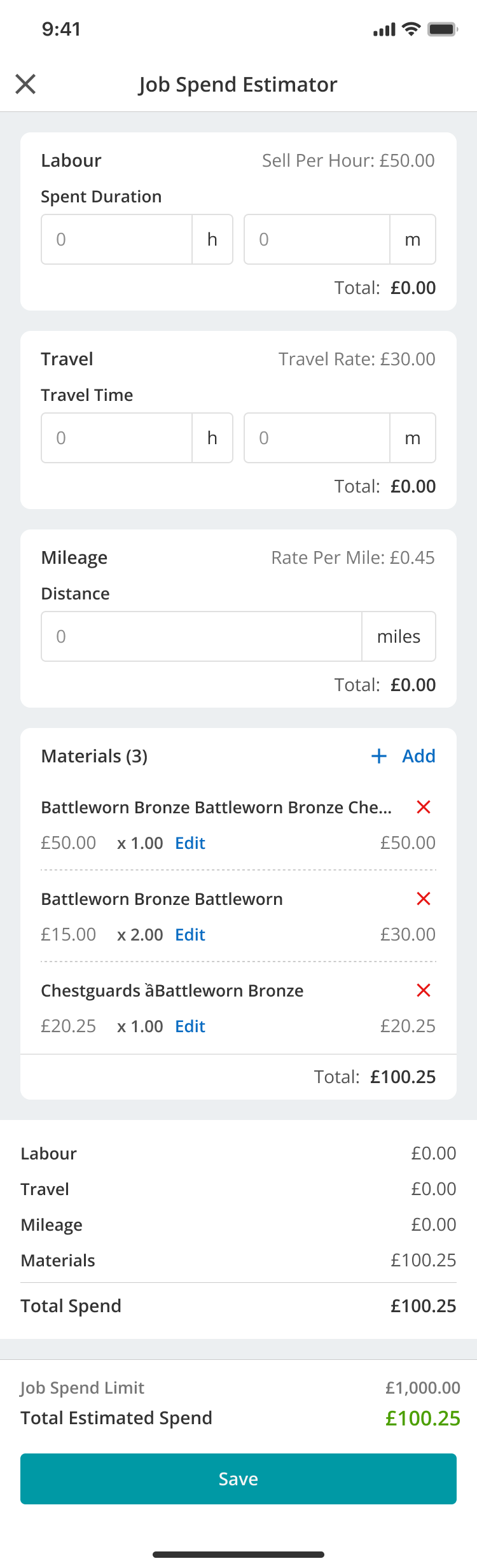
When the Total Estimated Spend is within the available Job Spend Limit, the total is shown as within limit and the engineer can select Save to save the estimate.
When the estimate exceeds the Job Spend Limit
If the Total Estimated Spend exceeds the available spend limit, Joblogic identifies that the estimate is above the authorised value.
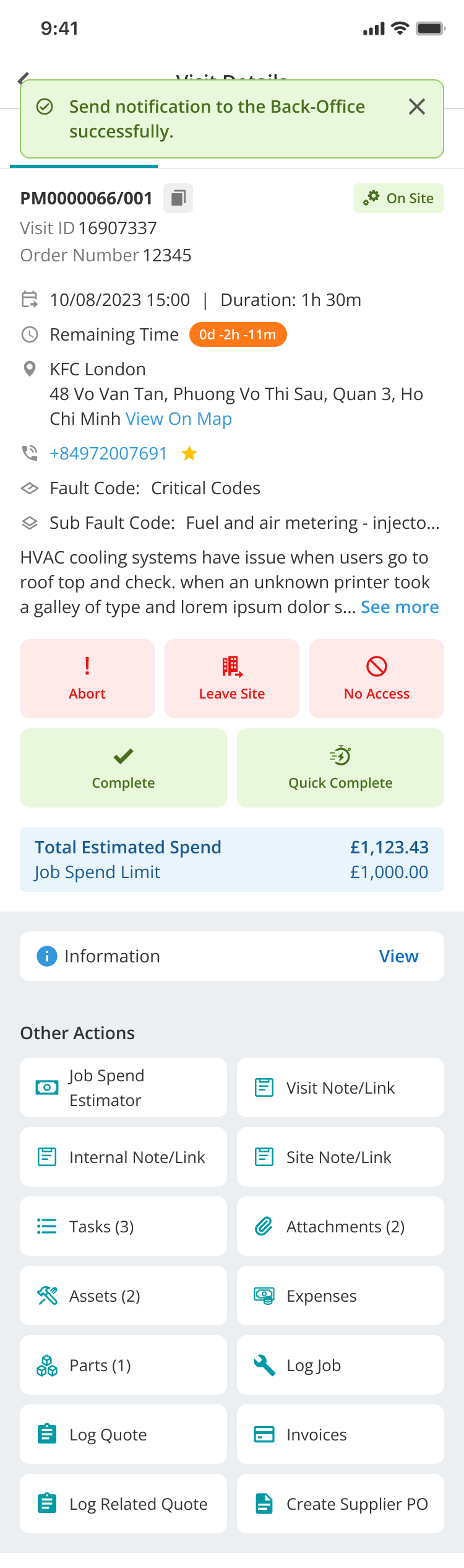
The engineer can save the estimate and use Save & Notify Back Office so the Back Office can review the expected spend.
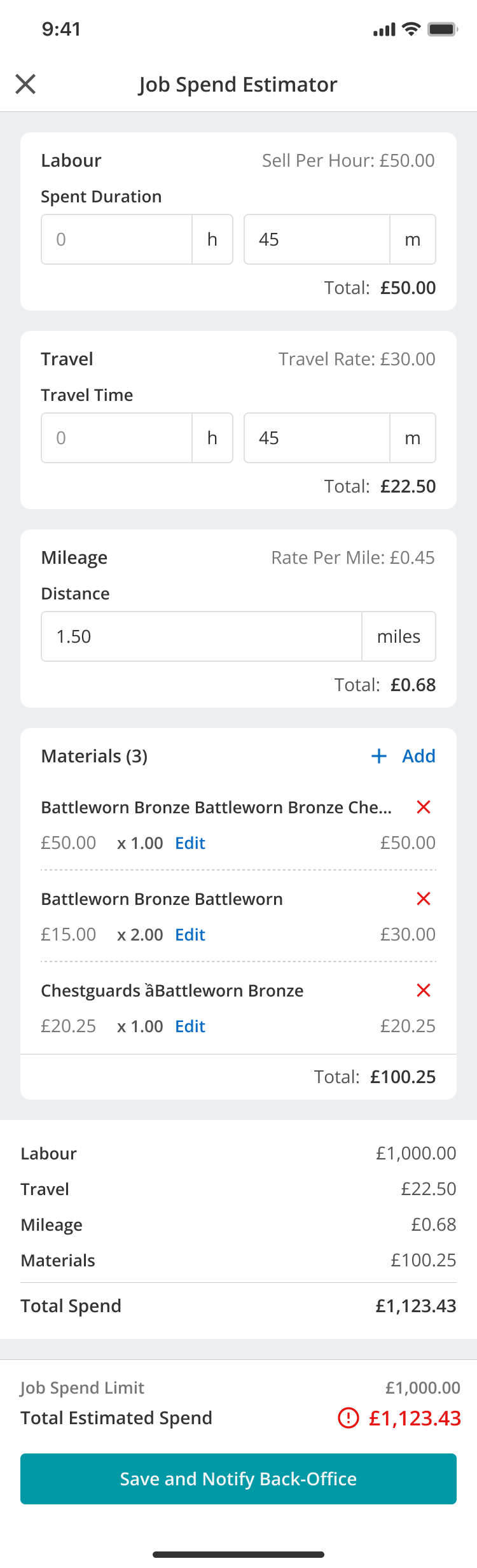
A notification is generated for Back Office users, and the engineer is informed when the notification has been sent successfully.
Non-chargeable items
Where an item is non-chargeable under the selling rate being applied, Joblogic identifies this within the estimator. This helps engineers distinguish between chargeable and non-chargeable values when reviewing expected spend.
Second and later visits
For second and subsequent visits, Joblogic also considers the amount already spent on previous visits when a Job Spend Limit is in place.
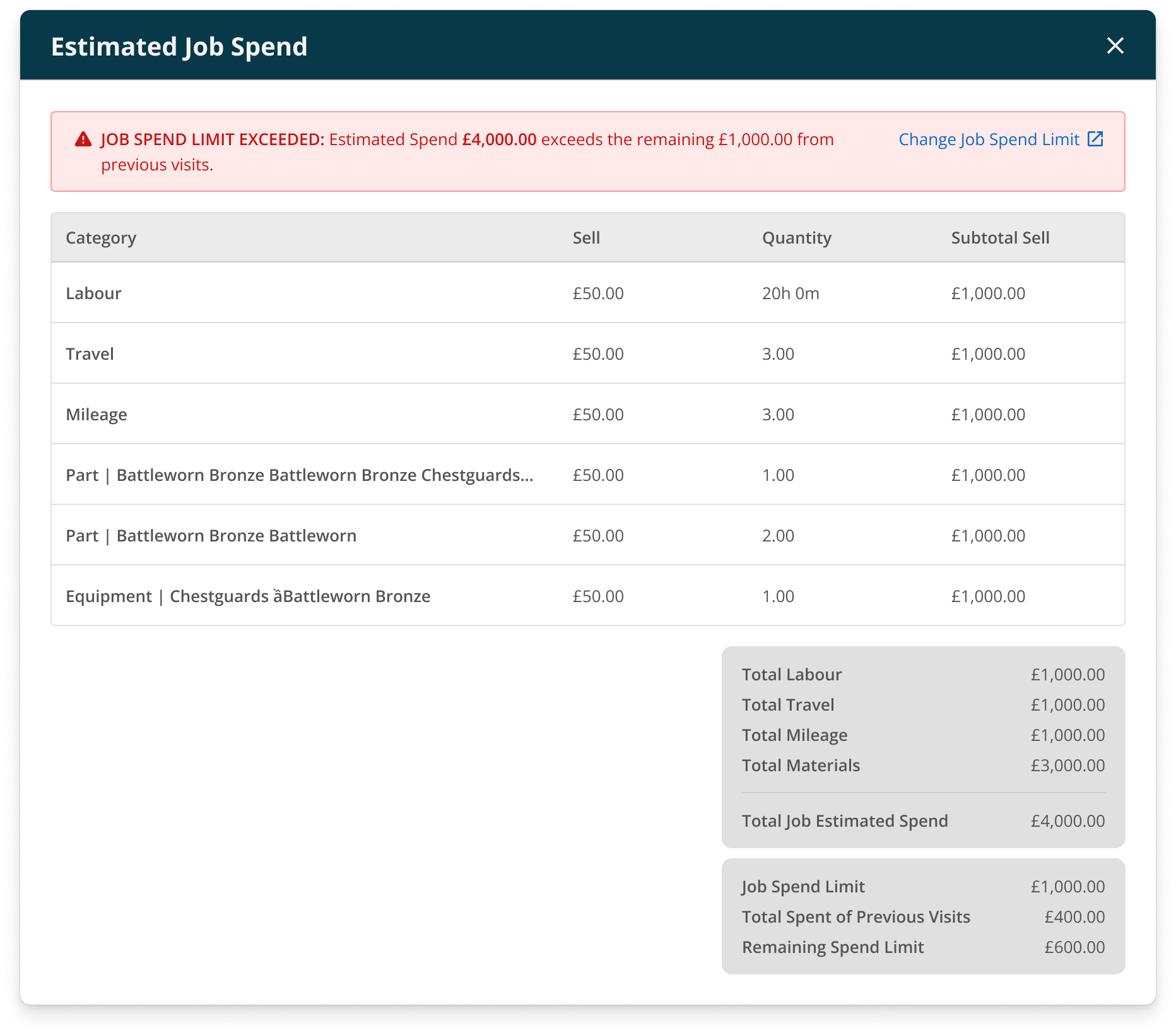
The visit can show the Job Spend Limit, Total Spent of Previous Visits and Remaining Spend Limit.
The Remaining Spend Limit is the Job Spend Limit less the total sell value from previous visits, excluding VAT. The new estimate is compared with the remaining amount available.
Reviewing an estimate in Back Office
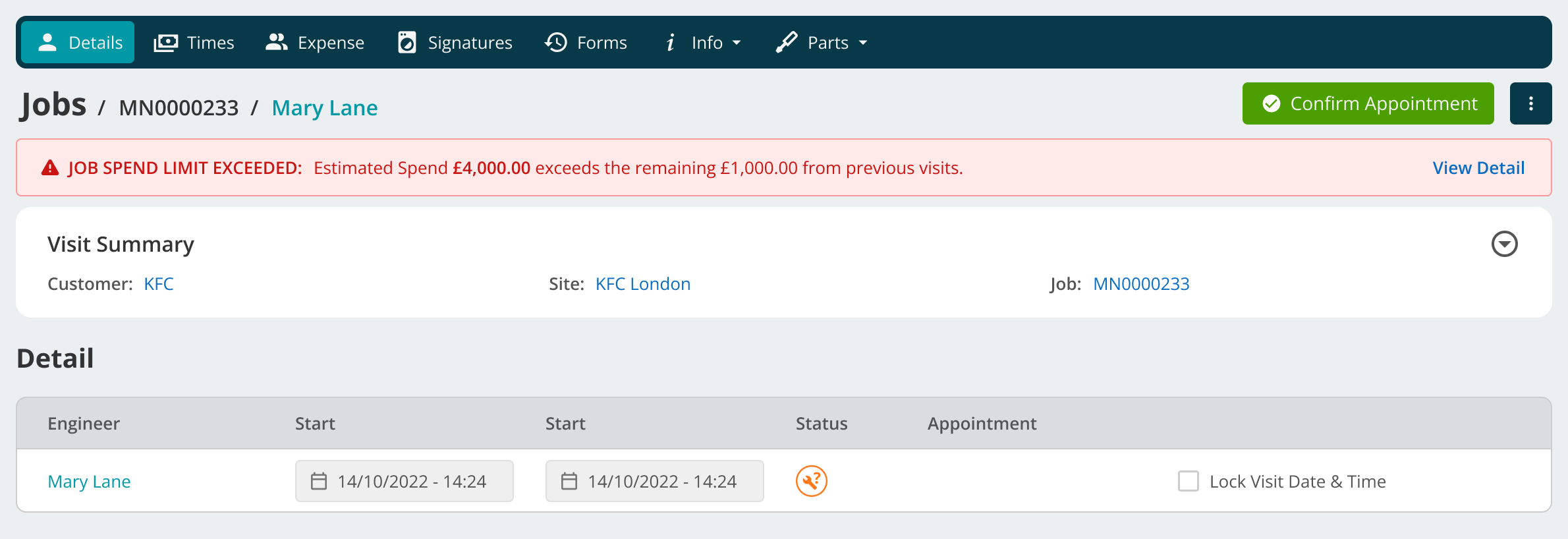
Open the relevant visit in Back Office. A banner at the top of Visit Details shows the result of the engineer's spend estimation.
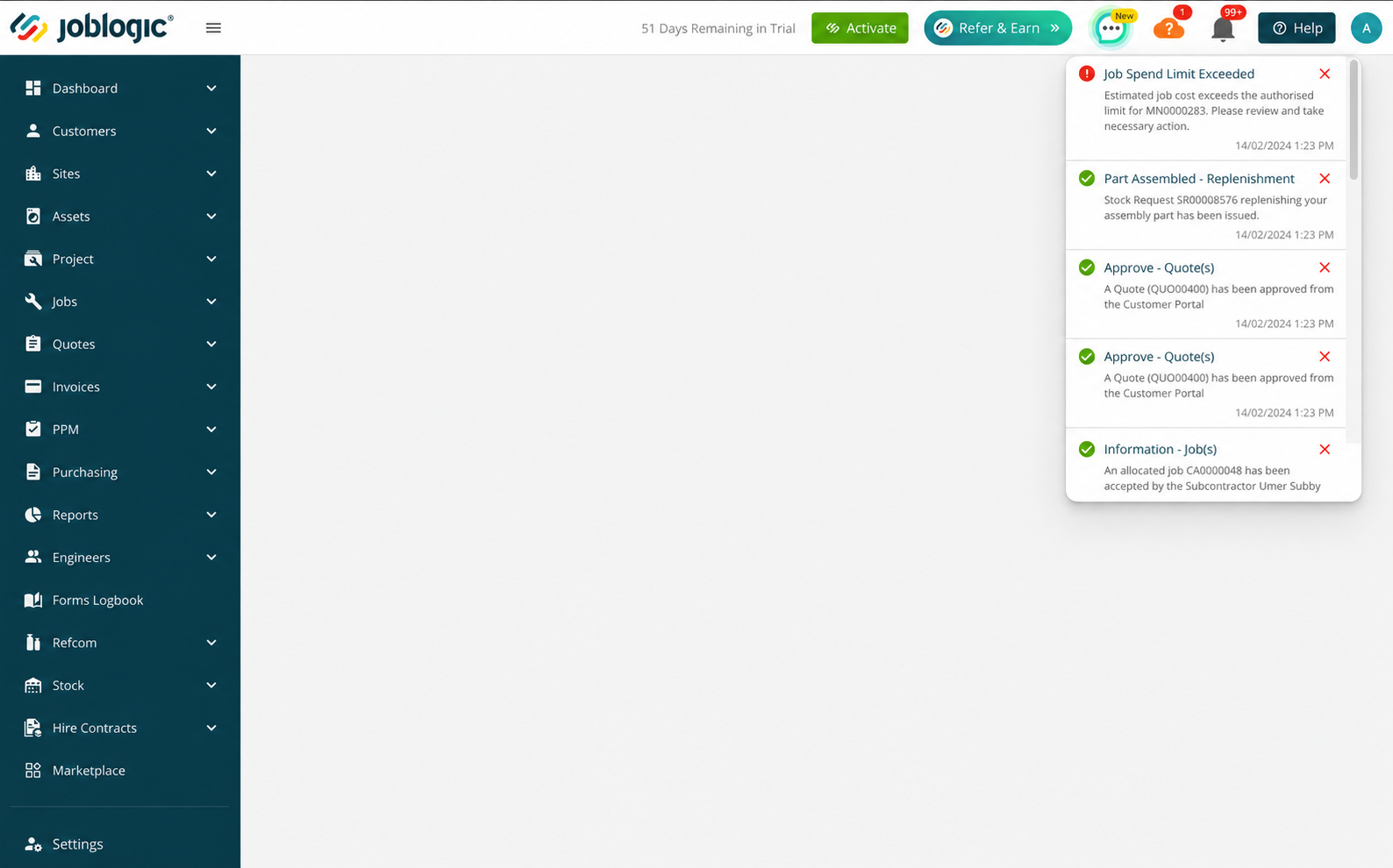
The banner indicates whether the estimate is within the available limit or has exceeded it.
Select View Detail to open the estimation and review the submitted labour, travel, mileage and material values together with the applicable spend-limit information.
Changing the Job Spend Limit
Where additional spend has been approved, an authorised Back Office user can update the Job Spend Limit on the job.
If the Job Spend Limit is changed after a visit has already been deployed, the visit must be redeployed before the updated value is available to the engineer in the Mobile App. Once redeployed, the new value is synchronised to Mobile.
Viewing the Job Spend Limit in the Customer Portal
Customer Portal users can view the Job Spend Limit from the Job Details section. The value is read-only and reflects the latest limit applied to the job.
If no Job Spend Limit has been set, the field is not displayed.
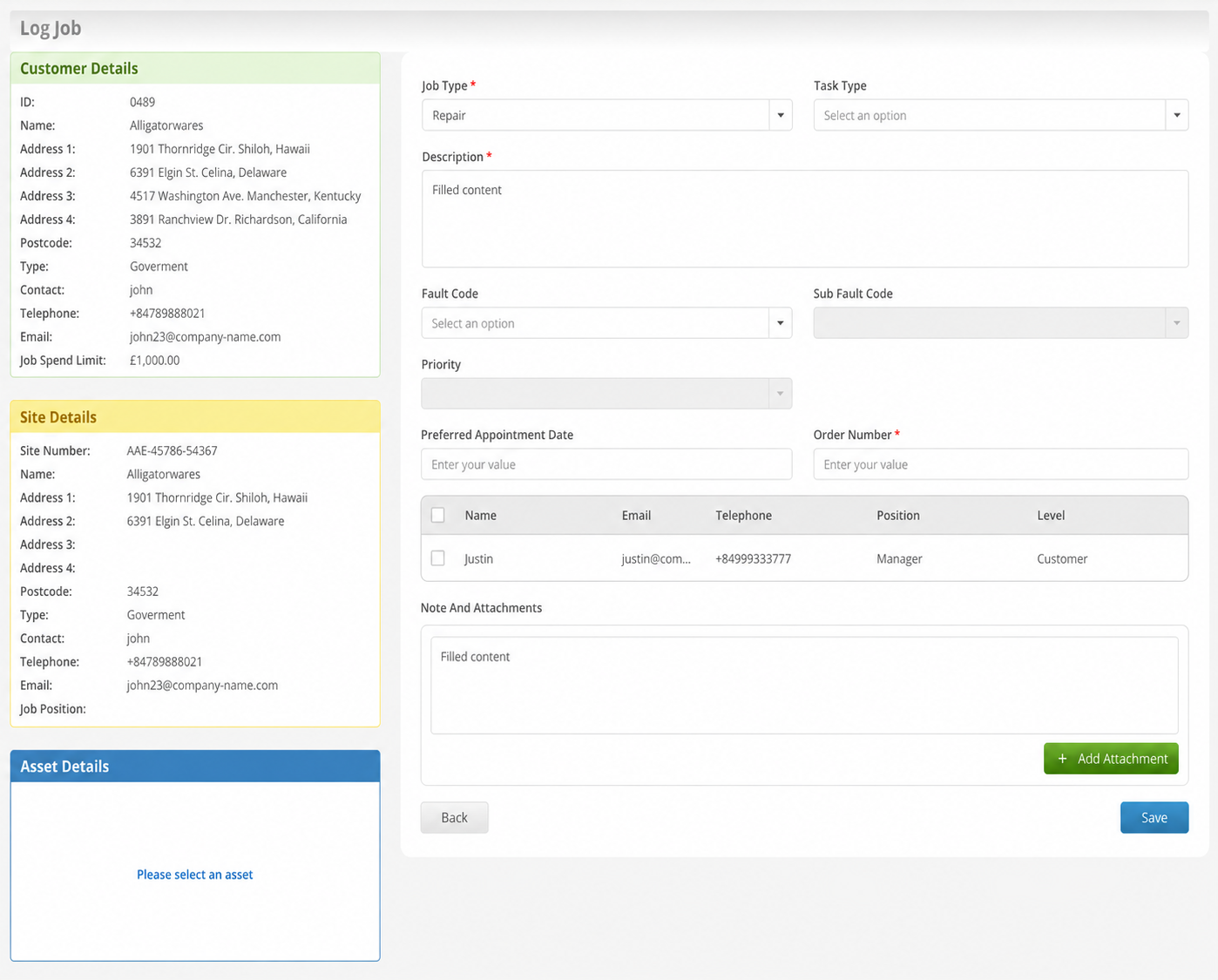
When logging a new job in the Customer Portal, the Job Spend Limit is displayed after the relevant customer is selected. The value is read-only and reflects the limit configured for that customer.
Completed jobs
Once a job has been completed, any existing spend estimate can still be viewed but cannot be changed. If no estimate was created before completion, the estimator remains read-only.
Further Support
For further information or assistance with the above, contact our Support Team on 0800 326 5561 or email support@joblogic.com. Alternatively, our Customer Success Management team can be reached by emailing customersuccess@joblogic.com
Publishing Details
This document was written and produced by Joblogic's Technical Writing team and was last updated on the date stated above. Be aware that the information provided may be subject to change following further updates on the matter becoming available or new releases within the system. Additionally, details within the guide may vary depending on your Joblogic account's user permissions and settings or the electronic device being used.