Price Lists
Selling Rates traditionally allow you to apply one uplift percentage to material costs. This works when the same margin is suitable for every part, but it provides limited flexibility when different categories require different pricing or when customers purchase parts in bulk.
The Price Lists app gives you greater control over how parts and materials are priced. You can define a default calculation method, apply alternative rules to individual Part Categories and add quantity-based tiers so the selling price changes when larger quantities are purchased.
Once a Price List is assigned to a Selling Rate, Joblogic uses the relevant pricing rule whenever materials are charged through that rate. This supports more consistent pricing while reducing the need to calculate or amend prices manually.
In this guide, we’ll show you how to access Price Lists, configure calculation methods, create category exceptions and quantity tiers, assign categories to parts, link a Price List to a Selling Rate and delete a Price List when it is no longer required.
Why use Price Lists?
Price Lists provide a more flexible approach than applying one uplift percentage to all materials. They allow you to:
• Apply category-based pricing: Use different calculation rules for different types of parts.
• Support bulk pricing: Reduce a markup or set a fixed price when the purchased quantity reaches a defined threshold.
• Maintain consistent pricing: Apply the same rules whenever the Price List is used through a Selling Rate.
• Reduce manual changes: Allow Joblogic to select the relevant rule using the part category and quantity.
Accessing Price Lists
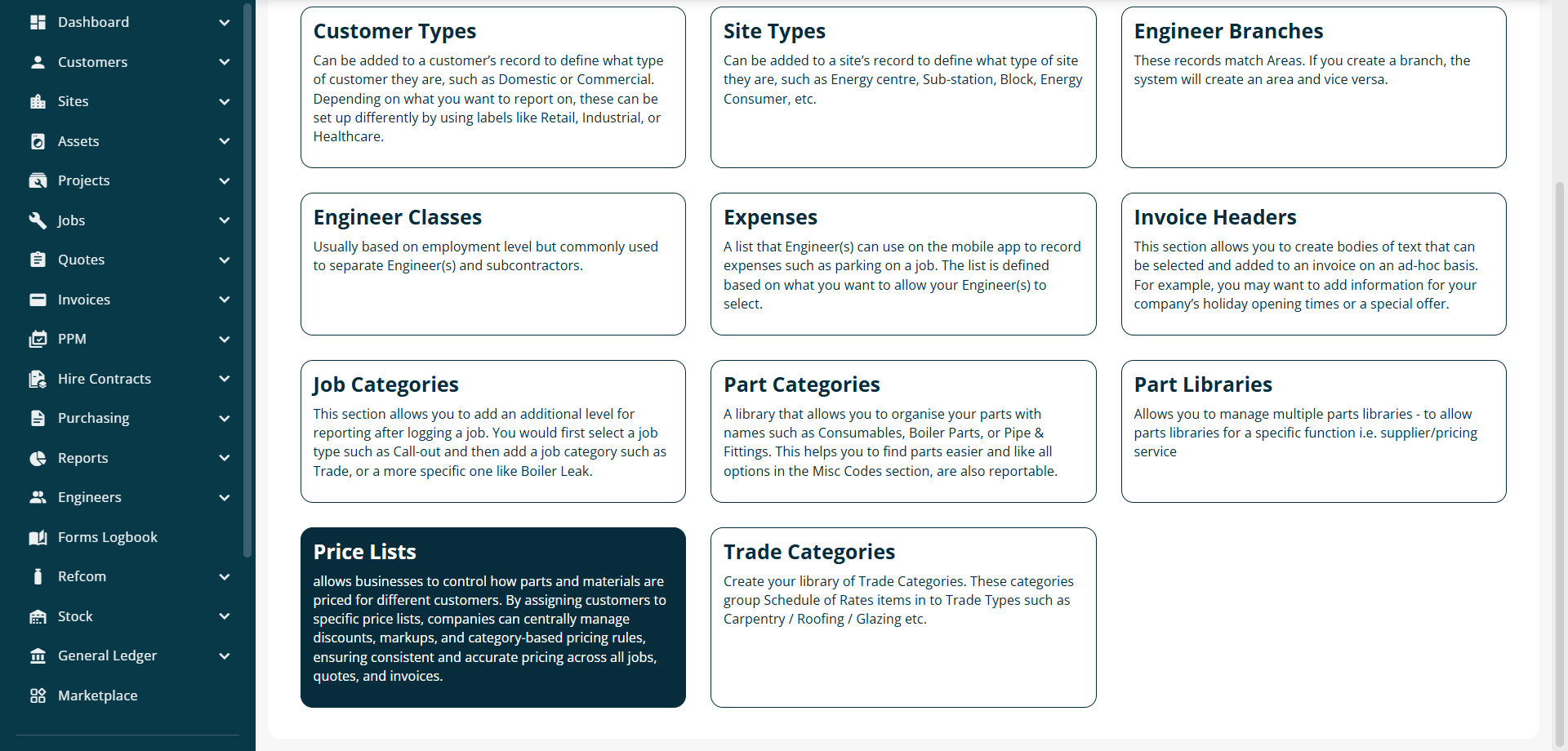
Navigate to Settings > Library > Misc.
From the Misc library page, select Price Lists.
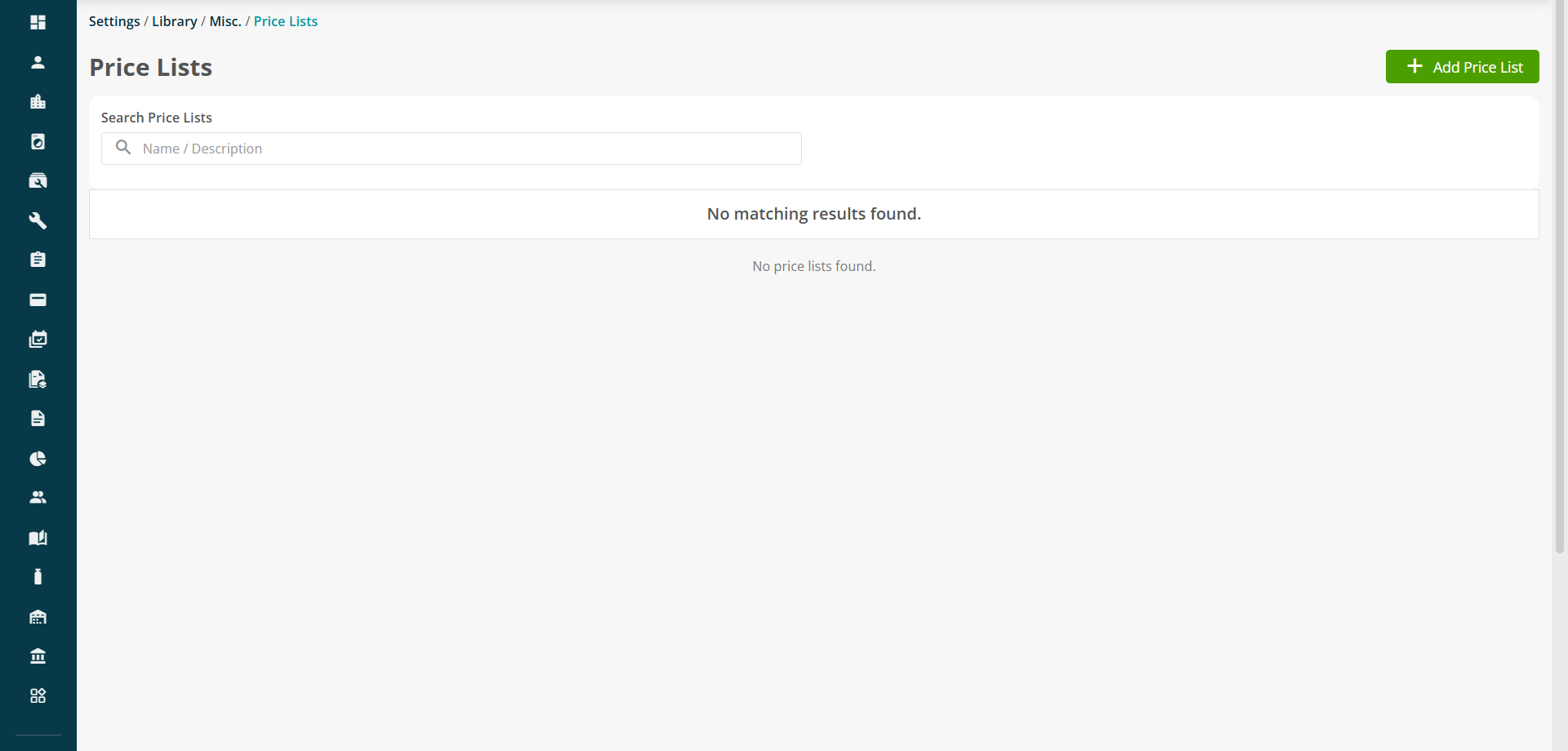
The Price Lists page displays existing Price Lists and allows you to search by name or description.
To create a new Price List, click Add Price List in the top-right corner of the page.
Creating a Price List
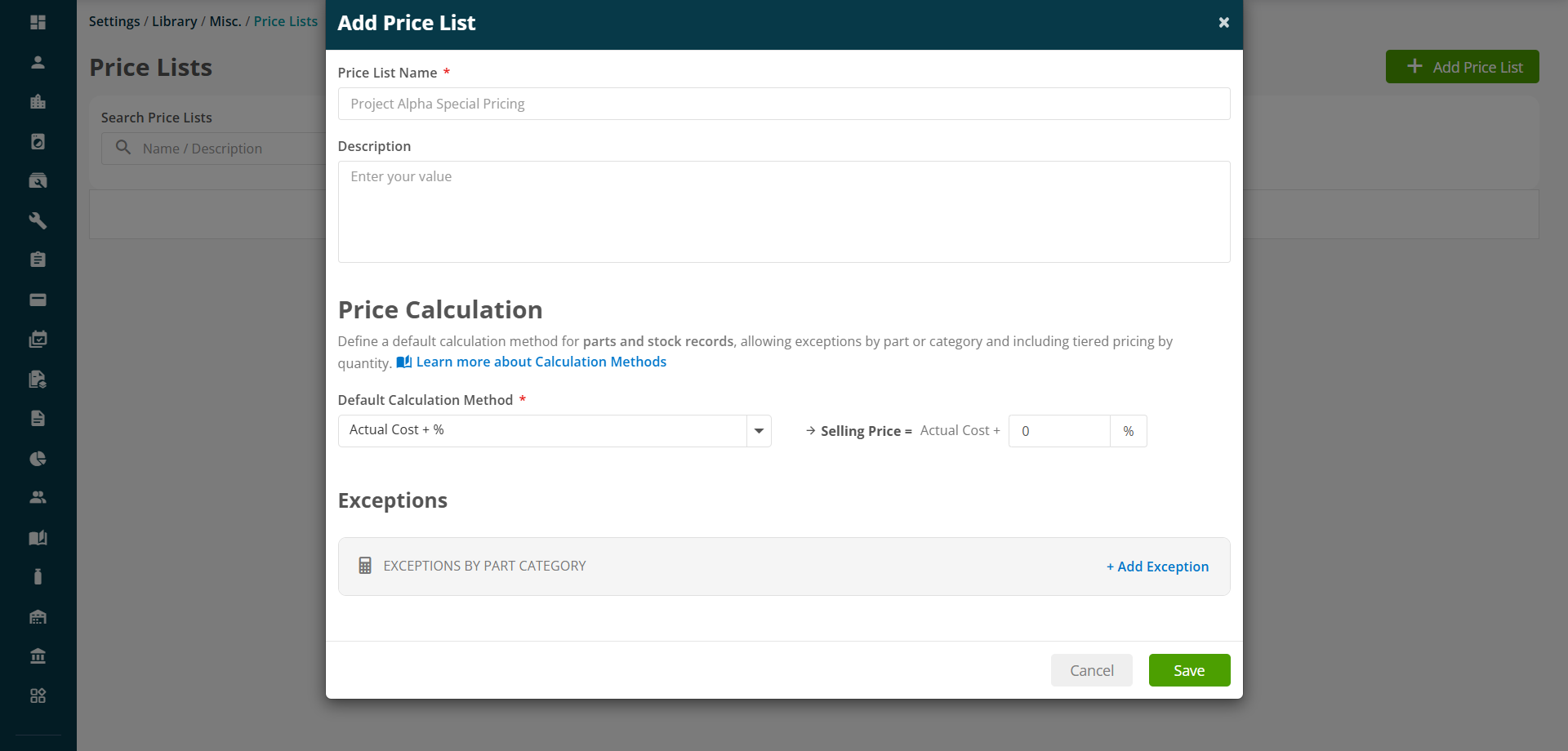
Enter a Price List Name. You can also add a description to explain where or when the Price List should be used.
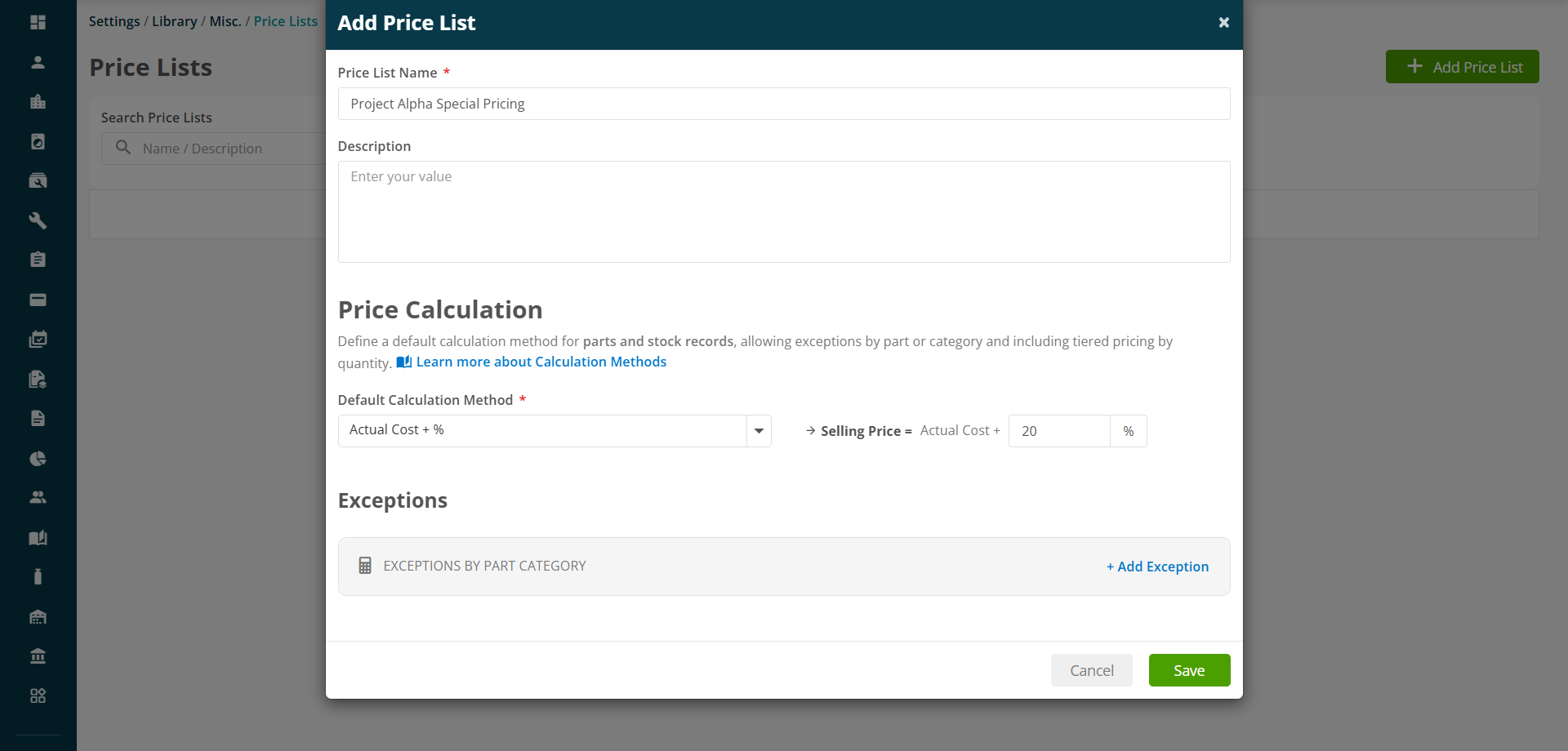
Under Price Calculation, select the Default Calculation Method and enter the required percentage or fixed value.
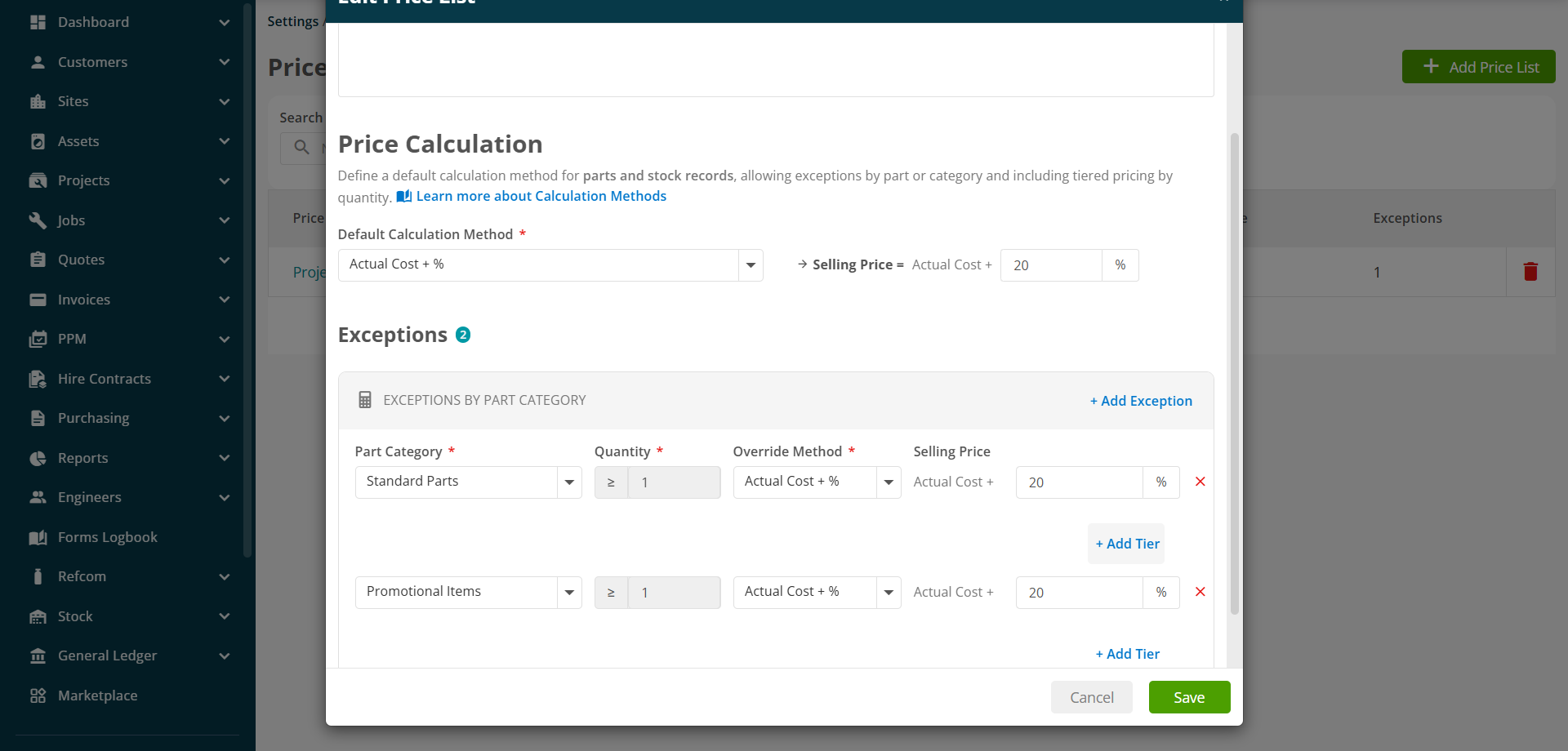
The default method is used whenever a part does not match an exception in the Price List. In this example, the selling price is calculated by adding 20% to the Actual Cost.
Understanding the pricing values
The calculation methods use pricing values held against the part:
• Actual Cost: The average purchase cost recorded for the part from supplier purchasing activity. This value may change as the part is purchased at different prices.
• Standard Cost: The buying or library cost held against the part and used as a consistent cost value for pricing.
• Standard Price: The Sell Per Unit value held against the part in the Parts Library.
• Special Price: A fixed selling price entered directly into the Price List rule.
Note: The values available to users may depend on how parts, suppliers and stock purchasing are configured in your Joblogic account.
Selecting a calculation method
Click Learn more about Calculation Methods to view an explanation of each available option.
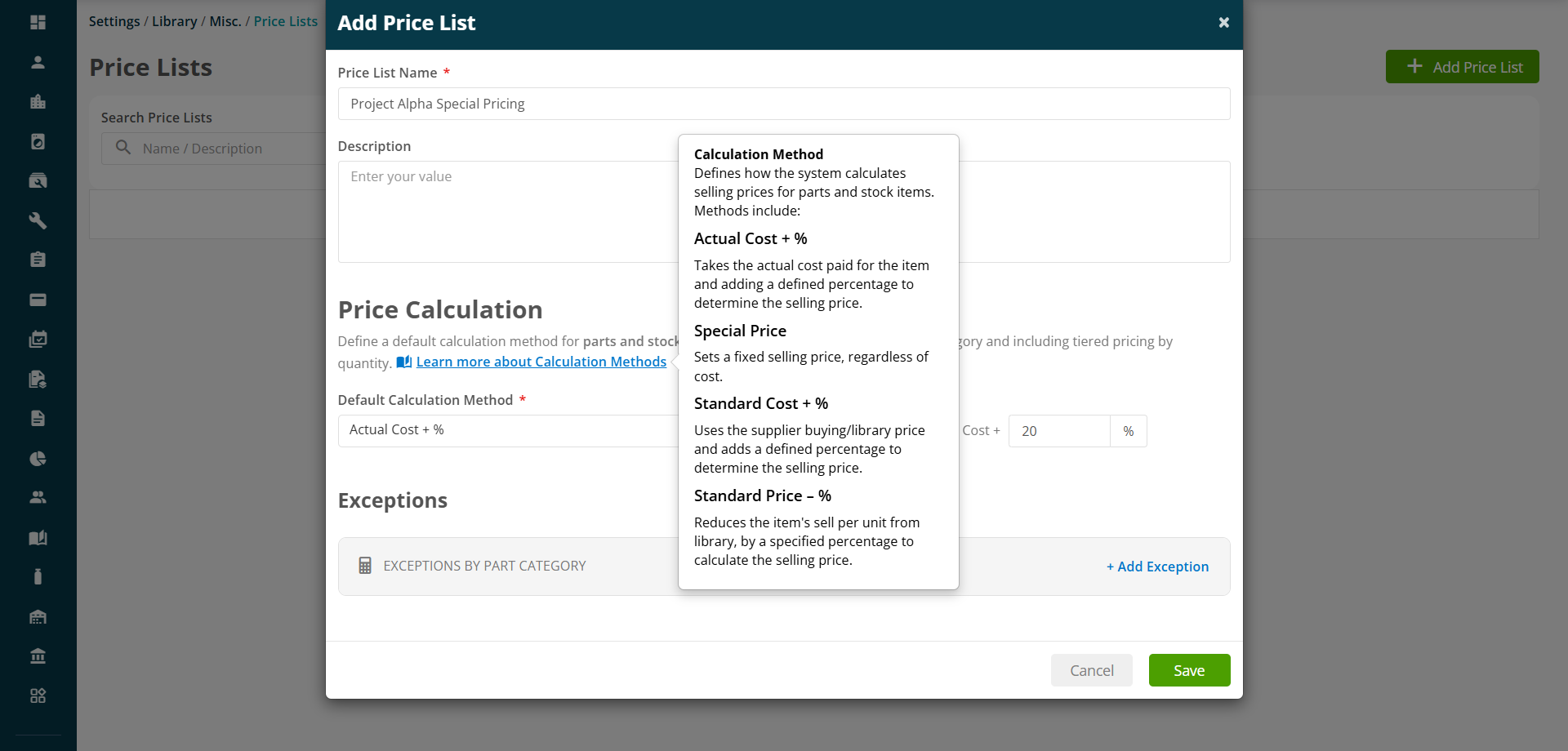
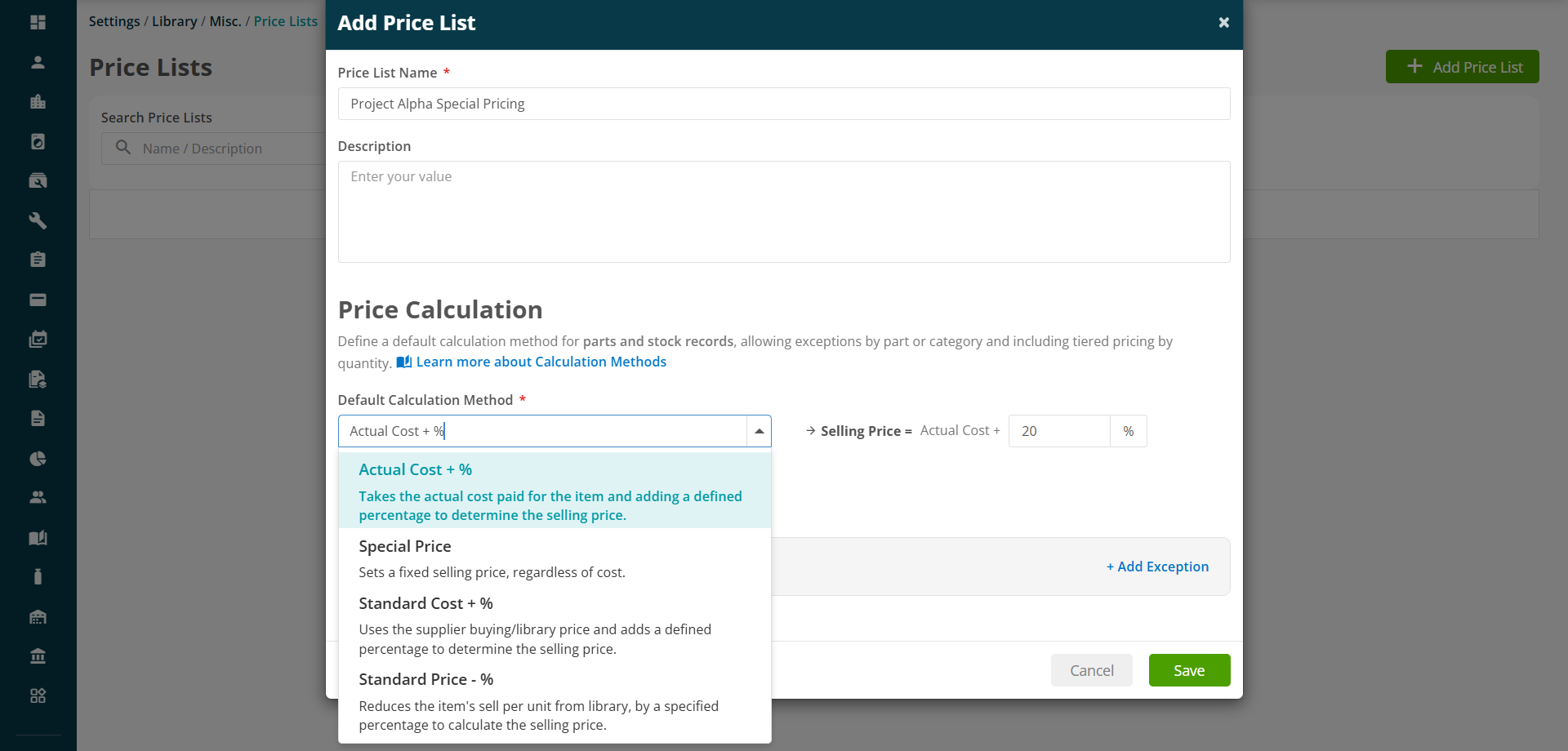
You can also open the Default Calculation Method dropdown to select one of the following:
• Actual Cost + %: Adds a percentage to the part’s Actual Cost.
• Special Price: Uses a fixed selling price, regardless of the cost held against the part.
• Standard Cost + %: Adds a percentage to the supplier buying price or library cost.
• Standard Price - %: Reduces the Sell Per Unit value held in the Parts Library by the percentage entered.
Adding exceptions by Part Category
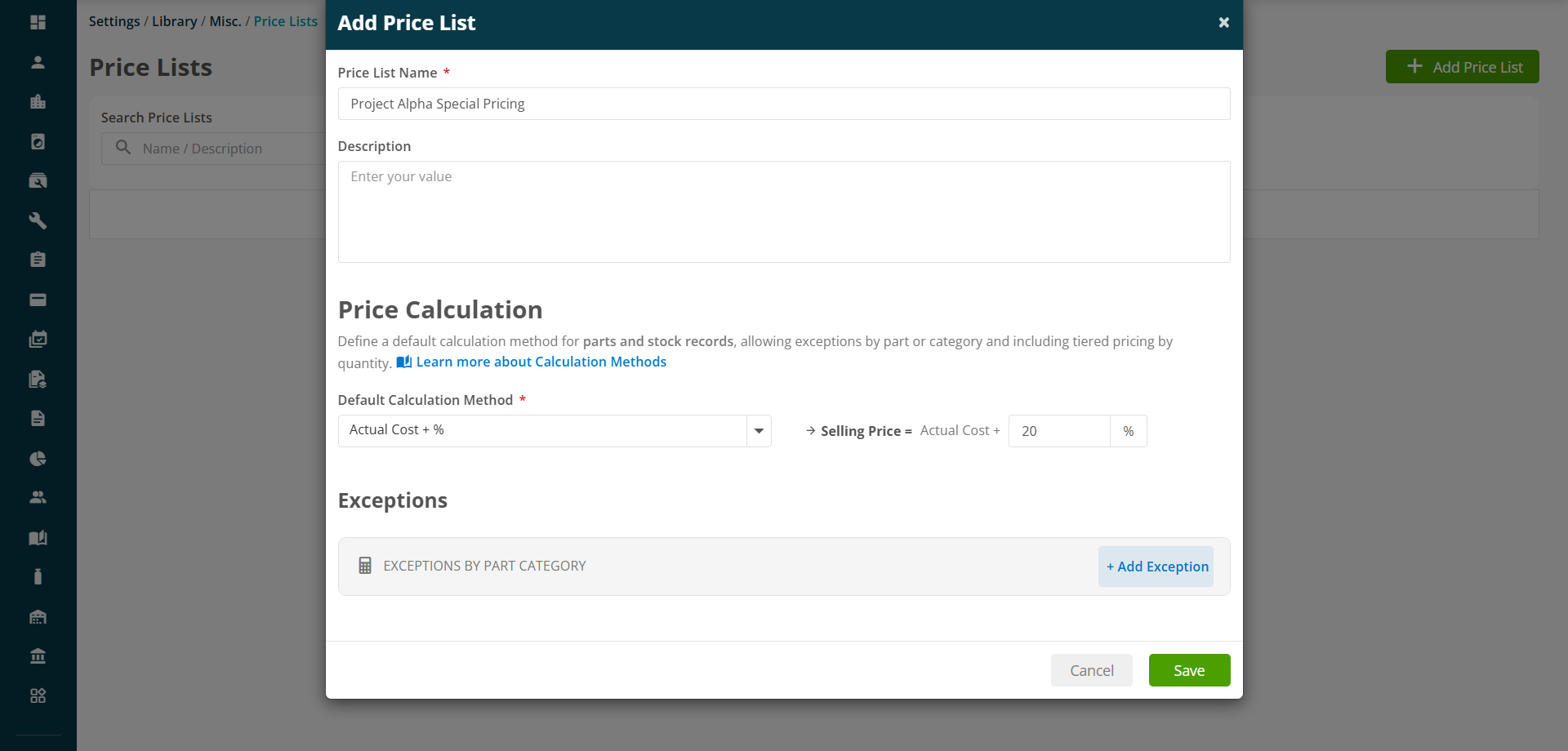
Exceptions allow a different calculation method to be used for parts belonging to a specific Part Category.
Click Add Exception.
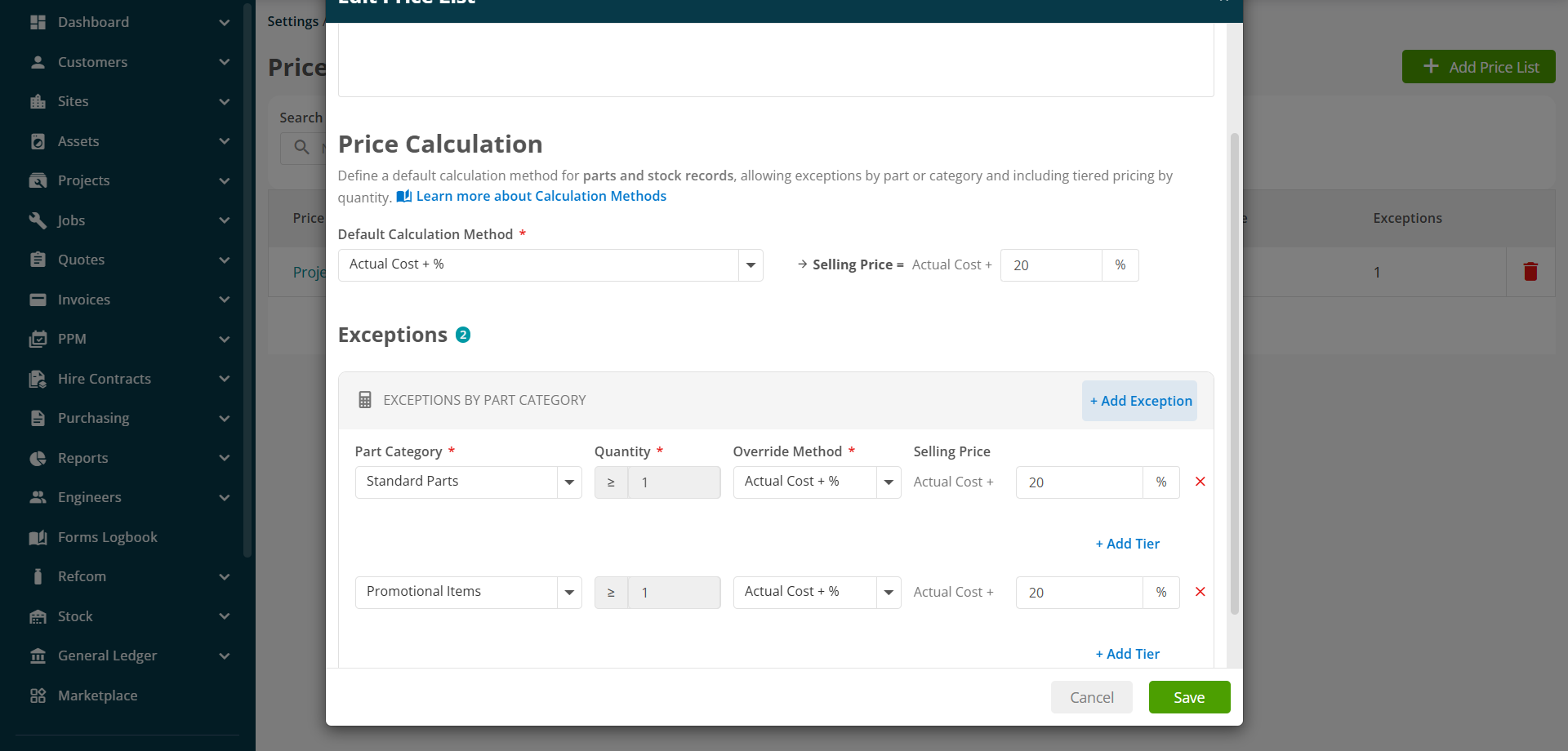
Complete the following fields for the exception:
• Part Category: Select the category of parts that the rule should apply to.
• Quantity: Enter the minimum quantity from which the rule should apply.
• Override Method: Select the calculation method that should replace the default method.
• Selling Price: Enter the percentage or fixed price required by the selected override method.
To create rules for another category, click Add Exception again. Use the red cross beside a row to remove an exception.
Adding quantity-based pricing tiers
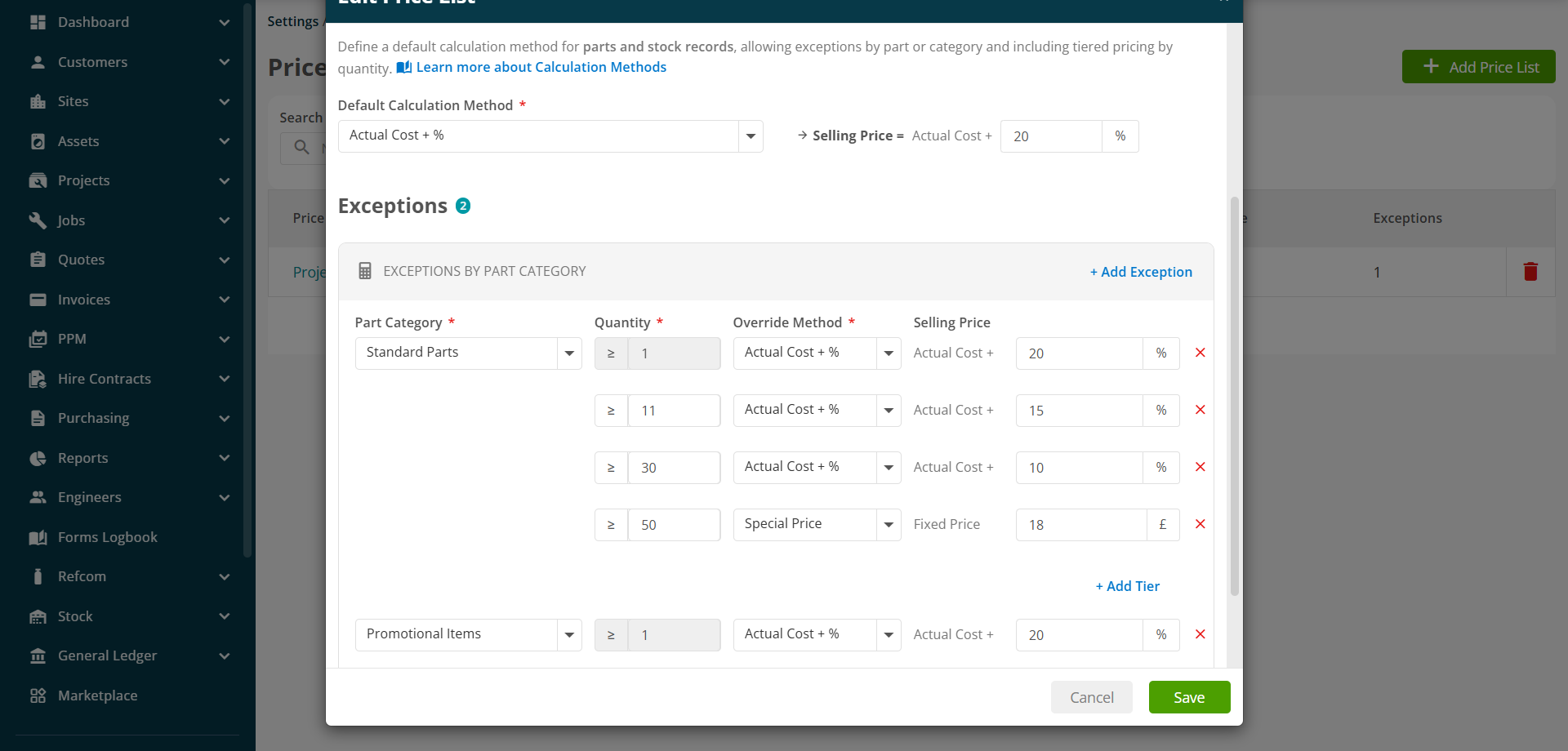
You can create multiple tiers within the same Part Category so the pricing rule changes when the quantity reaches a defined level.
Click Add Tier beneath the relevant Part Category.
Enter the minimum quantity for each tier, then select its calculation method and pricing value. In the example below, the markup reduces as the quantity increases, before changing to a fixed Special Price at the highest tier.
When a material is added, Joblogic checks the part category and quantity and applies the relevant qualifying tier.
Once all details have been entered, click Save.
Editing a Price List
From the Price Lists page, click the Price List name to open it. You can update the name, description, default calculation method, category exceptions and quantity tiers, then click Save to apply the changes.
Deleting a Price List
To remove a Price List, click the red bin icon beside it on the Price Lists page.
Review the confirmation message, then click Delete to complete the process.
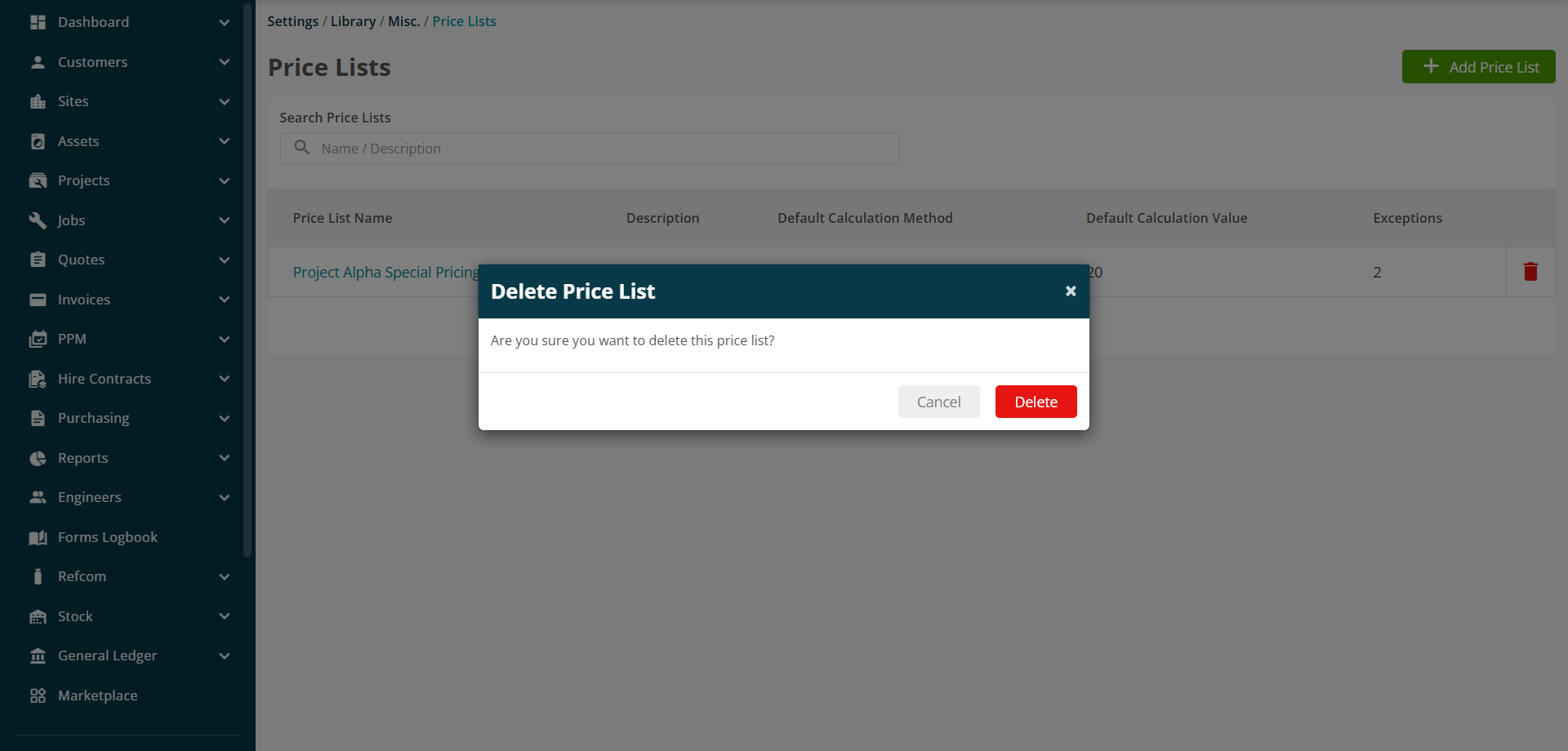
Note: A Price List that is currently assigned or in use may need to be unassigned before it can be deleted.
Assigning a category to a part
Category-based exceptions only apply when the relevant category has been assigned to the part.
Navigate to Settings > Library > Parts, then open an existing part or create a new one.
Select the appropriate value in the Category field, then click Save.
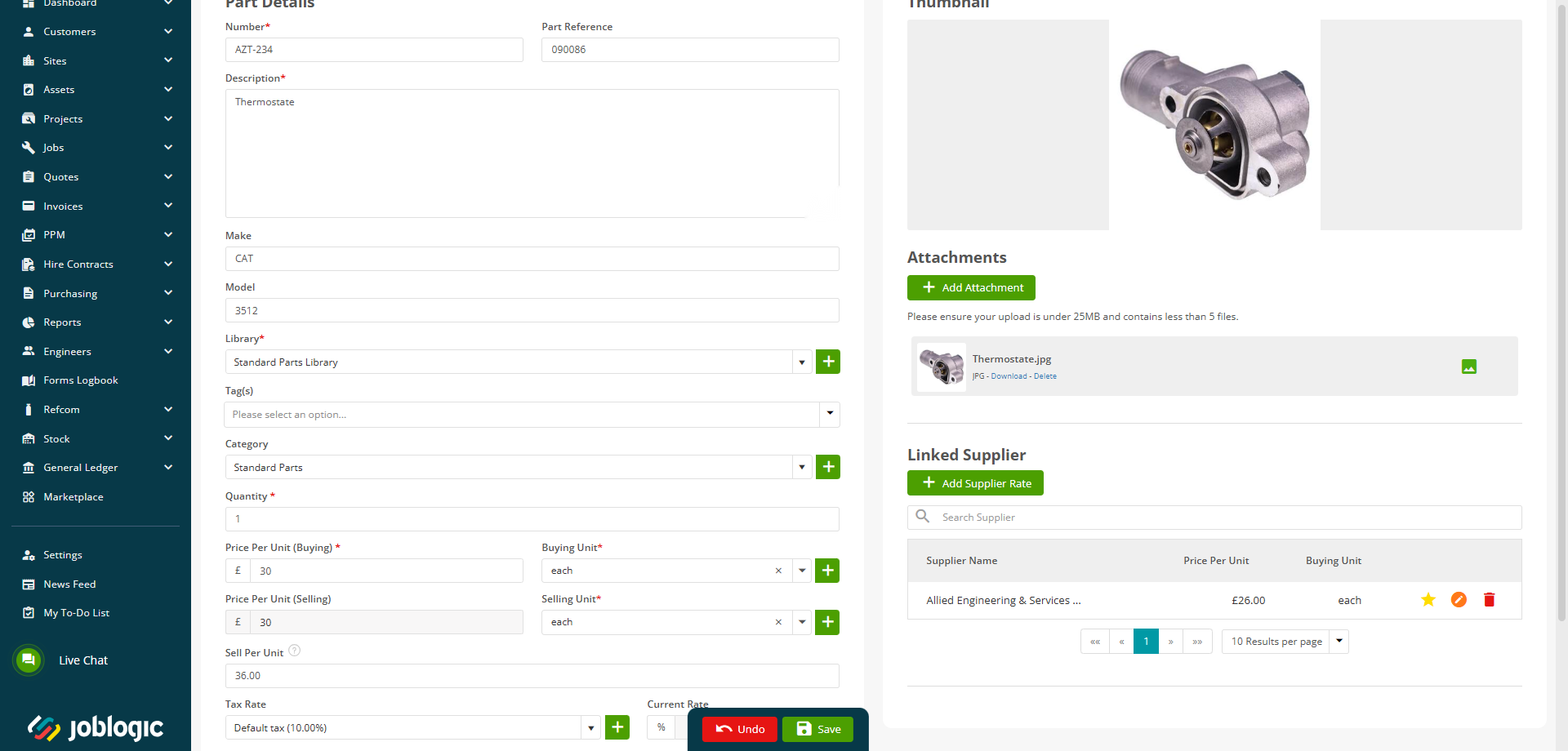
Note: If the part does not have a matching category, Joblogic uses the Price List’s default calculation method.
Assigning a Price List to a Selling Rate
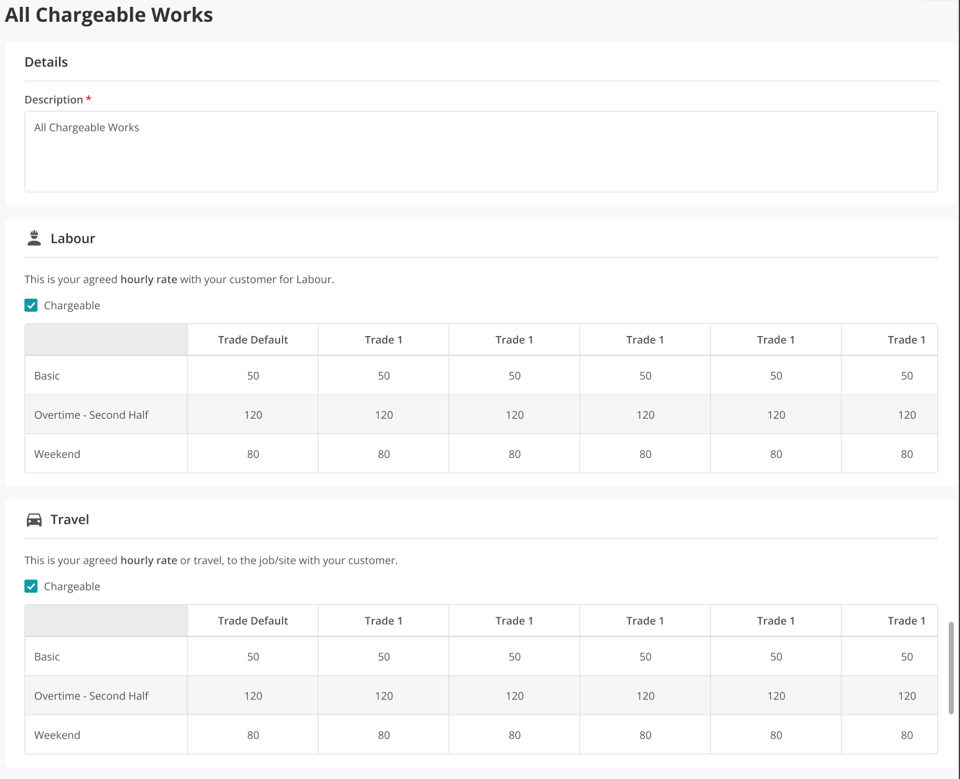
Navigate to Settings > Library > Selling Rates > All Chargeable Works.
The Selling Rate page contains the labour, travel and other chargeable pricing settings used for this rate.
Scroll to the Material section. Select Price List instead of Uplift and choose the required Price List from the dropdown.
Make sure Chargeable is enabled if material costs should be charged to the customer, then click Save.
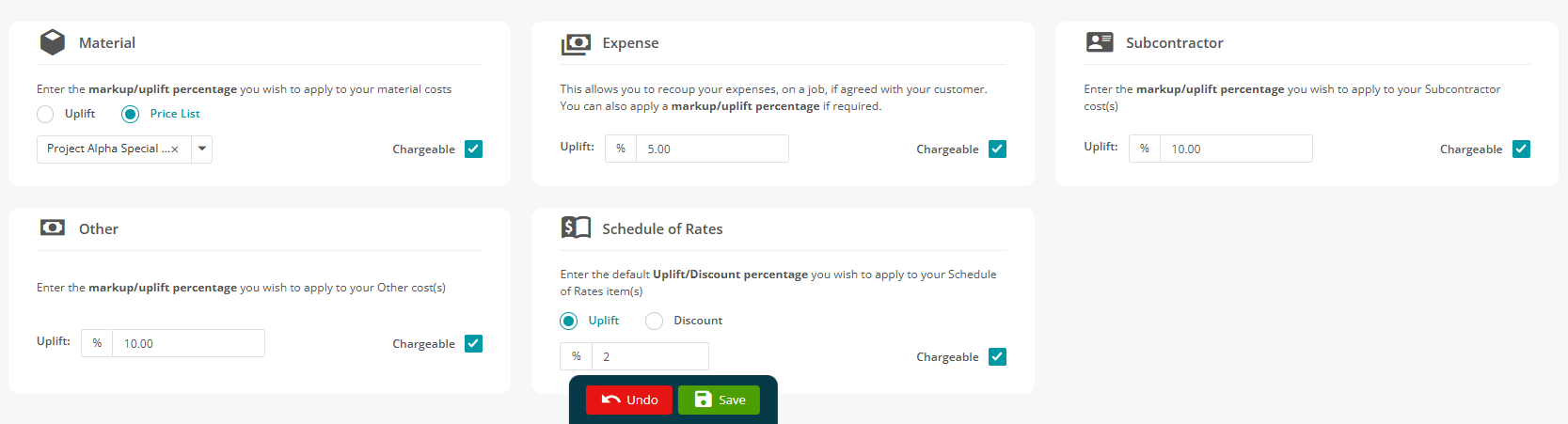
When this Selling Rate is used, Joblogic applies the selected Price List’s default rule, category exception or quantity tier to calculate the material selling price.
Further Support
For further information or assistance with the above, contact our Support Team on 0800 326 5561 or email support@joblogic.com. Alternatively, our Customer Success Management team can be reached by emailing customersuccess@joblogic.com
Publishing Details
This document was written and produced by Joblogic’s Technical Writing team and was last updated on the date stated above. Be aware that the information provided may be subject to change following further updates on the matter becoming available or new releases within the system. Additionally, details within the guide may vary depending on your Joblogic account’s user permissions and settings or the electronic device being used.