Introduction
PPM SOR Billing enables you to bill Planned Preventative Maintenance contracts against a Schedule of Rates, giving you greater flexibility when pricing jobs and visits beyond a fixed contract value.
Schedule of Rates items can be added to PPM Quotes and Contracts, with quantities automatically calculated from the planned visit schedule. These items can then be carried through to the relevant jobs and visits, helping keep billing accurate and consistent throughout the contract.
In this guide, we'll walk you through setting up SOR Billing on your PPM Quotes and Contracts, managing SOR items and quantities, and passing items to jobs and visits for billing.
SOR Billing Type
To get started, click PPM > Add PPM
Select whether you're creating a Contract or Quote, then choose your Customer and Site.
.png)
On the Selling & Billing page, you'll have the option to select Schedule of Rates Billing under Billing Type.
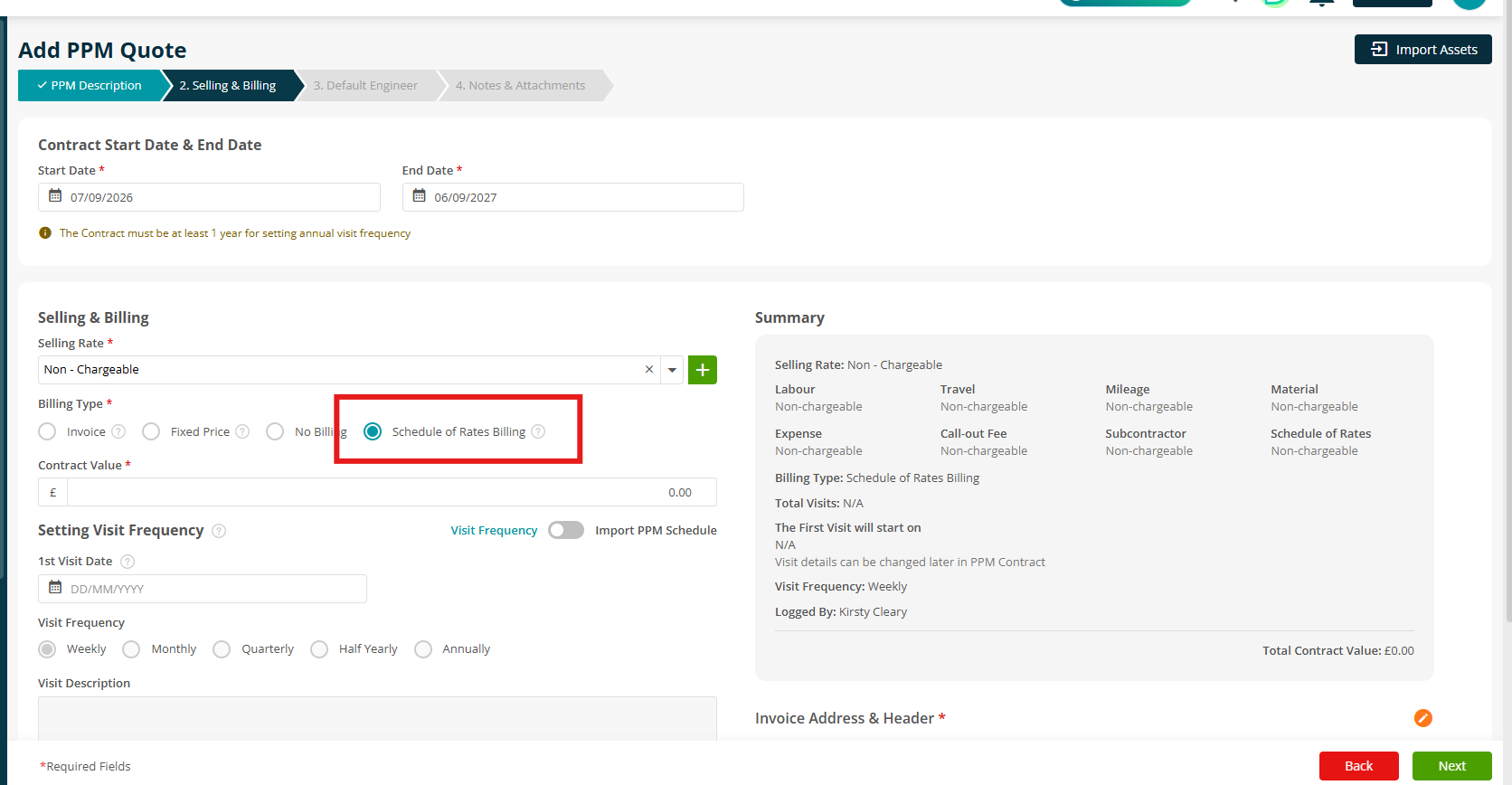
Note: Billing will be based on the Schedule of Rates (SOR) items added to the PPM. The selected Selling Rate must have SOR set as chargeable.
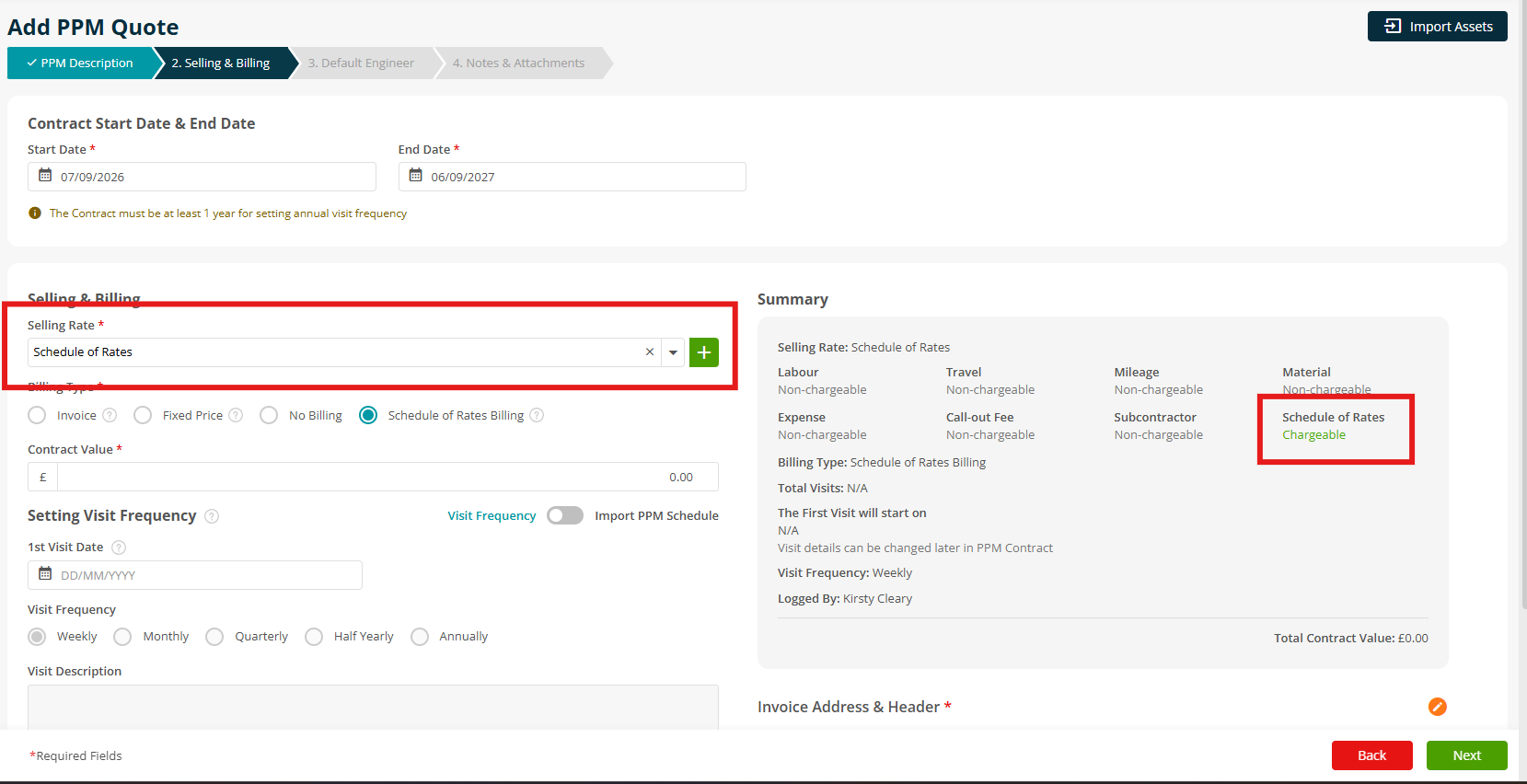
Enter the rest of your PPM details as normal, then click Create.
Check out our full guides to read more on setting up your PPM Contracts or PPM Quotes.
Adding SOR Items
Once your Contract or Quote is saved, you'll be able to add your SOR items to be billed against it.
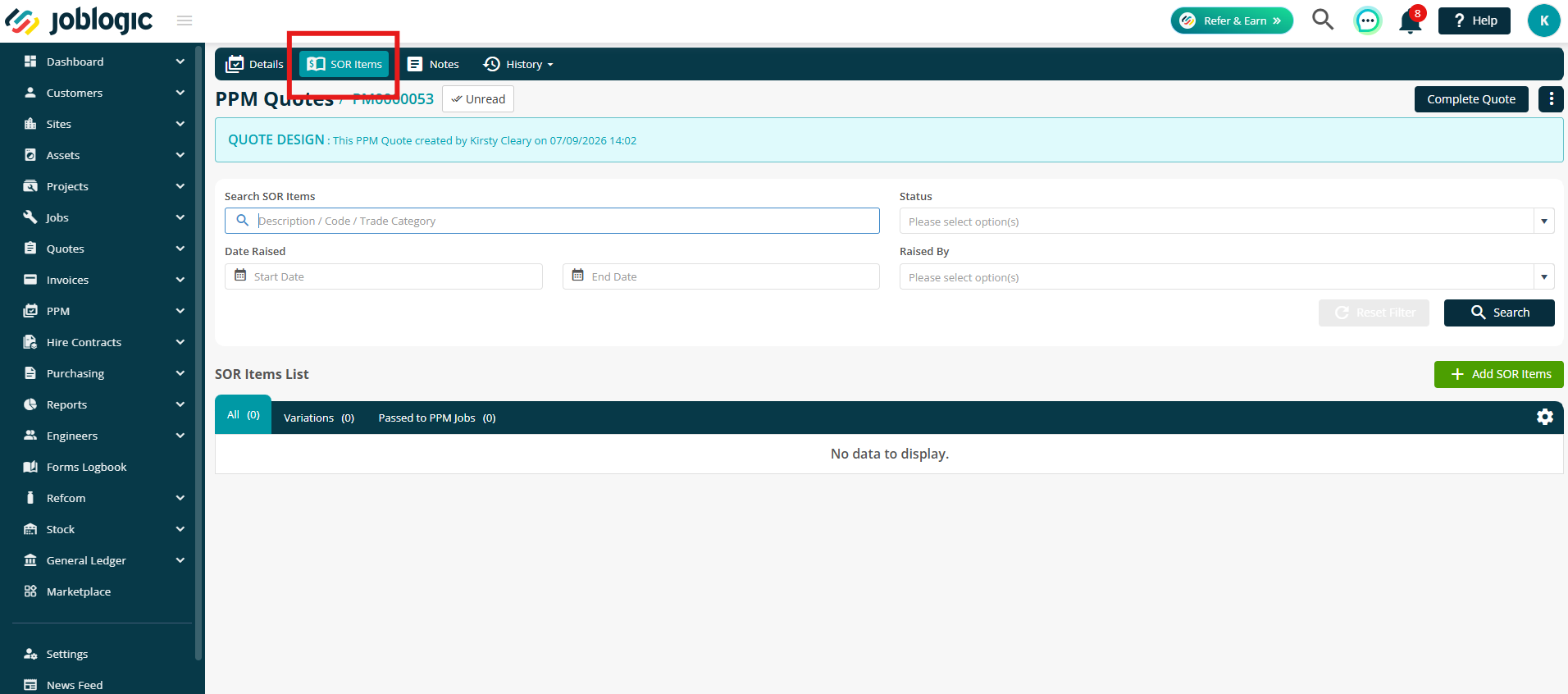
Click the SOR Items tab to get started.
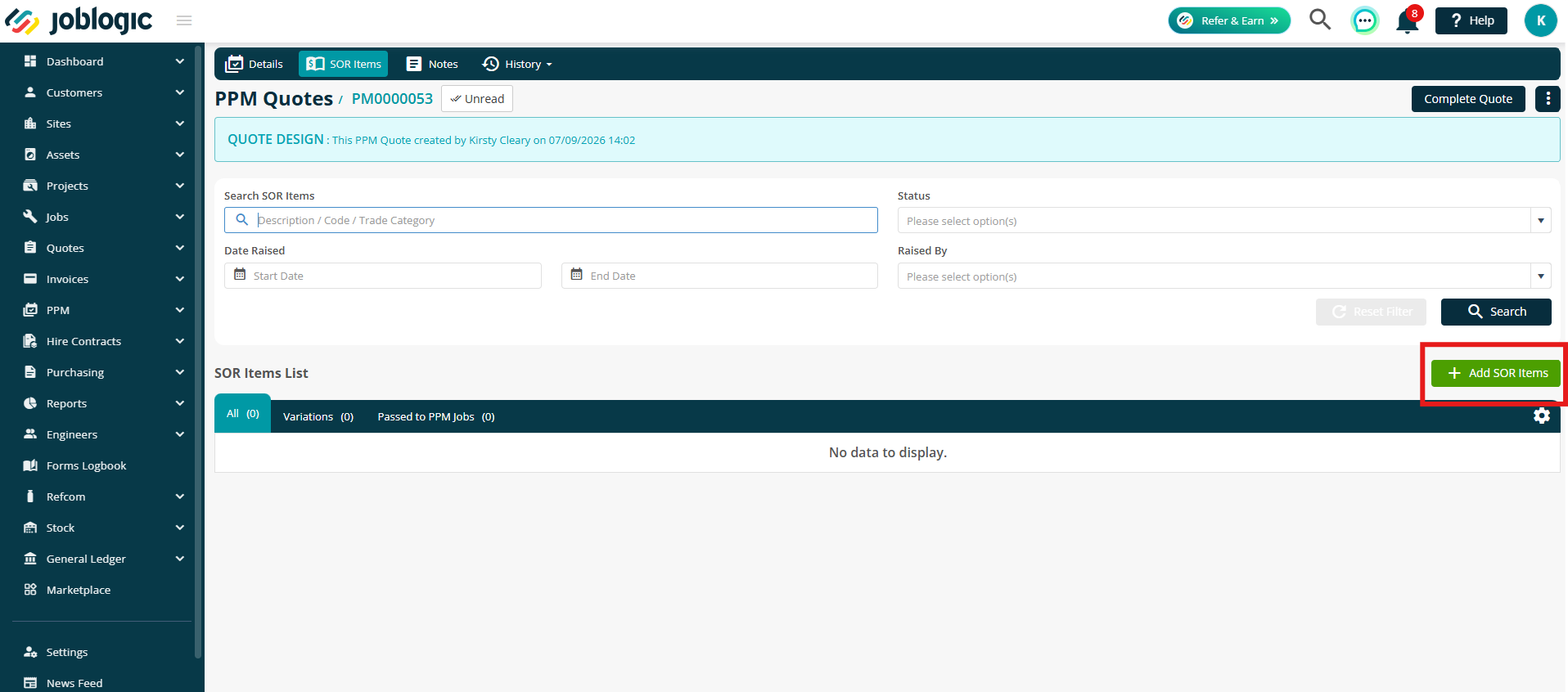
Click Add SOR Item.
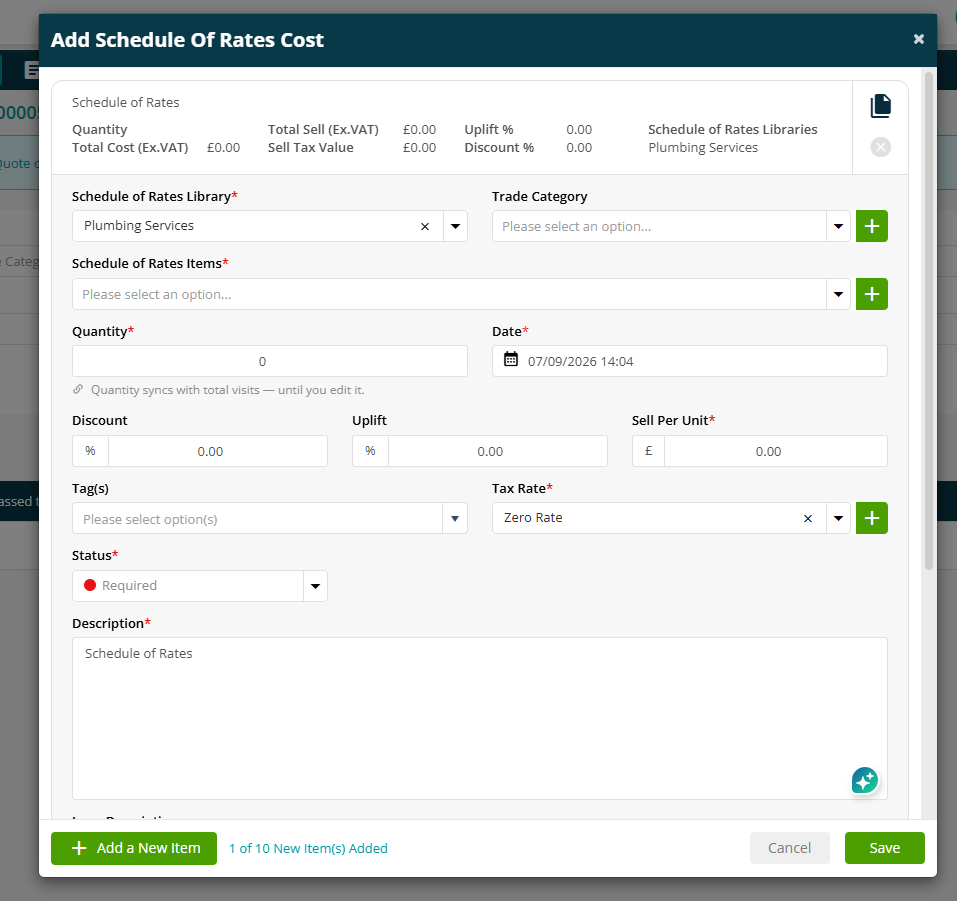
Here you can fill in your Schedule of Rates cost details and click Save.
Passing SOR Items to Jobs
Once SOR items have been added to your Contract, you can use Pass to Job(s) to allocate an item to selected jobs and visits.
Note: Make sure to add your jobs in the Visits tab before doing this next step.
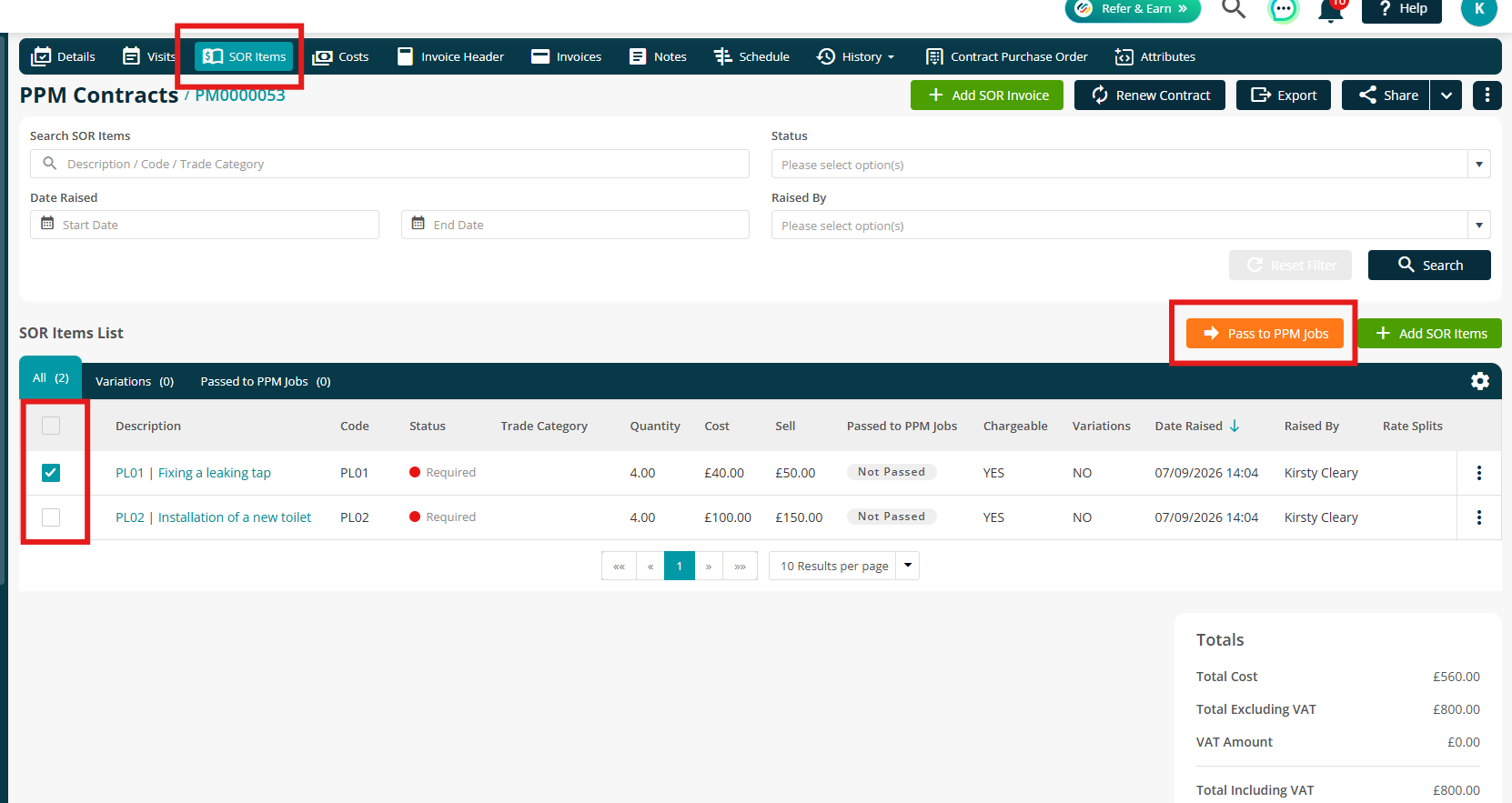
From the SOR Items tab on your PPM Contract, select the item(s) you want to allocate, then click Pass to Job(s).
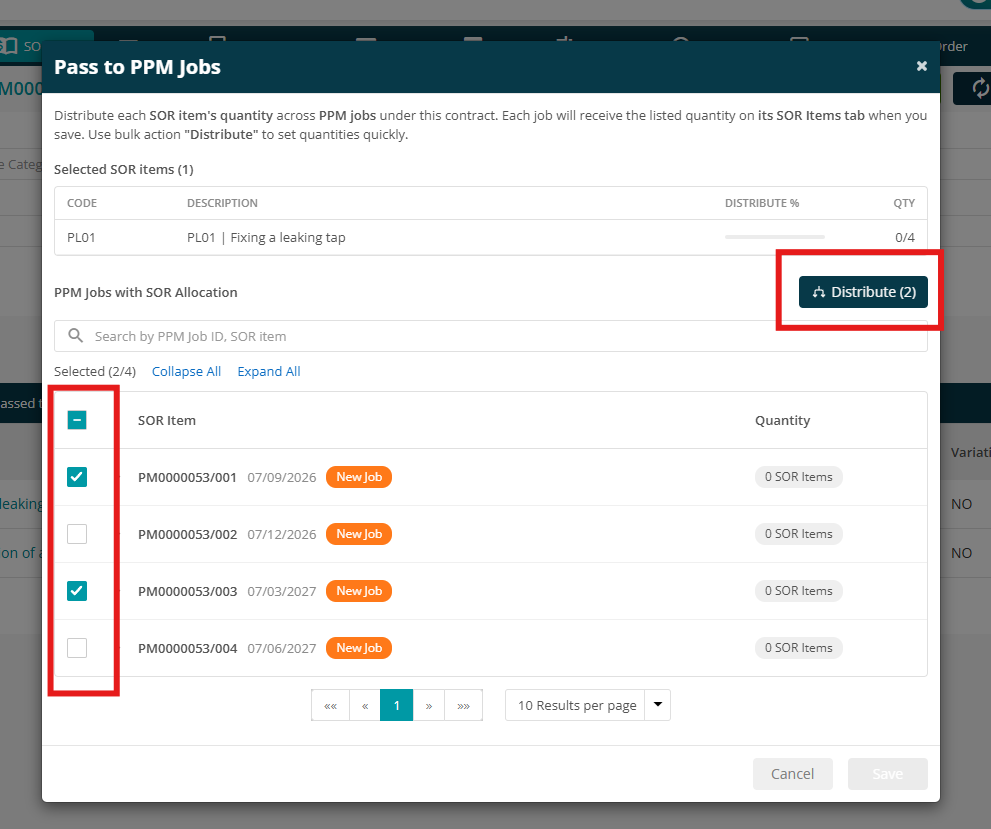
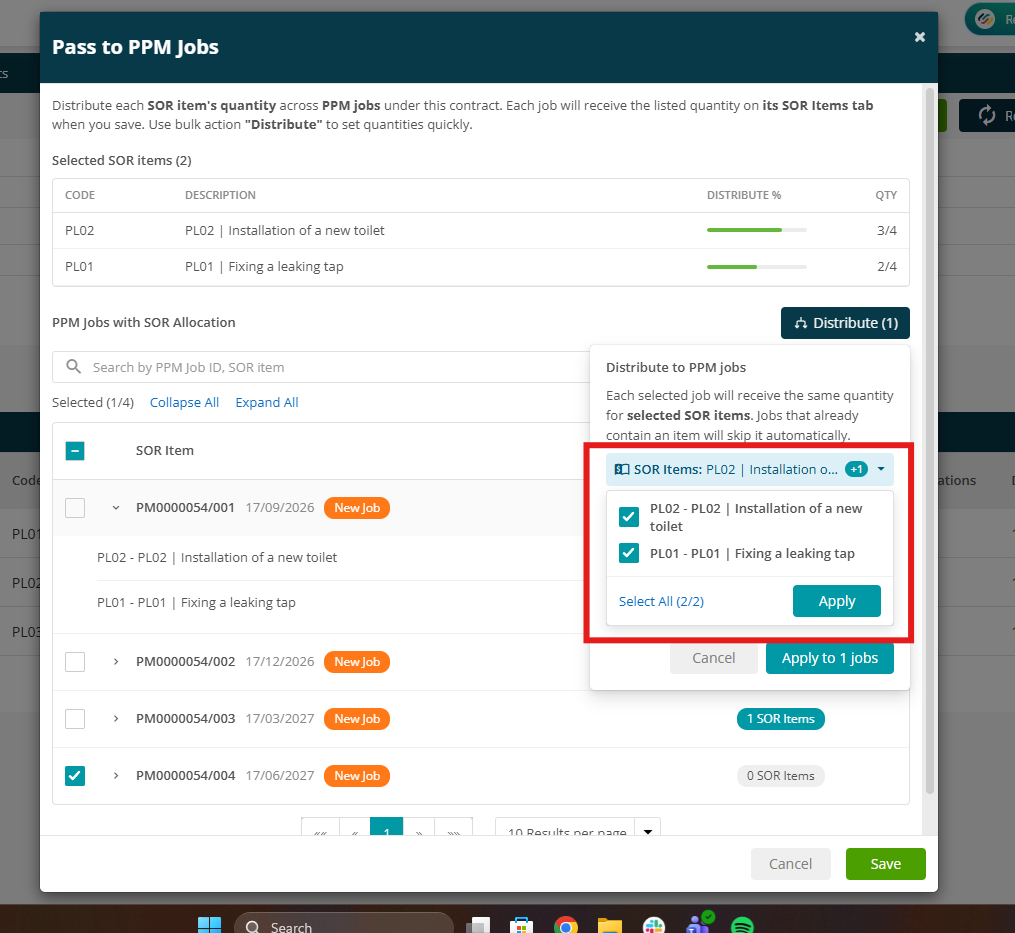
Select the jobs you'd like to assign the item to and click Distribute.
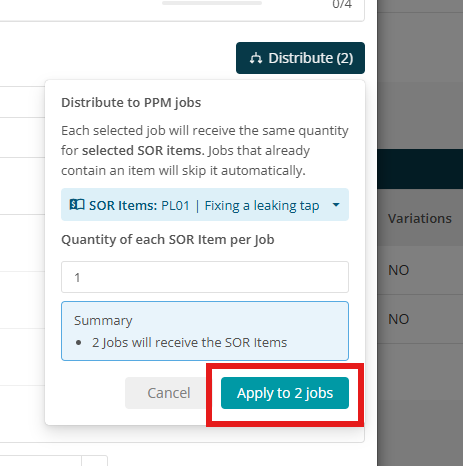
Select the Quantity of each SOR Item per Job.
Note: Each selected job will receive the same quantity for selected SOR items. Jobs that already contain an item will skip it automatically.
Click Apply to Jobs to confirm your quantities.
To apply only specific SOR Items, select the SOR Items drop-down and untick any items you don't want to apply. Then select Apply.
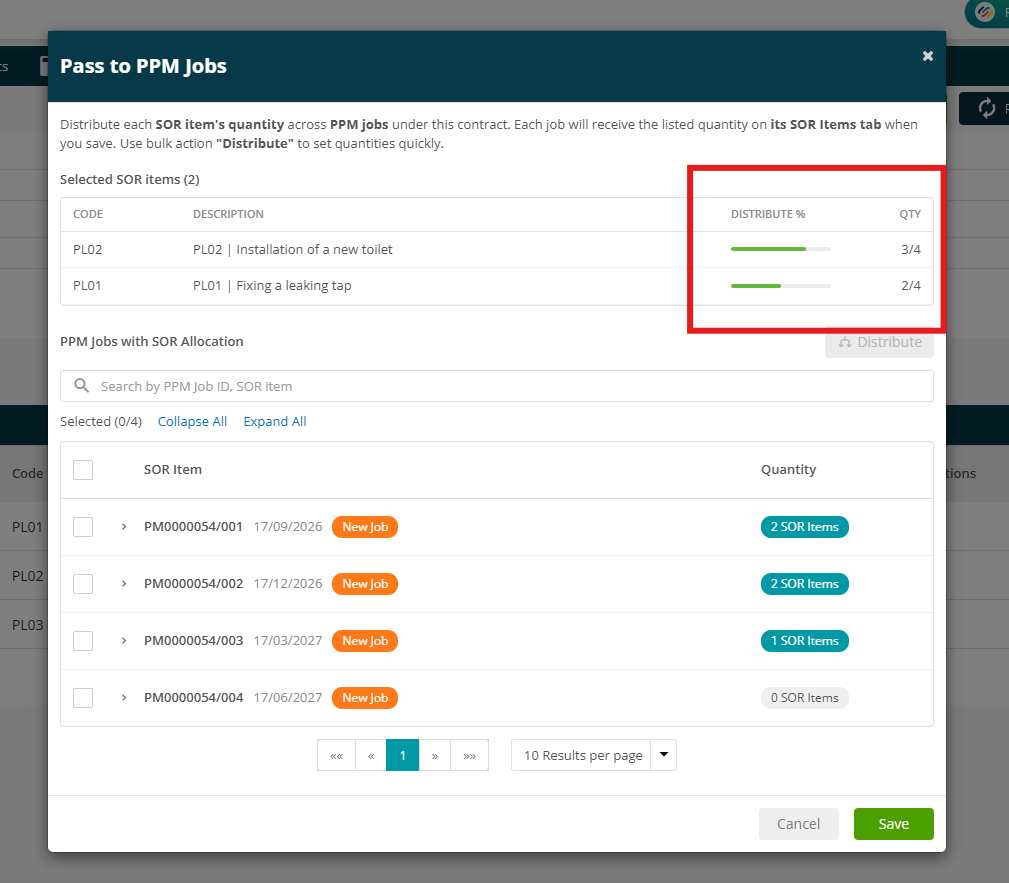
You can view which SOR Items have been assigned and see how many jobs each item has been assigned to.
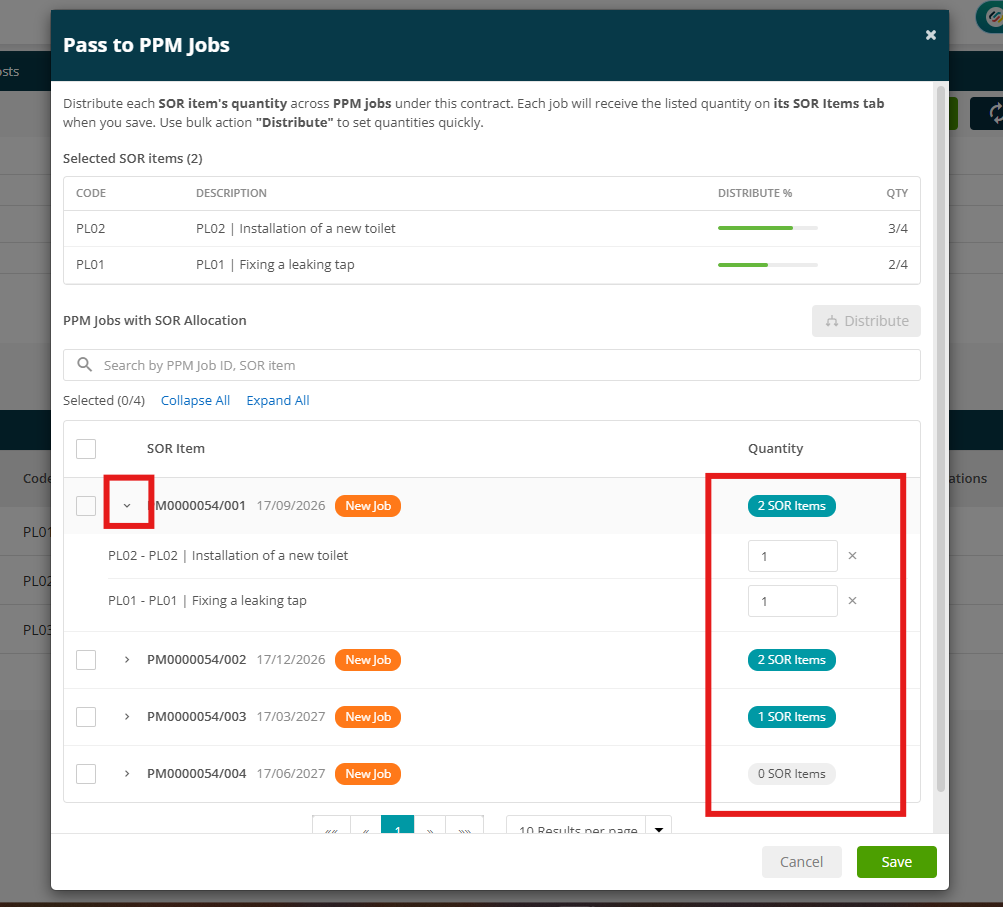
You can also view the SOR Items assigned to each individual job, including the number of items assigned.
Click Save to confirm your selections.
.png)
You'll be able to see how many have been passed under each item.
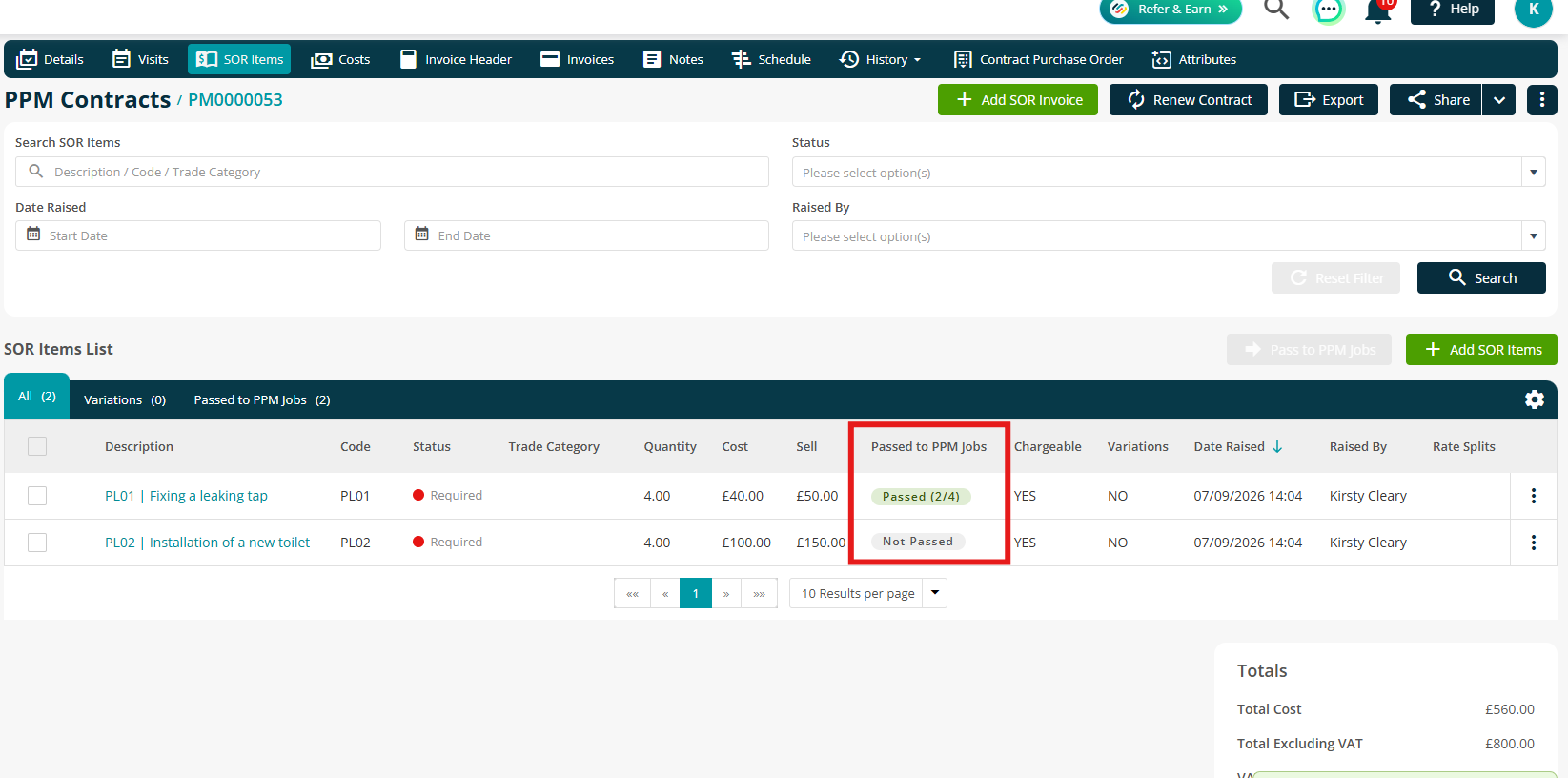
The SOR item will now appear on the SOR Items tab of each selected job, ready to be billed.
image
Passing SOR Items to Job Costs
Once an SOR item has been marked as complete, there will be an option to pass it to Job Costs.
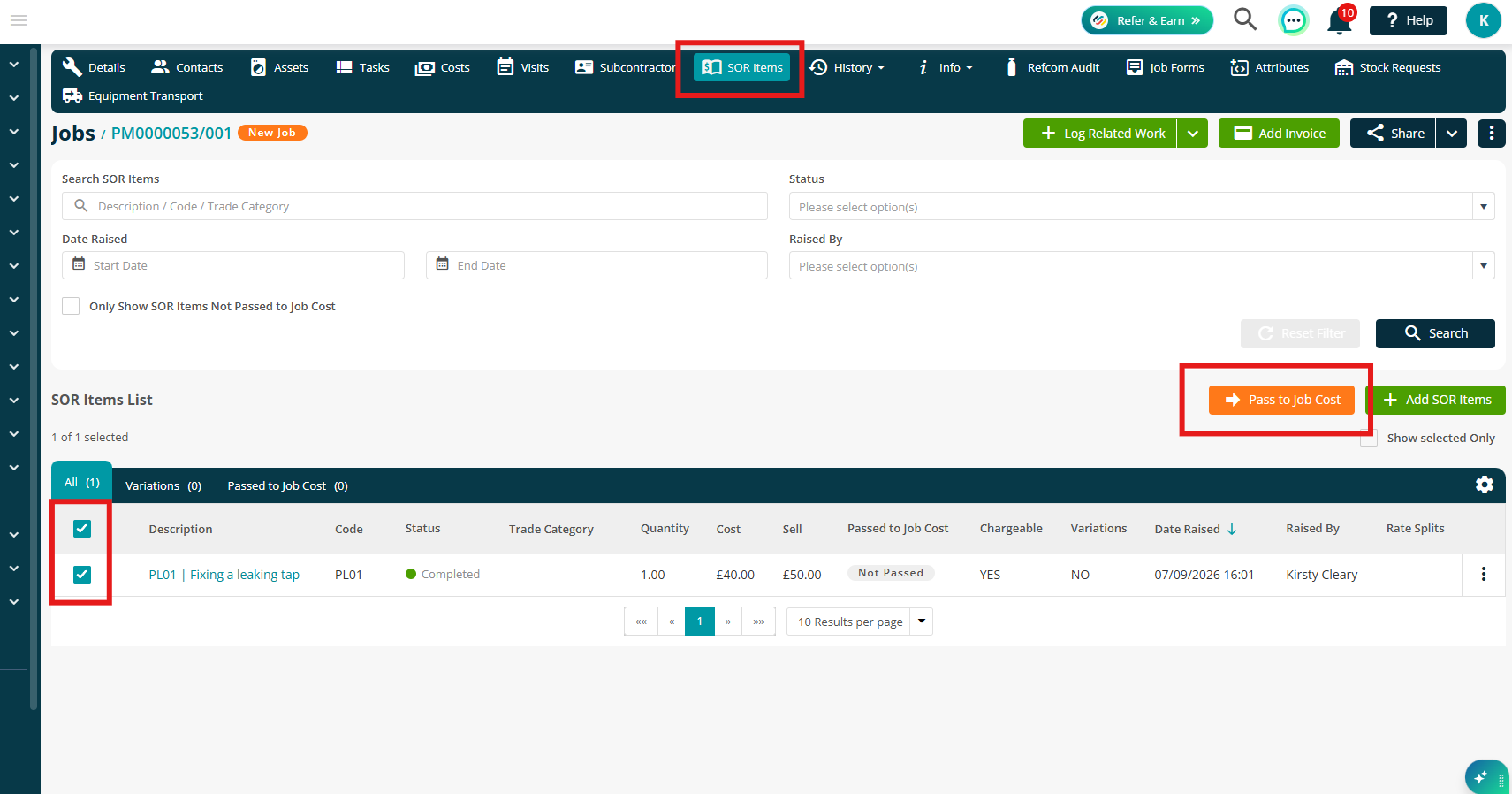
Navigate to your Job and select the SOR Items tab.
Tick the relevant SOR Item, then select Pass to Job Cost.
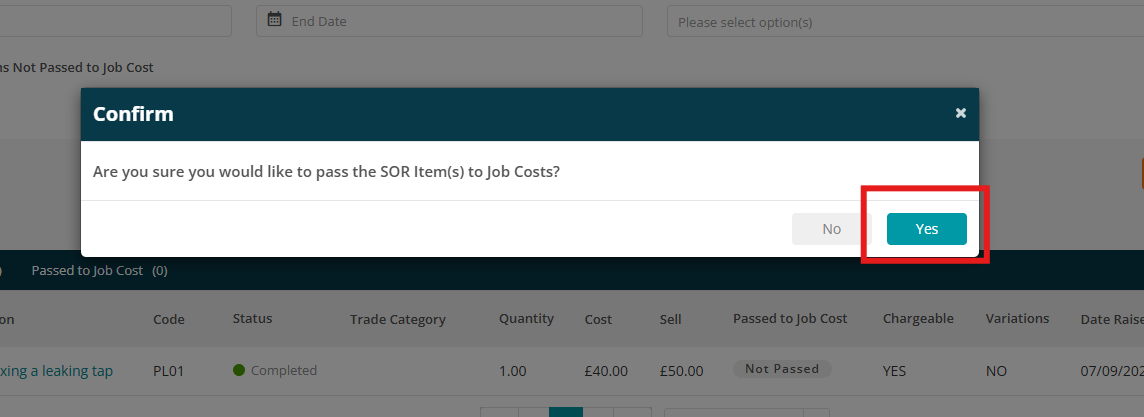
Click Yes to confirm.
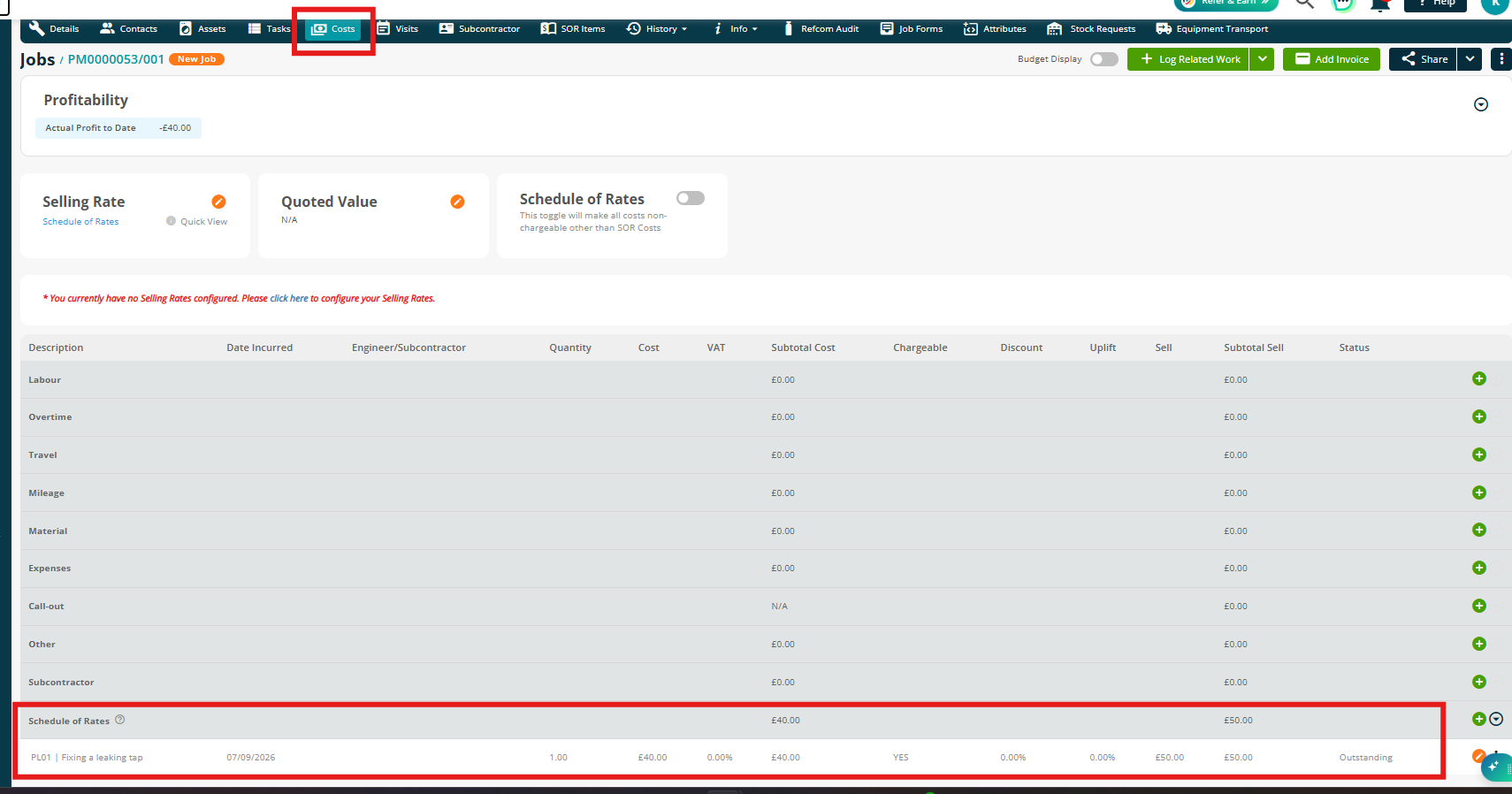
Your item will now show in the Costs tab.
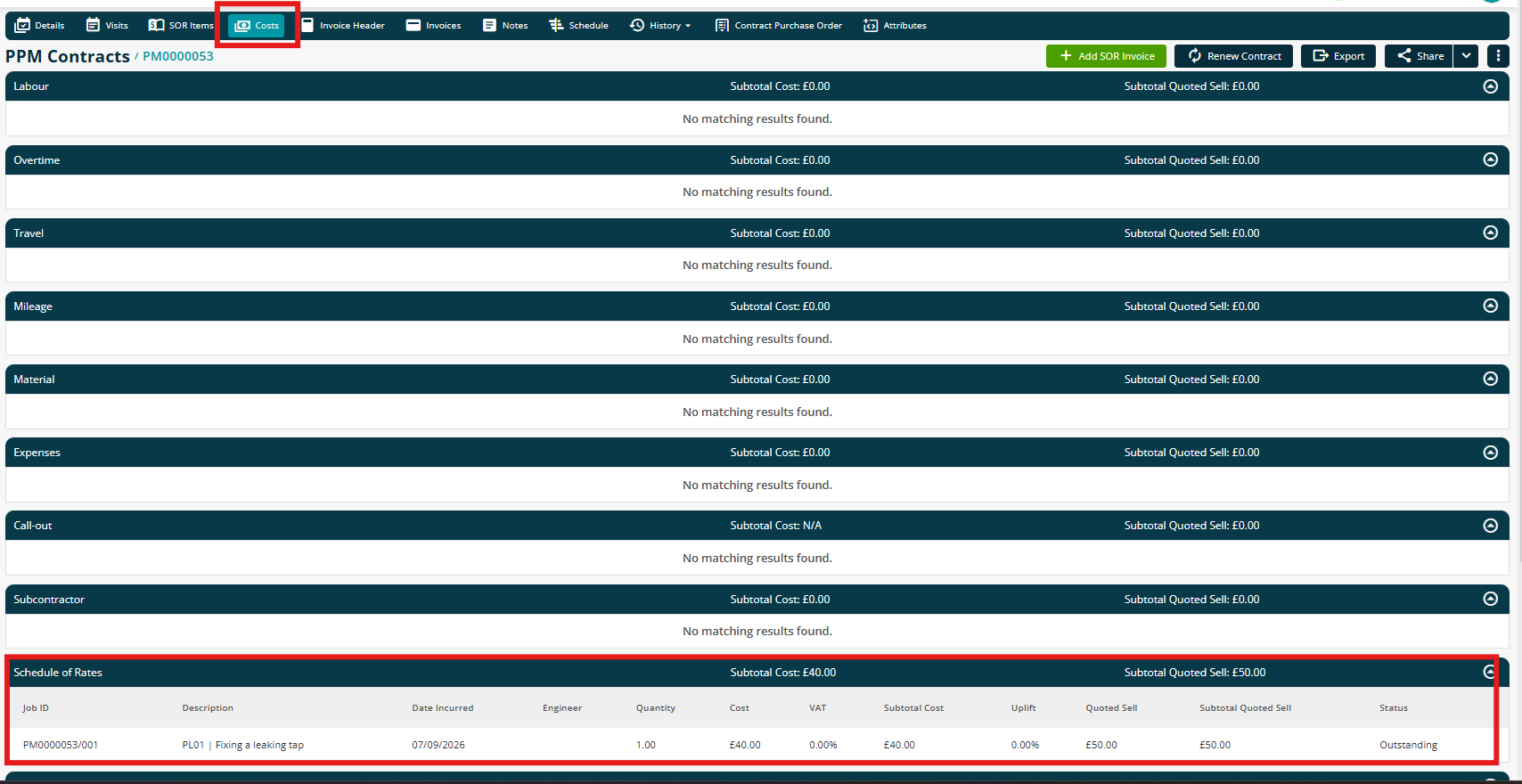
Your PPM Contract will also show all SOR Items that have been passed to individual jobs.
Navigate to your PPM Contract and select the Costs tab.
Here you'll find a Schedule of Rates section listing each SOR Item that has been passed to Job Costs, along with the job it was applied to.
Adding an SOR Invoice
Once SOR Items have been passed to job costs, they can be invoiced against the PPM Contract.
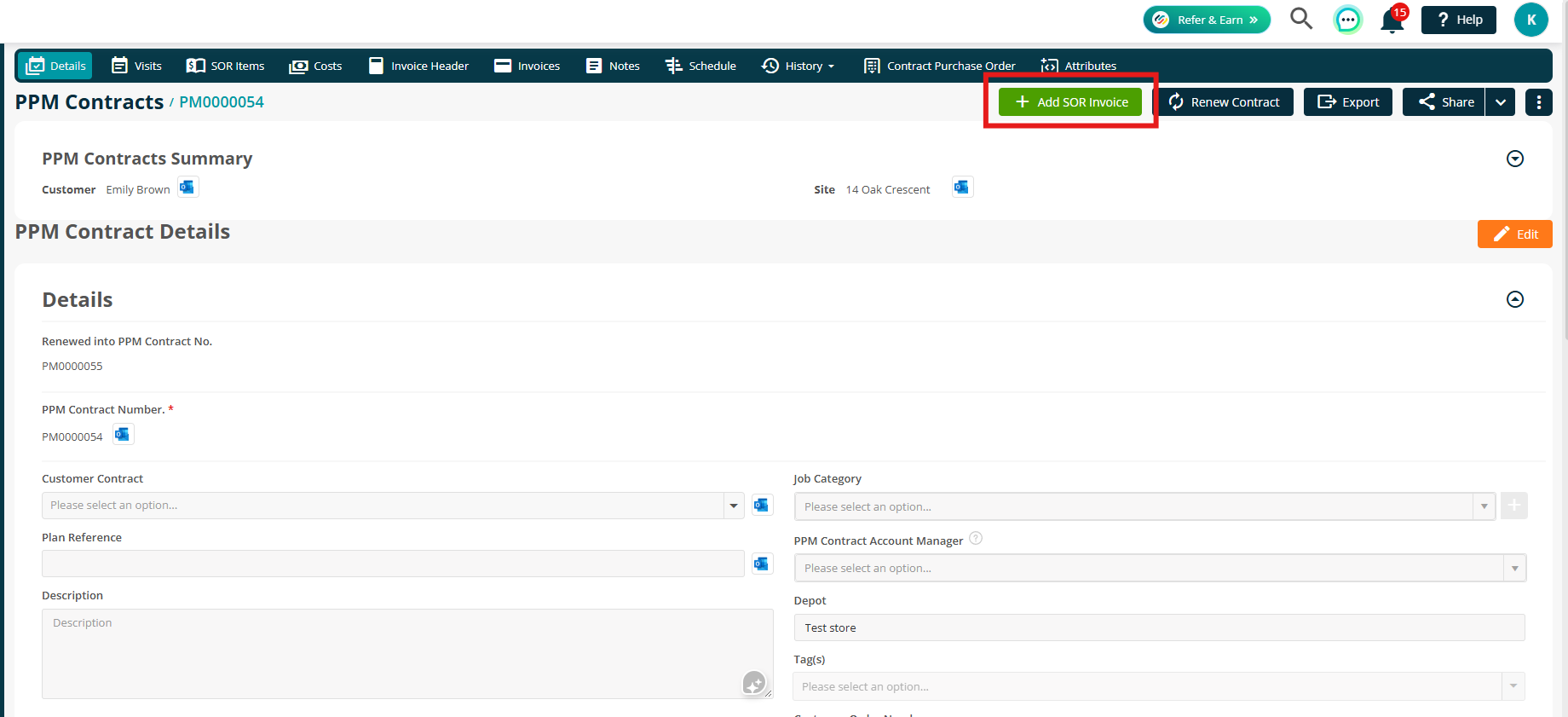
On the PPM Contract page, select Add SOR Invoice.
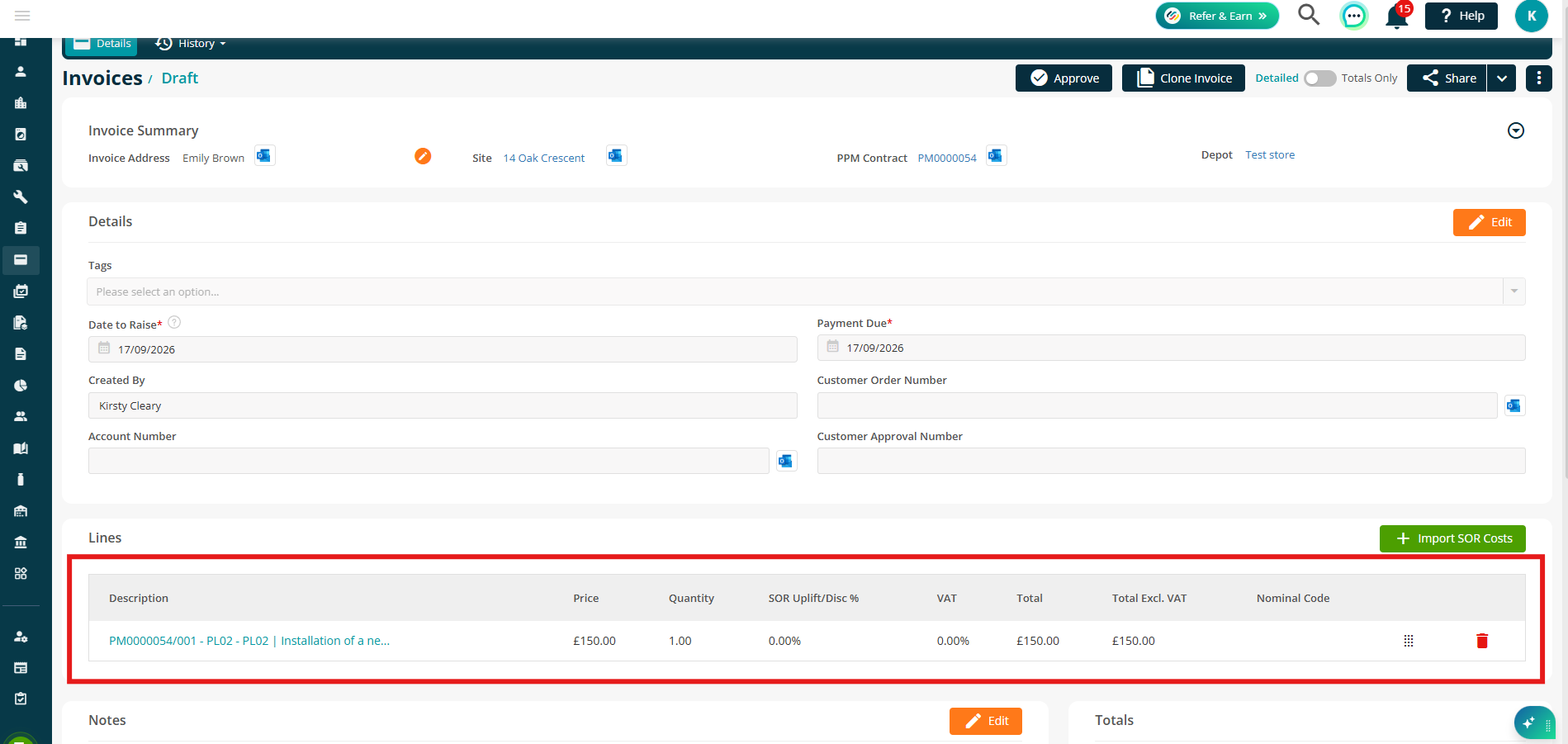
Any SOR Items that have been marked as Completed against their respective jobs, and have not already been included on another invoice, will be displayed on the draft invoice.
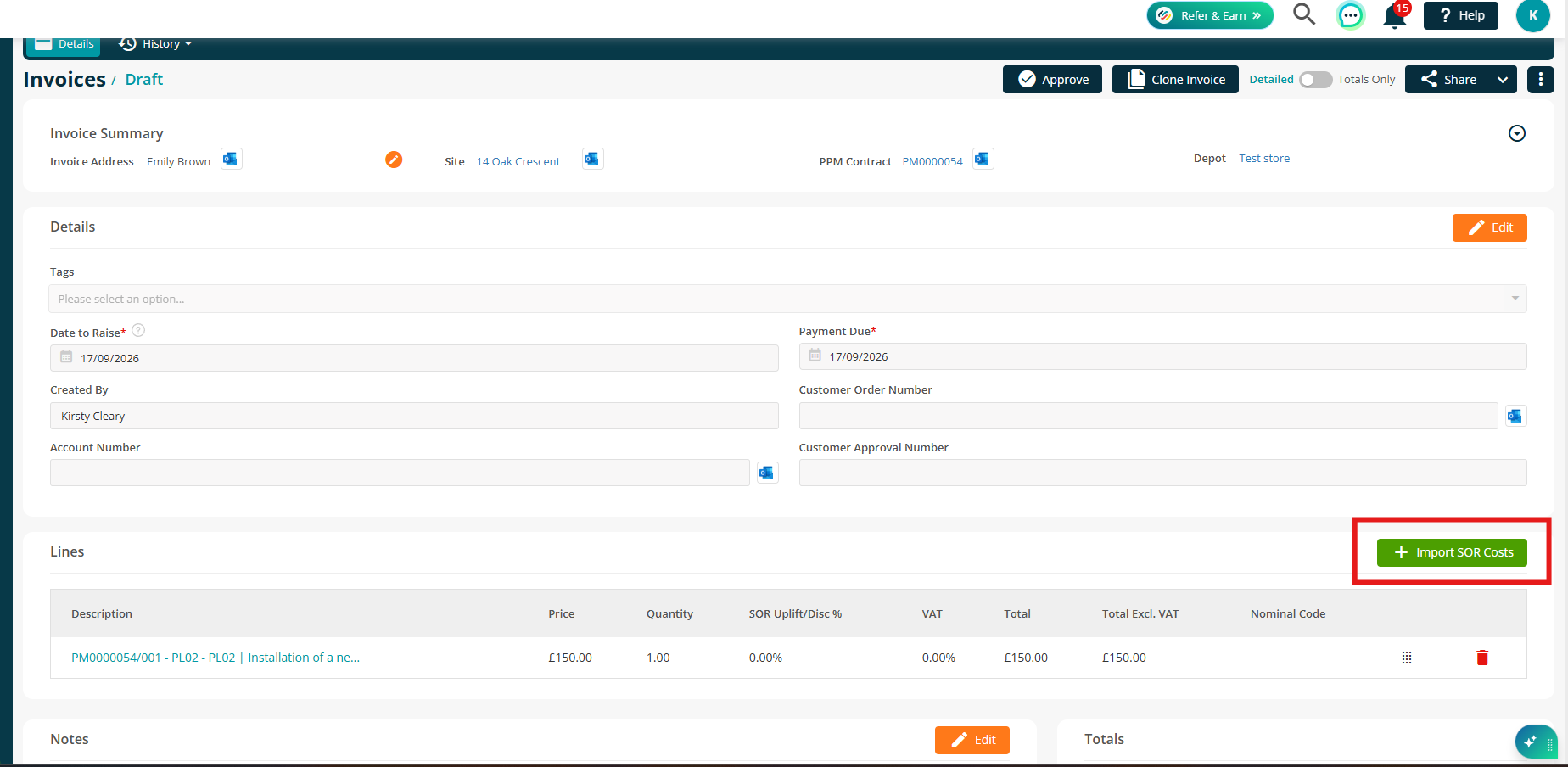
If additional SOR costs are completed after creating the draft invoice, select Import SOR Costs to add them to the invoice.
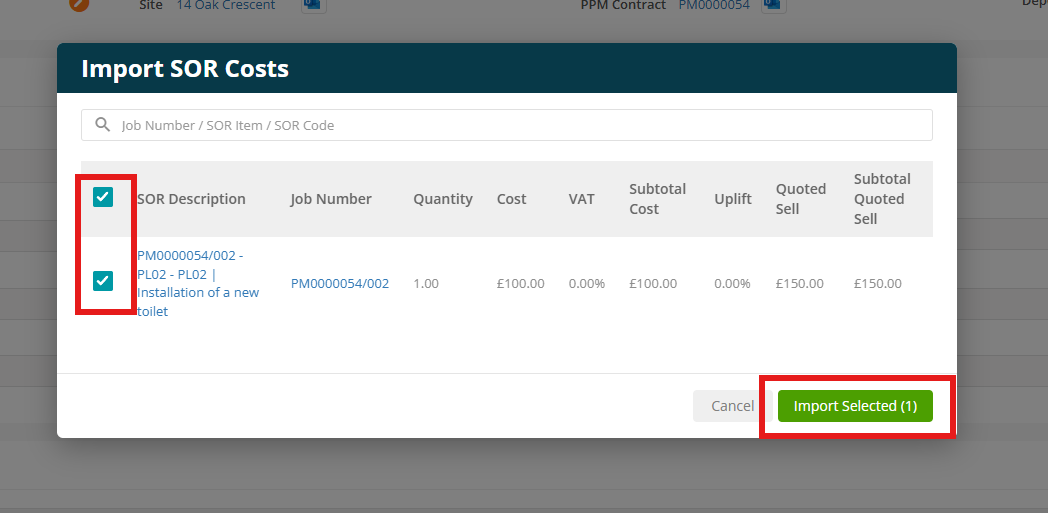
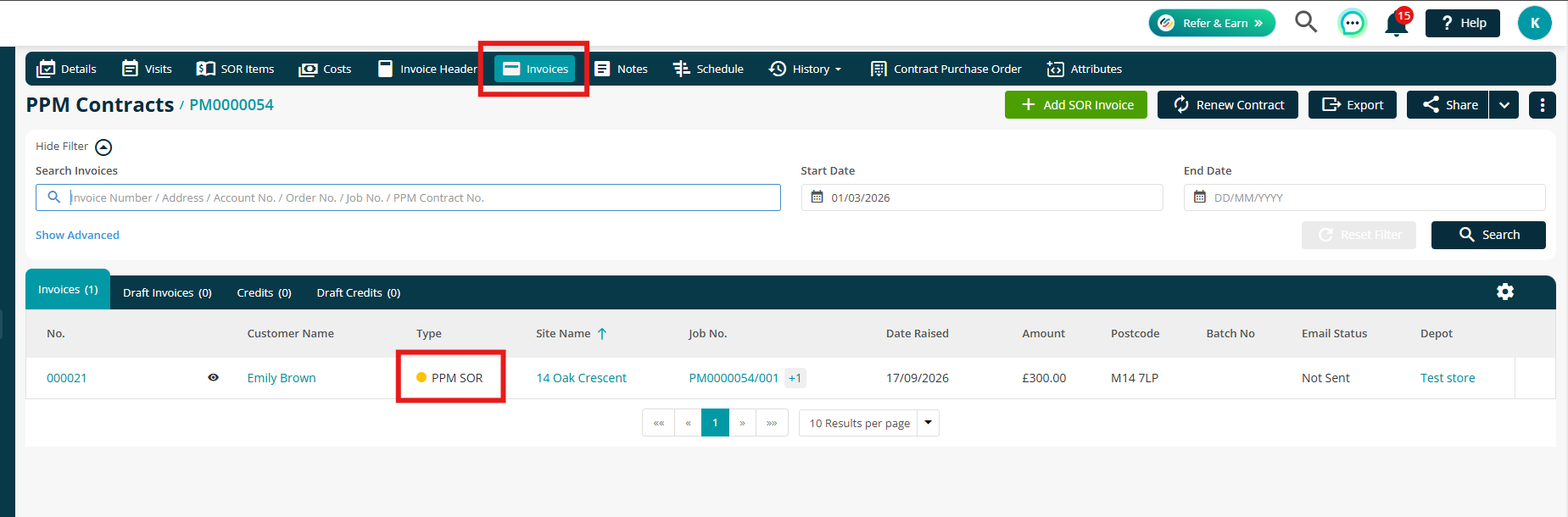
All invoices created for the PPM Contract are displayed in the Invoices tab.
Contract Renewal
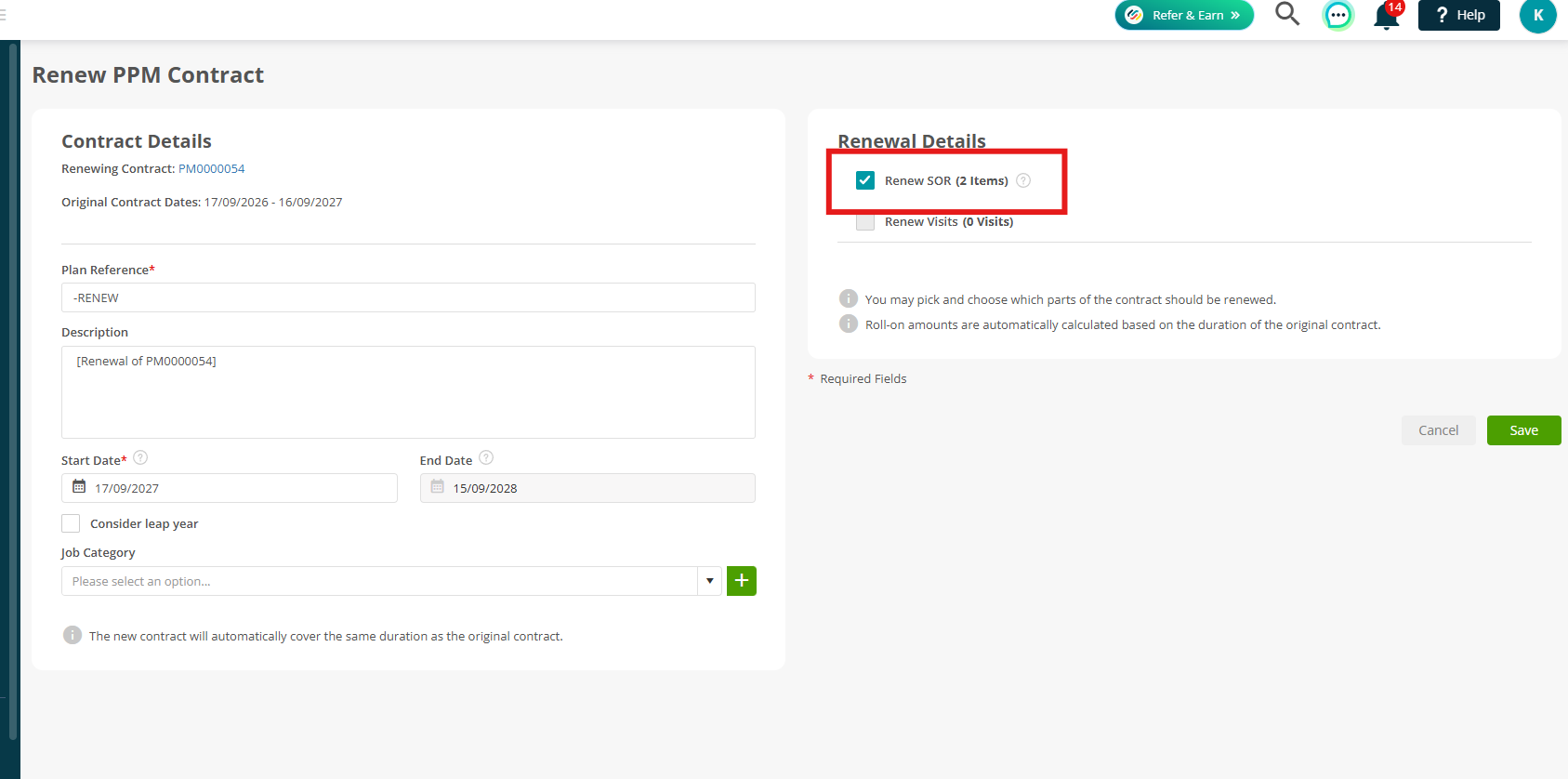
When renewing a contract, you can select Renew SOR to renew the applicable SOR items.
.png)
The number of applicable SOR items available for renewal is displayed next to the option.
Note: Only SOR items with a status of Required or Completed will be renewed when Renew SOR is selected.
Notes:
- Approved and upgraded (converted-to-Contract) quotes keep their existing price.
Further Support
For further information or assistance with the above, contact our Support Team on 0800 326 5561 or email support@joblogic.com. Alternatively, our Customer Success Management team can be reached by emailing customersuccess@joblogic.com
Publishing Details
This document was written and produced by Joblogic’s Technical Writing team and was last updated on the date stated above. Be aware that the information provided may be subject to change following further updates on the matter becoming available or new releases within the system. Additionally, details within the guide may vary depending on your Joblogic account’s user permissions and settings or the electronic device being used.