Introduction
The BoM app allows you to assemble parts in-house using predefined component kits stored in the Parts Library. It validates stock at your selected depot, automatically consumes component parts, and adds the finished item into stock in one controlled transaction.
This helps prevent stock discrepancies, reduce manual processes, and improve coordination between Stores and Procurement when components are unavailable.
In this guide, we’ll show you how to configure kits, initiate builds, and manage stock validation to maintain clear visibility and control over in-house assembly across your depots.
Set up
Stock - Assembled Part setting
Before building an assembled part, you can configure how component stock is picked across different locations.
Navigate to Settings > System set up and find:
Enable component picking from multiple Stock Locations
.png)
When enabled, part components can be picked from multiple Stock Locations. When disabled, only the Destination Stock Location is allowed.
Assembly Components
To start setting up your components, head over to Settings > Library > Parts
.png)
Select the part you want to configure and then click Edit
.png)
Scroll to the bottom of the page and enable the Assembly Components toggle.
This allows you to define the component parts and quantities required to build the selected part.
.png)
You can also enter a Labour Time and Labour Rate for the build.
Adding a description is optional.
.png)
Next, click Add Part to select the component parts that will make up this assembly.
.png)
.png)
Once added, you can adjust the quantity for each component as needed.
.png)
Build Assembled Part
To build a configured assembly, navigate to:
Stock > Assembled Part > Build Assembled Part
.png)
Select the assembled part from the dropdown list.
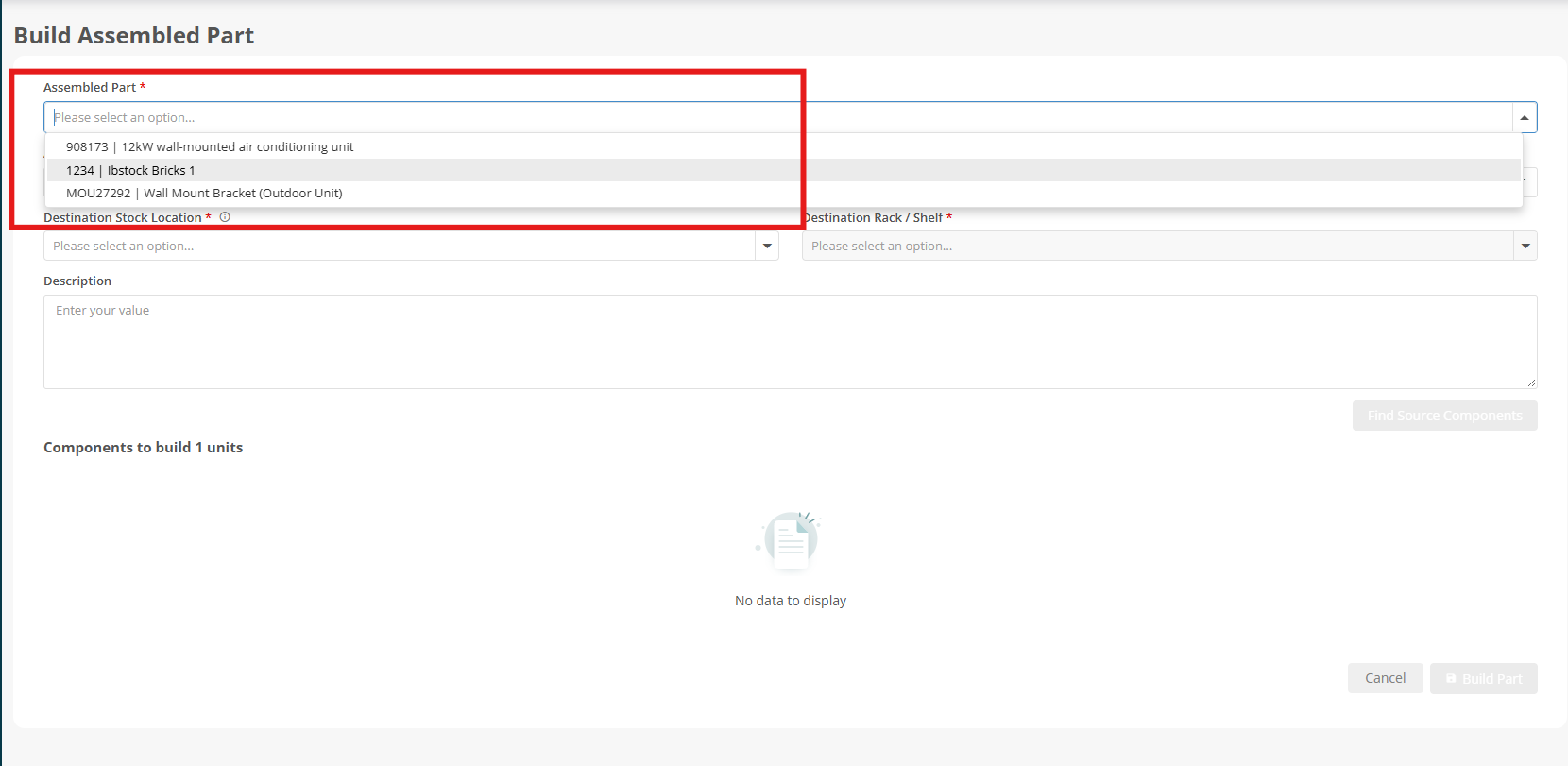
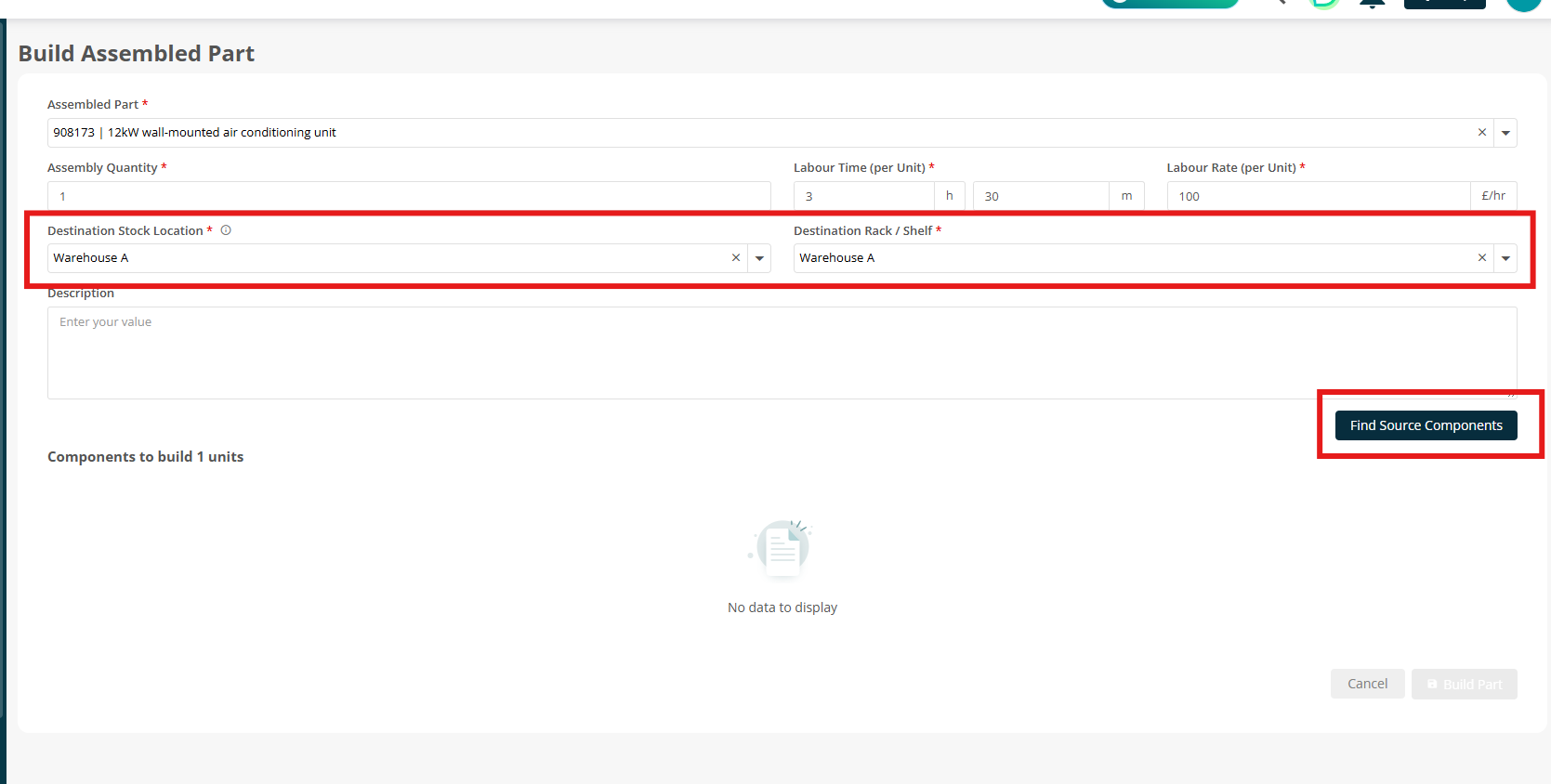
The Labour Time, Labour Rate, and default Assembly Quantity will automatically populate based on the configuration set in the Parts Library.
.png)
Enter the Stock Location where the build will take place, along with the relevant Rack / Shelf location.
You can also add a description if required.
Once the location details are entered, click Find Source Components.
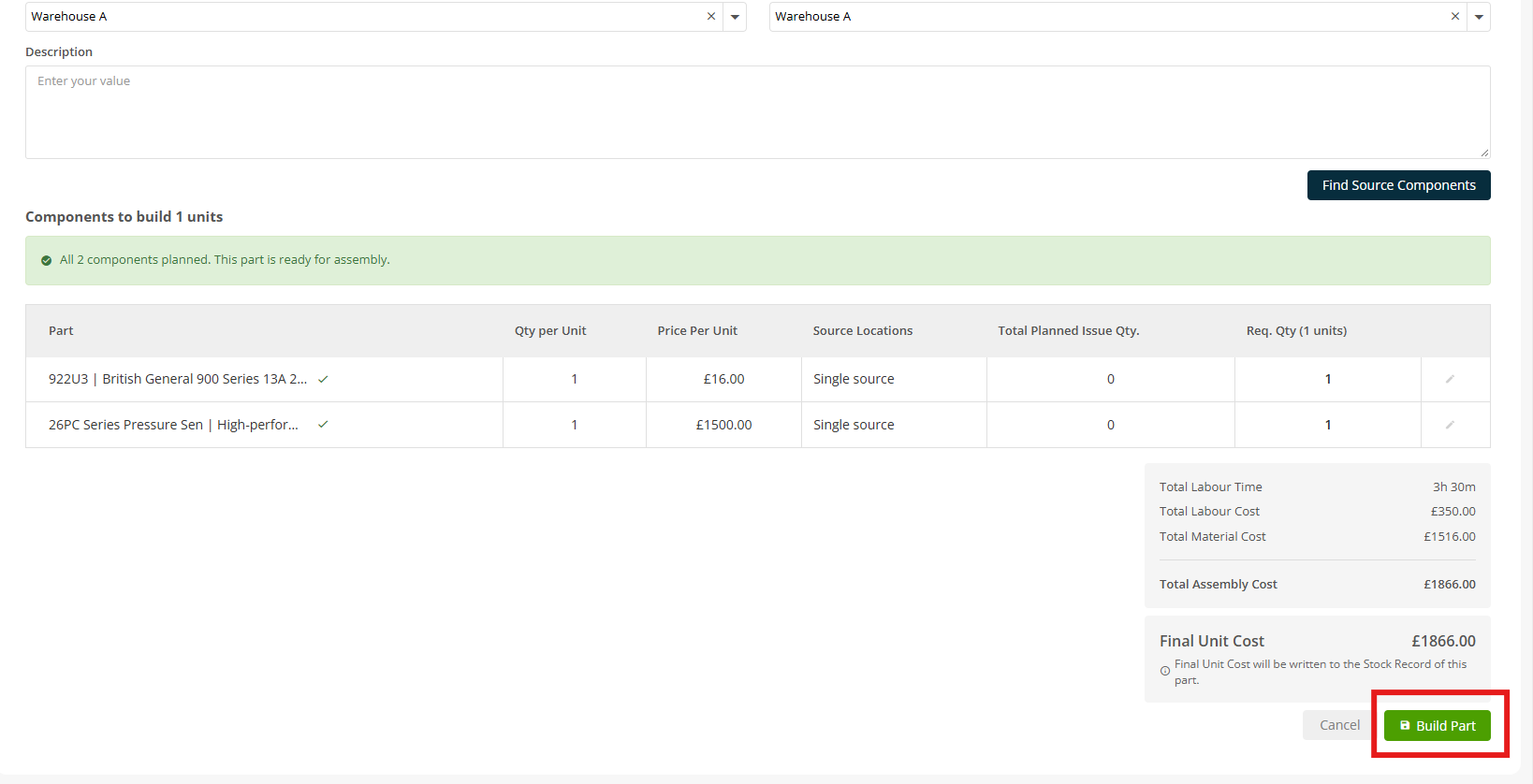
Click Build Part to complete the assembly.
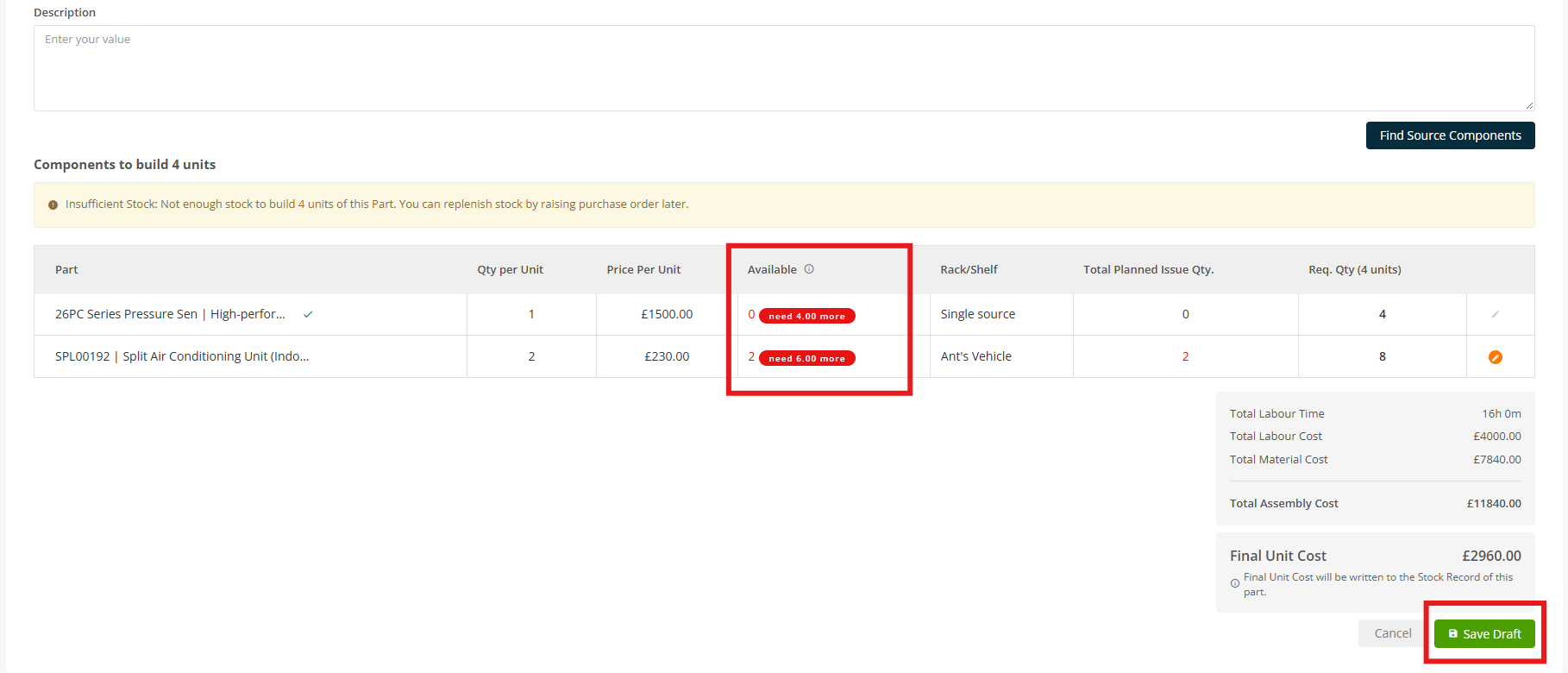
Insufficient stock
If there isn't enough stock available at the selected location, a warning message will be displayed.
Under the Available in Stock column, the system will highlight how many additional units are required (e.g. “need 2 more”) for clear visibility.
You will see the following message:
Insufficient Stock: Not enough stock to build x unit of this Part. You can replenish stock by raising a Purchase Order.
You can choose to Save as Draft at this stage.
Replenishment and Stock Requests
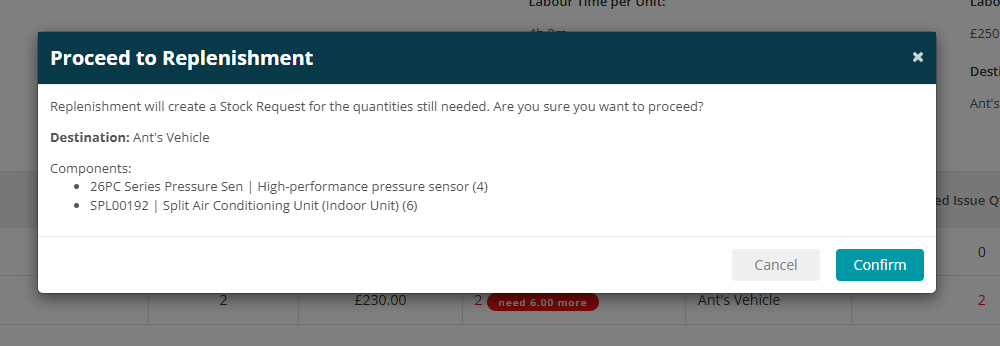
Selecting Proceed to Replenishment (against a draft assembled record) will automatically create a new Stock Request for any components with insufficient stock. This request will be linked to the assembled part record.
.png)
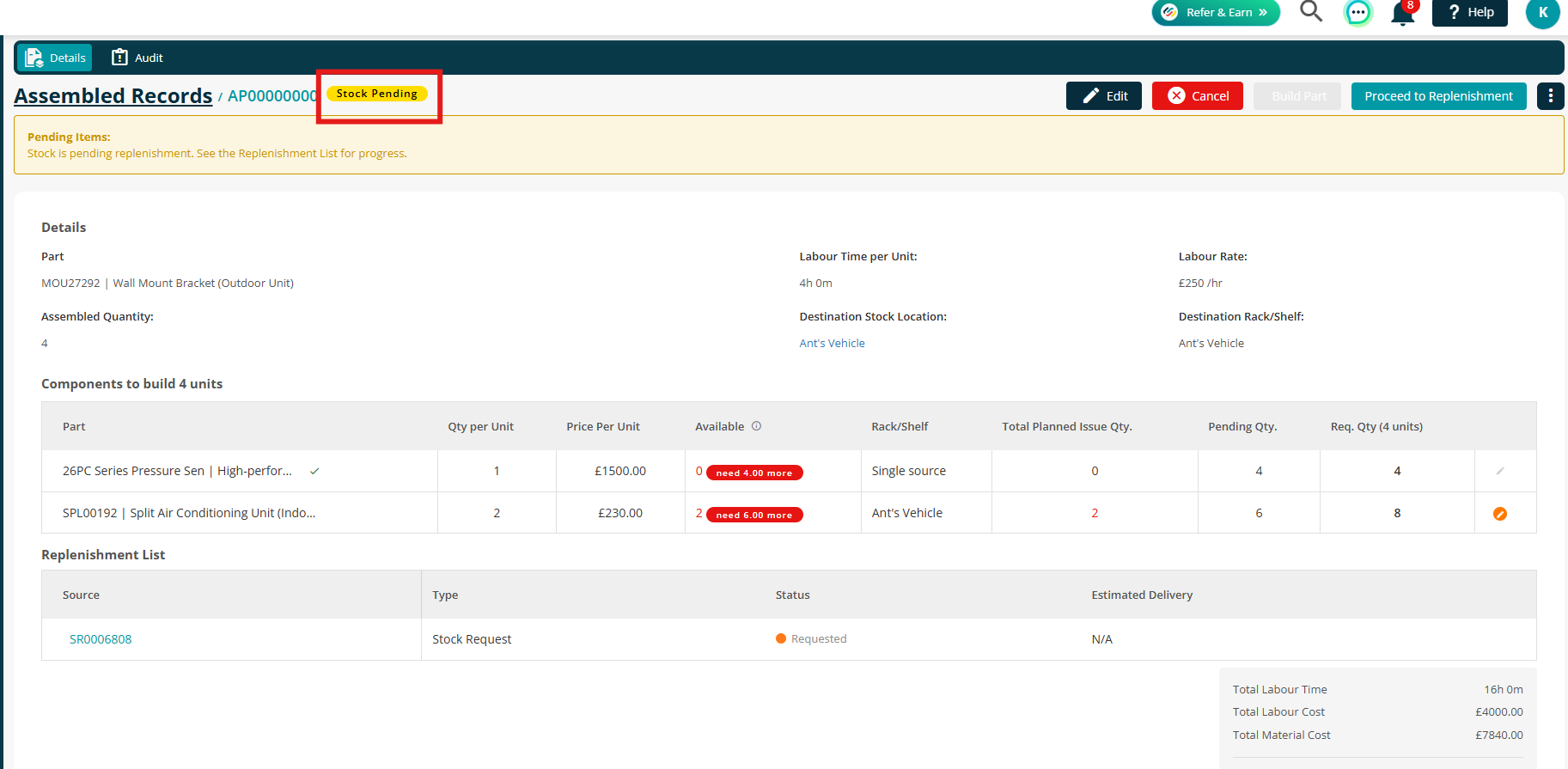
The build status will update to Stock Pending until the required components become available.
To find out more about Stock Requests, please refer to the dedicated Stock Requests guide.
For a quick overview within this guide:
Click the Stock Request number linked to the assembled part record.
.png)
Once the required stock items are available, select the relevant items and click Issue.
.png)
Selecting Component Stock Sources
When this setting is enabled, you can select component stock from multiple Stock Locations and their Rack/Shelf positions:
Enable component picking from multiple Stock Locations
Click Edit to select a stock location.
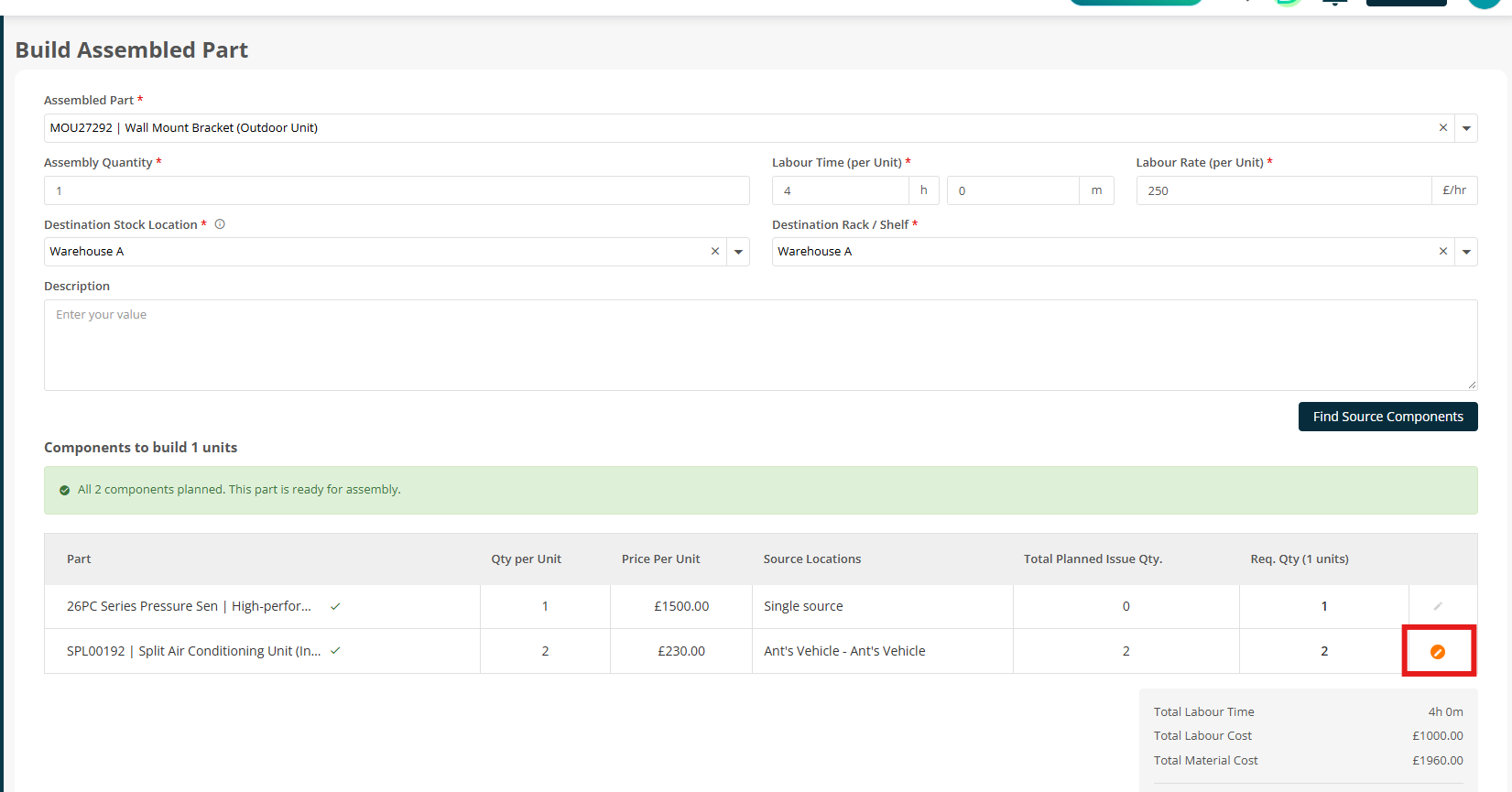
Select Add Source Locations.
.png)
Tick the relevant location and click Add.
.png)
Click Done to confirm.
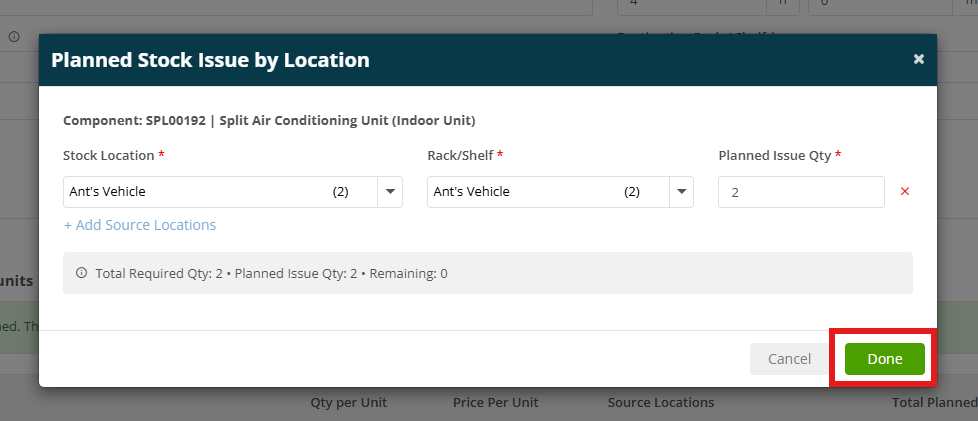
Complete the Assembly
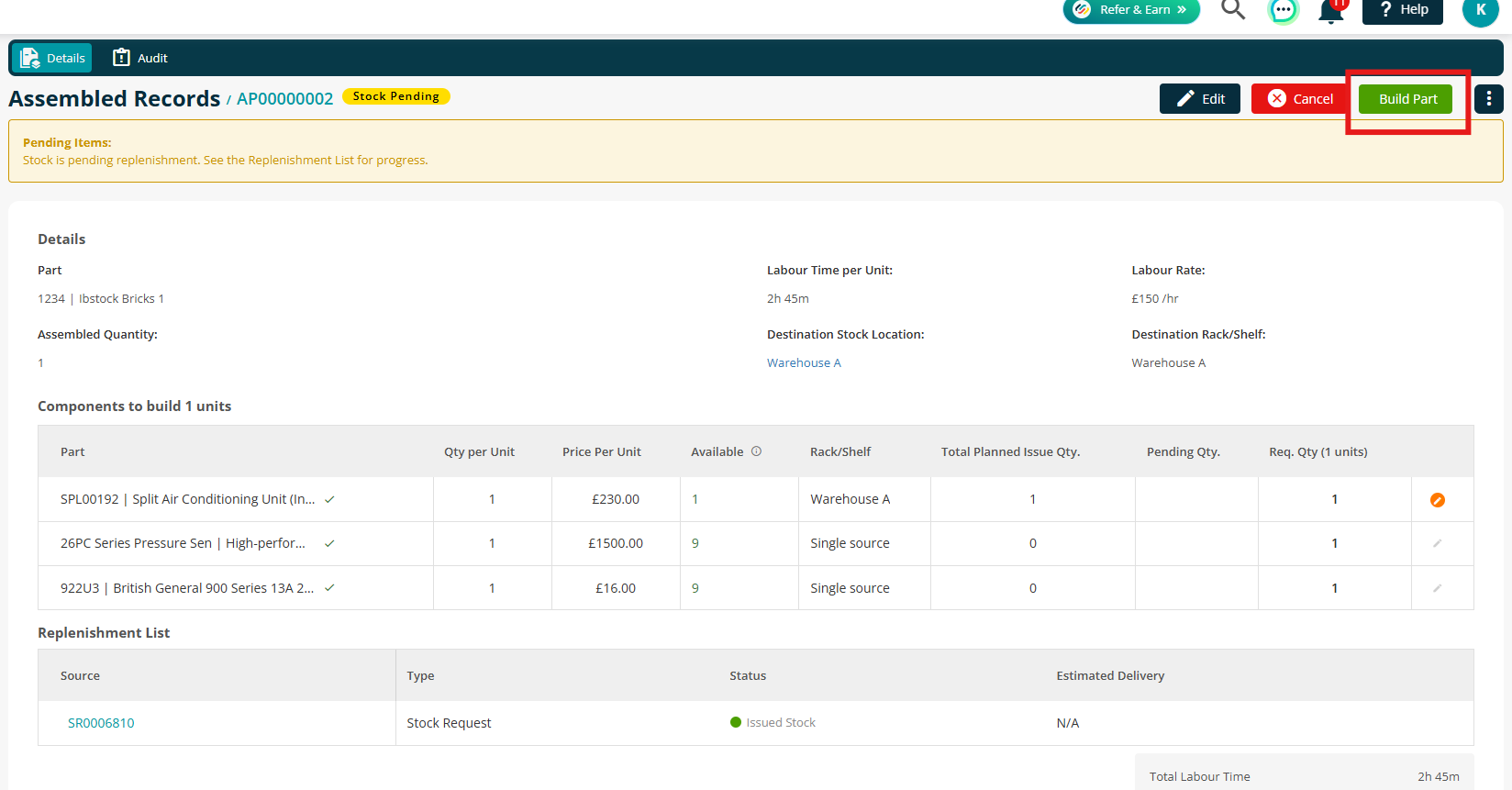
Once the status shows Ready to Assemble, you can proceed with the build.
Click Build Part against the assembled record.
.png)
Build Status Overview
Throughout the process, the assembled part will move through different statuses to reflect its progress.
Draft
The build has been created but not yet processed.
You can edit details, update quantities, or proceed to replenishment if required.
Stock Pending
One or more component parts are not available in sufficient quantity at the selected stock location.
You can raise a Stock Request or Purchase Order to replenish the required items.
Ready to Assemble
All required component parts are available at the selected location.
The build can now be completed.
Completed
The build has been finalised.
Component parts have been deducted from stock, the assembled part has been added to the selected location, and the transaction has been fully recorded for audit and traceability.
Further Support
For further information or assistance with the above, contact our Support Team on 0800 326 5561 or email support@joblogic.com. Alternatively, our Customer Success Management team can be reached by emailing customersuccess@joblogic.com
Publishing Details
This document was written and produced by Joblogic’s Technical Writing team and was last updated on the date specified above. Be aware that the information provided may be subject to change