Introduction
The Projects module enables you to manage project-based work within Joblogic, whether you're delivering smaller jobs or large-scale projects spanning multiple phases and longer timeframes.
Designed to provide greater visibility and control, the module helps you manage project budgets, track progress, monitor costs, and handle project billing through payment applications, staged payments, and retention invoices.
This guide will walk you through the process of creating a new project quote within Joblogic and explain the key information required during setup.
Logging a New Project Quote
To log a Project Quote, navigate to the ‘Projects’ dropdown on the main menu and select ‘Log Project Quote’.
.png)
Here you can complete the information required to create your new quote.
Fields marked with a red asterisk (*) are mandatory and must be completed before the quote can be created.
.png)
Customer & Site selection
You'll first need to select the Customer the quote is for and the Site where the project work will take place.
Note: If the selected site is associated with multiple customers, enable Show Associated Only to display only customers linked to that site. This helps you select the correct customer more easily.
.jpg)
If the project will be carried out across multiple sites, you can associate additional sites with the project quote.*
Once you've selected the primary Customer and Site, select Add Sites.
.png)
Tick the additional sites you want to include, then select Apply.
.png)
*This feature is only available if Multiple Sites against Projects has been enabled in your Project Settings. For more information, see the Project Settings guide.
Log Project Quote from Template
Enable Log Project Quote from Template if you'd like to create the quote using a predefined template.
Selecting a template automatically populates configured fields such as Description, Project Type, Quote Trade, and other predefined values.
.png)
Project Quote Templates can be configured via Library > Project Quote Templates. For more information, see the Project Settings guide.
Project Quote Details
Complete the remaining project quote information in the Project Quote Details section.
Fields marked with a red asterisk (*) are mandatory. All other fields are optional and can be completed as required.
Once you're happy with the quote, click Save.
.png)
Next steps
Now that your quote has been created, you can review it, make any amendments, add pricing and share it with your customer as required.
.png)
Pricing
When adding pricing, you can also organise your quote into sections if required. To learn more about Multi Section quotes, please click here.
.png)
Upgrading your Project Quote
Once you're ready, click Upgrade to convert the quote into a project.
.png)
On the next screen, you can review the project details, make any required amendments and create project jobs if required.
Click Next to continue.
.png)
You can then issue parts from stock or create purchase orders for the project if required.
.png)
Alternatively, click Skip and Upgrade to bypass this step and create the project immediately.
.png)
Quote Variations
When the Enable Project Quote Variations on Quote-based Projects setting is enabled, you can create variations against upgraded Project Quotes.
For more information about Project settings, click here
Adding a Quote Variation
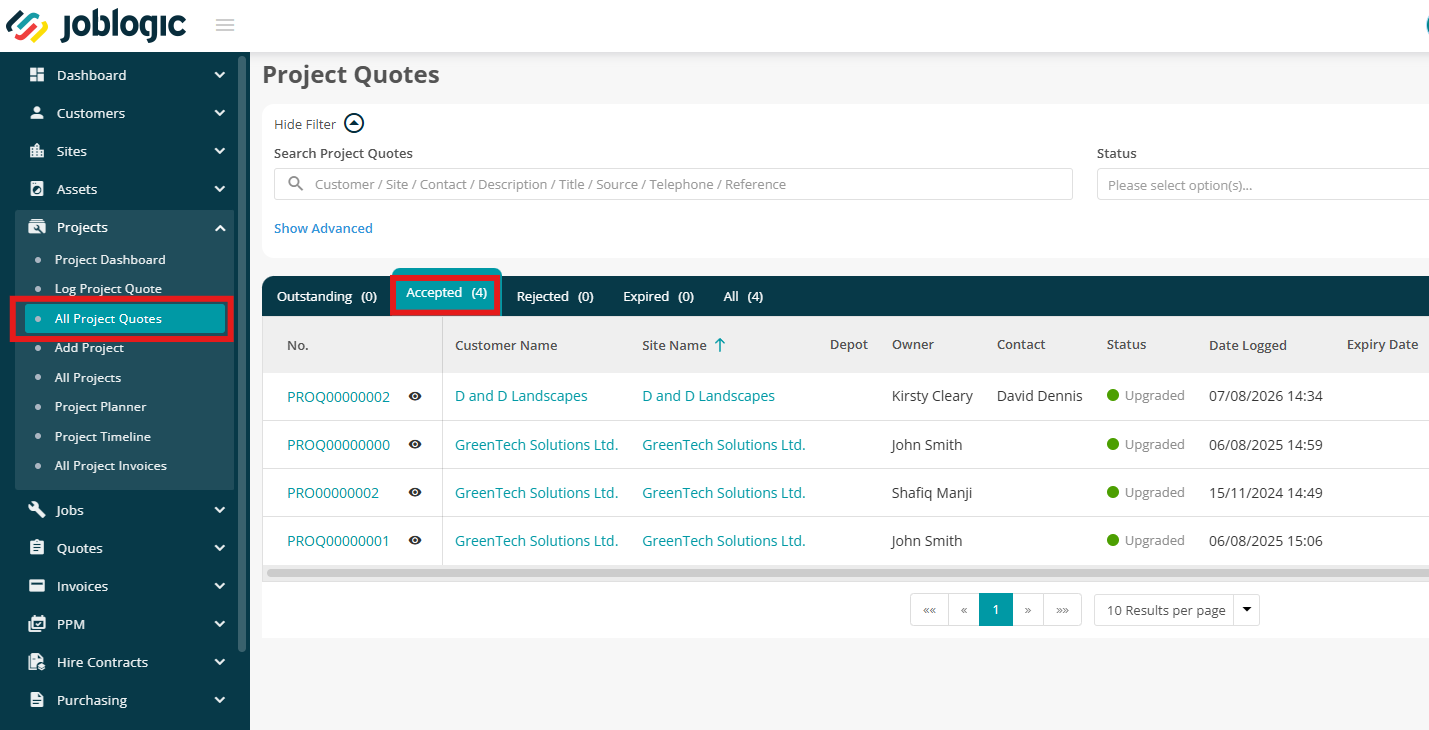
Navigate to Projects > All Project Quotes and select the Accepted tab to view your upgraded quotes.
Select the quote you want to add a variation to.
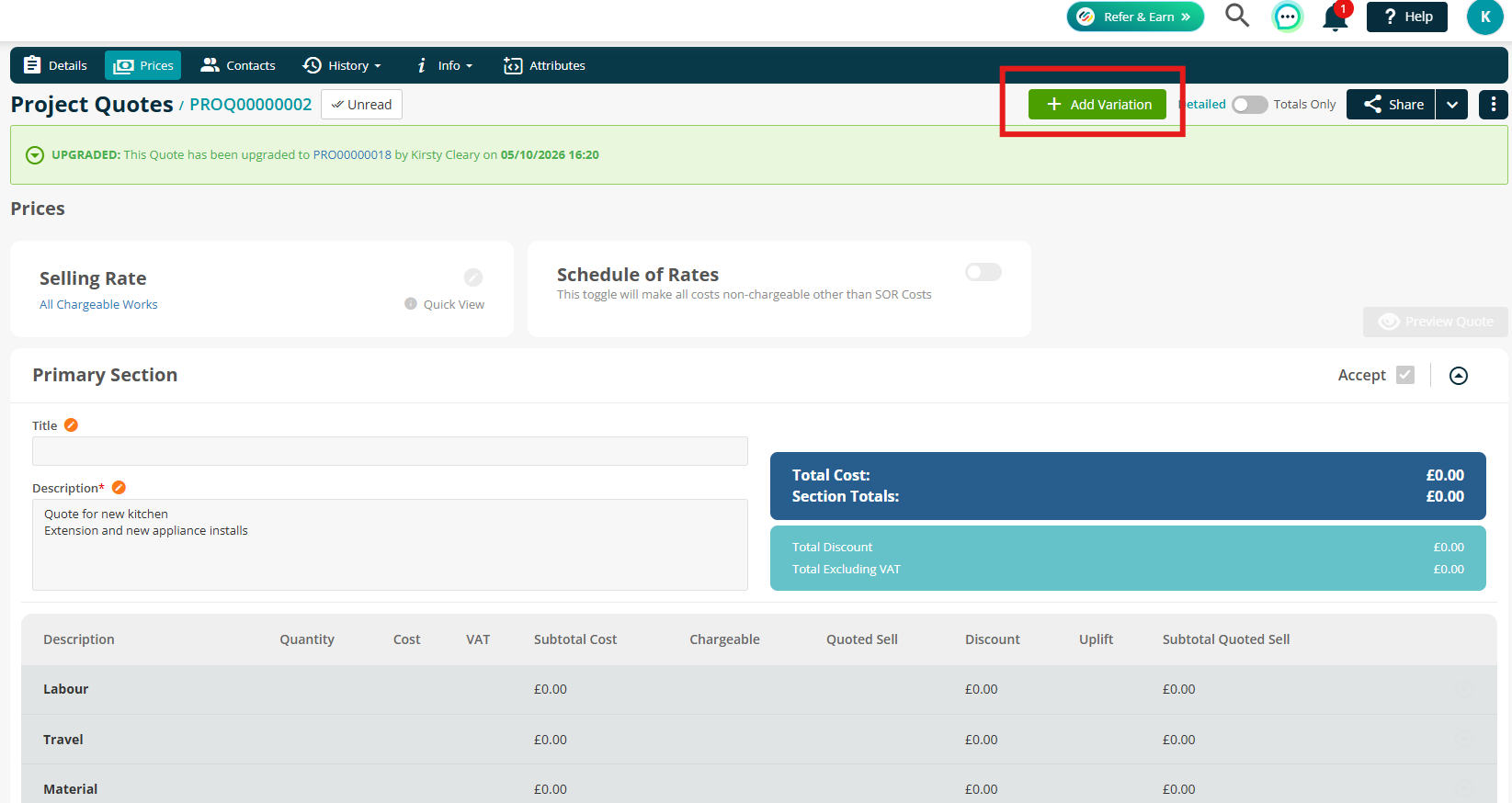
Select the Prices tab, then click Add Variation.
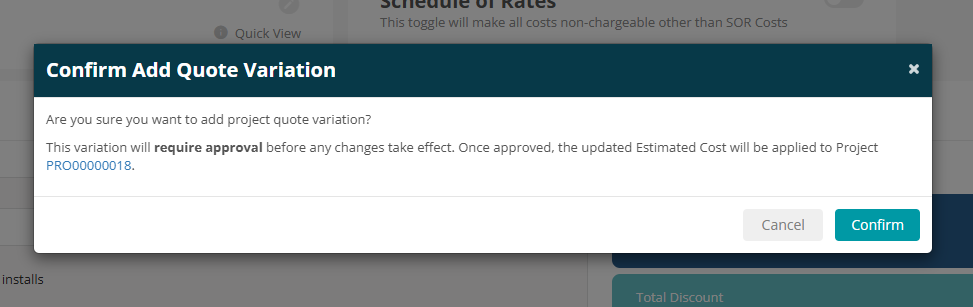
A confirmation message will appear to let you know that the variation must be approved before any changes are applied. The project's Estimated Cost will be updated once the variation is approved.
Click Confirm to continue.
Make the required changes to the quote variation.
The project will remain unchanged until the variation has been approved.
When you're ready, click Approve.
.png)
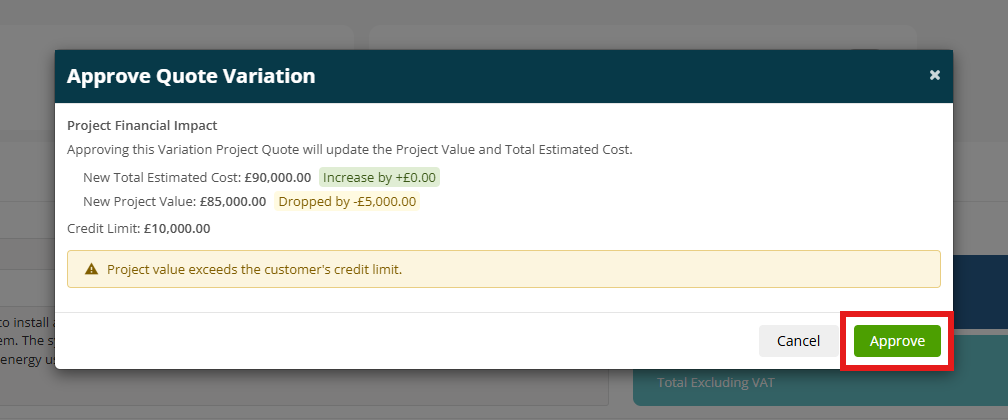
A summary of the financial impact of the variation will be displayed.
Review the changes and click Approve to apply the variation to the project.
Filtering Quote Variations
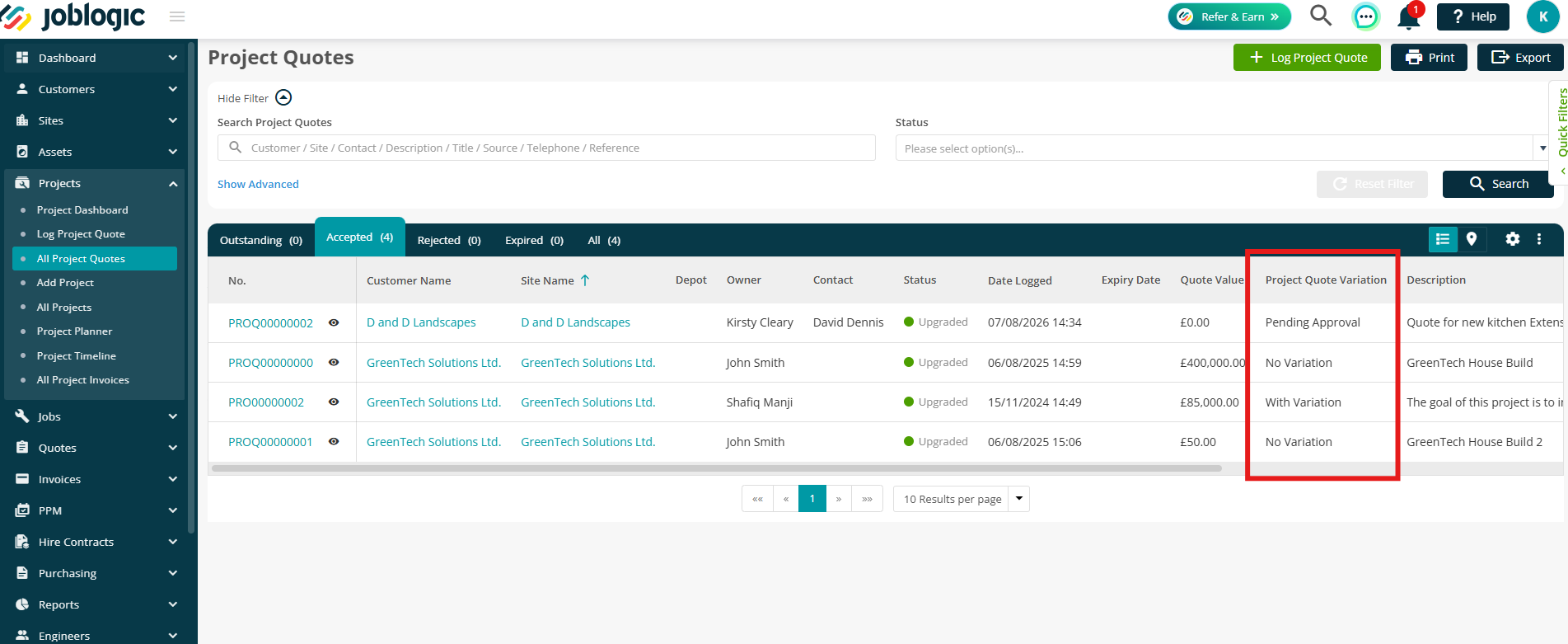
On the All Project Quotes page, the Variation Added column shows whether a variation has been added to a quote.
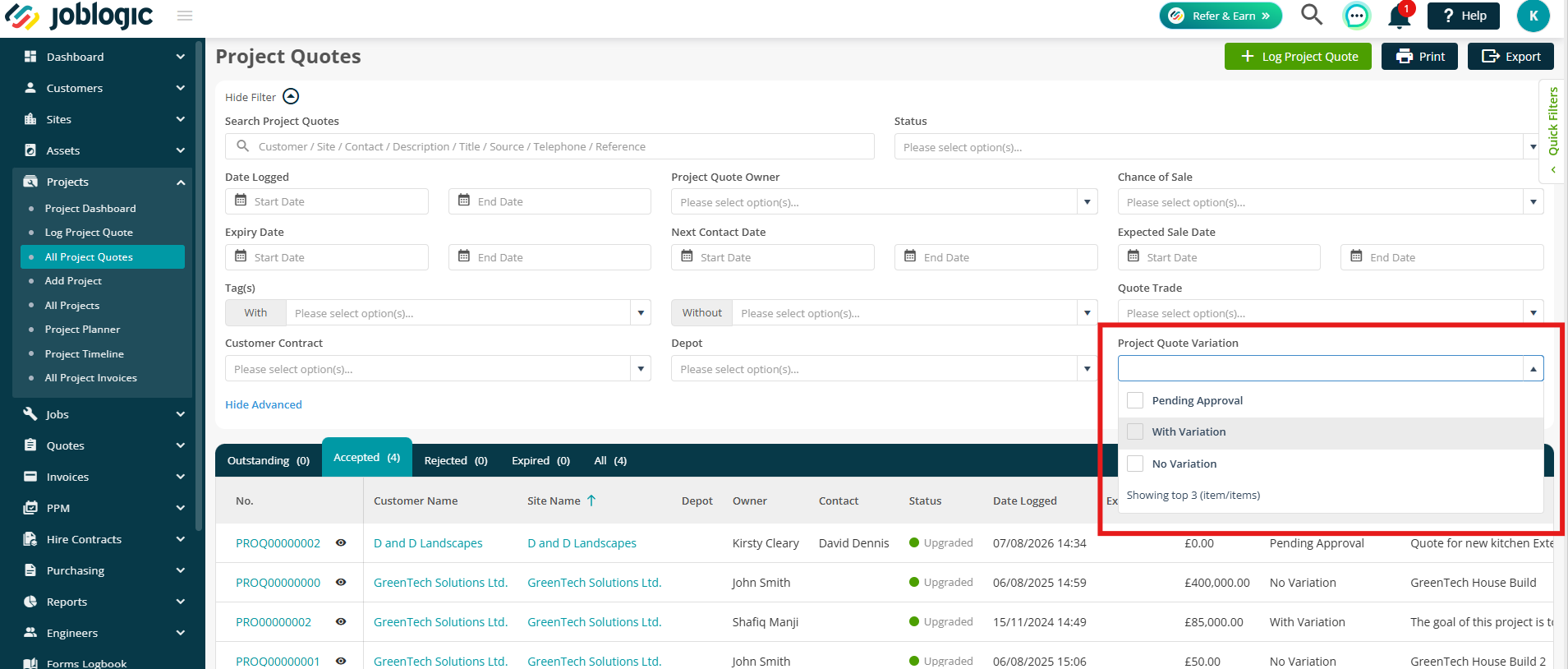
You can also use the Variation option in Advanced Filters to filter quotes based on whether a variation has been added.
Further Support
For further information or assistance with the above, contact our Support Team on 0800 326 5561 or email support@joblogic.com. Alternatively, our Customer Success Management team can be reached by emailing customersuccess@joblogic.com
Publishing Details
This document was written and produced by Joblogic’s Technical Writing team and was last updated on the date stated above. Be aware that the information provided may be subject to change following further updates on the matter becoming available or new releases within the system. Additionally, details within the guide may vary depending on your Joblogic account’s user permissions and settings or the electronic device being used.