Introduction
The Multi Section PPM Quote app allows you to create PPM quotes containing multiple quote packages, giving you greater flexibility when presenting different maintenance options to your customers.
Each package can be configured separately with its own title and billing details, allowing you to provide a range of options within a single PPM quote. This can be useful when customers need to choose between different levels of service, maintenance options or packages.
This guide explains how to create, manage and approve quote packages within a PPM quote using the Multi Section PPM Quote app.
Adding your Quote Packages
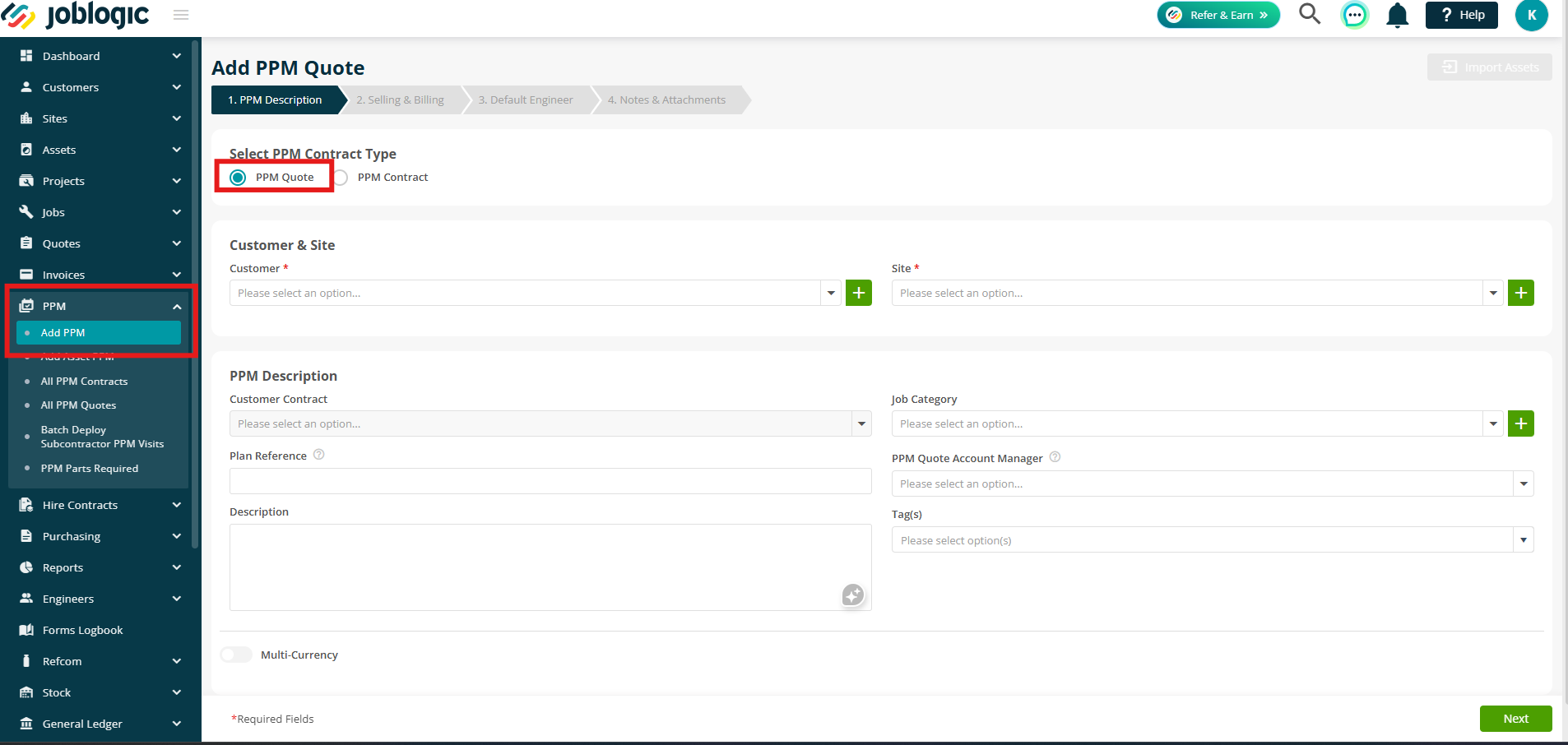
To get started, navigate to PPM > Add PPM and select PPM Quote.
For full guidance on creating and setting up PPM quotes, see the PPM Quote guide.
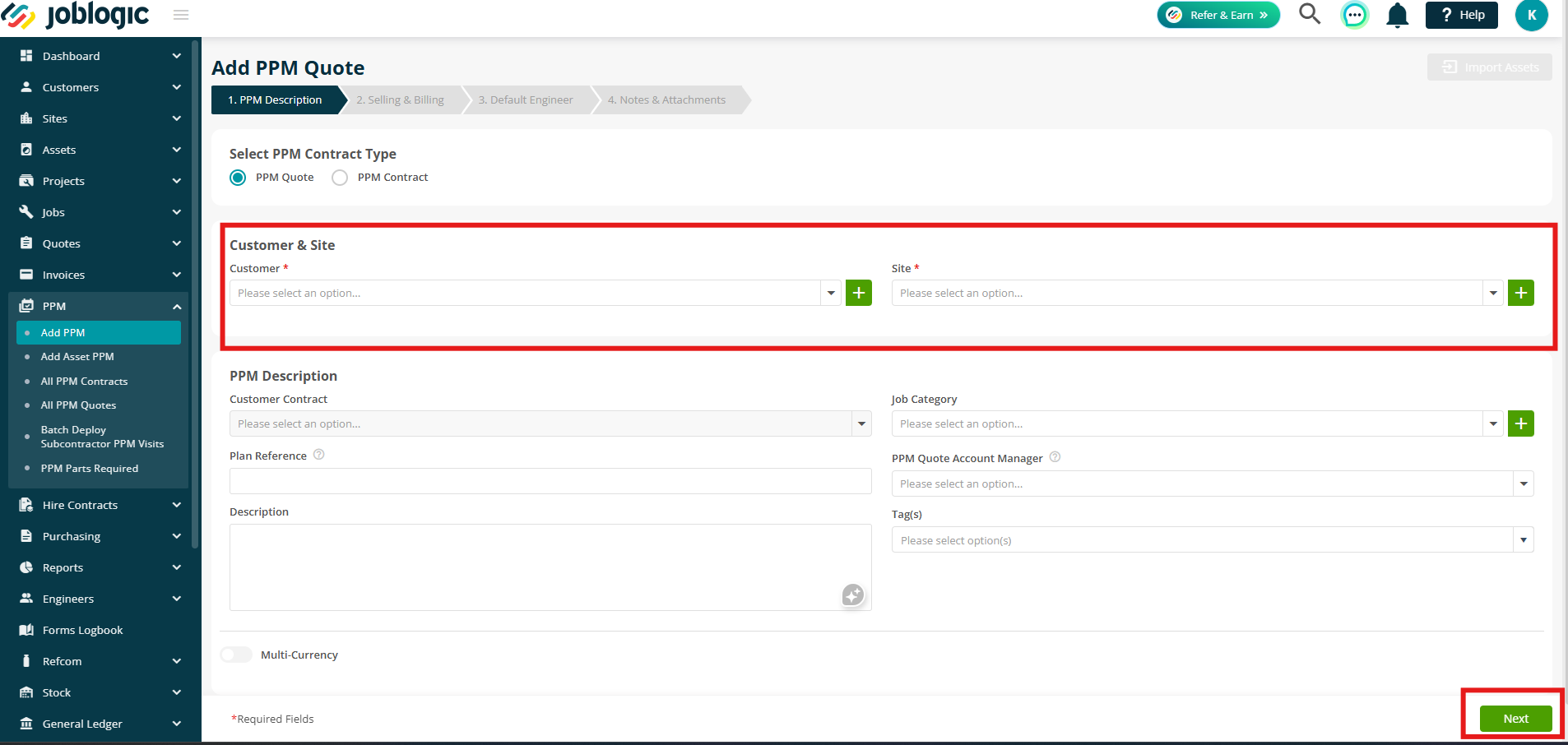
Select the Customer and Site, then complete any other required information before clicking Next.
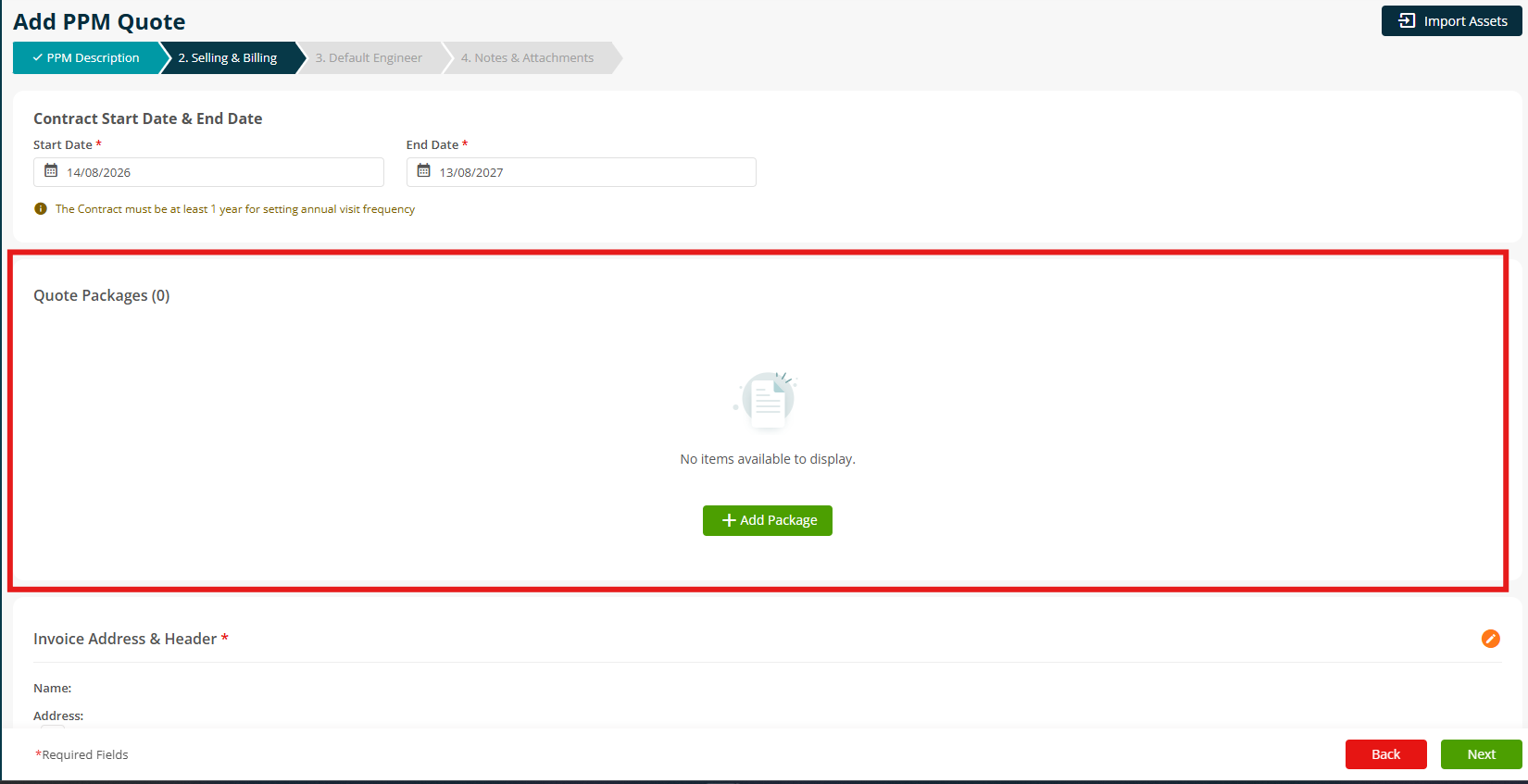
With the Multi Section PPM Quote app active, the next step will include a Quote Packages section.
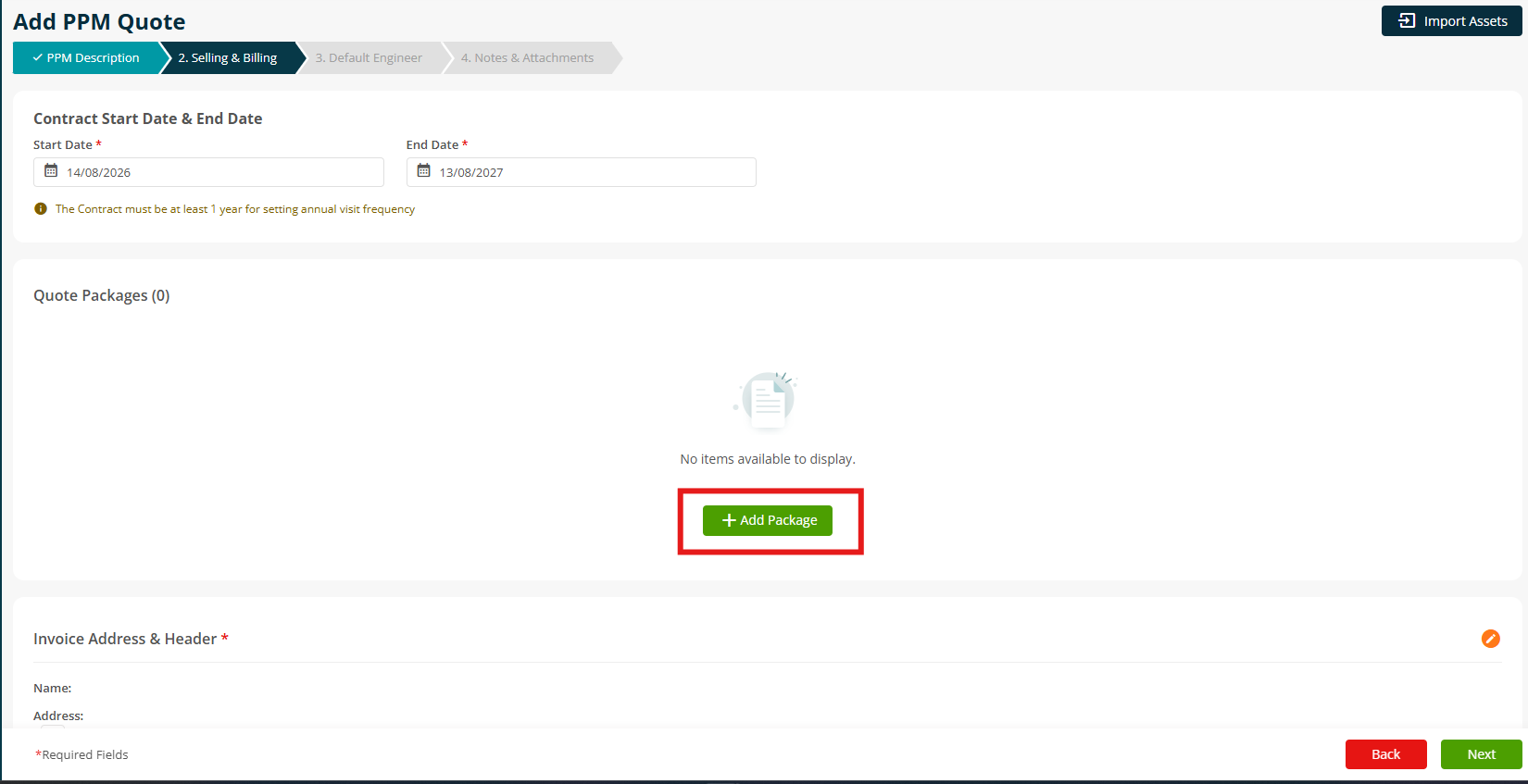
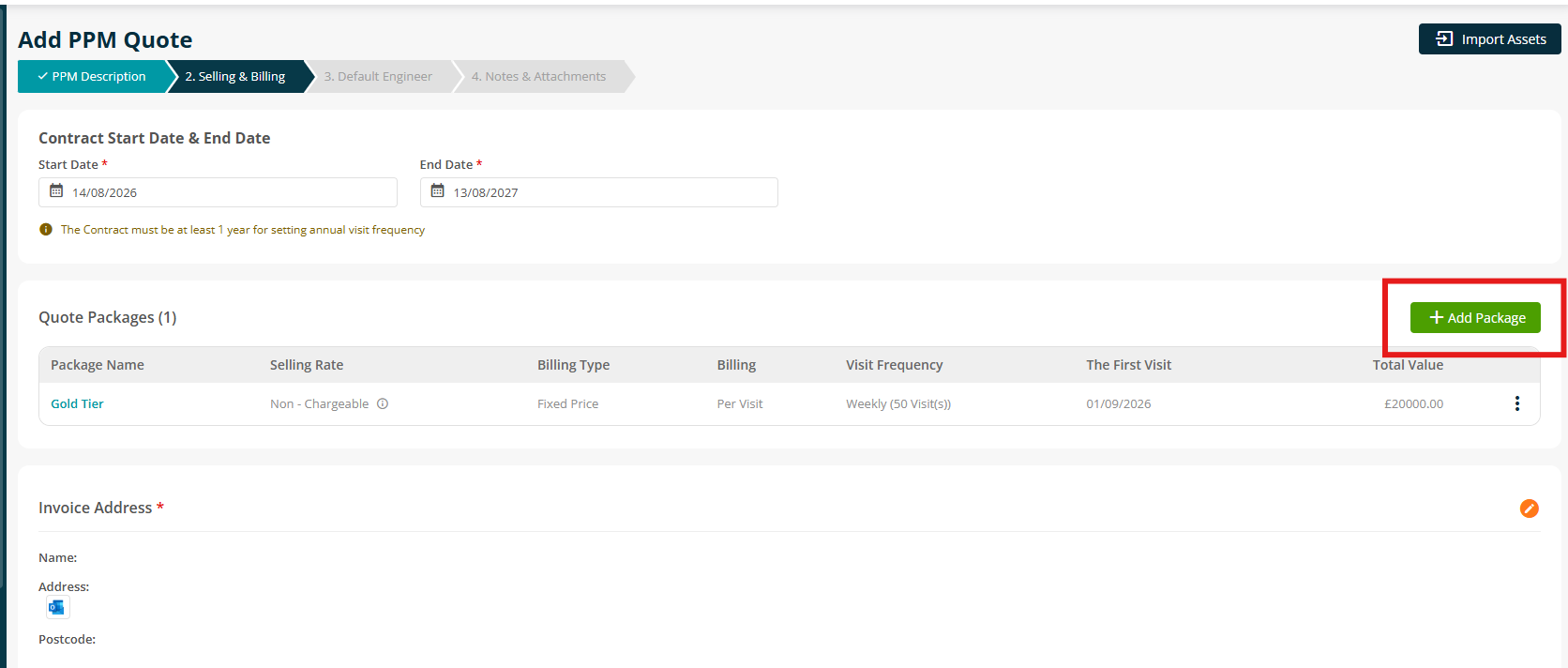
Click Add Package to create your first package.
Enter a Package Title and complete the required billing details, then click Save.
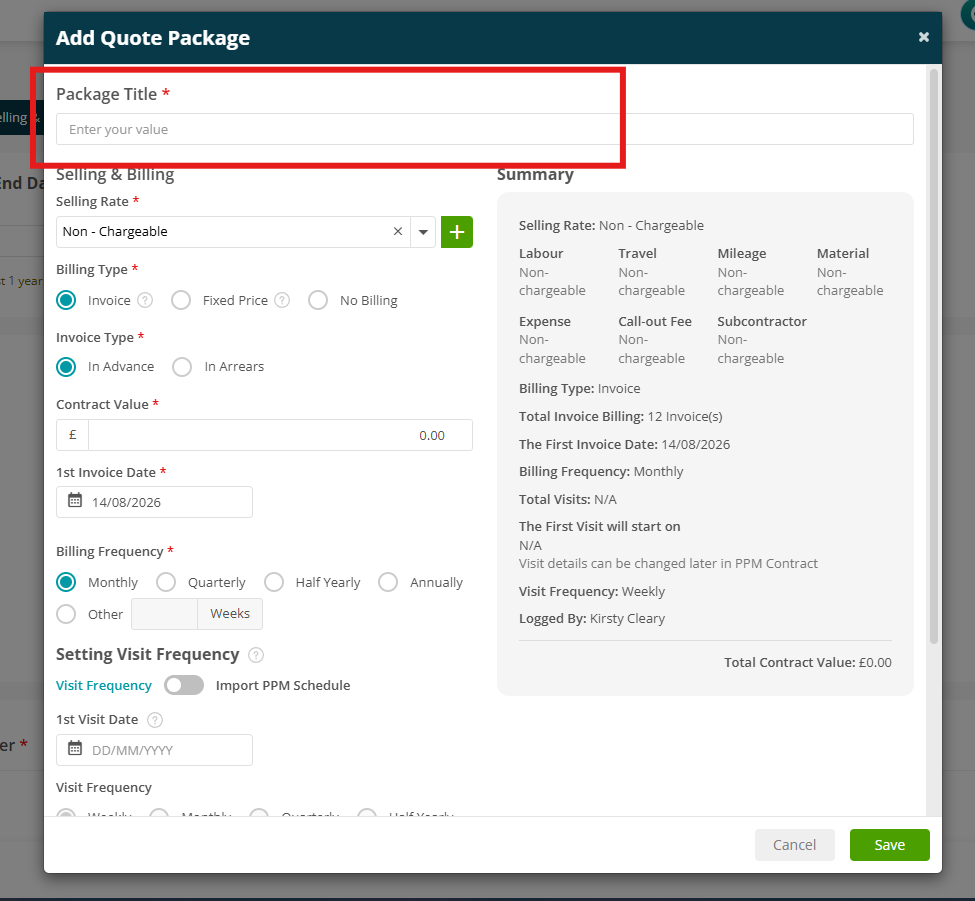
Repeat this process by clicking Add Package to create any additional packages required for the quote. You can up to 5 packages on a PPM Quote.
Once all packages have been added, continue through the remaining steps of the PPM Quote as normal.
Edit or Add more Packages
You can edit existing packages or add additional packages from the PPM Quote details page.
Navigate to PPM > All PPM Quotes and locate the quote you want to update.
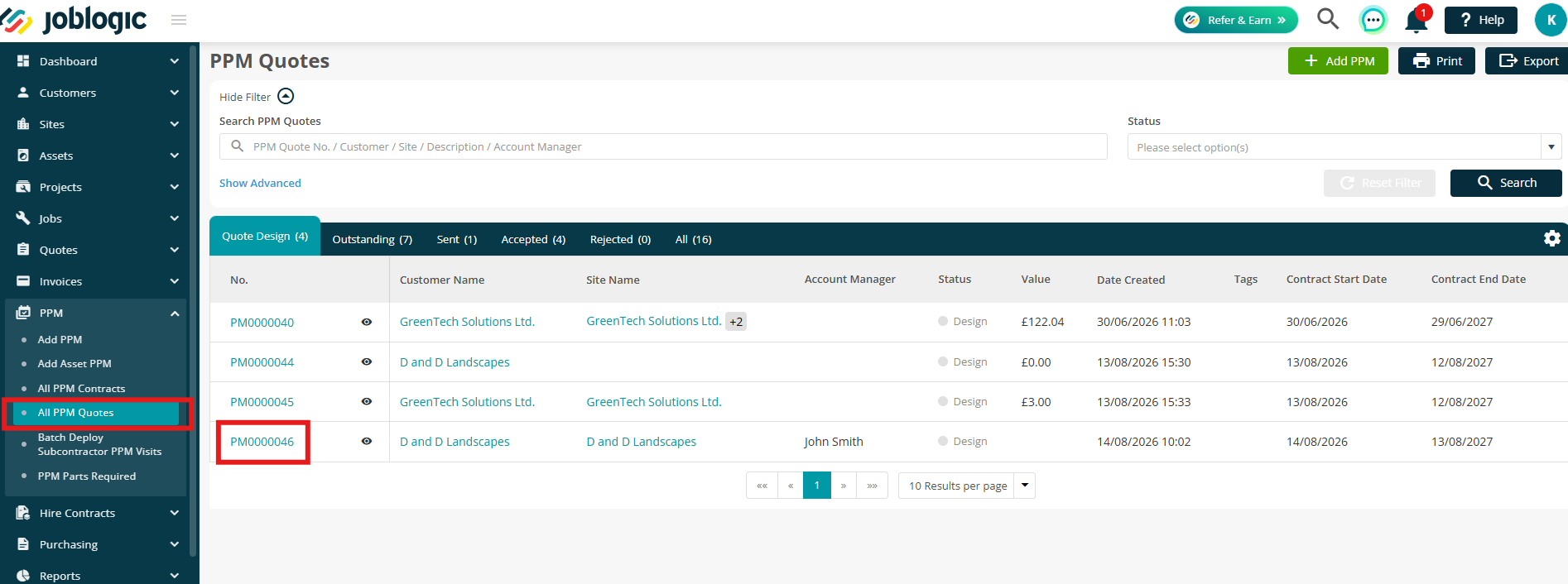
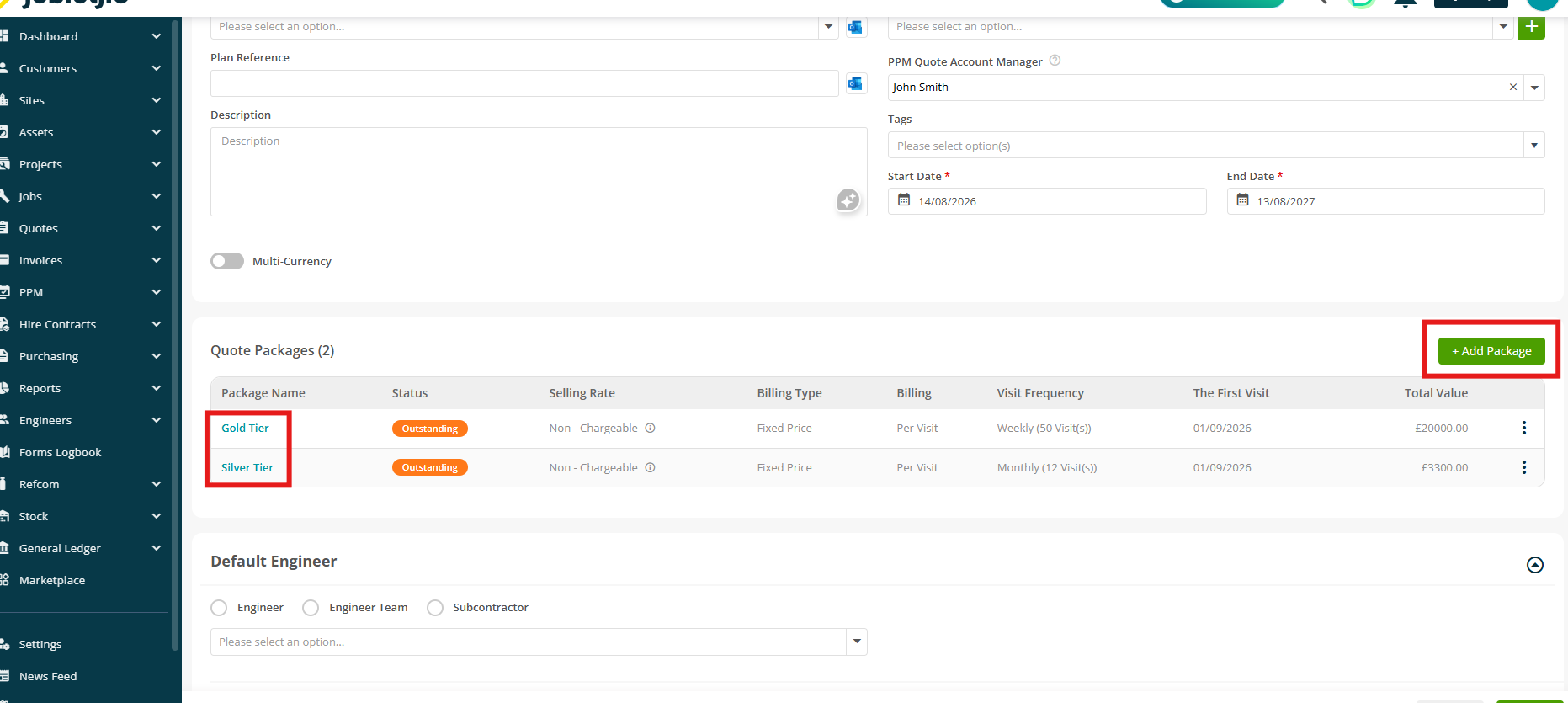
Click Edit and scroll down to the Quote Packages section.
Here, click the Package Name to edit an existing package, or click Add Package to create a new package.
Once you are happy with the quote, complete it to finalise the quote and make it official.
Packages can still be added or amended after the quote has been completed, giving you flexibility to make changes if required.
.png)
Selecting packages and approving quotes
Customers can select their preferred package and approve a PPM quote in several ways. You can provide the customer with a portal link by email, allow them to access the quote through the Customer Portal, or you can select the package manually from the back office.
Portal link
When sharing a quote by email, you can include the portal link so your customer can view the quote and select their preferred package.
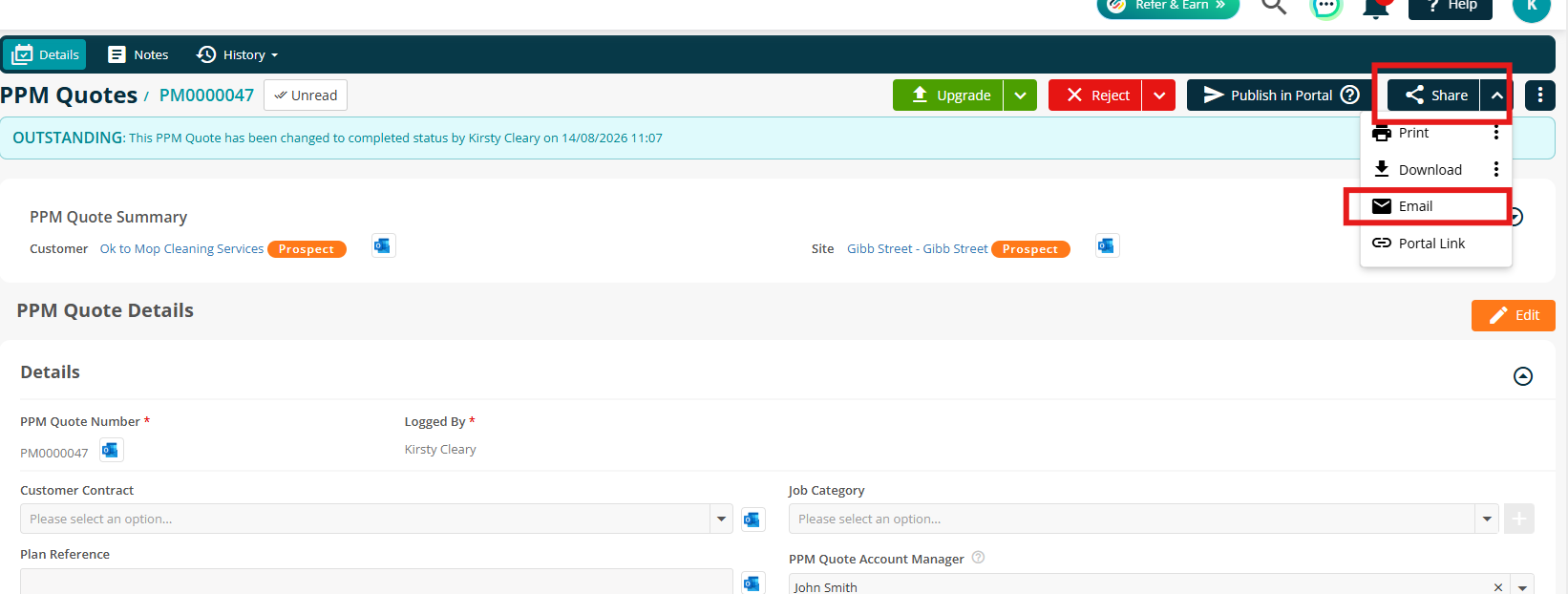
Click Share > Email to send the quote directly to the customer.
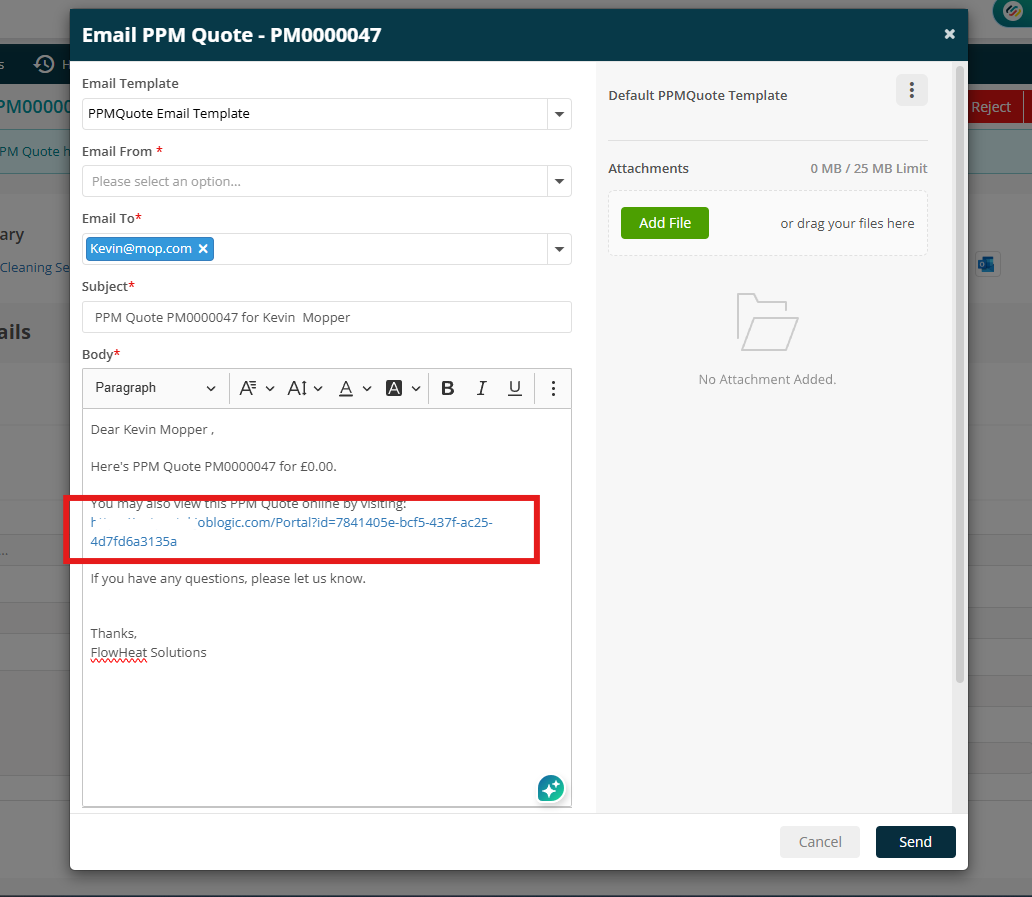
Make sure the Portal Link is included in the email body, then click Send.
To read more about editing your email templates, click here.
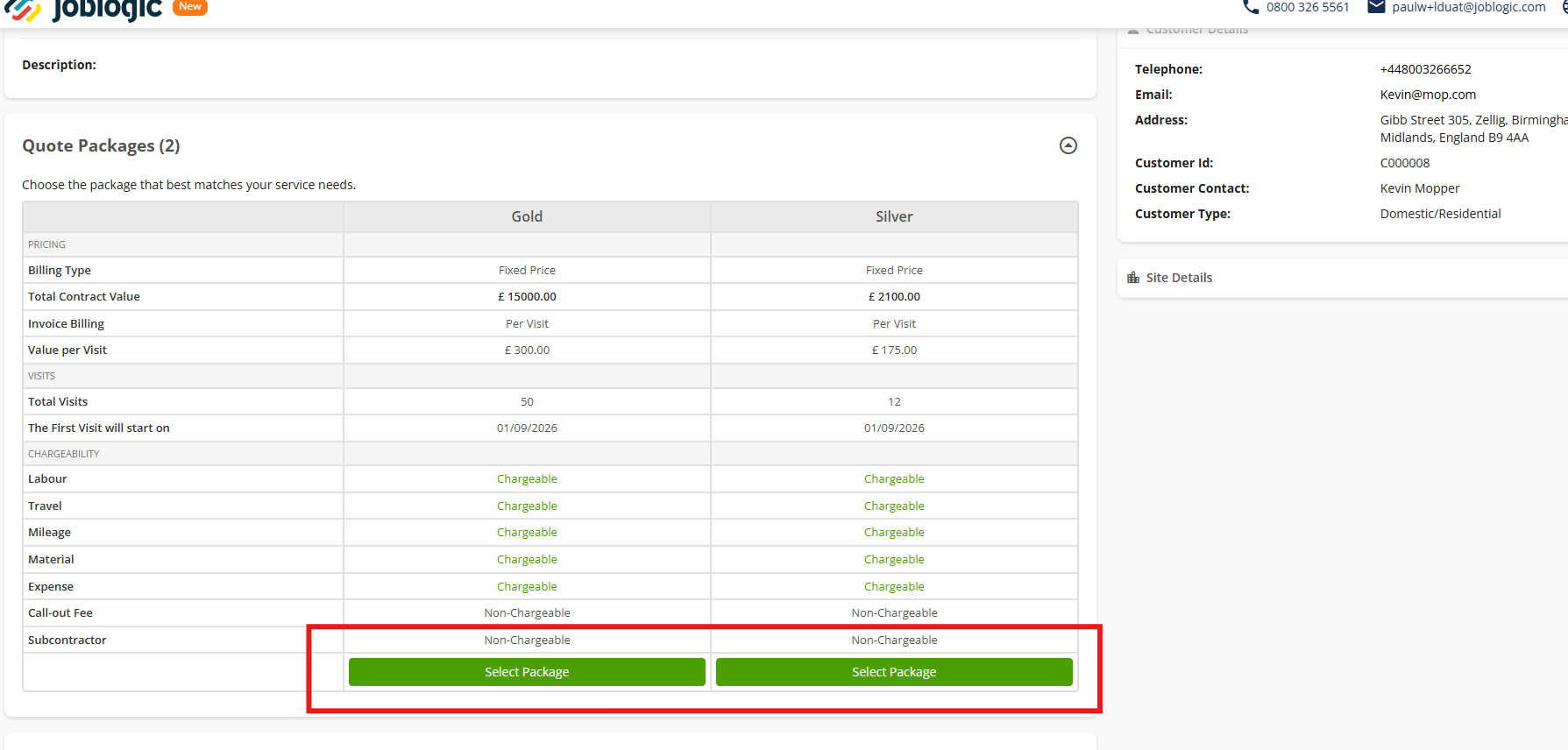
The customer can use the link to view the quote, review the available packages and select their preferred option for approval.
Customer Portal
Customers with access to the Customer Portal and the relevant permissions can also view their PPM quotes directly from their account.
They can navigate to PPM > PPM Quotes and select the relevant quote.
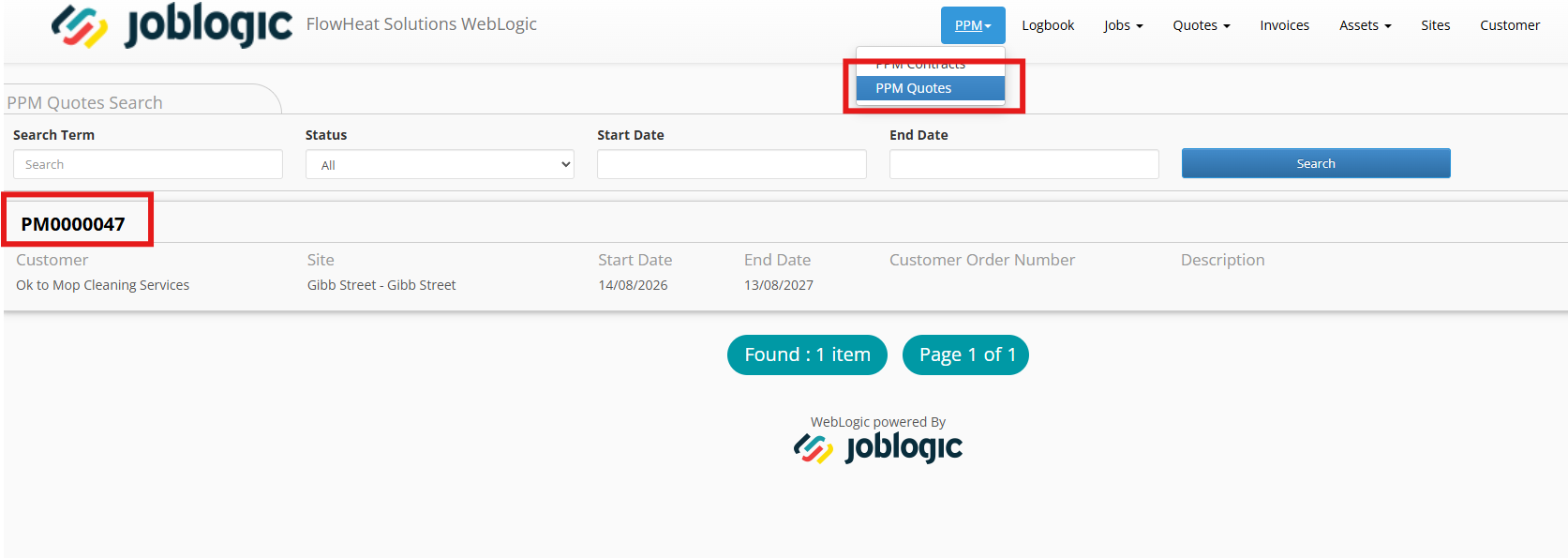
The available packages will be displayed, allowing the customer to select their preferred option.
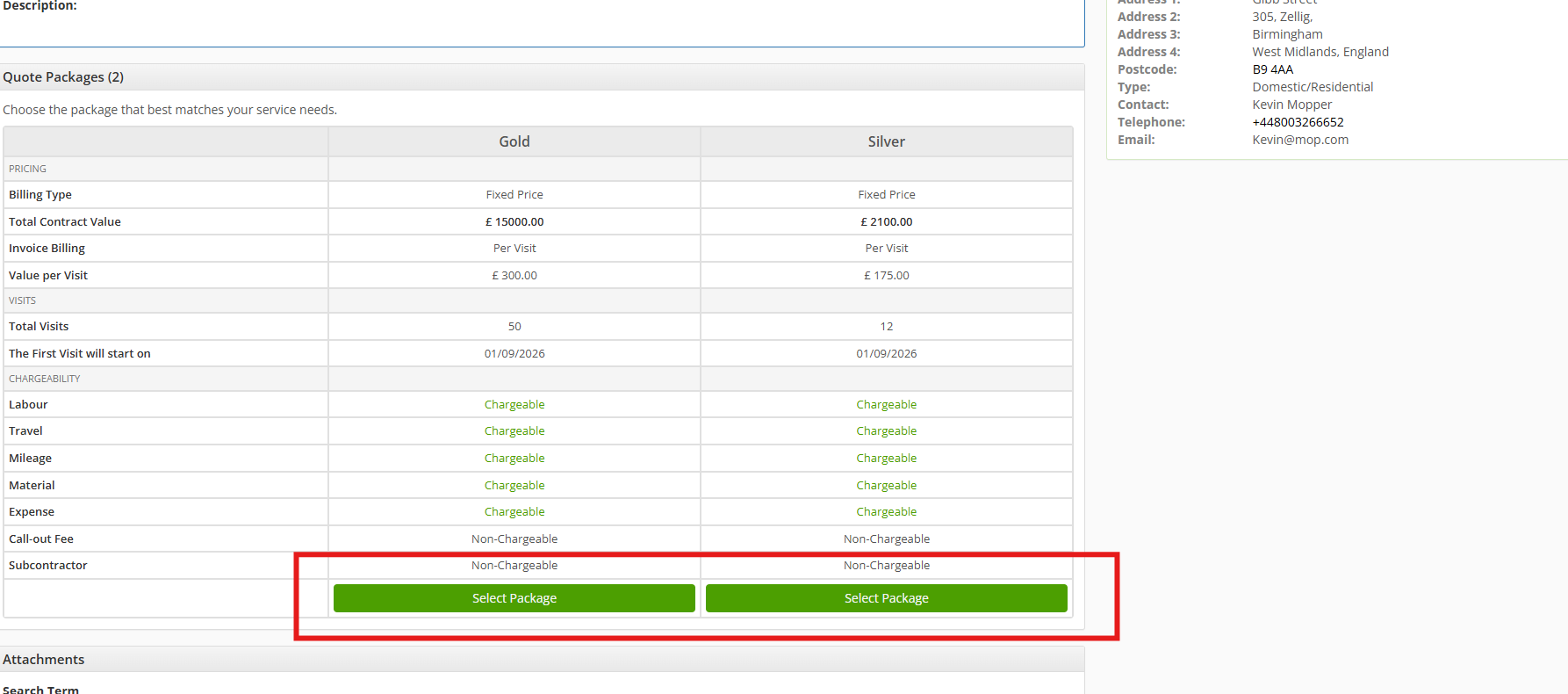
The customer can add any further details if required, then click Approve to confirm their selection.
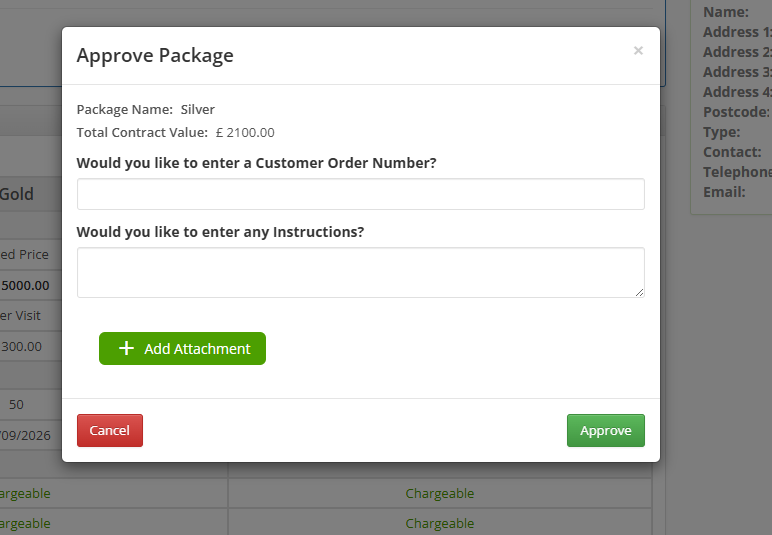
Manually
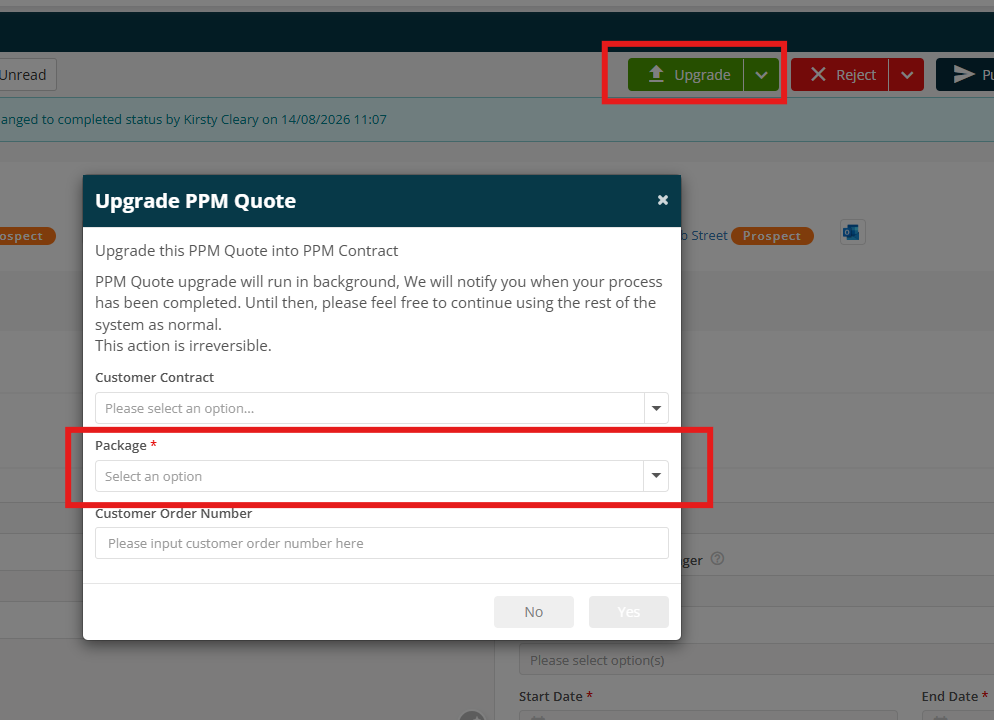
You can also select a package manually from the back office when approving or upgrading a quote.
To upgrade the quote immediately, click Upgrade, select the preferred package and continue through the upgrade process.
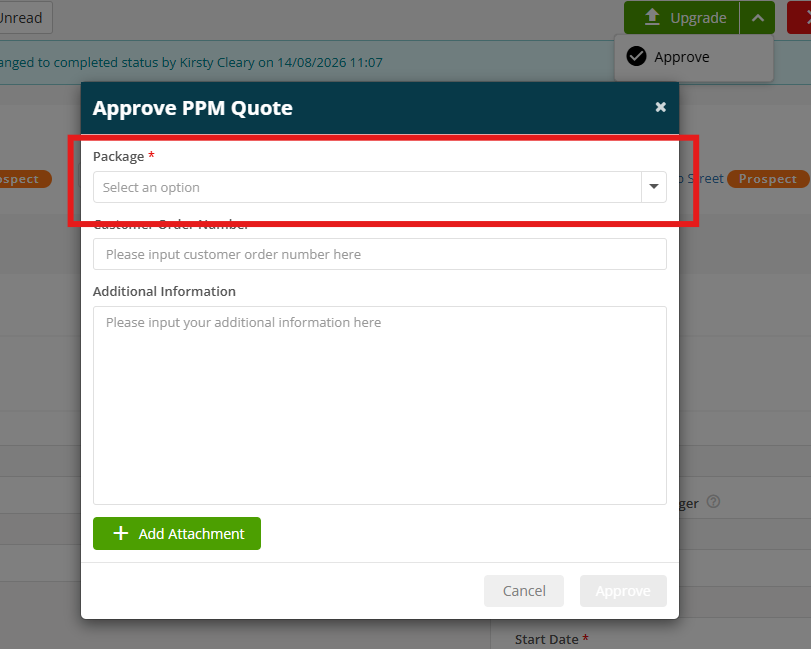
Alternatively, click the arrow next to Upgrade and select Approve if you are not ready to upgrade the quote to a job yet.
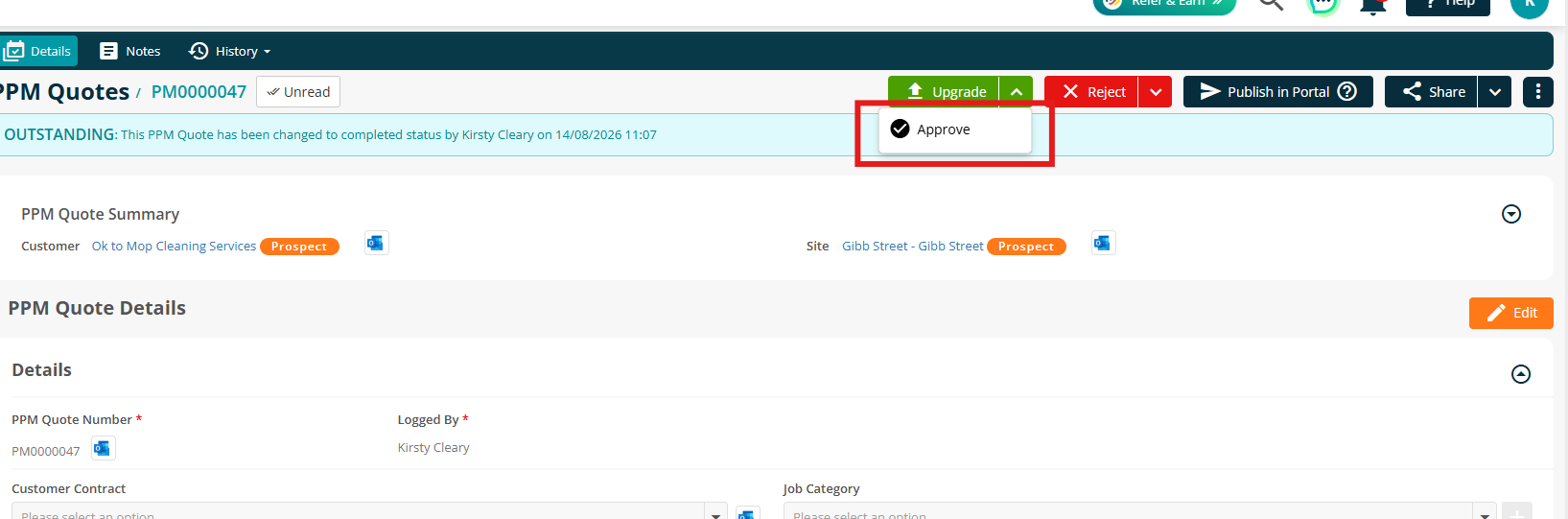
Select the preferred package from the dropdown and click Approve.
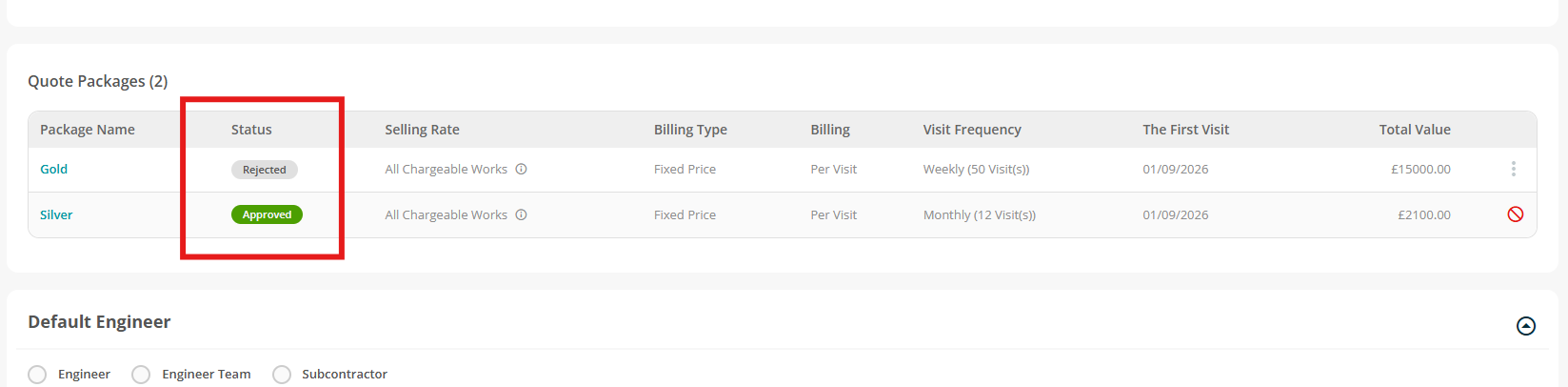
Once a package has been approved, its status will be updated within the Quote Packages section.
You can then continue with your usual quote process.
Further Support
For further information or assistance with the above, contact our Support Team on 0800 326 5561 or email support@joblogic.com. Alternatively, our Customer Success Management team can be reached by emailing customersuccess@joblogic.com
Publishing Details
This document was written and produced by Joblogic’s Technical Writing team and was last updated on the date stated above. Be aware that the information provided may be subject to change following further updates on the matter becoming available or new releases within the system. Additionally, details within the guide may vary depending on your Joblogic account’s user permissions and settings or the electronic device being used.