Features scheduled for release on 15/10/2026. The functionality detailed will not be available in the system until this date. However, please note that this is an ETA and may be subject to change.
Release Topics
- Forms Logbook In Email Notifications
- Cross Customer Invoicing
- Preserve Job Type When Cloning PPM Contract Visits
- Calculated Price (Selling Rate) for “Other” Cost Lines in Quotes
- Scheduled Report Exports - Honour Selected Report Template
- Set a default trade for engineer
- Deletion Prompt for PO Lines Synced to Job Cost (Subcontractor & Supplier)
- Split 'Job - Edit Costs' Permission into Separate Edit and Delete Cost Permissions
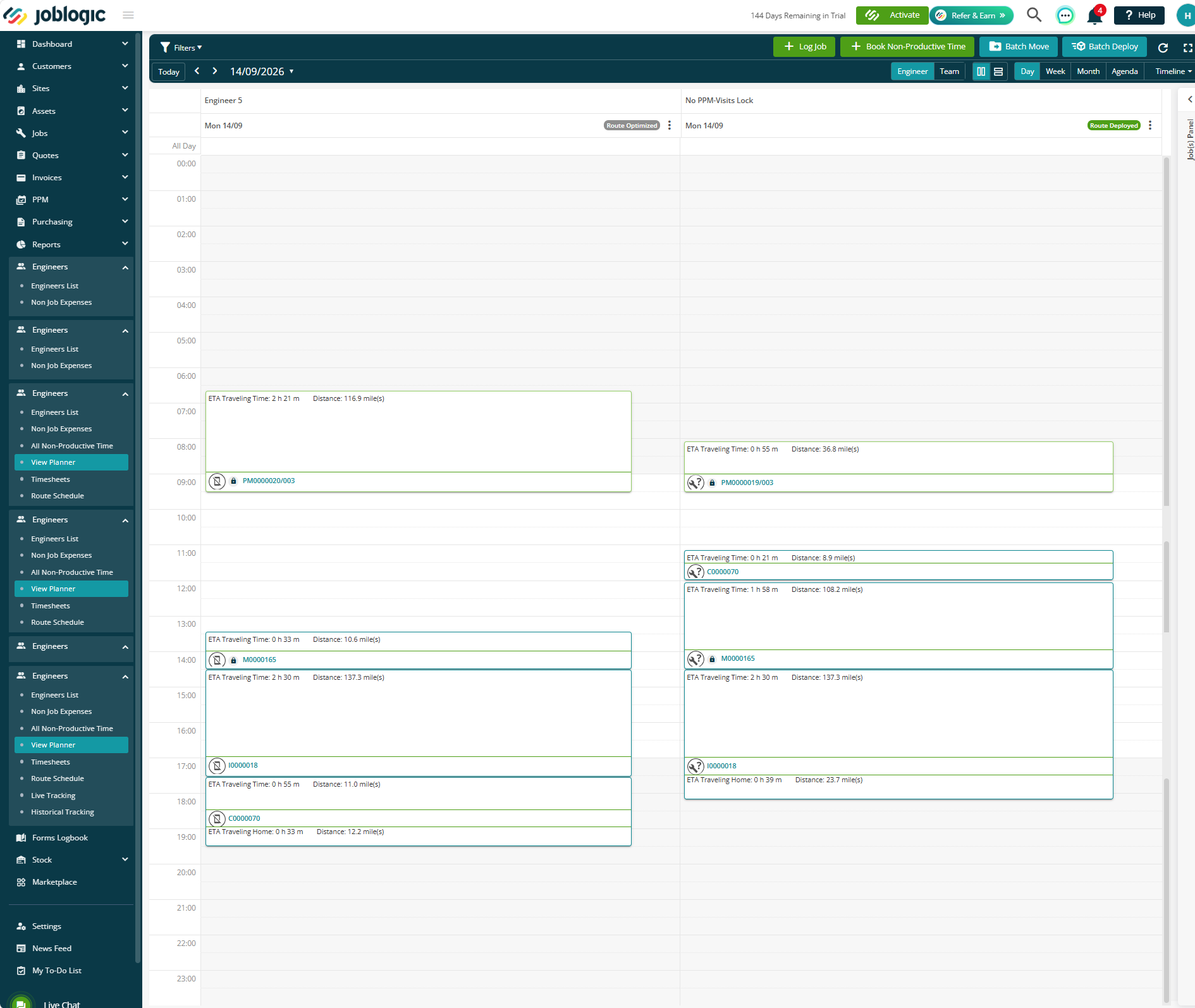
- Calculate Travel Time Must Respect Lock Visit Date & Time
Marketplace Enhancements
- Project Quote Variations
- Equipment Hire bug fixes
- Sage 50 Enhancements
Release Details
1. Forms Logbook In Email Notifications
- You can now include Forms Logbooks as a ZIP file when sending email notifications to customers.
- When enabled, you can choose to include Public Forms Only or All Forms.
- This makes it easier to share completed Forms Logbooks with customers alongside relevant email notifications.
Check out the Email Notifications guide here.
.png)
2. Cross Customer Invoicing
- Cross Customer invoicing allows you to invoice different customers for costs recorded against the same job.
- When creating a Cross Customer invoice, you can assign individual costs to different customers or bulk assign all outstanding costs to the same customer.
- Joblogic will generate a separate invoice for each customer assigned to costs, while any unassigned costs remain outstanding on the job.
- To enable the feature, head to Settings > System Setup and enable the Invoice - Cross Customer setting.
Click here to read the full guide!
.png)
.png)
3. Preserve Job Type When Cloning PPM Contract Visits
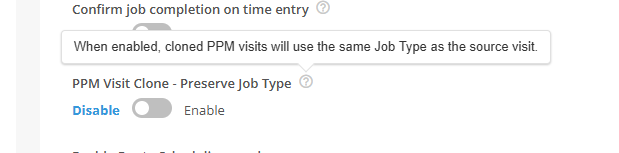
- A new PPM Visit Clone - Preserve Job Type setting allows authorised users to retain the Job Type from the original visit when cloning PPM contract visits.
- When enabled, cloned visits will use the same Job Type as the source visit, rather than defaulting to Maintenance. If the source visit has no Job Type or its Job Type is inactive, the clone will continue to default to Maintenance.
- The setting is off by default, so existing visit cloning behaviour remains unchanged unless enabled.
- Head to Settings > System Setup to amend your settings.
4. Calculated Price (Selling Rate) for “Other” Cost Lines in Quotes
- The Other cost line on Quotes now supports Calculated Price (Selling Rate) alongside the existing Fixed Price and Non-Chargeable options.
- This allows the configured selling rate to be applied automatically to Other costs, helping maintain consistent pricing, reduce manual calculations and protect margins when quoting.
.png)
5. Scheduled Report Exports - Honour Selected Report Template
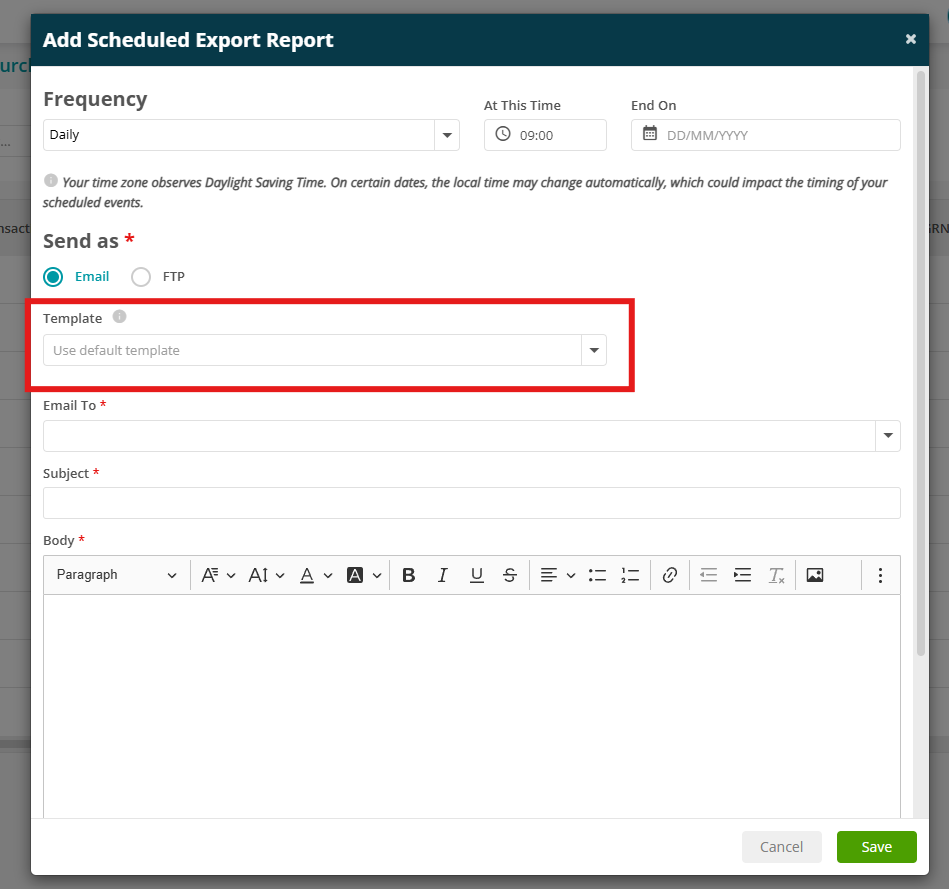
- A new Template dropdown has been added to the Schedule Export Report settings.
- This allows you to select the specific report template to use when scheduling a report export, giving you greater control over the format and information included in scheduled reports.
Click here to read the full guide on Dynamic Reports.
6. Set a primary trade for engineer
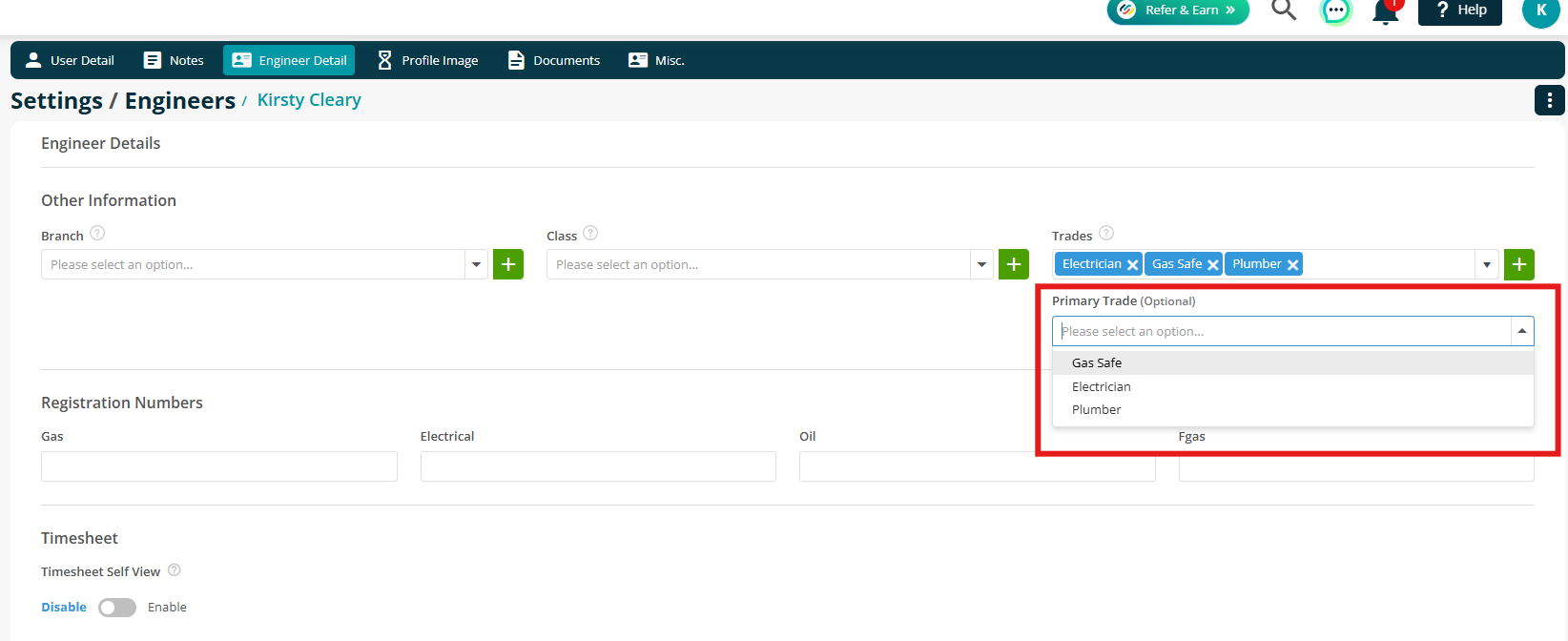
- A Primary Trade can now be assigned to an engineer, helping determine which Trade is applied when creating Job Costs from engineer activity.
- When Use Primary Job Trade in Job Cost Trade is enabled, Joblogic will use the Job Primary Trade first, followed by the engineer's Primary Trade if one isn't available.
- If neither is available, the existing Trade selection behaviour will apply.
- Navigate to Settings > Staff to set an engineer's Primary Trade.
To read more about setting up your engineers, click here.
7. Deletion Prompt for PO Lines Synced to Job Cost (Subcontractor & Supplier)
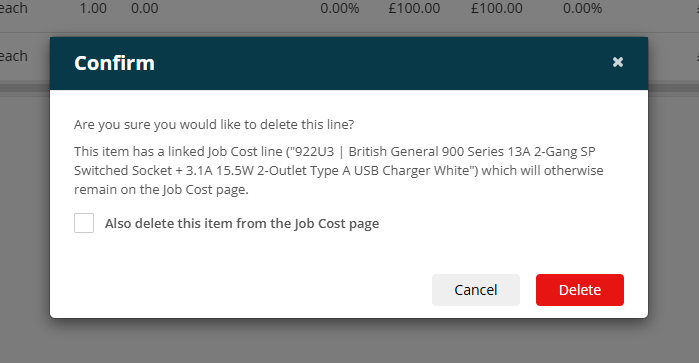
- When deleting a Subcontractor or Supplier PO line that has already synced to Job Cost, Joblogic will now warn users that a linked cost line exists.
- Where permitted, users can choose to also remove the linked Job Cost line at the same time, helping prevent outdated or duplicate costs from remaining against the job.
- If the linked cost has already been invoiced, or the user does not have permission to delete Job Costs, the warning will explain that the cost will remain on the Job Cost page.
- This helps users keep PO and Job Cost information aligned and reduces the risk of inflated job costs and incorrect profitability or invoicing.
8. Split 'Job - Edit Costs' Permission into Separate Edit and Delete Cost Permissions
- The Job - Edit Costs permission has been split to provide greater control over who can edit and delete job costs.
- Two separate permissions are now available:
- Job - Edit Costs – controls who can edit job costs.
- Job - Delete Costs – controls who can delete job costs.
- This gives administrators more flexibility when managing access to job cost information.
.png)
9. Calculate Travel Time Must Respect Lock Visit Date & Time
- Travel time is now calculated for every locked visit, whether it is selected or deselected in the locked-visit optimisation modal.
- The applicable permission continues to control whether a locked visit can be selected for full route optimisation.
- For deselected locked visits, or users without the required permission, the calculated travel time is still added to the visit duration. However, the original appointment end time is retained, with the visit start time moved earlier to accommodate the additional travel time.
Marketplace Enhancements
1. Project Quote Variations
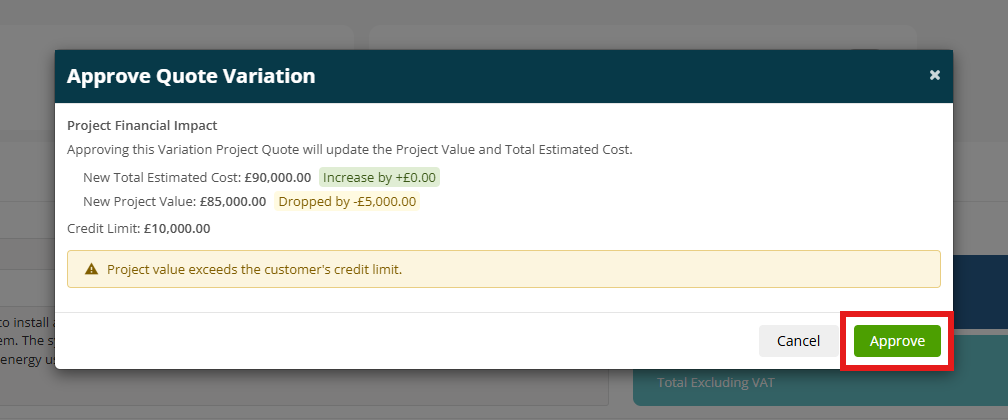
- Project Quote Variations allow you to manage changes to project scope, costs and values while keeping the original project quote unchanged.
- Once enabled, you can add variations to accepted Project Quotes, review the financial impact of proposed changes and approve them before they are applied to the project.
- You can also identify quotes with variations and filter them using the Variation option in Advanced Filters.
To read more about your Project setting options, click here.
Or check out the Adding a Project Quote guide here.
.png)
2. Equipment Hire bug fixes
-
Depreciation – Depreciation rate, charge amount, residual floor, history dates and Pause/Resume behaviour now align with the Hire depreciation rules.
-
Serialised Stock on Hire Contract – When adding a serialised Part or Equipment from stock to a Hire Contract, you are now prompted to enter the serial number before the hire line is saved, matching the behaviour on Upgrade Hire Quote.
-
PPM Off Hire – When a hire asset is marked as Off Hire while it is on a PPM contract, the asset is now suspended on the PPM visit rather than being removed.
Click here to read the Equipment Hire guide.
3. Sage 50 Enhancements
Customer Credit Control and Credit Limit Management
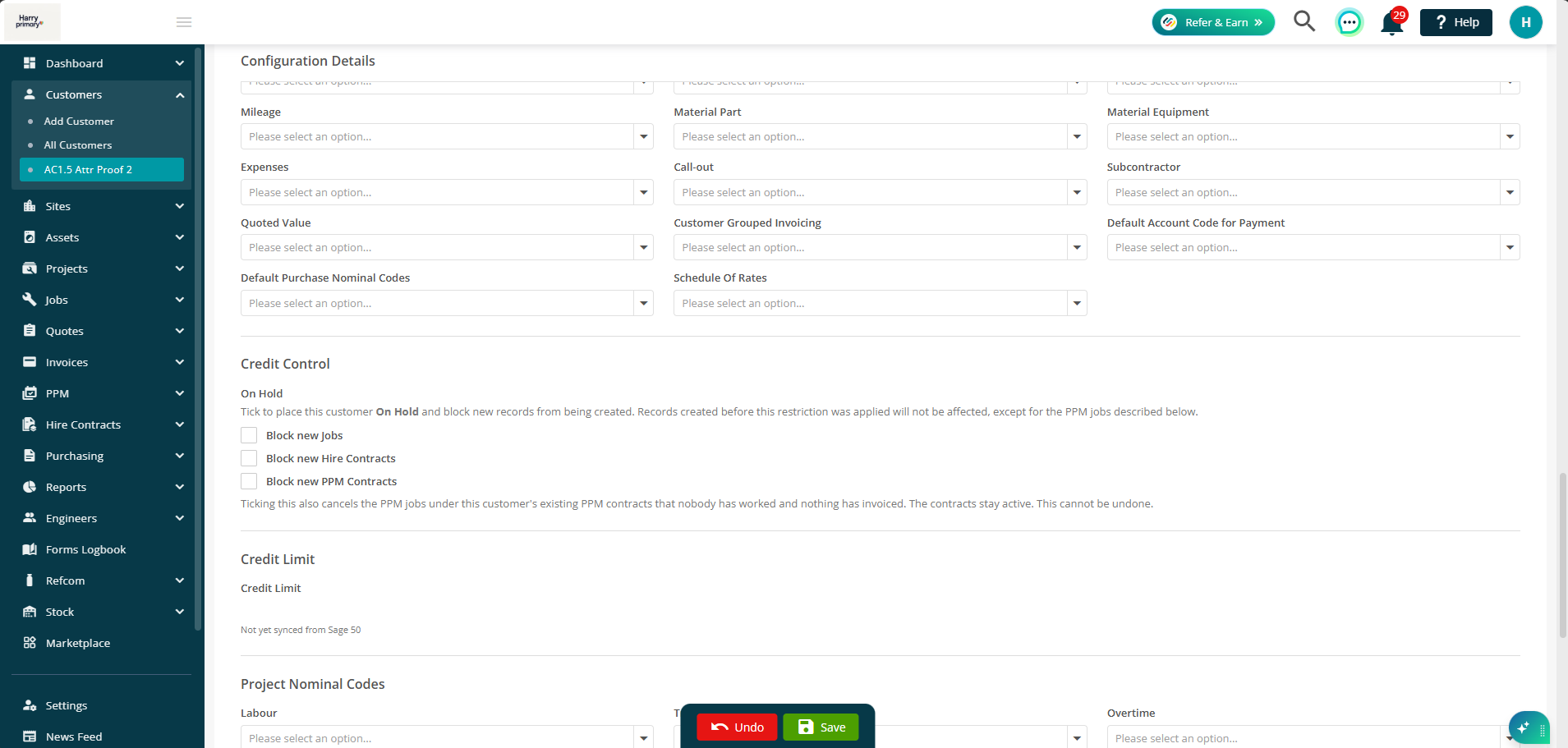
- New credit control options provide greater control over what work can be carried out for customers based on their credit status.
- Set customers on hold for new Jobs, Hire Contracts and PPM Contracts independently.
- Control which users can override a customer hold when necessary.
- Quotes can still be logged for customers on hold, with a warning that the resulting work will be blocked when upgraded.
- View the customer's Credit Limit and Total Receivable Balance from Sage 50 directly within Joblogic.
- Optionally enable credit limit checks to prevent new work when a customer's balance exceeds their Sage 50 credit limit.
- Set a warning threshold to highlight when a customer is approaching their credit limit.
Import Customer Details and Status from Sage 50
- Customer information from Sage 50 can now be brought into Joblogic automatically during sync.
- Payment Due (days) is now imported from Sage 50 without changing the existing Method of Payment.
- Sage Account Status is recorded in the customer's private notes, creating a history when the status changes.
- Company Reg. Number and Trading Terms can now be imported from Sage 50.
- A Trading Terms invoice tag is available for use with the imported information.
- Customers marked as Inactive in Sage 50 are automatically suspended in Joblogic.
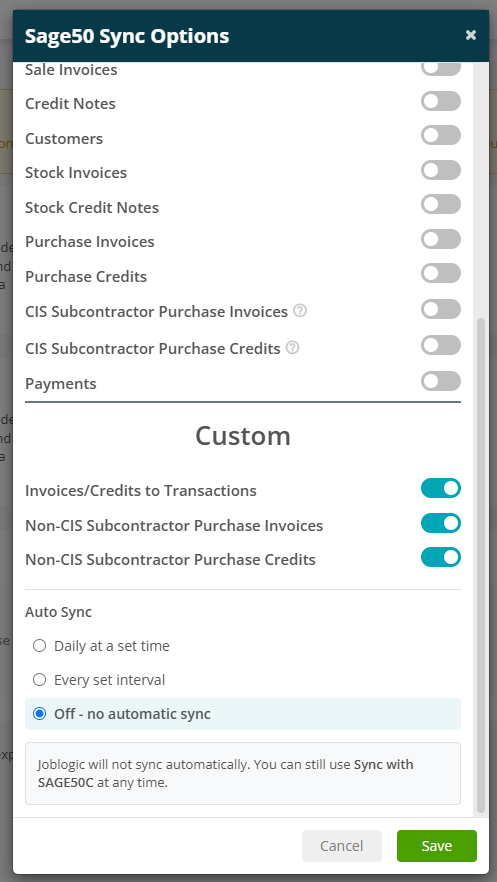
Update Auto Sync to a Recurring Schedule
- Auto Sync can now be configured to run at a set interval, providing more flexibility over how frequently Sage 50 data is synchronised.
- Choose from Off, Daily at a set time, or Every set interval.
- Set an interval from 10 minutes to 24 hours, depending on your requirements.
- Existing daily sync schedules remain unchanged unless the new interval option is selected.
Audit Note for Customer Sage Changes
- Customer audit records now provide greater visibility of changes made through Sage 50 synchronisation.
- Changes made by a Sage 50 sync are recorded with Sage50 shown as the author.
- Audit entries show both the previous and updated values, making it easier to track changes to customer information.
Click here to view the Sage 50 guide.
Bug Fixes
- Job Completed notifications are now sent only when a job actually transitions to Completed.
- Duplicate job or visit messages could result in duplicate notifications. Repeat deliveries are now recognised and ignored.
- Events on Settings > Email Notifications are now displayed in a consistent order.