Features scheduled for release on 12/11/2026. The functionality detailed will not be available in the system until this date. However, please note that this is an ETA and may be subject to change.
Release Topics
- Email/SMS Recipients by Trade, Job Type & Contract
- Site Type Filter at the Time of Scheduling
Marketplace Enhancements
- Approval Rules & Limits
- Job Spend Estimator - Enforcement, Call-out Charge & Price List Pricing
- Temporary Sites on Log Quote
- Sage 50 Enhancements
- Stock Request updates
- RAMS enhancements
- Xero Advance
- Equipment Hire Advanced - Transport
- Clik Compliance
- Invida Integration
Release Details
1. Email/SMS Recipients by Trade, Job Type & Contract
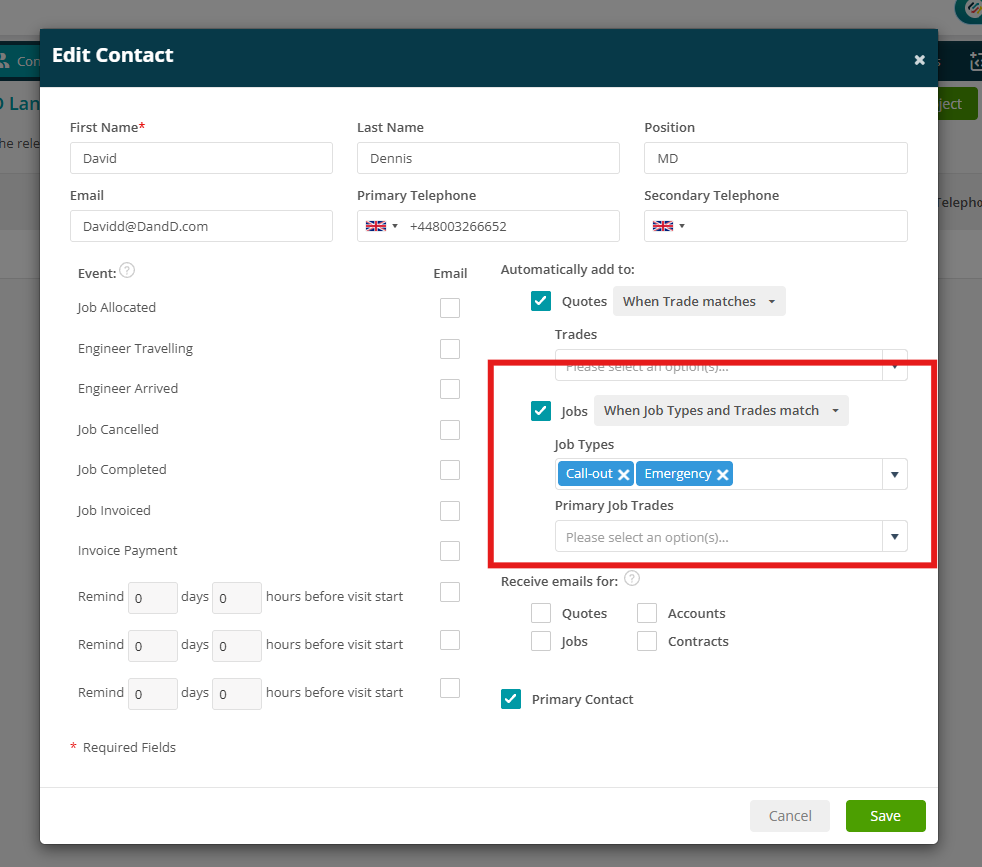
- You can now control which jobs and quotes contacts are automatically added to based on their selected trades and job types.
- Contacts can be configured to receive notifications only for relevant work, helping reduce unnecessary emails and SMS messages.
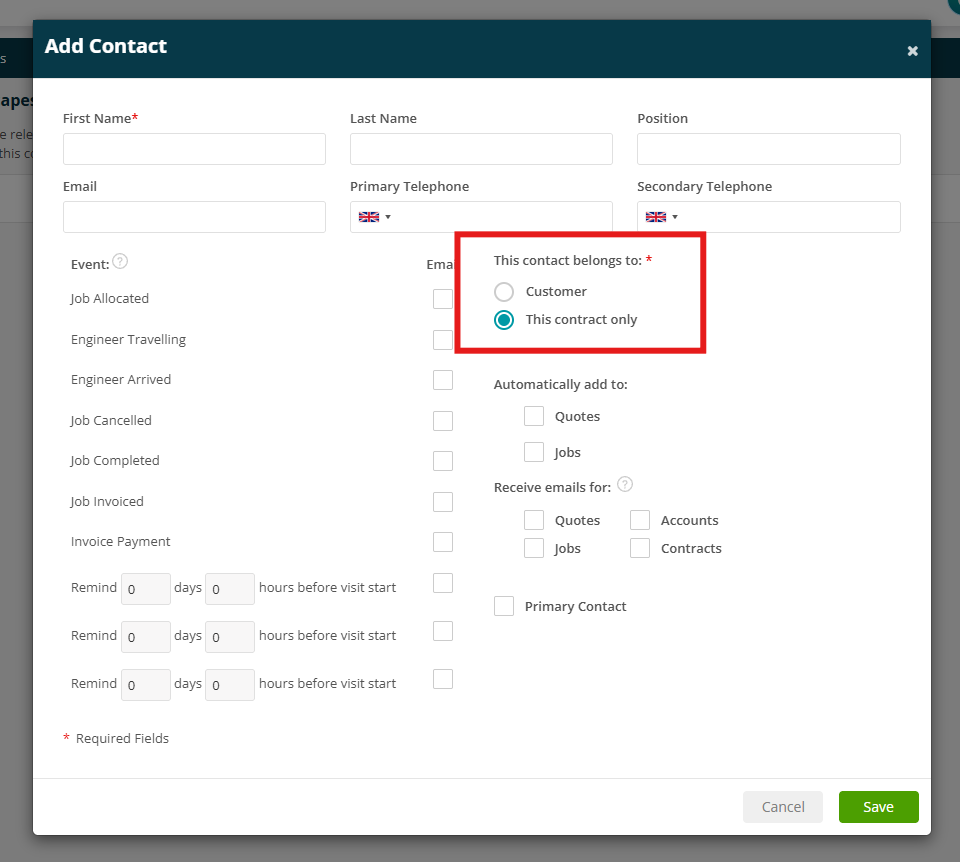
- Contracts now have their own Contacts section, allowing you to assign relevant contacts to jobs and quotes raised under the contract.
- Existing behaviour remains unchanged by default, with contacts automatically added to all jobs and quotes unless specific trades or job types are selected.
- The Manage Contacts screen now includes Primary Trade and Contract filters, making it easier to find and manage contacts.
- These settings apply to new jobs and quotes only. Existing records are unaffected, and contacts can still be manually added or removed from individual jobs.
Click here to read more about adding contacts.
Click here to read more about Contracts.
2. Site Type Filter at the Time of Scheduling
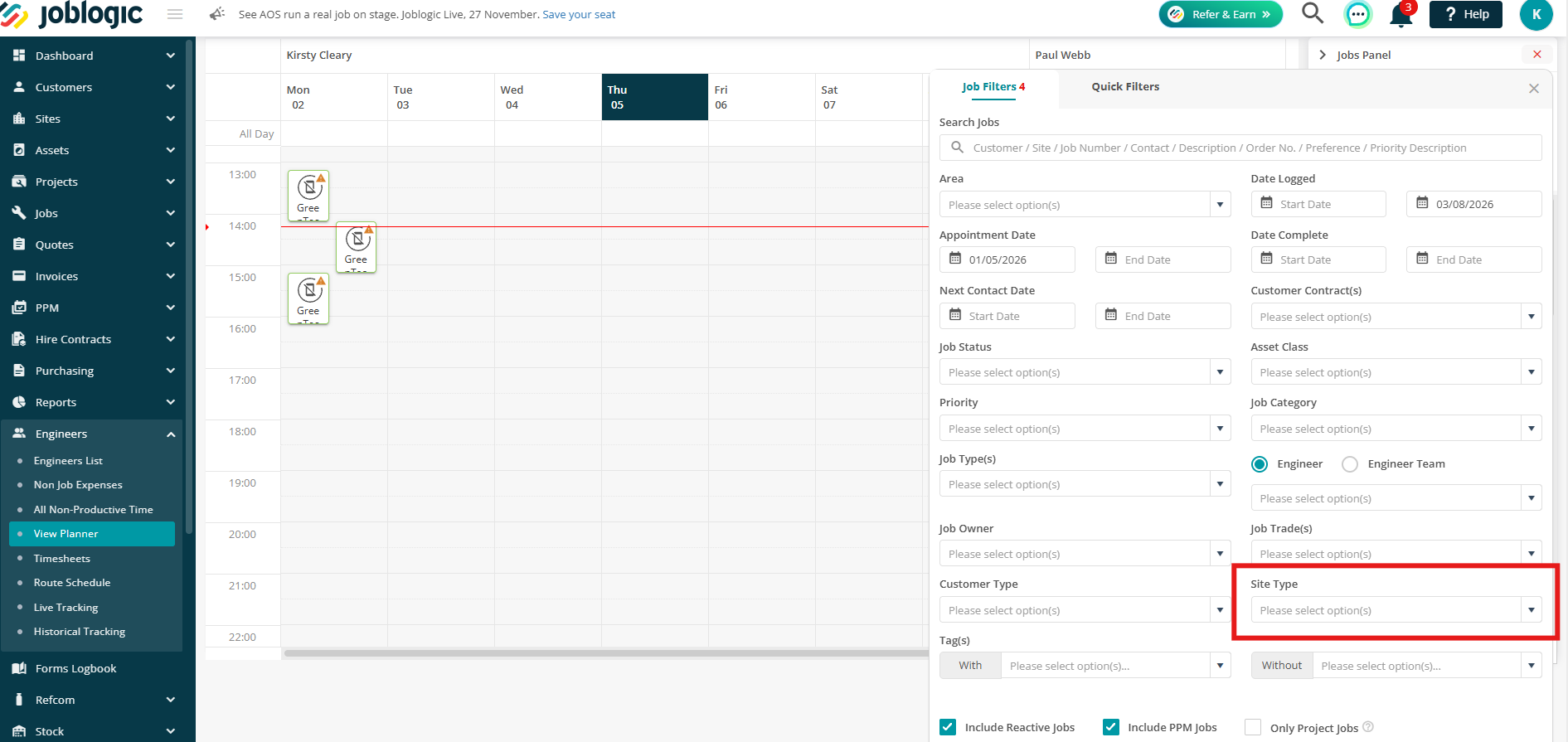
- You can now filter unscheduled jobs by Site Type in the Planner's Job Panel, making it easier to find and allocate jobs to the right engineers.
- This allows you to narrow the Jobs to Schedule list by site type, such as domestic or commercial, without manually checking each job's site details.
- Head to Engineers > View Planner > Job Panel Filters > Advanced to see more.
Marketplace Enhancements
1. Approval Rules & Limits
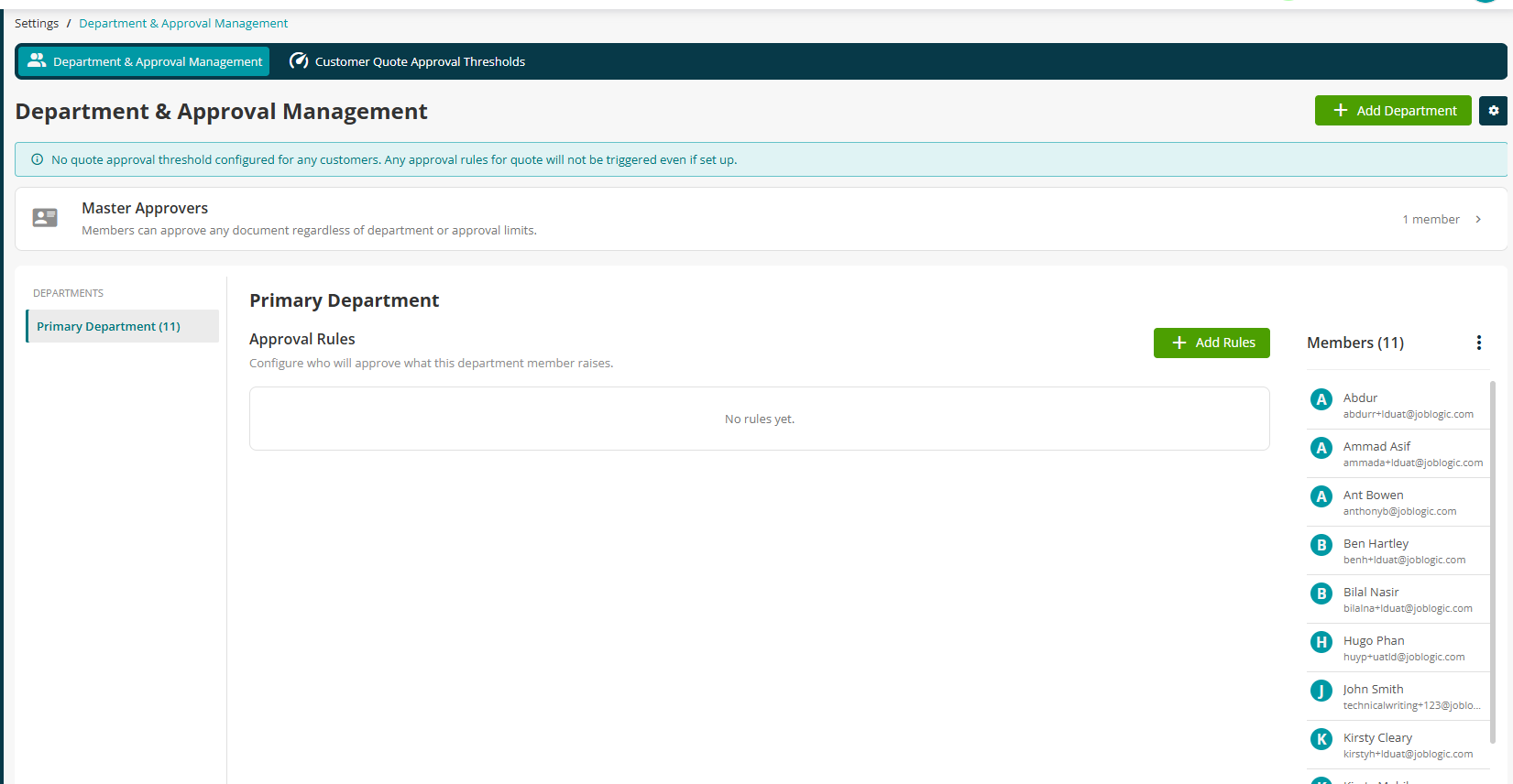
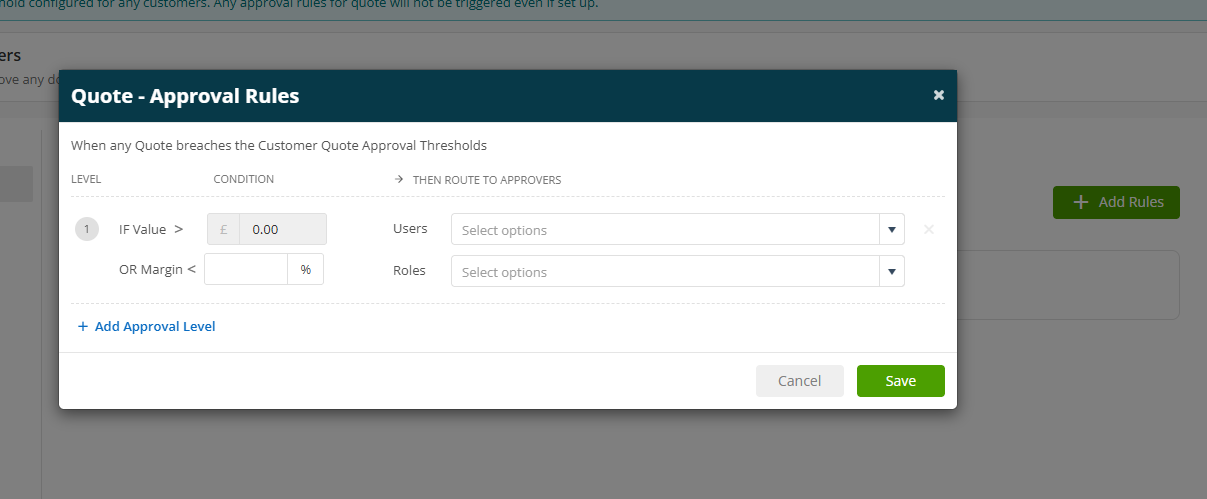
- The new Approval Rules & Limits app allows you to configure approval rules for purchase orders, purchase invoices and quotes across different departments.
- You can set approval levels based on document value and, for quotes, profit margin, directing approval requests to the relevant users or roles.
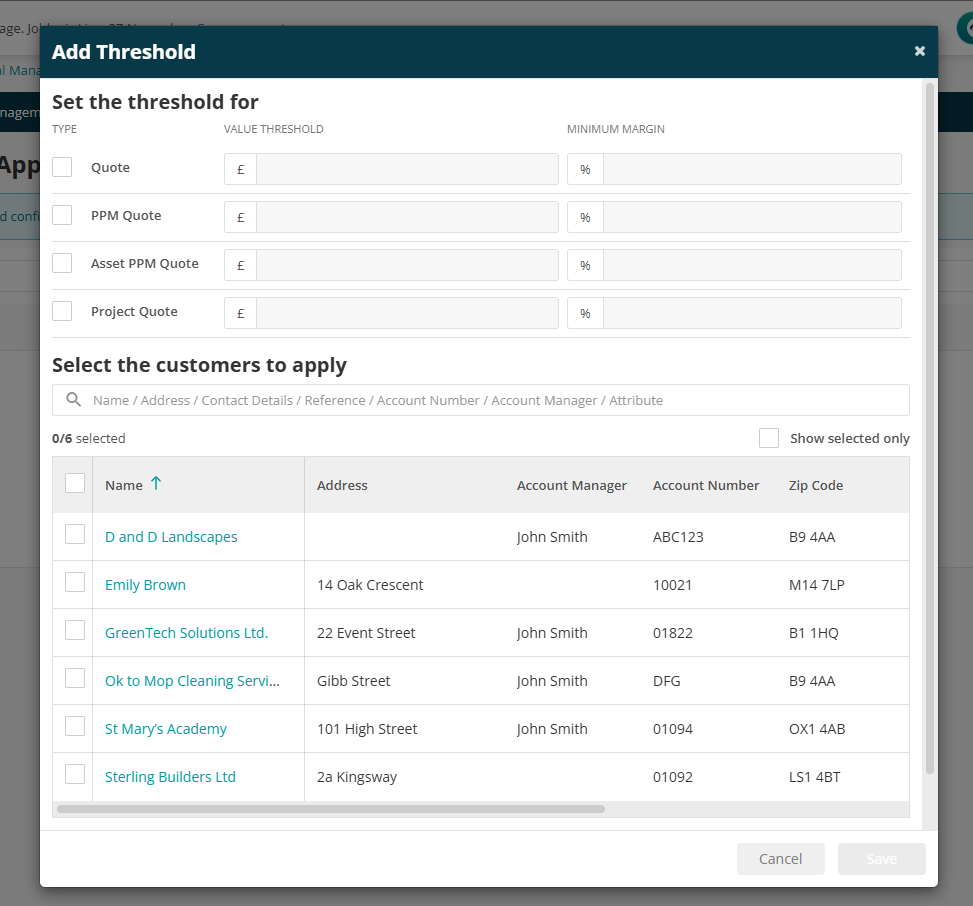
- Customer-specific value and margin thresholds can be configured to determine when quotes require approval.
- Master Approvers can approve documents across all departments and approval limits.
- Approval activity and configuration changes are recorded to support audit and reporting.
Click here to read the guide.
2. Job Spend Estimator - Enforcement, Call-out Charge & Price List Pricing
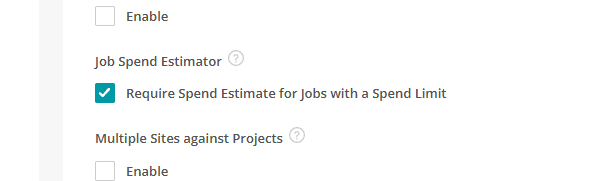
- A new Require Cost Estimate for Jobs with a Spend Limit setting is available under Settings > System Setup > Job Spend Estimator. When enabled, engineers must save a cost estimate with a total above zero before marking a visit as On Site or Complete, including when using Quick Complete.
- Labour and travel calculations now include Call-out charges configured on the Selling Rate, applying the flat call-out fee before the hourly rate.
- Material costs now use the customer's Price List selling price where applicable, rather than the standard selling rate. This requires an active Price List app subscription.
- Visit Details now display JOB COST ESTIMATION or JOB SPEND LIMIT EXCEEDED banners to highlight the job's spend status.
- Saved estimates retain the prices calculated at the time of saving and are not automatically repriced when rates change.
Click here to read the full guide.
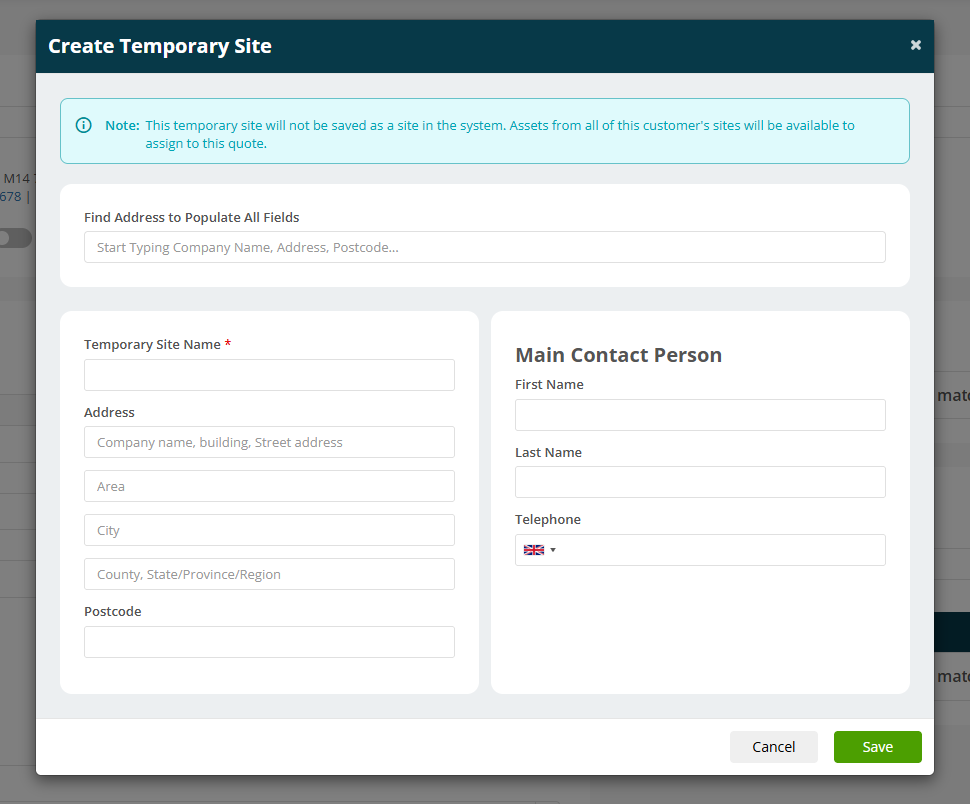
3. Temporary Sites on Log Quote
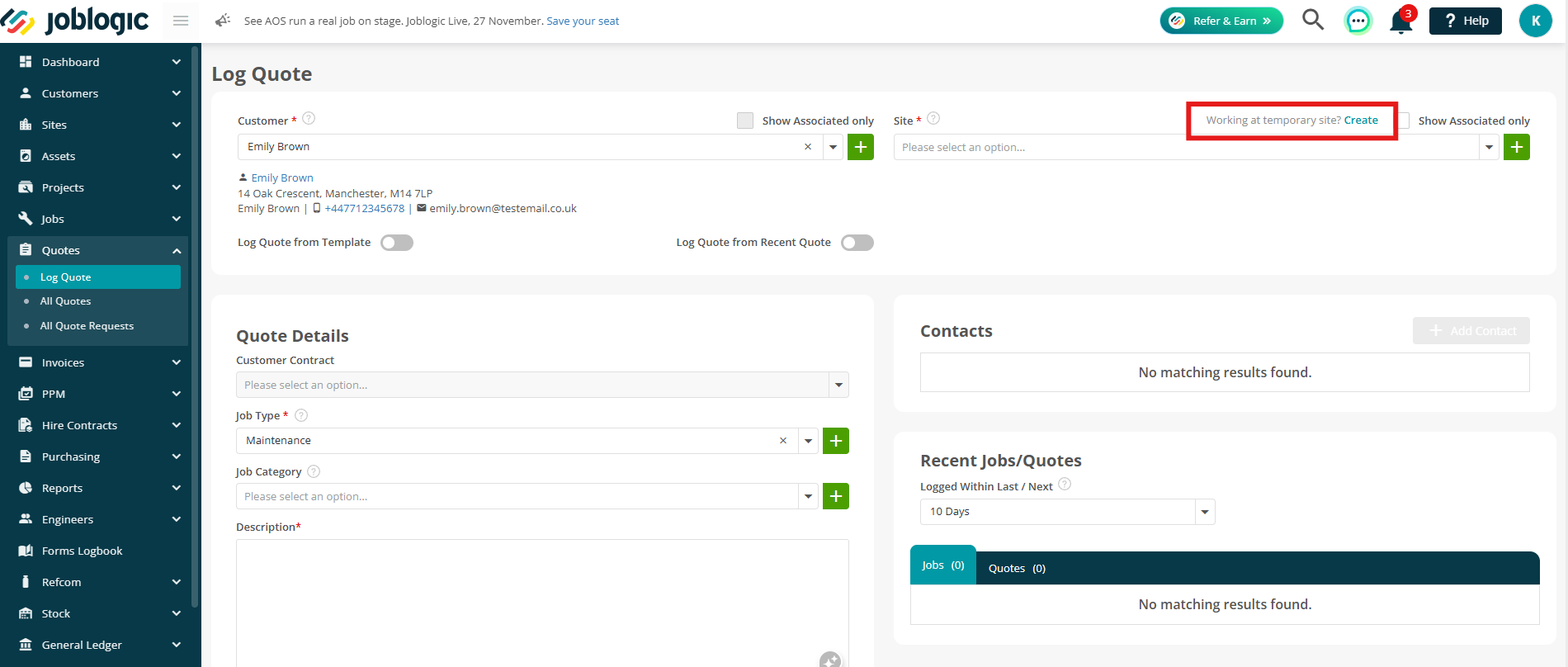
- Temporary Sites functionality is now available when creating quotes, extending the existing functionality beyond jobs.
- Users can add a temporary site to a quote and retain the site details when the quote is accepted and converted into a job.
Click here to read the Temporary Sites guide.
4. Sage 50 Enhancements
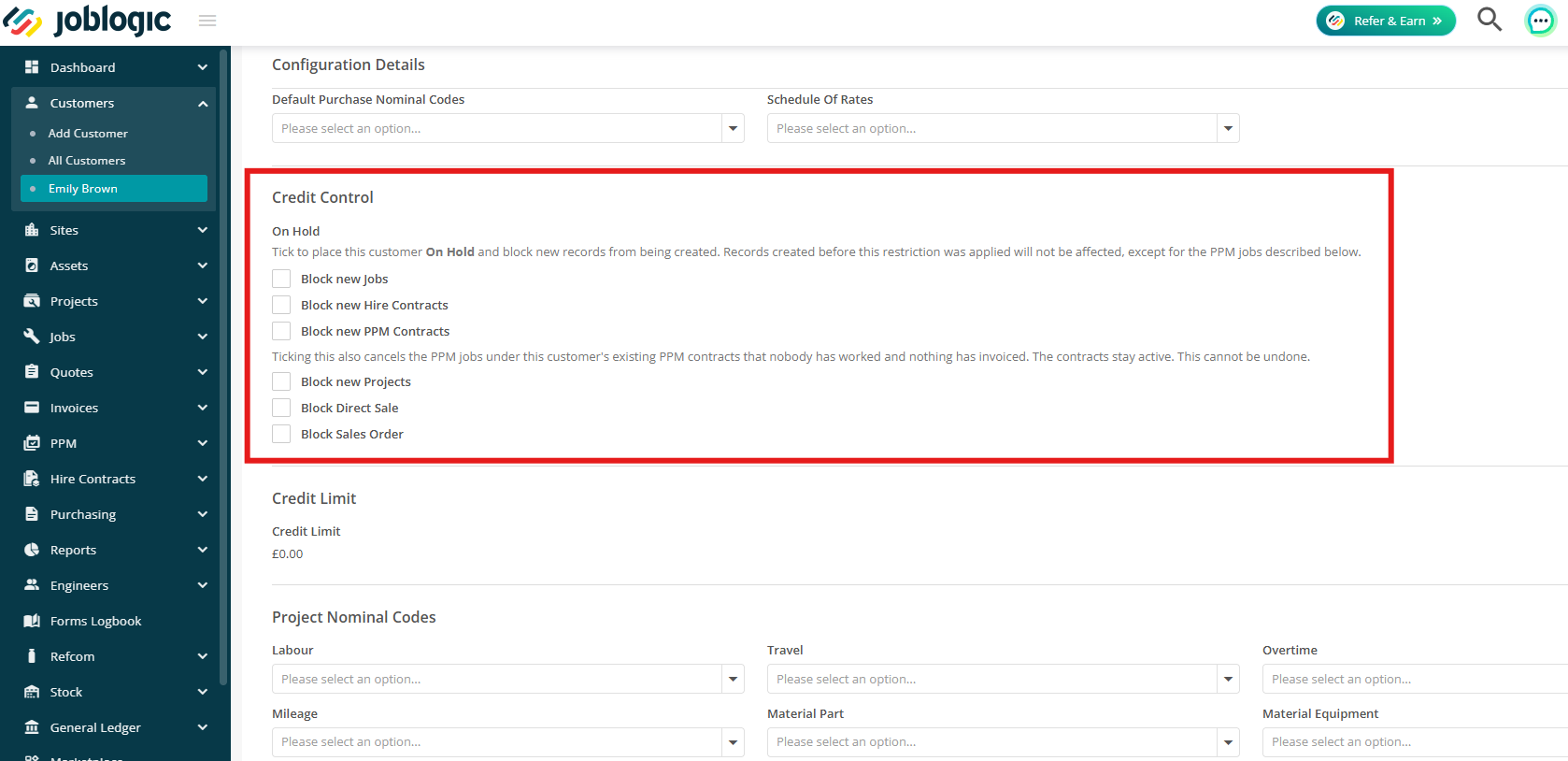
Credit Control for Projects, Direct Sales and Sales Orders
- Three new customer On Hold options are available: Block New Projects, Block Direct Sale and Block Sales Order. Each option is only displayed when the relevant app is subscribed to and is unticked by default.
- Sage credit limits and approaching-limit warnings now apply to all three areas. Project quotes can still be logged for customers on hold, but the hold applies when the quote is converted into a Project.
- The existing Override Hold Customer permission also covers these new options.
Customer Payment Terms and Invoice Numbering
- Payment Due From in Sage 50 is now imported into Customer > Invoice Details > Payment Terms during each customer sync.
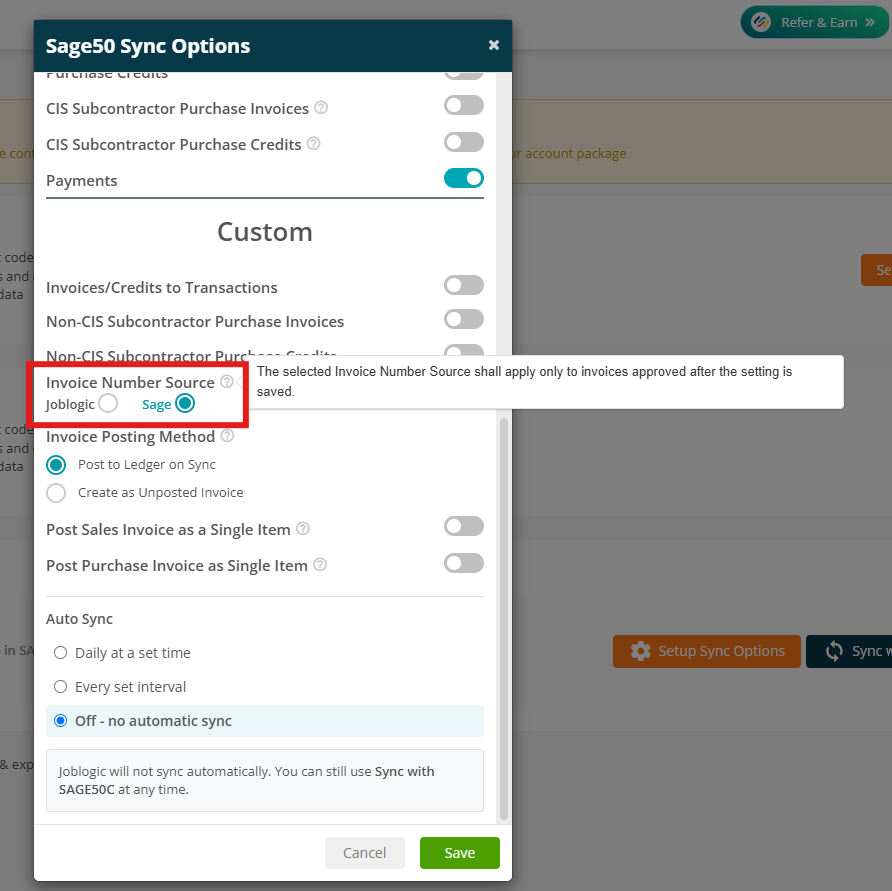
- A new Invoice Number Source setting lets you choose whether invoice numbers are managed by Joblogic or Sage 50. The default is Sage 50, and the setting only applies to invoices created after it has been saved.
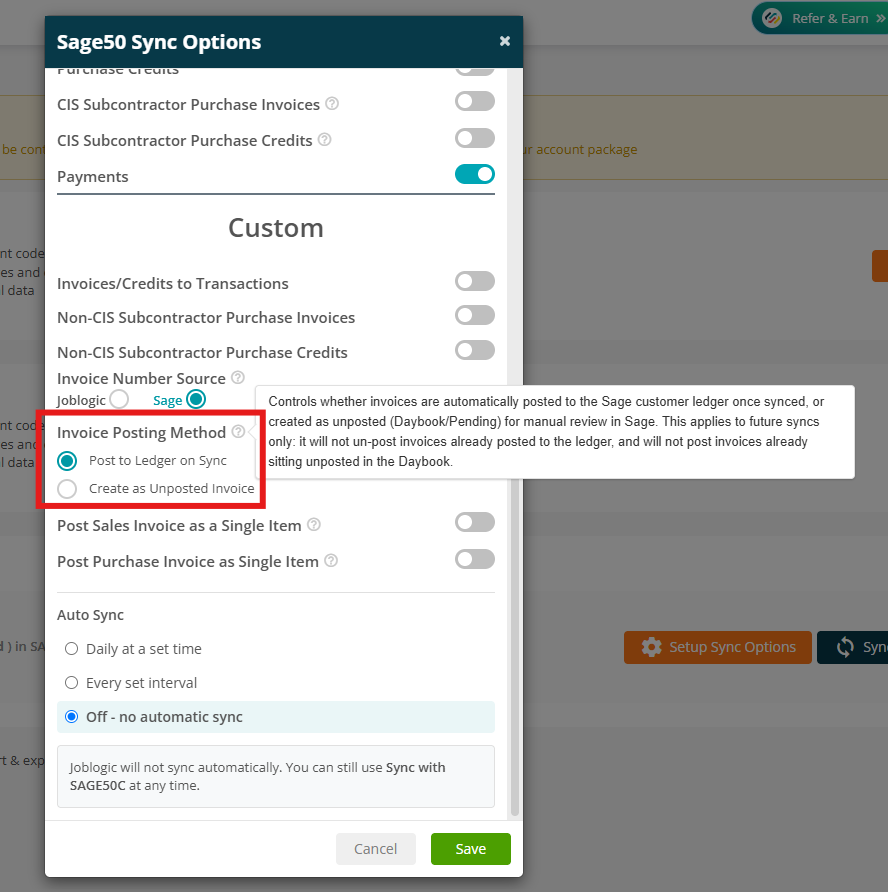
- A new Invoice Posting Method setting lets you choose whether invoices are posted to the ledger during sync (the default) or created as unposted, allowing finance teams to check the coding first.
Hire, PPM SOR and Individual Invoice Sync
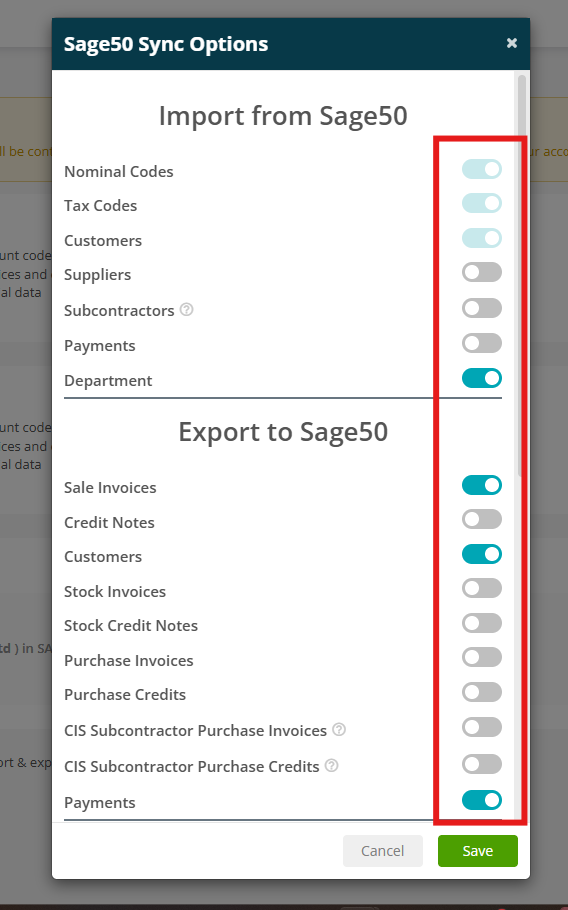
- Approved Hire invoices, credit notes and payments can now be exported to Sage 50. Hire payments entered in Sage 50 are also imported back into Joblogic, with a separate sync status for each.
- Approved PPM SOR invoices, credit notes and payments can now be exported to Sage 50 and linked back to the matching invoice.
- A new Sync to Accounting action lets you send an individual invoice to Sage 50 and mark it as Passed to Accounts.
- The Sync to Sage action on the Sales and Purchase invoice lists lets you select and batch sync up to 1,000 invoices. A new Passed to Accounts column shows which invoices have already been sent.
Posting Options, Departments and Zero-Value Invoices
- Multi-line invoices and credits can now be posted to Sage 50 as a single line, using a general nominal code, tax rate and description configured in the settings. Separate options are available for sales and purchase transactions, both off by default.
- Invoices and credits containing £0.00 lines can now sync to Sage 50 when the Unposted posting method is selected.
- Departments are imported from Sage 50 into the Joblogic Department Library and sent back with transactions that use a nominal code linked to a department.
- A new Ledger Swap Analysis setting posts Cost Centre values into Sage 50's Department field. This is off by default.
Click here to read the Sage 50 guide.
5. Stock Request updates
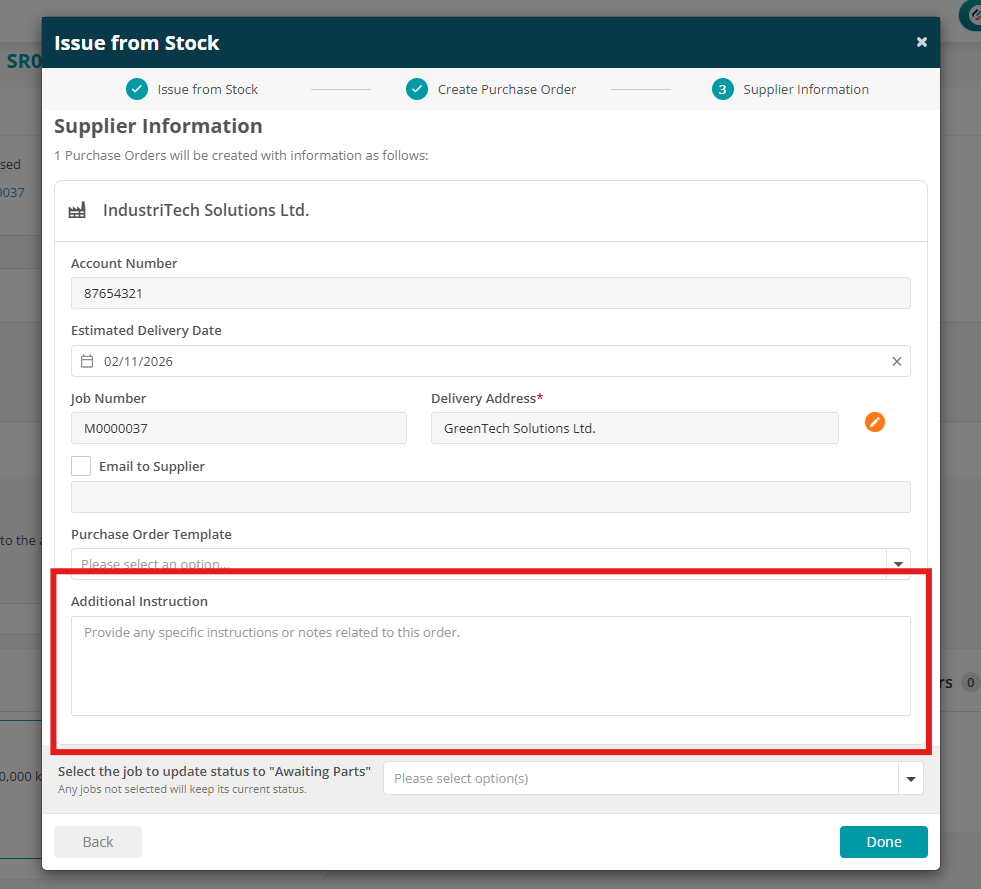
- A new optional, multi-line Additional Instructions field is available on the Supplier Information step of Stock Request > Issue from Stock.
- Any instructions entered are automatically copied to the generated Supplier Purchase Order. Where a request includes multiple suppliers, each supplier's instructions are kept separate.
- The field can be left blank without affecting completion of the request. Existing Purchase Order permissions, approval processes, totals and stock quantities remain unchanged.
Click here to read the full Stock Requests guide.
6. RAMS enhancements
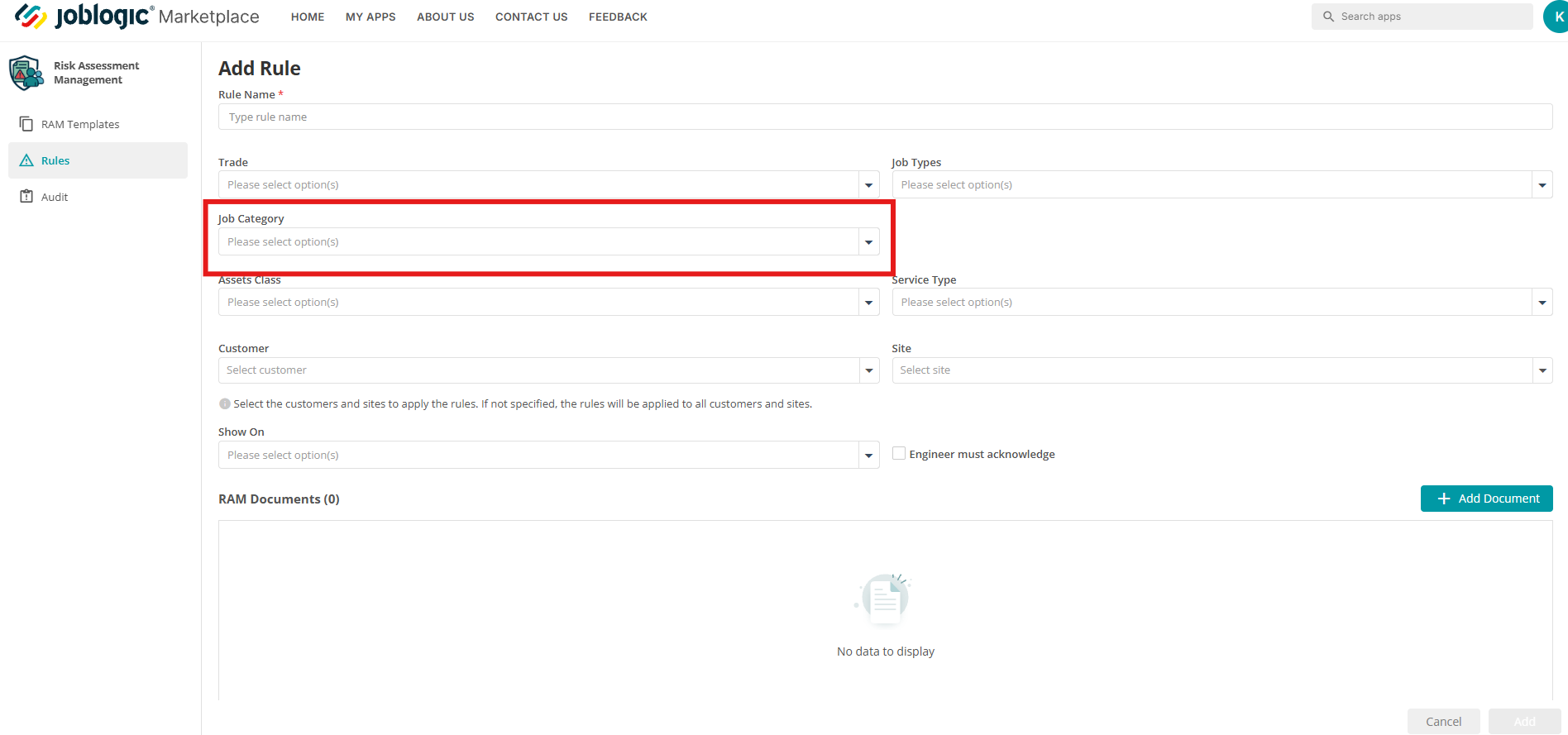
Include Job Category in Rules
- Job Category is now available as a condition when configuring automated RAMs deployment rules.
- Users can select specific Job Categories to control which RAMs templates are automatically assigned to jobs, providing greater flexibility when managing risk assessments.
Add Visit Date to RA when Downloaded before attendance
- Downloaded and previewed RAMS documents now include a Visit Date, showing the Preferred Appointment Date before deployment or the Actual Visit Date once deployed.
- The RAMS Acknowledged On date is also included, allowing clients to see when the RAMS was acknowledged.
- Both dates are displayed consistently across the web back office, Customer Portal and mobile app, with each download recorded in the audit log.
- If a date is unavailable, the document displays To Be Confirmed or Not yet acknowledged as appropriate. The download can still be completed.
Include Method Statement to RAMS App
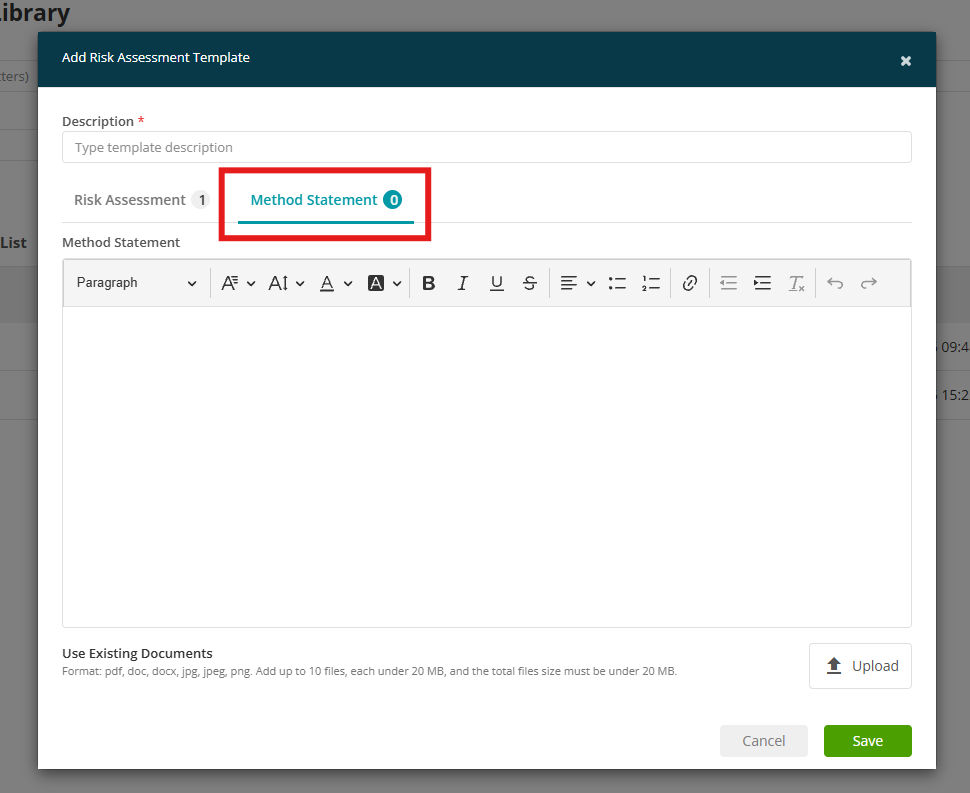
- You can now add a Method Statement to your RAMs templates, alongside the existing risk assessment.
- Enter your own method statement directly into the app or upload an existing document.
- Method Statements provide engineers with clear instructions on how work should be carried out safely, helping ensure safe working procedures are included within your RAMs documentation.
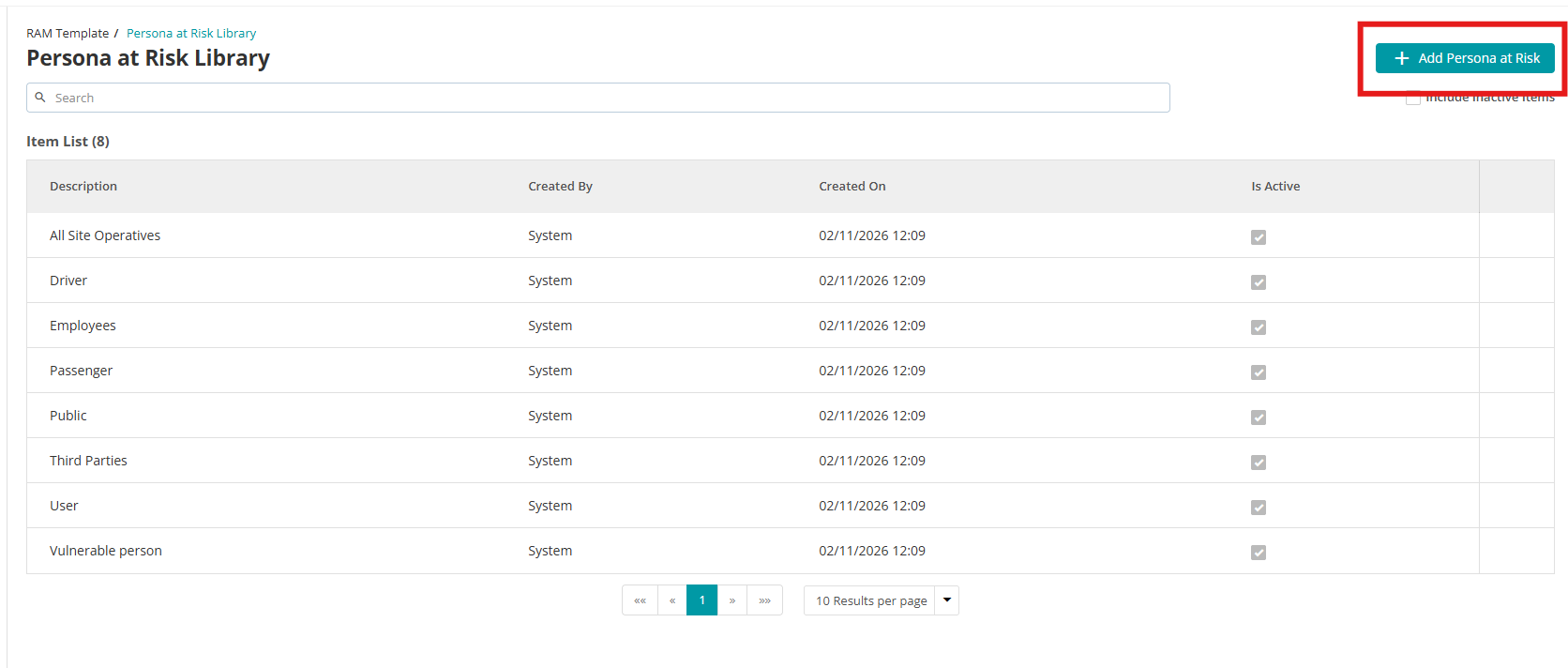
Custom Personas at Risk
- You can now create your own Personas at Risk within the RAMs app, alongside the existing system defaults.
- Custom personas can be added with a description and selected when configuring hazards within RAMs templates, giving you greater flexibility when tailoring risk assessments to your workforce and working environments.
Click here to read the RAMS guide.
7. Xero Advance
Two-Way Payments and Documents Raised in Xero
- Payments recorded in Xero against Joblogic invoices are now imported into Joblogic during the next sync, appearing as Other - Xero. Payments are only imported once, and deleting a payment in either system removes it from the other.
- Invoices and credit notes raised directly in Xero are imported against the matching Job, PPM Contract or Project. Unmatched documents are not imported, with the reason shown in Sync History.
- Deleting a synced invoice or credit note in Joblogic now voids it in Xero. Changes made to documents after syncing are also sent back to Xero.
- Supports Standard, Customer Grouped, PPM, Hire and Project invoices. Only activity from the go-live date onwards is synchronised.
Clearer References and Pre-Sync Code Validation
- Xero invoice references now identify the corresponding Joblogic record, for example, Job Number - Order Number. Payments also carry the same reference as their invoice.
- Changes to Payment Due and Customer Order Number made in Xero can now sync back to Joblogic, with each change recorded on the invoice Audit tab.
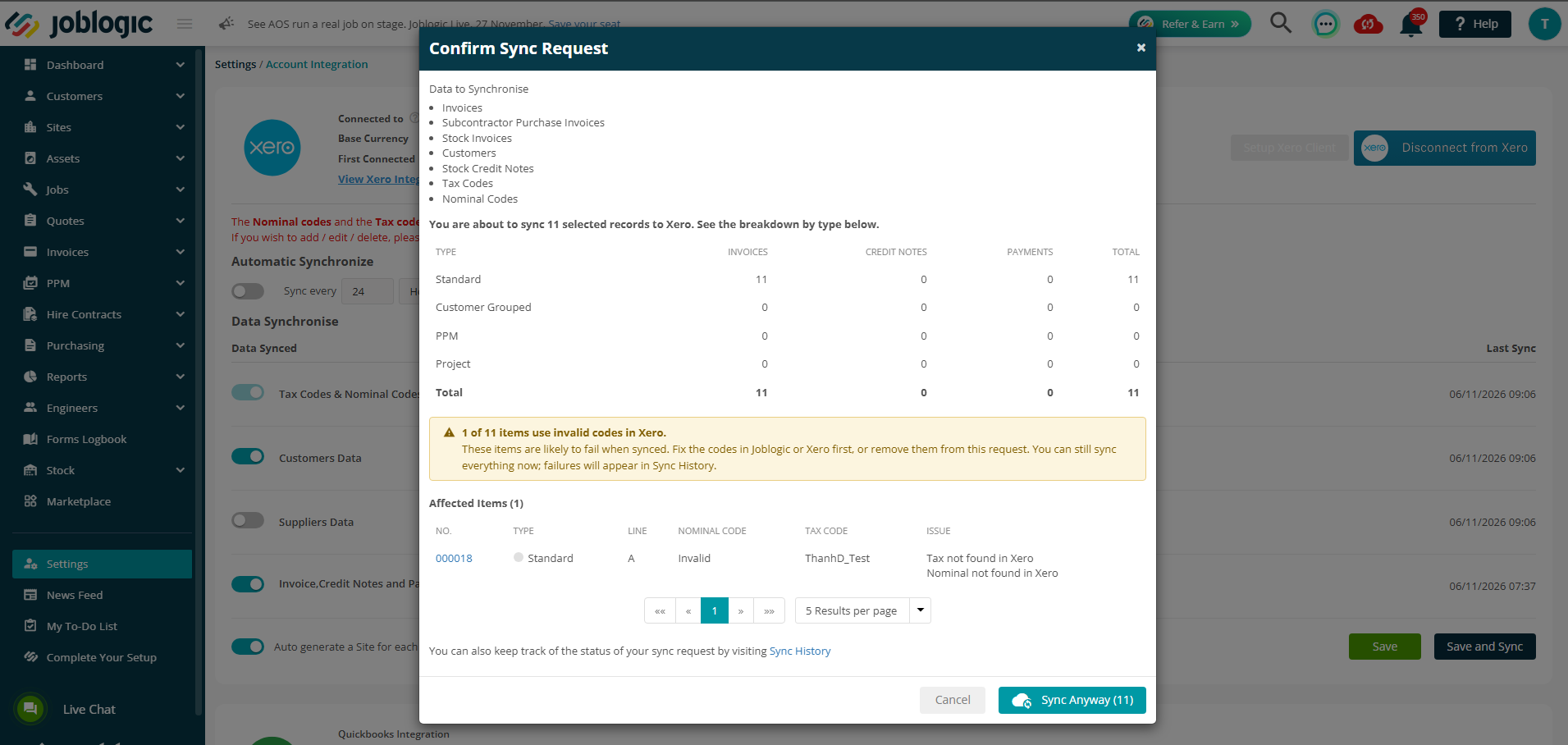
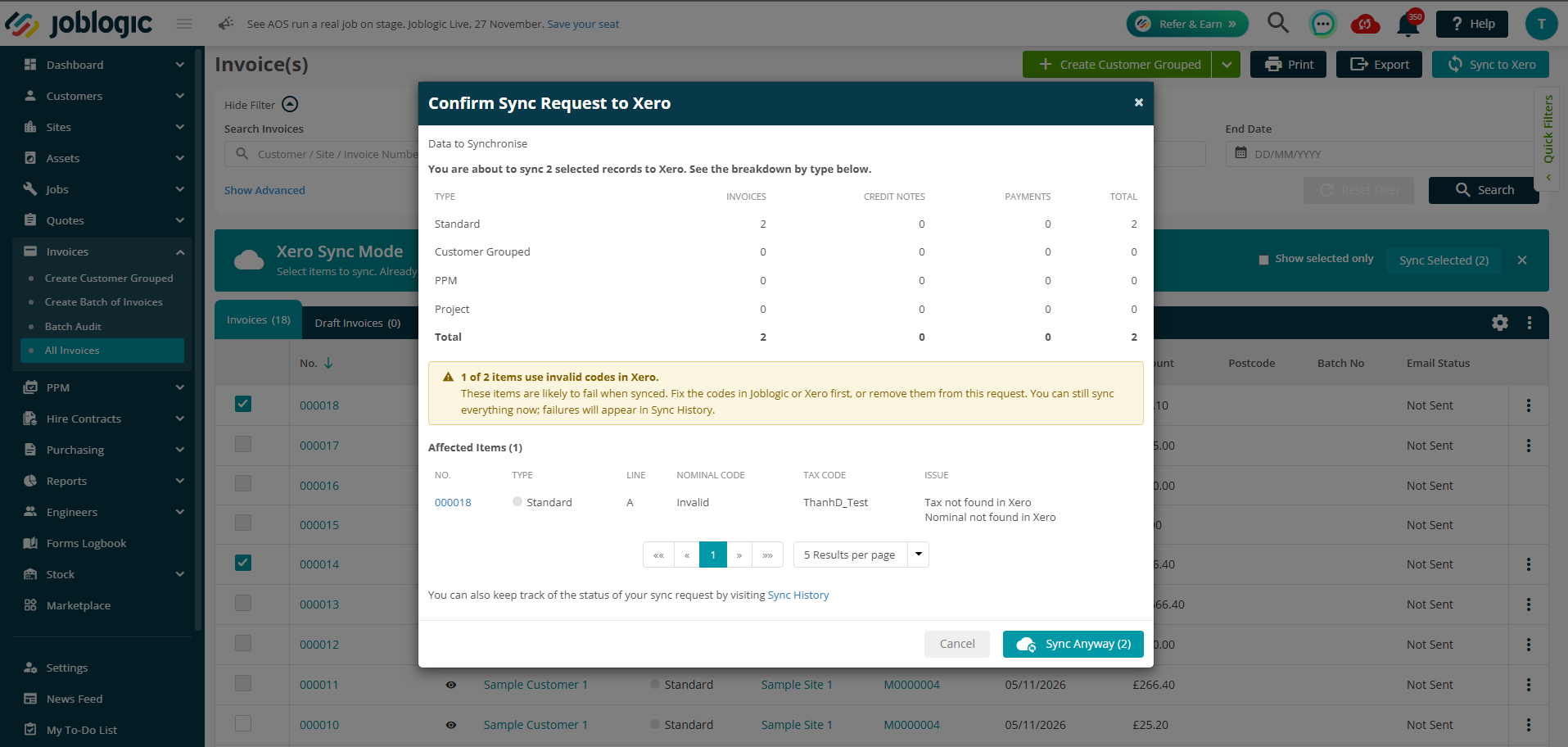
- A new Confirm Sync Request window appears before syncing, showing what will be sent and checking each line's tax and nominal code against your live Xero settings. Any codes that Xero would reject are highlighted.
- Sync History now records who requested each sync, flags any syncs sent despite warnings, and displays Xero's own error message when a document is rejected.
Sync from Invoice Lists, Auto Sync and Project Invoices
- New Sync to Xero buttons are available on the All Sales Invoices and All Purchase Invoices screens, allowing you to sync selected documents. Access is controlled by the new Xero – Sync from Invoice Lists permission, assigned to Administrators by default.
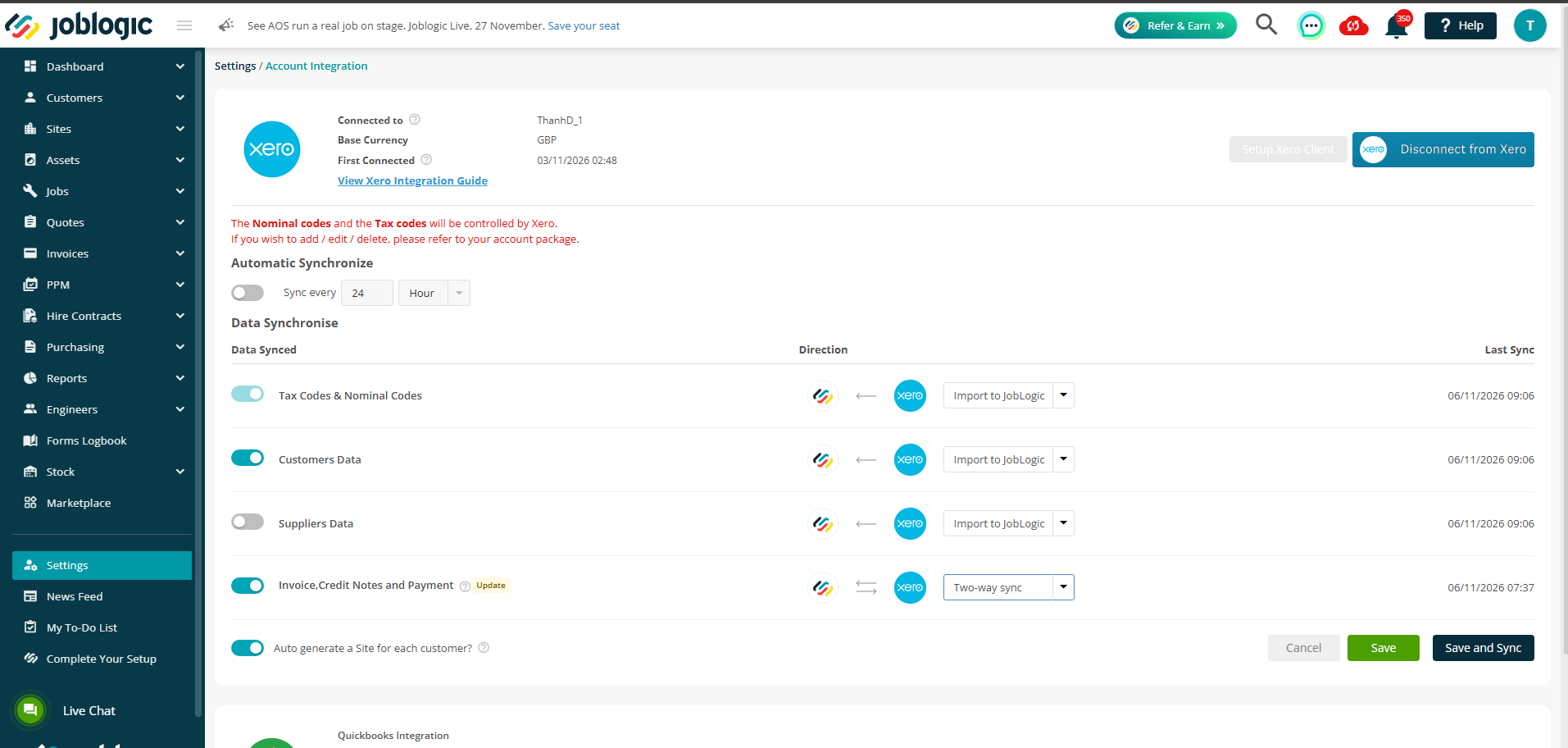
- A new Auto Sync setting is available under Settings > Account Integration, allowing you to schedule syncing every set number of hours, days, weeks or months. The default is every 24 hours.
- You can also configure the sync direction for each data type, with Export to Xero selected by default.
- Project invoices, credit notes and payments can now sync to Xero alongside other invoice types, using their own reference format.
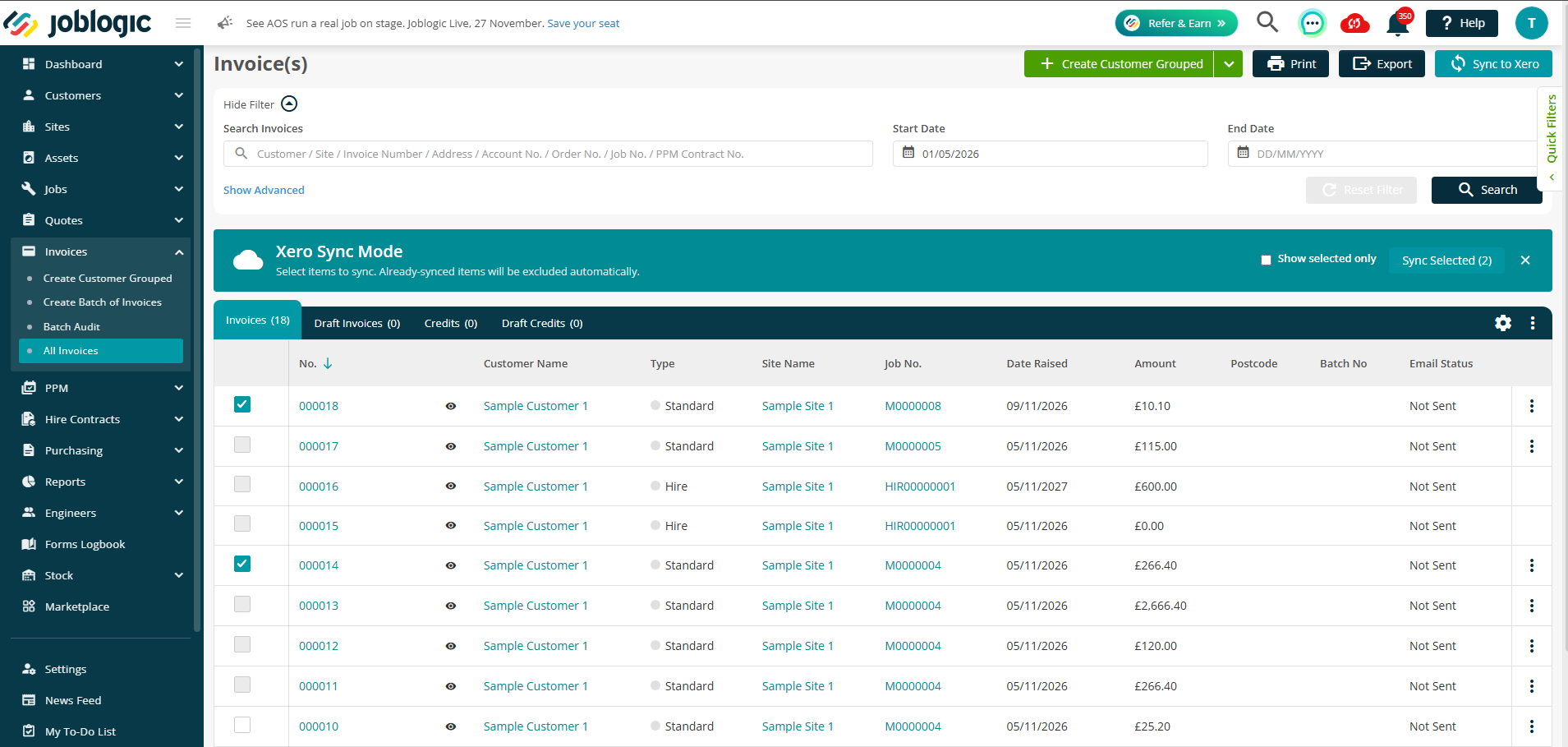
Note: These enhancements are available to tenants subscribed to the Xero Advance Marketplace app with a connected Xero account.
8. Equipment Hire Advanced - Transport
Plan and Track Transport from the Hire Contract
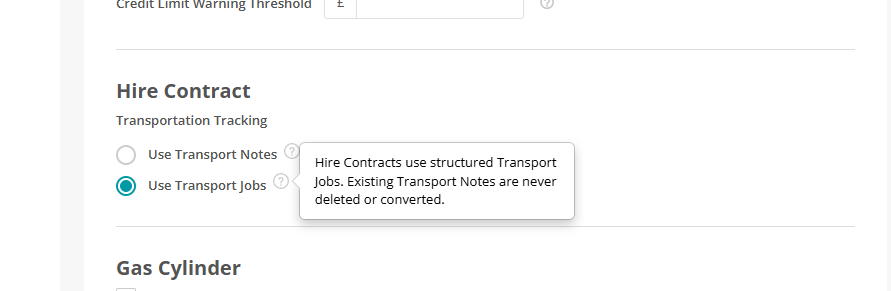
- A new Enable Transport Jobs setting is available under Hire Configuration. This is off by default and available to tenants subscribed to the Hire Marketplace app.
- A new Transport Status column is available on Hire Items, including a Ready for Transport status to identify assets available for transport planning.
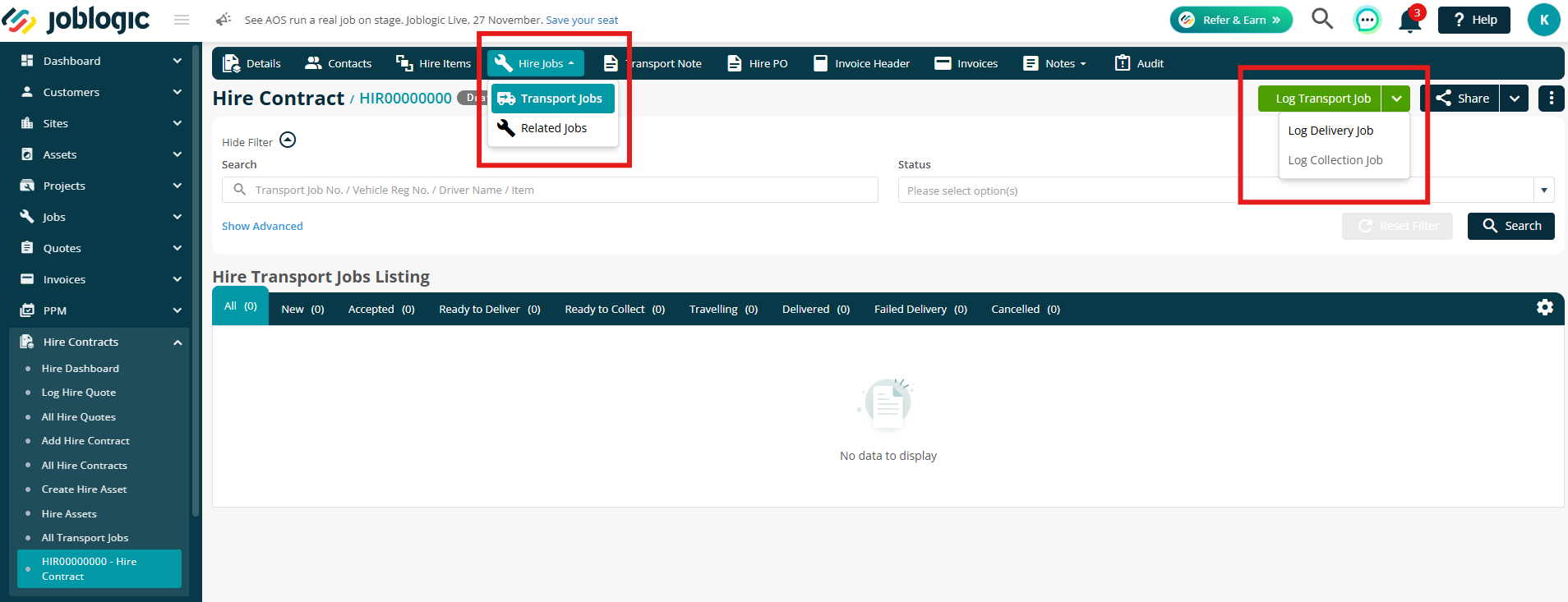
- You can now log Delivery and Collection Transport Jobs directly from a Hire Contract, with assets, origin and destination, dispatch dates, ETA and vehicle details pre-attached. You can also assign a driver or use supplier transport.
- Each Transport Job has a unique TRN reference, with a dedicated listing on the Hire Contract featuring status tabs, filters and a detail page.
- Supplier transport jobs are managed through the web back office only.
- Transport Jobs are standalone Hire work items. They do not create standard Jobs or Visits and are therefore excluded from Jobs listings, SLA reporting and customer portals.
Transport Charges, Notes, Attachments and Audit
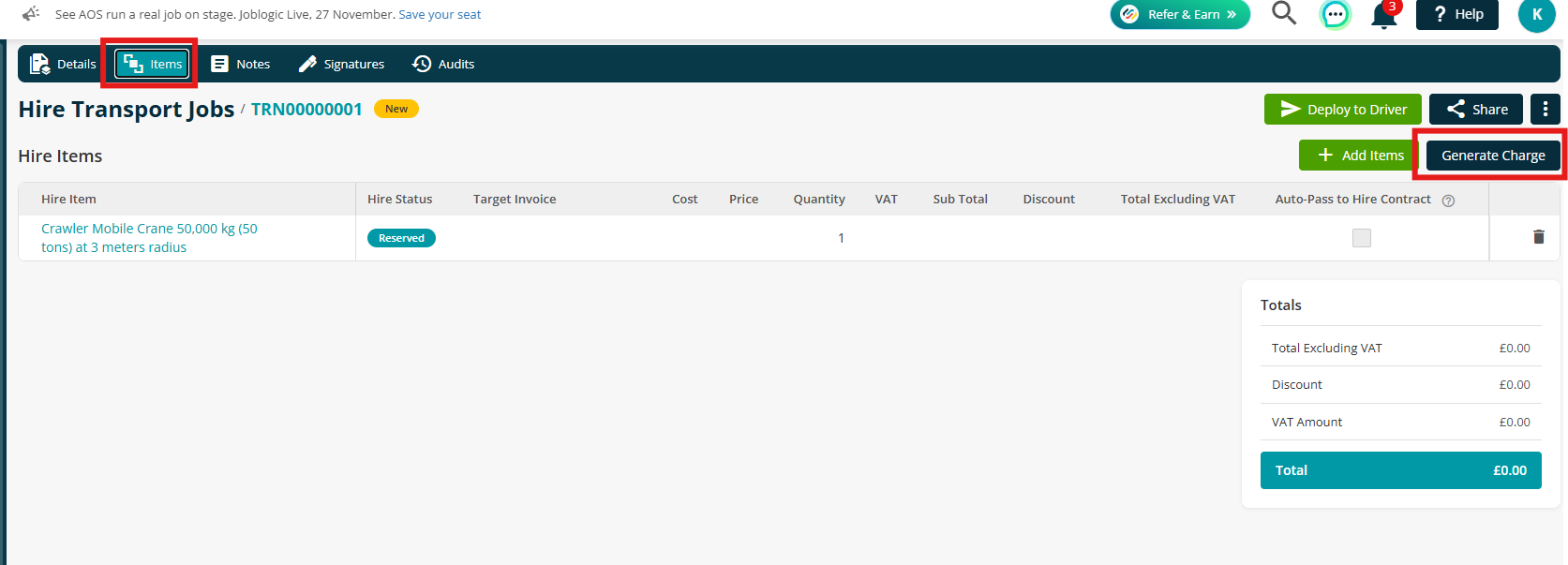
- A new Items tab on Transport Jobs allows you to manage transport costs, prices, VAT, discounts and totals, with the option to automatically add each charge to the Hire Contract.
- Add Lump Sum Transport Charge distributes a single charge across attached items based on their weighted share of the hire value.
- Transport charges are added to the Hire Contract as Transport Charges lines and follow the normal Hire invoicing process. Once invoiced, these lines cannot be amended.
- A new Hire Transport note type is available. Status changes, driver reassignments, charge changes, notes and cancellations are recorded in the audit history.
Controls, Permissions and Existing Data
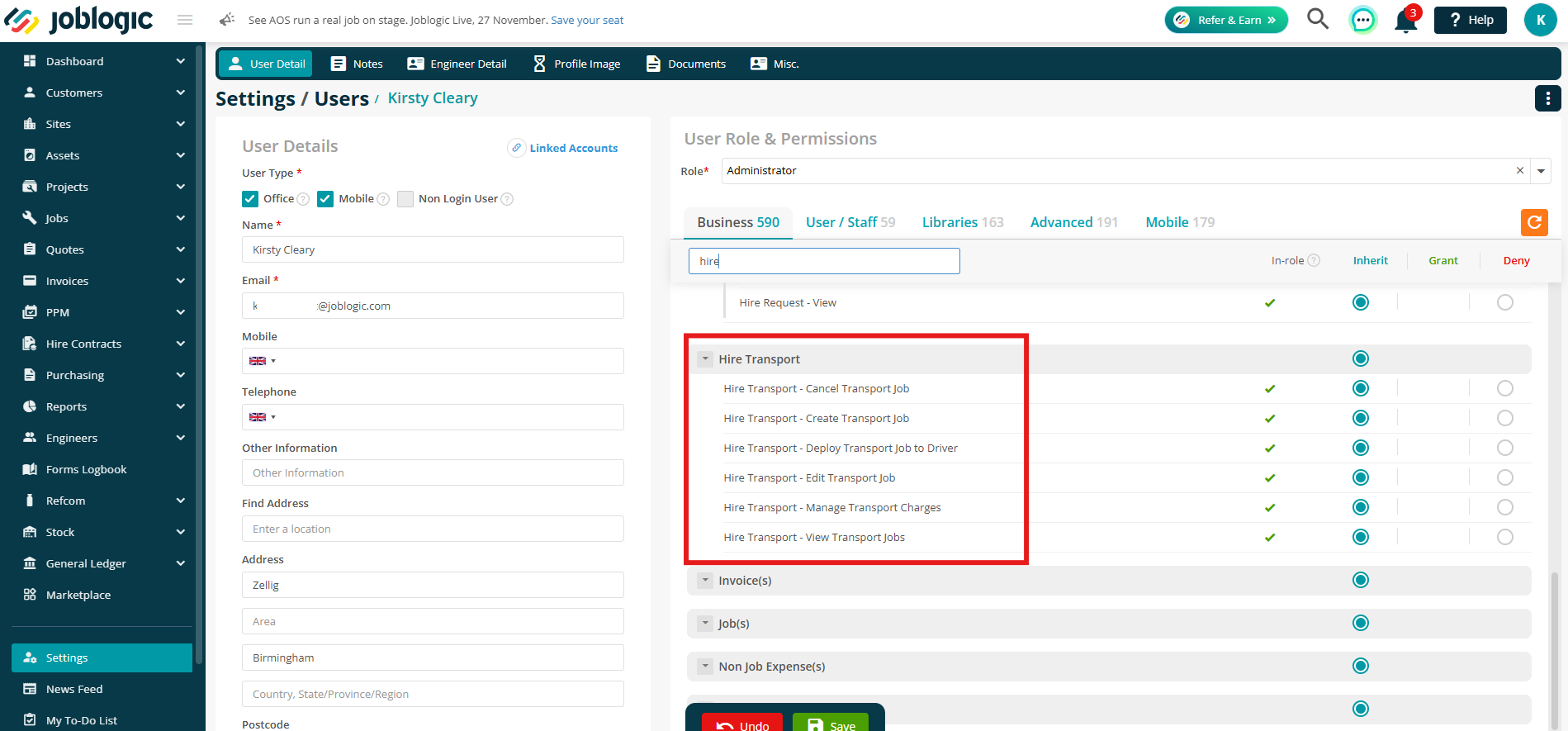
- A new Driver role and Hire Transport permission group are available, covering viewing, creating, editing and cancelling Transport Jobs, managing charges and mobile access. These permissions are assigned to Administrators by default.
- An asset cannot be assigned to more than one active Transport Job. The Enable Transport Jobs setting also cannot be switched off while active Transport Jobs exist.
- Existing Transport Notes are retained for reference and are not converted into Transport Jobs.
Click here to read the full update in our handy guide.
9. Clik Compliance
Clik Compliance Licence for Individual Users
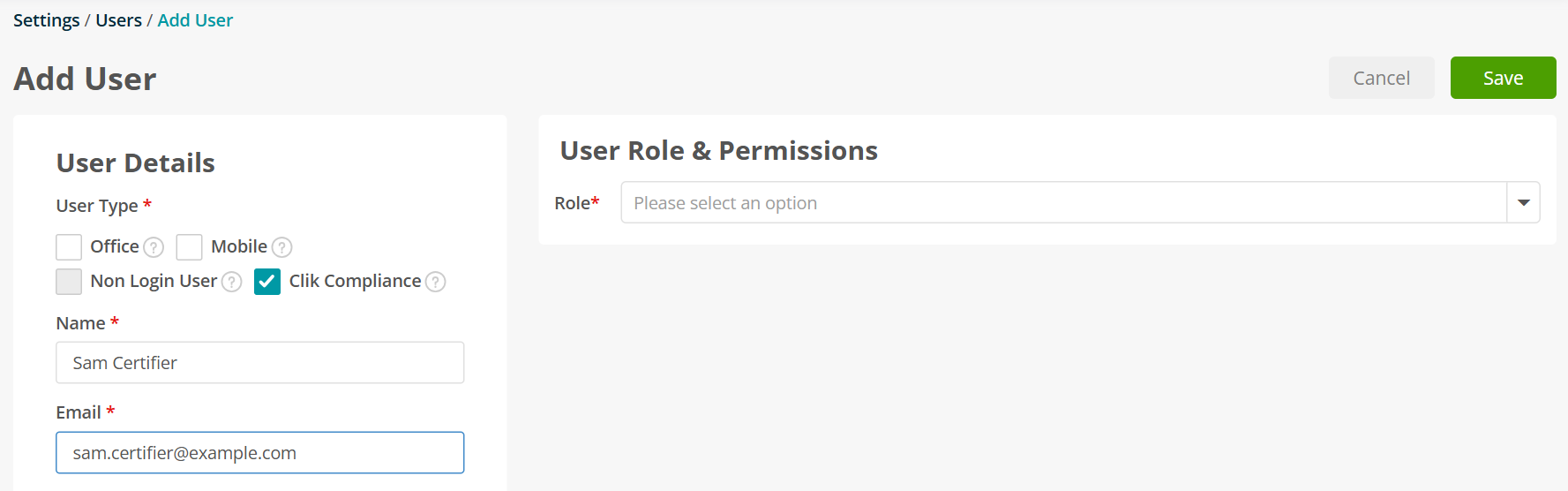
- Users can now be given Clik Compliance access without requiring a Joblogic Office licence. This can be enabled under Settings > Staff, alongside or independently of Office and Mobile access.
- Clik Compliance users have access to Customers, Sites, Assets and Certificates only. Other modules are not available.
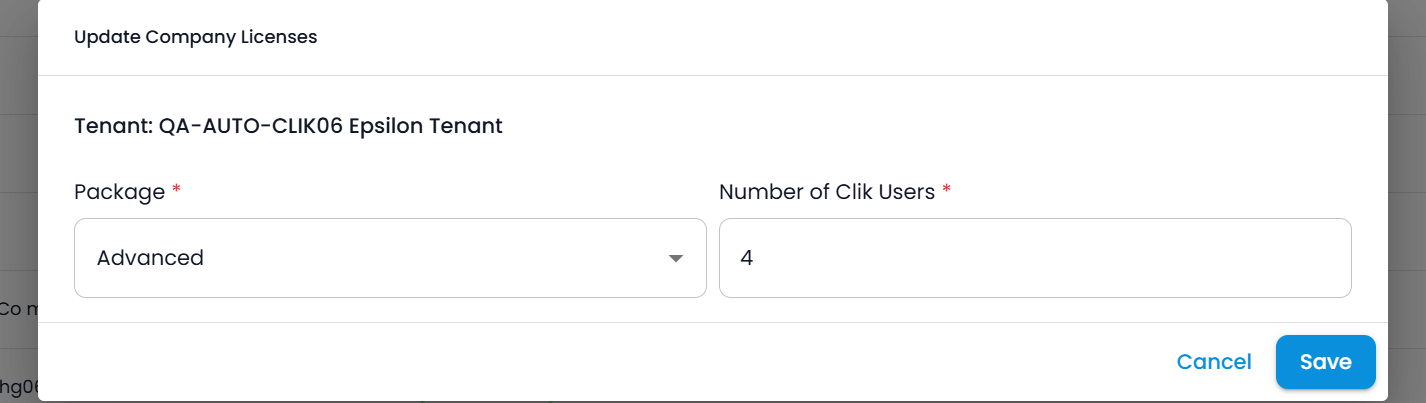
- Clik Compliance licences use a separate seat allowance. A seat is used when the user activates their account and released as soon as access is removed. Pending invitations do not use a seat.
- If the seat limit is reached, further access grants and activations are refused, with a message advising users to contact their account manager.
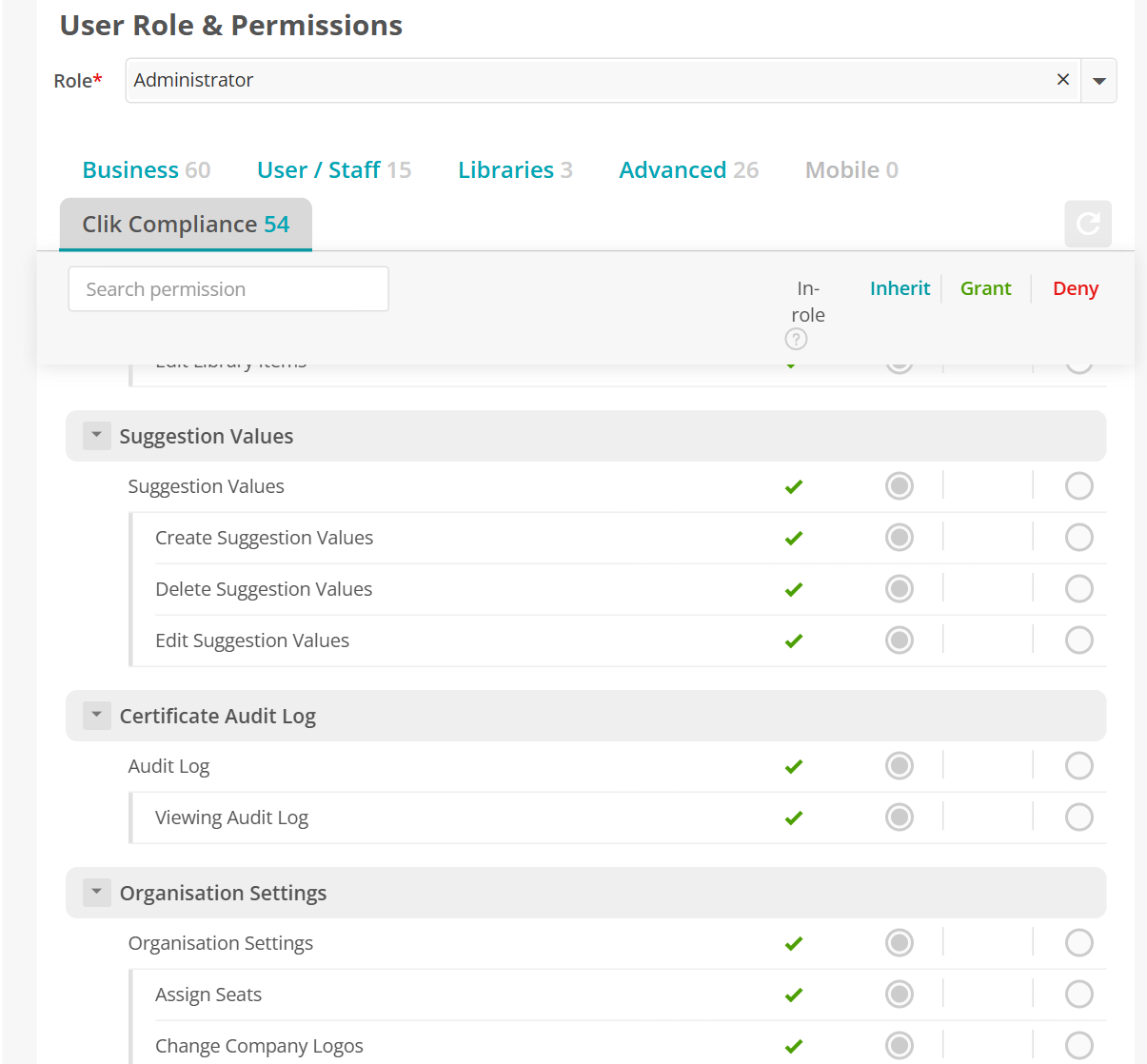
- Only the Primary User or users with the Assign Seats permission can grant or remove access. Certificates are also now displayed per user on subscribed tenants.
Clik Billing and Subscription Management
- Where Clik bills the customer directly, Clik licences remain visible on the Joblogic contract but are excluded from Joblogic invoices, collections and the contract total.
- Customers with contracts containing only Clik licences will no longer receive a Joblogic invoice. Renewal estimate emails will also show only the charges billed by Joblogic.
- Clik licences are now managed by the Clik team, who are notified by email whenever an entitlement changes.
Clik Private API Updates
- Clik Compliance can now generate, replace, set and read asset QR codes in Joblogic, allowing engineers to tag physical assets directly from Clik.
- Clik users can read their own profile and registration numbers without the Staff.View permission. The API also returns each user's pending activation status.
- These API changes affect the Clik integration only, so no action is required from other customers.
Note: These changes apply to tenants subscribed to Clik Compliance. Existing Clik Compliance mobile users who were invited before this release should be re-invited to receive web access.
Click here to read the full guide on Clik Compliance.
10. Invida Integration
Setup and Job Sync
- Reactive and Planned (PPM) jobs raised in Invida are now sent to Joblogic, where an administrator accepts or rejects each one under Jobs > Invida Job Request.
- Once accepted, job progress, assets, notes and attachments sync both ways, and the job outcome is reported back to Invida. Rejected jobs are not progressed, and the reason is sent back to Invida.
- Planned jobs can create their own PPM contract or be grouped under a single contract, depending on your settings.
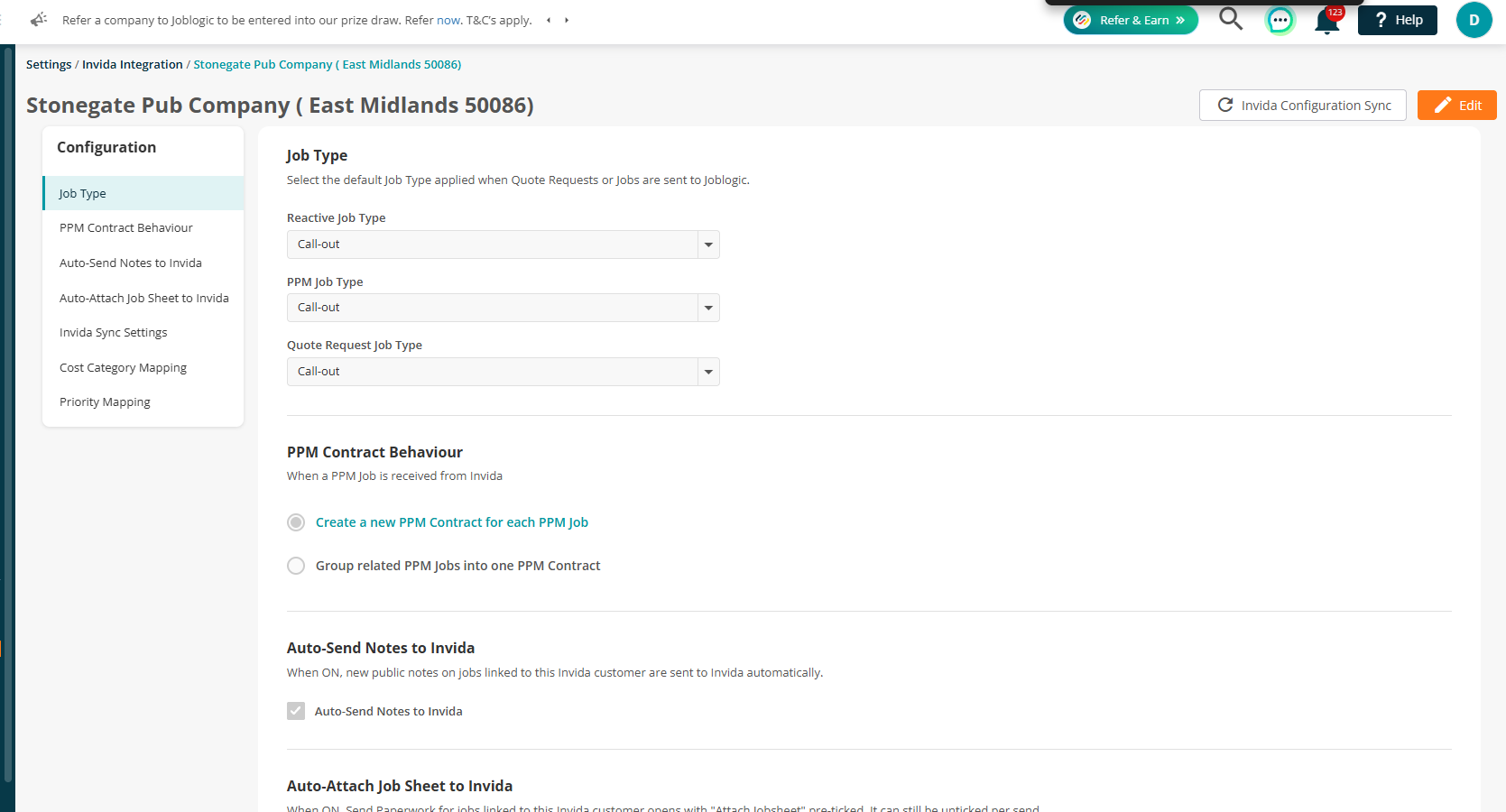
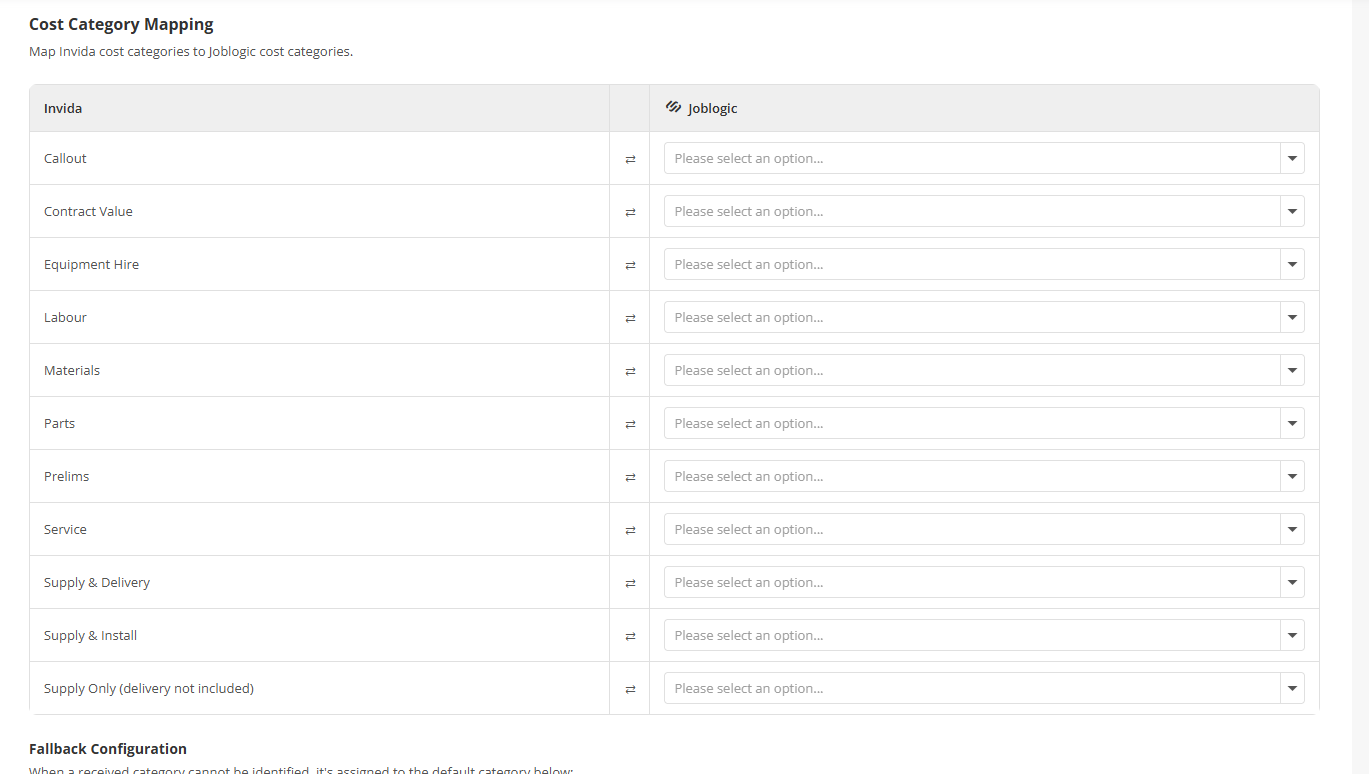
- Everything is configured per Invida customer under Settings > Invida Integration, including job types, priority mapping and cost category mapping.
Cost Category Mapping and Invoicing
- The generic Material category is replaced with Material - Equipment and Material - Part.
- Multiple Invida cost categories can now be mapped to one Joblogic category, and the other way round, with a fallback for unmatched values.
- NTE limits received from Invida are now shown on job requests, job details and the Cost screen, with a warning when spend exceeds the limit.
- You can request an NTE uplift from Invida directly in Joblogic and track its approval status and history.
- Invida invoices can be submitted for approval as Final Cost or Partial Cost, with the approval status displayed on the invoice. Partial Cost must be enabled by Invida.
JL Attributes sync from Invida Meta Fields
- Meta fields from Invida jobs now sync into Joblogic as read-only Job Attributes when a job is accepted. This is controlled by a new Sync Job Attributes setting, which is off by default.
- Invida attributes can be filtered by Source, shown in the Job List, and made visible on mobile using new View and Edit Job Attributes permissions.
Auto Send Notes to Invida
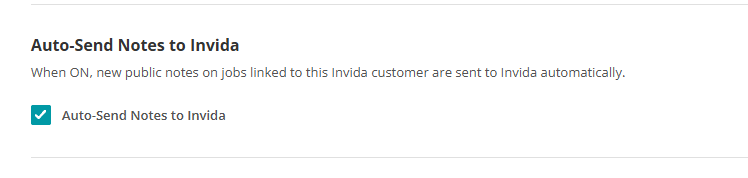
- Public notes and attachments on Invida jobs can now be sent to Invida automatically using the new Auto-Send Notes to Invida setting. If it is off, you can send them manually using Send Paperwork.
Attendance and SLA Mapping
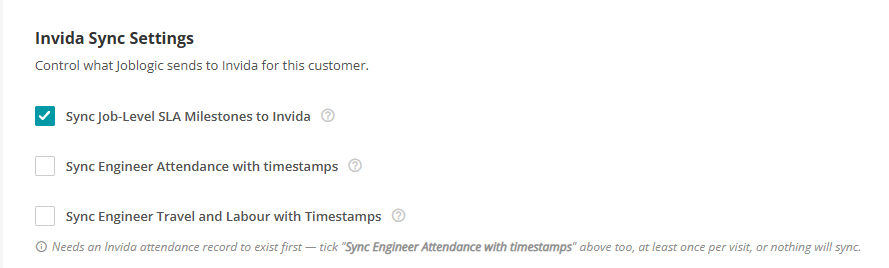
- Job SLA milestones, engineer travel and labour, and visit attendance can be synced to Invida with timestamps.
- You can choose which visit and subcontractor status changes are sent to Invida as notes.
- The Contain Before deadline from Invida is now shown on the job request and as a new Target Contain Before field on jobs.
Note: Only Reactive and Planned (PPM) jobs are supported in this release, and every Invida job must be accepted or rejected manually. Changes made to meta fields in Invida after a job is accepted are not yet synced to Joblogic.
Bug Fixes
- Xero Invoice Error Messages: When Xero rejects an invoice, Joblogic now displays Xero's error message instead of a generic error. Invoices containing an invalid code on a zero-value line are also prevented from syncing, with an explanation provided.
- Xero Project Invoice and Credit Note Sync: Deleting a synced Project invoice or credit note in Joblogic now causes it to be voided in Xero during the next sync. Project invoices are also linked back to Joblogic to ensure subsequent changes are matched correctly.